Module 4: Creating your first Project
A guide to importing your first Ansible Playbooks into the automation controller using Projects.
Lab Briefing
A Project is a logical collection of Ansible Playbooks. You can manage playbooks by placing them into a source code management (SCM) system supported by the automation controller, such as Git, Subversion, or even Red Hat Insights.
Lab Guide
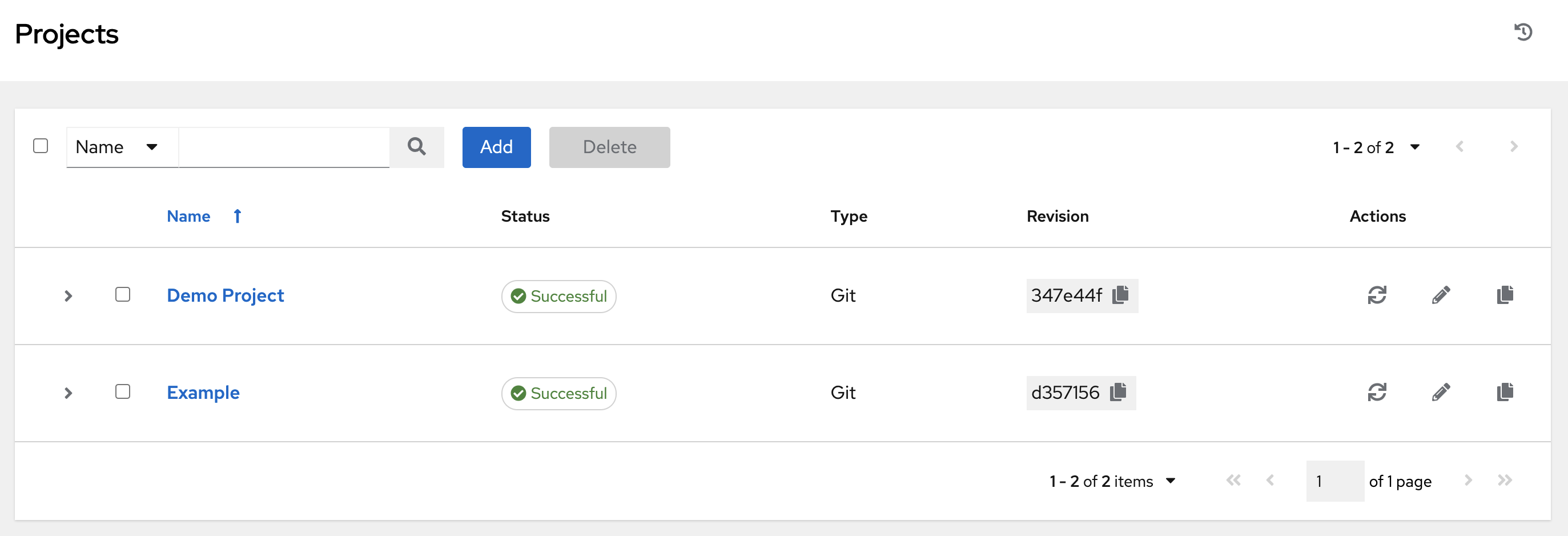
A Project in the automation controller is a way to import one or more Ansible Playbooks (and their related roles and content) from a directory. While the automation controller doesn’t allow you to create or edit playbooks through the web UI, it uses Projects to import them from a source like a Git repository.
In this challenge, you will create your first Project, which will import a GitHub repository containing a few simple Apache playbooks.
|
The credentials for the automation controller are:
|
Task 1: Create the Project
First, you will create a new project that points to a public Git repository.
-
Navigate to the Projects page.
In the left navigation menu, go to Automation Execution → Projects.
-
Create a new project.
Click the blue Create project button.
-
Enter the project details.
Fill out the form with the following information:
-
Name:
Apache playbooks -
Organization:
Default -
Source Control Type:
Git -
Source Control URL:
https://github.com/ansible-tmm/instruqt-wyfp.git
-
-
Save the project.
Leave all other fields as they are and click the blue Create project button.
Task 2: Verify the Project Sync
After creating the project, the automation controller automatically initiates a sync process to download the playbooks from the Git repository.
-
Check the project status.
After saving, you will be taken to the Details tab for the new project. Verify that the Status for your
Apache playbooksproject is green and reads Successful. -
Review the sync output.
Click on the Successful status text to review the output of the sync job. This will show you the details of the Git clone process.
Controller as Code Alternative
The project you created through the UI can be defined in a single YAML entry.
YAML Definition
From controller-as-code/configs/module-04/controller_objects.yml:
---
controller_projects:
  - name: Apache playbooks
    organization: Default
    state: present
    scm_type: git
    scm_url: https://github.com/ansible-tmm/instruqt-wyfp.git
    wait: true
The wait: true parameter ensures the project sync completes before moving on — equivalent to watching the status turn green in the UI.
Troubleshooting
If you have encountered an issue or have noticed something not quite right, please open an issue on GitHub.