1-3: Ansible Facts
Ansible facts are information derived from speaking to the remote network elements. Ansible facts are returned in structured data (JSON) that makes it easy to manipulate or modify. For example a network engineer could create an audit report very quickly using Ansible facts and templating them into a markdown or HTML file.
Learning objectives
By the end of this module, you will be able to:
-
Build an Ansible Playbook from scratch
-
Use
ansible-navigator :docfor inline documentation -
Use the
cisco.ios.ios_factsmodule to gather device facts -
Use the
ansible.builtin.debugmodule to display specific facts
Step 1: Using documentation
Enter the ansible-navigator interactive mode on the terminal:
ansible-navigatorScreenshot of ansible-navigator:
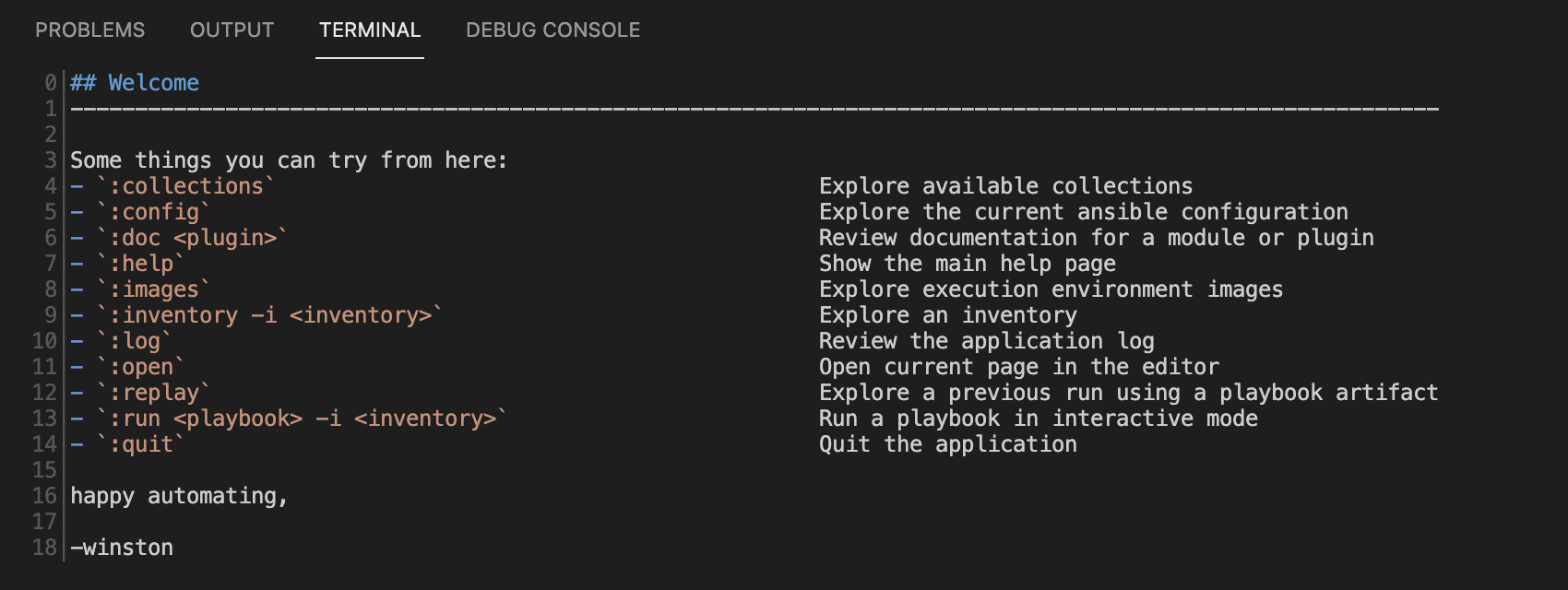
In the above screenshot we can see a line for module or plugin documentation:
`:doc <plugin>` Review documentation for a module or pluginLet’s examine the debug module by typing :doc debug:
:doc debugScreenshot of ansible-navigator :doc debug:
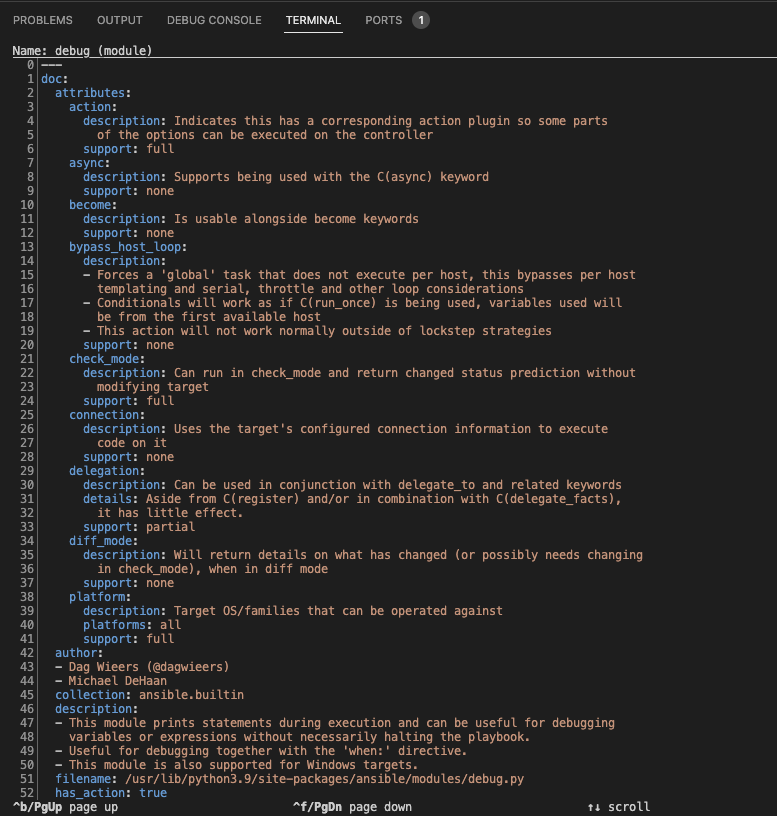
The documentation for the debug module is now displayed in your interactive terminal session. This is a YAML representation of the same exact documentation you would see on docs.ansible.com. Examples can be cut and paste directly from the module documentation into your Ansible Playbook.
When referring to a non-built in module, there are three important fields:
namespace.collection.moduleFor example:
cisco.ios.factsExplanation of terms:
-
namespace — example cisco — A namespace is grouping of multiple collections. The cisco namespace contains multiple collections including ios, nxos, and iosxr.
-
collection — example ios — A collection is a distribution format for Ansible content that can include playbooks, roles, modules, and plugins. The ios collection contains all the modules for Cisco IOS/IOS-XE.
-
module — example facts — Modules are discrete units of code that can be used in a playbook task. For example the facts modules will return structured data about that specified system.
Press the Esc key to return to the main menu. Try repeating the :doc command with the cisco.ios.facts module.
:doc cisco.ios.factsWe will be using the facts module in our playbook.
Step 2: Creating the play
Ansible Playbooks are YAML files. YAML is a structured encoding format that is also extremely human readable (unlike its subset — the JSON format).
Create a new file in Visual Studio Code:
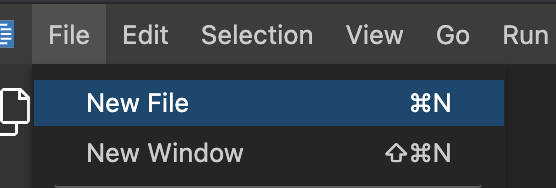
For simplicity please name the playbook facts.yml:

Enter the following play definition into facts.yml:
---
- name: Gather information from routers
  hosts: cisco
  gather_facts: false
Here is an explanation of each line:
-
The first line,
---indicates that this is a YAML file. -
The
- name:keyword is an optional description for this particular Ansible Playbook. -
The
hosts:keyword means this playbook runs against the groupciscodefined in the inventory file. -
The
gather_facts: falseis required since as of Ansible 2.8 and earlier, this only works on Linux hosts, and not network infrastructure. We will use a specific module to gather facts for network equipment.
Step 3: Create the facts task
Next, add the first task. This task will use the cisco.ios.ios_facts module to gather facts about each device in the group cisco.
---
- name: Gather information from routers
  hosts: cisco
  gather_facts: false

  tasks:
    - name: Gather router facts
cisco.ios.ios_facts:| A play is a list of tasks. Modules are pre-written code that perform the task. |
Save the playbook.
Step 4: Executing the playbook
Execute the Ansible Playbook by running ansible-navigator:
ansible-navigator run facts.ymlThis will open an interactive session while the playbook runs:

To zoom into the playbook output we can press 0 which will show us a host-centric view. Since there is only one host, there is just one option.

To see the verbose output of rtr1 press 0 one more time to zoom into the module return values.
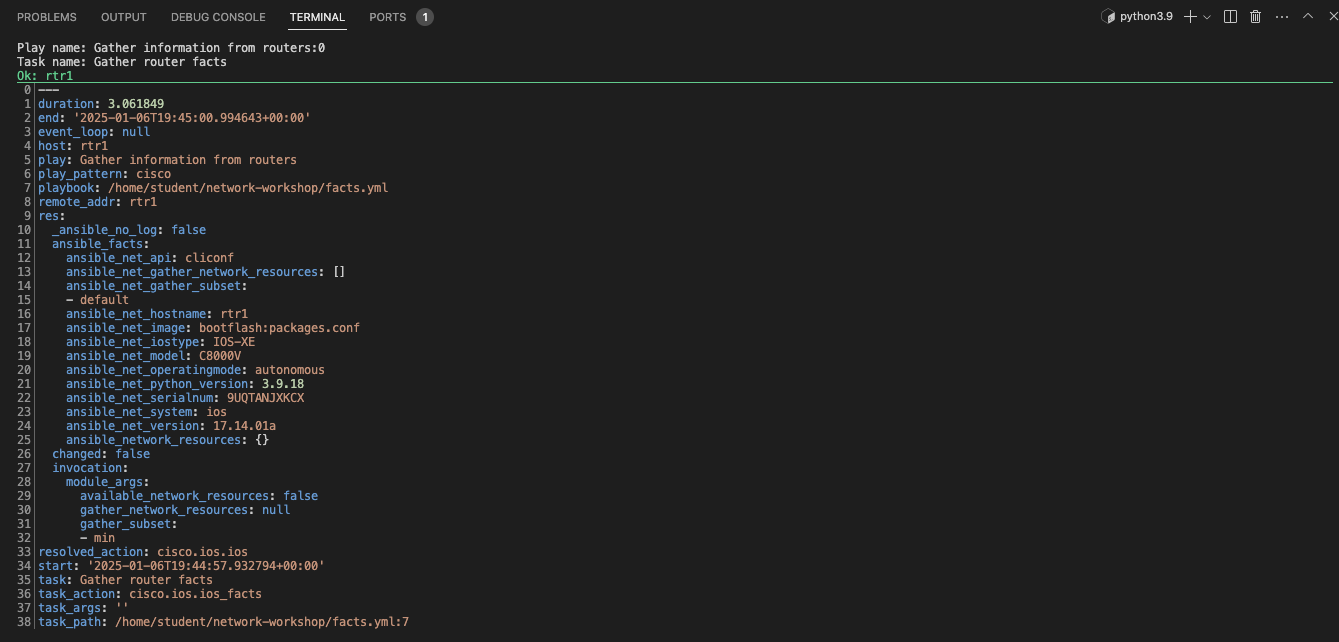
You can scroll down to view any facts that were collected from the Cisco network device.
Step 5: Using debug module
Write two additional tasks that display the routers' OS version and serial number.
---
- name: Gather information from routers
  hosts: cisco
  gather_facts: false

  tasks:
    - name: Gather router facts
      cisco.ios.ios_facts:

    - name: Display version
      ansible.builtin.debug:
        msg: "The IOS version is: {{ ansible_net_version }}"

    - name: Display serial number
      ansible.builtin.debug:
        msg: "The serial number is: {{ ansible_net_serialnum }}"
Step 6: Using stdout
Now re-run the playbook using ansible-navigator with --mode stdout.
The full command is:
ansible-navigator run facts.yml --mode stdout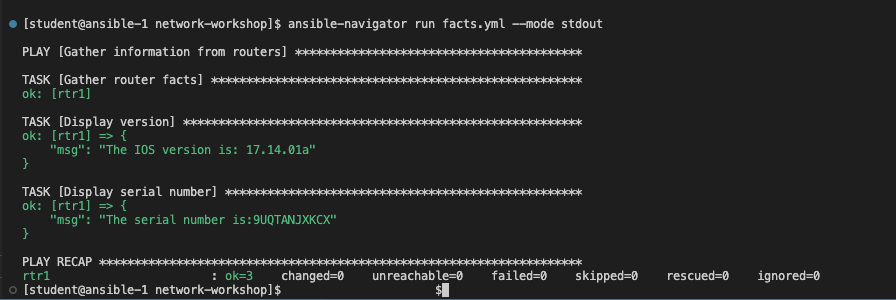
Using less than 20 lines of "code" you have just automated version and serial number collection. Imagine if you were running this against your production network! You have actionable data in hand that does not go out of date.
Module summary
In this module, you learned how to:
-
Use
ansible-navigator :docto access module documentation directly from the terminal without an internet connection -
Build an Ansible Playbook from scratch to gather network device facts
-
Use the cisco.ios.ios_facts module to gather structured data specific to Cisco IOS — with relevant modules available for each network platform (e.g.
junos_factsfor Juniper Junos,eos_factsfor Arista EOS) -
Use the debug module to display specific fact values such as OS version and serial number in the terminal output