2-4: Understanding RBAC in Ansible Automation Platform
One of the key benefits of using Ansible Automation Platform is the control of users that use the system. The objective of this module is to understand Role Based Access Controls (RBACs) with which Ansible Automation Platform admins can define tenancies, teams, roles and associate users to those roles. This gives organizations the ability to secure the automation system and satisfy compliance goals and requirements.
Learning objectives
By the end of this module, you will be able to:
-
Understand the key RBAC concepts in Ansible Automation Platform: Organizations, Teams, Users, and Roles
-
Configure organization-level administrators
-
Grant granular job template access to specific users
-
Verify that RBAC restrictions are properly enforced
Key terminology
Before we begin, let us review some Ansible Automation Platform terminology:
-
Organizations: Defines a tenancy for example Network-org, Compute-org. This might be reflective of internal organizational structure of the customer’s organization.
-
Teams: Within each organization, there may be more than one team. For instance tier1-helpdesk, tier2-support, tier3-support, build-team etc.
-
Users: Users typically belong to teams. What the user can do within Ansible Automation Platform is controlled/defined using roles.
-
Roles: Roles define what actions a user may perform. This can map very nicely to typical network organizations that have restricted access based on whether the user is a Level-1 helpdesk person, Level-2 or senior admin. Ansible Automation Platform documentation defines a set of built-in roles.
Step 1: Opening up Organizations
-
Login to Ansible Automation Platform with the admin user.
Parameter Value username
adminpassword
ansible123! -
Confirm that you are logged in as the admin user.
-
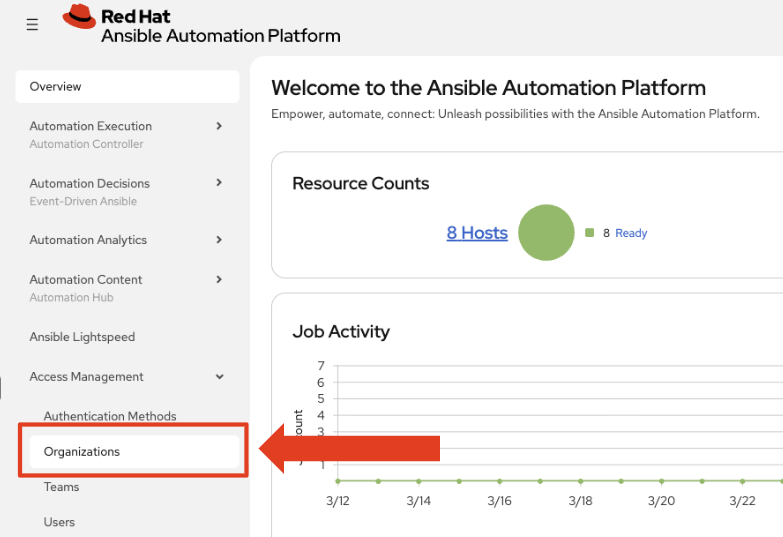
Under the Access Management section, click on Organizations
As the
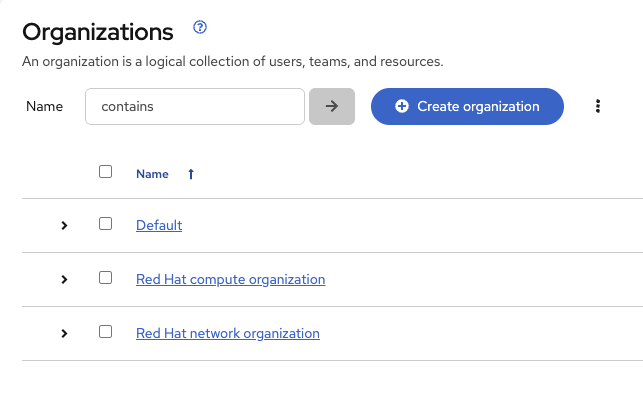
adminuser, you will be able to view all organizations configured for Ansible Automation Platform.The orgs, teams and users were auto-populated for this workshop. -
Examine the organizations
There are 2 organizations (other than Default):
-
Red Hat compute organization
-
Red Hat network organization
-
| This page gives you a summary of all the teams, users, inventories, projects and job templates associated with it. If an Organization level admin is configured you will see that as well. |
Step 2: Open the network organization
-
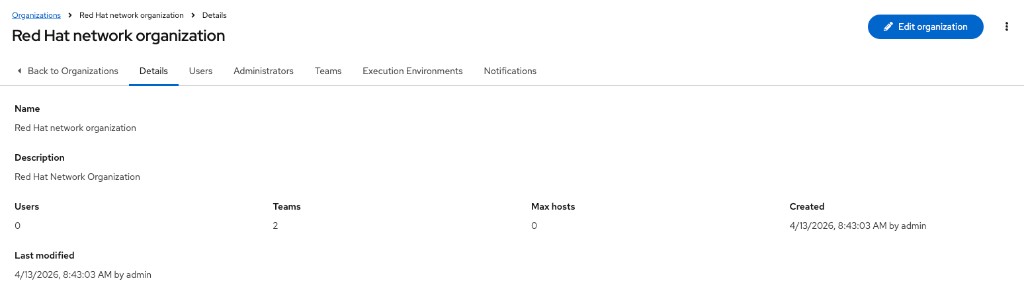
Click on the Red Hat network organization.
This brings up a section that displays the details of the organization.
Step 3: Add network-admin as an administrator
-
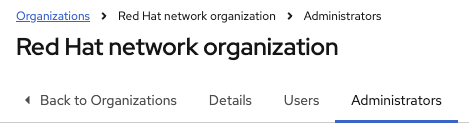
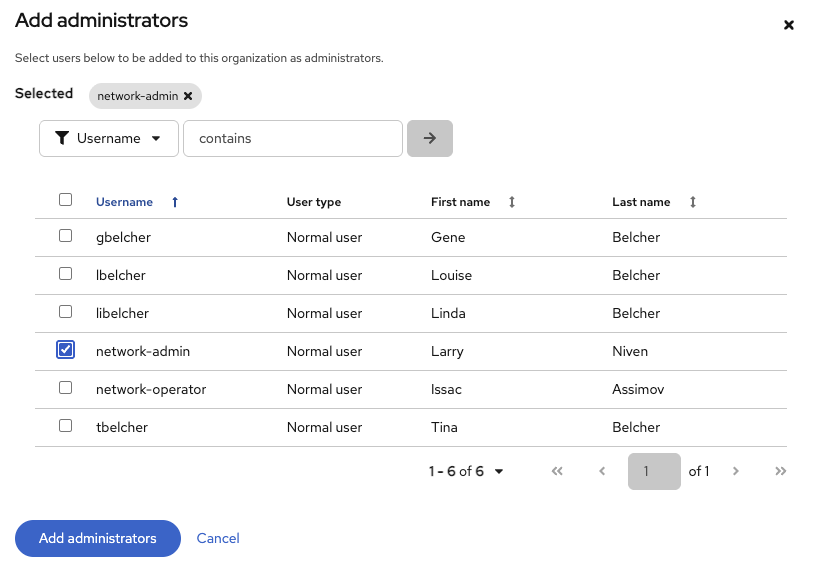
Click on the Administrators tab
-
Click on the blue Add administrators button

-
Select the network-admin user and then click the blue Add administrators button
Step 4: Login as network-admin
-
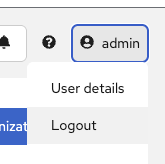
Log out from the admin user by clicking the admin button in the top right corner of the Ansible Automation Platform UI.
-
Login to the system with the network-admin user.
Parameter Value username
network-admin
password
ansible123! -
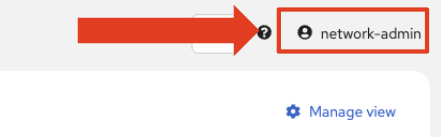
Confirm that you are logged in as the network-admin user.
-
Click on the Organizations link on the sidebar under the Access Management section.
You will notice that you only have visibility to the organization you are an admin of, the Red Hat network organization.
The following two Organizations are not seen anymore:
-
Red Hat compute organization -
Default
-
Try this as the network-operator user (same password as network-admin). What is the difference between network-operator and network-admin? As the network-operator are you able to view other users? Are you able to add a new user or edit user credentials?
|
Step 5: Give job template access to the network-operator user
As the network-admin we can now setup access for the network-operator user.
-
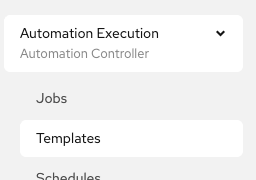
Click on Templates on the left menu
-
Click on the Network-Commands job template.
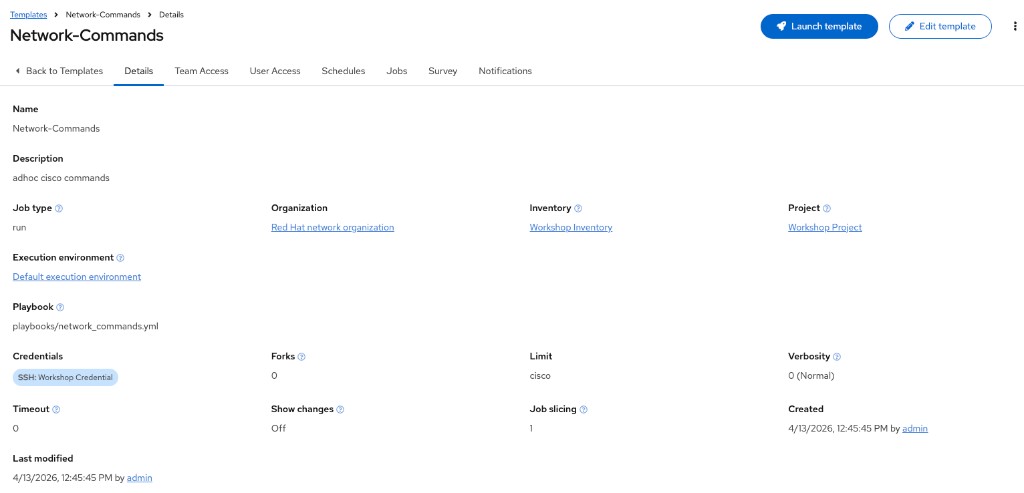
-
Click on the User Access tab

-
Click on the blue Assign users button

-
Click network-operator then click the blue Next button at the bottom
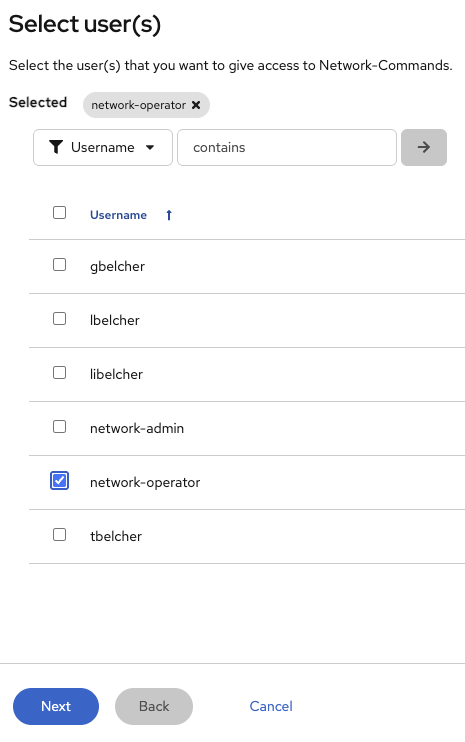
-
Click on JobTemplate Execute then click on the blue Next button at the bottom
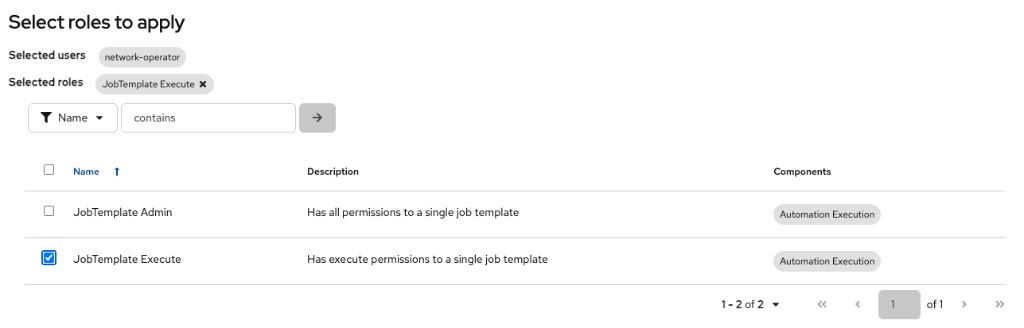
-
Review to make sure you set it up correctly, and click the blue Finish button at the bottom.
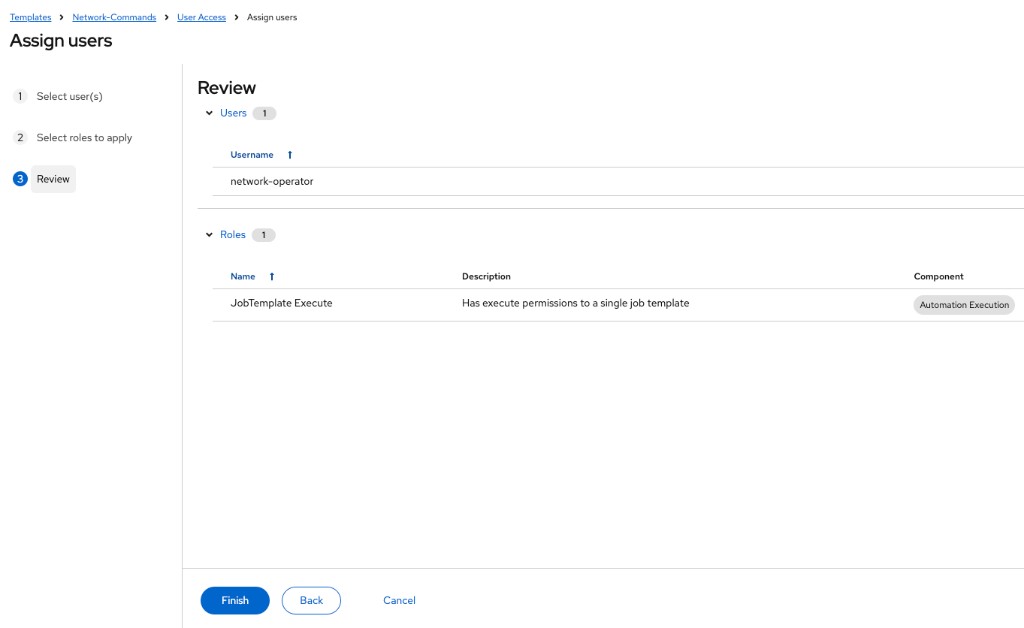
-
Click the Close button after the role is applied.
Step 6: Verify the Network-Commands job template
-
Navigate back to the Network-Commands Job Template
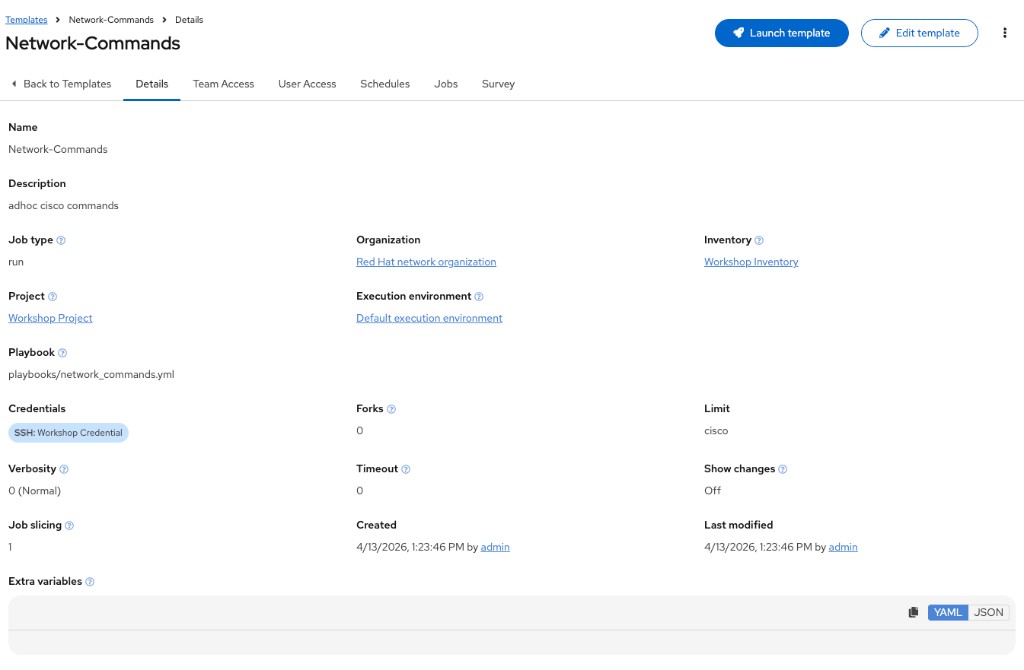
-
Verify the Survey is enabled
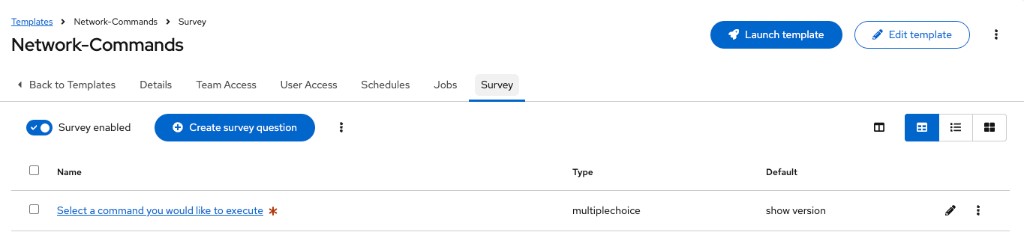
-
Verify the Survey questions
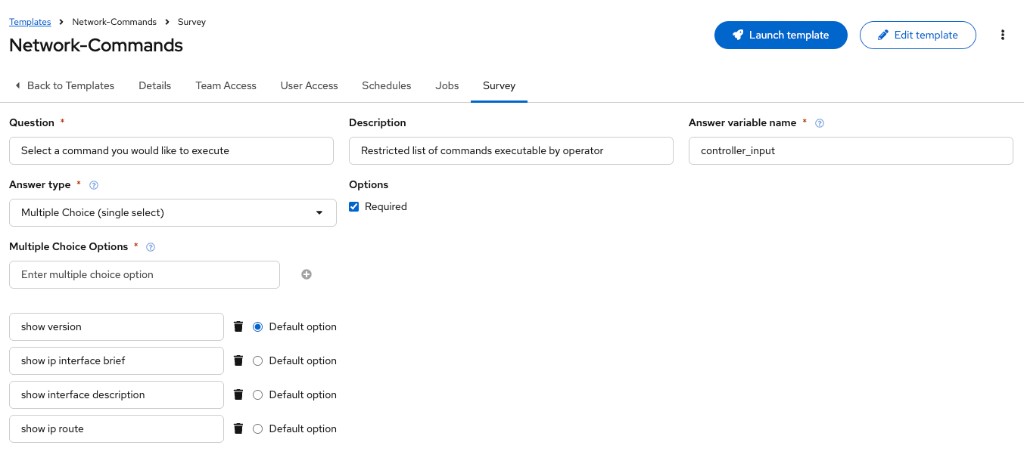
-
Click the blue Create survey question button
Step 7: Login as network-operator
Finally, to see the RBAC in action!
-
Log out and log back in as the network-operator user.
Parameter Value username
network-operatorpassword
ansible123! -
Navigate to Templates under the Automation Execution section, and click on the Network-Commands Job Template.
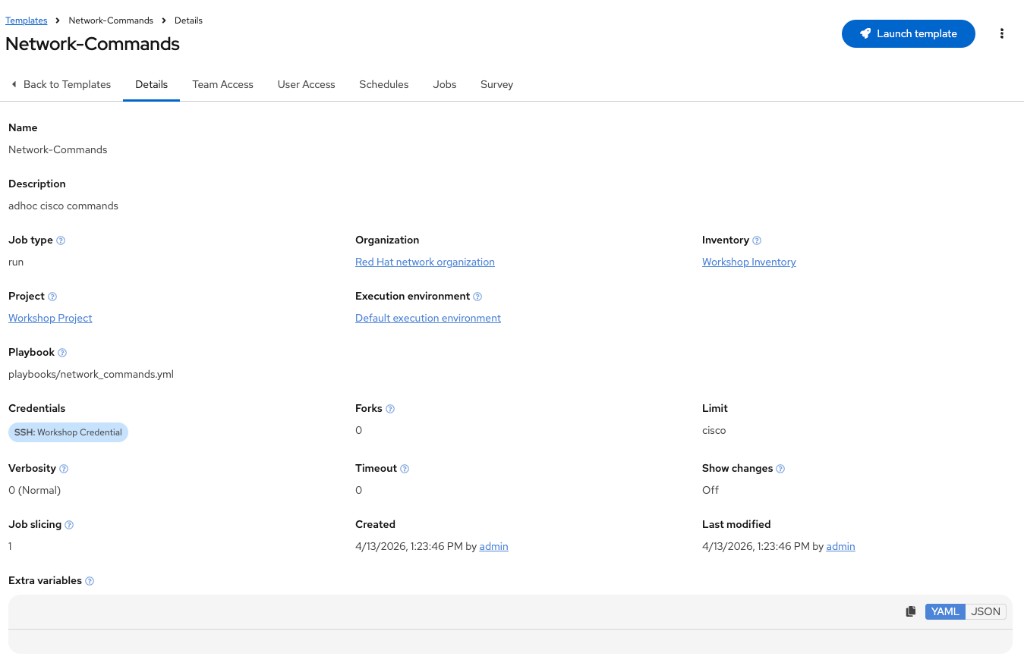
Notice that the Edit button is no longer available and none of the fields can be modified. This is RBAC in action — the network-operator can execute the job template but cannot alter its configuration. This is exactly the guardrail organizations need: operators can safely run pre-approved automation against production systems without the risk of accidentally (or intentionally) changing what that automation does.
|
Step 8: Launching a Job Template
-
Launch the Network-Commands template by clicking on the Launch button.
-
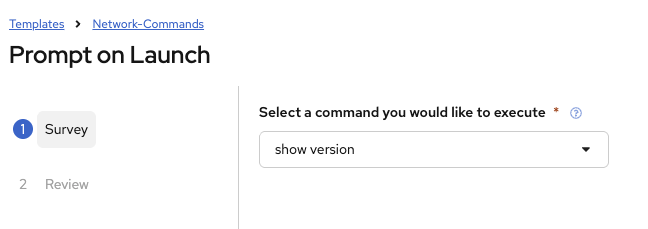
You will be prompted by a dialog-box that lets you choose one of the pre-configured show commands.
-
Go ahead and choose a command and click Next and then Launch to see the playbook being executed and the results being displayed.
Bonus step
If time permits, log back in as the network-admin and add another show command you would like the operator to run. This will also help you see how the Admin Role of the network-admin user allows you to edit/update the job template.
Module summary
In this module, you learned:
-
Using Ansible Automation Platform’s powerful RBAC feature, it is easy to restrict access to operators to run prescribed commands on production systems without requiring them to have access to the systems themselves.
-
Ansible Automation Platform can support multiple
Organizations, multipleTeams, andUsers. We do not need to manage users directly in the platform — we can use enterprise authentication including Active Directory, LDAP, RADIUS, SAML, and TACACS+. -
If there needs to be an exception (a user needs access but not their entire team), this is also possible. The granularity of RBAC can be down to the credential, inventory, or Job Template for an individual user.