2-2: Creating an Ansible Automation Platform Job Template
In this module you will create and launch a network backup configuration job template with Ansible Automation Platform. This job template will save the running configuration from all four routers and store them under /backup on the containerlab host (which acts as the backup server) with a timestamp.
To run an Ansible Playbook in Ansible Automation Platform we need to create a Job Template. A Job Template requires:
-
An Inventory to run the job against
-
A Credential to login to devices
-
A Project which contains Ansible Playbooks
Learning objectives
By the end of this module, you will be able to:
-
Create a Job Template in Ansible Automation Platform
-
Launch a Job Template and monitor its execution
-
Examine the job output and details pane
-
Verify that network configuration backups were created successfully
Step 1: Create a Job Template
-
Open the web UI at
{controller_url}and click on theTemplateslink on the left menu under the Automation Execution section.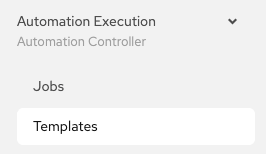
-
Click on the blue Add button to create a new job template
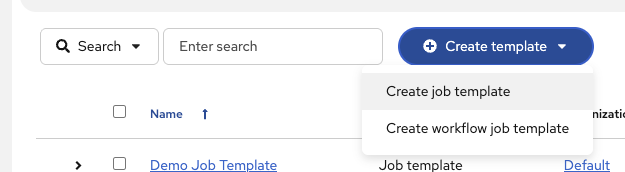
| Make sure to select Job Template and not Workflow Template |
-
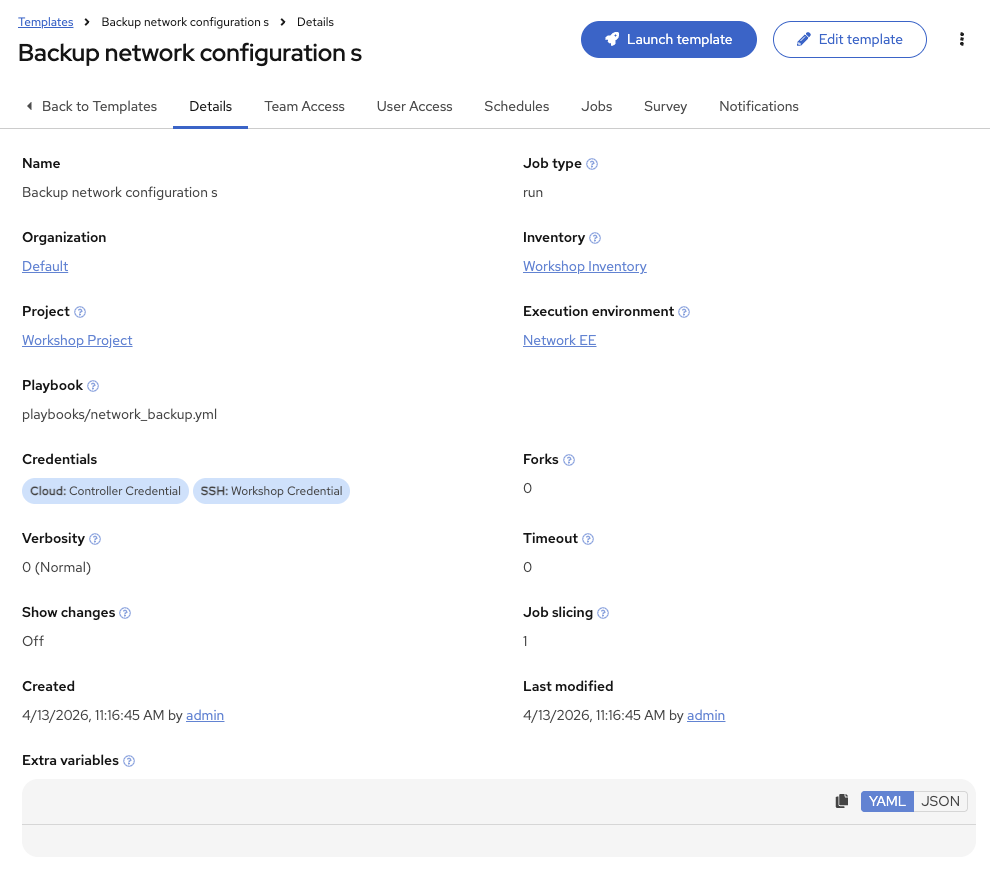
Fill out the job template parameters as follows:
Parameter Value Name
Backup network configurations
Job Type
Run
Inventory
Workshop Inventory
Project
Workshop Project
Execution Environment
Network EE
Playbook
playbooks/network_backup.yml
Credential
Workshop Credential
Screenshot of the job template parameters filled out:
-
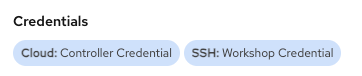
Add a second credential to the Job Template.
The Controller Credential also must be added to this particular Job Template. This is so Ansible Automation Platform can update the pool of backups the Network-Restore Job Template will use. Ansible Automation Platform can be programmatically updated with Job Templates to add or update configurations dynamically. Select the 2nd credential:
-
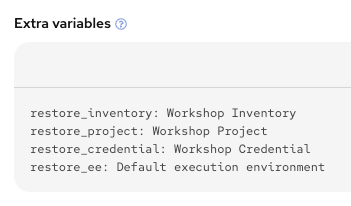
Scroll down to the Variables section and add the following extra variables (in YAML format):
restore_inventory: Workshop Inventory
restore_project: Workshop Project
restore_credential: Workshop Credential
restore_ee: Default execution environment
These variables tell the backup playbook how to configure the Network-Restore Job Template that it dynamically creates after each backup run.
-
Click the blue
Save job templatebutton.
Step 2: Launch the Job Template
-
Navigate back to the
Templateswindow under Automation Execution section, where all Job Templates are listed. -
Launch the
Backup network configurationsJob Template by clicking the Rocket button.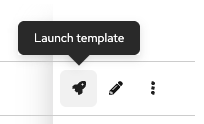
When the rocket button is clicked this will launch the job. The job will open in a new window called the Job Details View.
Step 3: Examine the Job
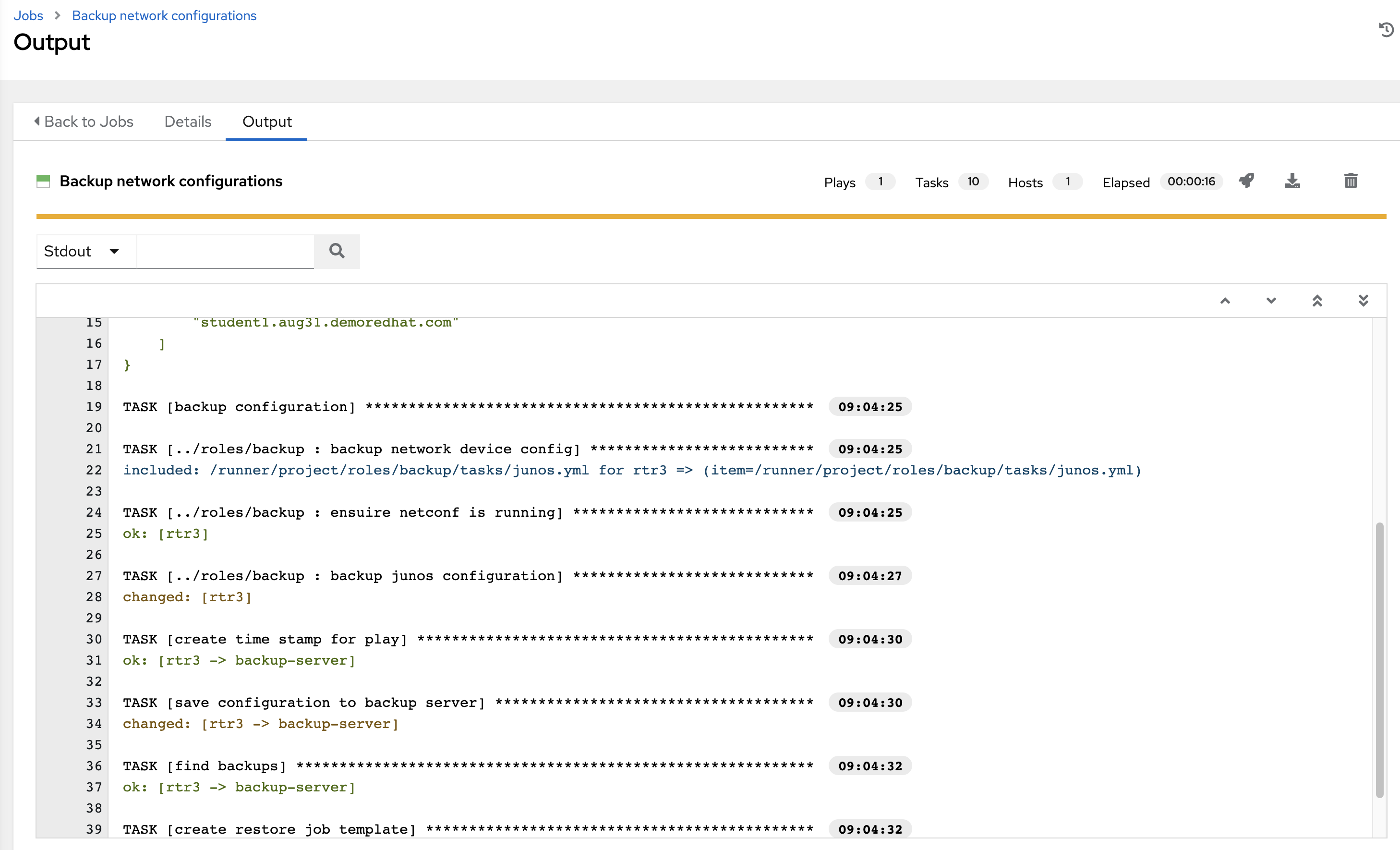
After executing the Job Template it will automatically open the Standard Out pane.
-
Examine the Standard Out pane
The Standard Out pane will display the output from the Ansible Playbook. Every task output will match exactly what would be seen on the command line.
-
Click on a task in the Standard Out pane to open up structured output from that particular task.
Click on any line where there is a changed or ok 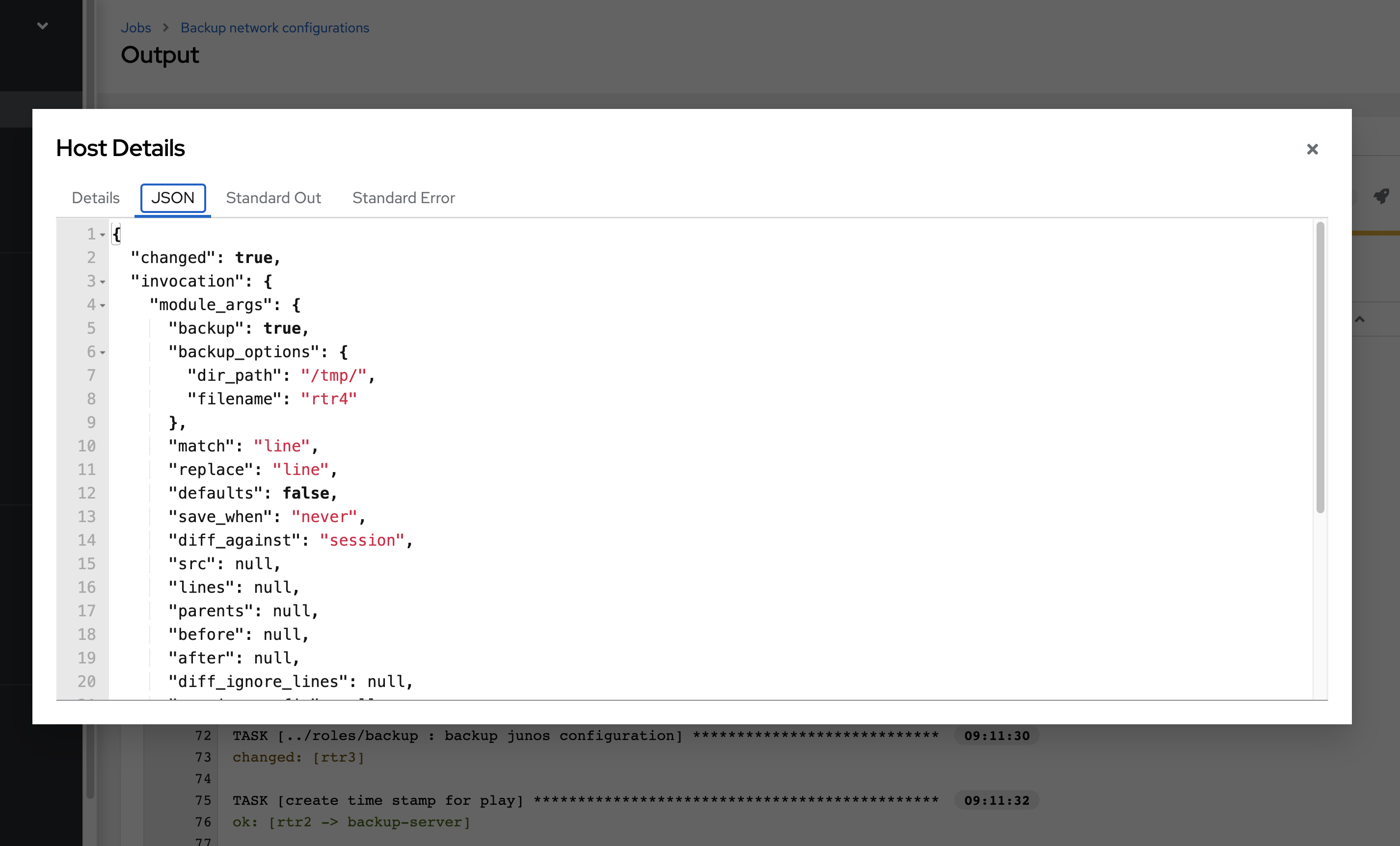
-
Click on the Details tab to open the Details pane
The Details pane will information such as the timestamp for when the job started and finished, the job type (Check or Run), the user that launched the job, which Project and Ansible Playbook were used and more.
If the Job has not finished yet, the Details Pane will have a Cancel Job button that can be used to stop the Job.
Step 4: Examine the Jobs window
Any Job Template that has been run or is currently running will show up under the Jobs window.
-
Click the Jobs button on the left menu.
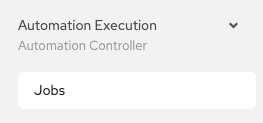
The Jobs link displays a list of jobs and their status — shown as completed successfully or failed, or as an active (running) job. Actions you can take from this screen include viewing the details and standard output of a particular job, relaunch jobs, or remove jobs.
-
Click on the Backup network configurations Job

The Backup network configurations job was the most recent (unless you have been launching more jobs). Click on this job to return to the Standard Out pane. Ansible Automation Platform will save the history of every job launched.
Step 5: Verify the backups were created
The backups are stored on the containerlab host, which acts as the backup server for this lab. From the VS Code terminal or Containerlab terminal, run ls /backup to view the time stamped folder (or folders if you created multiple backups):
[rhel@containerlab ~]$ ls /backup
2026-04-13-14-00-
Use the
catcommand to view the contents of one of the backed up network devices:
[rhel@containerlab ~]$ cat /backup/2026-04-13-14-00/rtr1.txt

Current configuration : 7099 bytes
!
! Last configuration change at 12:46:59 UTC Mon Apr 13 2026
!
version 17.13
service timestamps debug datetime msec
service timestamps log datetime msec
platform qfp utilization monitor load 80
platform punt-keepalive disable-kernel-core
platform sslvpn use-pd
platform console serial
!
hostname rtr1
!
boot-start-marker
boot-end-marker
!
!
vrf definition clab-mgmt
 description Containerlab management VRF (DO NOT DELETE)
 !
 address-family ipv4
 exit-address-family
!
no aaa new-model
... output truncated ...
+ NOTE: The output above is a snippet. The full running configuration is much longer and will include interfaces, routing protocols, access lists, and more.
-
Examine the remaining routers (
rtr2.txt,rtr3.txt,rtr4.txt). This lab includes multiple vendors (Cisco, Arista, and Juniper). Ansible Playbooks can be written to be vendor agnostic — in this case we provided the Ansible Playbook via the GitHub repo: https://github.com/network-automation/toolkit
Module summary
In this module, you learned how to:
-
Create a Job Template in Ansible Automation Platform for backing up network configurations
-
Launch a Job Template from the Ansible Automation Platform UI and monitor its execution
-
Examine the Standard Out pane and Details pane to review job output and metadata
-
Navigate the Jobs window to view job history and status
-
Verify that network configuration backups are correctly stored on the containerlab host with timestamps