2-1: Explore Ansible Automation Platform
In this module you will explore and understand the lab environment. You will log into Ansible Automation Platform and examine the key components that are pre-configured for this workshop: inventories, projects, and credentials.
Learning objectives
By the end of this module, you will be able to:
-
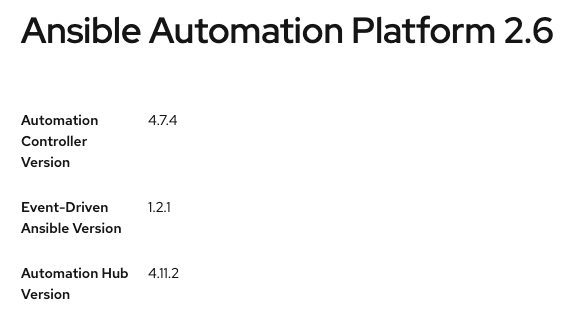
Log into Ansible Automation Platform and determine the version running
-
Navigate and understand the Inventory configuration
-
Locate and examine Projects and their source control integration
-
Understand how Credentials are stored and used
Step 1: Login to Ansible Automation Platform
-
Open your browser and navigate to the Ansible Automation Platform web UI at
{controller_url}. You should see a login screen similar to the following: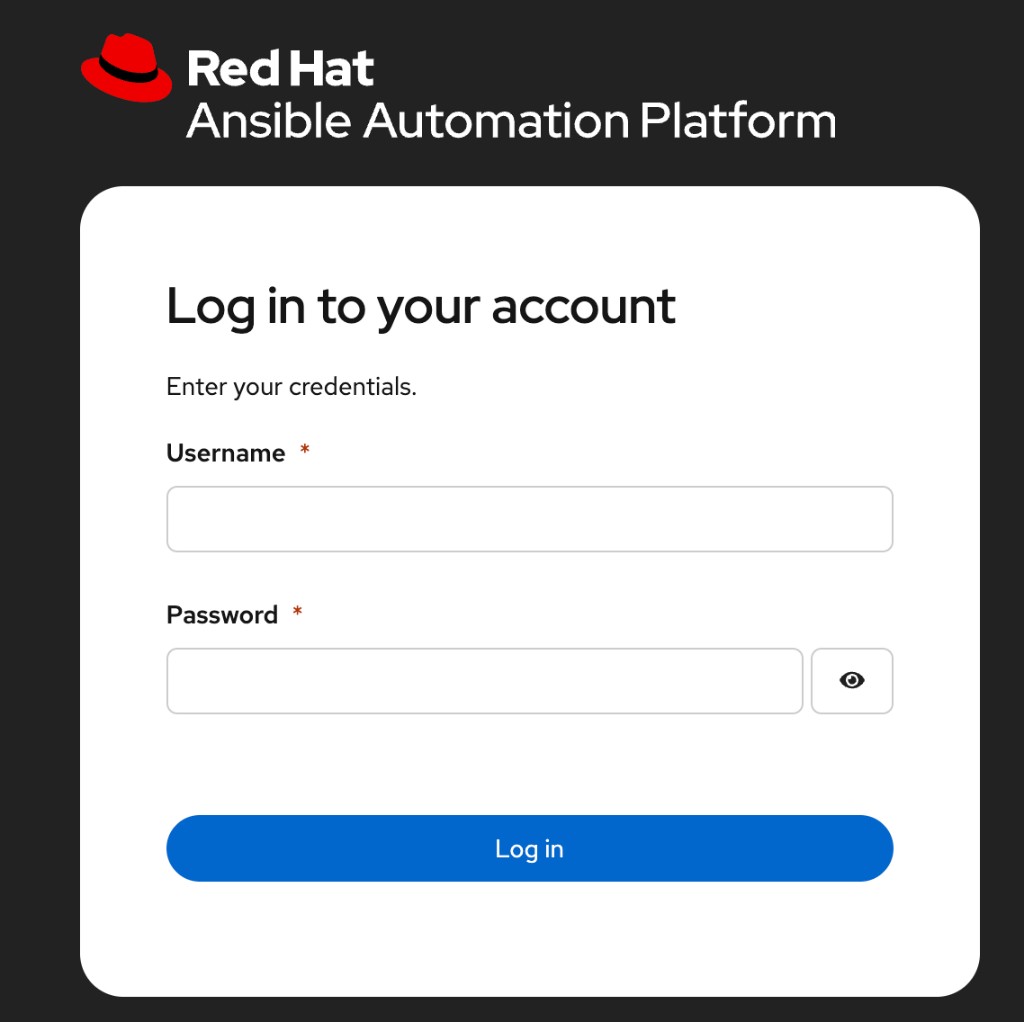
-
The username will be
admin -
The password will be
ansible123!
-
-
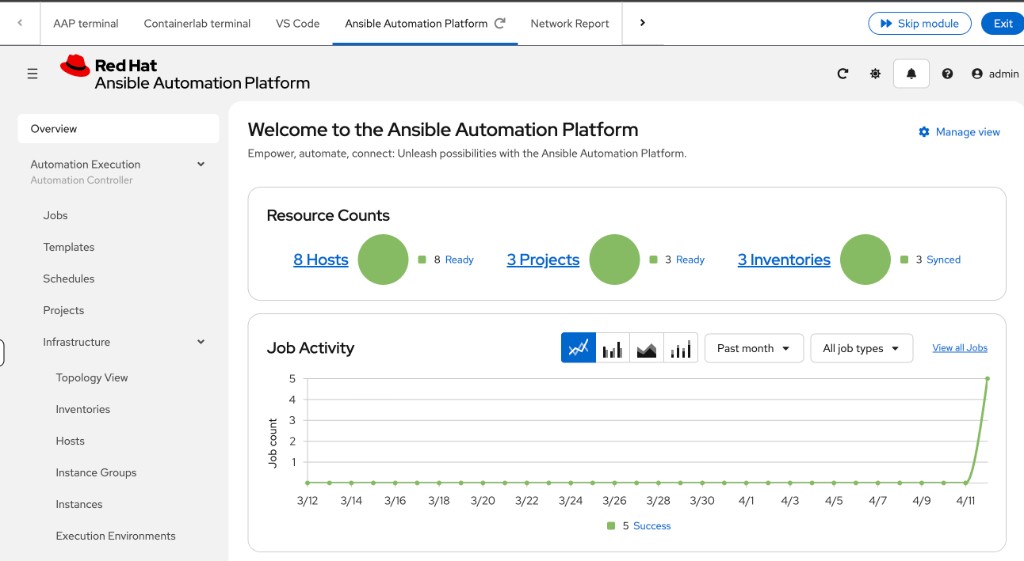
After logging in the Job Dashboard will be the default view as shown below.
-
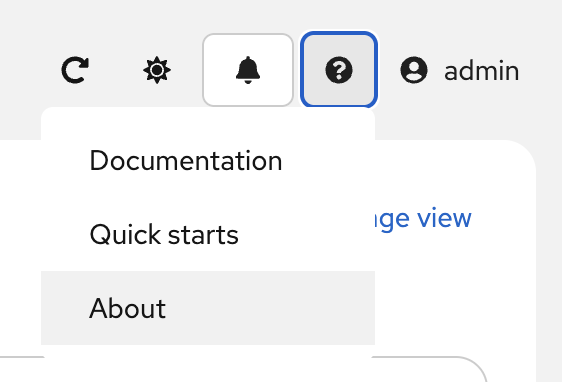
Click on the ? button on the top right of the user interface and click About
-
A window will pop up similar to the following:
Step 2: Examine the Ansible Automation Platform Inventory
An inventory is required for Ansible Automation Platform to be able to run jobs. An inventory is a collection of hosts against which jobs may be launched, the same as an Ansible inventory file. In addition, Ansible Automation Platform can make use of an existing configuration management data base (cmdb) such as ServiceNow or Infoblox DDI.
| More info on Inventories in respect to Ansible Automation Platform can be found in the documentation here. |
-
Click on Infrastructure link under Automation Execution on the left menu bar, then click the Inventories link.
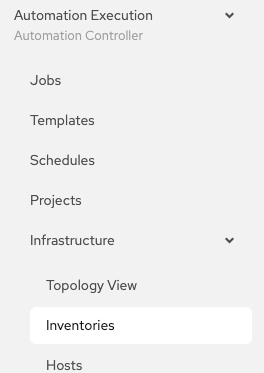
-
Under Inventories click on the
Workshop Inventory.
-
Under the
Workshop Inventoryclick the Hosts button at the top. There will be four hosts here, rtr1 through rtr4 as well as the containerlab host.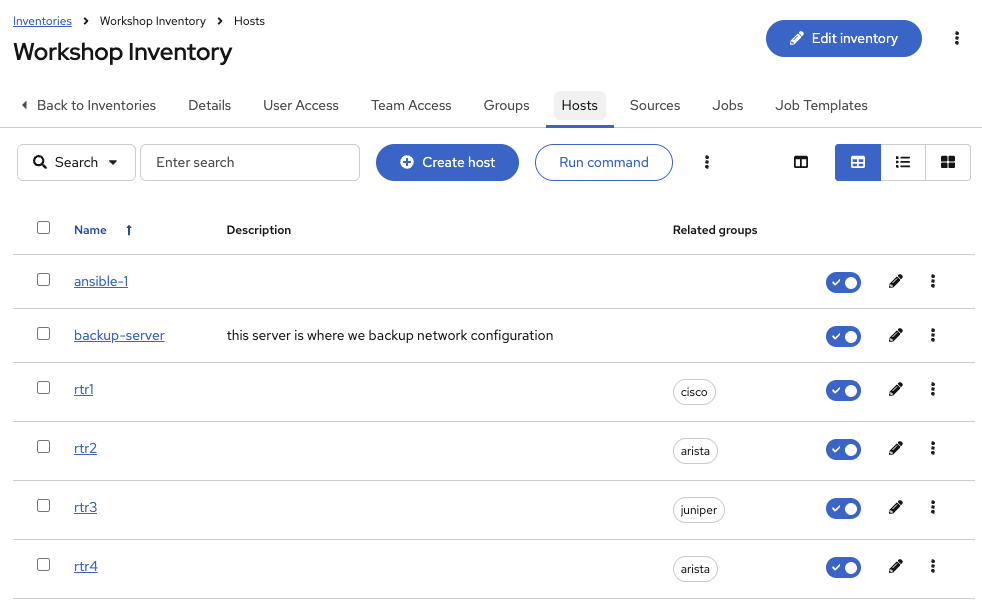
-
Click on one of the devices.
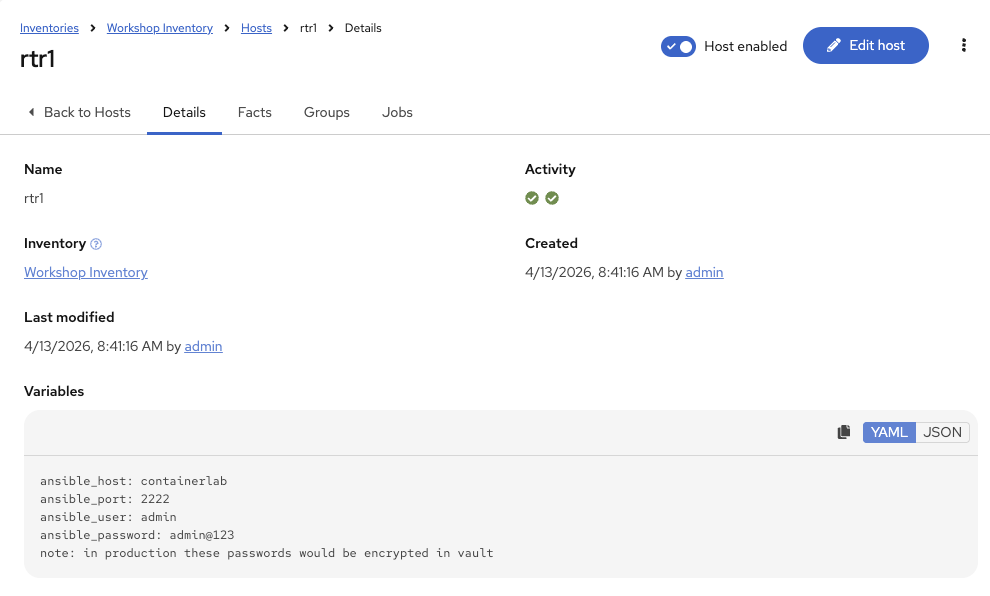
Take note of the VARIABLES field. The
host_varsare set here including theansible_hostvariable. Since rtr1 is running as a container on Containerlab, theansible_hostis set tocontainerlabandansible_portis set to2222— this is because Ansible connects to the router via port forwarding through the Containerlab host rather than directly to a public IP. -
Click on GROUPS. There will be multiple groups here including
routersandcisco. Click on one of the groups.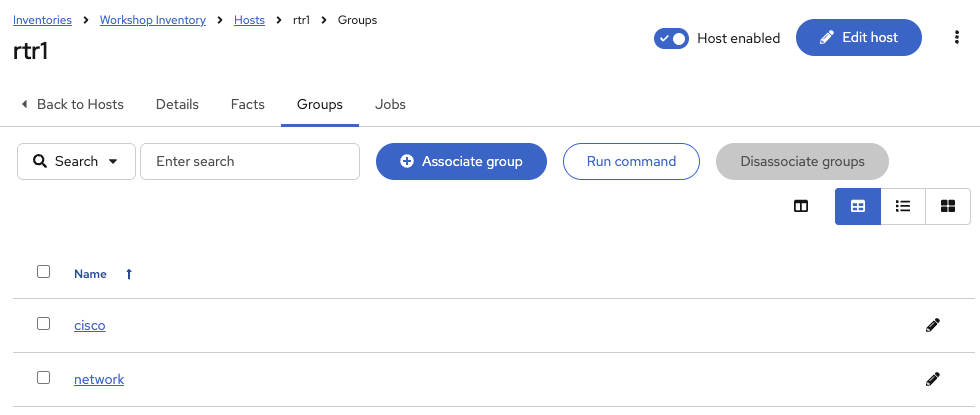
-
Click on one of the groups.
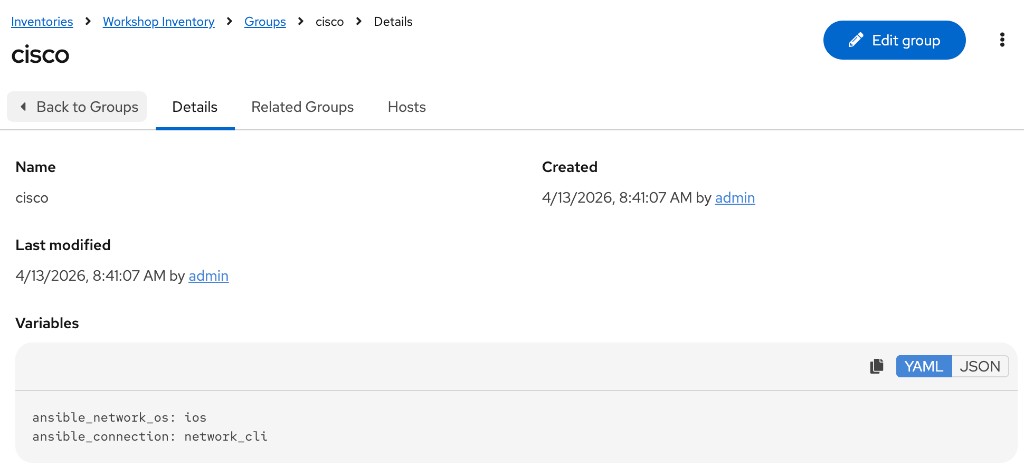
Take note of the VARIABLES field. The
group_varsare set here including theansible_connectionandansible_network_osvariable.
Step 3: Examine the Ansible Automation Platform Workshop Project
A project is how Ansible Playbooks are imported into Ansible Automation Platform. You can manage playbooks and playbook directories by either placing them manually under the Project Base Path on your Ansible Automation Platform server, or by placing your playbooks into a source code management (SCM) system supported by Ansible Automation Platform, including Git (GitHub, GitLab, etc).
| For more information on Projects in Ansible Automation Platform, please refer to the documentation. |
-
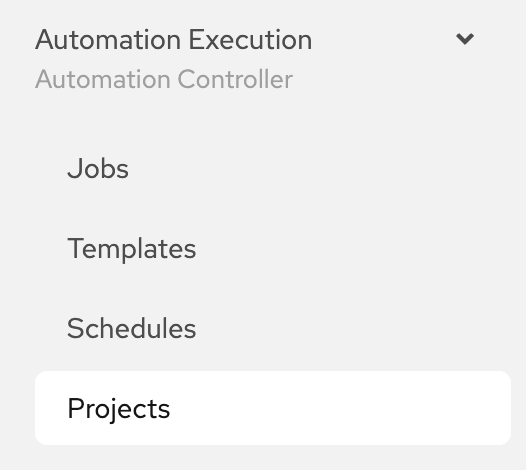
Click on the Projects link under Automation Execution on the left menu bar.
-
Under PROJECTS there will be a
Workshop Project.
Note that
GITis listed for this project. This means this project is using Git for SCM. -
Click on the
Workshop Project.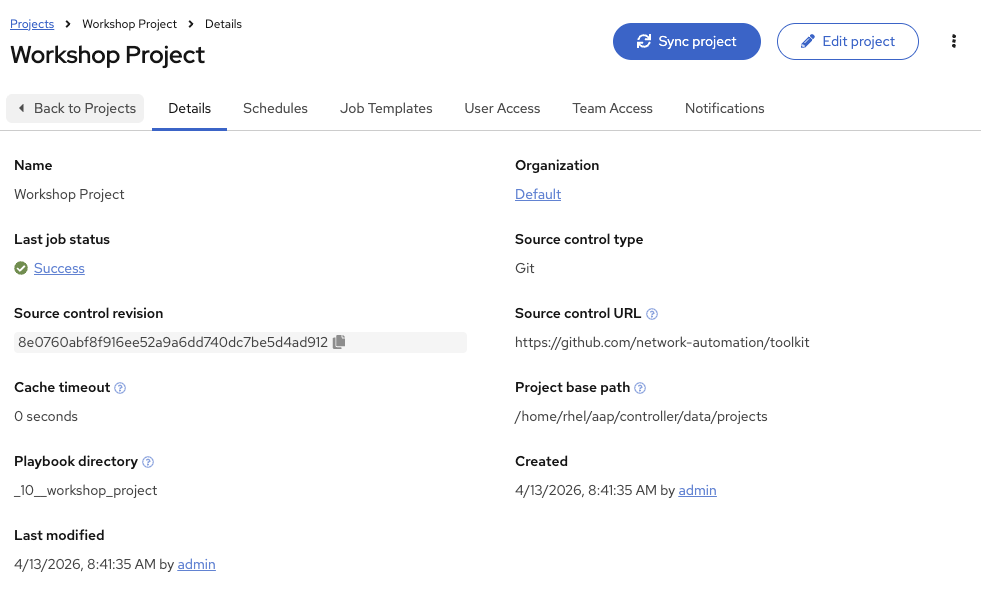
Source Control URL is set to https://github.com/network-automation/toolkit.
Step 4: Examine the Ansible Automation Platform Workshop Credential
Credentials are utilized by Ansible Automation Platform for authentication when launching Jobs against machines, synchronizing with inventory sources, and importing project content from a version control system. For the workshop we need a credential to authenticate to the network devices.
| For more information on Credentials in Ansible Automation Platform please refer to the documentation. |
-
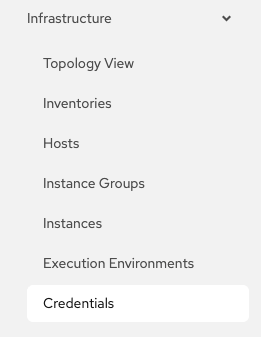
Click on the Infrastructure link under Automation Execution on the left menu bar, then click on the Credentials link
-
Under Credentials there will be multiple pre-configured credentials, including
Workshop Credential,Controller Credentialand theregistry.redhat.io credential. Click on theWorkshop Credential.
-
Under the
Workshop Credentialexamine the following:-
The Credential type is a Machine credential.
-
The Username is set to
rhel(used when Ansible Automation Platform SSHs to the containerlab host, for examplebackup-serverandansible-1). -
The Password is pre-configured and Encrypted (same value as the
rheluser on the containerlab VM). -
Router hosts (
rtr1throughrtr4) override login in inventory host variables withansible_user: adminandansible_password: admin@123— those are not stored in this credential.
-
Module summary
In this module, you learned how to:
-
Log into Ansible Automation Platform and identify the platform version
-
Navigate the Inventory configuration, including hosts, host variables, groups, and group variables
-
Examine Projects and understand how they sync with source control management systems such as GitHub
-
Review Credentials and understand how Ansible Automation Platform stores and encrypts authentication information including SSH private keys and passwords
-
Ansible Automation Platform can also sync to existing credential storage systems such as CyberArk and Vault by HashiCorp
These three components — a credential, an inventory, and a project — are the foundation required to get started with Ansible Automation Platform.