Module 3 Lab 1: Events - Event-Driven Ansible Overview and Active Health Monitoring
This lab demonstrates an agentless, "outside-in" monitoring and remediation architecture using the Event-Driven Ansible (EDA) url_check source plugin to maintain the availability of a Windows IIS web server. By proactively polling the web endpoint rather than relying on internal agents, like Filebeat, the EDA Controller detects service outages in real-time and automatically triggers an Ansible Automation Controller remediation playbook to restore the IIS service. This workflow illustrates the power of self-healing infrastructure, where manual intervention is replaced by automated logic that ensures the application is not only running but actively responding to user requests.
Learning Objectives
After completing this module, you will be able to:
-
Configure Event-Driven Ansible to communicate with Automation Controller
-
Create a Rulebook and configure an activation to watch the IIS web server
-
Configure the Rulebook to react to both up and down status events
Introduction
In this lab, you will implement an agentless monitoring solution using Event-Driven Ansible (EDA). Instead of relying on logs being pushed from the target, you will configure EDA to actively poll the IIS web server that was installed and configured previously.
When the url_check source plugin detects that the website is unreachable, it will automatically trigger a remediation job template in Automation Controller to restart the IIS service.
Prerequisites
-
Access to Ansible Automation Platform (AAP) and EDA Controller.
-
An existing Job Template to setup and configure IIS
-
The Windows IIS server is reachable via the internal URI:
http://windows.aap.svc.cluster.local.
1: Create and setup assets for EDA
In order for EDA to detect and react to events within the Windows machine, we will create a playbook and rulebook to that will be used to drive automation activities.
1.1: Create remediation playbook
To make this lab self-contained, we will create a one-off remediation playbook. However, you could just as easily simply call site.yml to perform the full configuration of the IIS server. This targeted playbook will focus only on the IIS service.
-
Create the following playbook in a file named
iis_start.ymlwithin thelab_playbooksdirectory:/projects/lab_playbooks/iis_start.yml--- - name: Ensure IIS Service is Running hosts: windows gather_facts: false tasks: - name: Call service task for web server role ansible.builtin.include_role: name: red_hat_one.super_lab.web_server tasks_from: service ...
1.2: Create the EDA Rulebook
The rulebook will use the ansible.eda.url_check source plugin to monitor the health of the web application every 30 seconds.
-
EDA looks for rulebooks in a specific directory called
rulebooks. Create this folder within the/projects/lab_playbooks/directorymkdir --parents --verbose /projects/lab_playbooks/rulebooks/mkdir: created directory '/projects/lab_playbooks/rulebooks/' -
Create a rulebook named
check_website.ymlwithin the newly createdrulebookdirectory:/projects/lab_playbooks/rulebooks/check_website.yml--- - name: Monitor IIS via URL Check hosts: all sources: - ansible.eda.url_check: urls: - http://windows.aap.svc.cluster.local delay: 30 rules: - name: Web site is down condition: event.url_check.status == "down" action: run_job_template: name: "Start IIS" organization: Default - name: Web site is up condition: event.url_check.status == "up" action: debug: msg: "IIS is healthy." ...
1.3: Push files to git
-
Ensure your working directory is the
lab_playbooksrepository:cd /projects/lab_playbooks/ -
Add, commit, and push the two files created previously
git add iis_start.yml rulebooks/check_website.yml
git commit --message "Add rulebook and remediation playbook"
git push origin main
1.4: Synchronize the Lab Playbooks Project
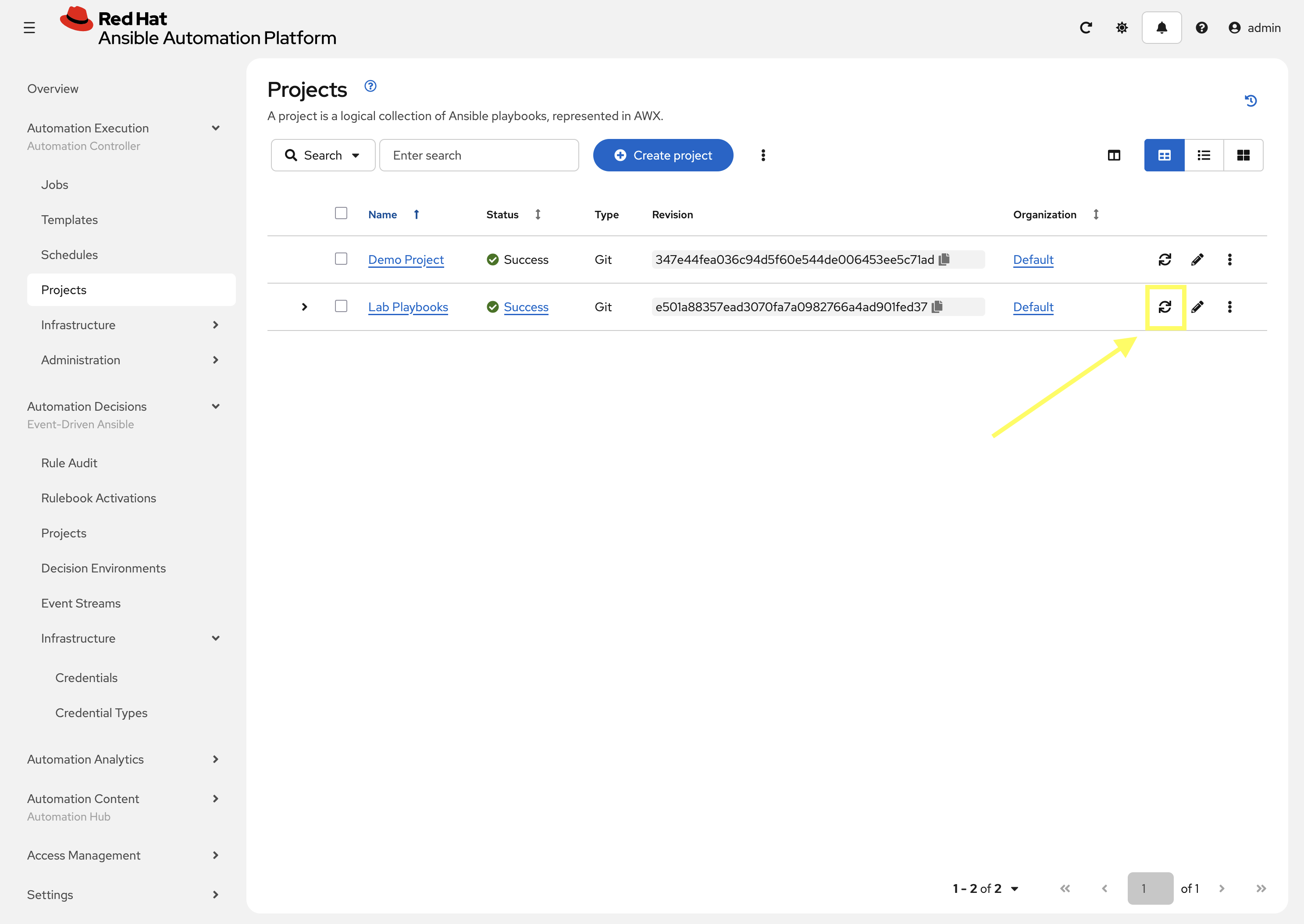
To ensure that Automation Controller detects the newly created playbook, synchronize the Lab Playbooks project.
-
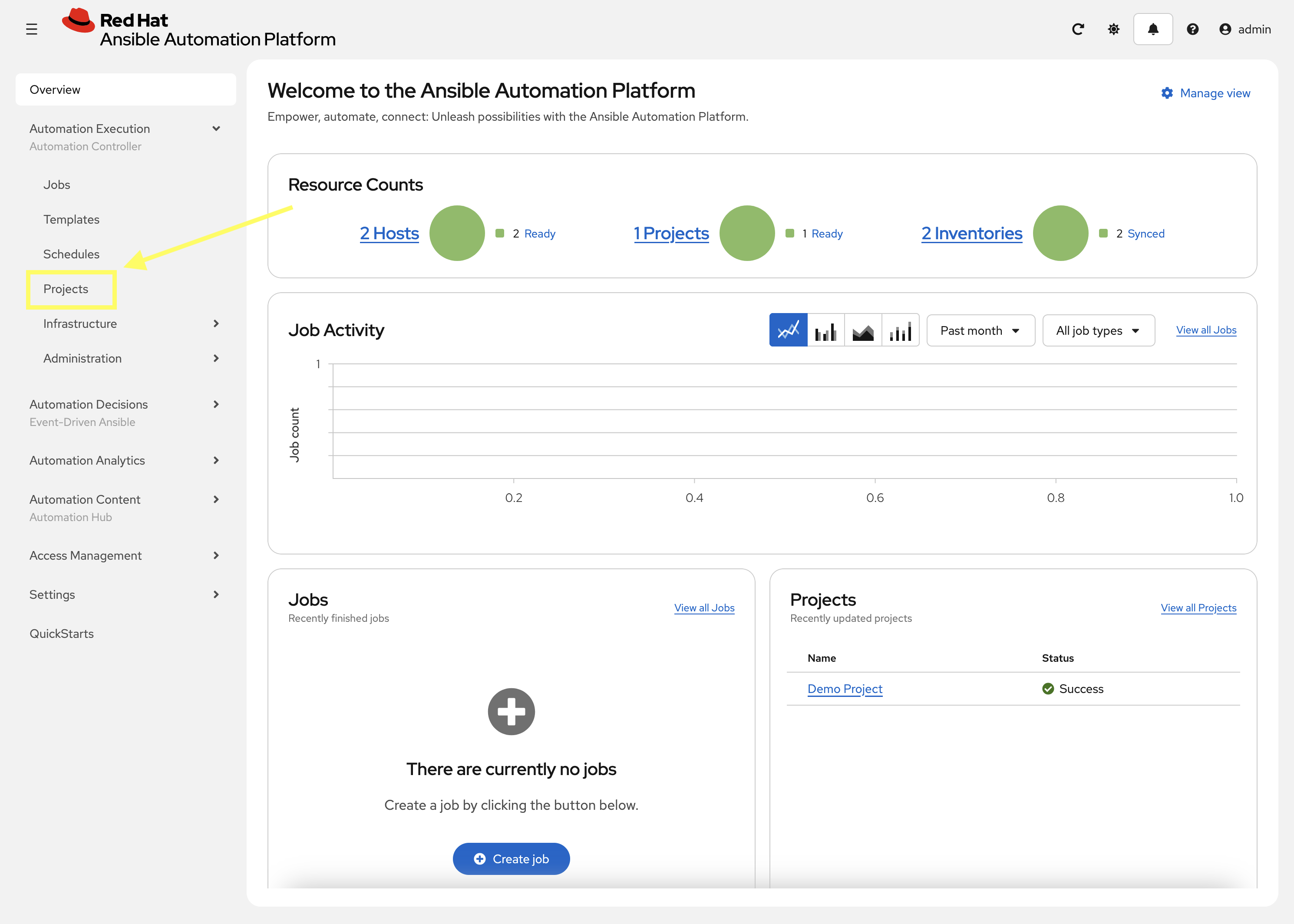
Navigate to Automation Controller web interface go to Automation Execution → Projects
-
Synchronize the Lab Playbooks project
1.5: Create a Job Template to Start IIS
Create a Job Template within Automation Controller for the remediation playbook that is used to start the IIS service.
-
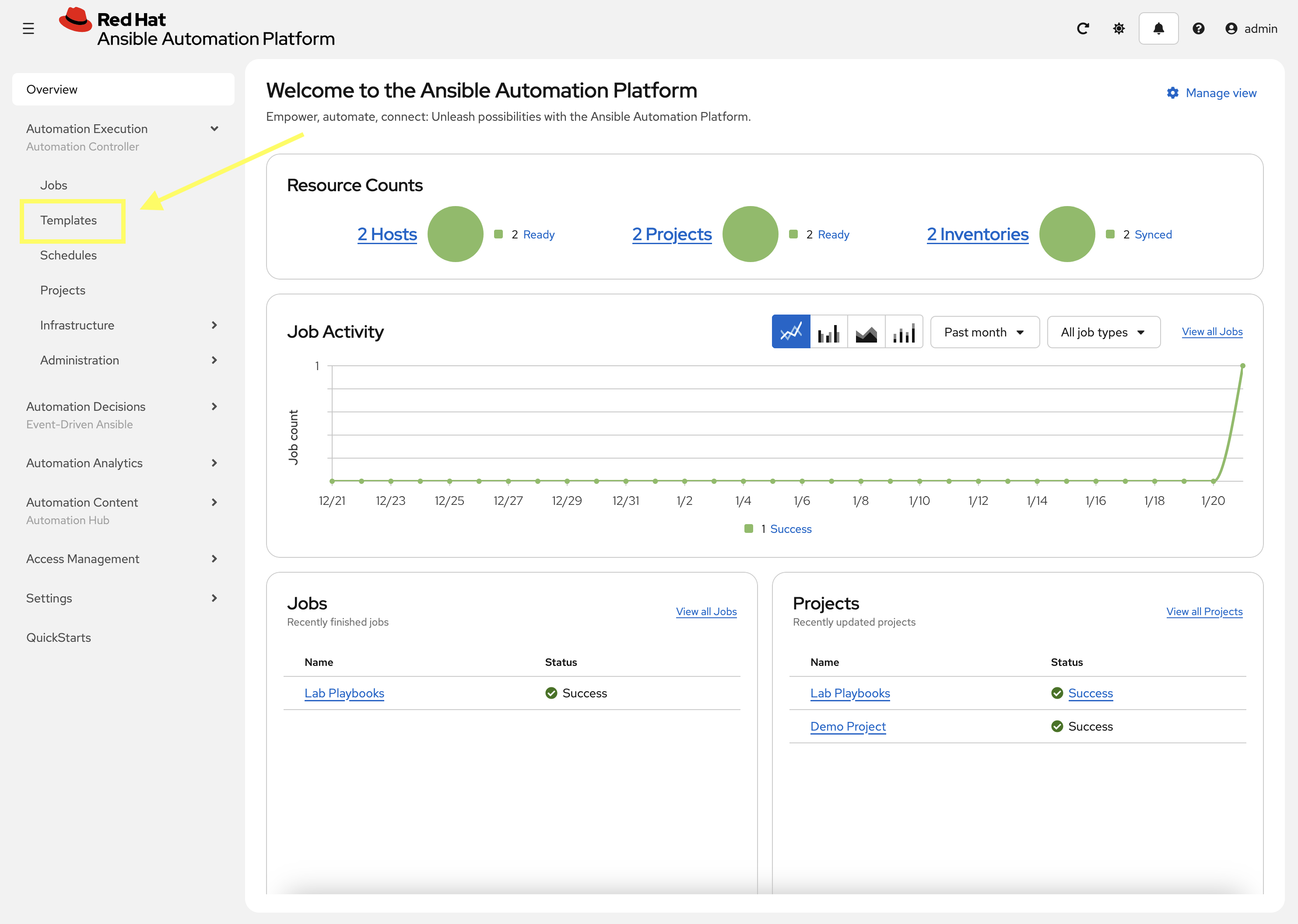
Within the Automation Controller web interface, go to Automation Execution → Templates.
-
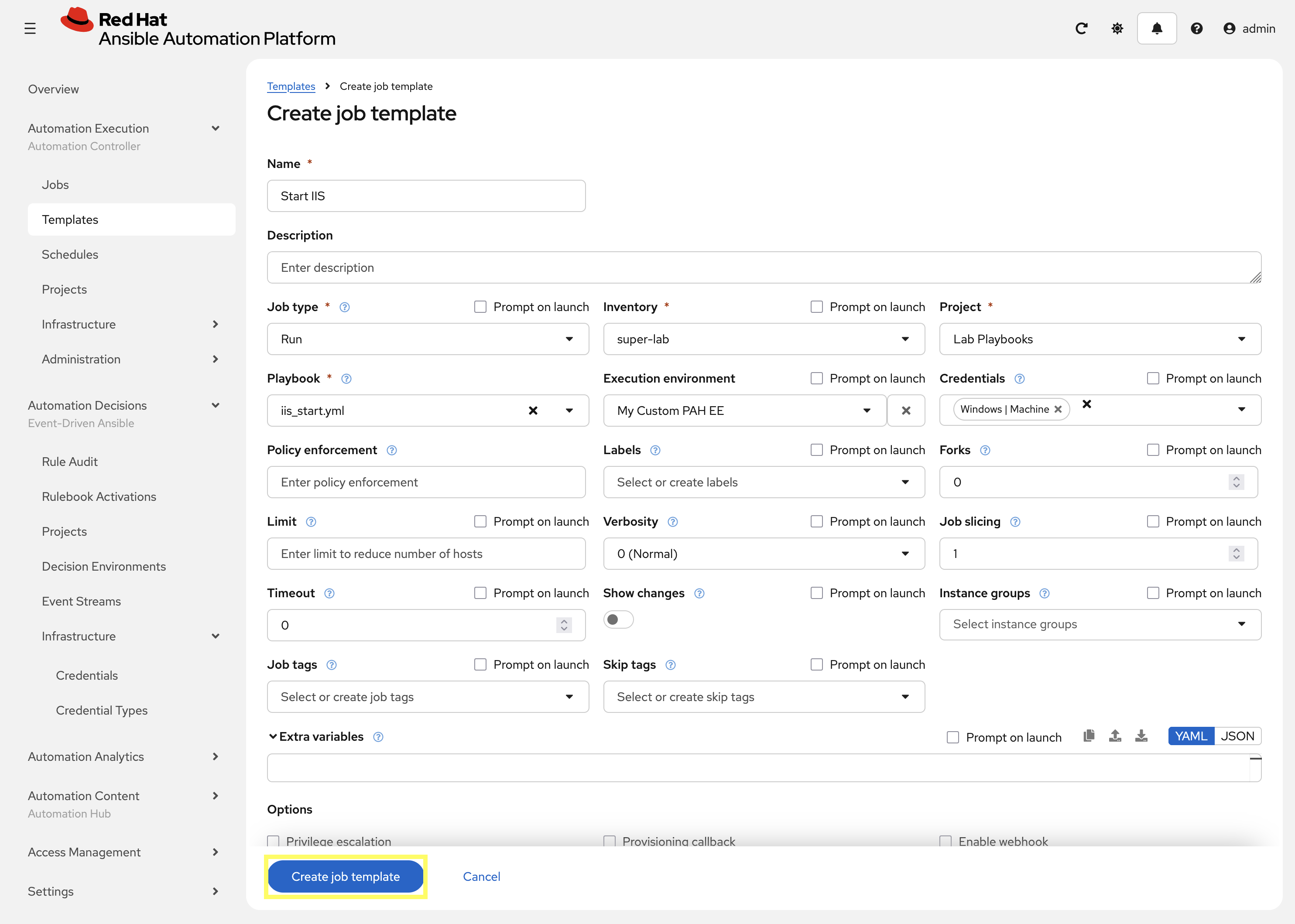
Add a new job template using the newly created and synchronized
iis_start.yml: -
Enter the following details on he Create Job Template page:
-
Name:
Start IIS -
Organization:
Default -
Inventory:
super-lab -
Project:
Lab playbooks -
Execution Environment:
My Custom PAH EE -
Playbook:
iis_start.yml -
Credential:
Windows
-
-
Click Create job template.
2: Configure EDA Controller
Now that the remediation playbook is created and available as a job template within Automation Controller, it’s time to configure the remaining components within EDA Controller.
2.1: Setup EDA Credentials
EDA Controller needs access to Automation Controller as well as the project files which require Credentials to be created in order to access the protected resources. Even though these are already configured in Automation Controller, we still have to create them again within EDA.
2.1.1: AAP Credential
This credential specifies the Automation Controller hostname and authentication details for EDA to trigger job templates.
-
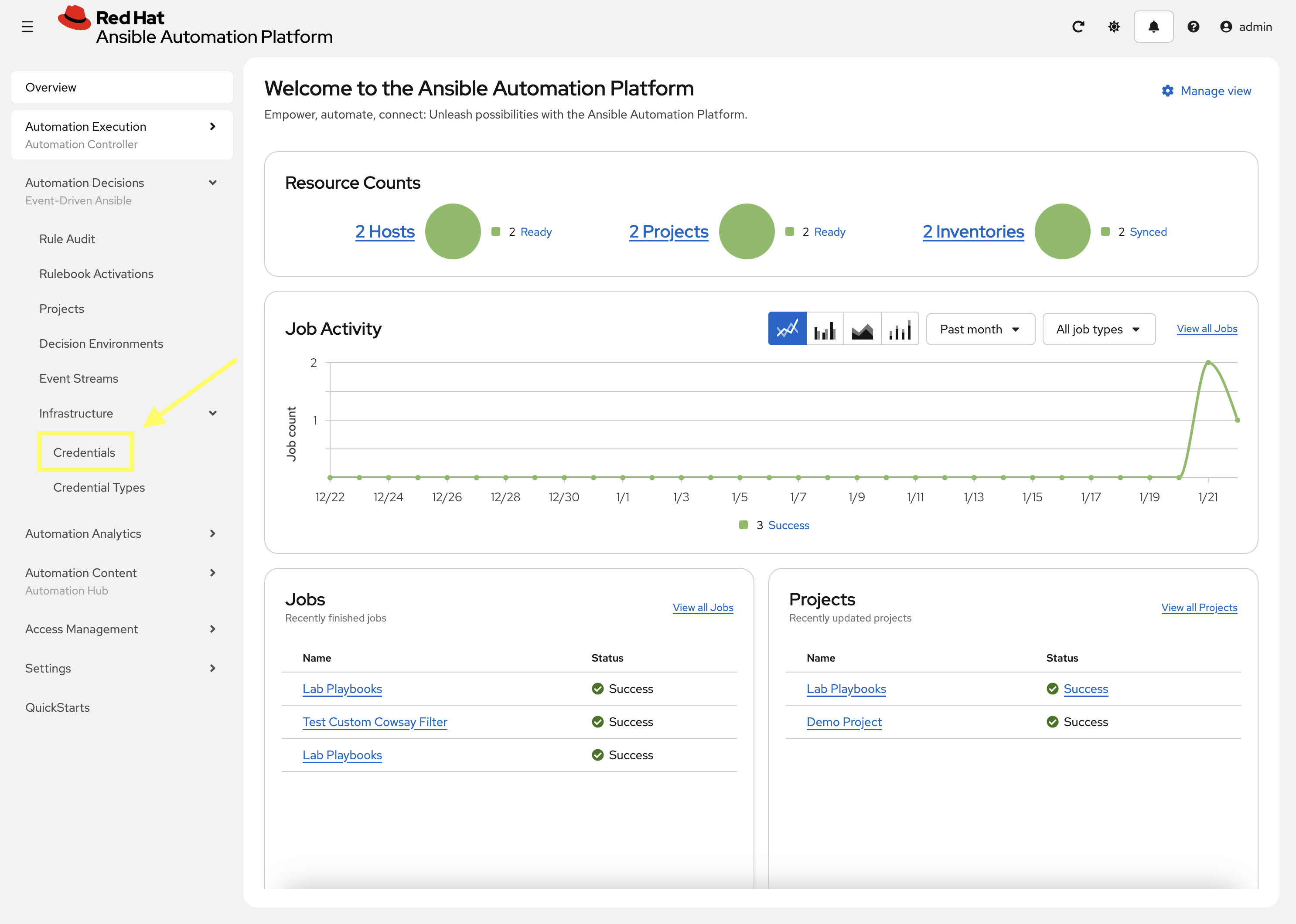
Navigate to Automation Decisions then Infrastructure and finally Credentials
-
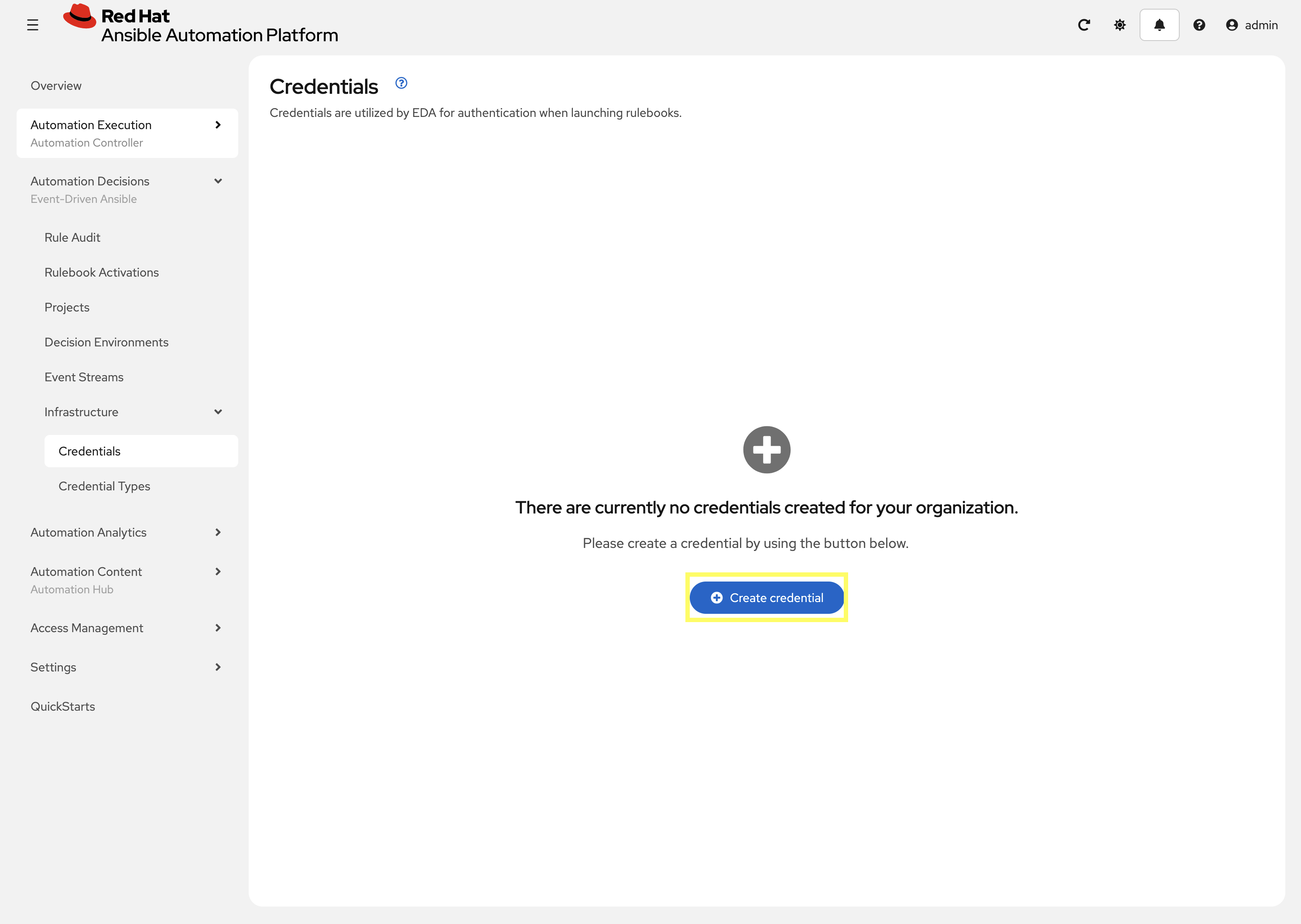
Select Create credential
-
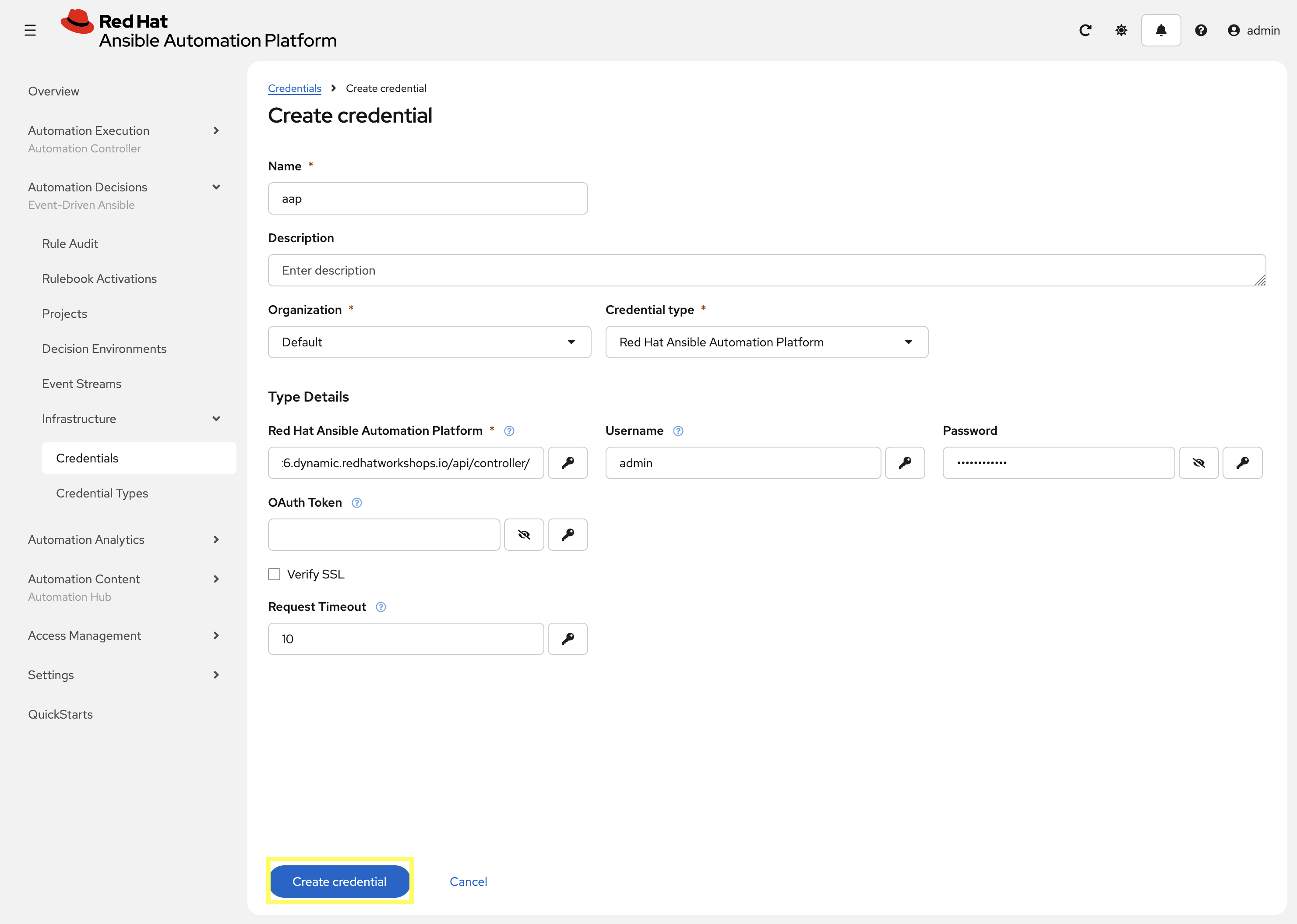
Create a new credential for Automation Controller with the following details:
-
Name:
aap -
Organization:
Default -
Credential type: In the drop-down start to type
Red Hatwhich should search and findRed Hat Ansible Automation Platform -
Red Hat Ansible Automation Platform:
{aap_controller_web_url}/api/controller/ -
Username:
{aap_controller_admin_user} -
Password:
{aap_controller_admin_password}
-
-
Click Create Credential
2.1.2: Container Registry Credential
Next, create a credential for EDA Controller to access Decision Environments.
-
Navigate again to Automation Decisions → Infrastructure → Credentials → Create credential
-
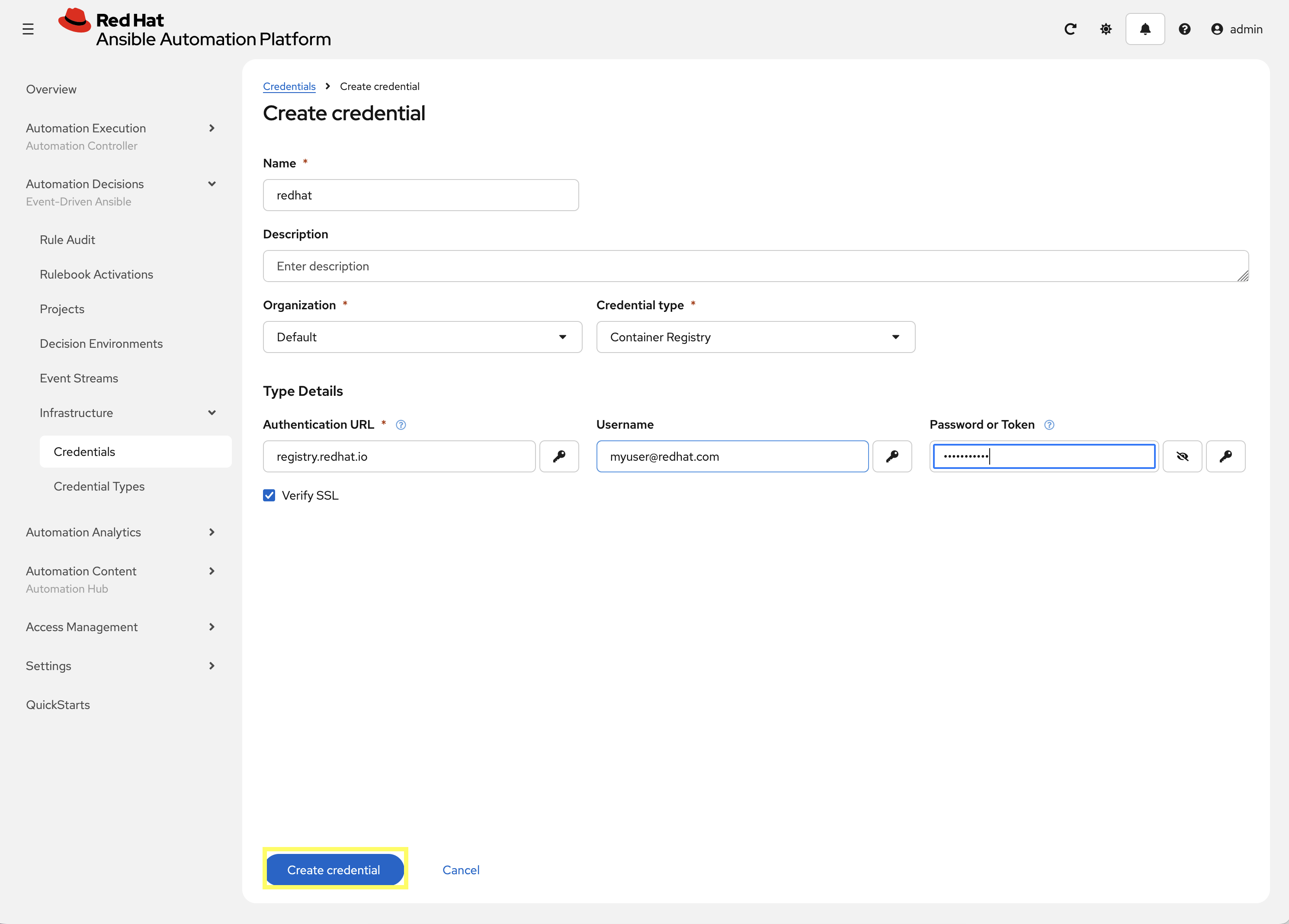
Create a new credential to access Decision Environments with the following details:
-
Name:
redhat -
Organization:
Default -
Credential type:
Container Registry -
Authentication URL:
registry.redhat.io -
Username: YOUR_REDHAT_USERNAME
-
Password: YOUR_REDHAT_PASSWORD
-
-
Click Create Credential
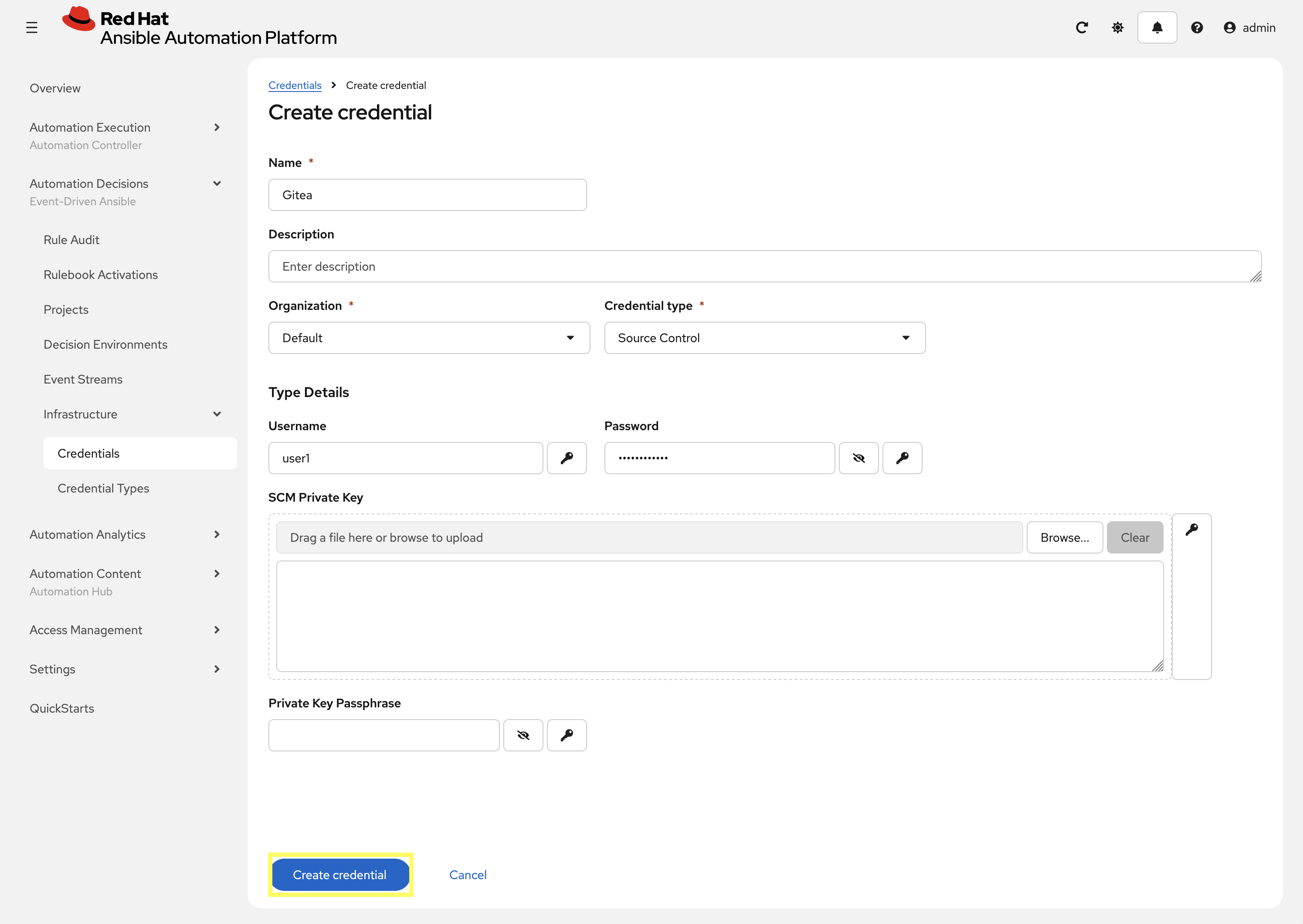
2.1.3: Gitea Credential
Create a credential for EDA Controller to access the rulebooks stored in Gitea:
-
Navigate to Automation Decisions → Infrastructure → Credentials → Create credential
-
Create a new credential to access Gitea with the following details:
-
Name:
Gitea -
Organization:
Default -
Credential type: In the drop-down start to type
Sourcewhich should search and findSource Control -
Username:
{gitea_user} -
Password:
{gitea_password}
-
-
Click Create Credential
2.2: Setup EDA Project
Create a project for the lab_playbooks repository which contains the playbook and rulebook:
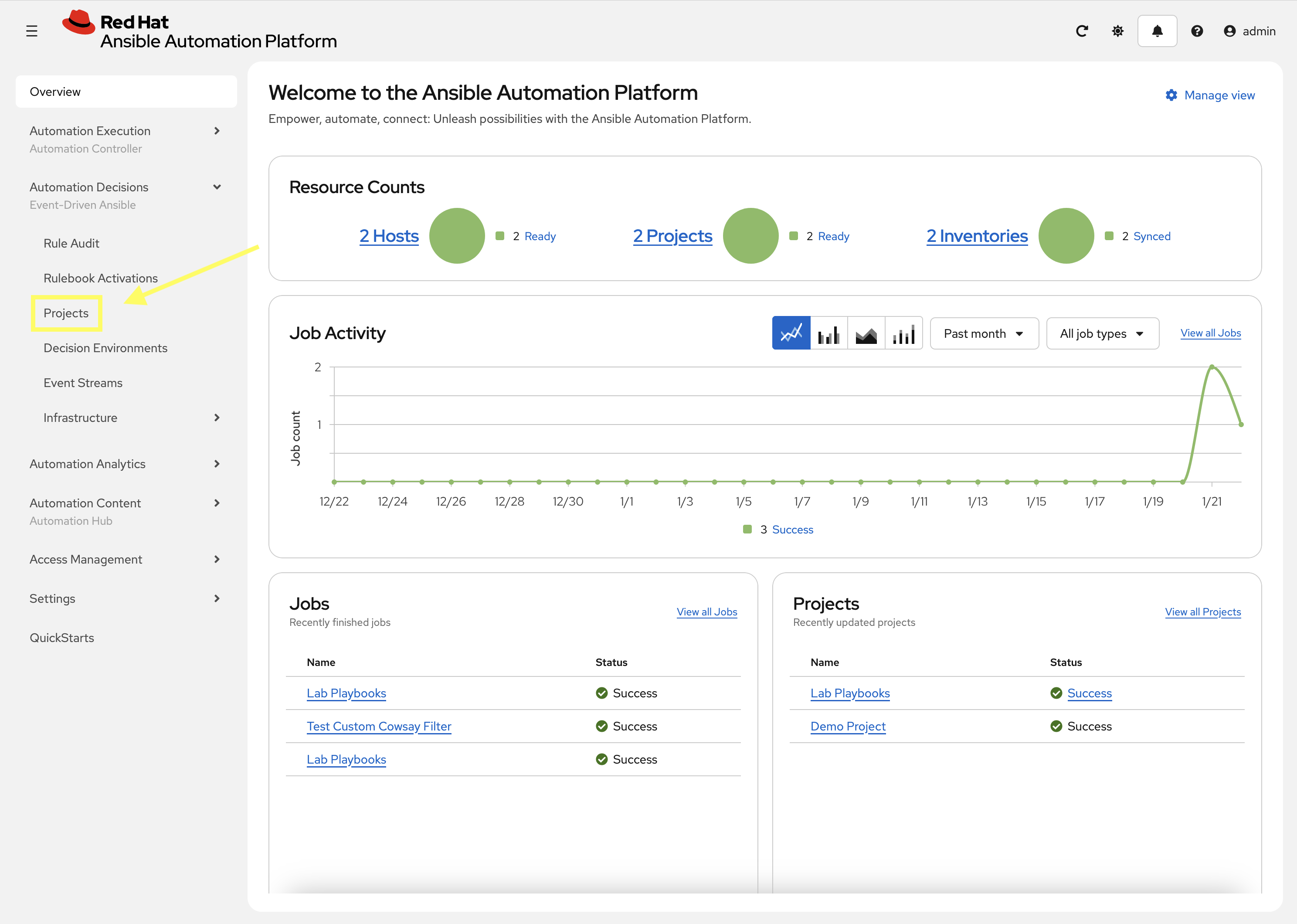
-
Navigate to Automation Decisions → Projects
-
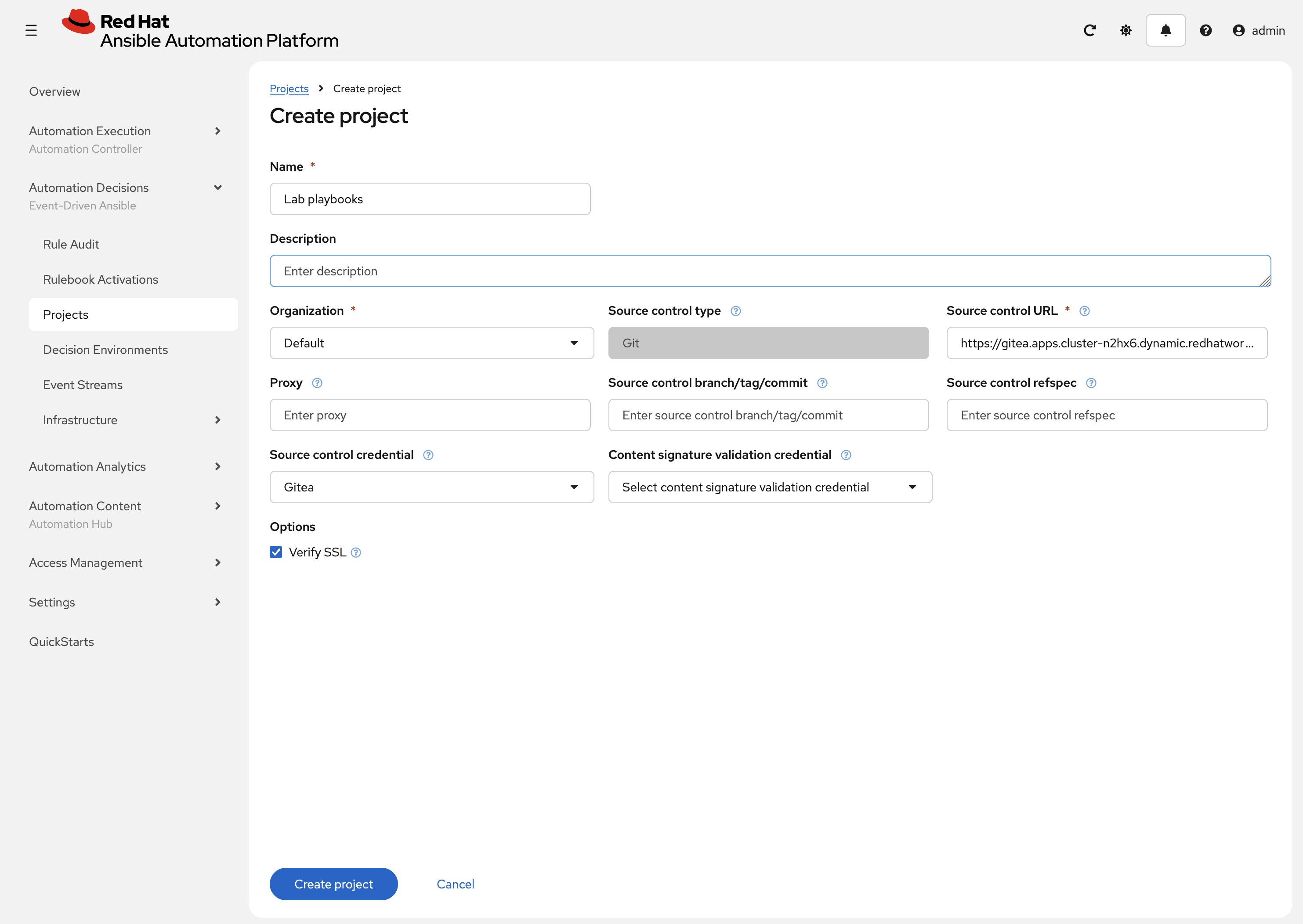
Click Create project
-
Create a new project with the following details:
-
Name:
Lab playbooks -
Organization:
Default -
Source control URL:
{gitea_console_url}/{gitea_user}/lab_playbooks.git -
Source control credential: Select the previously created
Giteacredential
-
-
Click Create project
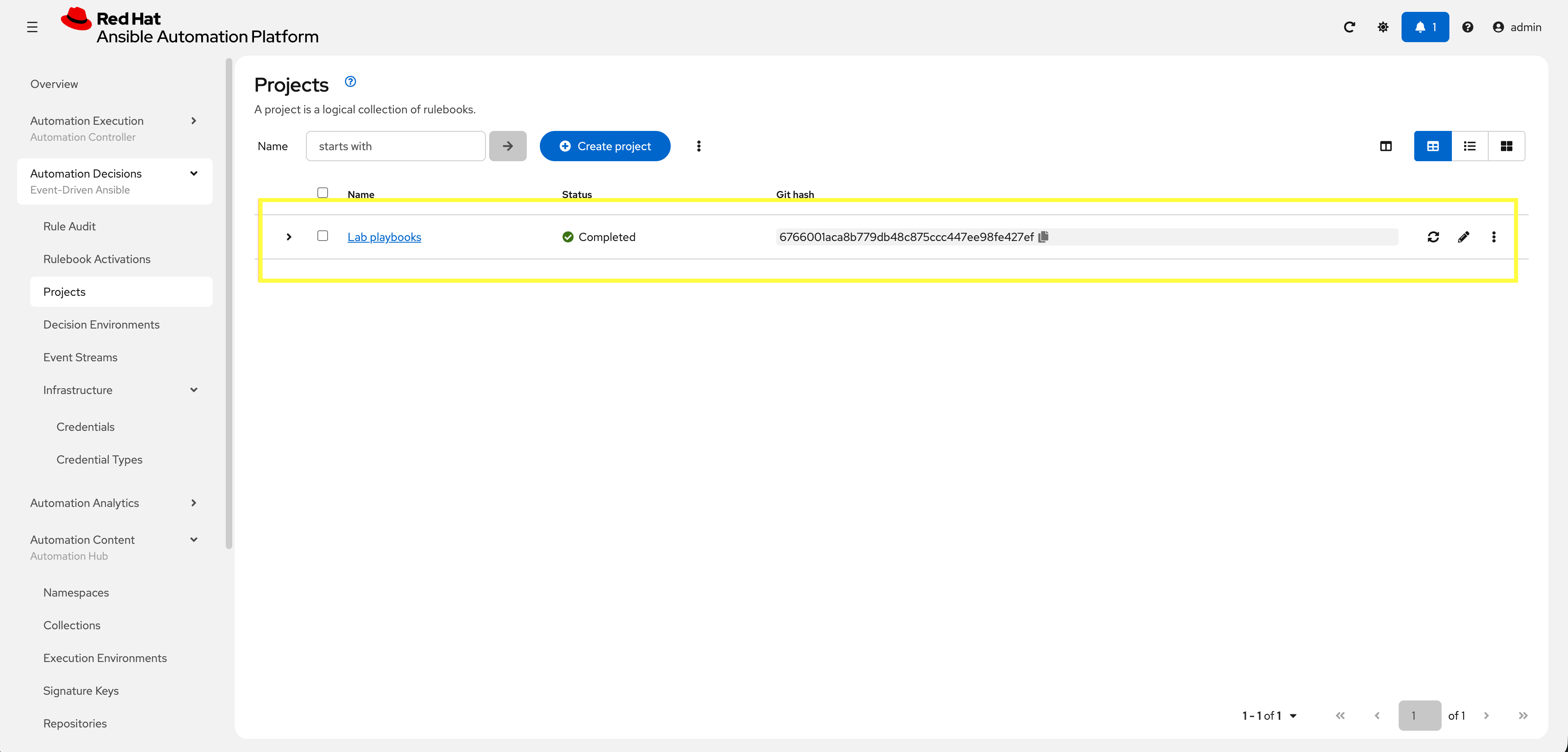
-
Ensure the project syncs properly
2.3: Setup Decision Environment
A decision environment is conceptually similar to an Execution Environment, but used to run Rulebooks. Configure one now:
-
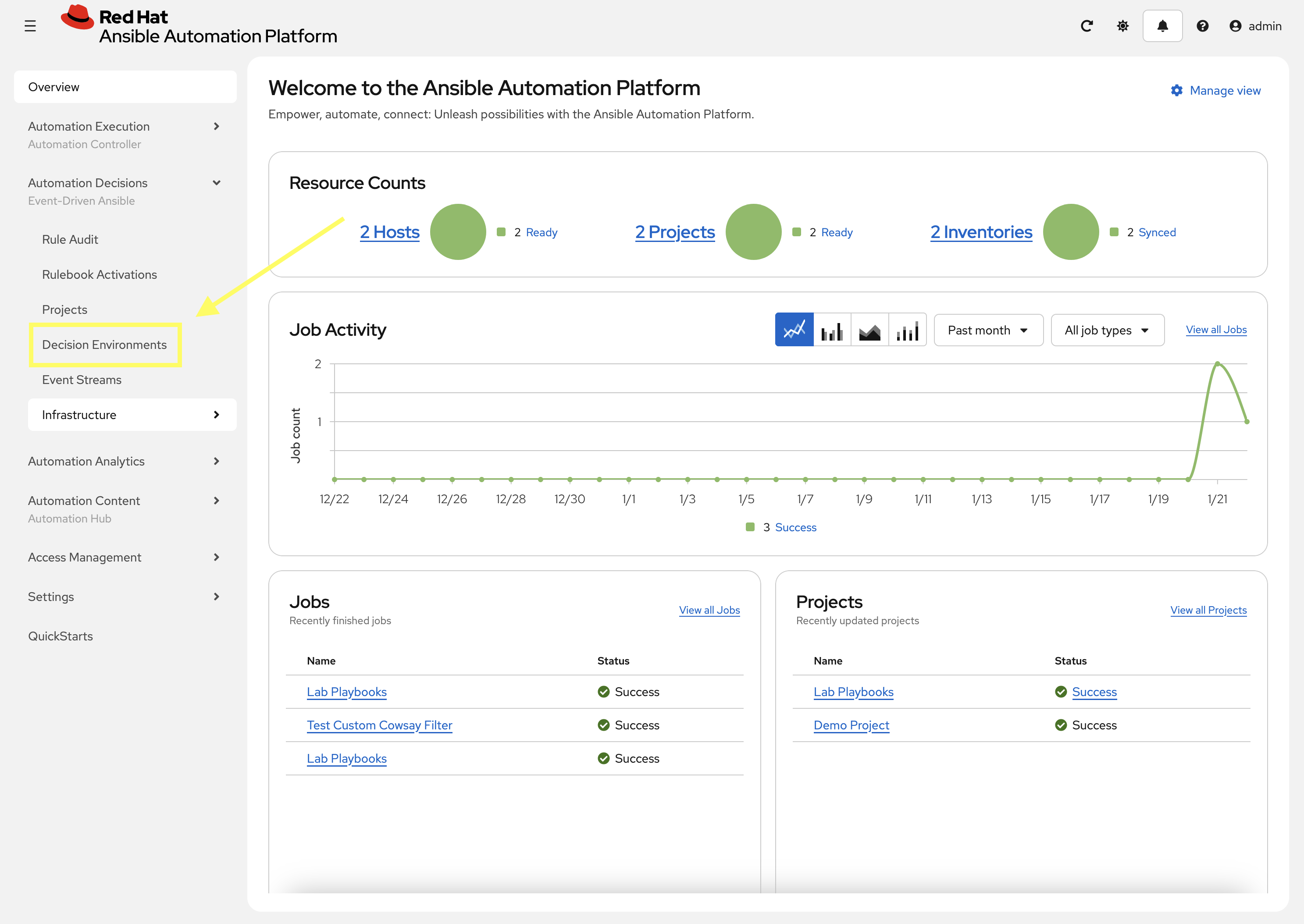
Navigate to Automation Decisions → Decision Environments
-
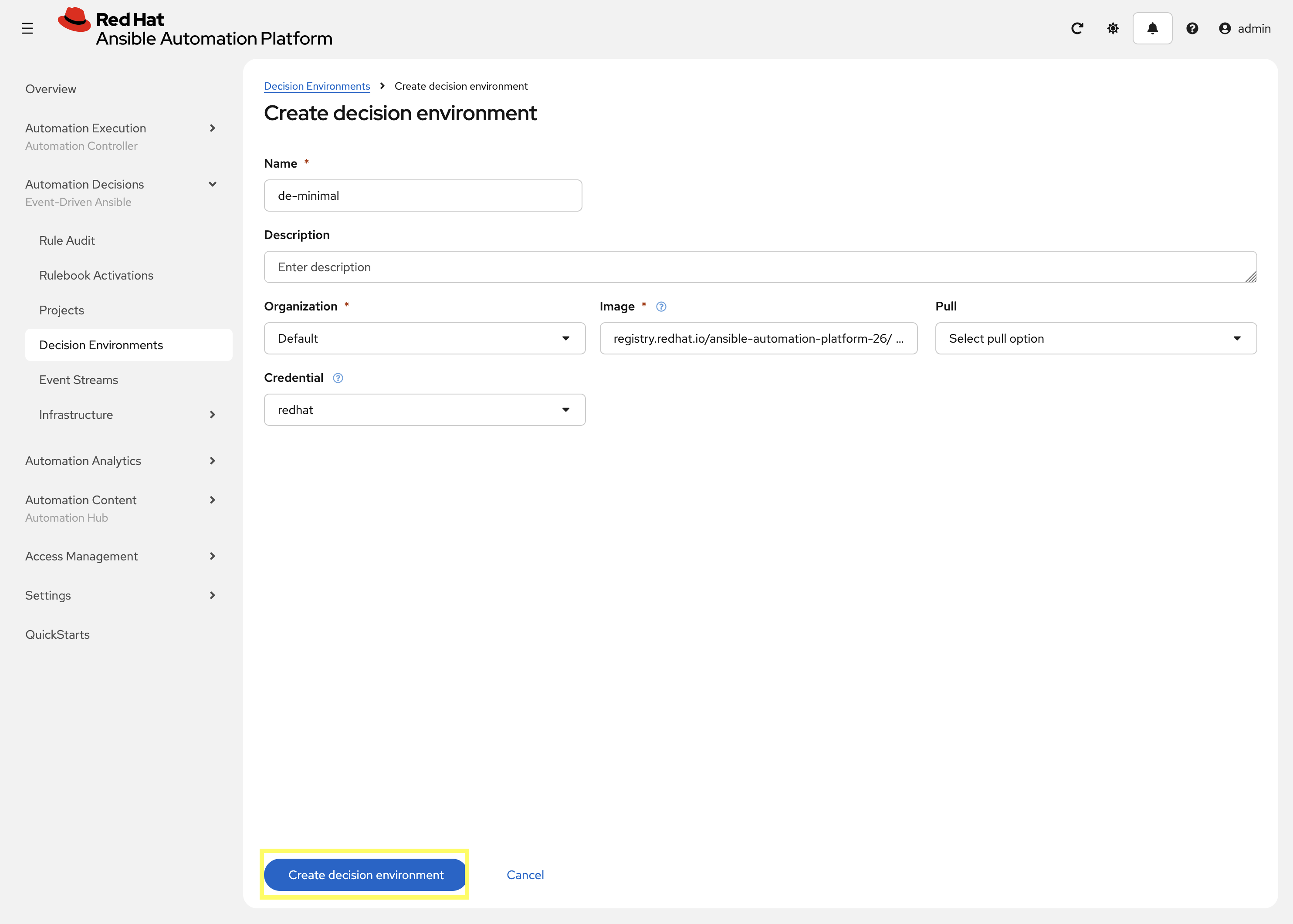
Click Create new Decision Environment
-
Create a new Decision Environment with the following details:
-
Name:
de-minimal -
Organization:
Default -
Image:
registry.redhat.io/ansible-automation-platform-26/de-minimal-rhel9:latest -
Credential:
redhat
-
-
Click Create decision environment
2.4: Setup Rulebook Activation
The final step is to configure EDA Controller to execute and monitor according to your Rulebook:
-
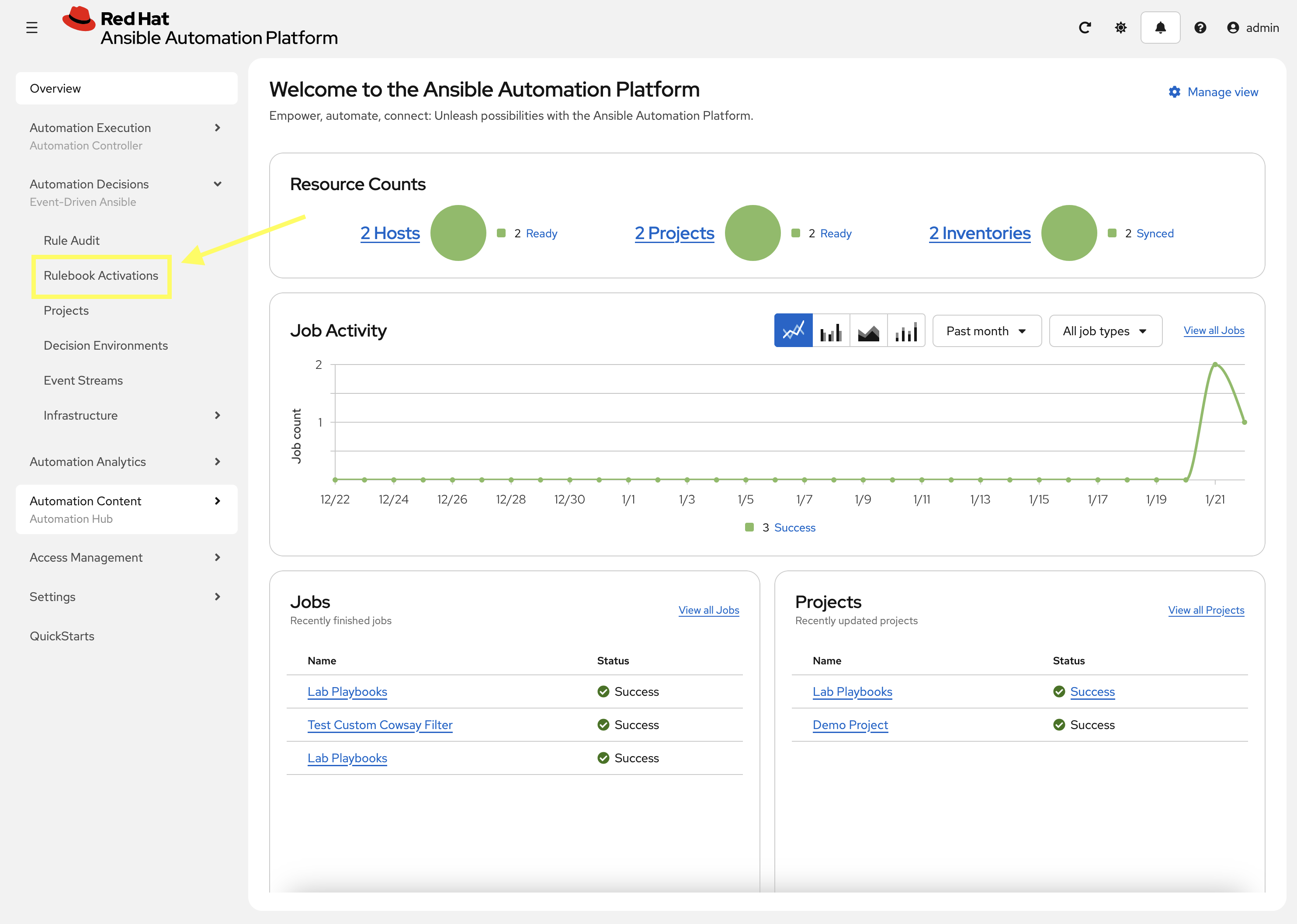
Navigate to Automation Decisions → Rulebook Activations
-
Click Create Rulebook Activation
-
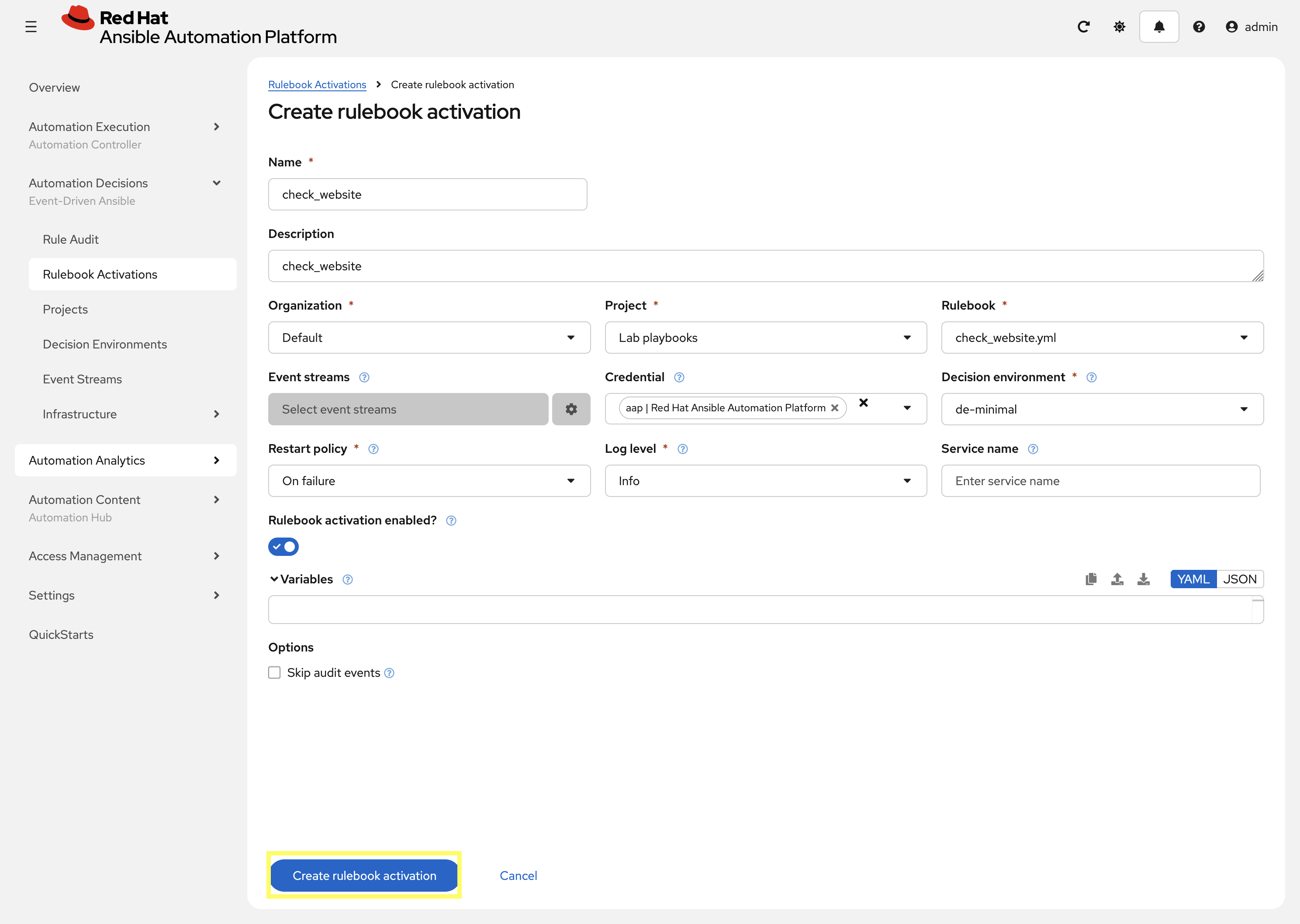
Create a new *Rulebook Activation with the following details:
-
Name:
check_website -
Organization:
Default -
Project:
Lab playbooks -
Credential:
aap | Red Hat Ansible Automation Platform -
Rulebook: In the drop-down select
check_website.yml -
Decision Environment:
de-minimal -
Log level:
Info
-
-
Click Create rulebook activation and the Rulebook will begin to activate
-
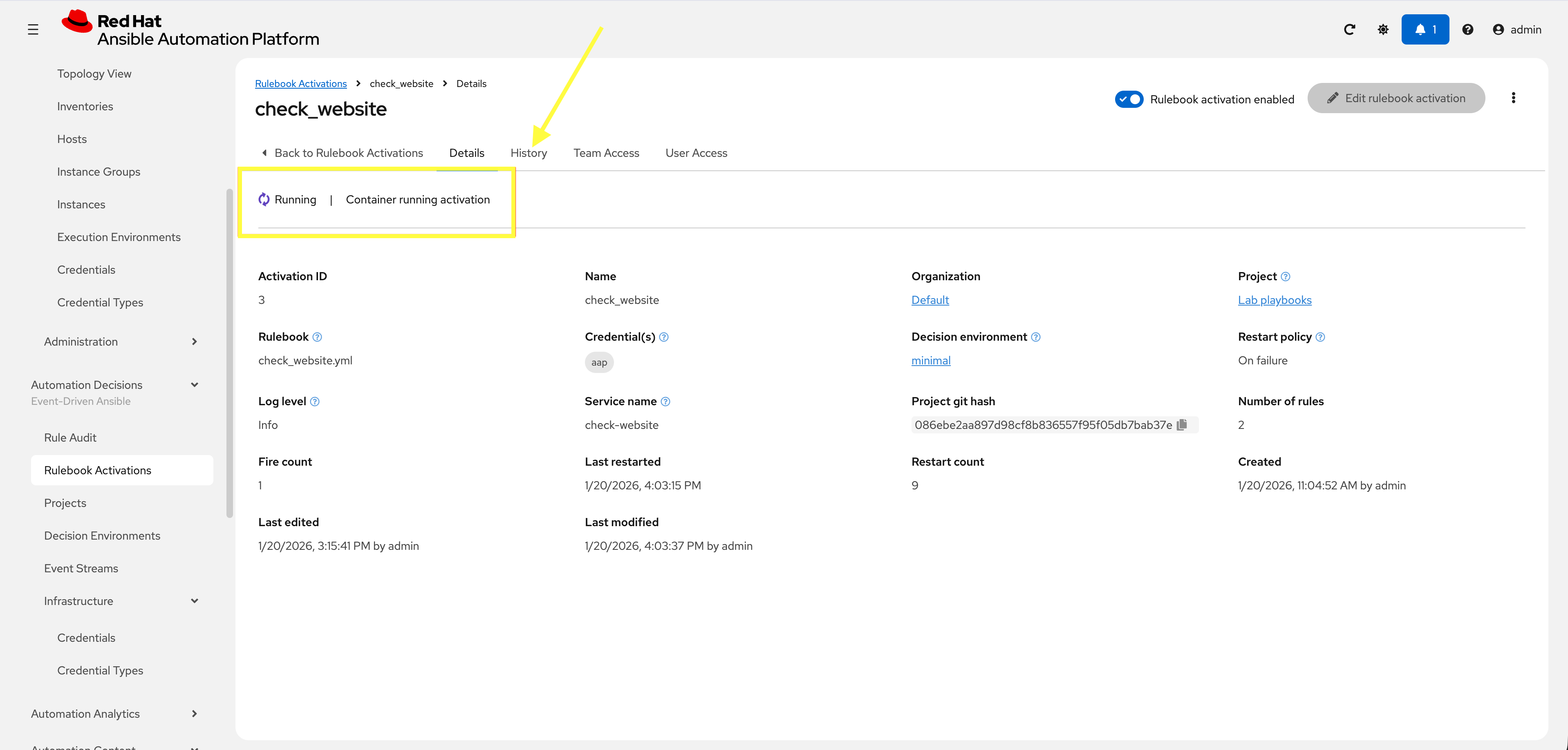
You can now click on check_website to view details
-
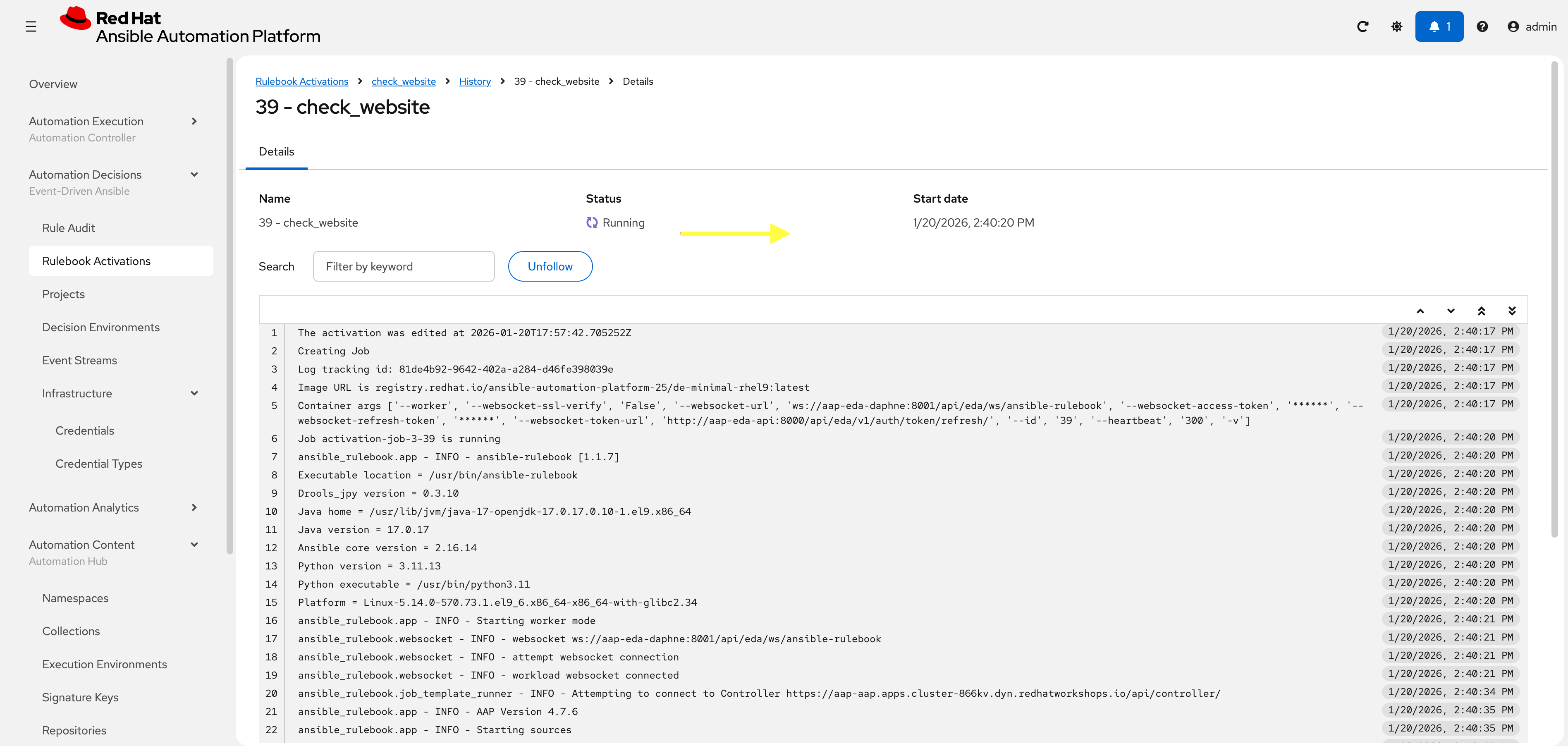
To view more detail, select History to watch activity. Review this tab until it is in Running state
3: Verify Remediation Self-Healing
In this section we will manually stop the IIS service and watch as EDA detects this and starts the service automatically.
3.1: Simulate IIS Failure
Now, we will simulate a failure by stopping the IIS service manually.
-
In one window, continue to monitor the Rulebook activation. As long as IIS is healthy, you should see this in the History tab:
ansible_rulebook.rule_set_runner - INFO - Waiting for actions on events from Listen for events on a webhook ansible_rulebook.rule_set_runner - INFO - Waiting for events, ruleset: Listen for events on a webhook ansible_rulebook.websocket - INFO - feedback websocket connected [debug] ****************************************** IIS is healthy. ******************************************************************************** [debug] ****************************************** IIS is healthy. ******************************************************************************** [debug] ****************************************** IIS is healthy. ******************************************************************************** ... -
From your Dev Spaces terminal, run the following command to stop the IIS service:
ansible --module-name ansible.windows.win_service windows \
  --args "name=W3SVC state=stopped" \
  --extra-vars @/projects/env/secrets.yml
ansible [core 2.19.3] config file = /projects/lab_playbooks/ansible.cfg configured module search path = ['/home/user/.ansible/plugins/modules', '/usr/share/ansible/plugins/modules'] ansible python module location = /usr/local/lib/python3.11/site-packages/ansible ansible collection location = /home/user/.ansible/collections:/usr/share/ansible/collections executable location = /usr/local/bin/ansible python version = 3.11.13 (main, Aug 21 2025, 00:00:00) [GCC 11.5.0 20240719 (Red Hat 11.5.0-11)] (/usr/bin/python3.11) jinja version = 3.1.6 pyyaml version = 6.0.3 (with libyaml v0.2.5) Using /projects/lab_playbooks/ansible.cfg as config file [WARNING]: Found both group and host with same name: windows Skipping callback 'default', as we already have a stdout callback. Skipping callback 'oneline', as we already have a stdout callback. windows | CHANGED => { "can_pause_and_continue": false, "changed": true, "depended_by": [], "dependencies": [ "WAS", "HTTP" ], "description": "Provides Web connectivity and administration through the Internet Information Services Manager", "desktop_interact": false, "display_name": "World Wide Web Publishing Service", "exists": true, "name": "W3SVC", "path": "C:\\Windows\\system32\\svchost.exe -k iissvcs", "start_mode": "auto", "state": "stopped", "username": "LocalSystem" } -
Verify the website is down with
curl:curl http://windows.aap.svc.cluster.localcurl: (7) Failed to connect to windows.aap.svc.cluster.local port 80: Connection refused
3.2: View Rulebook Activation
Return to EDA Controller on the History tab for check_website:
-
The URL check runs every 30 seconds. You should quickly see this in the History page:
ansible_rulebook.action.run_job_template - INFO - running job template: Fix IIS Service, organization: Default
ansible_rulebook.action.run_job_template - INFO - job results url: https://aap-aap.apps.cluster-866kv.dyn.redhatworkshops.io/#/jobs/43/details
ansible_rulebook.action.run_job_template - INFO - controller job id: 43
[debug] ******************************************
IIS is healthy.
********************************************************************************
[debug] ******************************************
IIS is healthy.
********************************************************************************
...
3.3: Validate IIS Service
Return to the Dev Spaces terminal and double-check everything is once again running:
-
Use
curlagain to verify the webpage can be accessed:curl http://windows.aap.svc.cluster.localWelcome to Super Lab IIS Server Machine ID S-1-5-21-2979851890-3482578088-4054385452 Hostname windows.lab.sandbox-866kv-ocp4-cluster.svc.cluster.local Deployed on 2026-01-19 at 18:38:43 -
Confirm the IIS service is running with
ansible:ansible --module-name ansible.windows.win_service windows \ --args "name=W3SVC" \ --extra-vars @/projects/env/secrets.ymlansible [core 2.19.3] config file = /projects/lab_playbooks/ansible.cfg configured module search path = ['/home/user/.ansible/plugins/modules', '/usr/share/ansible/plugins/modules'] ansible python module location = /usr/local/lib/python3.11/site-packages/ansible ansible collection location = /home/user/.ansible/collections:/usr/share/ansible/collections executable location = /usr/local/bin/ansible python version = 3.11.13 (main, Aug 21 2025, 00:00:00) [GCC 11.5.0 20240719 (Red Hat 11.5.0-11)] (/usr/bin/python3.11) jinja version = 3.1.6 pyyaml version = 6.0.3 (with libyaml v0.2.5) Using /projects/lab_playbooks/ansible.cfg as config file [WARNING]: Found both group and host with same name: windows Skipping callback 'default', as we already have a stdout callback. Skipping callback 'oneline', as we already have a stdout callback. windows | SUCCESS => { "can_pause_and_continue": false, "changed": false, "depended_by": [], "dependencies": [ "WAS", "HTTP" ], "description": "Provides Web connectivity and administration through the Internet Information Services Manager", "desktop_interact": false, "display_name": "World Wide Web Publishing Service", "exists": true, "name": "W3SVC", "path": "C:\\Windows\\system32\\svchost.exe -k iissvcs", "start_mode": "auto", "state": "running", "username": "LocalSystem" }
3.4: Verify the Automation Controller Execution
Verify the remediation job was executed within Automation Controller:
-
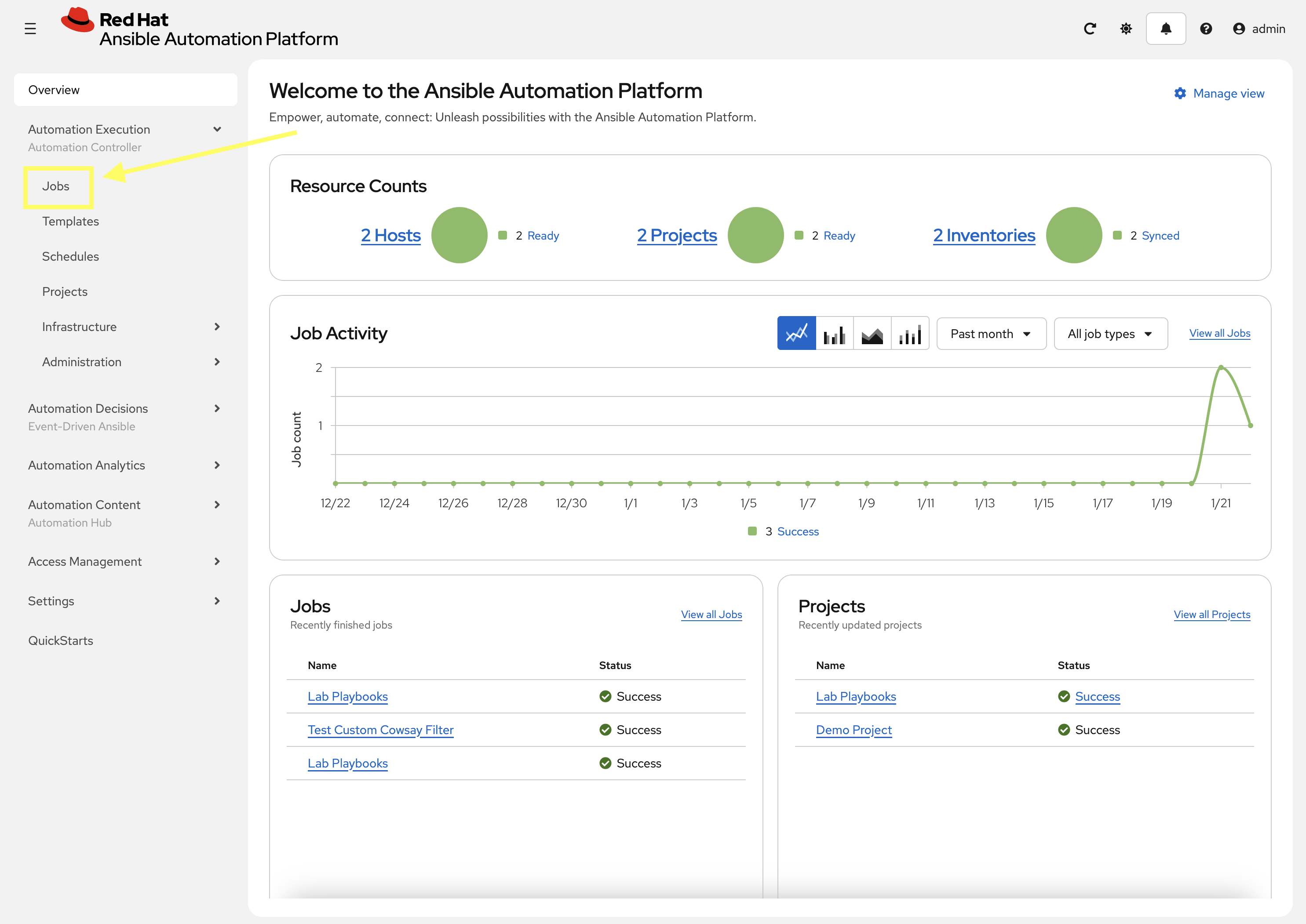
Navigate to Automation Controller → Jobs.
-
Confirm that a new job for
Start IIShas been triggered by theedauser.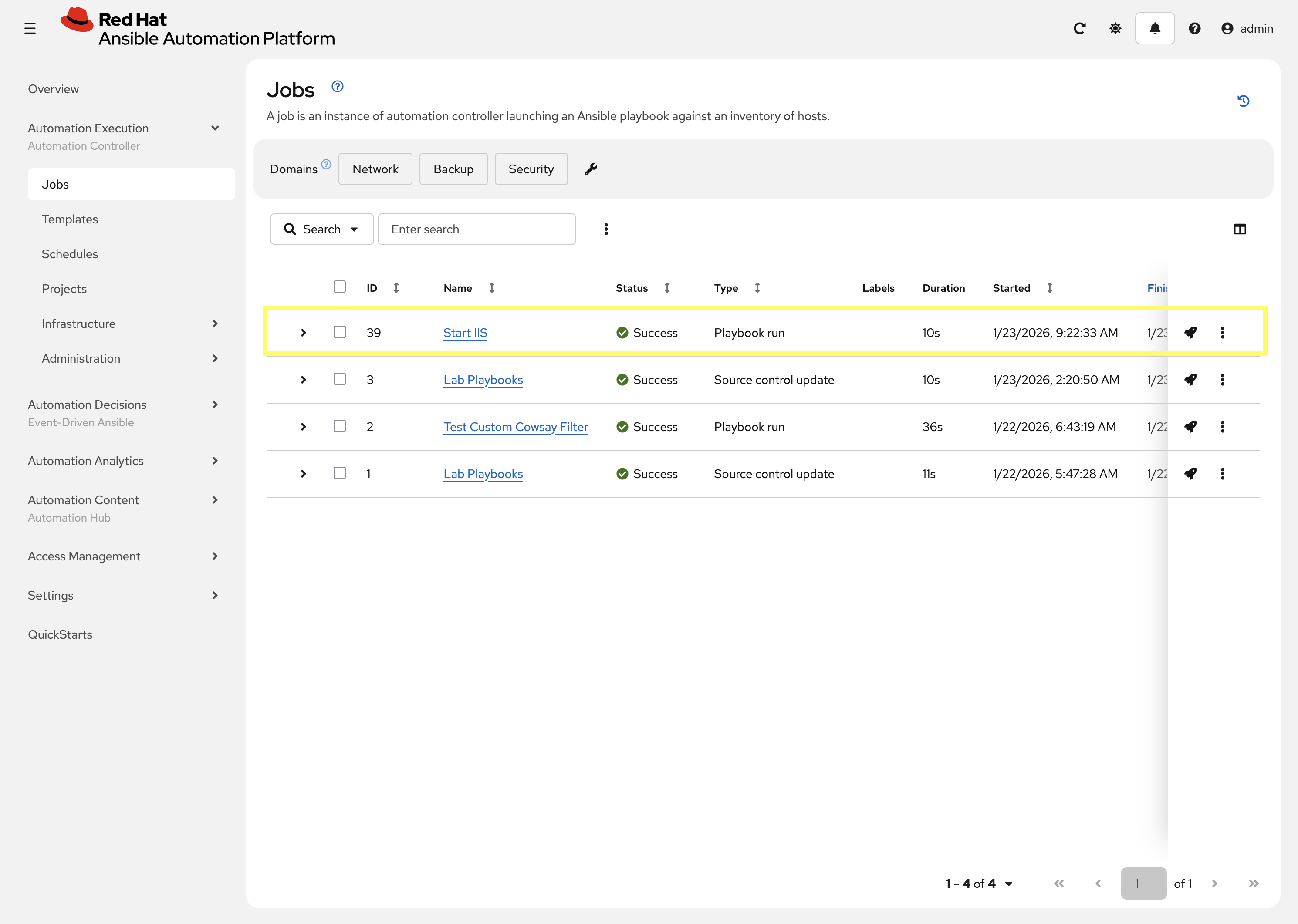
-
The job ID should match what was shown in the EDA Controller Rulebook Activation for check_website
4. Disable check_website Rulebook Activation
Before starting this lab, disable the check_website Rulebook Activation created in this lab so that it does not interfere with next lab.
-
Navigate to Automation Controller web interface go to Automation Decisions → Rulebook Activations
-
Deselect the toggle for the
check_websiteRulebook Activation to disable it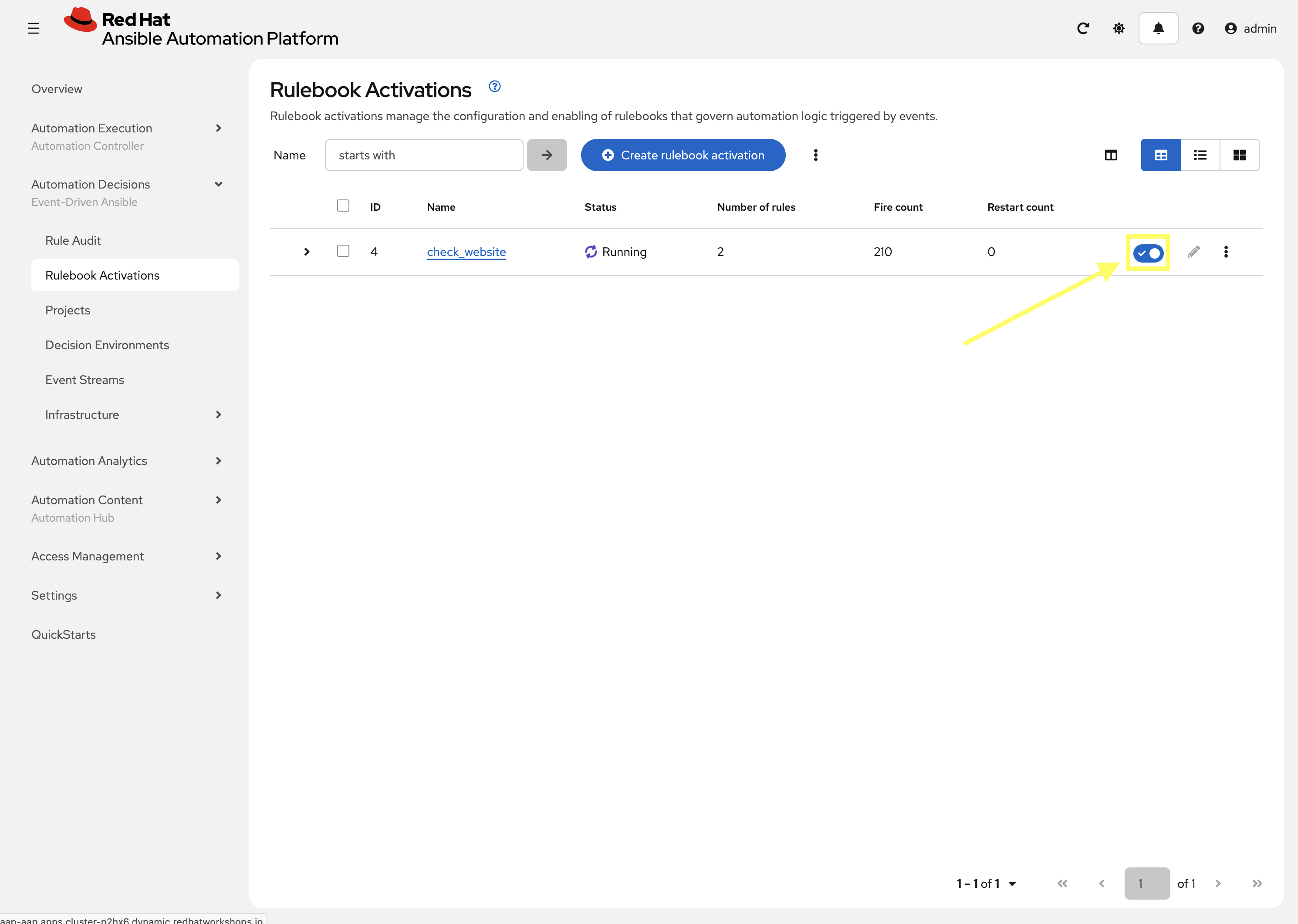
-
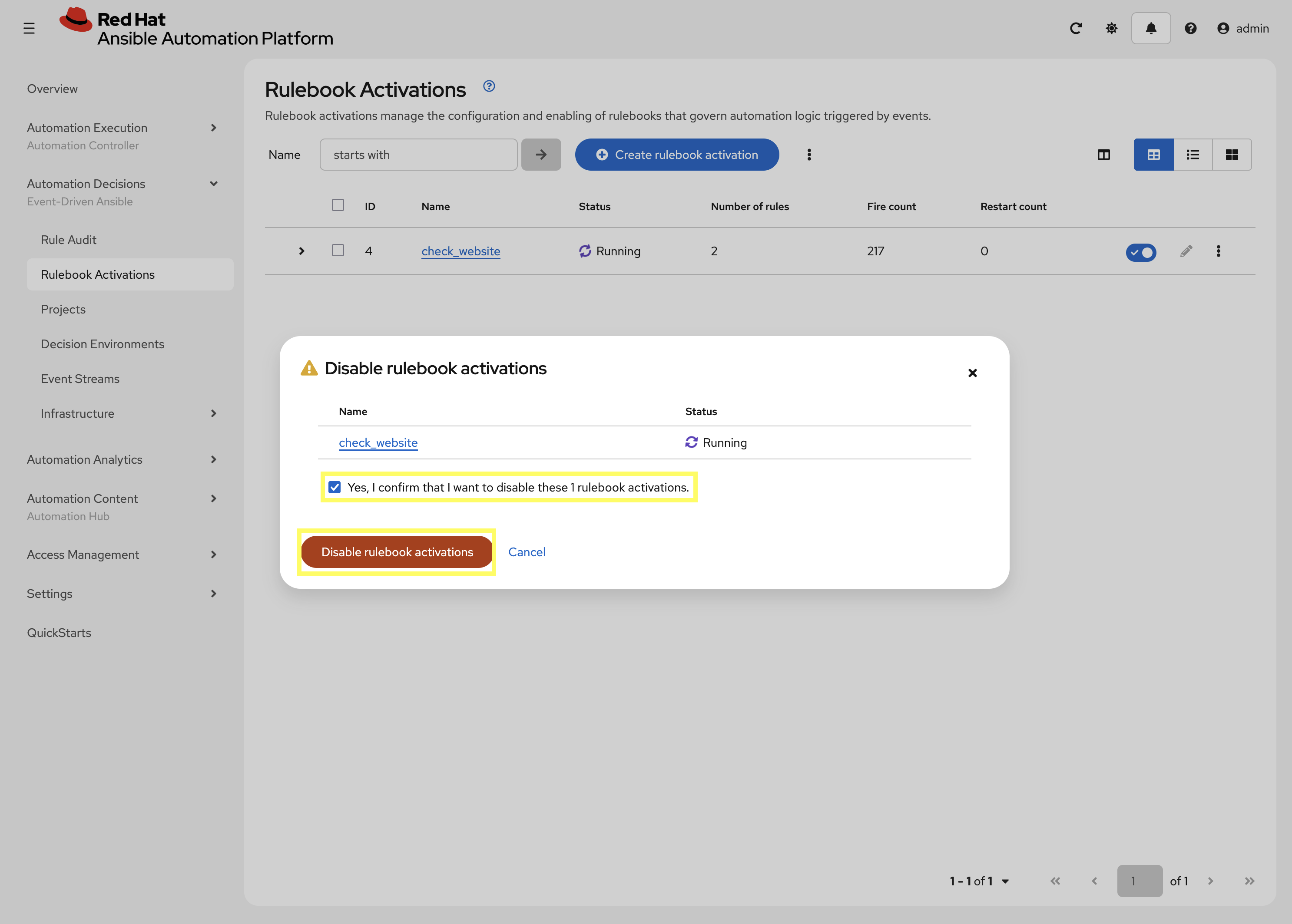
Select the checkbox to confirm disabling and click Disable rulebook activations
Summary
You have successfully implemented an agentless monitoring and remediation workflow. By using the url_check source plugin, you ensured that the application is monitored from the "outside-in," verifying not just that the service is running, but that the web server is actually responding to HTTP requests.