Module 4 Lab 1: AI - Ansible Lightspeed Intelligent Assistant
We will explore how to begin to integrate generative Artificial Intelligence (AI) capabilities with Ansible Automation Platform (AAP) using the Ansible Lightspeed Intelligent Assistant. This lab will guide you through the process of deploying Ansible Lightspeed intelligent assistant and interacting with the service within the Ansible Automation Platform user interface.
Learning Objectives
After completing this module, you will be able to:
-
Deploy and configure Ansible Lightspeed intelligent assistant
-
Interact with Ansible Lightspeed intelligent assistant within Ansible Automation Platform interface
-
Understand the role of Ansible Lightspeed intelligent assistant within Ansible Automation Platform
1: Introduction: Ansible Lightspeed intelligent assistant
Ansible Lightspeed intelligent assistant is a chat interface embedded within the Ansible Automation Platform, using generative artificial intelligence (AI) to answer questions about the Ansible Automation Platform.
The Ansible Lightspeed intelligent assistant enables users to use natural language prompts in English and Large Language Models (LLM’s)to generate quick, accurate, and personalized responses. These responses empower Ansible users to work more efficiently, thereby improving productivity and the overall quality of their work.
2: LLM Support
2.1: LLM Requirements
An LLM provider must be available for use by the Ansible Lightspeed intelligent assistant. As of Ansible Automation Platform 2.6, the following LLM providers are supported:
-
Red Hat Providers
-
Red Hat Enterprise Linux AI
-
Red Hat OpenShift AI
-
Red Hat AI Inference Server
-
-
Third-Party Providers
-
OpenAI
-
Microsoft Azure OpenAI
-
2.2: Access to LLM’s in this Lab Environment
The lab environment has been configured to leverage models provided by a self hosted LiteLLM instance. Access to models are available to you with details provided in the Environment Details page.
3: Deploying Ansible Lightspeed intelligent assistant
Utilize the steps within this section to deploy and configure Ansible Lightspeed intelligent assistant
3.1: Configuring Ansible Lightspeed intelligent
The configuration for the Ansible Lightspeed intelligent assistant is provided within a Secret resource in the same namespace as Ansible Automation Platform. This configuration secret requires the following keys to be provided:
-
chatbot_model- Name of the LLM model for use -
chatbot_url- Base URL for the inference service -
chatbot_token- API key for the inference service
Configure the Secret by performing the following;
-
Launch the OpenShift Web Console
-
Select the htpasswd_provider button and use the credentials provided in the Environment Details page to login to the OpenShift console
-
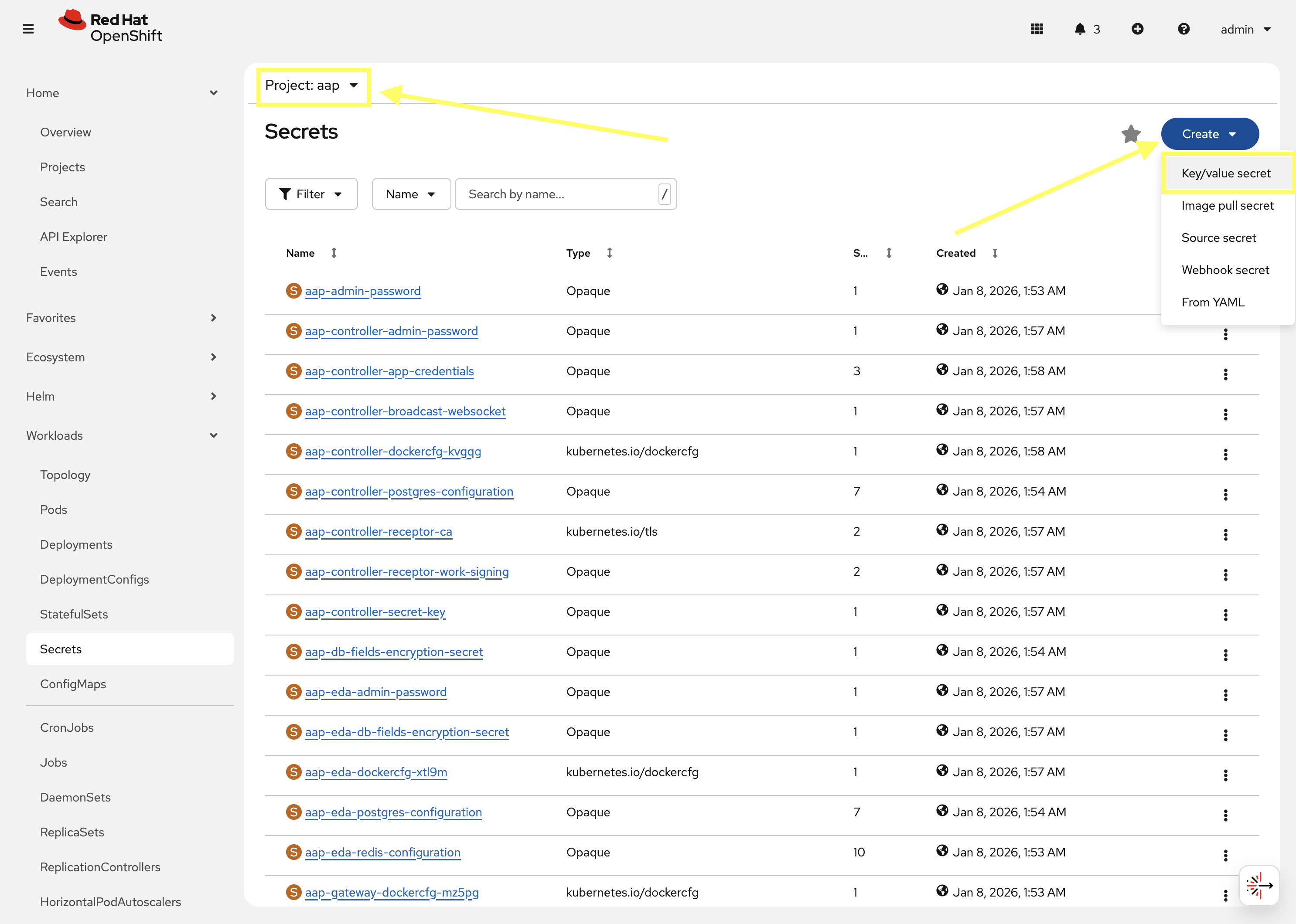
Navigate to Workloads on the left hand navigation → Secrets. From the project dropdown at the top, select aap.
-
Click on the Create button and select Key/value secret.
-
For the Secret name, enter
alia-chatbot-secret. -
For the Key enter
chatbot_model -
For the Value enter the name of the model you would like to use. For a list of available models, consult the Environment Details page.
-
Click the Add key/value link to add another key/value pair.
-
For the new Key enter
chatbot_url -
For the value enter the base URL for the inference service: {litellm_api_base_url}
-
Click the Add key/value link to add another key/value pair.
-
For the new Key enter
chatbot_token -
For the Value enter the API key:
{litellm_virtual_key} -
Click the Create button.
3.2: Enabling Ansible Lightspeed intelligent
Ansible Automation intelligent assistant is enabled by updating the AnsibleAutomationPlatform custom resource. Update the AnsibleAutomationPlatform resource in the aap Project by performing the following in the OpenShift web console:
-
Navigate to Ecosystem → Installed Operators
-
From the Project dropdown, ensure
aapis selected -
The
Ansible Automation Platformoperator is listed and installed within this project.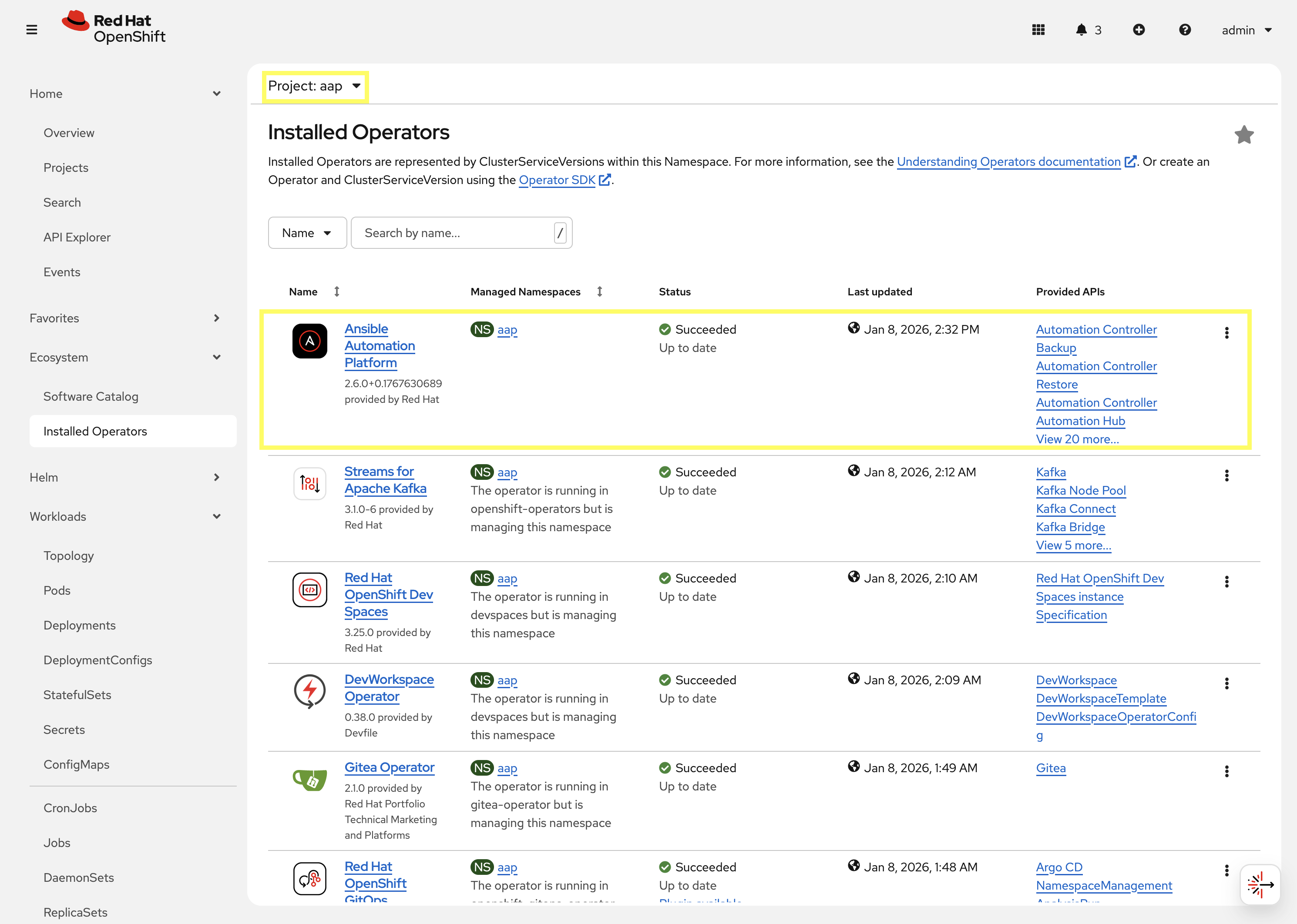
-
Click on the
Ansible Automation Platformoperator which will display all of the resources that are managed by the operator. -
In the top tab, click on
Ansible Automation Platformand select aap.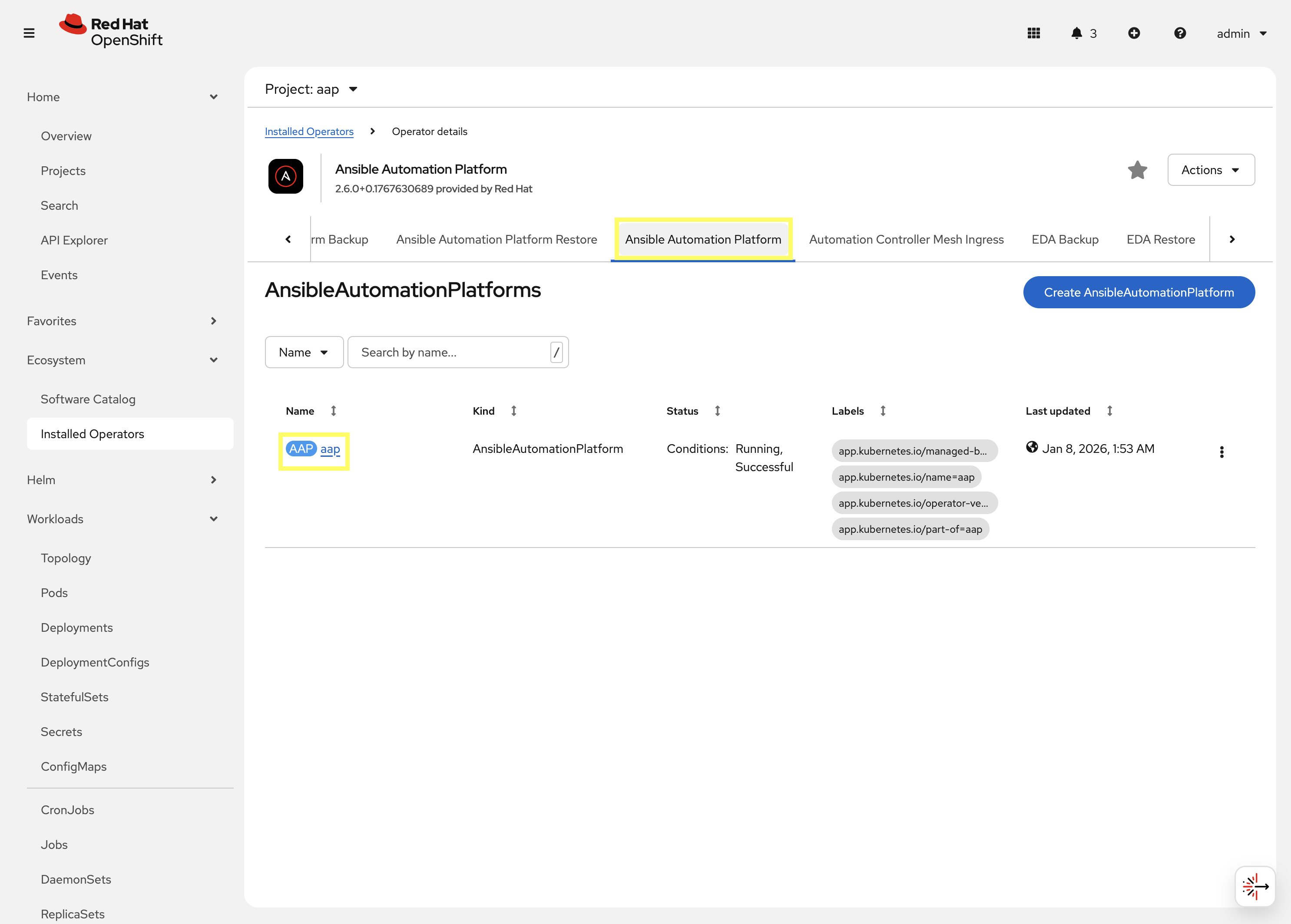
-
Click on the YAML tab to edit the resource in YAML format.
-
Locate the
spec.lightspeedsection update the configuration to match the following:--- spec: lightspeed: disabled: false chatbot_config_secret_name: alia-chatbot-secret --- -
Click the Save button to apply the changes.
Once the configuration has been applied, the Ansible Automation Platform operator will begin to reconcile the changes. This process can take several minutes to complete.
Confirm the AAP operator detected the changes by verifying the Ansible Lightspeed intelligent assistant Deployments have been created by navigating to Workloads → Deployments. Two Deployment resources are created as part of this process:
-
<instance_name>-lightspeed-api -
<instance_name>-lightspeed-chatbot-api
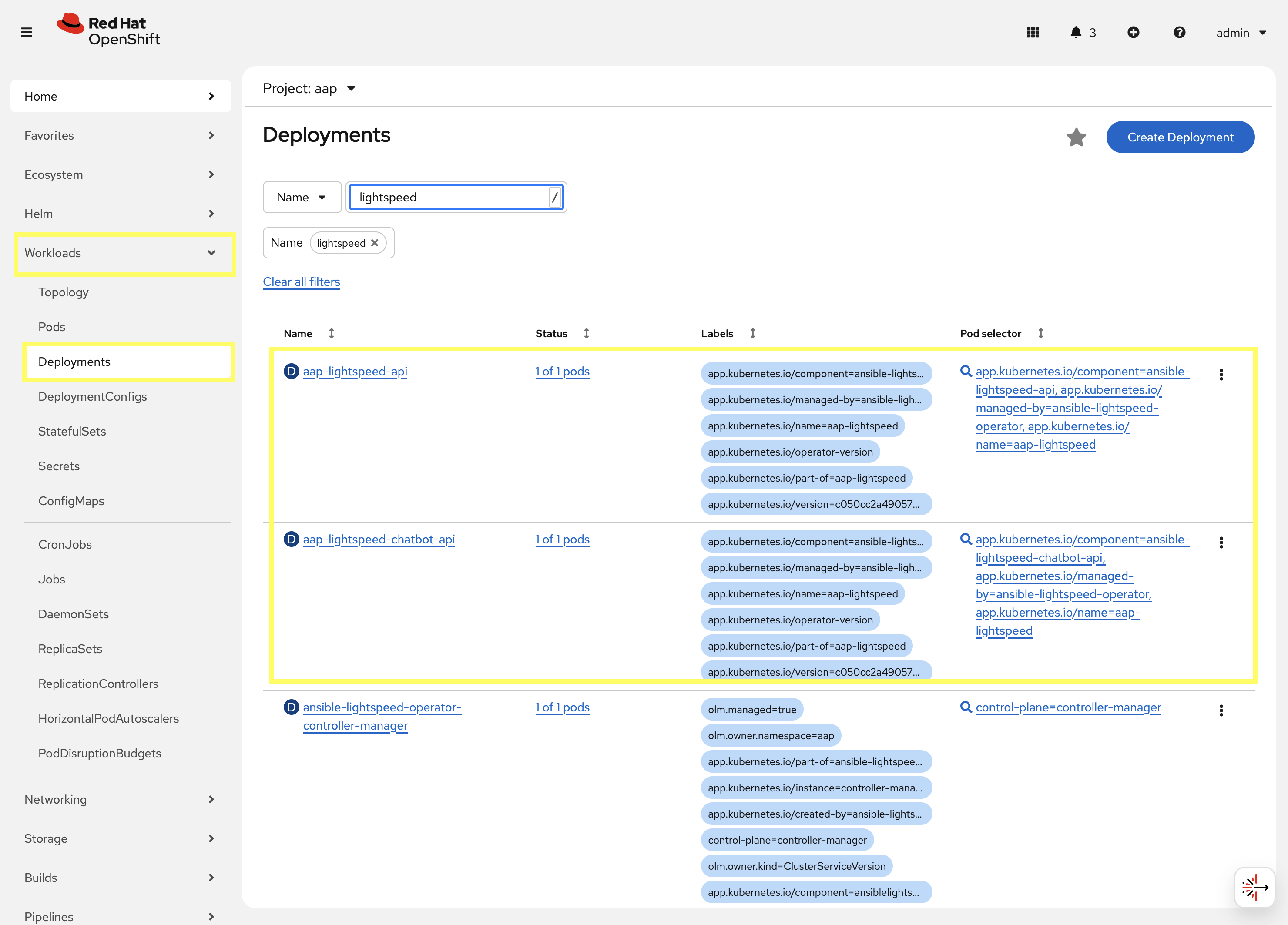
You can confirm that the Pods associated with these Deployments are running by selecting each Deployment and navigating to the Pods tab.
4: Using Ansible Lightspeed intelligent assistant
Now that Ansible Lightspeed intelligent assistant has been deployed and configured, you can interact with the assistant within the Ansible Automation Platform user interface.
Launch the Ansible Automation Platform web interface and login using the credentials from the Environment Details page.
When Ansible Lightspeed intelligent assistant is available, a chat icon will be present on the navigation bar at the top of the console. Click on the chat icon to launch the Ansible Lightspeed intelligent assistant interface which will appear on the right side of the screen.
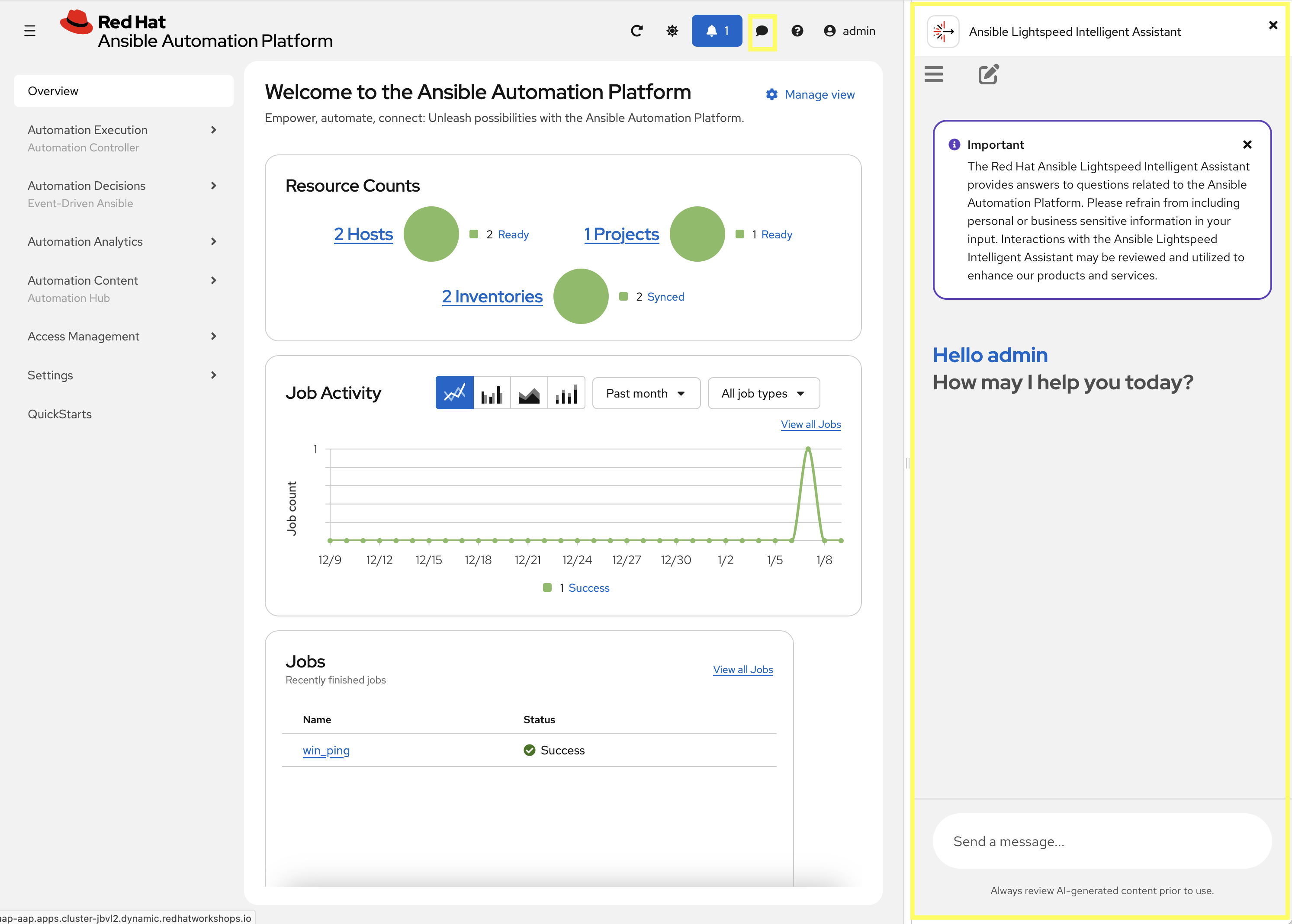
You can now enter natural language prompts in the chat interface to interact with the Ansible Lightspeed intelligent assistant. For example, you can ask questions about Ansible Automation Platform features, request help with playbook development, or seek guidance on best practices.
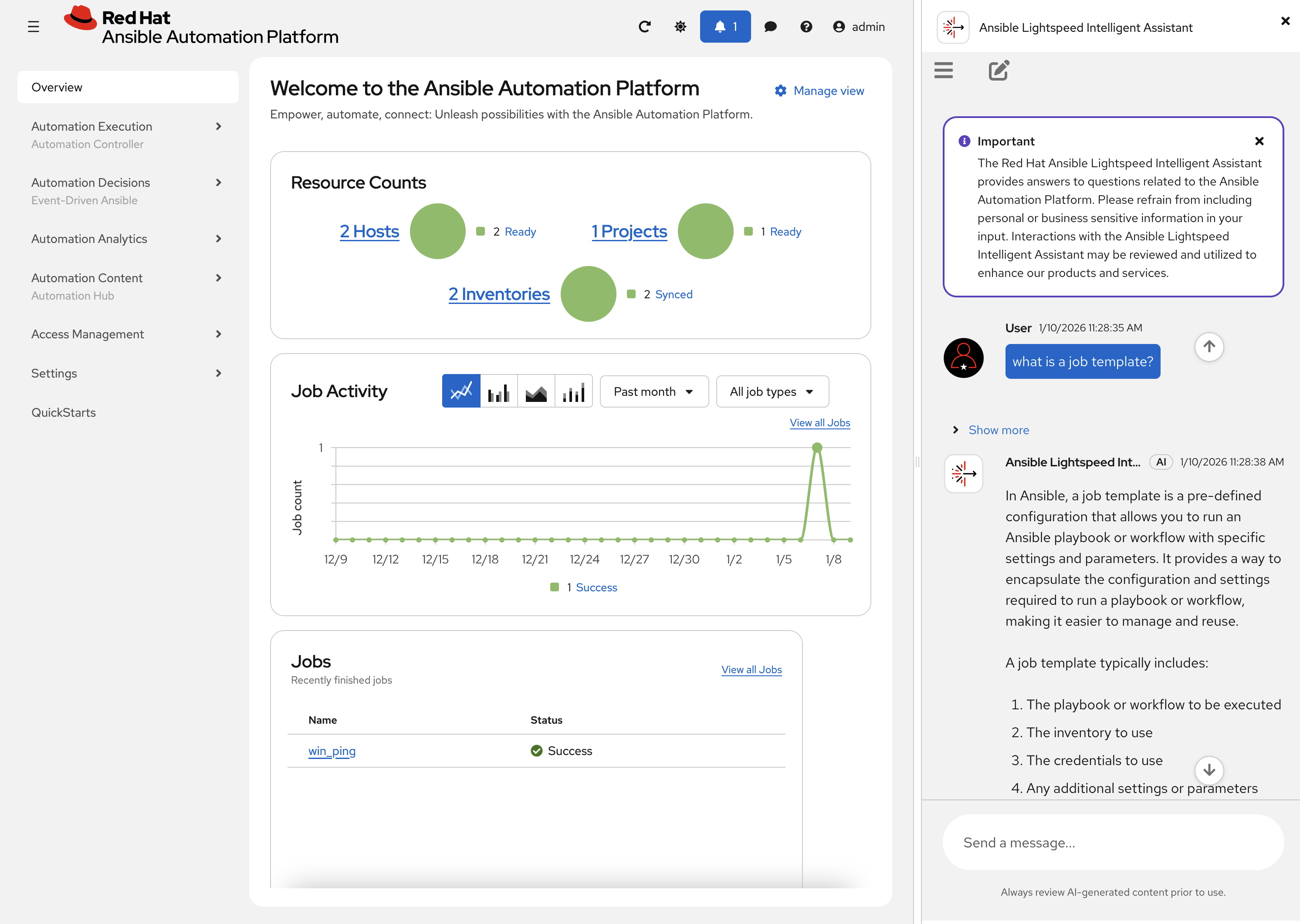
Enter a prompt in the chat interface and click the Send button (For example "What is a Job Template?"). The assistant will process your request and provide a response based on the information available service.
|
You may experience an issue where the Ansible Lightspeed intelligent assistant provides a response similar to the following: This is a known issue which will be addressed in a future release of Ansible Automation Platform. To resolve this issue, simply retry the request by entering the same prompt again. |
Continue conversing with the Ansible Lightspeed intelligent assistant to explore its capabilities and how it can assist you with your Ansible Automation Platform tasks.
Conclusion
In this lab, you have successfully learned how to deploy and configure Ansible Lightspeed intelligent assistant within Ansible Automation Platform.
-
Reviewed how Ansible Lightspeed intelligent assistant integrates generative AI capabilities with Ansible Automation Platform
-
Configured an OpenShift Secret containing the necessary LLM connection details
-
Deployed the Ansible Lightspeed intelligent assistant by updating the
AnsibleAutomationPlatformcustom resource -
Interacted with Ansible Lightspeed intelligent assistant through the AAP user interface