OpenShift AI Workbench Setup and usage
Another approach to executing the exercises of this workshop is to use the Red Hat OpenShift AI Workbench feature that gives you either a Jupyter Notebook, R Studio or Visual Studio Code Server development environment.
As the primary audience for this workshop is architects, platform engineers and developers, we will take the Code Server approach as seen in the screenshots.
|
Why use a Workbench? The Showroom terminals work well for running commands, but a Workbench gives you a full IDE experience inside the cluster — you can browse and edit the Python scripts, set breakpoints, and have multiple files open side-by-side. It’s running as a pod in your namespace, so it has the same network access to Llama Stack and MCP services as your other workloads. |
Open the OpenShift AI Console as
Username:
{user}Password:
{password}OR
Open the {console_url}[OpenShift Console^] as
Username:
{user}Password:
{password}Depending on your browser (Firefox, Chrome, Safari) the different consoles may or may not work.
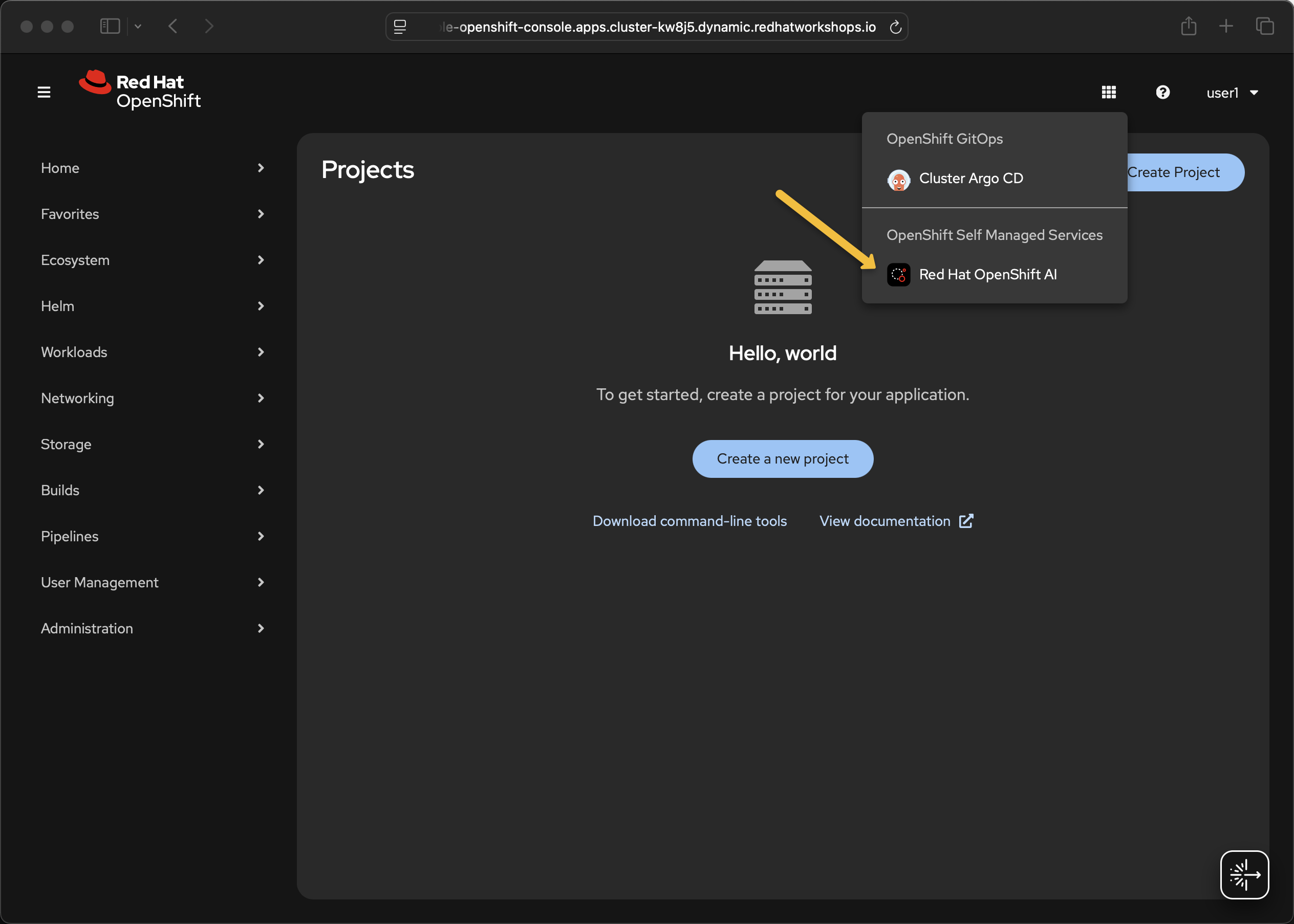
Select Red Hat OpenShift AI from the menu
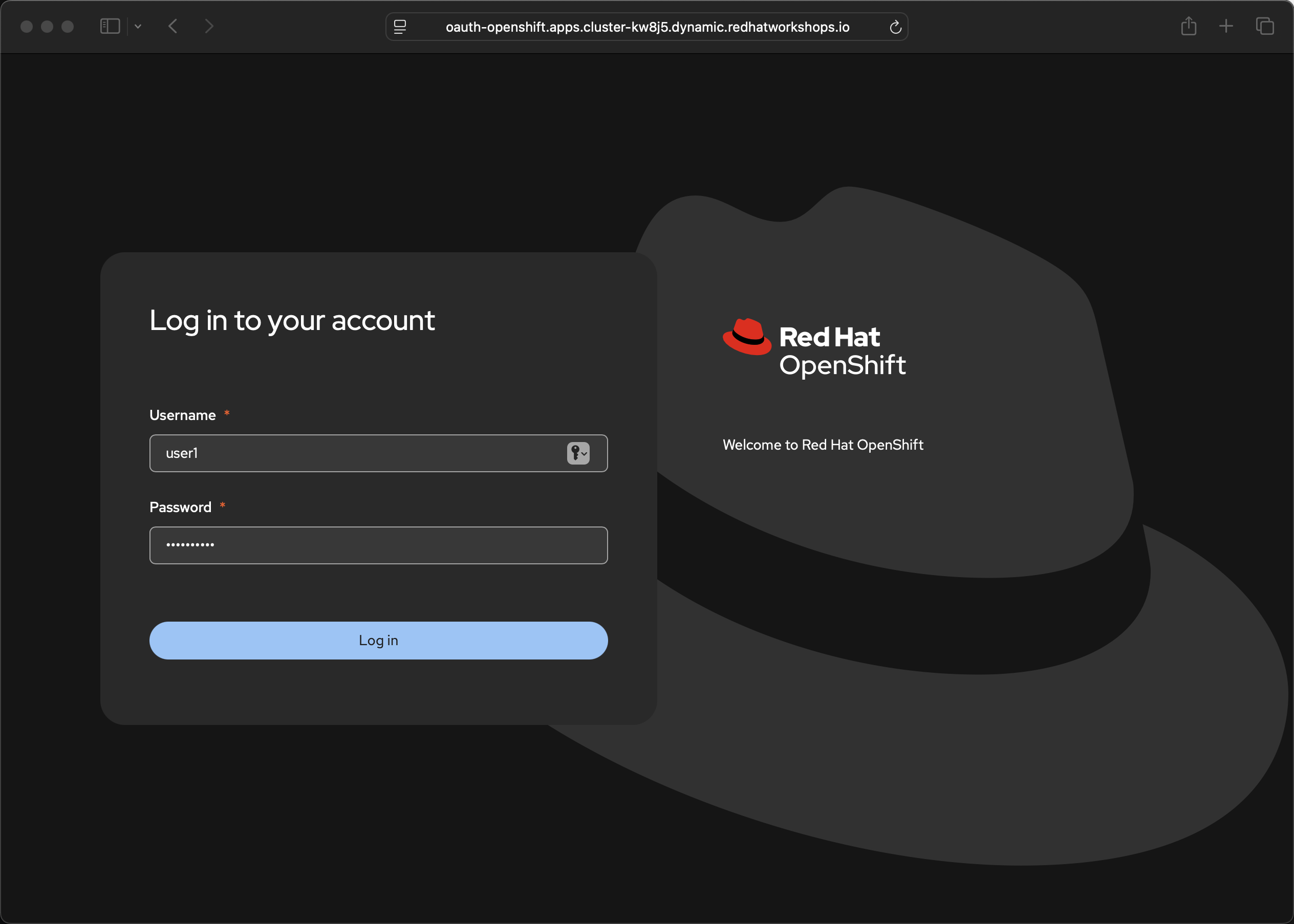
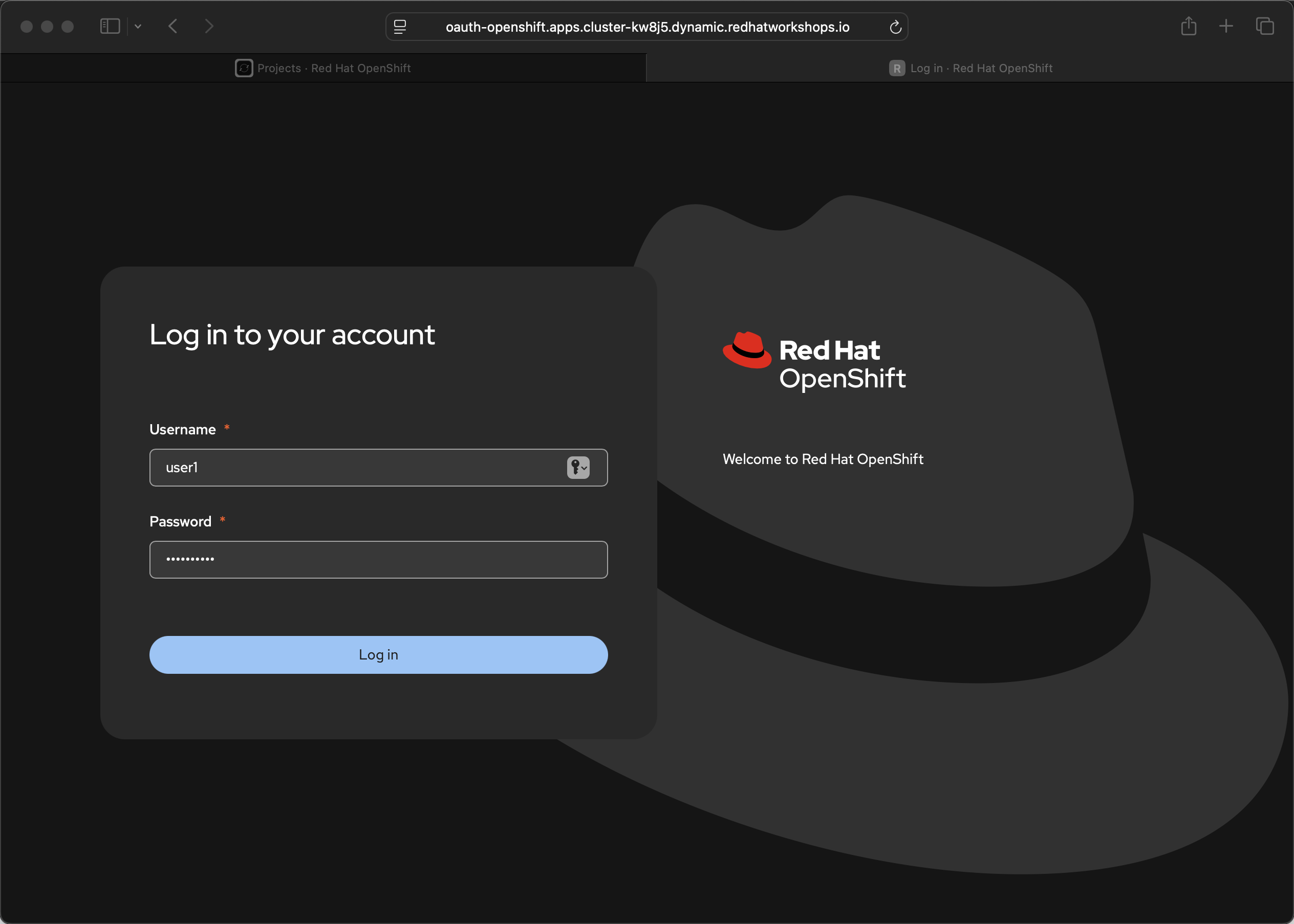
Login to the OpenShift AI console using the same provided user id and password
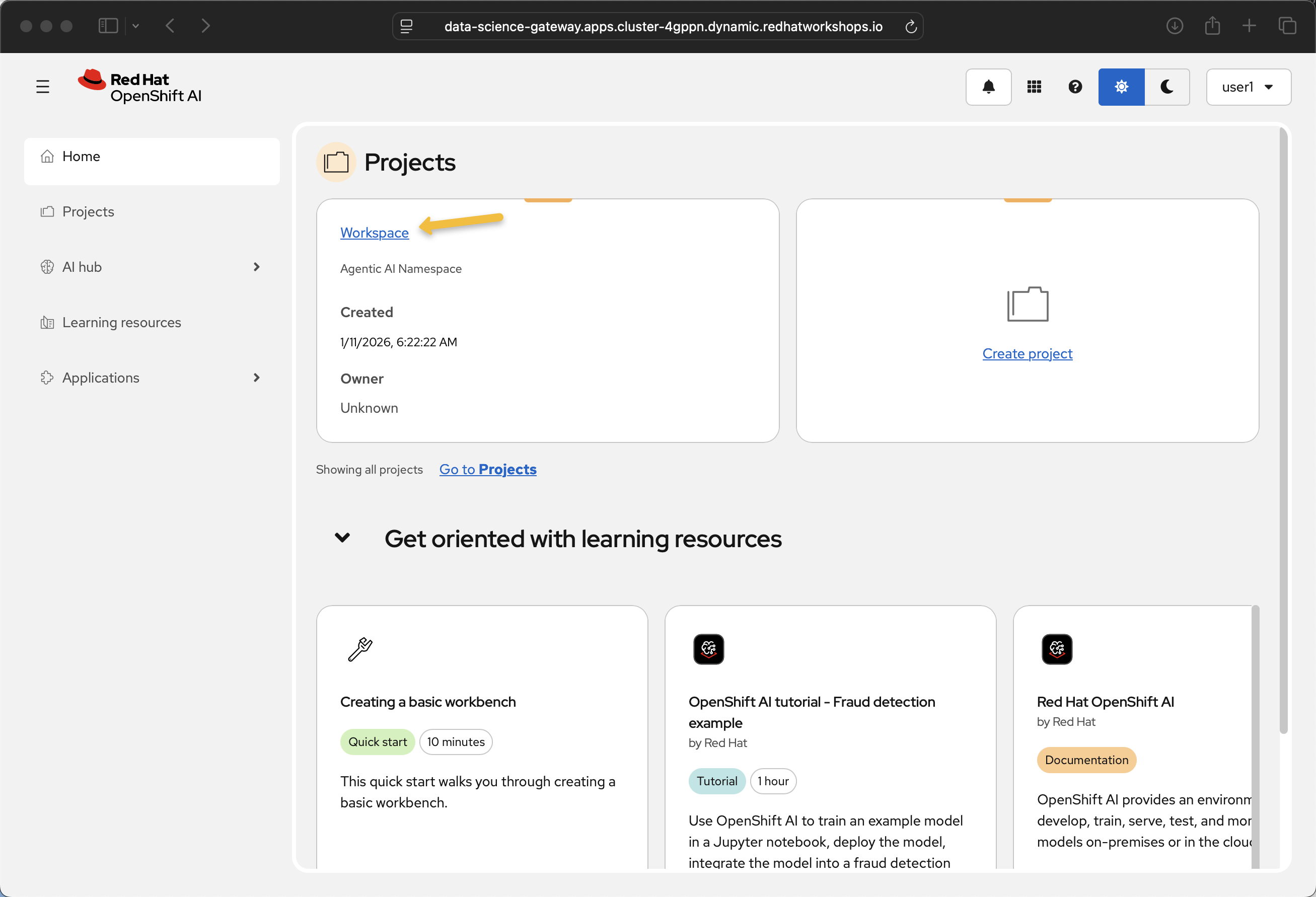
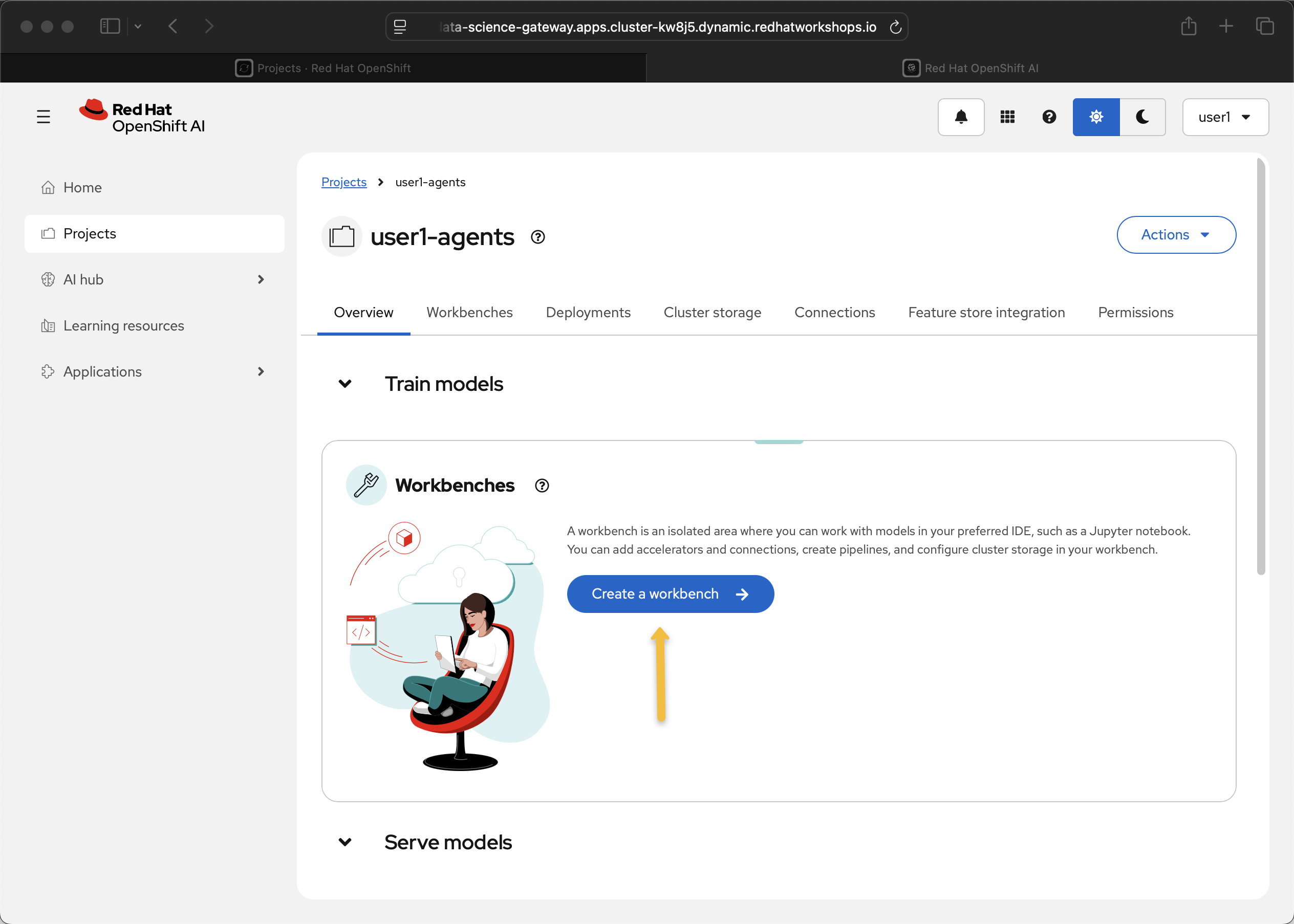
Click Workspace
Click Create a workbench
Use my-workbench for the workbench name
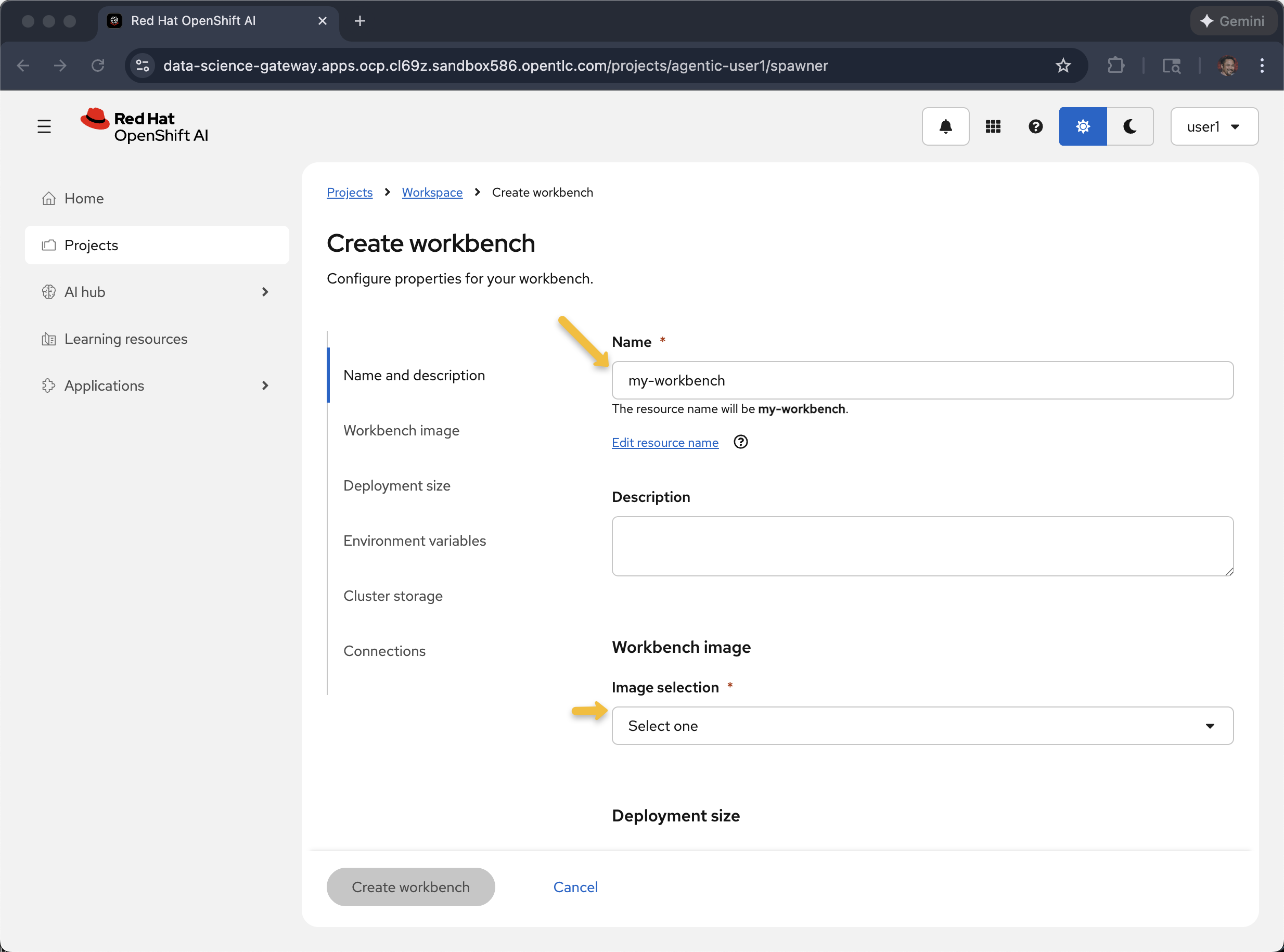
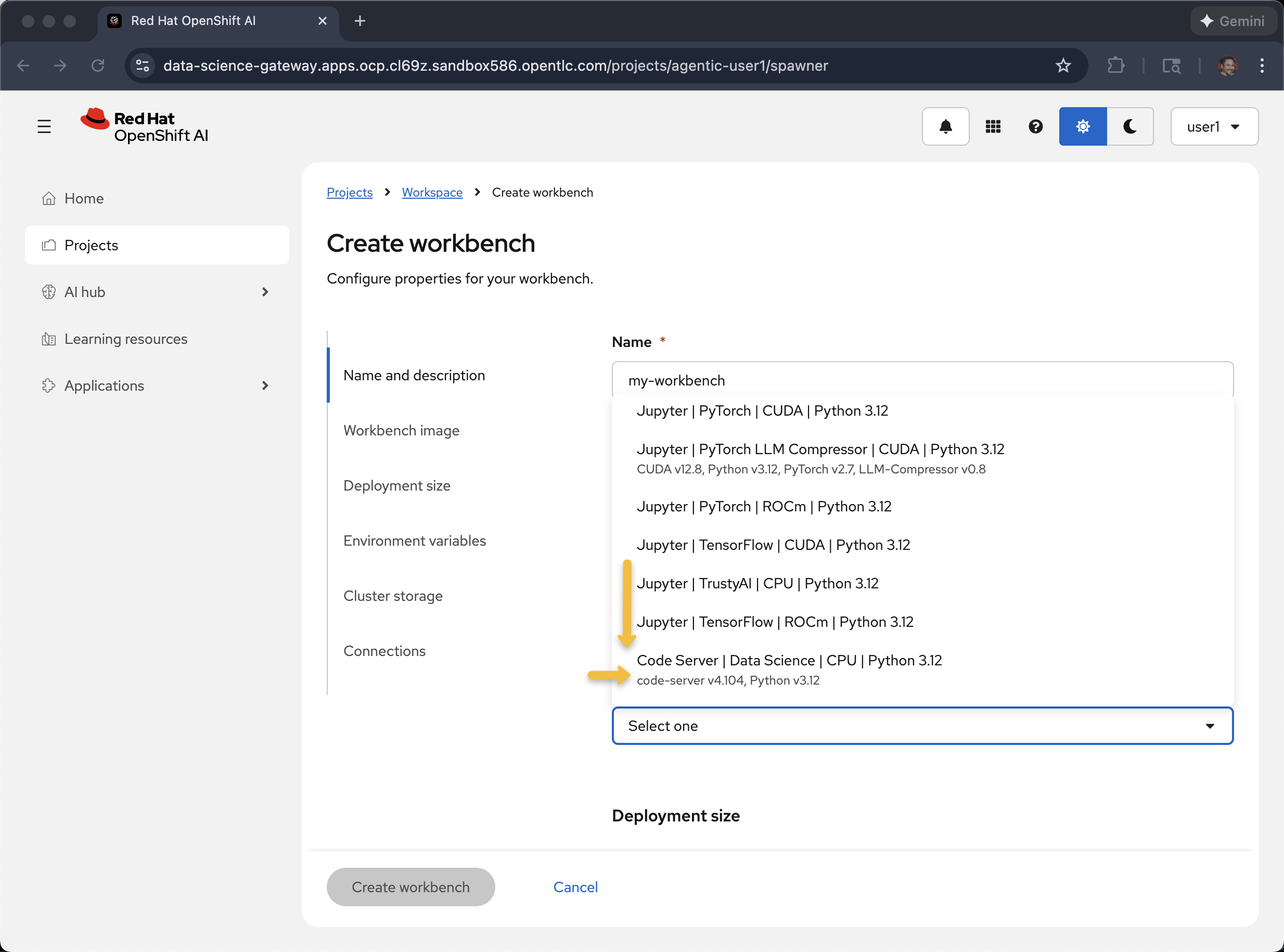
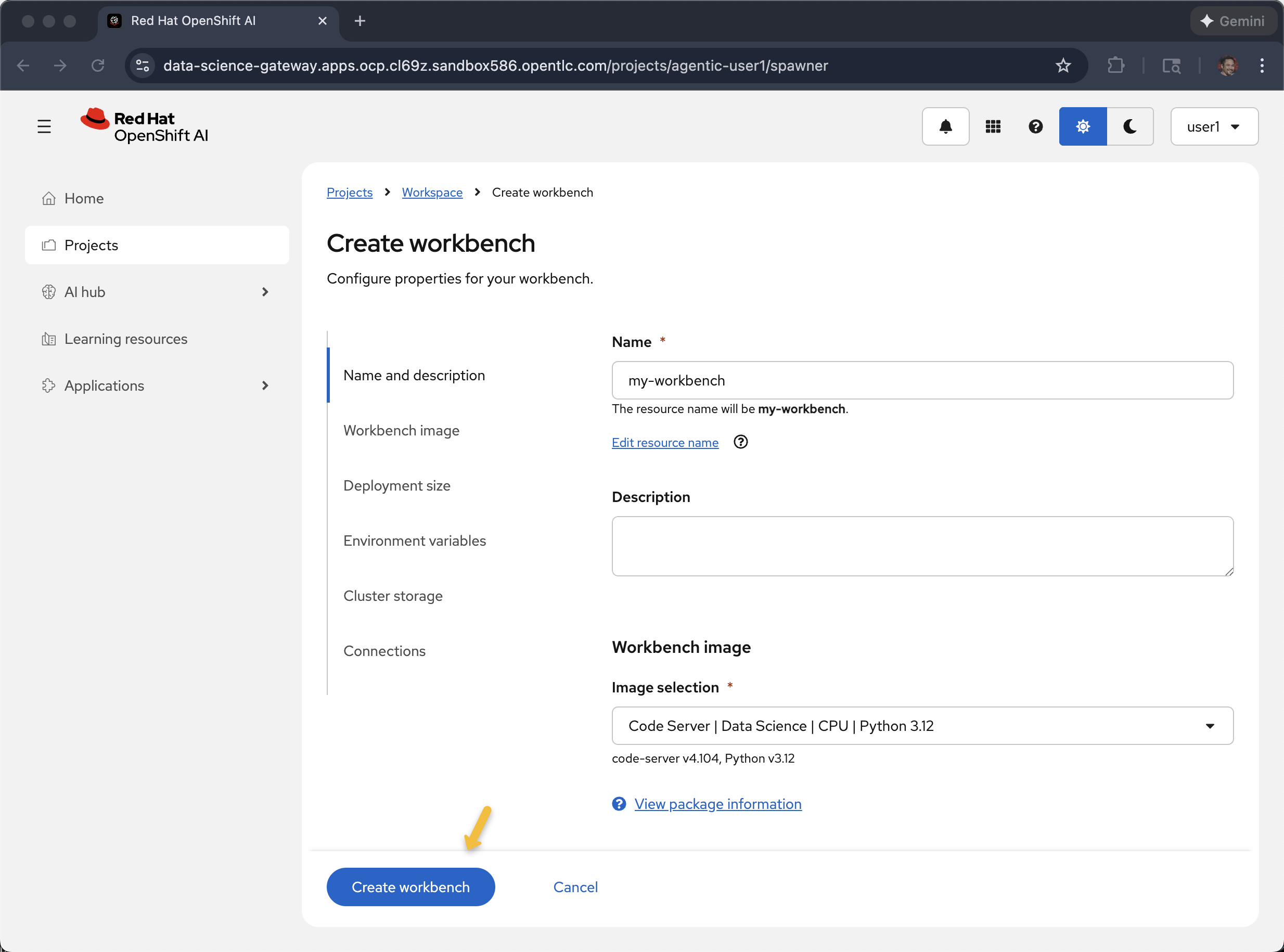
Select Code Server for Workbench image
and click Create workbench
Wait for it to start
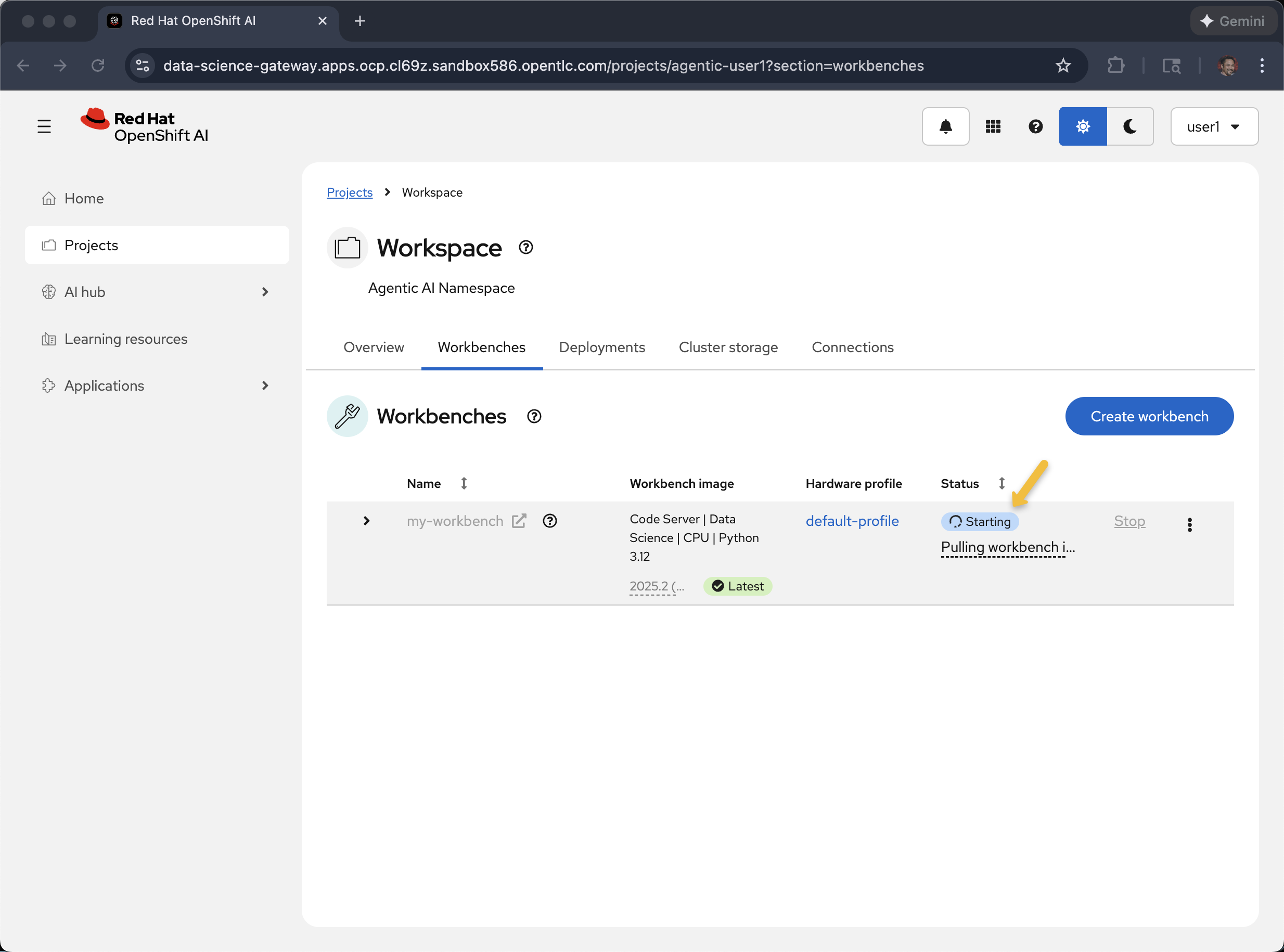
When Running then click the name of the workbench
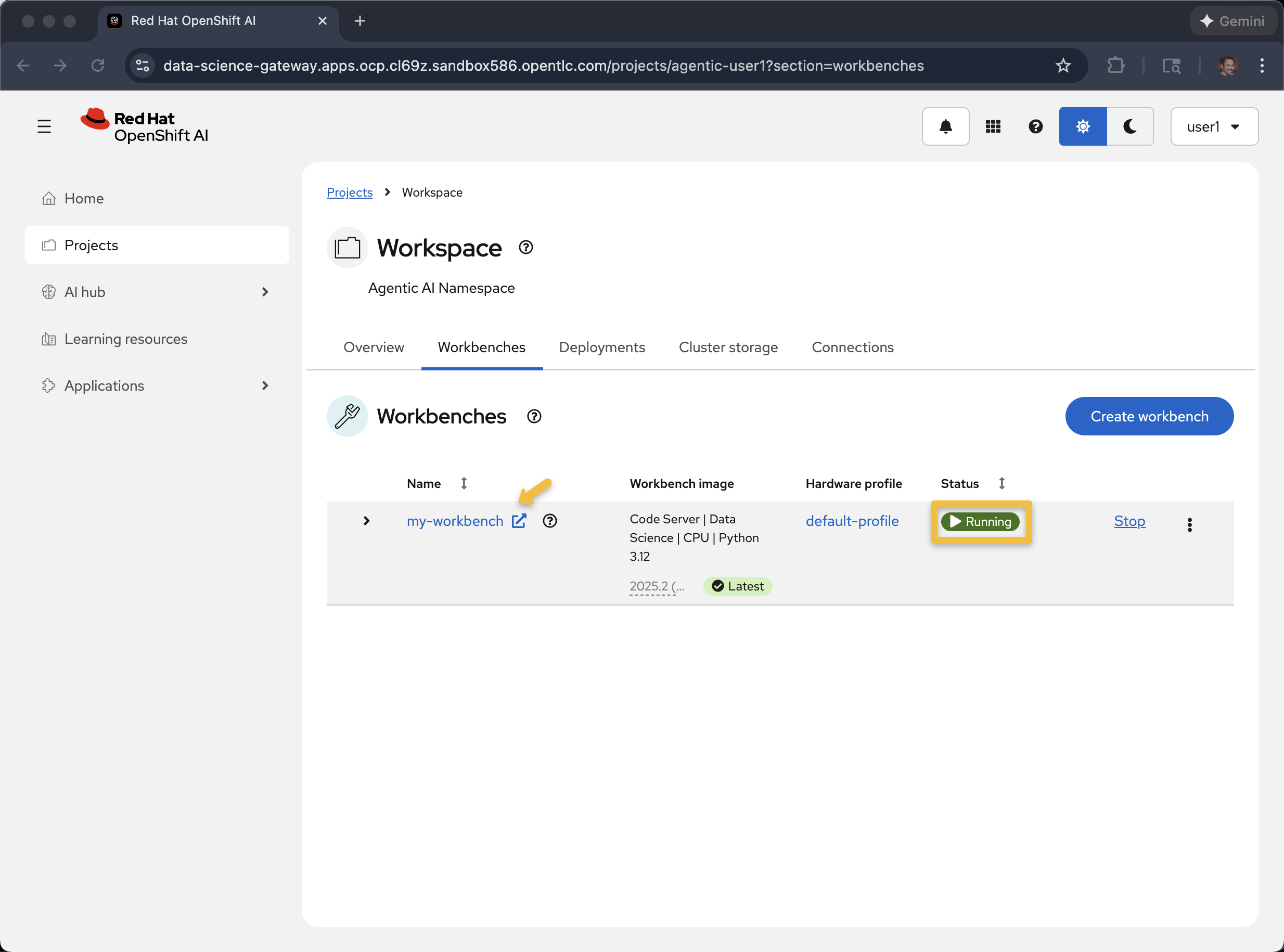
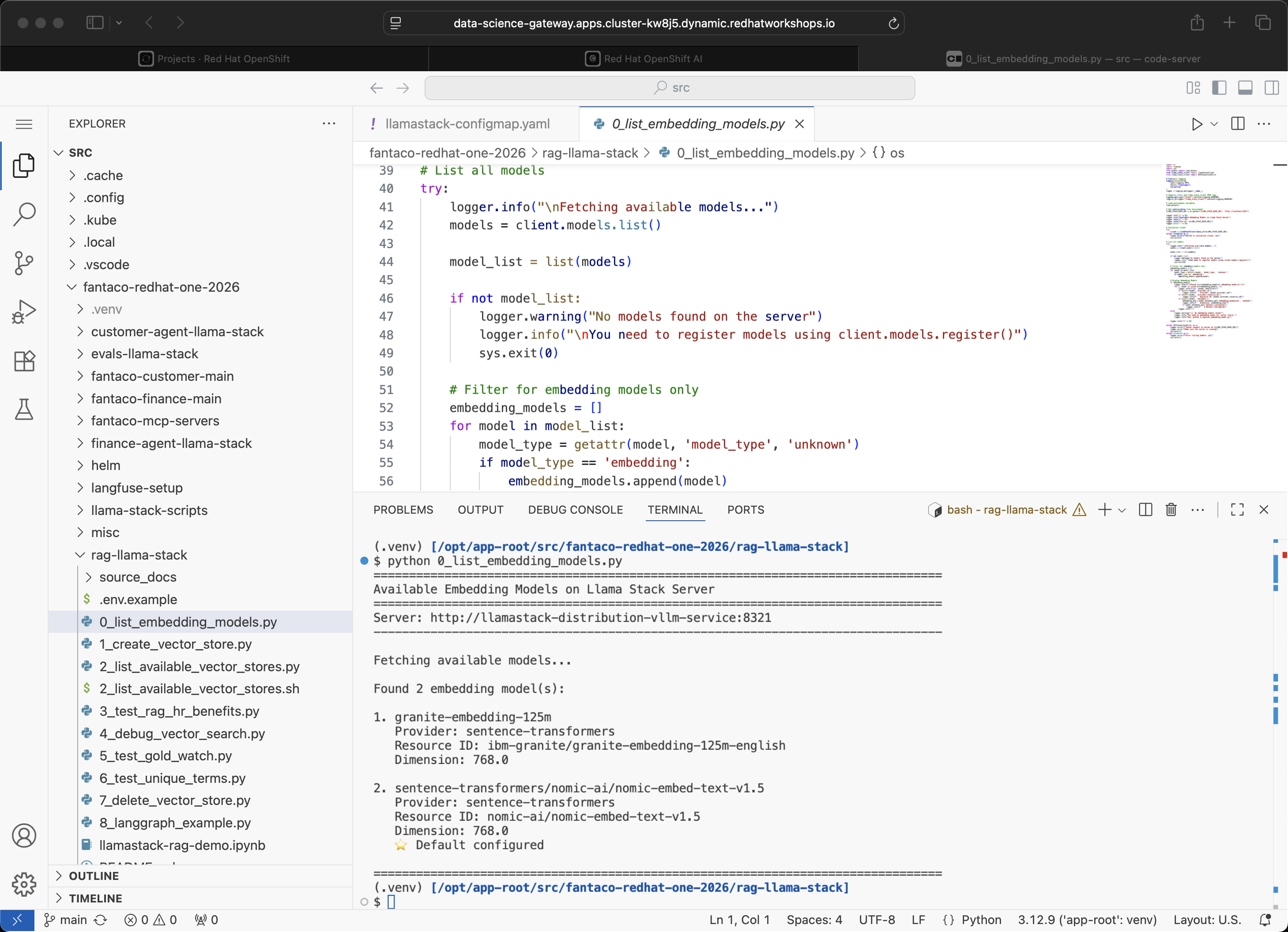
When it loads, it should look like the following.
This is Visual Studio Code but running in the browser and inside a pod
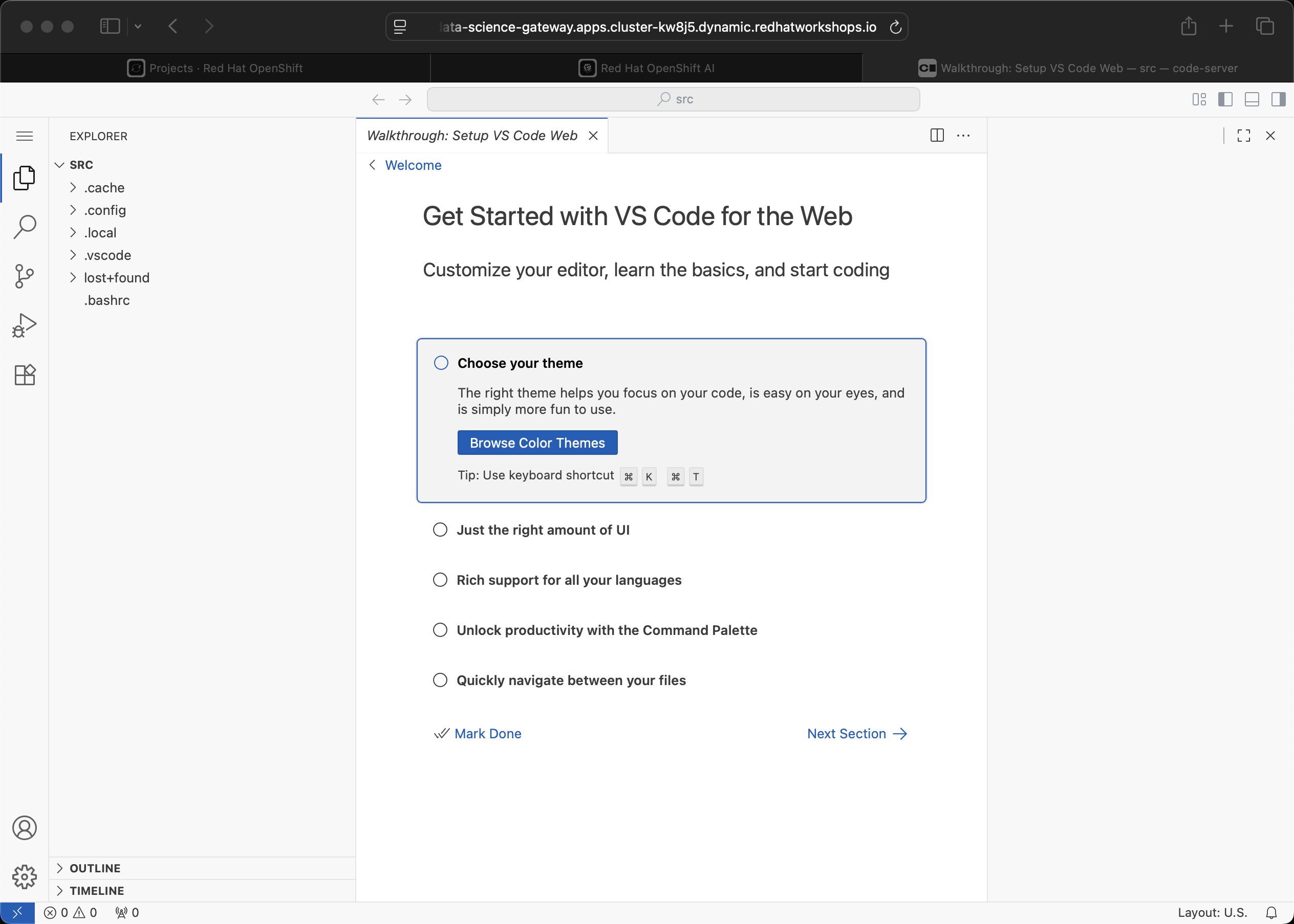
Open a New Terminal window
Paste error when using Command-V on Safari
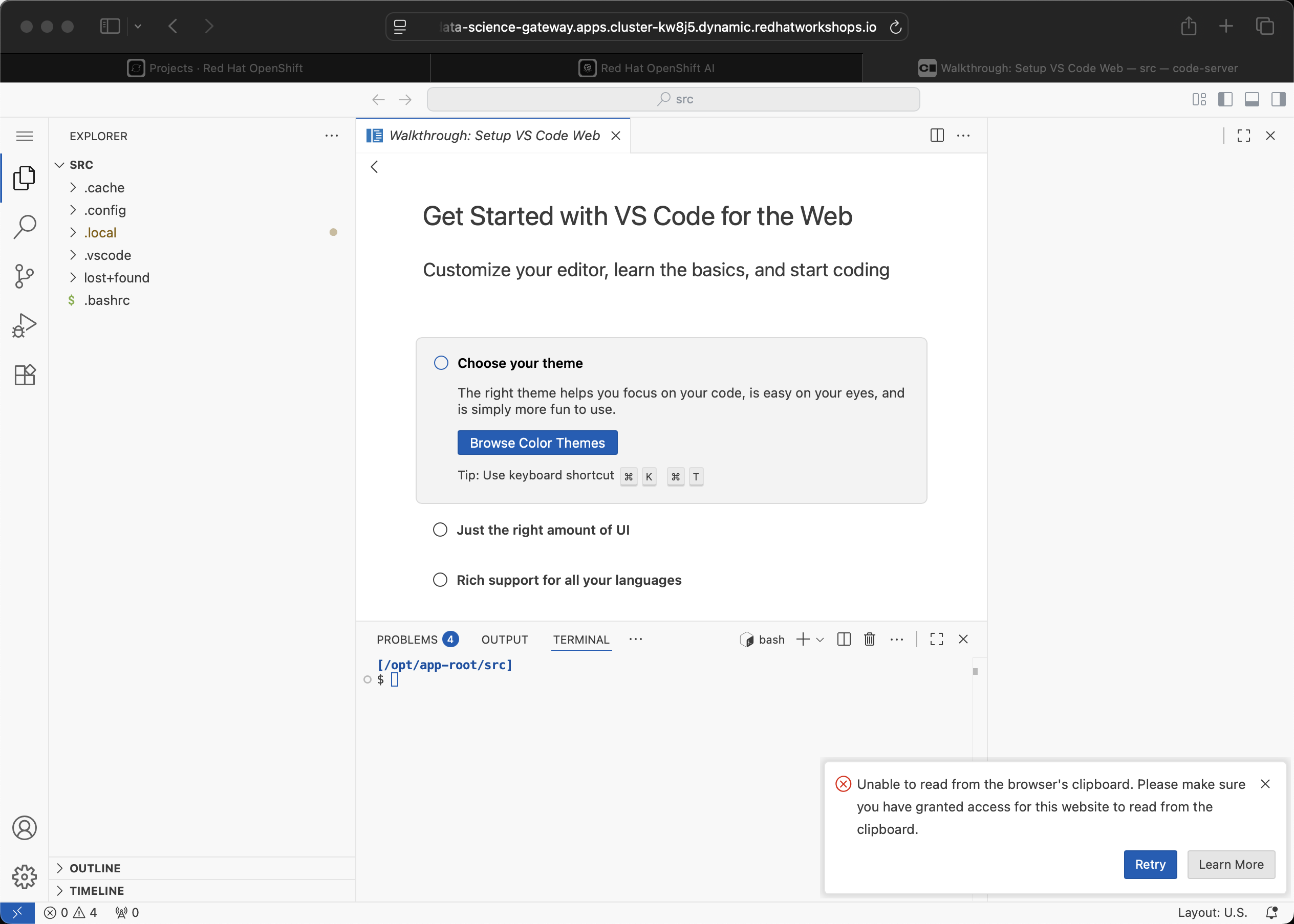
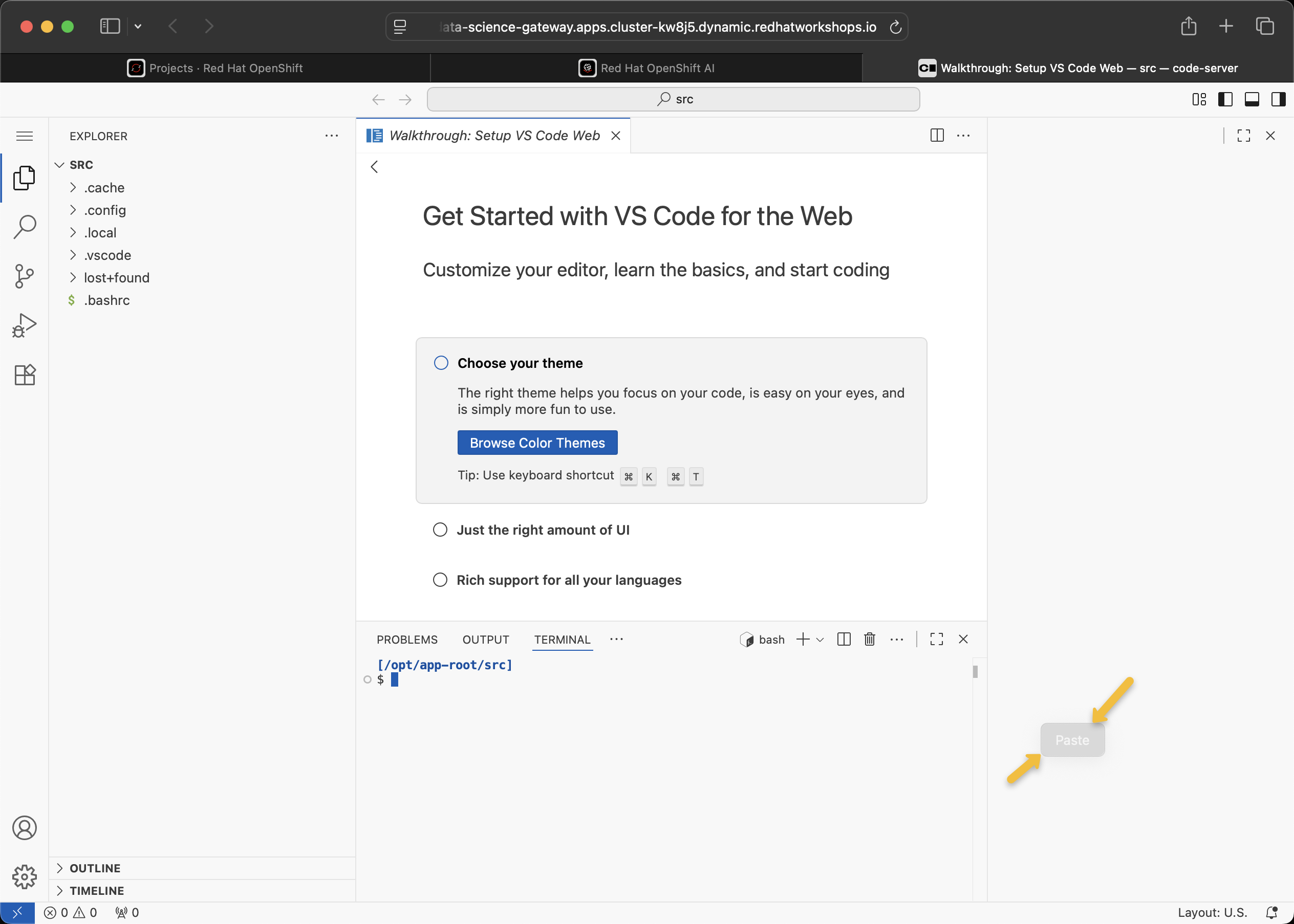
Workaround on Safari is to use Command-V and also click the word "Paste" that appears where the mouse happens to be pointing.
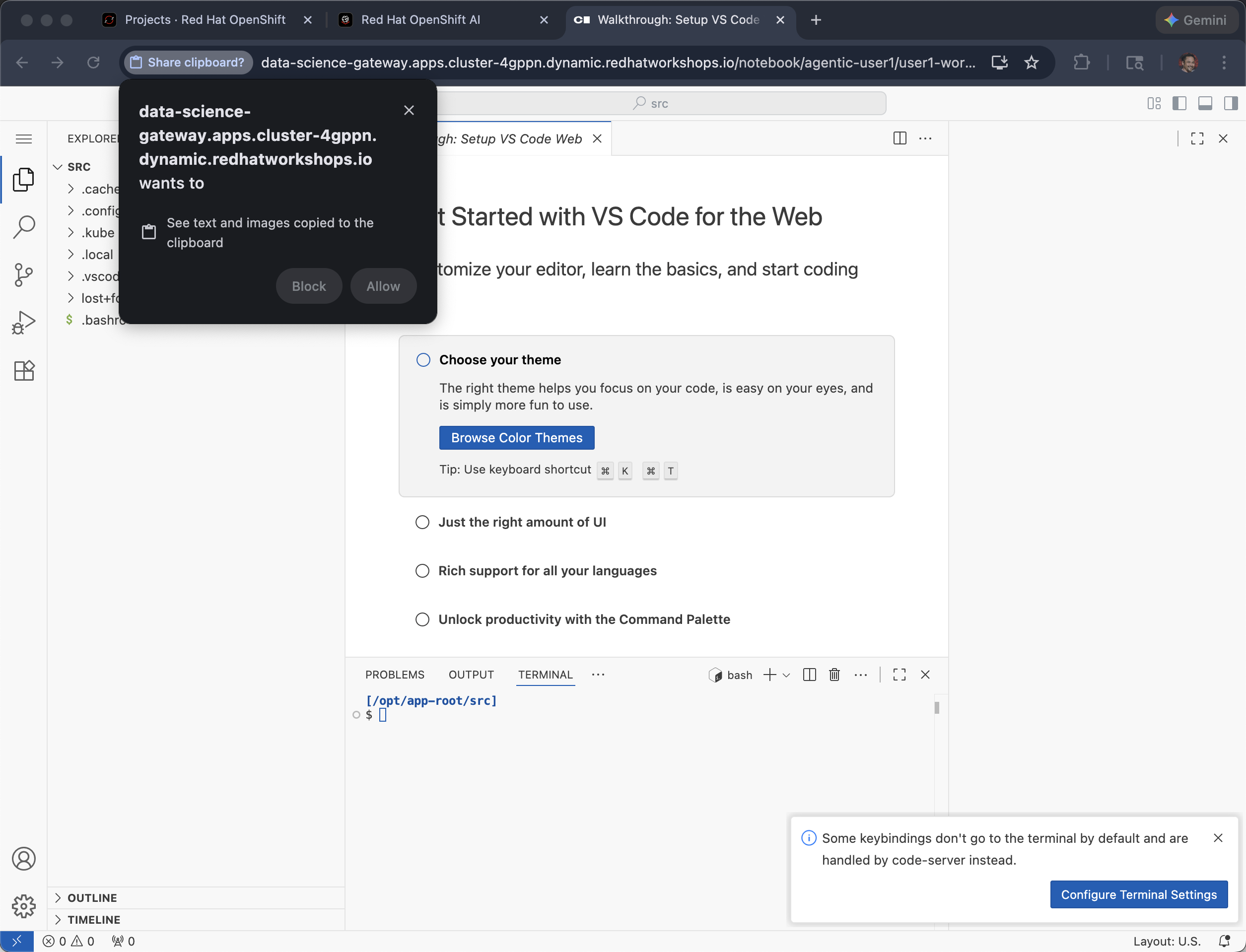
Chrome will pop-up a warning, click Allow
After a successful copy & paste, hit "return" and execute the commands for the workshop
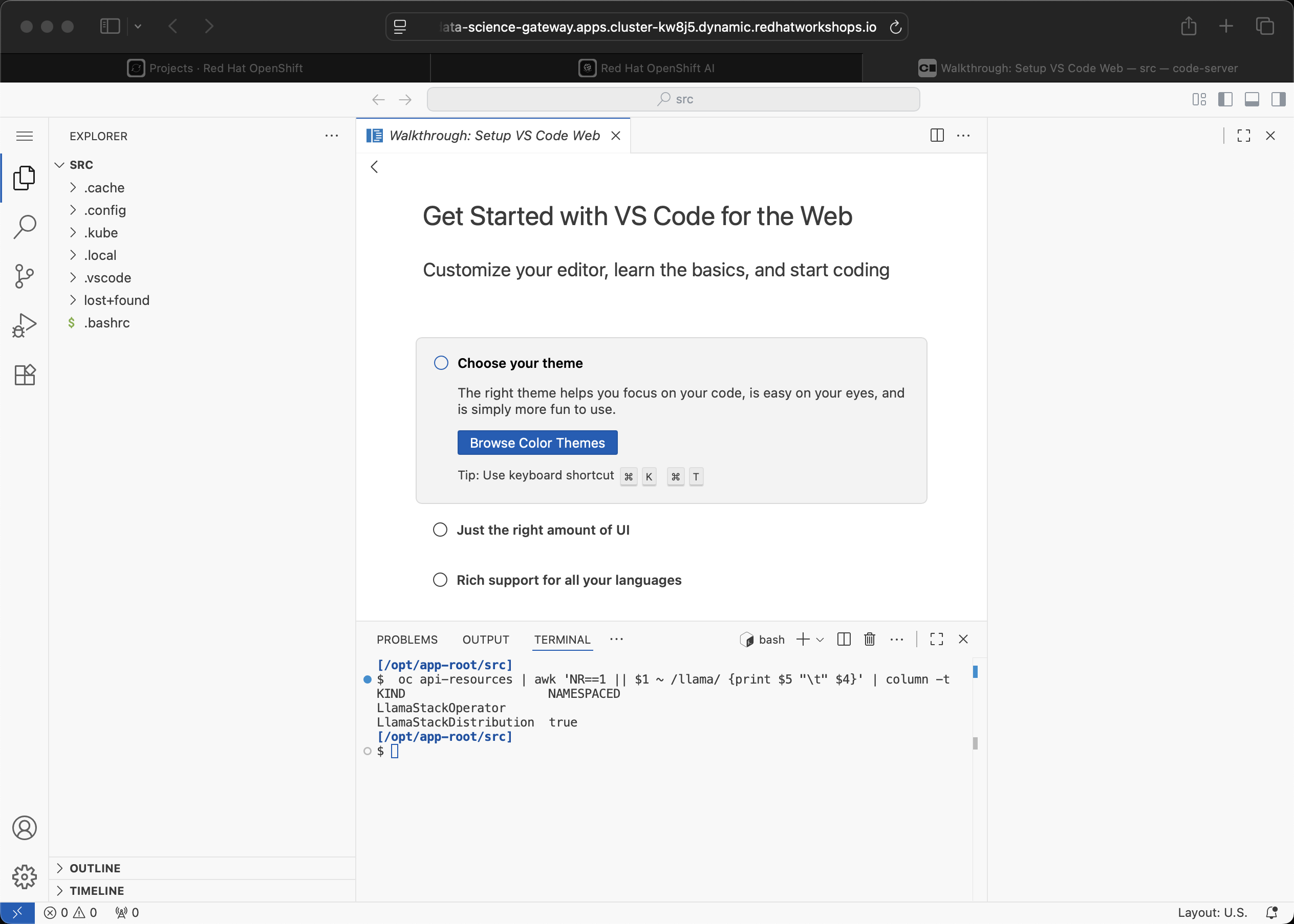
Remember, in Safari, the extra click on the hovering Paste takes some getting used to
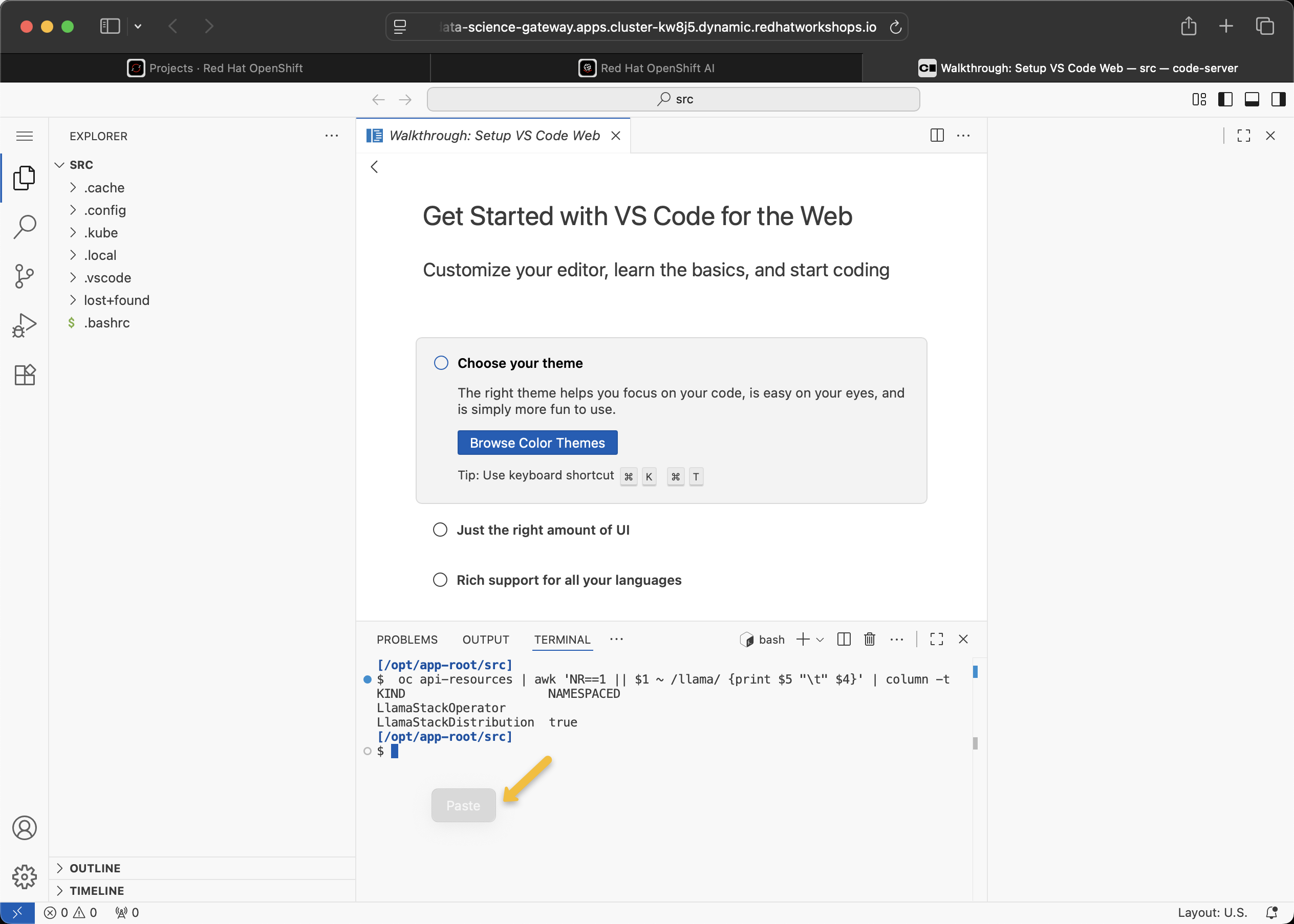
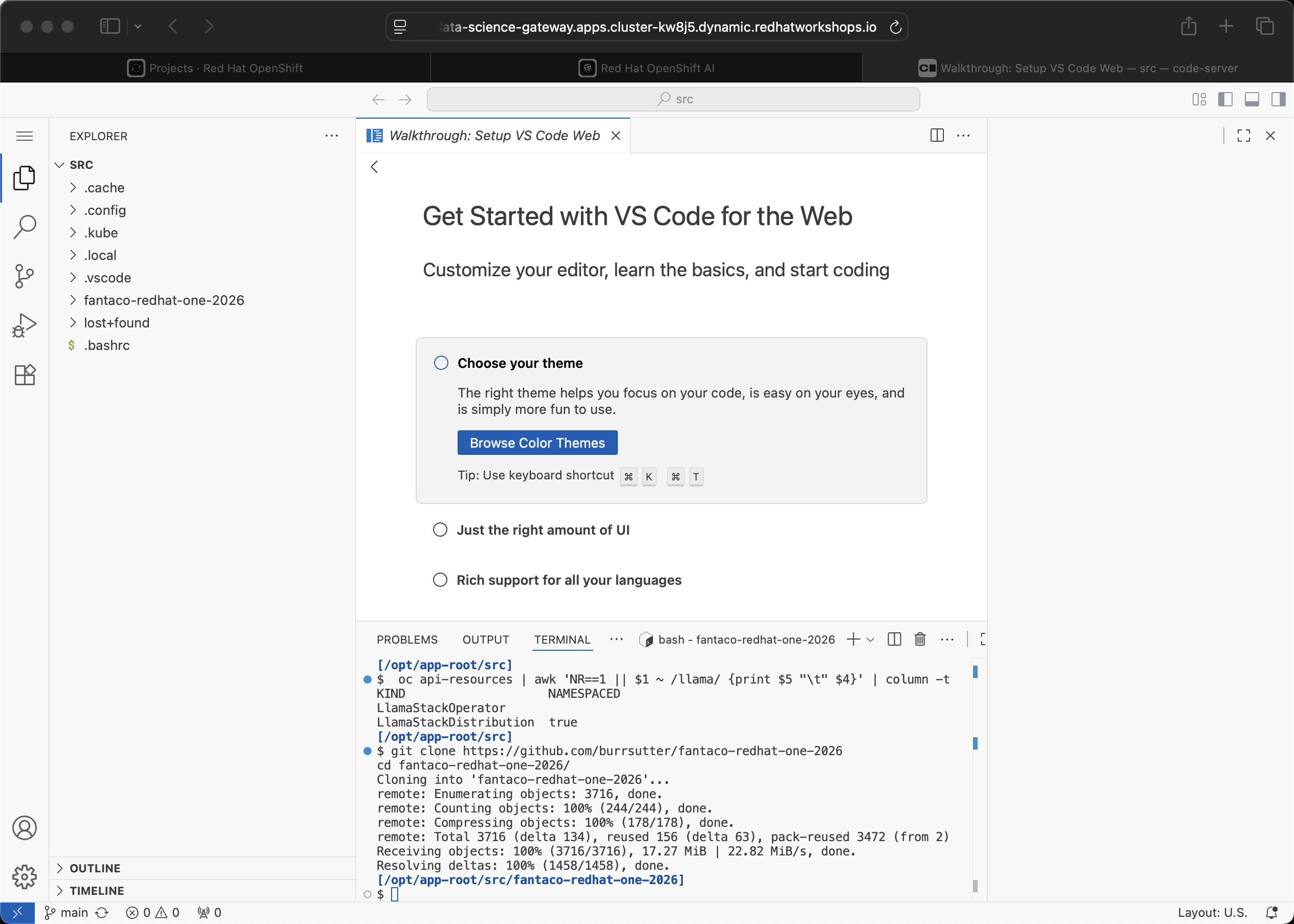
Have the workshop documentation and the Code Server Workbench side-by-side.
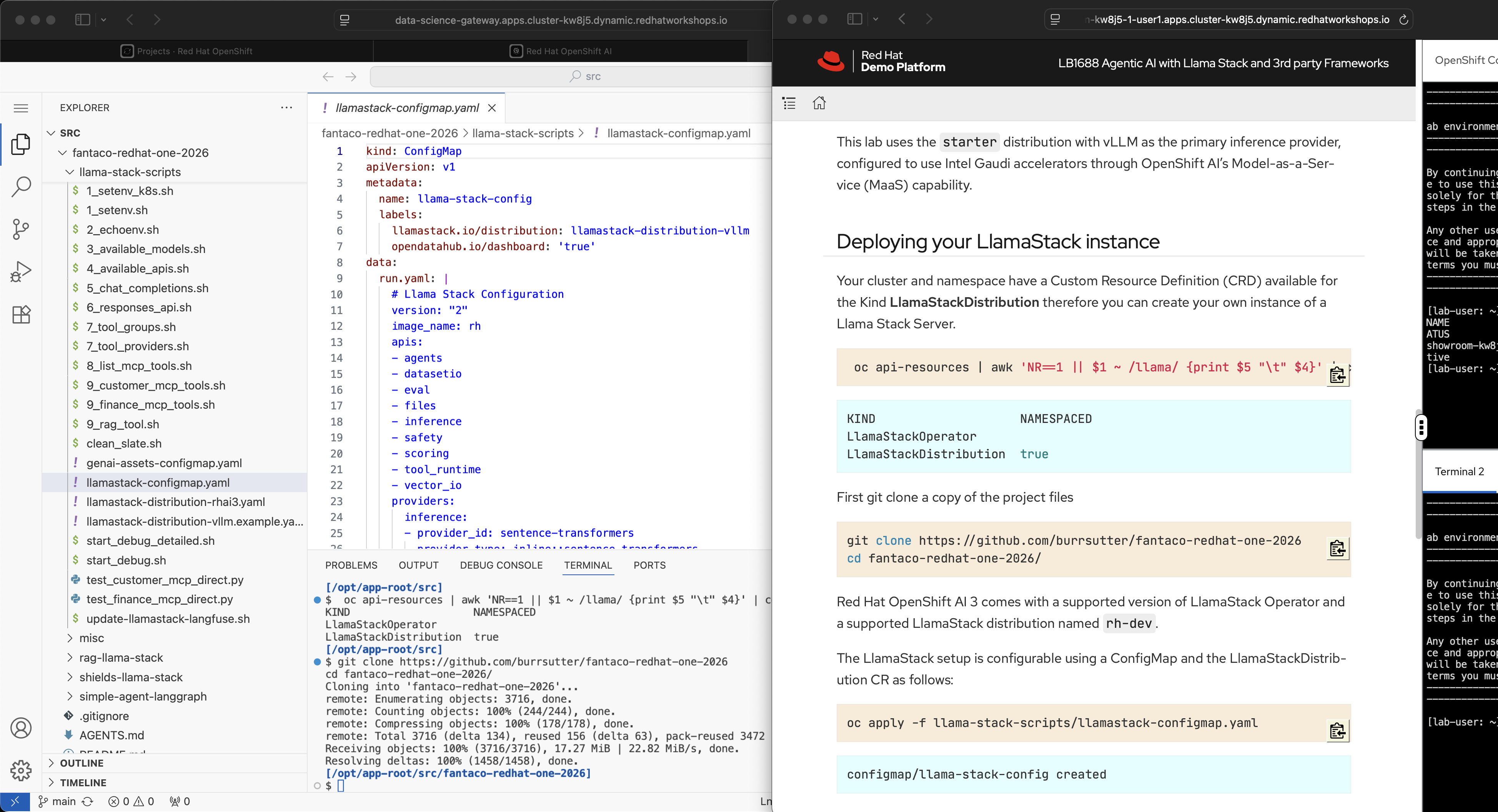
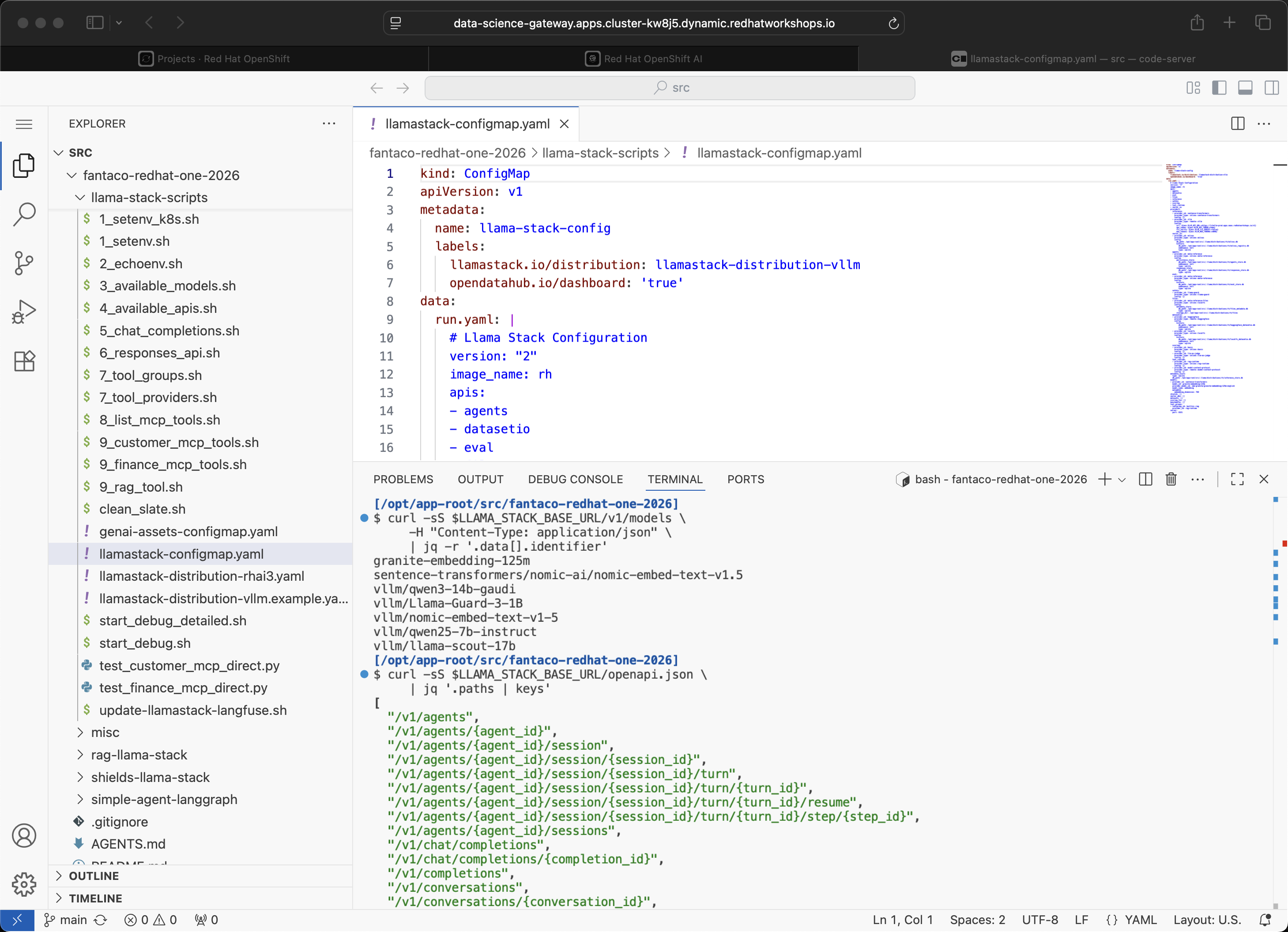
With the Code Server Workbench you can see the Python script code as well as make changes.
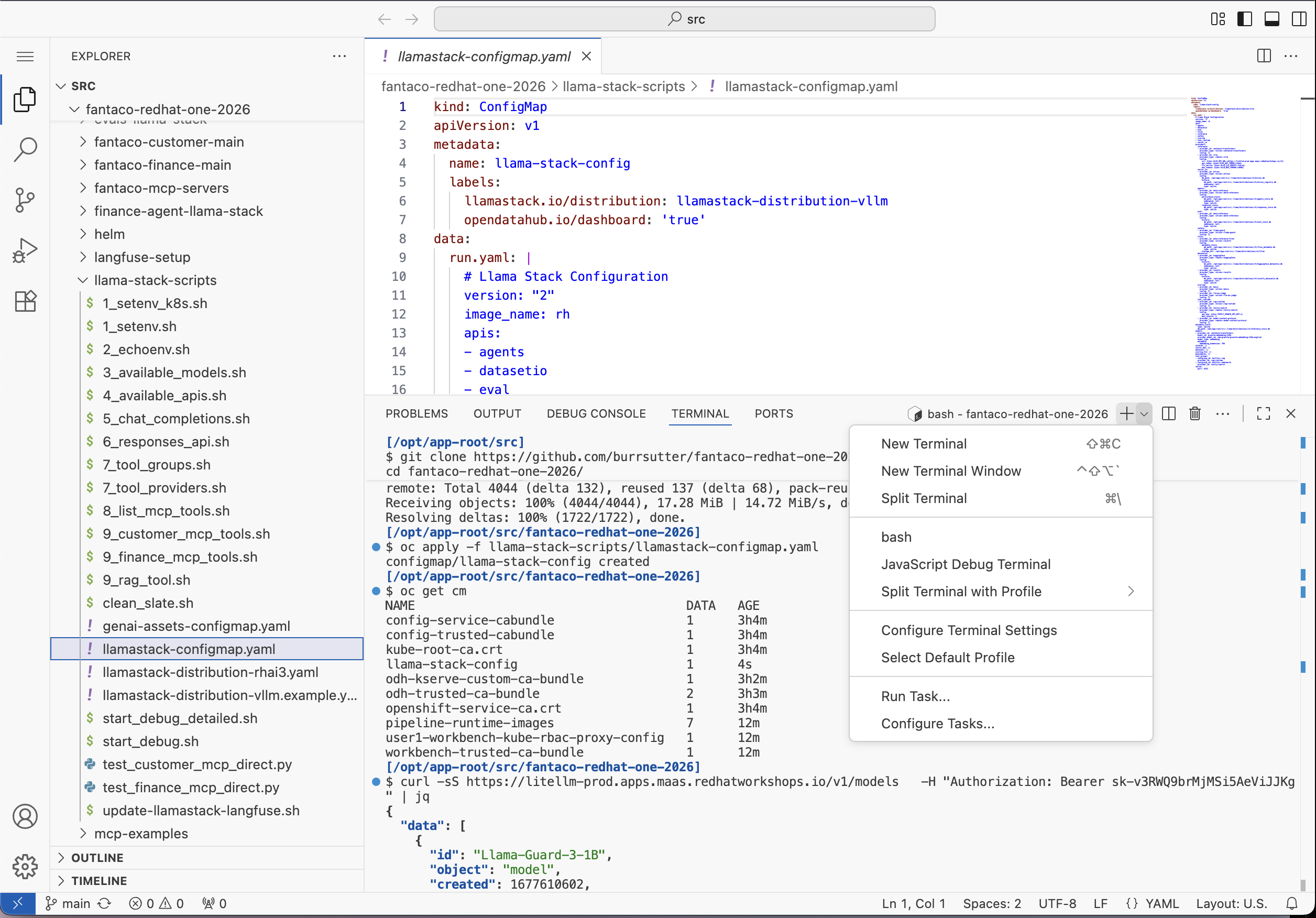
You can open a 2nd terminal inside of Code Server Workbench when needed
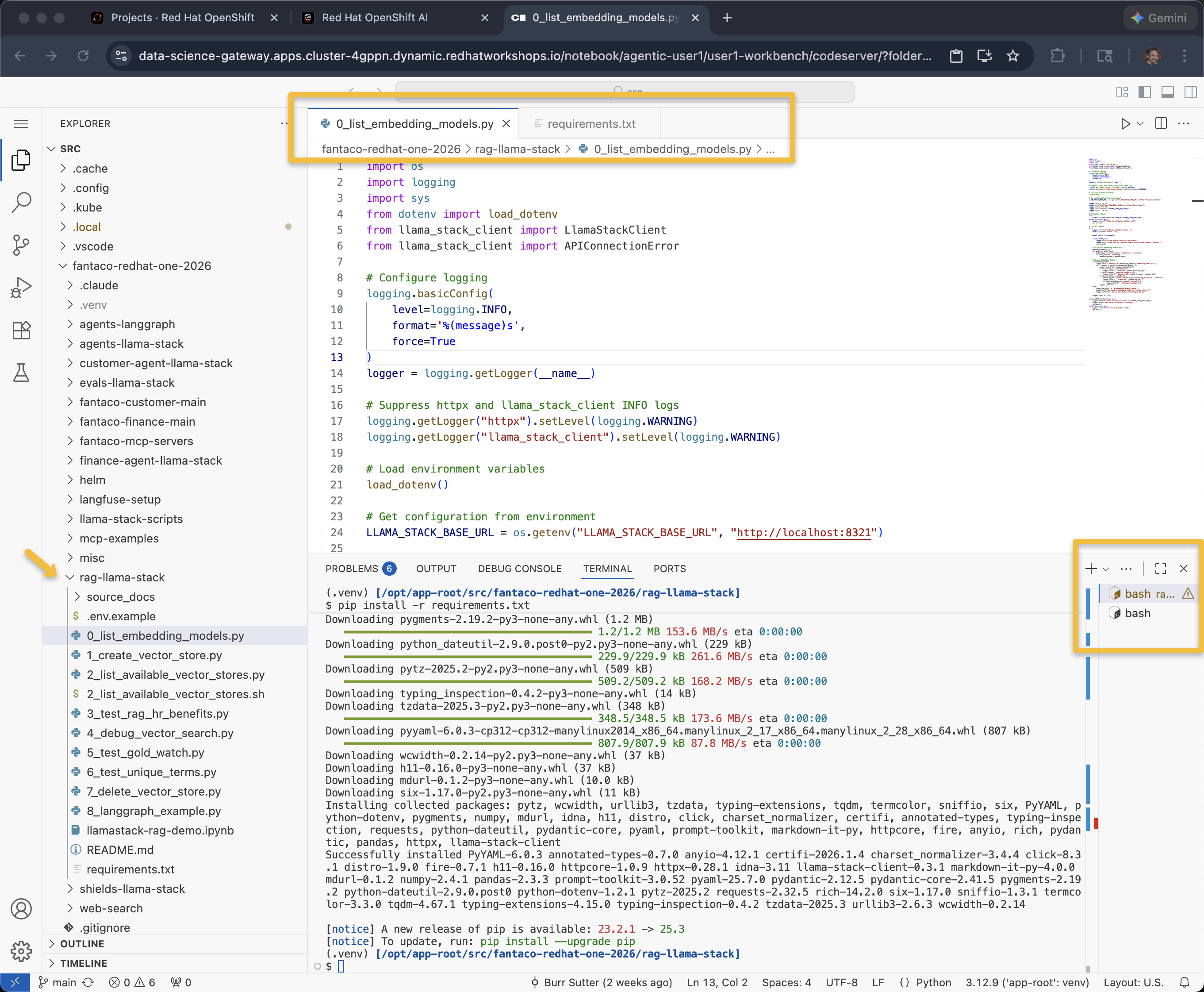
Like VS Code, you can open multiple files for editing
Helm
This workshop uses helm CLI and it is not within the Code Server Workbench by default therefore you need to install it.
mkdir -p $HOME/bin
cd $HOME/bin

curl -fsSL https://get.helm.sh/helm-v3.14.4-linux-amd64.tar.gz | tar -xz
mv linux-amd64/helm .
chmod +x helm

export PATH="$HOME/bin:$PATH"
helm versionversion.BuildInfo{Version:"v3.14.4", GitCommit:"81c902a123462fd4052bc5e9aa9c513c4c8fc142", GitTreeState:"clean", GoVersion:"go1.21.9"}Make sure to get back to $HOME before beginning the exercises.
cd $HOMENow that your workbench is set up, continue with Deploying Llama Stack.