3.2 Tracing the Event-Driven Pipeline
Now that the pipeline is imported and your environment is ready, let’s walk through the end-to-end event-driven workflow. You will upload a PDF, then trace the event as it flows from MinIO through Kafka, Knative Eventing, and into a Kubeflow Pipeline run.
Architecture of the Event-Driven Pipeline
Let’s quickly review the architecture of the workflow we are about to see.

The flow is as follows:
-
A user uploads a PDF file to a MinIO S3 bucket.
-
MinIO immediately sends an event notification to an Apache Kafka topic.
-
A Knative KafkaSource consumes the message from Kafka and converts it into a standard CloudEvent.
-
The CloudEvent is sent to the Knative Broker.
-
A Knative Trigger filters for this specific event type and invokes the
kfp-s3-triggertarget. -
The
kfp-s3-trigger, a serverless function, receives the event, determines which user’s bucket it came from, and launches a Kubeflow Pipeline on that user’s Data Science Pipelines Application (DSPA). -
The Kubeflow Pipeline runs a component using the Docling library to parse the PDF.
Let’s trace the event through each step of this process.
Step 1: Uploading a PDF to MinIO
The entire process begins by uploading a file to an S3 bucket. The system supports two types of buckets:
-
pdf-inbox— the shared demo bucket (routes to the default KFP endpoint) -
userX-pdf-inbox— your personal bucket, which automatically routes to your own DSPA
Try uploading to your per-user bucket (userX-pdf-inbox):
-
Open the MinIO console by clicking the link below:
-
Log in to the MinIO console using the following credentials:
Table 1. MinIO Console Access Username
minioPassword
minio123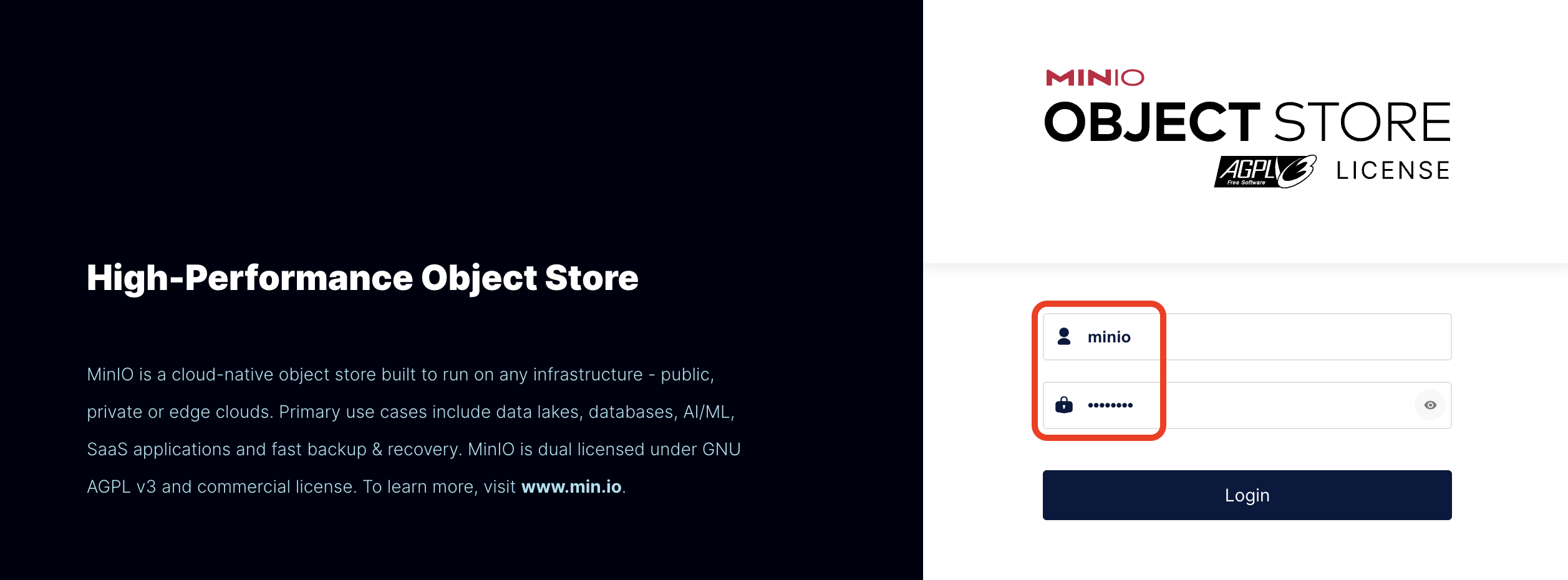
-
In the MinIO browser, navigate to the Object Browser section in the left sidebar. Find and click on your per-user bucket:
userX-pdf-inbox.
-
Upload a sample PDF document. You can use any small PDF file from your computer. If you don’t have one handy, you can find
example.pdfin the workbench at:hello-chris-rag-pipeline/scripts/example.pdf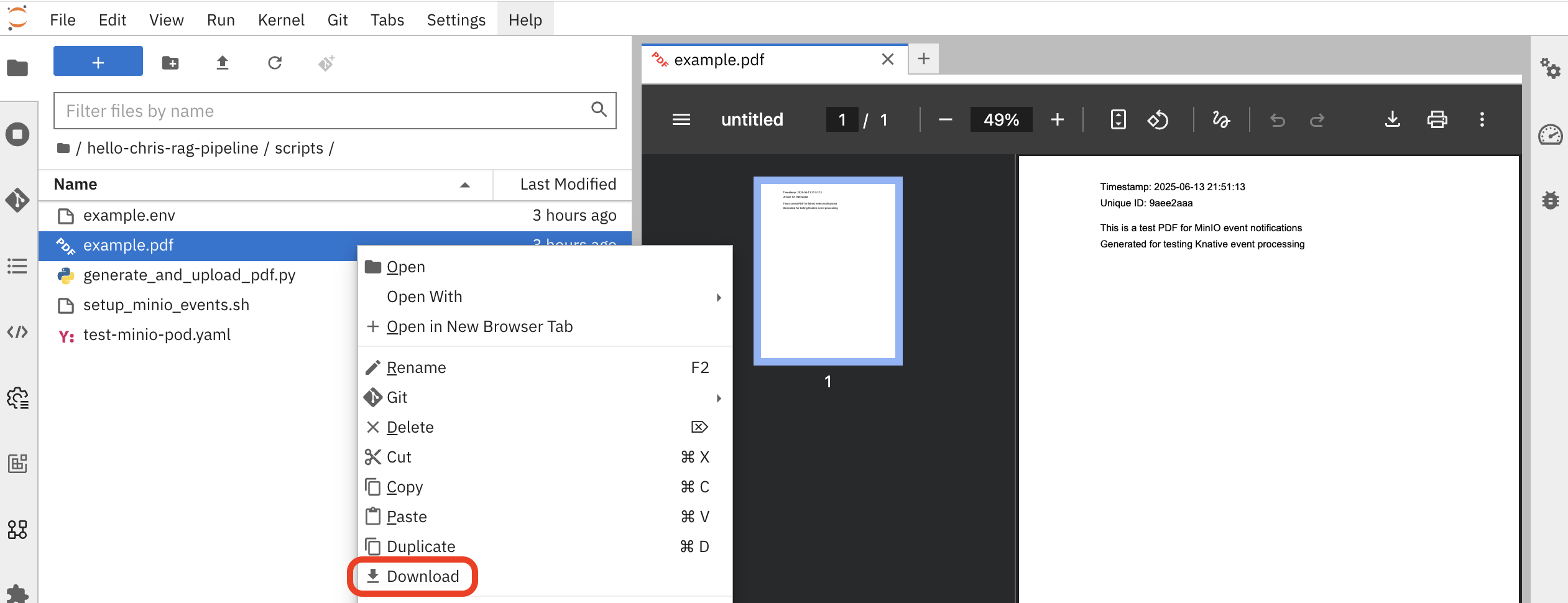
Once uploaded, you should see the file in your bucket:
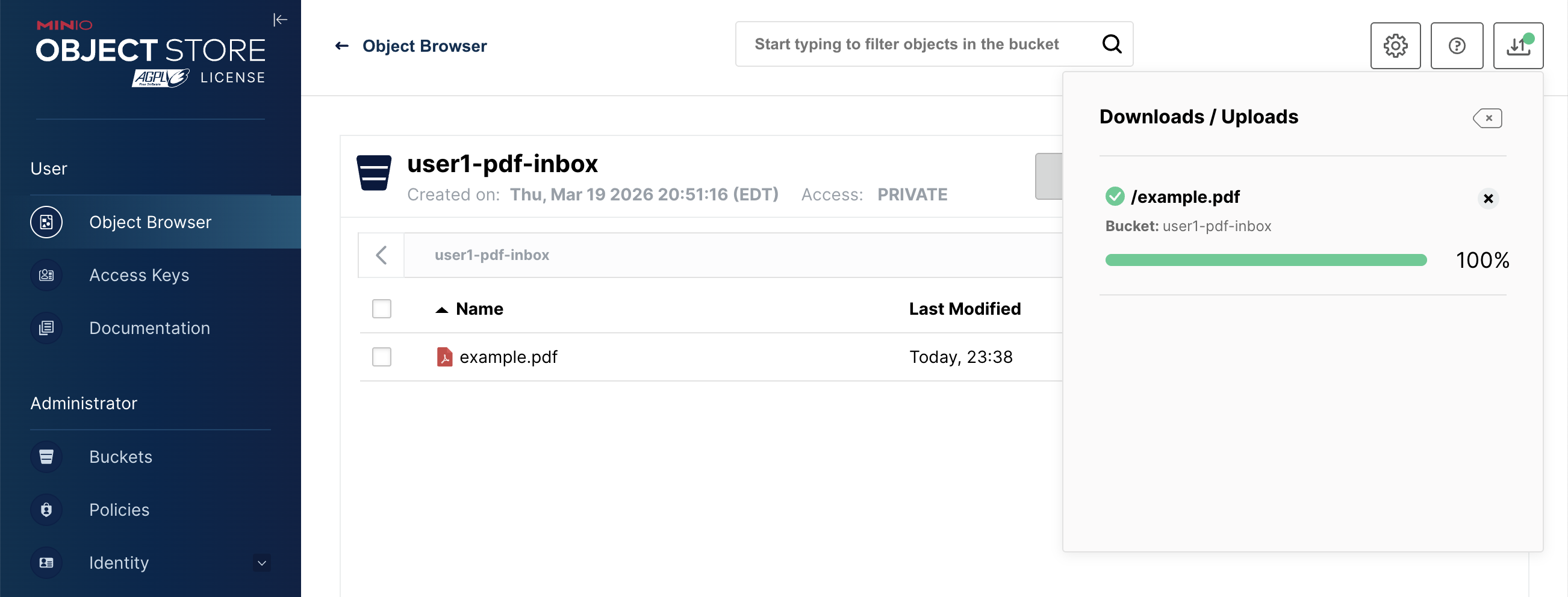
As soon as the upload is complete, the MinIO server fires an event. The bucket name is carried along with the event through the entire pipeline, enabling the system to route the processing to the correct user’s namespace.
Step 2: Observing the Event Flow
The minio-event-bridge service receives the webhook from MinIO and immediately publishes a CloudEvent message to our Kafka broker. The event includes the bucket name as a CloudEvent extension attribute (bucketname), which is critical for multi-user routing downstream.
A setup has been configured for you in the namespace rag-pipeline-workshop and you can review it from the OpenShift Console tab switching to the rag-pipeline-workshop project. From the left side menu, go to Workloads→Topology

Behind the scenes, the event bridge logs show the CloudEvent being received and forwarded.
In the Terminal tab, run the following command to see it:
oc logs -n rag-pipeline-workshop -l app=minio-event-bridge --tail=20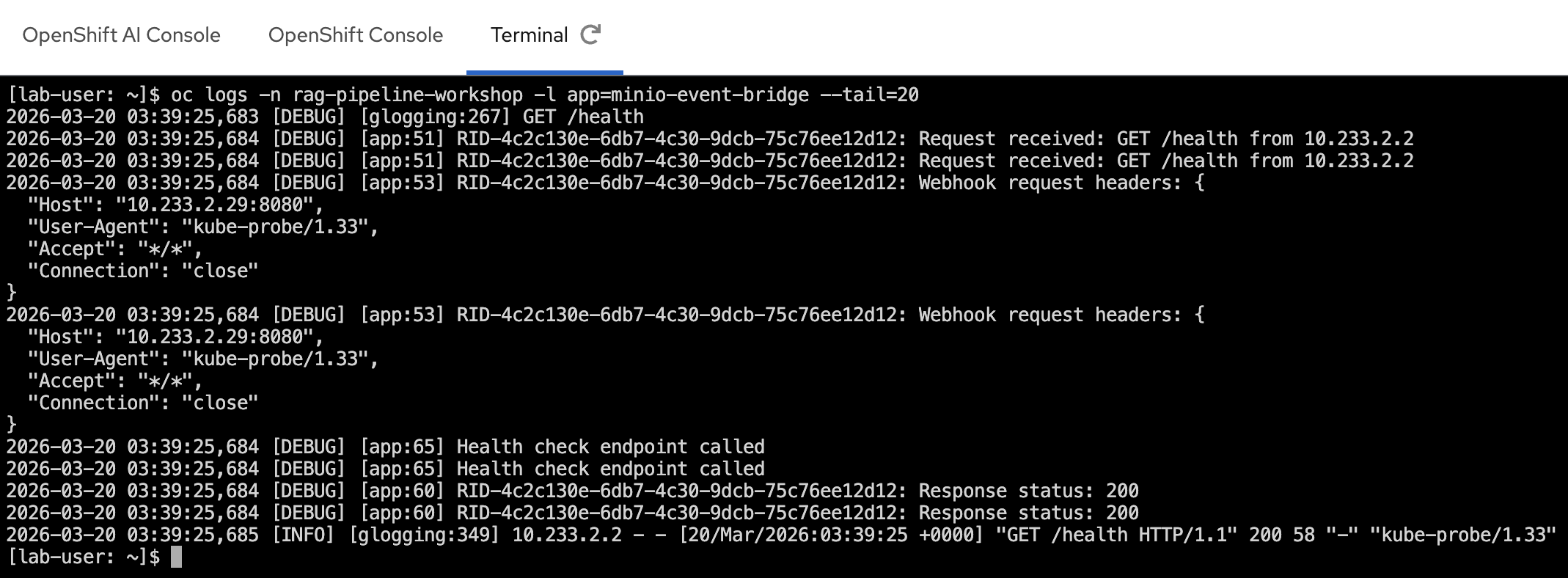
Step 3: From Kafka to Knative
Now, let’s see how Knative Eventing picks up the event and delivers it to the trigger service.
The Kafka Broker receives the CloudEvent (including the bucketname extension) and delivers it to any matching subscribers. Our kfp-s3-trigger service is subscribed via a Knative Trigger that filters for MinIO upload events.
The Trigger is pre-configured and ready, as shown below:
oc get trigger minio-pdf-event-trigger -n rag-pipeline-workshopYou should see something similar:
NAME                      BROKER         SUBSCRIBER_URI                                                  AGE     READY   REASON
minio-pdf-event-trigger   kafka-broker   http://kfp-s3-trigger.rag-pipeline-workshop.svc.cluster.local   3m40s   True
Step 4: The Serverless Function (kfp-s3-trigger)
The final step in the eventing chain is our custom serverless function. When the Trigger fires, the Knative Broker delivers the CloudEvent to a running instance of our kfp-s3-trigger pod.
This is where the multi-user routing happens. The kfp-s3-trigger service:
-
Extracts the bucket name from the CloudEvent body (and/or the
Ce-Bucketnameheader). -
Determines whether it’s a per-user bucket (e.g.,
userX-pdf-inbox) or the shared demo bucket (pdf-inbox). -
Routes to the correct DSPA endpoint:
-
Your bucket
userX-pdf-inbox→ds-pipeline-dspa.userX.svc.cluster.local:8443 -
Shared bucket
pdf-inbox→ the defaultKFP_ENDPOINT(fallback)
-
The trigger service logs show the multi-user routing in action — extracting the bucket name, resolving the DSPA endpoint, and starting the pipeline run:
oc logs -n rag-pipeline-workshop -l serving.knative.dev/service=kfp-s3-trigger -c user-container --tail=30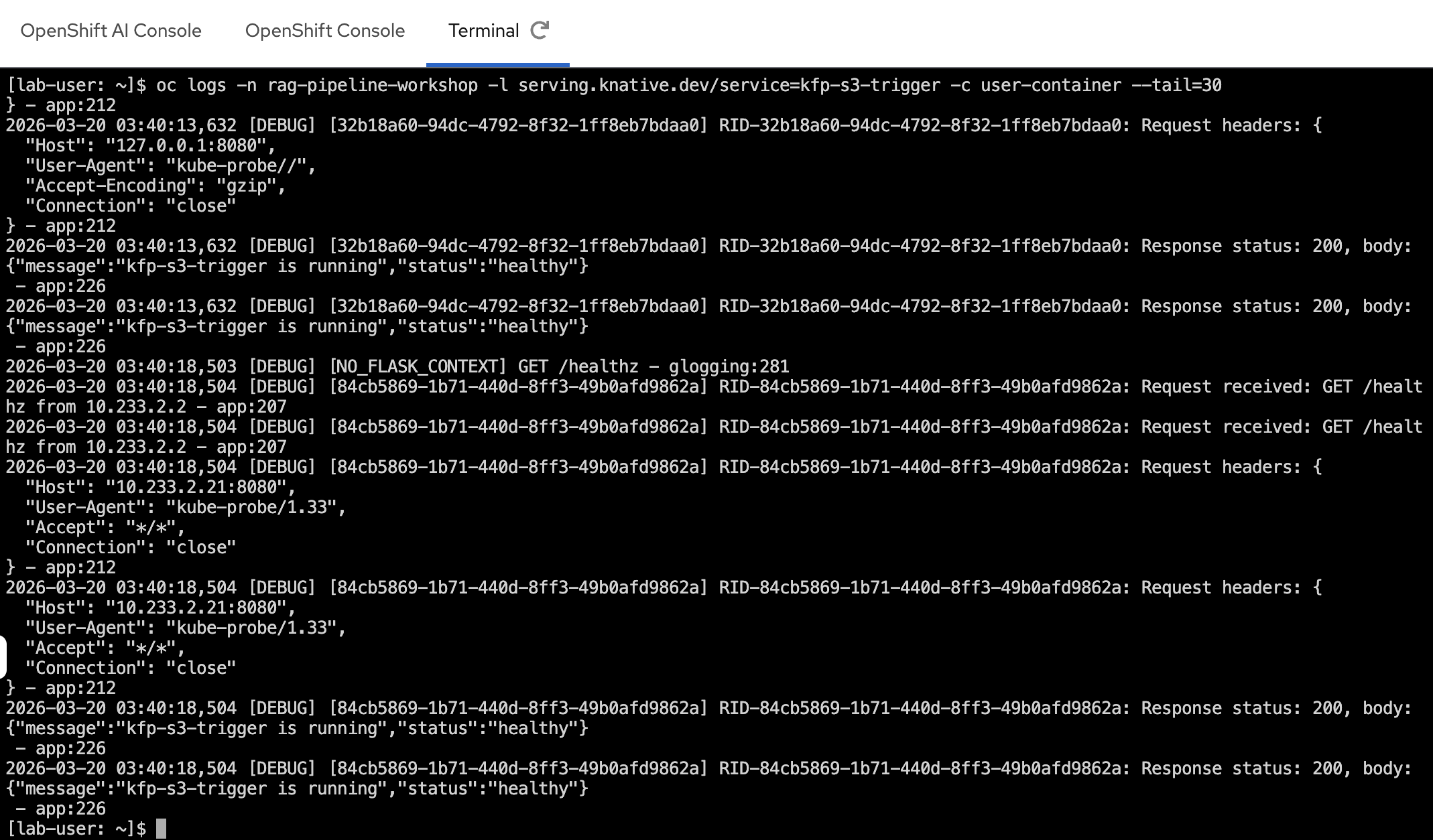
In the screenshot above, you can see:
-
The bucket name and object key extracted from the CloudEvent
-
The correct KFP endpoint resolved based on the bucket name (e.g.,
userX-pdf-inbox→ds-pipeline-dspa.userX.svc.cluster.local:8443) -
A pipeline run successfully started with the S3 object key as a parameter
Step 5: The Kubeflow Pipeline Run
The event has now successfully traversed the entire serverless infrastructure and launched a data processing workflow in the correct user’s namespace.
-
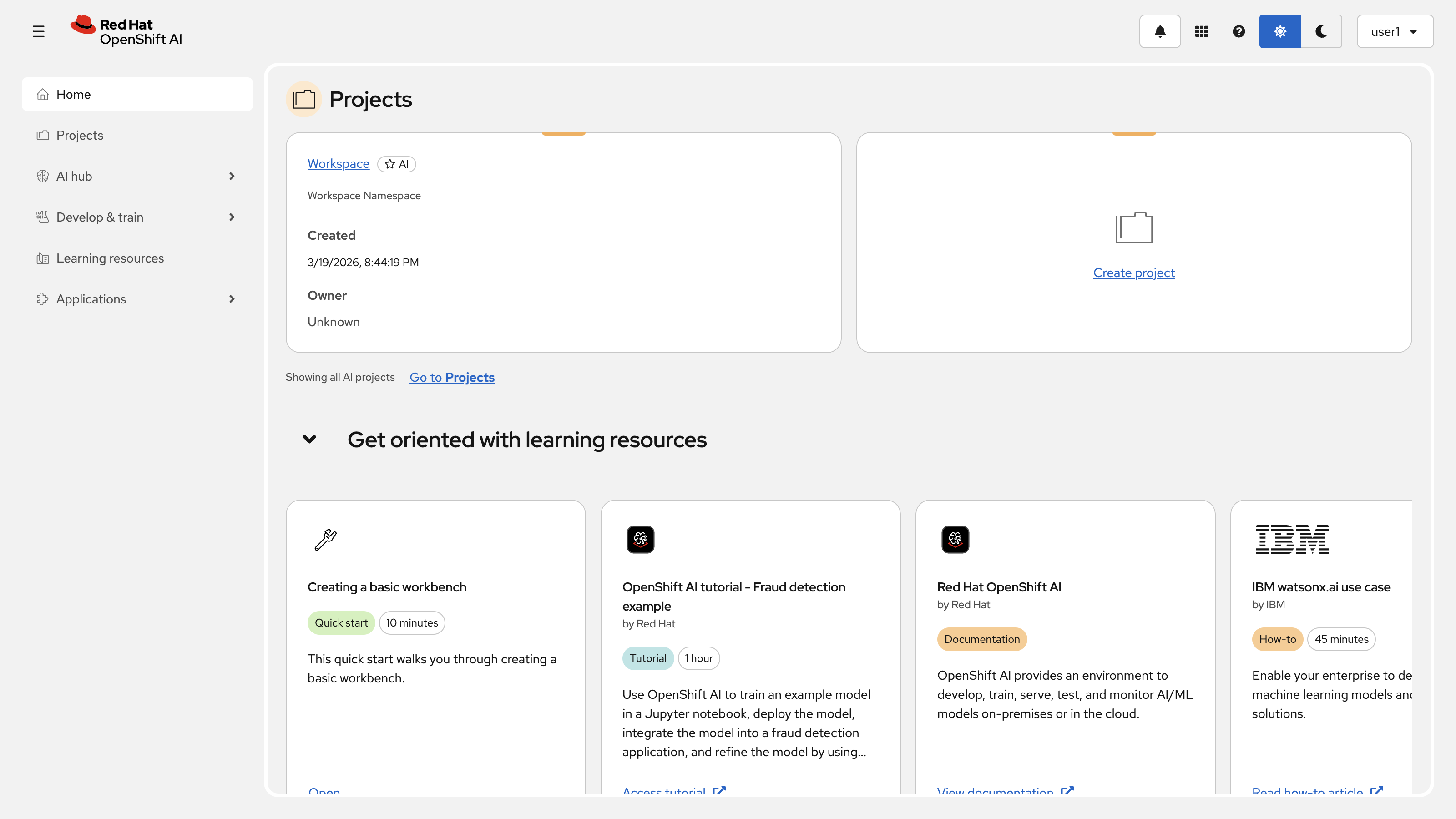
Navigate back to the Red Hat OpenShift AI Dashboard by selecting the OpenShift AI tab on the left-hand side of the OpenShift Container Platform Console, or by navigating directly to the OpenShift AI Dashboard.
-
Inside your Data Science Project (
userX), click on Pipelines → Runs. -
A new run will be visible at the top of the list in the S3 Triggered PDF Runs experiment.
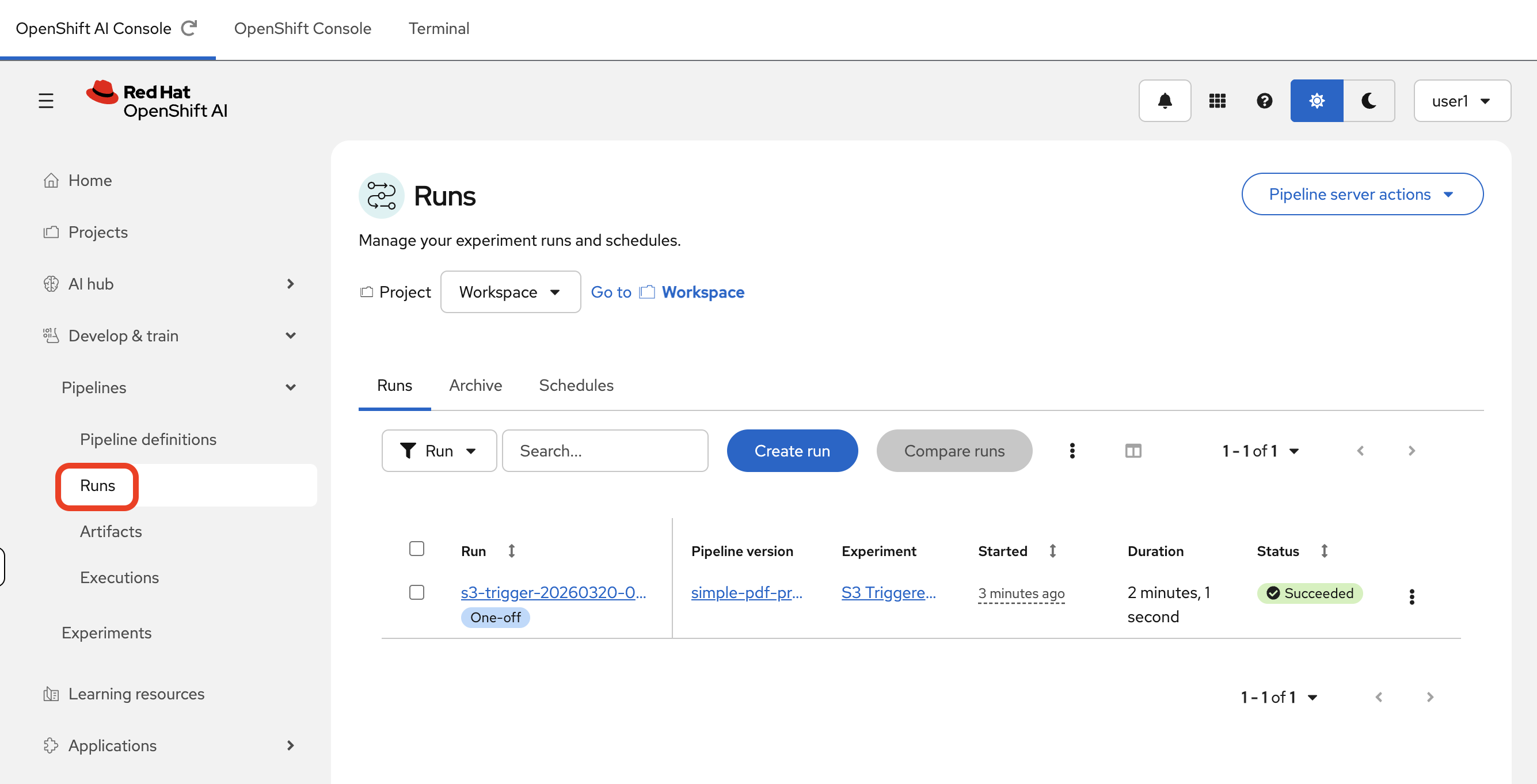
Because the kfp-s3-trigger service dynamically routes each event to the correct DSPA endpoint, the pipeline run appears in the namespace of the user whose bucket was used. For example:
-
A PDF uploaded to
userX-pdf-inboxtriggers a pipeline run in theuserXnamespace.
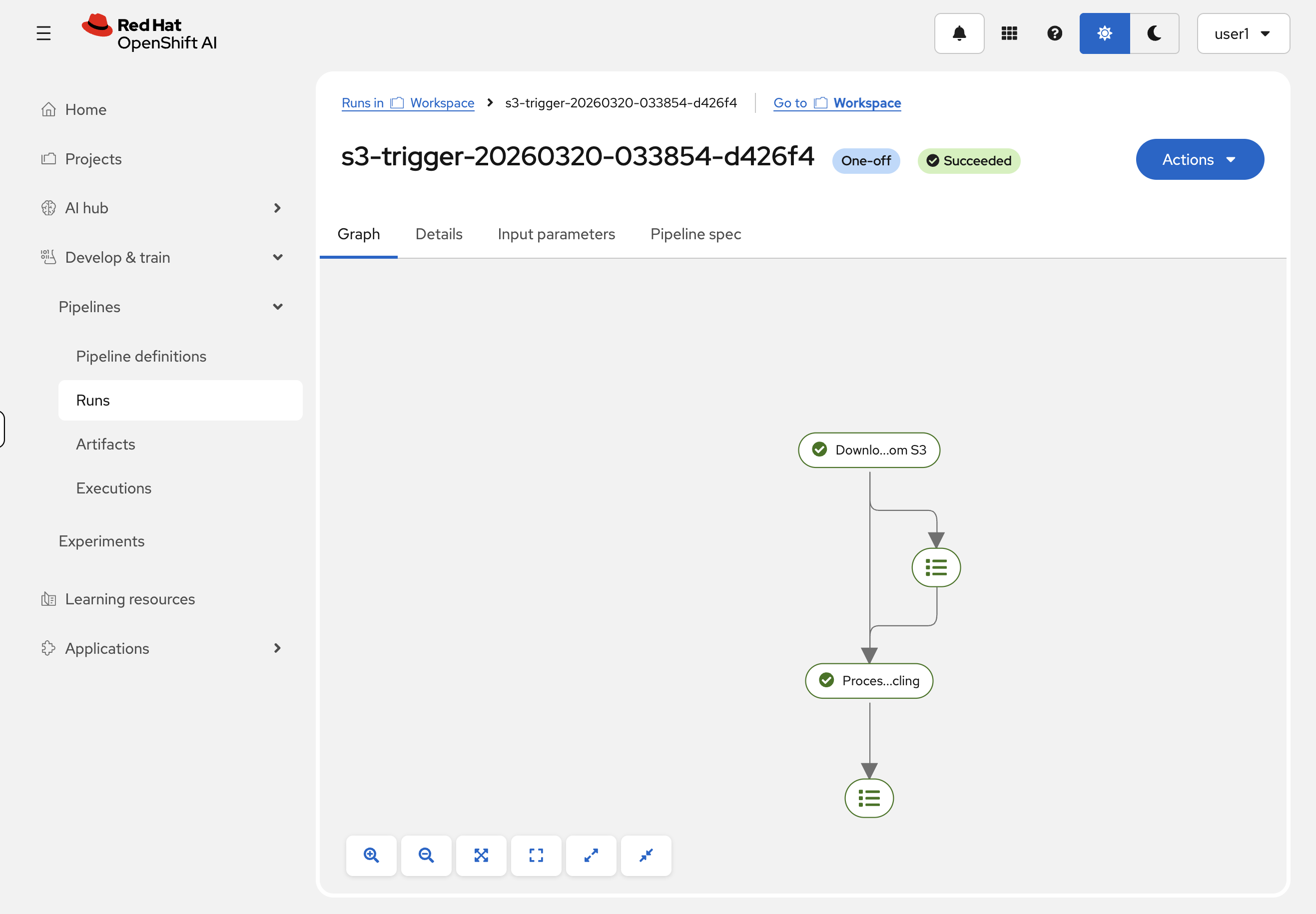
Clicking on the run reveals the graph of the pipeline that was executed. We can see the download-pdf-from-s3 and process-pdf-with-docling components, and by clicking on them, we can inspect their inputs, outputs, and logs.
|
The first pipeline run may take a few minutes as the Docling container image is large. Subsequent runs will be faster since the image is cached on each node. |
Summary
-
Traced a CloudEvent end-to-end: MinIO webhook → Kafka topic → Knative Broker/Trigger → serverless function → Kubeflow Pipeline run
-
Observed multi-tenant routing in action — the
kfp-s3-triggerfunction extracts the bucket name and resolves the correct per-user pipeline endpoint at runtime -
Verified the pipeline run was created in your namespace with the uploaded file’s S3 object key passed in as a parameter