Debugging & Troubleshooting
Getting Started
Module Overview
Duration: 30 minutes
Format: Hands-on Lab - Real Problem Solving
Audience: IT Operations, SRE, Platform Engineers
Your cluster is running a weather application made up of several microservices. Some of them have just broken. Your job is to diagnose and fix each one - these are the same kinds of issues that generate real support tickets.
Learning Objectives
By the end of this module, you will be able to:
-
Read pod events and logs to identify root causes
-
Fix ImagePullBackOff, CrashLoopBackOff, ConfigMap errors, resource constraint violations, service routing issues, and SCC permission failures
-
Use the Observe → Diagnose → Fix → Verify workflow
Your Diagnostic Toolkit
These are the commands you’ll use constantly:
# What's broken?
oc get pods -n <namespace>

# Why is it broken?
oc describe pod <pod-name> -n <namespace>

# What did the app say before it died?
oc logs <pod-name> -n <namespace>
oc logs <pod-name> -n <namespace> --previous

# Check deployment events (for pods that never got created)
oc describe deployment <deployment-name> -n <namespace>
Deploy the Broken Applications
First, create the namespace and deploy the intentionally broken applications:
oc create namespace ops-track-demo 2>/dev/null || true
oc apply -f https://raw.githubusercontent.com/rhpds/openshift-days-ops-showroom/main/support/broken-apps.yaml
See What’s Broken
Six microservices have been deployed with intentional misconfigurations. Let’s triage the damage.
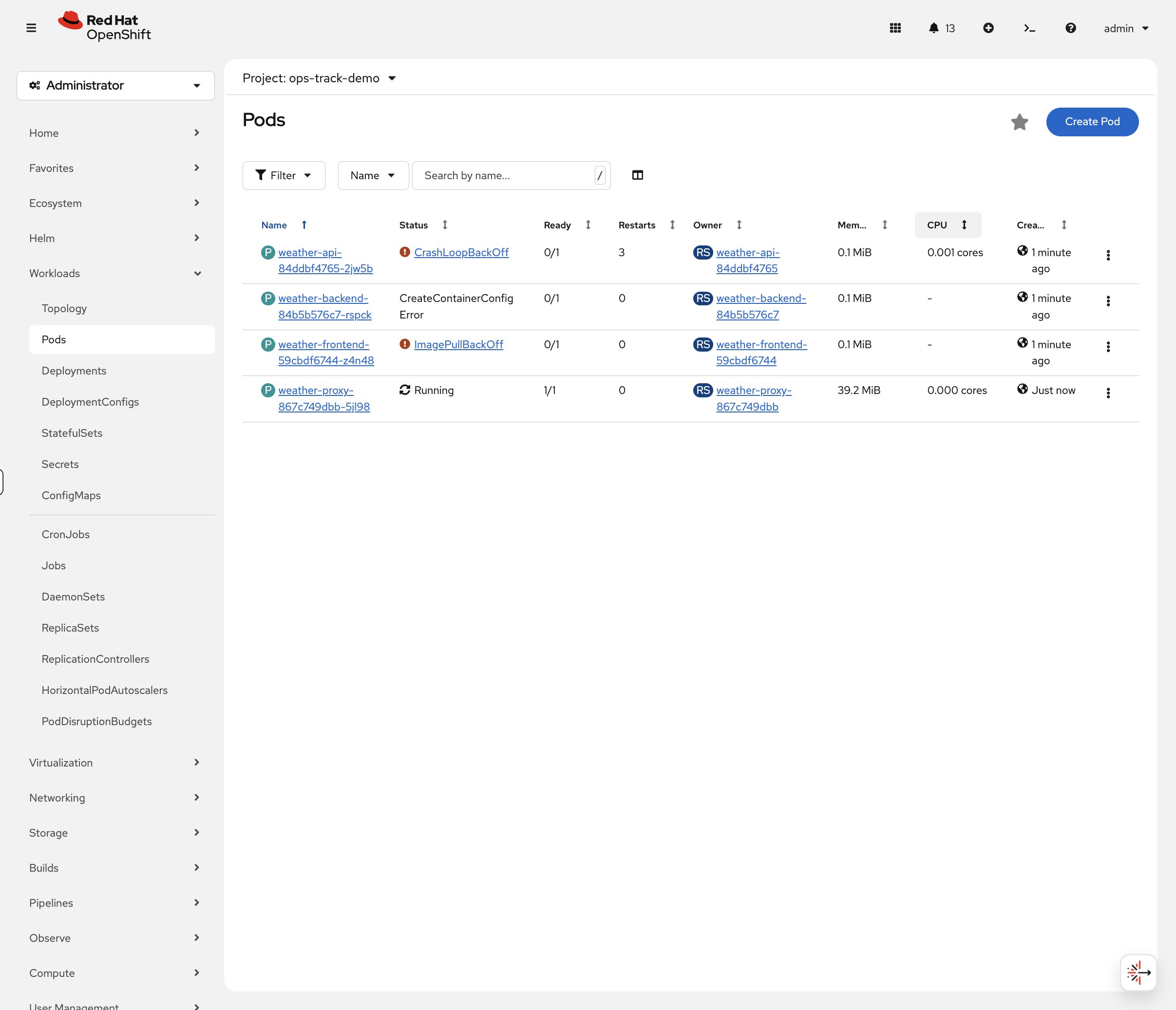
Switch to the OCP Console tab and navigate to Workloads → Pods (select project ops-track-demo from the dropdown). You’ll immediately see colour-coded status indicators:
-
Red -
weather-frontendinImagePullBackOff,weather-apiinCrashLoopBackOff -
Yellow -
weather-backendinCreateContainerConfigError -
Green -
weather-proxyshowsRunning(but has a hidden issue) -
Missing -
weather-cachedoesn’t appear at all
This is how real incident triage works - visual scanning of pod status to quickly identify what needs attention.
You can also verify via CLI:
oc get pods -n ops-track-demo
You might notice weather-cache is missing from the pod list - that’s one of the problems to investigate. Also, weather-proxy shows Running but has its own issue.
|
Your mission: Fix all six.
Fix the Problems
Problem 1: ImagePullBackOff (weather-frontend)
Diagnose
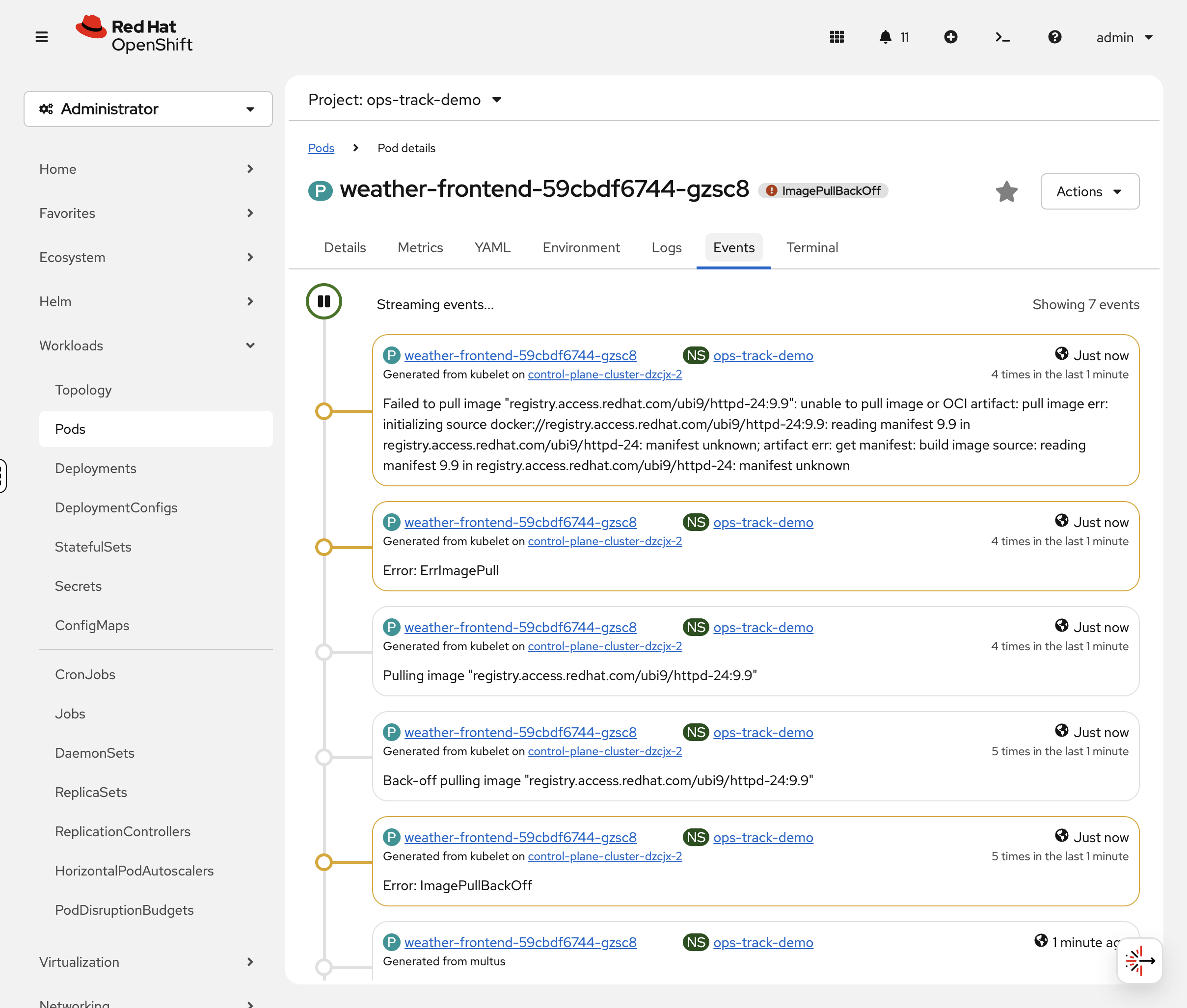
In the OCP Console, click on the weather-frontend pod. The Events tab at the bottom shows the error with colour-coded severity - you’ll see the image pull failure immediately.
You can also check via CLI:
oc describe pod -l app=weather-frontend -n ops-track-demo | tail -10Look at the Events section. You should see:
Warning Failed Back-off pulling image "registry.access.redhat.com/ubi9/httpd-24:9.9"
The image tag 9.9 doesn’t exist. Let’s confirm the image reference:
oc get deployment weather-frontend -n ops-track-demo -o jsonpath='{.spec.template.spec.containers[0].image}'Problem 2: CrashLoopBackOff (weather-api)
Diagnose
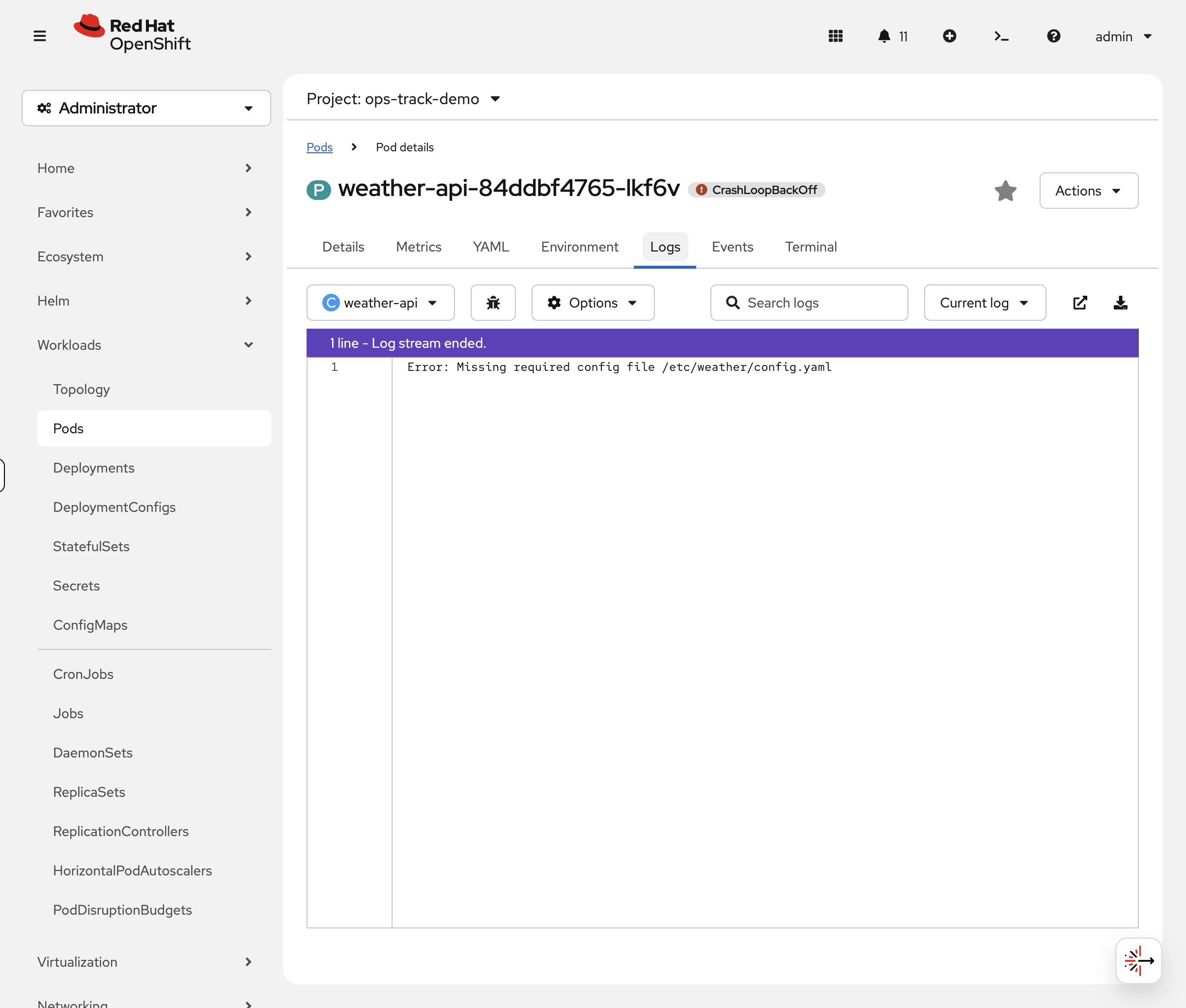
The pod keeps starting and crashing. In the OCP Console, click the weather-api pod, then the Logs tab. The log viewer shows the error message with real-time streaming. If the pod has restarted, use the Container dropdown to select the previous container’s logs.
You can also check via CLI:
oc logs deployment/weather-api -n ops-track-demoYou should see:
Error: Missing required config file /etc/weather/config.yaml
The app is trying to read a config file that doesn’t exist.
Fix
Create the missing config file as a ConfigMap and mount it into the container. We’ll also fix the container command to run the actual application:
oc create configmap weather-api-config --from-literal=config.yaml="port: 8080" -n ops-track-demooc patch deployment weather-api -n ops-track-demo --type=json -p='[
{"op":"add","path":"/spec/template/spec/volumes","value":[{"name":"config","configMap":{"name":"weather-api-config"}}]},
{"op":"add","path":"/spec/template/spec/containers/0/volumeMounts","value":[{"name":"config","mountPath":"/etc/weather"}]},
{"op":"replace","path":"/spec/template/spec/containers/0/command","value":["/bin/sh","-c","cat /etc/weather/config.yaml && echo Config loaded successfully && sleep 3600"]}
]'Problem 3: Resource Constraint Violation (weather-cache)
Diagnose
You may have noticed weather-cache doesn’t appear in the pod list at all. In the OCP Console, navigate to Workloads → Deployments (project: ops-track-demo) and click weather-cache. The Events tab immediately shows the FailedCreate error explaining why no pod was created.

Let’s also check via CLI:
oc get deployment weather-cache -n ops-track-demoIt shows 0/1 ready - the pod was never created. When a pod can’t even be created, check the ReplicaSet events:
oc describe replicaset -l app=weather-cache -n ops-track-demo | tail -5You should see:
Warning FailedCreate ... maximum memory usage per Container is 2Gi, but limit is 1Ti
A LimitRange in the namespace caps containers at 2Gi memory, but the deployment requests 512Gi (a typo - should be 512Mi). Let’s confirm:
oc get deployment weather-cache -n ops-track-demo -o jsonpath='{.spec.template.spec.containers[0].resources}' | python3 -m json.tooloc get limitrange -n ops-track-demo -o yaml | grep -A4 "max:"Fix
Fix the memory typo - change 512Gi to 512Mi and 1Ti to 1Gi:
oc set resources deployment/weather-cache -n ops-track-demo --requests=cpu=100m,memory=512Mi --limits=cpu=500m,memory=1GiVerify
oc get pods -l app=weather-cache -n ops-track-demoYou should see 1/1 Running. The pod can now be created because the resource requests fit within the LimitRange.
Takeaway: When a pod never appears at all, check the ReplicaSet events (oc describe replicaset). LimitRanges and ResourceQuotas can silently prevent pods from being created.
Problem 4: CreateContainerConfigError (weather-backend)
Diagnose
oc describe pod -l app=weather-backend -n ops-track-demo | grep -E "Warning|Error|configmap"You should see:
Warning Failed Error: configmap "weather-config" not found
The deployment references a ConfigMap that doesn’t exist:
oc get deployment weather-backend -n ops-track-demo -o jsonpath='{.spec.template.spec.containers[0].envFrom}' | python3 -m json.toolFix
Create the missing ConfigMap with the keys the app expects:
oc create configmap weather-config \
  --from-literal=API_ENDPOINT="http://weather-api:8080" \
  --from-literal=CACHE_TTL="300" \
  -n ops-track-demo
You can verify the ConfigMap in the console at Workloads > ConfigMaps (project: ops-track-demo) - click weather-config to see its keys and values.
|
Restart the pod to pick up the new ConfigMap:
oc delete pod -l app=weather-backend -n ops-track-demoVerify
oc get pods -l app=weather-backend -n ops-track-demoYou should see 1/1 Running. Confirm the environment variables are injected:
oc exec deployment/weather-backend -n ops-track-demo -- env | grep -E "API_ENDPOINT|CACHE_TTL"You should see:
API_ENDPOINT=http://weather-api:8080
CACHE_TTL=300
| In the console, click the weather-backend pod and select the Environment tab to see the injected variables without shelling into the container. |
Takeaway: CreateContainerConfigError = a referenced ConfigMap or Secret doesn’t exist. Check oc describe pod for "not found" messages. Create the missing resource and restart the pod.
Problem 5: Service Routing Broken (weather-proxy)
Diagnose
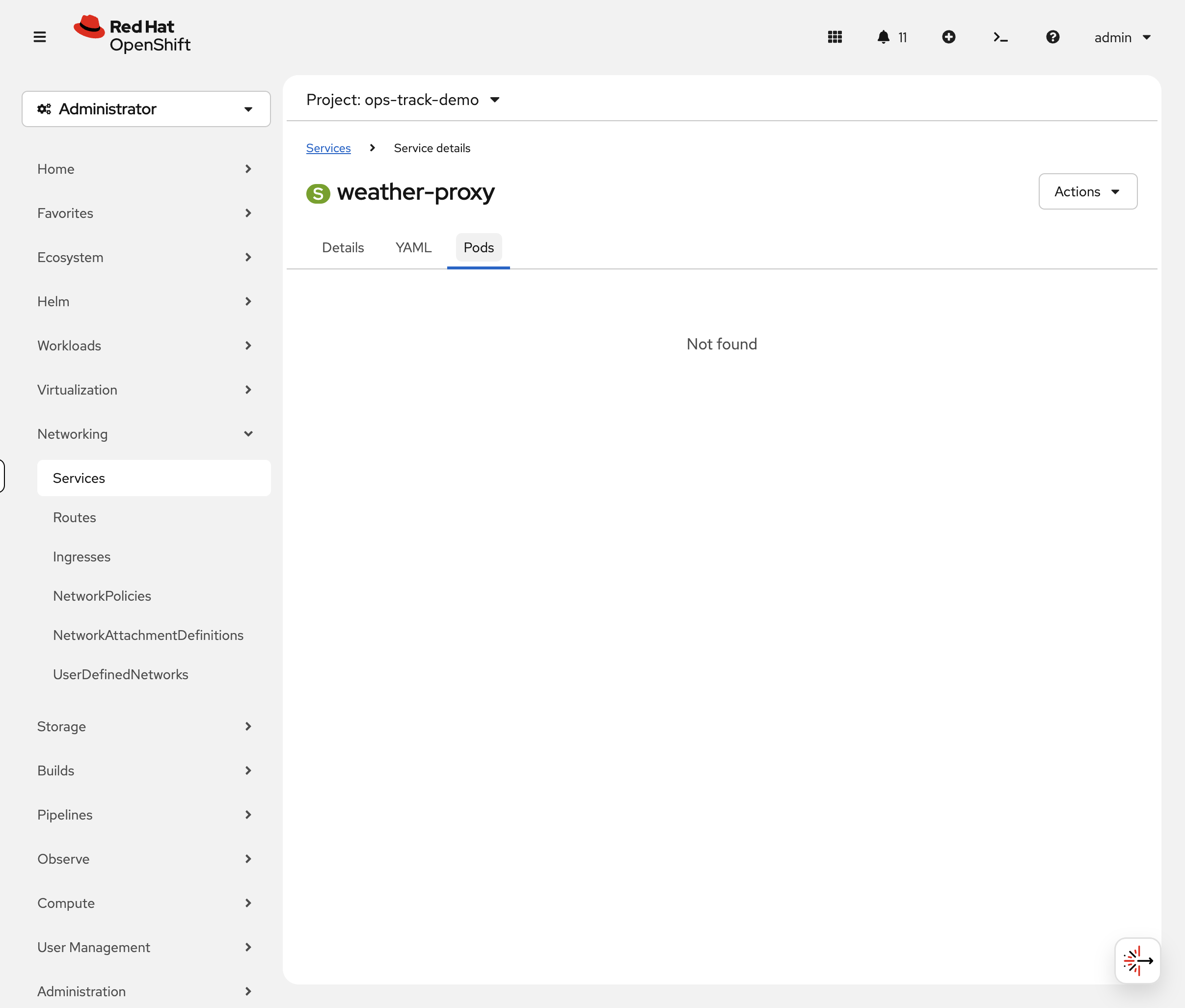
This pod is Running - so what’s wrong? In the OCP Console, navigate to Networking → Services (project: ops-track-demo) and click weather-proxy. The Pods tab shows 0 Pods - immediately revealing that the service can’t find any matching pods.
Check via CLI as well:
oc get endpointslice -l kubernetes.io/service-name=weather-proxy -n ops-track-demoYou should see ENDPOINTS is empty (<unset>). The service has no backends.
Compare the service selector with the pod labels:
echo "=== Service selector ===" && oc get svc weather-proxy -n ops-track-demo -o jsonpath='{.spec.selector}' | python3 -m json.tool && echo "=== Pod labels ===" && oc get pod -l app=weather-proxy -n ops-track-demo -o jsonpath='{.items[0].metadata.labels}' | python3 -m json.toolSpot the difference? The service selector says weather-proxi (typo) but the pod label is weather-proxy.
Fix
Patch the service selector to match the actual pod label:
oc patch svc weather-proxy -n ops-track-demo -p '{"spec":{"selector":{"app":"weather-proxy"}}}'Verify
oc get endpointslice -l kubernetes.io/service-name=weather-proxy -n ops-track-demoYou should now see the pod’s IP in the ENDPOINTS column. Traffic will flow to the pod.
Takeaway: When a pod is Running but the service isn’t working, check if the service selector matches the pod labels. A single character typo can break routing. Use oc get endpointslice to verify.
Problem 6: Permission Denied (weather-db)
Diagnose
Check the pod status:
oc get pods -l app=weather-db -n ops-track-demoYou’ll see weather-db in CrashLoopBackOff. Check the logs:
oc logs deployment/weather-db -n ops-track-demoThe log shows: mkdir: cannot create directory '/var/lib/pgsql': Permission denied. The container is trying to create a data directory but doesn’t have permission.
This is a Security Context Constraint (SCC) issue. Check which SCC the pod is running under:
oc get pod -l app=weather-db -n ops-track-demo -o jsonpath='{.items[0].metadata.annotations.openshift\.io/scc}'It shows restricted-v2. This SCC assigns a random user ID to the container for security - the container does NOT run as root. The directory /var/lib/pgsql is owned by root inside the image, so the random UID can’t write to it.
This is the most common source of pod failures on OpenShift. Containers that expect to run as root will fail under restricted-v2.
Fix
Mount an emptyDir volume at the data path. The container can always write to emptyDir volumes regardless of its UID:
oc patch deployment weather-db -n ops-track-demo --type=json -p='[
  {"op":"add","path":"/spec/template/spec/volumes","value":[{"name":"db-data","emptyDir":{}}]},
  {"op":"add","path":"/spec/template/spec/containers/0/volumeMounts","value":[{"name":"db-data","mountPath":"/var/lib/pgsql"}]}
]'
Verify
oc get pods -l app=weather-db -n ops-track-demoThe pod should now be Running. Check the logs to confirm the database initialized:
oc logs deployment/weather-db -n ops-track-demoYou should see Database ready on port 5432.
Takeaway: When you see Permission denied in a container log, check the SCC with oc get pod -o jsonpath='{.metadata.annotations.openshift\.io/scc}'. Under restricted-v2, containers run as a random UID and can’t write to root-owned directories. Use emptyDir volumes for writable paths, or use images designed to run as non-root.
Quick Reference
All Fixed
Switch to the OCP Console tab - Workloads → Pods (project: ops-track-demo). All six pods should now show green Running status. Compare this to the red/orange/yellow view you saw at the start - that visual progression is the troubleshooting workflow in action.
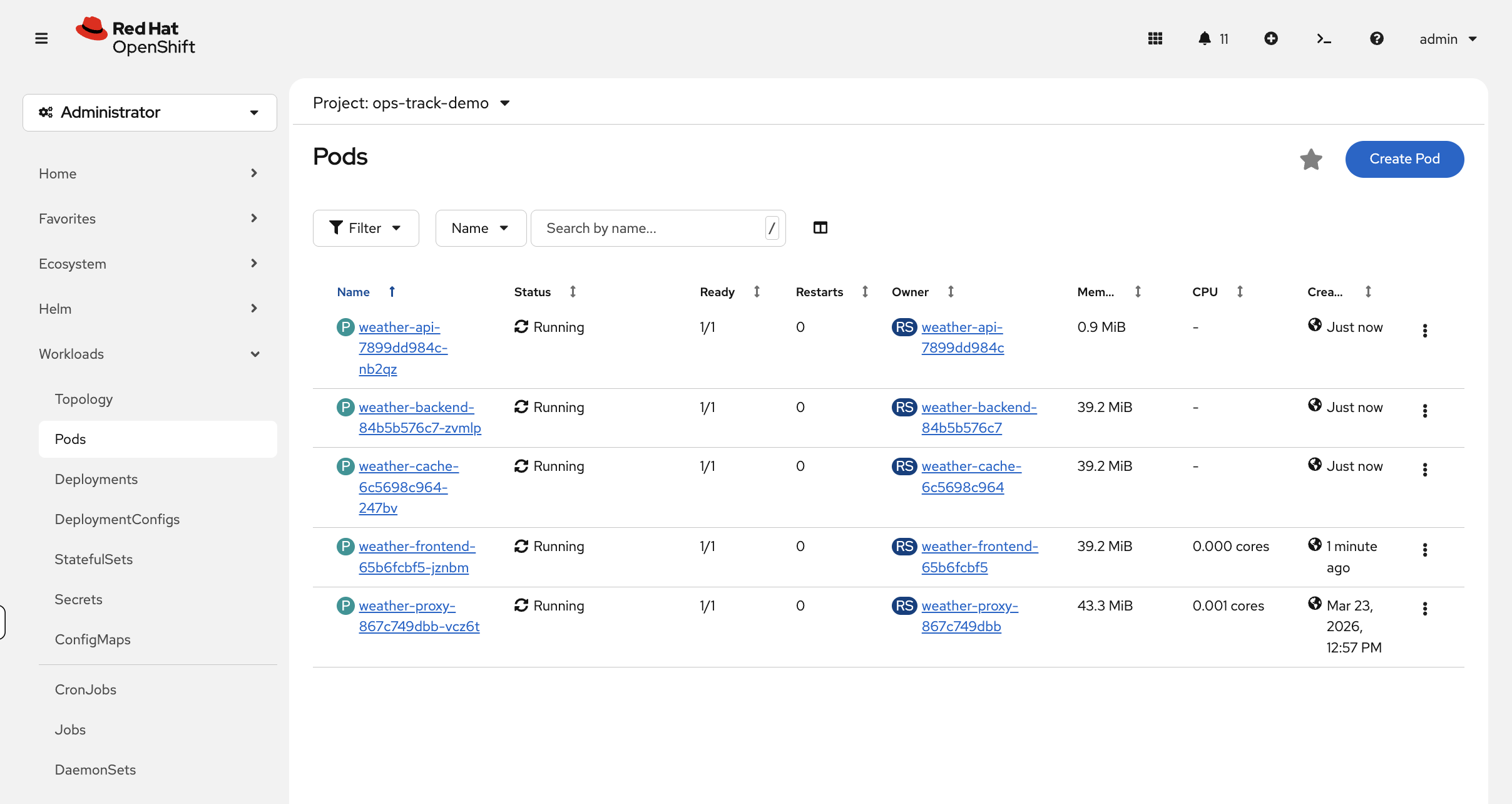
Verify via CLI:
oc get pods -n ops-track-demoAll six pods should now be Running:
NAME                                READY   STATUS    RESTARTS   AGE
weather-api-xxxxx                   1/1     Running   0          1m
weather-backend-xxxxx               1/1     Running   0          1m
weather-cache-xxxxx                 1/1     Running   0          1m
weather-frontend-xxxxx              1/1     Running   0          1m
weather-proxy-xxxxx                 1/1     Running   0          5m
Quick Reference
| Status | Meaning | First Check |
|---|---|---|
ImagePullBackOff |
Can’t pull container image |
|
CrashLoopBackOff |
Container starts then crashes |
|
CreateContainerConfigError |
ConfigMap/Secret missing |
|
No pod created |
LimitRange/ResourceQuota violation |
|
Pending |
Can’t schedule pod |
|
Running but not working |
Service selector mismatch or app bug |
|
Permission denied in logs |
SCC restricts container UID |
Check SCC: |
PVC Pending |
Storage can’t be provisioned |
|
Cleanup & Summary
Summary
You diagnosed and fixed six common OpenShift issues:
-
ImagePullBackOff - wrong image tag (
9.9doesn’t exist) →oc set image -
CrashLoopBackOff - missing config file → create ConfigMap + volume mount
-
Resource constraint - memory typo exceeded LimitRange →
oc set resources -
CreateContainerConfigError - missing ConfigMap →
oc create configmap -
Service selector mismatch - typo in selector →
oc patch svc -
SCC permission denied - container can’t write to root-owned directory → mount
emptyDirvolume
The pattern is always the same: check status → describe pod/replicaset → read logs/events → fix → verify.
Cleanup
If the Developer Hub module is part of your workshop, skip this cleanup - it uses the weather app pods in ops-track-demo to demonstrate the Kubernetes plugin.
|
oc delete namespace ops-track-demo --ignore-not-found --wait=false
echo "Cleanup running in background - you can continue to the next module"