Identity & Users
Duration: 45 minutes
Format: Hands-on identity provider configuration
The Scenario
Your cluster is running with an HTPasswd admin account - fine for initial setup, but production needs real identity management. In this module you’ll integrate an LDAP directory, sync groups into OpenShift, configure RBAC so different teams get different access, and test it by logging in as actual users.
OpenShift’s OAuth server supports multiple identity providers - LDAP, OpenID Connect, HTPasswd, GitHub, GitLab, Google, and more. We’re using LDAP here because it’s the most common enterprise setup and demonstrates group synchronization. The OIDC module covers the modern alternative.
| For the full list of supported identity providers, see Understanding identity providers. |
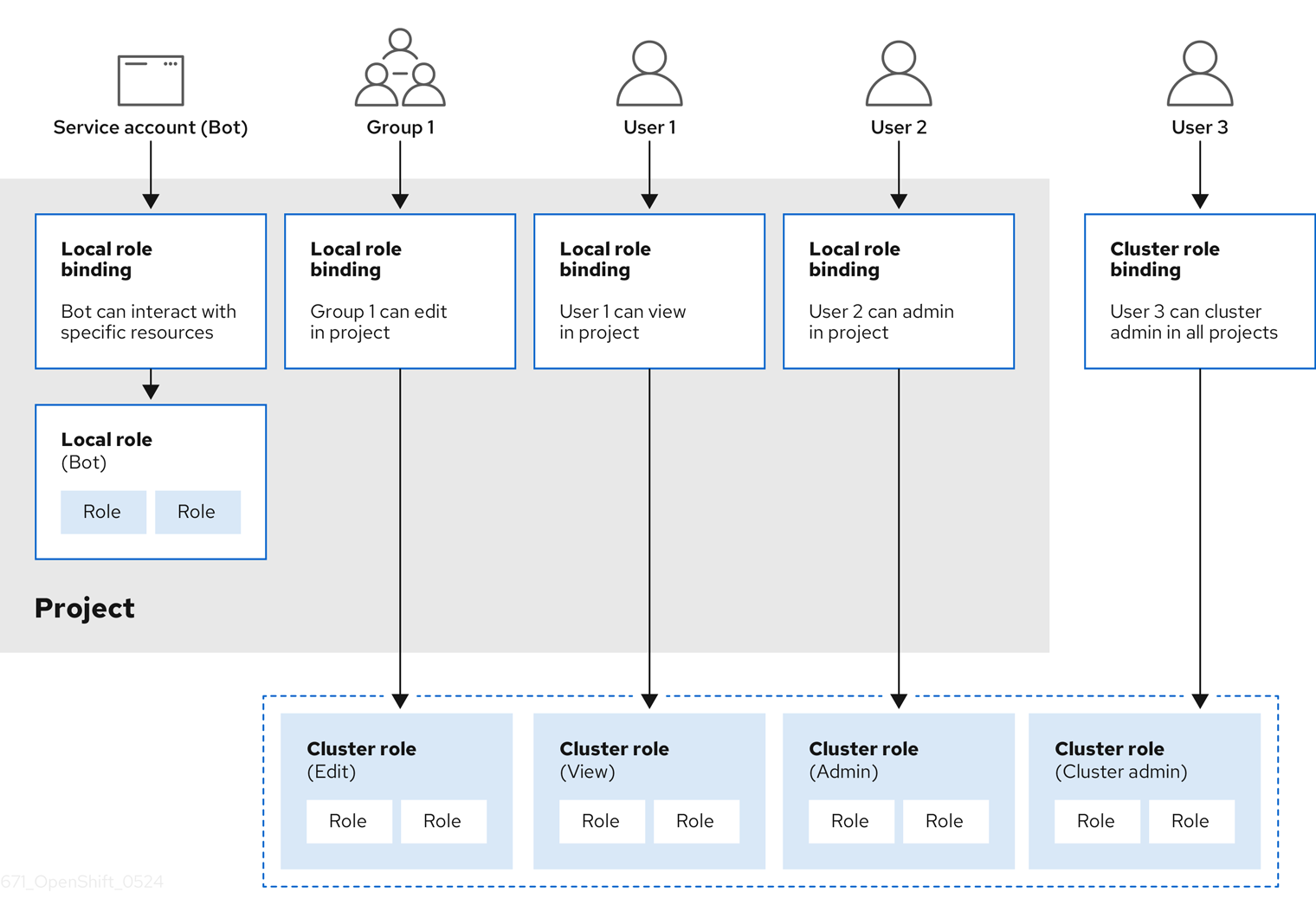
Configure LDAP
Step 1: Examine Default Authentication
Check the current OAuth configuration:
oc get oauth cluster -o yaml| You can also view this in the console at Administration > Cluster Settings > Configuration > OAuth - it shows the configured identity providers in a readable format. |
Look at the spec.identityProviders section. You’ll see that an htpasswd identity provider is already configured - this was set up during cluster provisioning to provide the admin account you’re using now.
|
In a fresh cluster, |
What about kubeadmin?
Fresh OpenShift clusters come with a kubeadmin bootstrap account stored as a Secret in kube-system. This account bypasses identity providers entirely - it’s meant for initial setup only. On this workshop cluster, kubeadmin has already been removed and replaced with the admin HTPasswd account you’re using now. That’s the correct production posture.
You can verify it’s gone:
oc get secret -n kube-system kubeadmin -o yamlExpected: not found - confirming the bootstrap account has been removed.
Step 2: Understand LDAP Structure
This lab environment provides LDAP with the following groups:
-
ose-user: Users with OpenShift access (all users must be in this group)
-
ose-normal-dev: Regular developers (normaluser1, teamuser1, teamuser2)
-
ose-fancy-dev: Senior developers with elevated privileges (fancyuser1, fancyuser2)
-
ose-teamed-app: Project collaboration team (teamuser1, teamuser2)
LDAP user credentials: All users have password Op#nSh1ft
Step 3: Configure LDAP Identity Provider
To configure LDAP authentication, we need:
-
Secret containing the LDAP bind password
-
ConfigMap containing the LDAP server CA certificate
-
OAuth configuration defining the LDAP identity provider
Create the LDAP bind password Secret:
oc create secret generic ldap-secret \
  --from-literal=bindPassword='b1ndP^ssword' \
  -n openshift-config
Extract the CA certificate chain from the LDAP server:
mkdir -p $HOME/support
echo | openssl s_client -connect ldap.jumpcloud.com:636 -showcerts 2>/dev/null | awk 'BEGIN{n=0} /BEGIN CERTIFICATE/{n++} n>=2{print}' > $HOME/support/ca.crt| This extracts the intermediate and root CA certificates directly from the LDAP server’s TLS handshake. This is more reliable than downloading a static CA file, which may not match the server’s current certificate chain. |
Create ConfigMap with CA certificate:
oc create configmap ca-config-map \
  --from-file=ca.crt=$HOME/support/ca.crt \
  -n openshift-config
Create and apply the OAuth configuration:
bash <(curl -sL https://raw.githubusercontent.com/rhpds/openshift-days-ops-showroom/main/support/07-ldap-authentication/configure-oauth-ldap.sh)This script creates an OAuth configuration that adds the LDAP identity provider alongside the existing HTPasswd provider. It configures: the bind DN (uid=openshiftworkshop,…), the LDAP URL (ldaps://ldap.jumpcloud.com) with a memberOf filter restricting login to the ose-user group, attribute mappings (dn → ID, mail → email, cn → display name, uid → username), and references the CA cert and bind password you created above.
Understanding the OAuth configuration:
The oauth-cluster.yaml file configures the LDAP identity provider. Key elements:
Key parameters:
-
name: Unique identifier for this identity provider (can have multiple)
-
mappingMethod: claim: How usernames are assigned (first identity provider wins)
-
attributes: Maps LDAP fields to OpenShift user attributes
-
bindDN/bindPassword: Credentials for LDAP searches
-
ca: Certificate to validate LDAP server SSL
-
url: LDAP server location and search filter
For detailed LDAP configuration, see Configuring an LDAP identity provider.
Monitor the OAuth operator rollout:
oc rollout status deployment/oauth-openshift -n openshift-authentication --timeout=120s| This may take a minute or two to complete. Only press Ctrl+C if it has been running for more than 5 minutes, then re-run the command. |
Wait for: deployment "oauth-openshift" successfully rolled out
Verify OAuth pods are running:
oc get pods -n openshift-authenticationAll oauth-openshift pods should be Running and Ready 1/1.
The OAuth pods need a few moments after rollout to fully initialize their LDAP connections. This checks that LDAP login actually works before moving on:
OCP_SERVER=$(oc whoami --show-server)
echo "Waiting for LDAP authentication to be ready..."
ELAPSED=0
until oc login -u normaluser1 -p 'Op#nSh1ft' $OCP_SERVER --insecure-skip-tls-verify 2>&1 | grep -q "Login successful"; do
  sleep 10; ELAPSED=$((ELAPSED+10))
  [ $ELAPSED -ge 300 ] && echo "ERROR: Timed out - LDAP may not be configured correctly" && break
done
oc login -u {openshift_cluster_admin_username} -p {openshift_cluster_admin_password} $OCP_SERVER --insecure-skip-tls-verify 2>/dev/null
echo "LDAP authentication is ready"| This may take a minute or two to complete. Only press Ctrl+C if it has been running for more than 5 minutes, then re-run the command. |
Test & Sync Groups
Step 4: Test LDAP Authentication
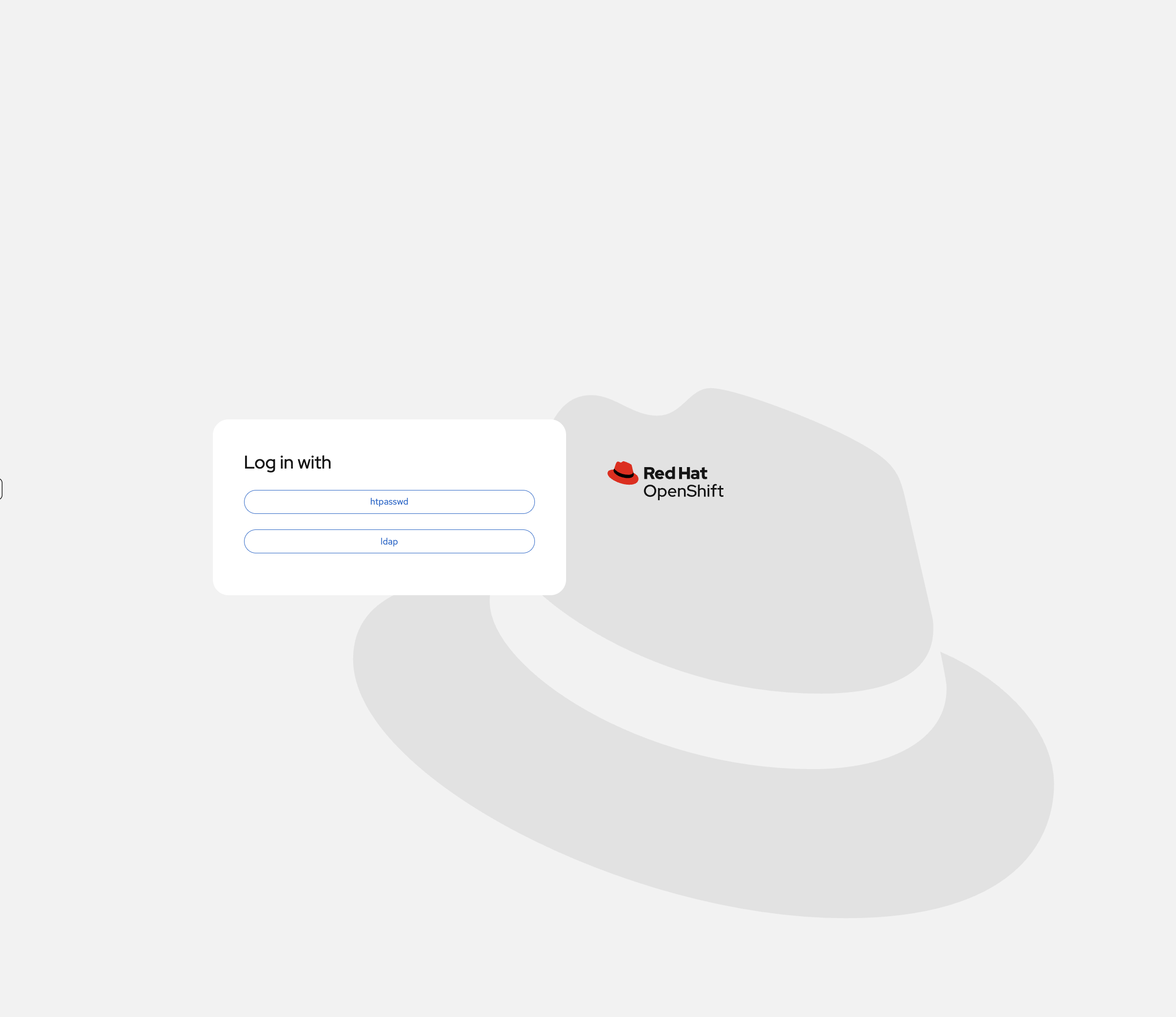
If you reload the OCP Console tab and log out, you’ll now see both identity providers on the login page:
First, capture the API server URL for login commands:
export OCP_SERVER=$(oc whoami --show-server)
echo "API Server: $OCP_SERVER"
Try logging in as a regular user:
oc login -u normaluser1 -p 'Op#nSh1ft' $OCP_SERVER --insecure-skip-tls-verifyYou should see Login successful. - the user was authenticated against the LDAP server.
Check your identity:
oc whoamiOutput: normaluser1
Check what you can do:
oc auth can-i create projectOutput: no (project self-provisioning is disabled in this environment)
Notice the user was automatically created on first login. Log back in as admin to view the user object.
Log back in as cluster admin:
oc login -u {openshift_cluster_admin_username} -p {openshift_cluster_admin_password} --insecure-skip-tls-verifyView the auto-created user:
oc get usersYou’ll see normaluser1 was automatically created on first login.
Step 5: Sync LDAP Groups to OpenShift
LDAP group synchronization imports LDAP groups as OpenShift Groups, making RBAC management easier.
Create the group sync configuration:
cat <<EOF > $HOME/support/groupsync.yaml
kind: LDAPSyncConfig
apiVersion: v1
url: ldaps://ldap.jumpcloud.com
bindDN: uid=openshiftworkshop,ou=Users,o=5e615ba46b812e7da02e93b5,dc=jumpcloud,dc=com
bindPassword: b1ndP^ssword
rfc2307:
  groupsQuery:
    baseDN: ou=Users,o=5e615ba46b812e7da02e93b5,dc=jumpcloud,dc=com
    derefAliases: never
    filter: '(|(cn=ose-*))'
  groupUIDAttribute: dn
  groupNameAttributes:
  - cn
  groupMembershipAttributes:
  - member
  usersQuery:
    baseDN: ou=Users,o=5e615ba46b812e7da02e93b5,dc=jumpcloud,dc=com
    derefAliases: never
  userUIDAttribute: dn
  userNameAttributes:
  - uid
EOF
This configuration searches for LDAP groups matching ose-*, creates matching OpenShift Groups, and populates membership from LDAP.
Run the group sync:
oc adm groups sync --sync-config=$HOME/support/groupsync.yaml --confirmOutput shows created groups:
group/ose-fancy-dev
group/ose-user
group/ose-normal-dev
group/ose-teamed-app
View the synced groups:
oc get groupsYou’ll see:
NAME             USERS
ose-fancy-dev    fancyuser1, fancyuser2
ose-normal-dev   normaluser1, teamuser1, teamuser2
ose-teamed-app   teamuser1, teamuser2
ose-user         fancyuser1, fancyuser2, normaluser1, teamuser1, teamuser2
Examine a specific group:
oc get group ose-fancy-dev -o yamlThe group includes: - LDAP metadata (sync time, LDAP DN, LDAP server) - List of users in the group
See this in the console too: Navigate to User Management → Groups in the OCP Console:
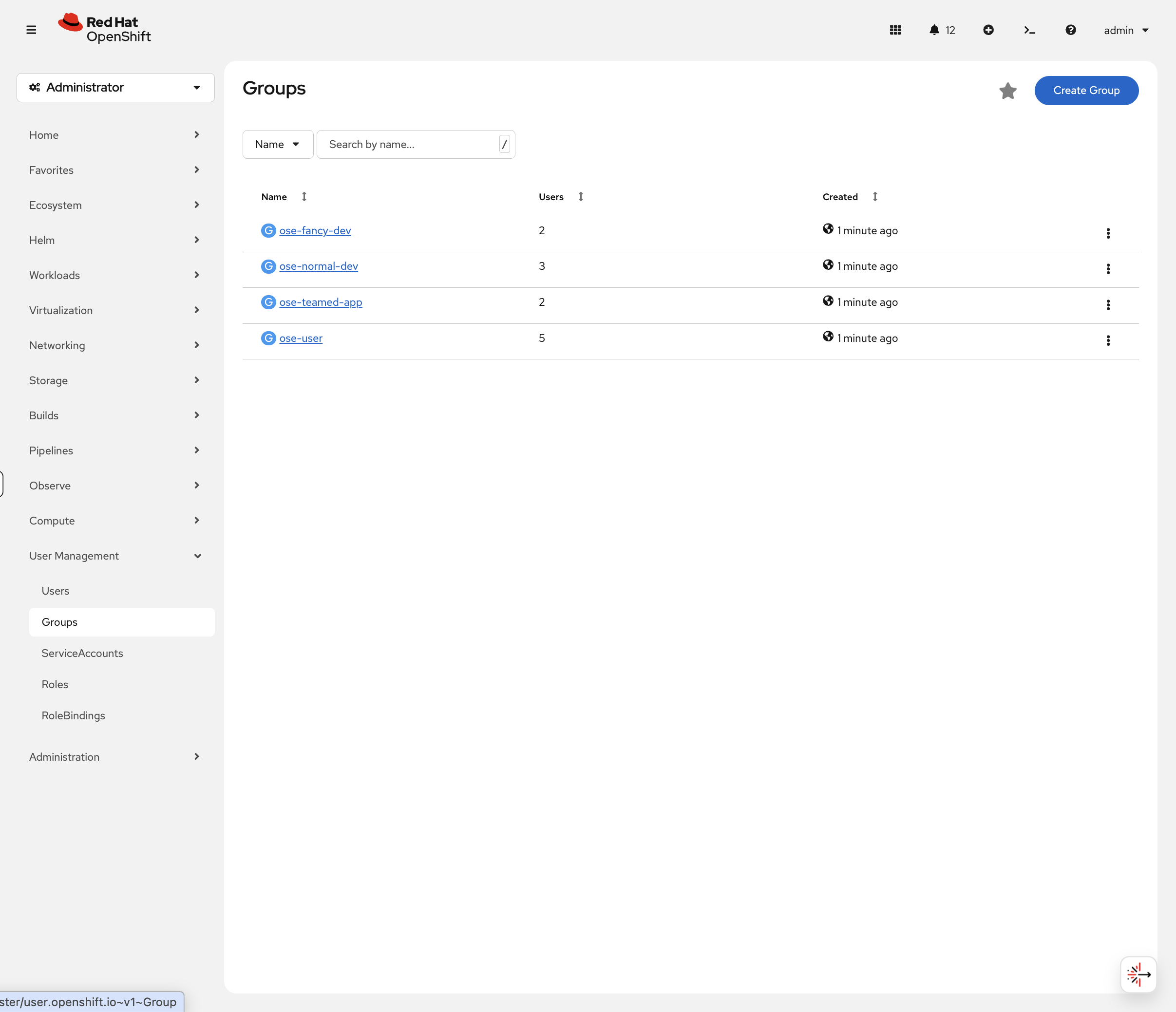
Click on ose-fancy-dev - you’ll see fancyuser1 and fancyuser2 listed as members. Now click User Management → Users:
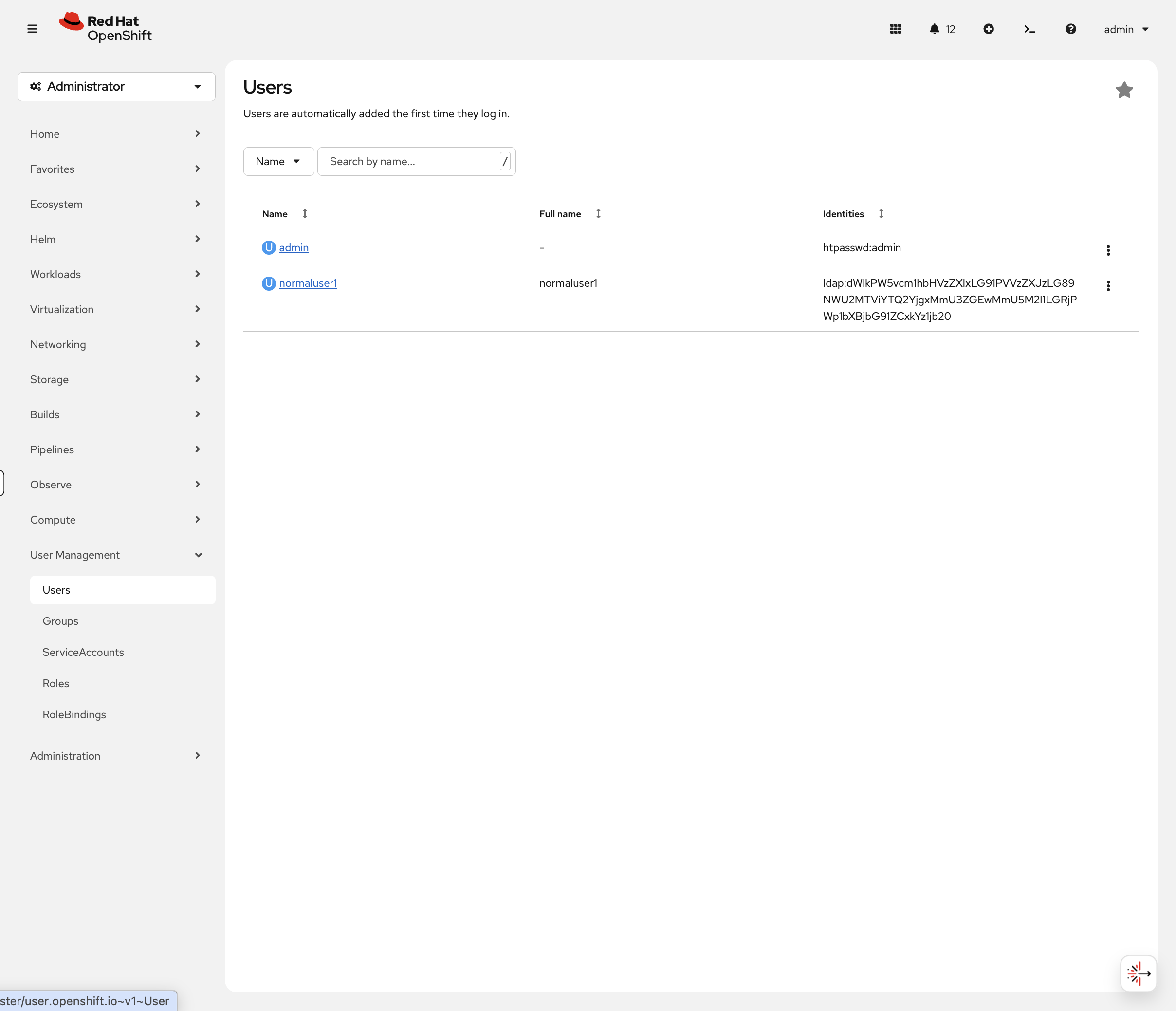
Notice only normaluser1 appears (and admin). The other users exist in LDAP groups but haven’t logged in yet, so OpenShift hasn’t created their User objects.
This is an important distinction: group membership is synced immediately, but User objects are created on first login. In production, you might see a group with 50 members but only 10 User objects - that just means 40 people haven’t logged in yet.
oc get usersConfirms the same thing via CLI - only users who have authenticated appear here.
Step 6: Configure RBAC with Groups
Grant the ose-fancy-dev group cluster-reader privileges to view cluster-wide resources:
oc adm policy add-cluster-role-to-group cluster-reader ose-fancy-devWhat is cluster-reader? A role that allows viewing administrative information (all projects, nodes, cluster settings) without edit permissions.
You can verify this in the console. Navigate to User Management → RoleBindings, switch the Kind filter to Cluster-wide RoleBindings, and search for cluster-reader:
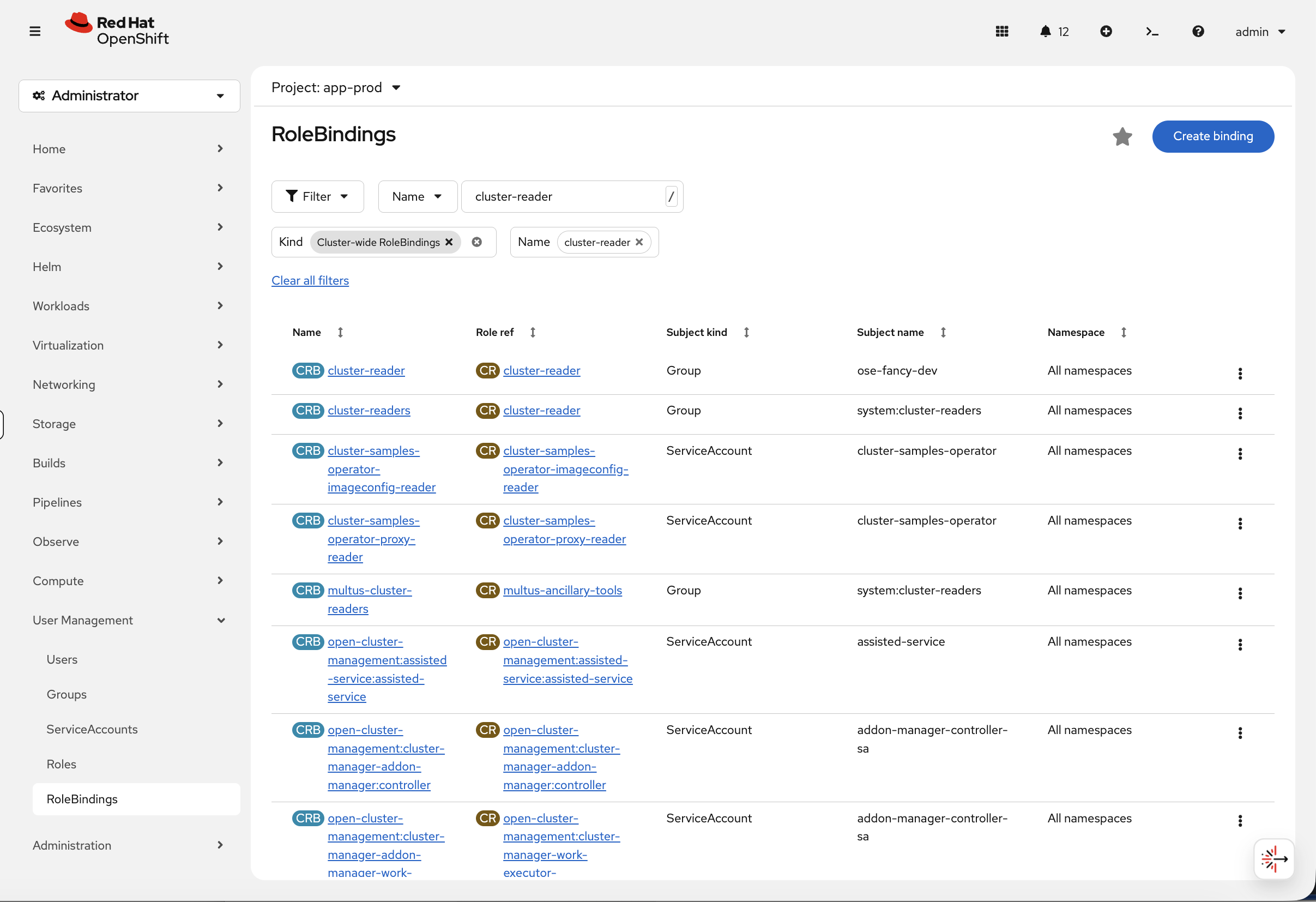
The first row shows ose-fancy-dev bound to cluster-reader across all namespaces - exactly what we just configured.
For more on roles, see Using RBAC to define and apply permissions.
Test as a regular user:
oc login -u normaluser1 -p 'Op#nSh1ft' $OCP_SERVER --insecure-skip-tls-verify
oc whoami
Verify oc whoami shows normaluser1. If it still shows admin, the login failed - wait 30 seconds and try again.
|
oc get projectsYou should see no app- projects - normaluser1 isn’t in any project-specific groups. You may see one or two system namespaces that grant access to all authenticated users - that’s normal.
Test as a fancy developer:
oc login -u fancyuser1 -p 'Op#nSh1ft' $OCP_SERVER --insecure-skip-tls-verify
oc whoami
Now you see all projects in the cluster:
NAME                                     STATUS
default                                  Active
kube-system                              Active
openshift-authentication                 Active
openshift-monitoring                     Active
...
This demonstrates group-based RBAC working correctly.
Check current user and groups:
oc whoami
oc whoami --show-context
RBAC & Projects
Step 7: Create Projects for Collaboration
Log back in as cluster admin:
oc login -u {openshift_cluster_admin_username} -p {openshift_cluster_admin_password} --insecure-skip-tls-verifyCreate a typical SDLC project structure:
oc adm new-project app-dev --display-name="Application Development"
oc adm new-project app-test --display-name="Application Testing"
oc adm new-project app-prod --display-name="Application Production"| These projects are now visible in the console project dropdown. Navigate to Home > Projects to see all three with their display names. |
Verify projects were created:
oc get projects | grep app-Step 8: Map Groups to Projects
Grant the ose-teamed-app group edit access to dev and test:
oc adm policy add-role-to-group edit ose-teamed-app -n app-dev
oc adm policy add-role-to-group edit ose-teamed-app -n app-test
Grant view access to production:
oc adm policy add-role-to-group view ose-teamed-app -n app-prodGrant ose-fancy-dev group edit access to production:
oc adm policy add-role-to-group edit ose-fancy-dev -n app-prodView role bindings for a project:
oc get rolebindings -n app-devDescribe a specific role binding:
oc describe rolebinding -n app-dev | grep -A 5 ose-teamed-appVerify in the console. Navigate to User Management → RoleBindings, select project app-dev, and filter by Namespace RoleBindings:
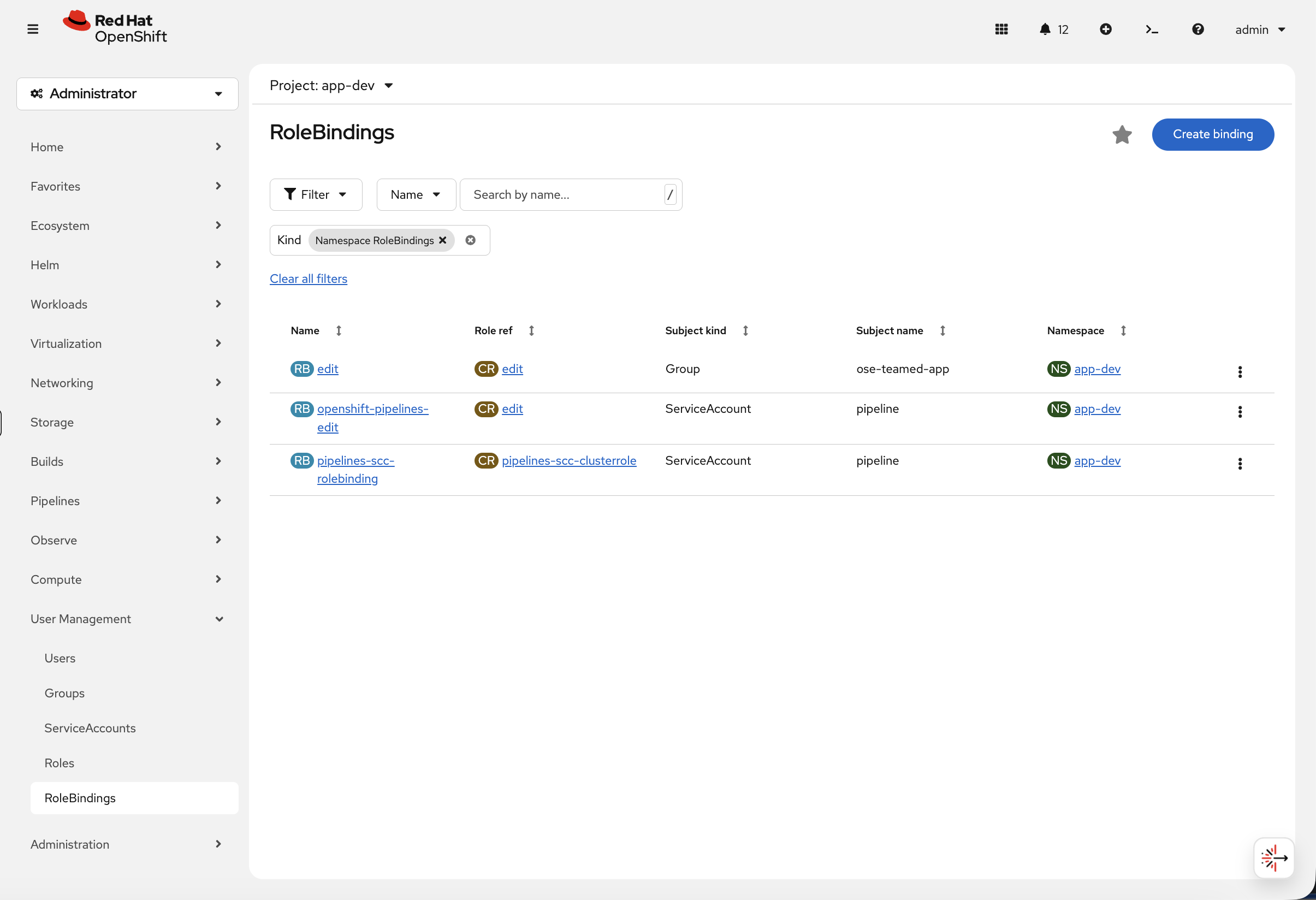
You can immediately see that ose-teamed-app has the edit role in app-dev. Now switch the project to app-prod:
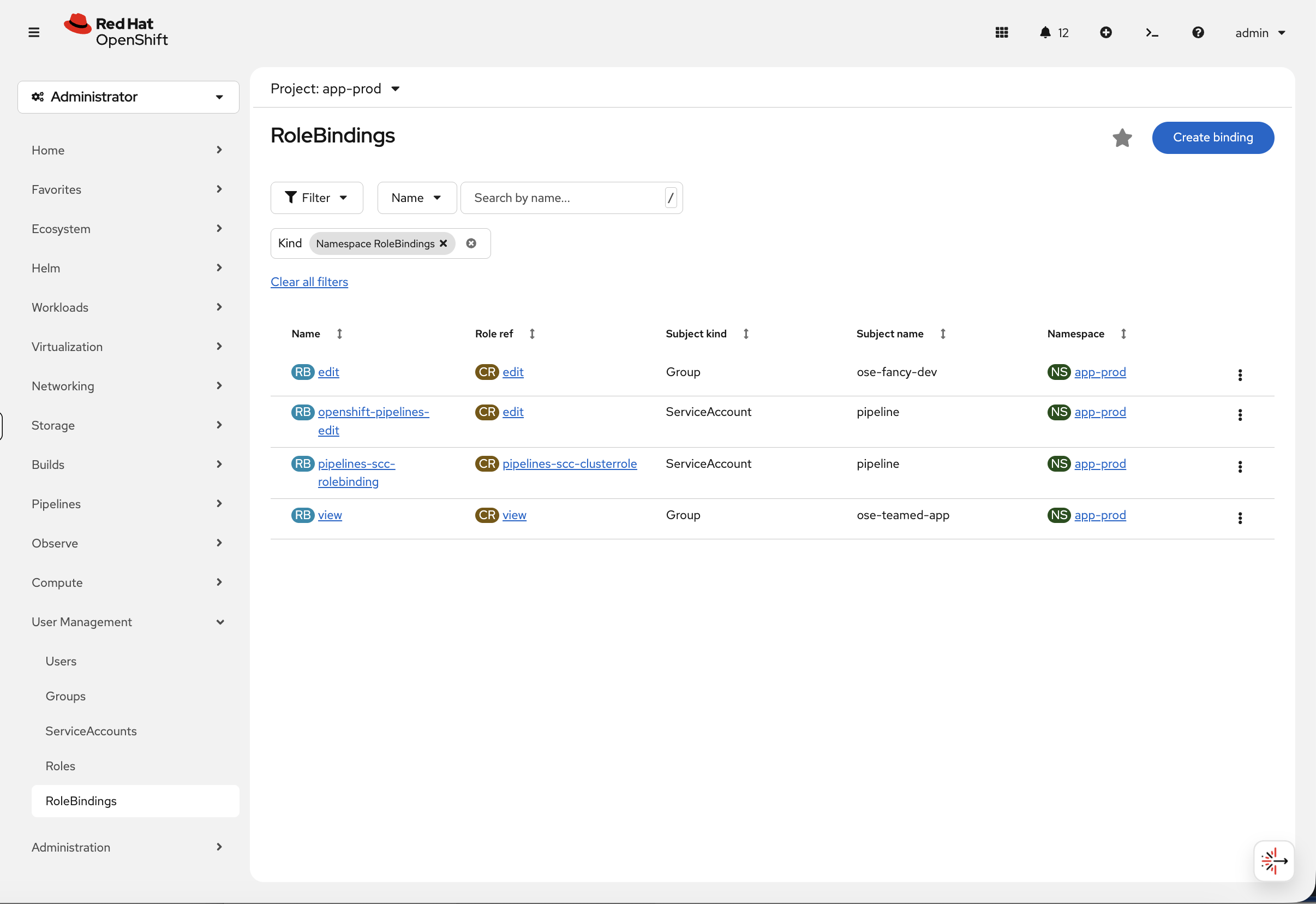
Notice the separation of privileges at a glance - ose-fancy-dev has edit access to production while ose-teamed-app only has view. This is the kind of access review that the console makes much faster than parsing CLI output.
Step 9: Test Project Permissions
Test as normaluser1 (no group access):
oc login -u normaluser1 -p 'Op#nSh1ft' $OCP_SERVER --insecure-skip-tls-verify
oc whoami
oc get projects | grep app-Result: No app- projects visible. This user is not in any project-specific groups.
Test as teamuser1 (ose-teamed-app member):
oc login -u teamuser1 -p 'Op#nSh1ft' $OCP_SERVER --insecure-skip-tls-verify
oc whoami
oc get projects | grep app-Now you see:
NAME       DISPLAY NAME              STATUS
app-dev    Application Development   Active
app-prod   Application Production    Active
app-test   Application Testing       Active
Verify permissions in development (edit access):
oc auth can-i create deployment -n app-dev
oc auth can-i create pod -n app-dev
oc auth can-i create service -n app-dev
All should return: yes (teamuser1 has edit role in app-dev)
Verify permissions in production (view-only access):
oc auth can-i create deployment -n app-prod
oc auth can-i create pod -n app-prod
Both should return: no (teamuser1 only has view role in app-prod)
Check what view access allows:
oc auth can-i get pods -n app-prod
oc auth can-i list deployments -n app-prod
Both return: yes (view role allows read operations)
Perfect! This demonstrates how operations teams verify RBAC is correctly configured without creating test resources.
Security Best Practices
Ensure kubeadmin is removed after configuring identity provider:
oc login -u {openshift_cluster_admin_username} -p {openshift_cluster_admin_password} --insecure-skip-tls-verifyFirst, grant cluster-admin to a real user:
oc adm policy add-cluster-role-to-user cluster-admin fancyuser1Verify it works:
oc login -u fancyuser1 -p 'Op#nSh1ft' $OCP_SERVER --insecure-skip-tls-verify
oc auth can-i '*' '*'
Output: yes
In production, always remove kubeadmin:
After verifying your identity provider works and granting cluster-admin to at least one LDAP/OIDC user, delete the kubeadmin secret from the kube-system namespace. This removes the bootstrap account and ensures all cluster access goes through your enterprise identity provider. On this workshop cluster, kubeadmin has already been removed - you’re using the admin HTPasswd account instead.
Automate LDAP group sync with CronJob:
Instead of running group sync manually, production environments typically create a Kubernetes CronJob that runs the sync operation automatically (for example, every hour). This ensures LDAP group membership changes are reflected in OpenShift without manual intervention.
The CronJob would:
- Run on a regular schedule (e.g., */60 * * * * for hourly)
- Use a service account with appropriate permissions
- Mount the group sync configuration from a ConfigMap
- Execute oc adm groups sync with the --confirm flag
For complete implementation details, see the official documentation on automating LDAP sync.
For this lab, manual group sync is sufficient for learning purposes.
Cleanup & Summary
Summary
You configured LDAP authentication end-to-end: connected to an external directory, synced groups, mapped those groups to project-level RBAC, and verified it by logging in as three different users with different access levels.
Production recommendations:
-
Use LDAP/OIDC, never HTPasswd
-
Remove kubeadmin after configuring a real identity provider
-
Automate group sync with a CronJob
-
Use groups for RBAC, not individual users
-
Follow least-privilege: view over edit, edit over admin
Additional Resources
-
Authentication and Authorization Guide: Official documentation
-
Identity Providers Overview: Understanding identity providers
-
LDAP Configuration: Configuring LDAP identity provider
-
RBAC Documentation: Using RBAC
-
Group Sync: Syncing LDAP groups
Cleanup
Restore the cluster to its original authentication state before proceeding to other modules:
oc login -u {openshift_cluster_admin_username} -p {openshift_cluster_admin_password} --insecure-skip-tls-verify
bash <(curl -sL https://raw.githubusercontent.com/rhpds/openshift-days-ops-showroom/main/support/cleanup-scripts/cleanup-ldap.sh)