Observability & Logging
Duration: 55 minutes
Format: Hands-on observability configuration
The Scenario
Something’s wrong with your cluster. How do you know? Where do you look? If you can’t answer that in 30 seconds, your observability stack isn’t ready for production.
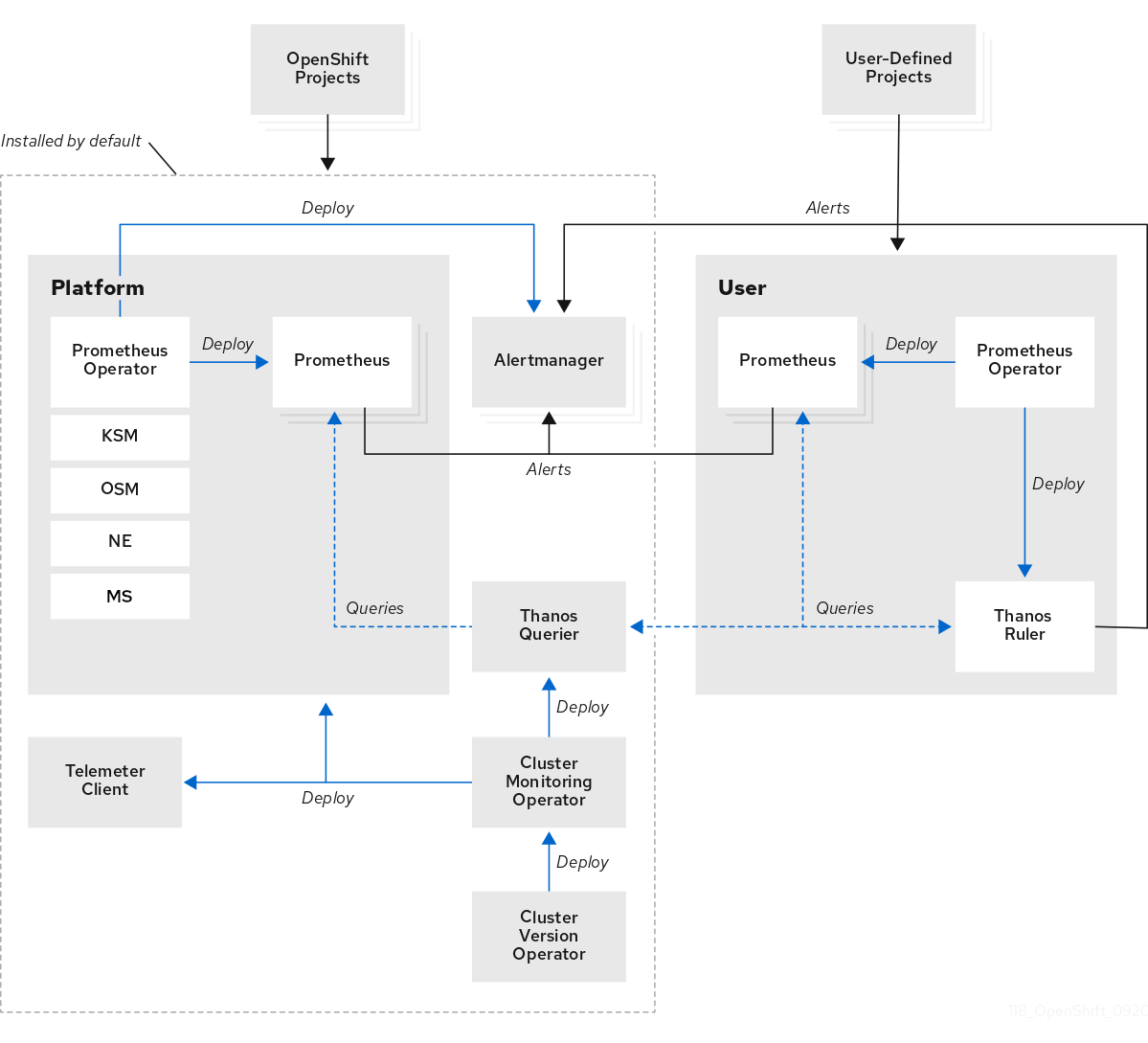
In this module you’ll explore the metrics and alerting that’s already running (Prometheus, Alertmanager), set up a logging pipeline (Loki, Vector) so you can actually search logs, and deploy distributed tracing (OpenTelemetry, Tempo) to follow requests across services.
If you were logged in as a different user in a previous module, log back in as admin. Console: Username {openshift_cluster_admin_username} / Password {openshift_cluster_admin_password}. Terminal: oc login -u {openshift_cluster_admin_username} -p {openshift_cluster_admin_password}
|
Built-in Metrics with Prometheus
OpenShift ships with a fully managed Prometheus stack - no installation required. It collects metrics from every component in the cluster.
Explore Cluster Metrics
View the Prometheus pods that are already running:
oc get pods -n openshift-monitoring -l app.kubernetes.io/name=prometheusQuery cluster CPU usage using the console metrics viewer:
-
Switch to the OCP Console tab
-
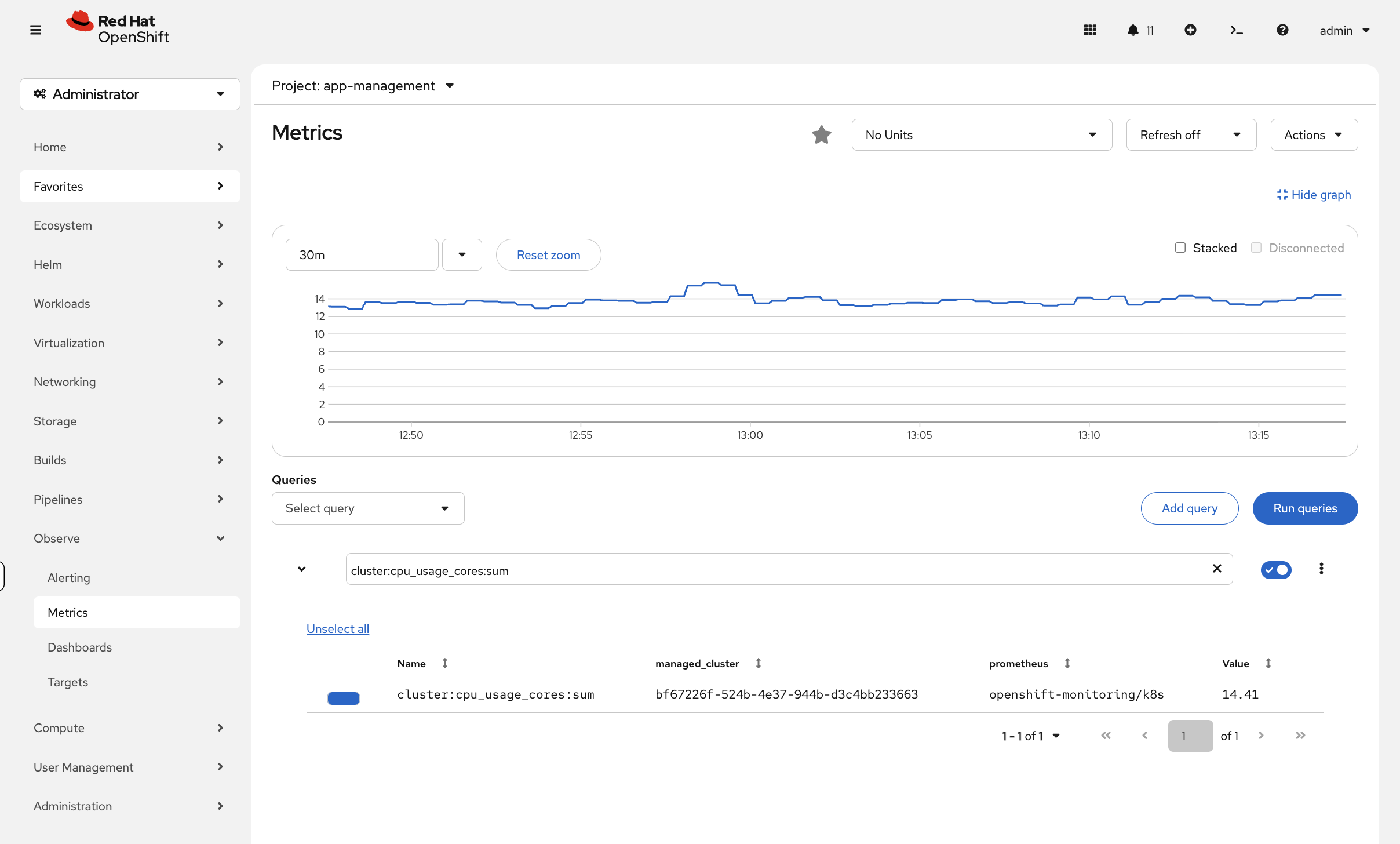
Navigate to Observe → Metrics
-
Enter the query:
cluster:cpu_usage_cores:sum -
Click Run Queries
You’ll see a time-series graph showing cluster CPU usage over time - far more useful than a point-in-time number.
Try other queries like node_memory_MemAvailable_bytes or kubelet_running_pods to explore what metrics are available.
|
For quick CLI snapshots, you can also use:
oc adm top nodesoc adm top pods -A --sort-by=cpu | head -15Dashboards in the Console
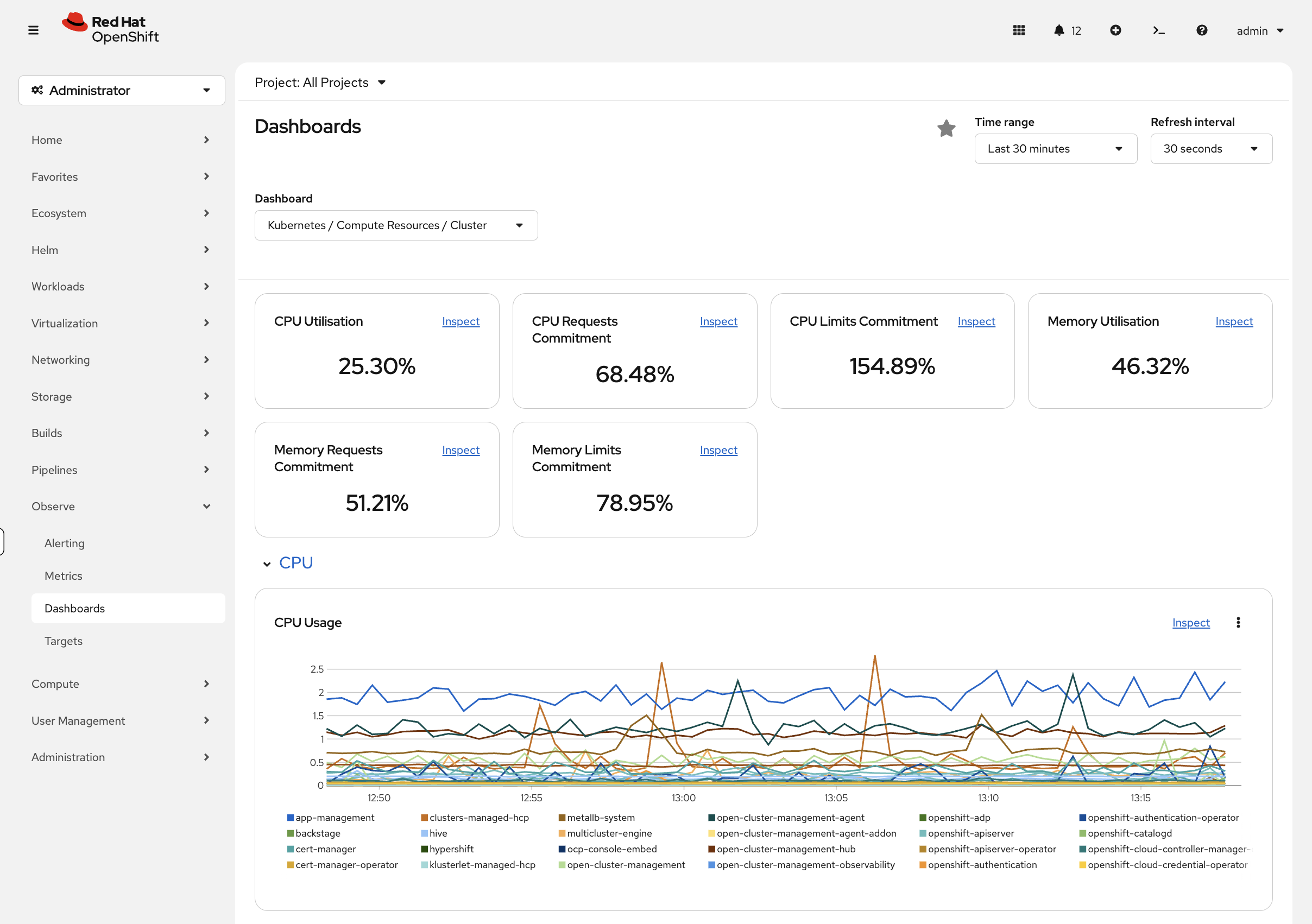
Navigate to Observe → Dashboards in the OpenShift console. Key dashboards include:
-
etcd - Control plane database health
-
Kubernetes / Compute Resources / Cluster - Cluster-wide CPU and memory
-
Kubernetes / Compute Resources / Namespace (Pods) - Per-namespace breakdown
-
Node Exporter / USE Method / Cluster - Utilization, Saturation, Errors
User Workload Monitoring
OpenShift can also scrape metrics from your own applications. User workload monitoring is not enabled by default - it has been pre-enabled on this workshop cluster. Verify it’s running:
oc get pods -n openshift-user-workload-monitoringIf pods are running, any application that exposes a /metrics endpoint can be scraped by creating a ServiceMonitor or PodMonitor resource.
| This is already enabled on your workshop cluster - you don’t need to run this. On your own cluster, you would enable it with: |
oc apply -f - <<EOF
apiVersion: v1
kind: ConfigMap
metadata:
  name: cluster-monitoring-config
  namespace: openshift-monitoring
data:
  config.yaml: |
    enableUserWorkload: true
EOF
Any application that exposes a Prometheus /metrics endpoint can be scraped by creating a ServiceMonitor pointing at it. This is how HPA gets custom metrics for scaling decisions.
Alerting with Alertmanager
OpenShift includes Alertmanager for routing alerts to notification channels (email, Slack, PagerDuty, webhooks).
View Current Alerts
Check what alerting rules exist:
oc get prometheusrules -A | head -15You can also view alerts in the console under Observe → Alerting.
Create a Custom Alert
You can define your own alerts for application namespaces. Here’s an example that fires when a pod has been restarting. We’ll create it in the openshift-monitoring namespace where the built-in alerting rules live:
cat <<EOF | oc apply -f -
apiVersion: monitoring.coreos.com/v1
kind: PrometheusRule
metadata:
  name: ops-track-alerts
  namespace: openshift-monitoring
spec:
  groups:
  - name: ops-track
    rules:
    - alert: HighPodRestartRate
      expr: increase(kube_pod_container_status_restarts_total[5m]) > 2
      for: 1m
      labels:
        severity: warning
      annotations:
        summary: "Pod {{ \$labels.pod }} restarting frequently"
        description: "Pod {{ \$labels.pod }} in {{ \$labels.namespace }} has restarted more than 2 times in 5 minutes."
EOF
Verify the rule was created:
oc get prometheusrule ops-track-alerts -n openshift-monitoringThe rule exists but nothing is triggering it. Let’s fix that - deploy a pod that crash-loops so you can see the alert go from inactive to pending to firing:
oc new-project alert-demo 2>/dev/null || oc project alert-demo
cat <<EOF | oc apply -f -
apiVersion: v1
kind: Pod
metadata:
  name: crashloop-test
  namespace: alert-demo
spec:
  containers:
  - name: crash
    image: registry.access.redhat.com/ubi9/ubi-minimal
    command: ["/bin/sh", "-c", "echo 'Starting...'; sleep 2; exit 1"]
  restartPolicy: Always
EOF
echo "Crash-looping pod deployed - it will restart every few seconds"
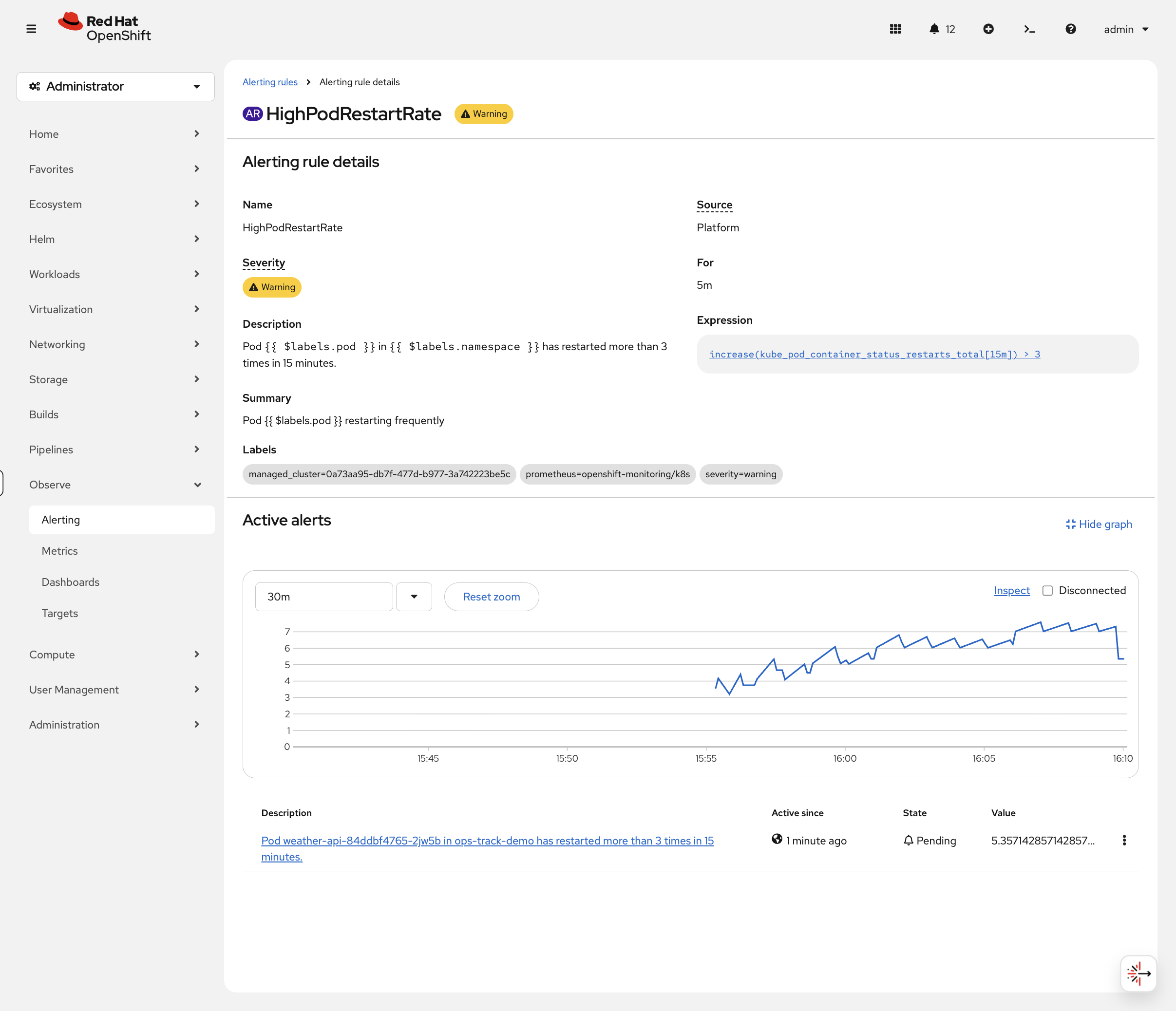
While the restarts accumulate, navigate to Observe → Alerting → Alerting Rules in the console and search for HighPodRestartRate.
| It may take a minute or two for Prometheus to pick up the new rule. If you don’t see it, refresh the page. You may also need to click Clear all filters or remove any existing filter chips (click the x on them) before the rule appears in the search results. |
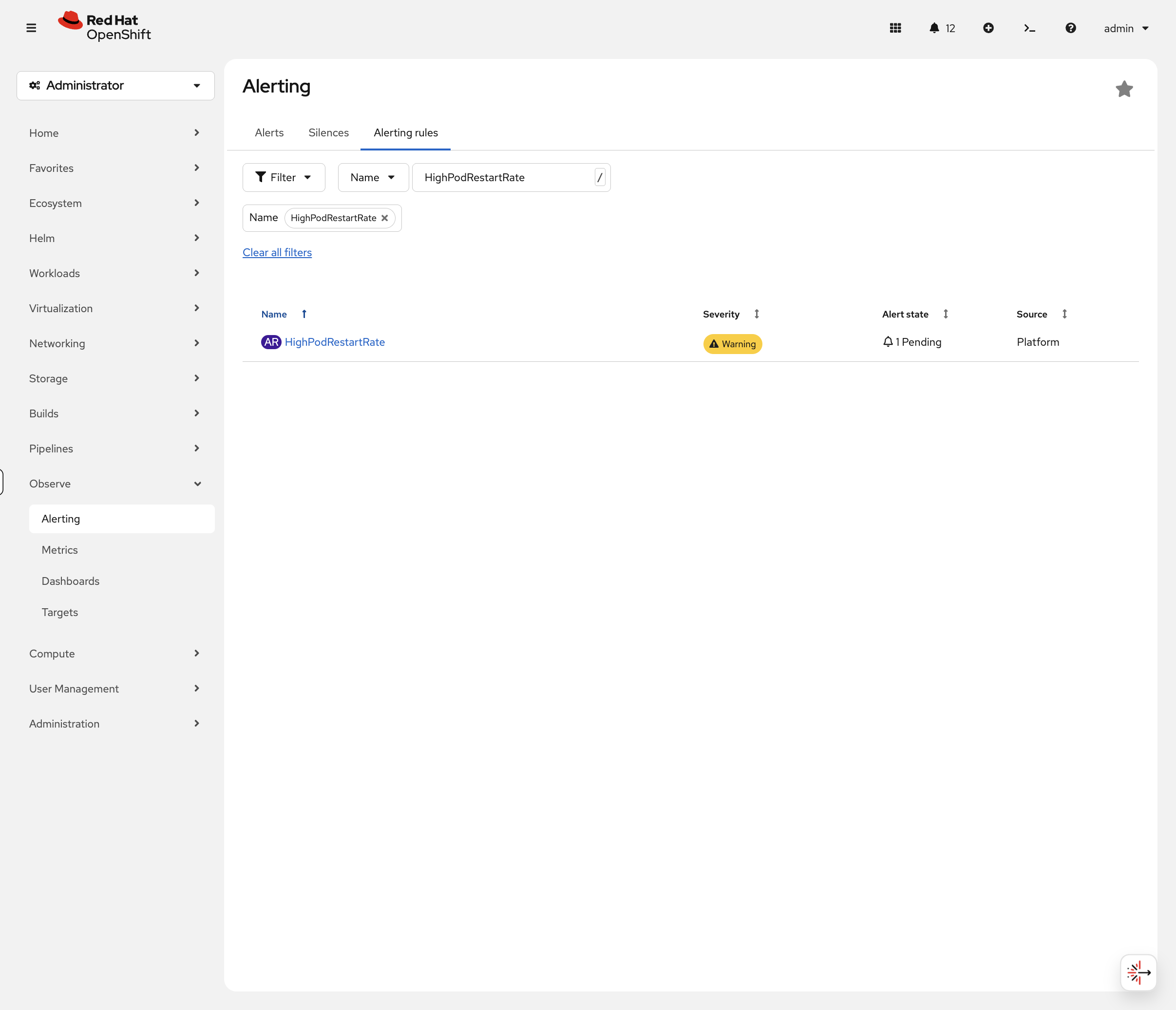
Click on the rule to see its details. After about 2-3 minutes (once the pod has restarted a few times and the for: 1m duration passes), you’ll see the alert transition from Inactive → Pending → Firing:
Now switch to the Alerts tab. Filter by Alert State: Firing - you should see HighPodRestartRate with crashloop-test as the source pod:
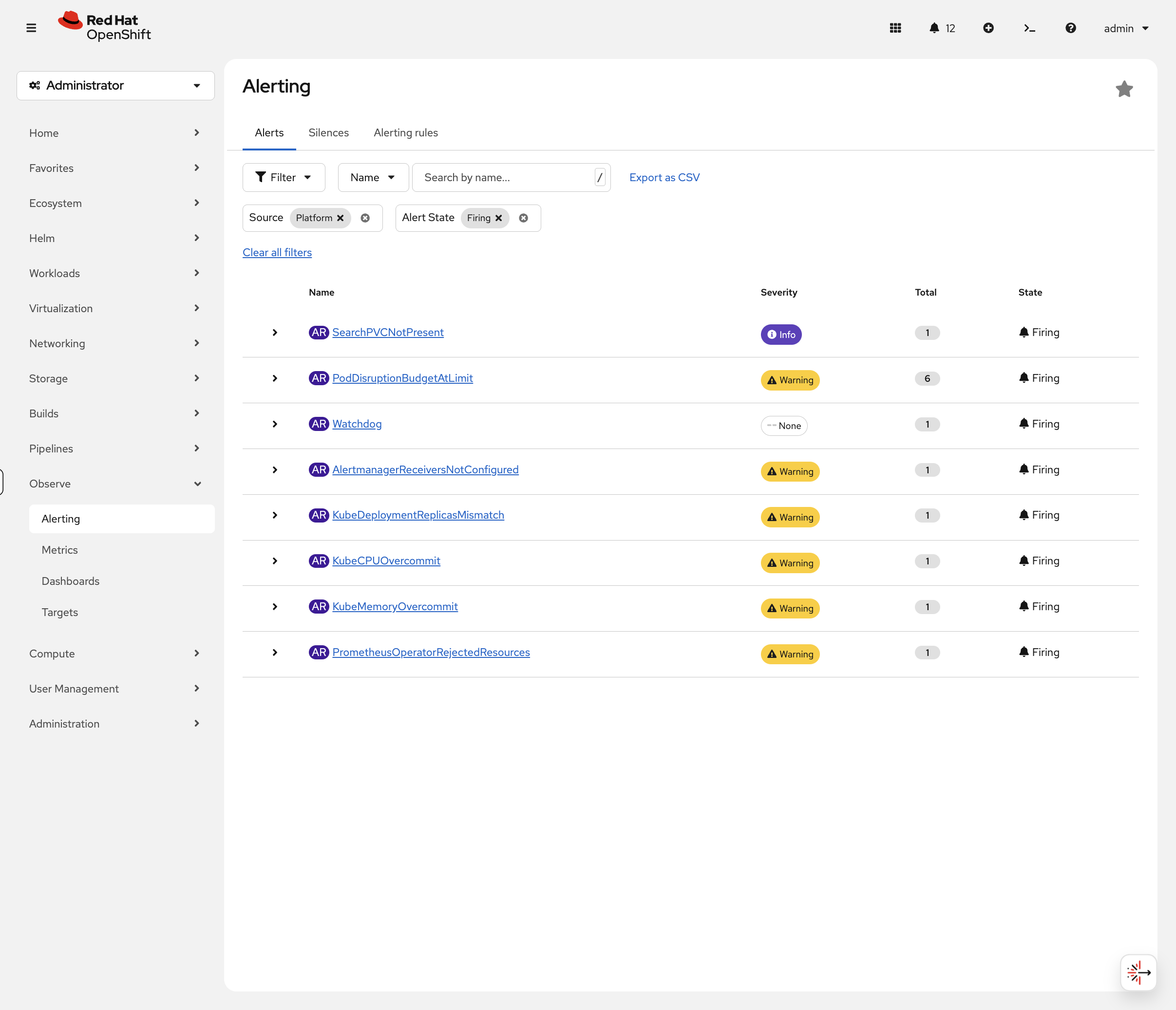
This is the view on-call engineers live in. You just created a rule, triggered it with a real failure, and watched it fire. Clean up the crash-looping pod:
oc delete pod crashloop-test -n alert-demo --ignore-not-foundSend Alerts to Email
Your alert fired - but who got notified? Right now, nobody. Alertmanager has receivers configured (Default, Watchdog, Critical) but none of them actually send notifications anywhere. Alerts fire, appear in the console, and that’s it.
In production, that means an overnight incident goes unnoticed until someone checks the console in the morning. Let’s fix that by wiring up email notifications.
Deploy a Mail Server
Deploy Mailpit - a lightweight mail server that catches emails and shows them in a web inbox. This simulates what an internal mail relay does in production:
bash <(curl -sL https://raw.githubusercontent.com/rhpds/openshift-days-ops-showroom/main/support/09-observability/deploy-mailpit.sh)Configure Alertmanager
Now configure Alertmanager to send emails through Mailpit. This routes warning alerts to ops-team@example.com and critical alerts to oncall@example.com:
bash <(curl -sL https://raw.githubusercontent.com/rhpds/openshift-days-ops-showroom/main/support/09-observability/configure-alertmanager-email.sh)The script will print the Mailpit inbox URL. Click it or copy it into your browser. Within a minute you should see alert emails arriving:
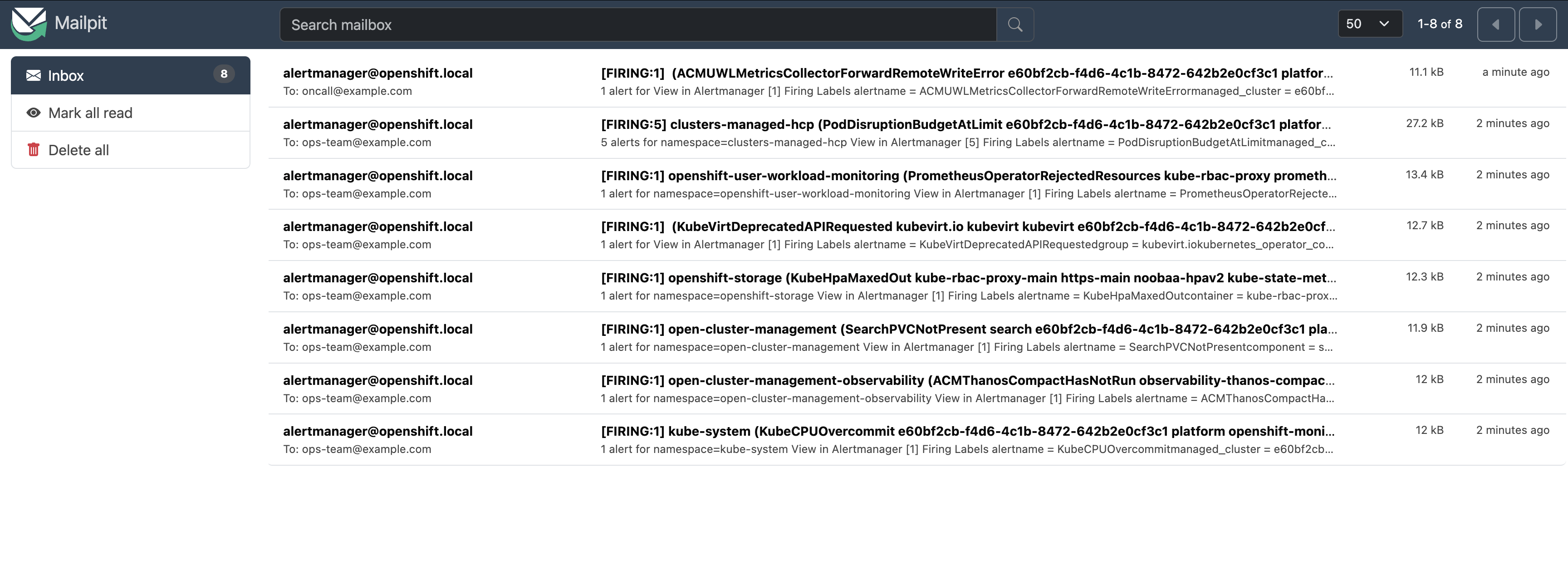
Notice the routing:
-
Warning alerts (like
PodDisruptionBudgetAtLimit,KubeCPUOvercommit) go toops-team@example.com -
Critical alerts go to
oncall@example.com
Click on any email to see the full alert details - alert name, namespace, severity, description, and a link to the Alertmanager UI.
In production, you would replace mailpit.alert-demo.svc:1025 with your organization’s SMTP relay and use real email addresses. Alertmanager also supports Slack, PagerDuty, and webhooks using the same routing structure - see Sending notifications to external systems.
Restore Alertmanager
Reset Alertmanager to its default configuration and clean up:
bash <(curl -sL https://raw.githubusercontent.com/rhpds/openshift-days-ops-showroom/main/support/09-observability/restore-alertmanager.sh)Takeaway: An alert that nobody receives is the same as no alert at all. Configuring receivers is one of the first things to do on a new cluster - without it, your monitoring is just decoration.
Set Up the Logging Stack
While metrics tell you what is happening, logs tell you why. OpenShift’s logging stack has three layers - you need to understand each one because when logging breaks in production, you need to know which layer to troubleshoot.
The Architecture
The logging pipeline works like this:
-
Collectors (Vector) run on every node and gather logs from containers, the OS, and the Kubernetes API
-
Loki stores and indexes the logs (backed by S3-compatible object storage)
-
Console UI plugin lets you query logs from the OpenShift web console
Each layer is managed by a separate operator, so you can upgrade or troubleshoot them independently.
Install the Logging Operators
Three operators are needed. Each one manages a different part of the pipeline. First, create the required namespaces and operator groups:
oc create namespace openshift-operators-redhat 2>/dev/null || true
oc create namespace openshift-logging 2>/dev/null || true
cat <<EOF | oc apply -f -
apiVersion: operators.coreos.com/v1
kind: OperatorGroup
metadata:
  name: openshift-operators-redhat
  namespace: openshift-operators-redhat
spec: {}
---
apiVersion: operators.coreos.com/v1
kind: OperatorGroup
metadata:
  name: cluster-logging
  namespace: openshift-logging
spec:
  targetNamespaces:
  - openshift-logging
EOF
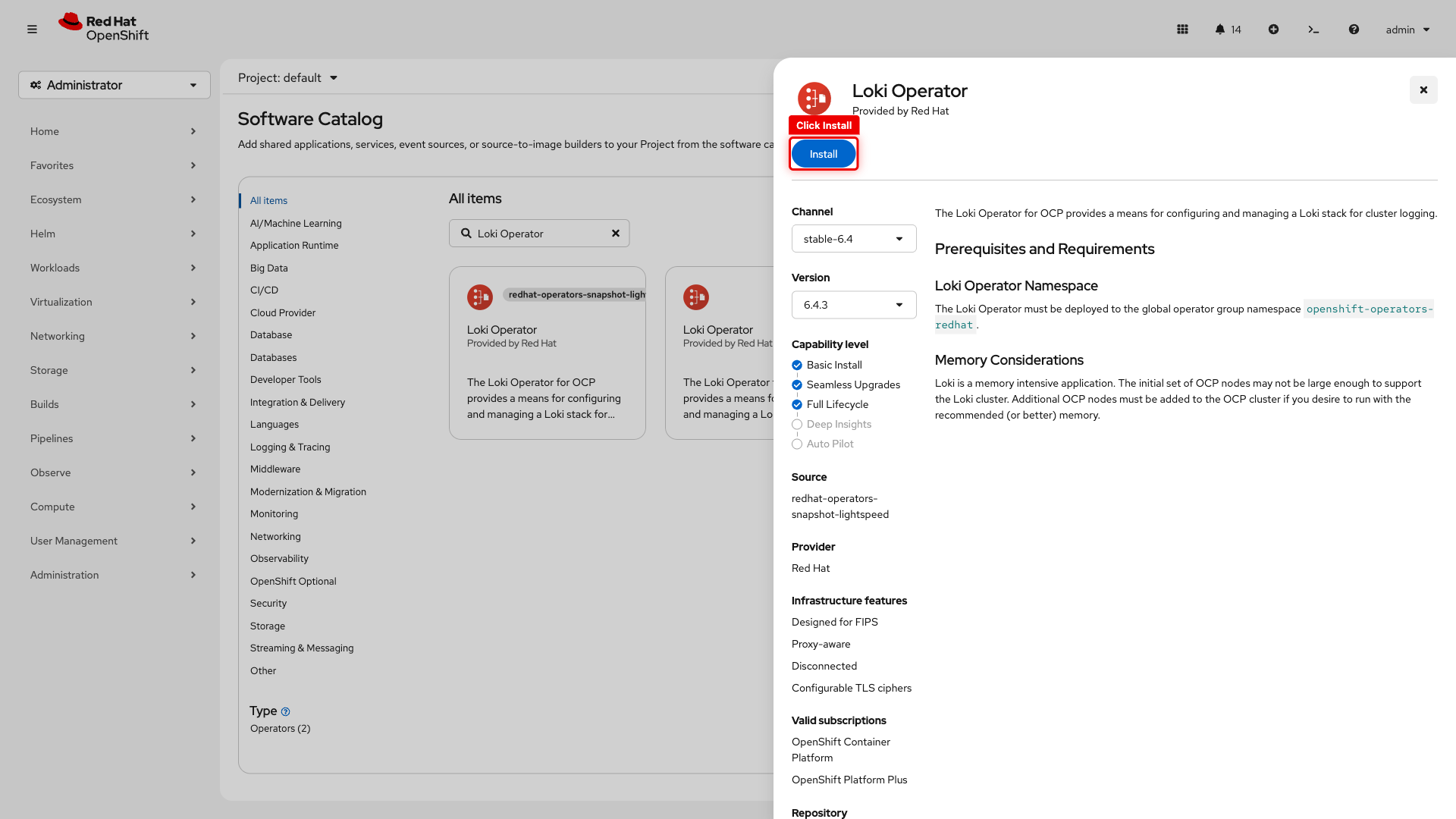
Install the Loki Operator from the Software Catalog - this is the same process for any operator in OperatorHub.
Loki Operator (log storage)
-
Navigate to Ecosystem → Software Catalog
-
Search for Loki Operator
-
Click the Loki Operator tile (select the one labeled Red Hat, not snapshot-lightspeed)
-
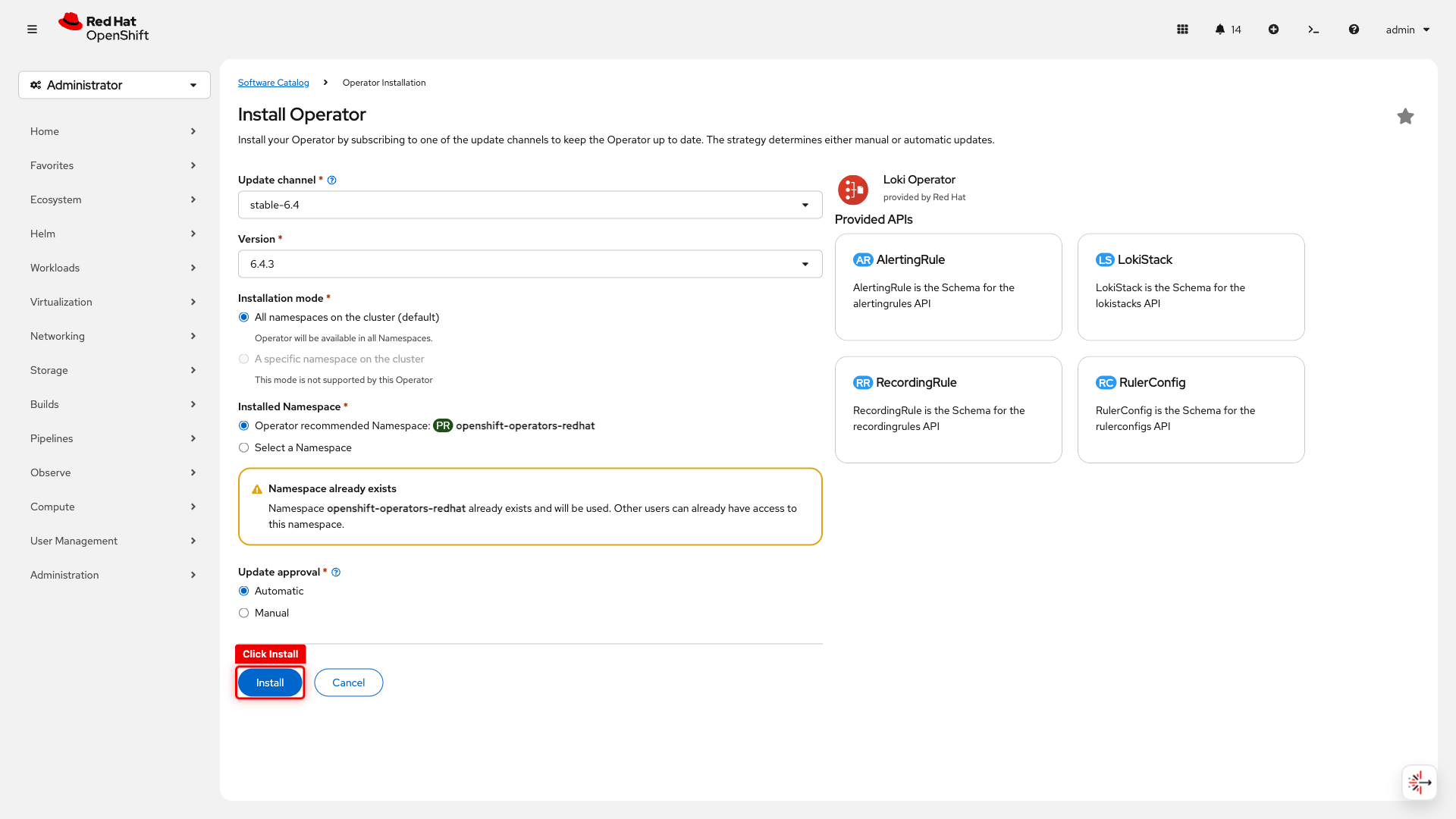
Click Install
-
On the install configuration page, leave all defaults (channel, namespace, approval) and click Install
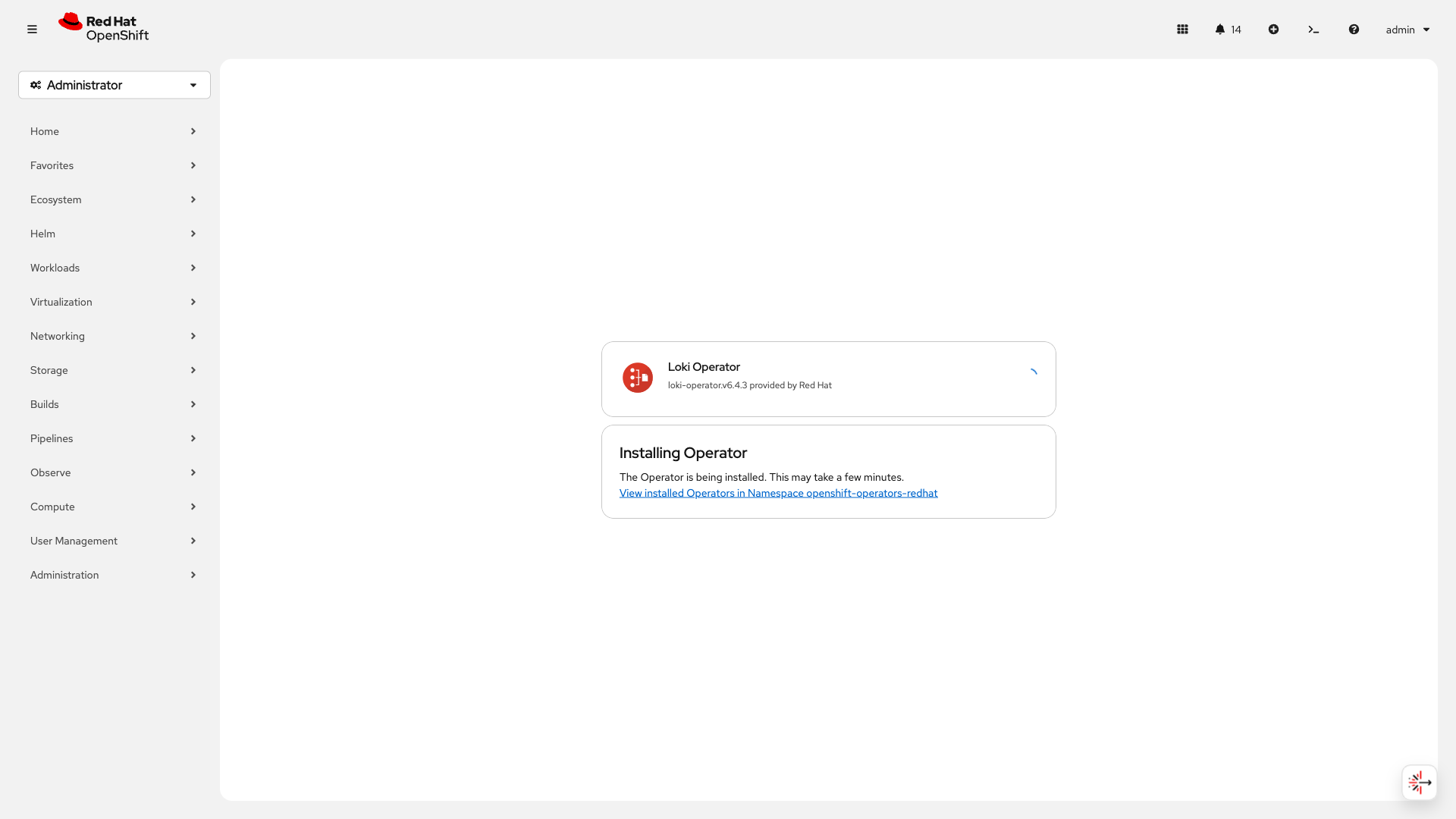
You’ll see the "Installing Operator" confirmation:
Configure Log Storage (Loki + S3)
Loki needs object storage for log data. This cluster has OpenShift Data Foundation (ODF) which provides S3-compatible storage via NooBaa. In production, you’d point this at AWS S3, Azure Blob, or any S3-compatible store.
Create an S3 bucket for log storage:
cat <<EOF | oc apply -f -
apiVersion: objectbucket.io/v1alpha1
kind: ObjectBucketClaim
metadata:
  name: loki-bucket
  namespace: openshift-logging
spec:
  generateBucketName: loki-bucket
  storageClassName: openshift-storage.noobaa.io  # ODF's S3 provider
EOF
Wait for the bucket to be provisioned:
oc wait --for=jsonpath='{.status.phase}'=Bound obc/loki-bucket -n openshift-logging --timeout=60sNow extract the S3 credentials, create the CA cert ConfigMap, and deploy the LokiStack - all in one block so the variables stay in scope:
bash <(curl -sL https://raw.githubusercontent.com/rhpds/openshift-days-ops-showroom/main/support/09-observability/setup-loki-storage.sh)Set Up Log Collection
The ClusterLogForwarder tells Vector (the collector) what to collect and where to send it. The collector runs as a DaemonSet - one pod per node - so it captures logs from every container on every node.
Create the collector service account with the required permissions:
oc create sa collector -n openshift-logging
oc adm policy add-cluster-role-to-user logging-collector-logs-writer -z collector -n openshift-logging
oc adm policy add-cluster-role-to-user collect-application-logs -z collector -n openshift-logging
oc adm policy add-cluster-role-to-user collect-audit-logs -z collector -n openshift-logging
oc adm policy add-cluster-role-to-user collect-infrastructure-logs -z collector -n openshift-logging
Wait for the LokiStack gateway CA bundle to be created (the ClusterLogForwarder needs it):
echo "Waiting for LokiStack gateway CA bundle..."
ELAPSED=0
until oc get configmap logging-loki-gateway-ca-bundle -n openshift-logging 2>/dev/null; do
  sleep 5; ELAPSED=$((ELAPSED+5))
  [ $ELAPSED -ge 300 ] && echo "ERROR: Timed out waiting for CA bundle" && break
done
echo "CA bundle ready"
Create the ClusterLogForwarder - this defines the pipeline:
bash <(curl -sL https://raw.githubusercontent.com/rhpds/openshift-days-ops-showroom/main/support/09-observability/setup-log-forwarding.sh)Enable the Logging UI
The UIPlugin adds the Observe → Logs view to the OpenShift console:
cat <<EOF | oc apply -f -
apiVersion: observability.openshift.io/v1alpha1
kind: UIPlugin
metadata:
  name: logging
spec:
  type: Logging
  logging:
    lokiStack:
      name: logging-loki
EOF
Verify and View Logs
Wait for the collector pods to start before verifying the full stack:
echo "Waiting for collector pods to start..."
ELAPSED=0
until oc get pods -n openshift-logging -l app.kubernetes.io/component=collector --no-headers 2>/dev/null | grep -q Running; do
  sleep 10; ELAPSED=$((ELAPSED+10))
  [ $ELAPSED -ge 300 ] && echo "ERROR: Timed out - check 'oc get pods -n openshift-logging'" && break
done
oc get pods -n openshift-logging
You should see the logging operator, collector pods (one per node), and multiple Loki component pods all Running.
After the UIPlugin is created, you may see a notification in the console:
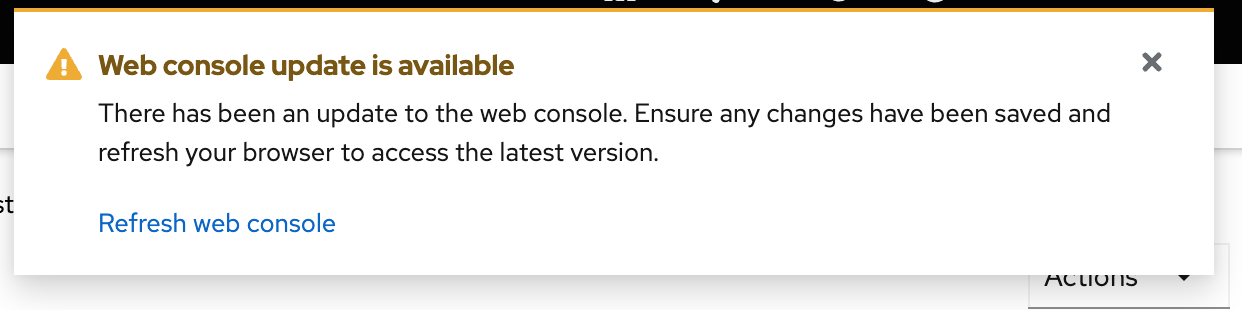
Click Refresh to reload the console with the new Logs view. This may log you out of the console - if so, log back in with:
-
Username:
{openshift_cluster_admin_username} -
Password:
{openshift_cluster_admin_password}
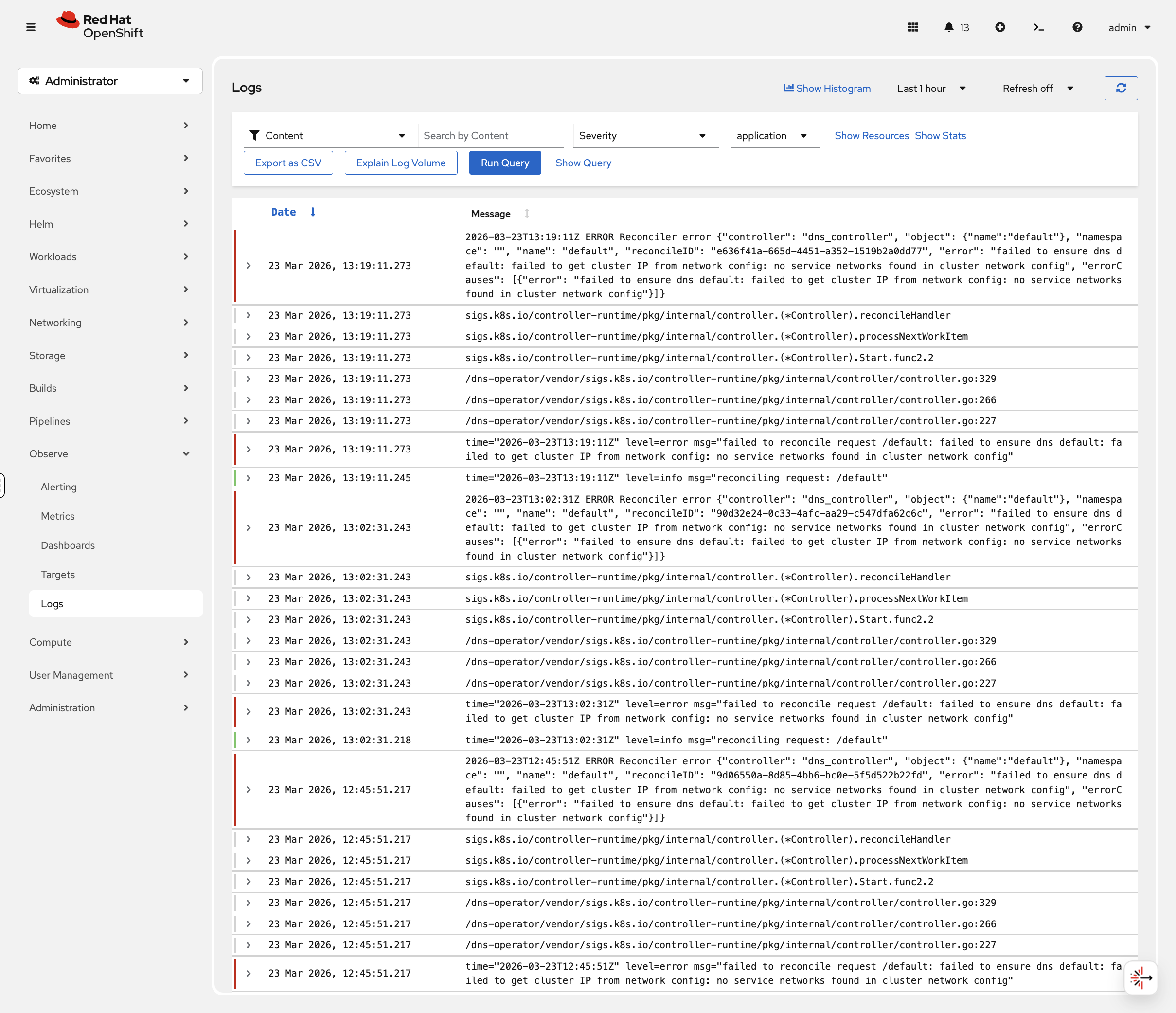
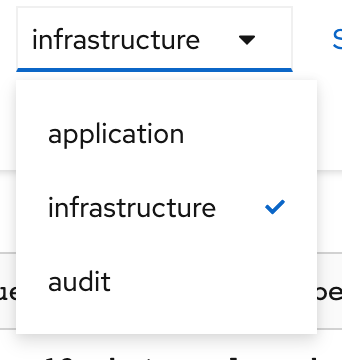
Navigate to Observe → Logs in the console. You’ll see three log types:
-
Application - Logs from user workloads
-
Infrastructure - Logs from OpenShift components
-
Audit - Kubernetes API audit logs
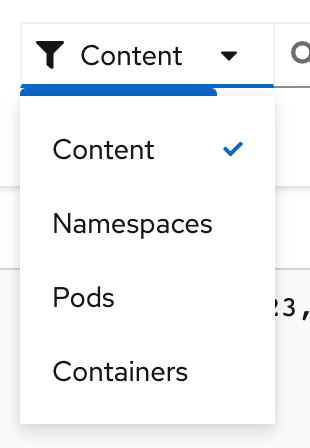
Use the filters to search by namespace, pod name, or severity level:
Filter by severity (Critical, Error, Warning, Info, Debug):
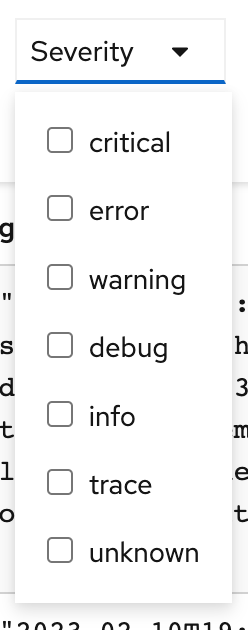
Try it now: select Infrastructure logs, then filter by severity Warning or Error. These are the log entries that matter during an incident - pod evictions, OOM kills, certificate expiry warnings.
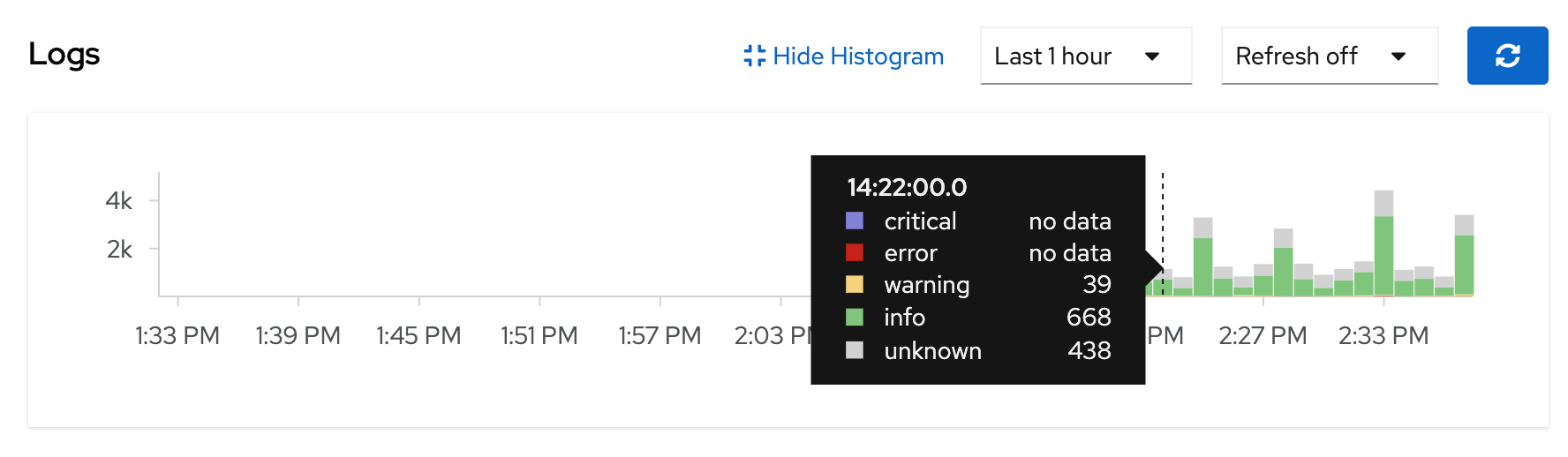
The histogram at the top shows log volume over time - spikes in the error count correlate with incidents. Click on a spike to zoom into that time window.
|
It may take 1-2 minutes for logs to start appearing after the collector pods are running. If you see "No datapoints found", wait a moment and refresh. |
OpenTelemetry for Distributed Tracing
Metrics tell you what is happening. Logs tell you why. Traces tell you where - when a request crosses multiple microservices, traces show the exact path and timing across every service. If a user reports "checkout is slow", a trace shows you: frontend (2ms) → API gateway (5ms) → inventory service (800ms) → payment (3ms) - so you instantly see inventory is the bottleneck.
Developers instrument their apps with OpenTelemetry SDKs, but ops teams own the tracing infrastructure - deploying the collector, managing the storage backend, and making traces visible in the console.
The Tempo and OpenTelemetry operators were already installed in the scripted block earlier. Let’s deploy the tracing backend.
Deploy Tempo (Trace Storage)
Tempo is the backend that stores and indexes traces - similar to how Loki stores logs. We’ll use TempoMonolithic, a single-binary deployment suitable for workshops and small clusters.
Create the namespace and deploy TempoMonolithic with multi-tenancy enabled:
oc create namespace tracing-system 2>/dev/null || true
cat <<EOF | oc apply -f -
apiVersion: tempo.grafana.com/v1alpha1
kind: TempoMonolithic
metadata:
  name: sample
  namespace: tracing-system
spec:
  storage:
    traces:
      backend: pv
      size: 10Gi
  jaegerui:
    enabled: true
    route:
      enabled: true
  multitenancy:
    enabled: true
    mode: openshift
    authentication:
      - tenantName: dev
        tenantId: "1610b0c3-c509-4592-a256-a1871353dbfa"
EOF
Multi-tenancy is required for the console Traces UI to detect the Tempo instance. The openshift mode uses OpenShift’s built-in authentication - no external OIDC setup needed.
|
Wait for Tempo to be ready:
echo "Waiting for Tempo pod..."
ELAPSED=0
until oc get pods -n tracing-system -l app.kubernetes.io/component=tempo 2>/dev/null | grep -q Running; do
  sleep 10; ELAPSED=$((ELAPSED+10))
  [ $ELAPSED -ge 180 ] && echo "ERROR: Timed out" && break
done
oc get pods -n tracing-system -l app.kubernetes.io/component=tempo
Set Up RBAC
The tracing pipeline needs two sets of permissions: the collector needs write access to push traces, and users need read access to query them.
bash <(curl -sL https://raw.githubusercontent.com/rhpds/openshift-days-ops-showroom/main/support/09-observability/setup-tracing-rbac.sh)Deploy the OpenTelemetry Collector
The collector is the central receiving station for trace data. Apps send traces to the collector, and the collector forwards them to Tempo for storage. Think of it like Vector for logs - a pipeline component that sits between producers and storage.
bash <(curl -sL https://raw.githubusercontent.com/rhpds/openshift-days-ops-showroom/main/support/09-observability/setup-otel-collector.sh)This collector:
-
Receives traces via OTLP on ports 4317 (gRPC) and 4318 (HTTP)
-
Batches incoming spans for efficiency
-
Exports to the Tempo gateway, authenticating with the service account token
Verify the collector is running:
oc get pods -n tracing-systemYou should see both the Tempo pod and the collector pod Running.
Enable the Traces Console UI
Like the logging UI, the Traces view needs a UIPlugin:
cat <<EOF | oc apply -f -
apiVersion: observability.openshift.io/v1alpha1
kind: UIPlugin
metadata:
  name: distributed-tracing
spec:
  type: DistributedTracing
EOF
You may see a console notification to refresh - click Refresh to reload.
Send a Test Trace
The collector is ready but nothing is sending traces yet. Let’s send a test trace to verify the full pipeline:
oc run test-trace --rm -i --restart=Never \
  --image=registry.access.redhat.com/ubi9/ubi-minimal \
  -n tracing-system -- sh -c '
TIMESTAMP=$(date +%s)
curl -s -X POST http://otel-collector.tracing-system.svc:4318/v1/traces \
  -H "Content-Type: application/json" \
  -d "{
    \"resourceSpans\": [{
      \"resource\": {
        \"attributes\": [{\"key\": \"service.name\", \"value\": {\"stringValue\": \"workshop-demo\"}}]
      },
      \"scopeSpans\": [{
        \"spans\": [{
          \"traceId\": \"11112222333344445555666677778888\",
          \"spanId\": \"aaaa222233334444\",
          \"name\": \"GET /api/weather\",
          \"kind\": 2,
          \"startTimeUnixNano\": \"${TIMESTAMP}000000000\",
          \"endTimeUnixNano\": \"${TIMESTAMP}500000000\",
          \"attributes\": [{\"key\": \"http.method\", \"value\": {\"stringValue\": \"GET\"}}]
        }]
      }]
    }]
  }" && echo "Trace sent successfully"
'
This simulates what an instrumented application does - sends a span describing a single operation (GET /api/weather) with timing data.
View Traces in the Console
Loading the Traces view may log you out of the console. If so, log back in with:
-
Username:
{openshift_cluster_admin_username} -
Password:
{openshift_cluster_admin_password}
Navigate to Observe → Traces in the console. Select the Tempo instance (tracing-system / sample) and tenant (dev):
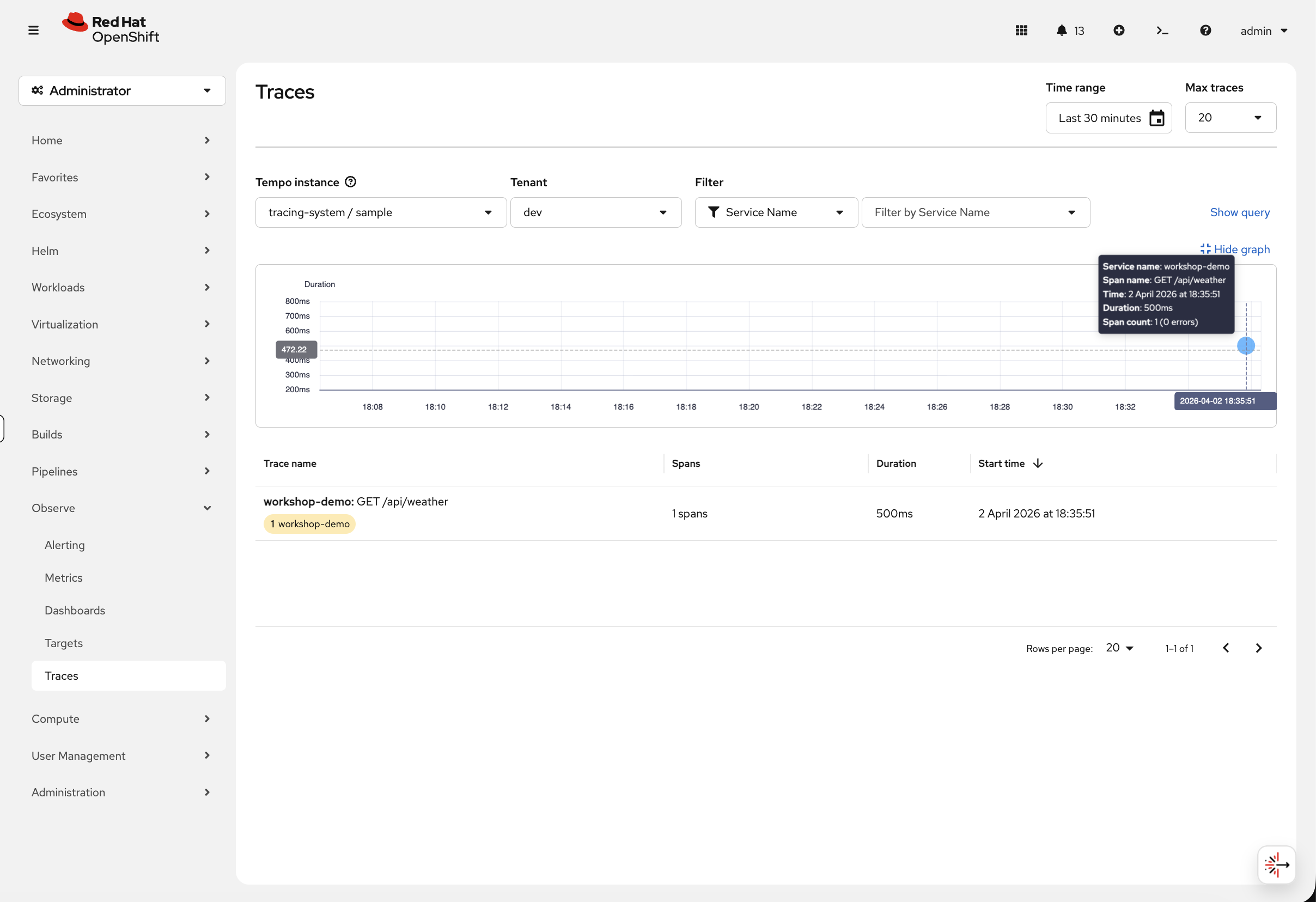
You should see the workshop-demo trace. Click on it to see the trace detail view - a timing waterfall showing each span:

With a single service this shows one span. In a real microservices application, you’d see multiple spans stacked in a waterfall - frontend → API → database - making it immediately obvious where latency is coming from.
The collector is now ready for production use. Developers point their apps at otel-collector.tracing-system.svc:4317 using OpenTelemetry SDKs, and traces automatically appear here.
Cleanup & Summary
Remove the observability resources you deployed. The Prometheus monitoring stack is built-in and doesn’t need cleanup.
bash <(curl -sL https://raw.githubusercontent.com/rhpds/openshift-days-ops-showroom/main/support/cleanup-scripts/cleanup-observability.sh)Summary
What you learned:
-
OpenShift’s built-in Prometheus stack provides metrics and dashboards with no setup
-
How to create custom alerting rules with PrometheusRule and configure email notifications
-
How to install and configure the full logging stack (Loki + Vector)
-
How to view and filter logs in the OpenShift console
-
How to deploy the OpenTelemetry tracing pipeline (Tempo + OTel Collector)
-
How to view distributed traces in the console
Together, metrics, logs, and traces give you the three pillars of observability - each answers a different question about your cluster and workloads.
Key operational commands:
# Cluster metrics
oc adm top nodes
oc adm top pods -A --sort-by=cpu | head -15

# View alerting rules
oc get prometheusrules -A

# View logging pods
oc get pods -n openshift-logging

# Check LokiStack status
oc get lokistack -n openshift-logging

# Check ClusterLogForwarder status
oc get clusterlogforwarder -n openshift-logging

# View tracing pods
oc get pods -n tracing-system

# Check TempoMonolithic status
oc get tempomonolithic -n tracing-system
Additional Resources
-
OpenShift Monitoring: Monitoring
-
OpenShift Logging Documentation: Logging
-
Logging 6.2 Stack: Logging 6.2
-
OpenShift Distributed Tracing: Distributed Tracing
-
Red Hat build of OpenTelemetry: OpenTelemetry