GitOps - Declarative Cluster Management
Getting Started
Module Overview
Duration: 20-25 minutes
Format: Hands-on
Audience: Platform Engineers, Operations Teams, SRE
As an OpenShift administrator managing multiple clusters, you need every cluster configured the same way - same quotas, same network policies, same security baselines. Making these changes manually on each cluster is slow, error-prone, and impossible to audit.
GitOps solves this by treating cluster configuration as code in a Git repository. A tool called ArgoCD continuously watches that repository and ensures every cluster matches the desired state. If someone makes a manual change, ArgoCD detects the drift and can automatically fix it.
In this module, you will use ArgoCD to deploy a production-ready project configuration from Git, then break it on purpose and watch ArgoCD catch the drift.
Learning Objectives
By the end of this module, you will be able to:
-
Access and navigate the ArgoCD interface on OpenShift
-
Deploy a complete project configuration (namespace, quotas, limits, network policy) from Git
-
Understand how ArgoCD detects configuration drift
-
Resync resources to restore the desired state
-
Enable self-healing so ArgoCD automatically reverts unauthorised changes
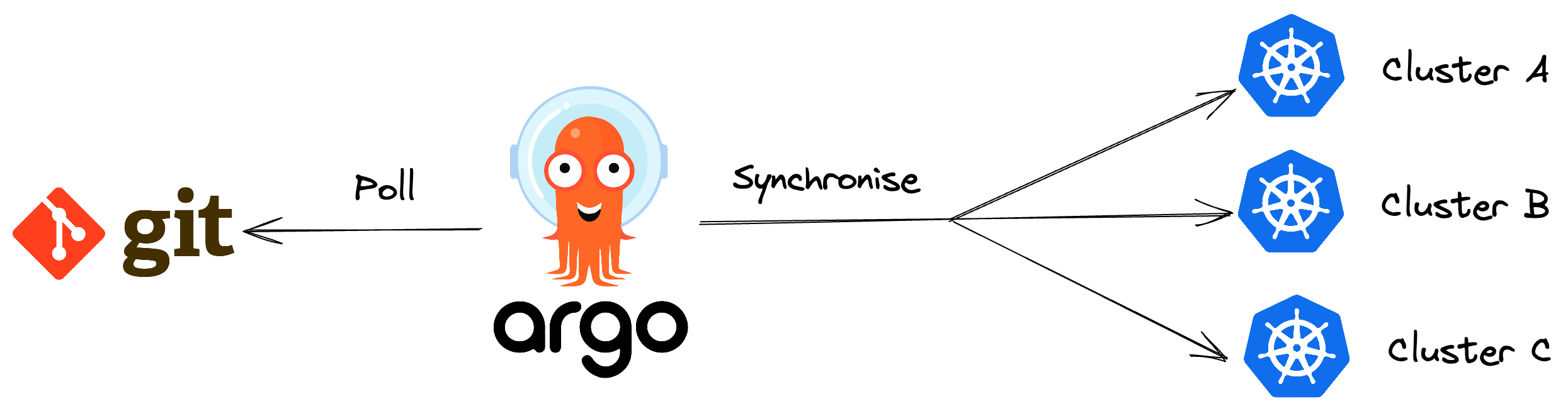
How GitOps Works on OpenShift
OpenShift GitOps uses ArgoCD to implement a continuous reconciliation loop:
-
Define - store your desired cluster state as YAML manifests in a Git repository
-
Sync - ArgoCD applies those manifests to the cluster
-
Detect - ArgoCD continuously compares the live cluster state against Git
-
Reconcile - if drift is detected, ArgoCD flags it as OutOfSync and can auto-heal
The result: Git becomes the single source of truth. Every change is tracked, auditable, and reversible.
For more details, see Understanding OpenShift GitOps.
Deploy with ArgoCD
Step 1: Access ArgoCD
OpenShift GitOps is already installed on your cluster. The ArgoCD instance is running in the openshift-gitops namespace.
Click the ArgoCD tab at the top of this workshop window.
If prompted about a certificate warning, proceed using the advanced options.
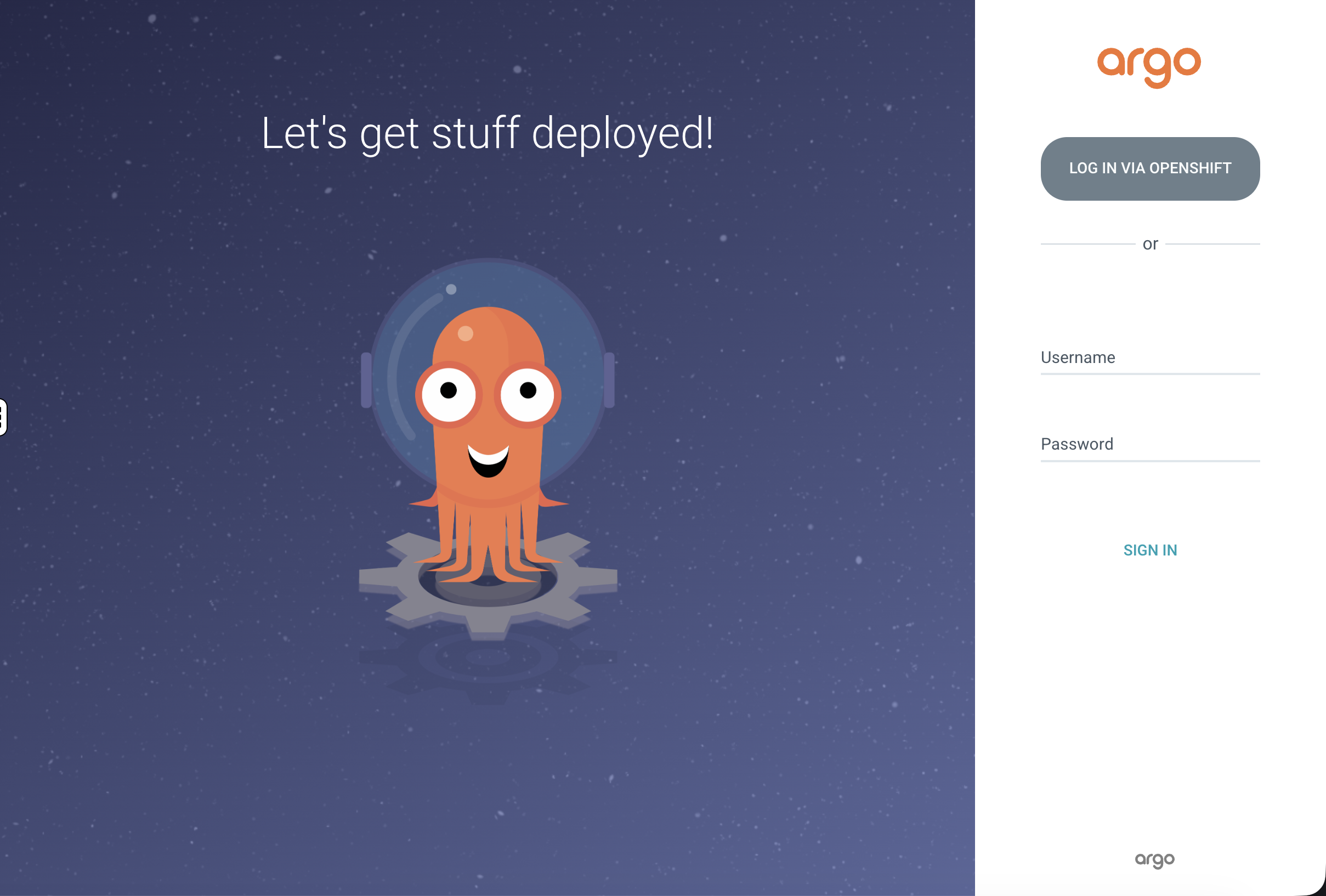
Log in via OpenShift:
Select Log in via OpenShift:
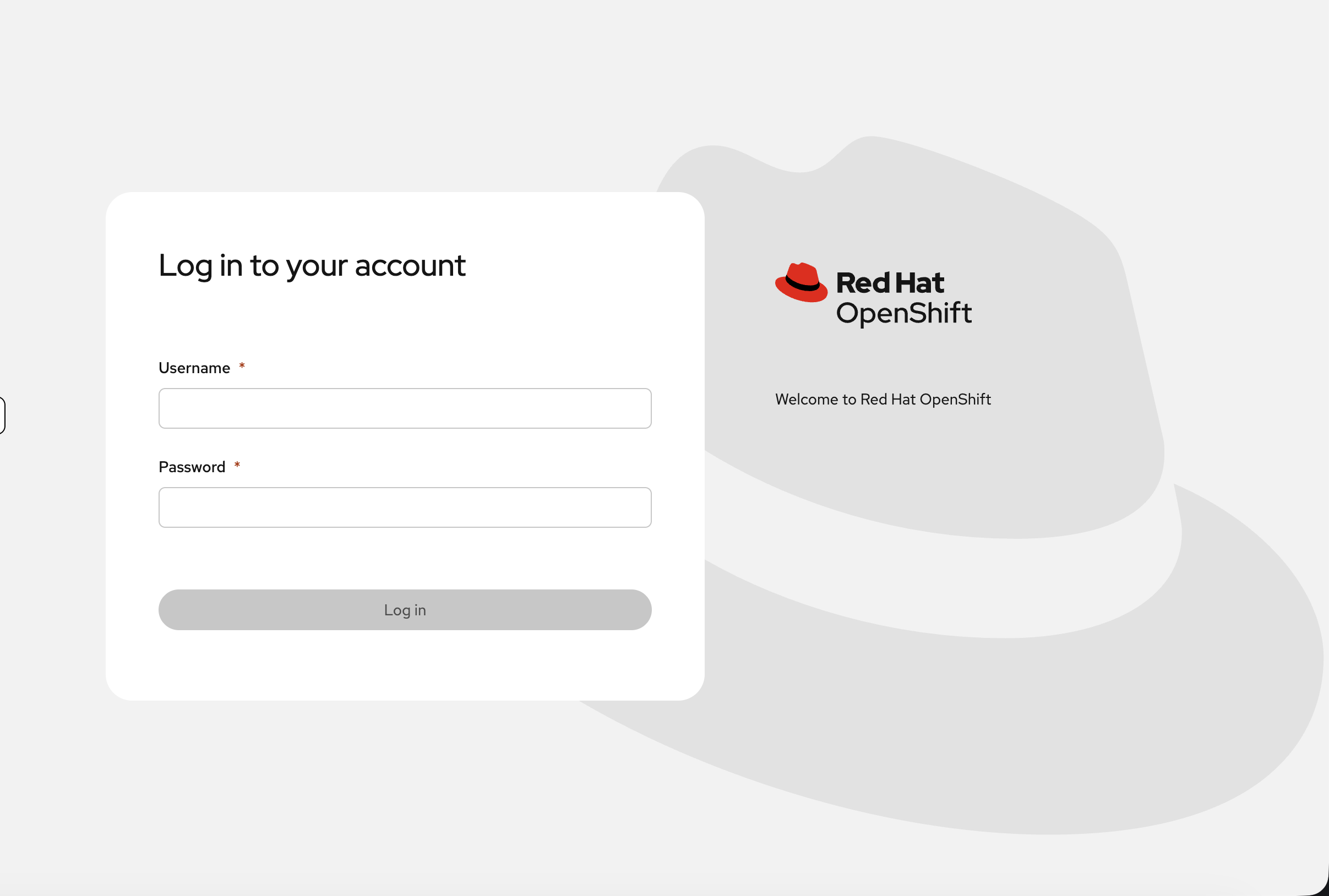
Enter your admin credentials:
-
Username:
{openshift_cluster_admin_username} -
Password:
{openshift_cluster_admin_password}
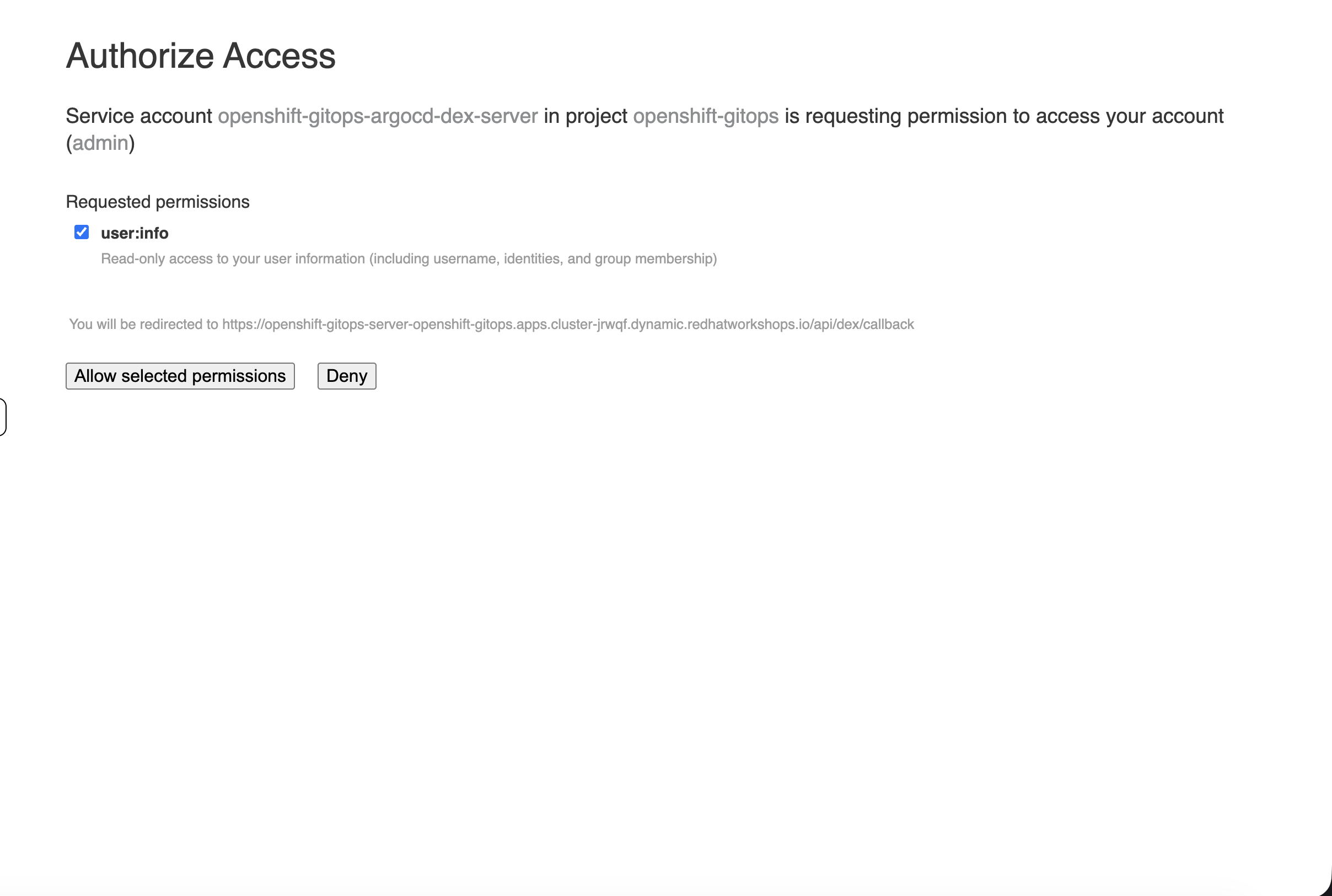
Authorise access when prompted:
| You can also open ArgoCD in a separate browser tab - look for the grid icon (nine tiles) in the OpenShift console navigation bar and select Cluster Argo CD under OpenShift GitOps. |
Verify from the CLI:
oc get pods -n openshift-gitopsYou should see the ArgoCD server, application controller, repo server, Redis, and Dex pods all running.
Step 2: Deploy a Project Configuration from Git
In production, platform teams define standard project configurations in Git - a namespace with resource quotas, default limits, and network policies. Every new team project gets the same baseline. Let’s deploy one now.
The Git repository for this workshop contains a cluster configuration bundle at support/gitops/cluster-config/ with four resources:
-
Namespace -
gitops-managed-projectwith labels for tracking -
ResourceQuota - caps total CPU, memory, and pod count for the project
-
LimitRange - sets default CPU/memory requests and limits for containers that don’t specify their own
-
NetworkPolicy - denies ingress from other namespaces (project isolation)
This is the kind of baseline every production project should have.
First, create a workshop project in ArgoCD to keep our exercises separate:
cat <<'EOF' | oc apply -f -
apiVersion: argoproj.io/v1alpha1
kind: AppProject
metadata:
  name: workshop
  namespace: openshift-gitops
spec:
  description: Workshop exercises
  sourceRepos:
  - '*'
  destinations:
  - namespace: '*'
    server: 'https://kubernetes.default.svc'
  clusterResourceWhitelist:
  - group: '*'
    kind: '*'
EOF
Create the ArgoCD Application:
cat <<'EOF' | oc apply -f -
apiVersion: argoproj.io/v1alpha1
kind: Application
metadata:
  name: managed-project
  namespace: openshift-gitops
spec:
  destination:
    server: 'https://kubernetes.default.svc'
  source:
    path: support/gitops/cluster-config/
    repoURL: 'https://github.com/rhpds/openshift-days-ops-showroom/'
    targetRevision: main
  project: workshop
  syncPolicy:
    automated:
      prune: false
      selfHeal: false
EOF
Watch ArgoCD sync:
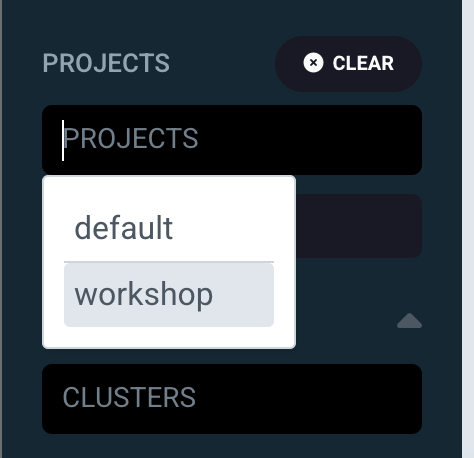
Switch to the ArgoCD UI. You will need to reload the ArgoCD tab to see the new application. You may see other applications on the dashboard - these are managed by the platform. To see only your workshop application, use the PROJECTS filter on the left sidebar and select workshop:
You should now see only the managed-project application tile:
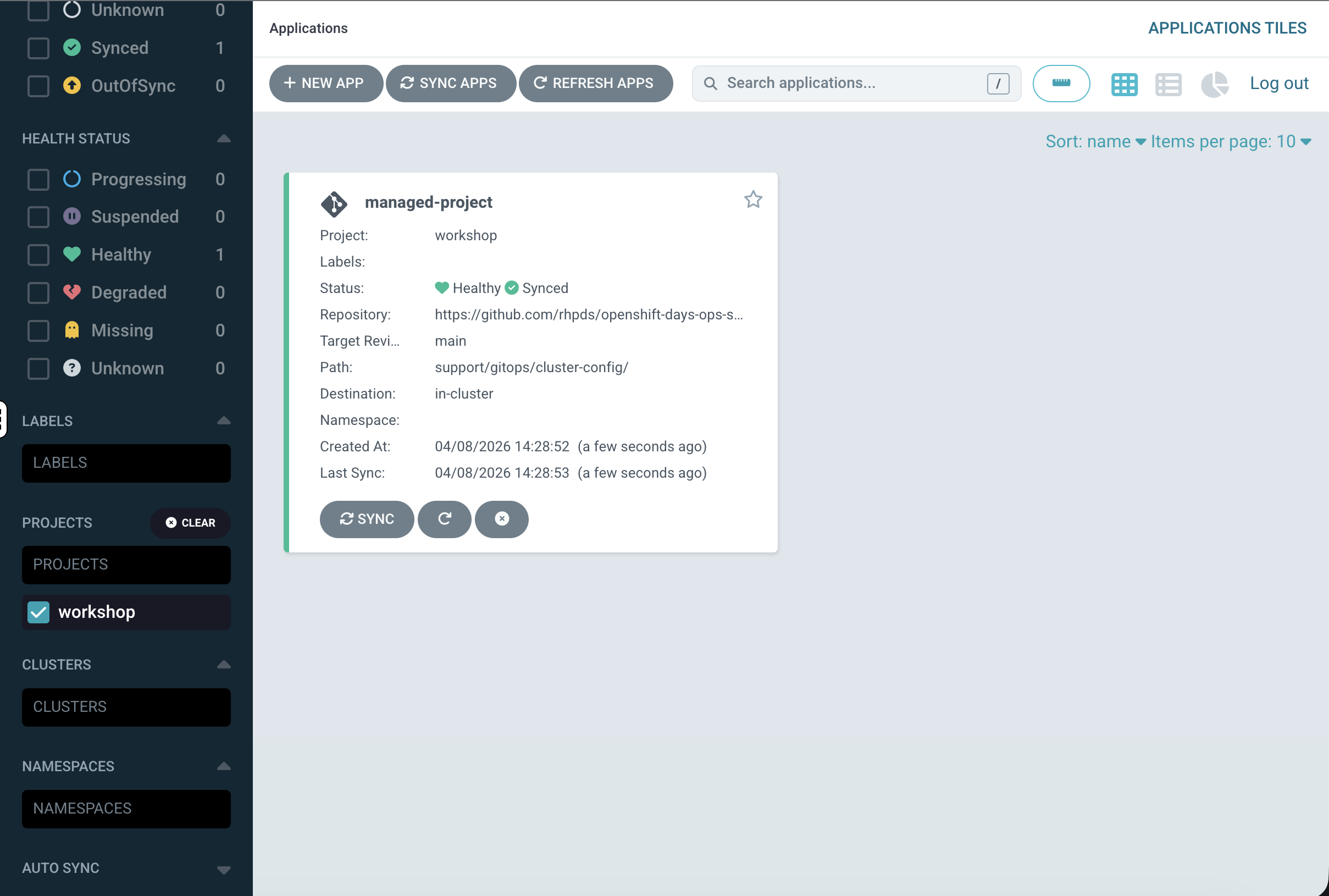
-
Green heart = Healthy
-
Green circle with tick = Synced
If it shows "OutOfSync", click the tile, then click Sync → Synchronize.
Explore the Application in ArgoCD
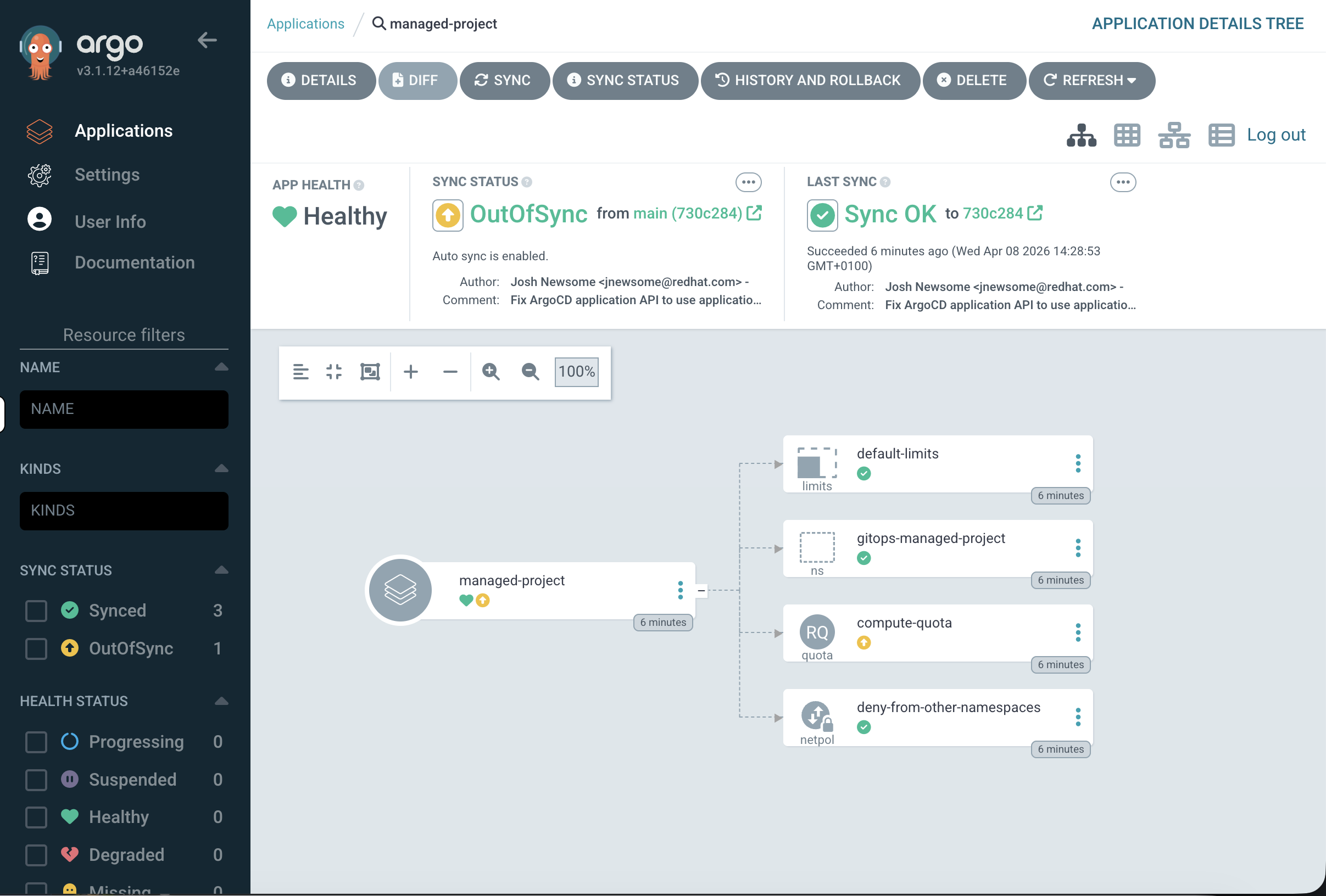
Click on the managed-project tile to open the application detail view. You’ll see a resource tree showing the relationship between all managed resources:
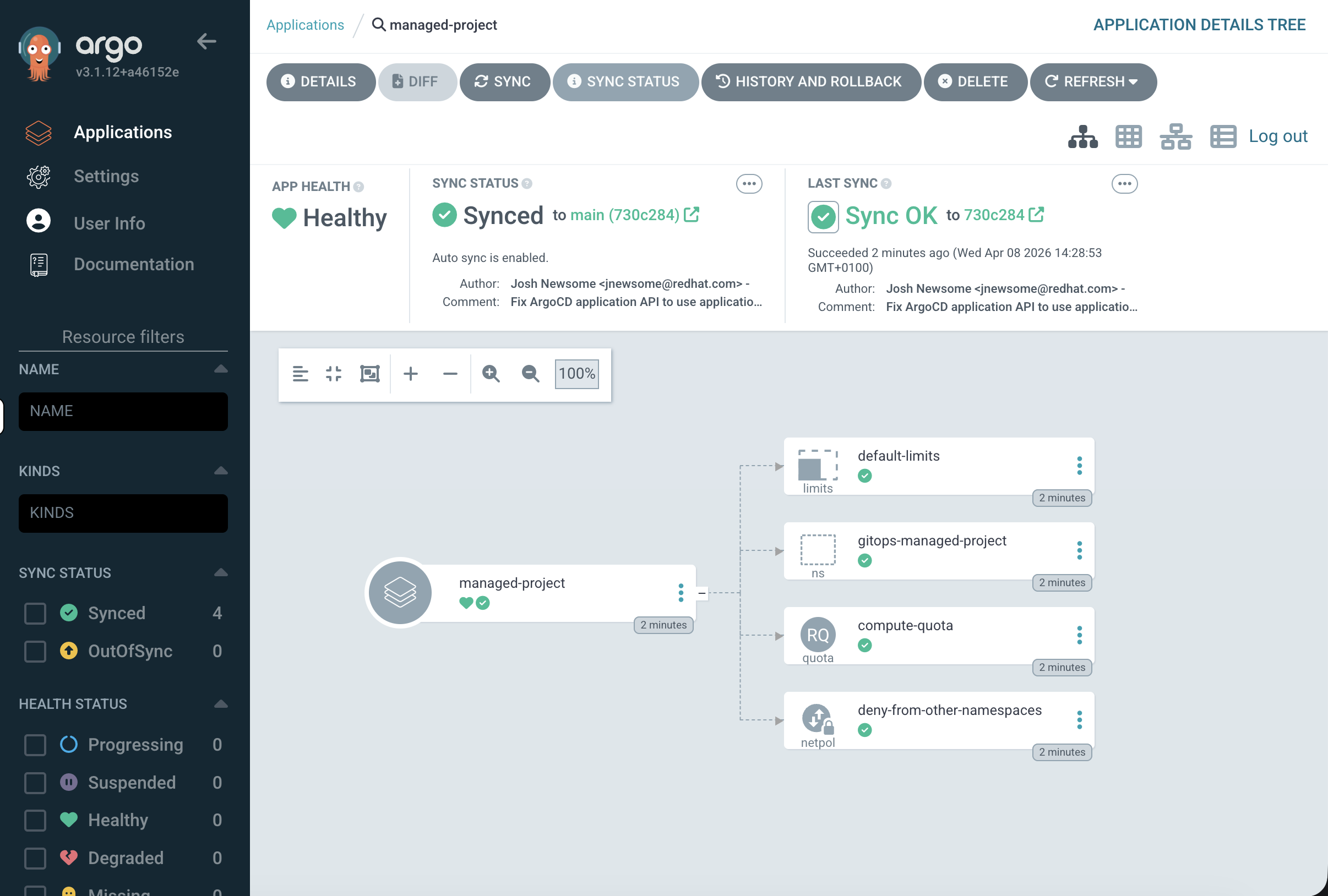
-
managed-projectat the centre -
Branching out to:
default-limits(LimitRange),gitops-managed-project(Namespace),compute-quota(ResourceQuota),deny-from-other-namespaces(NetworkPolicy)
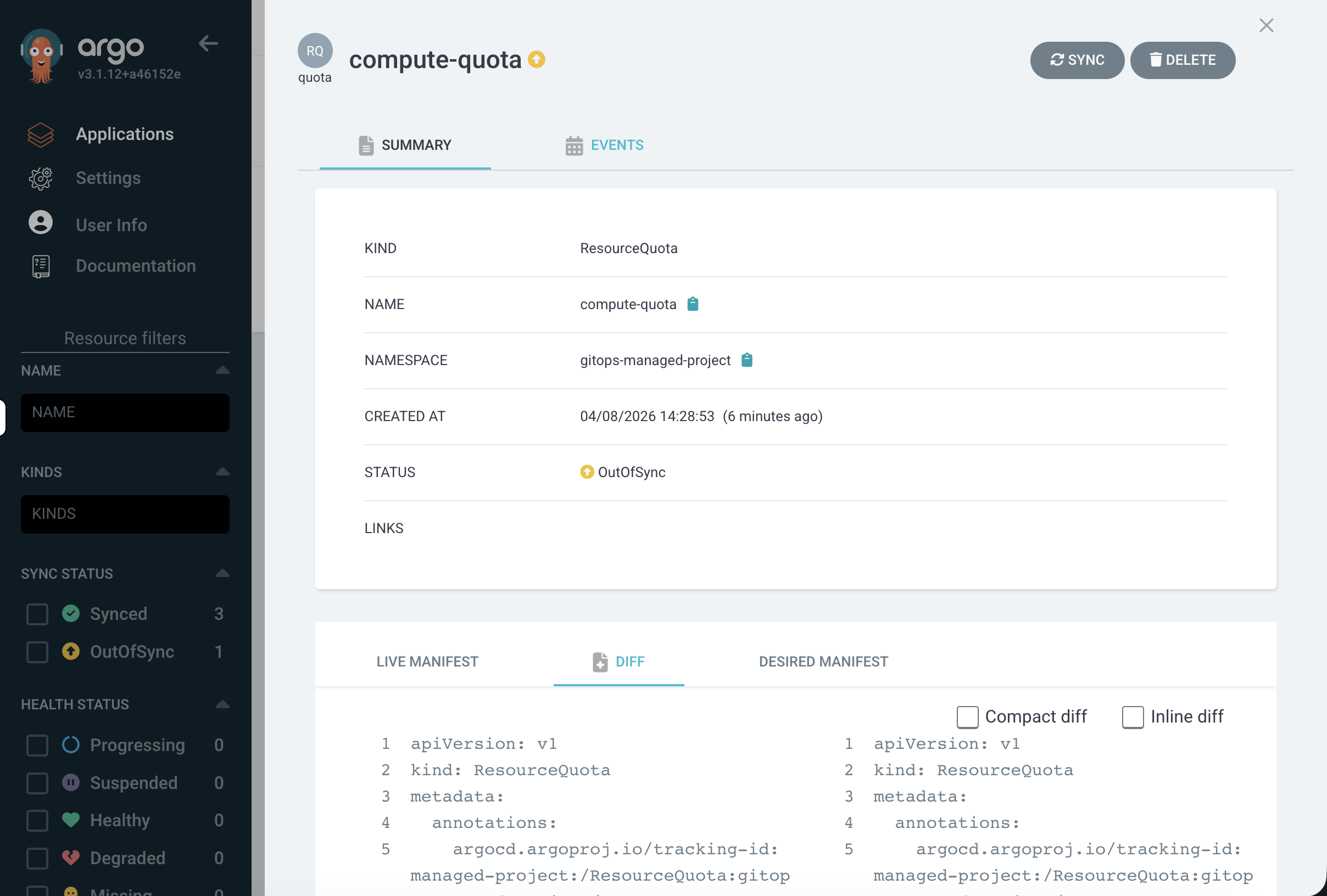
Each resource node shows its sync and health status with colour-coded icons. Click on any resource - for example, the compute-quota ResourceQuota - to open a detail panel:
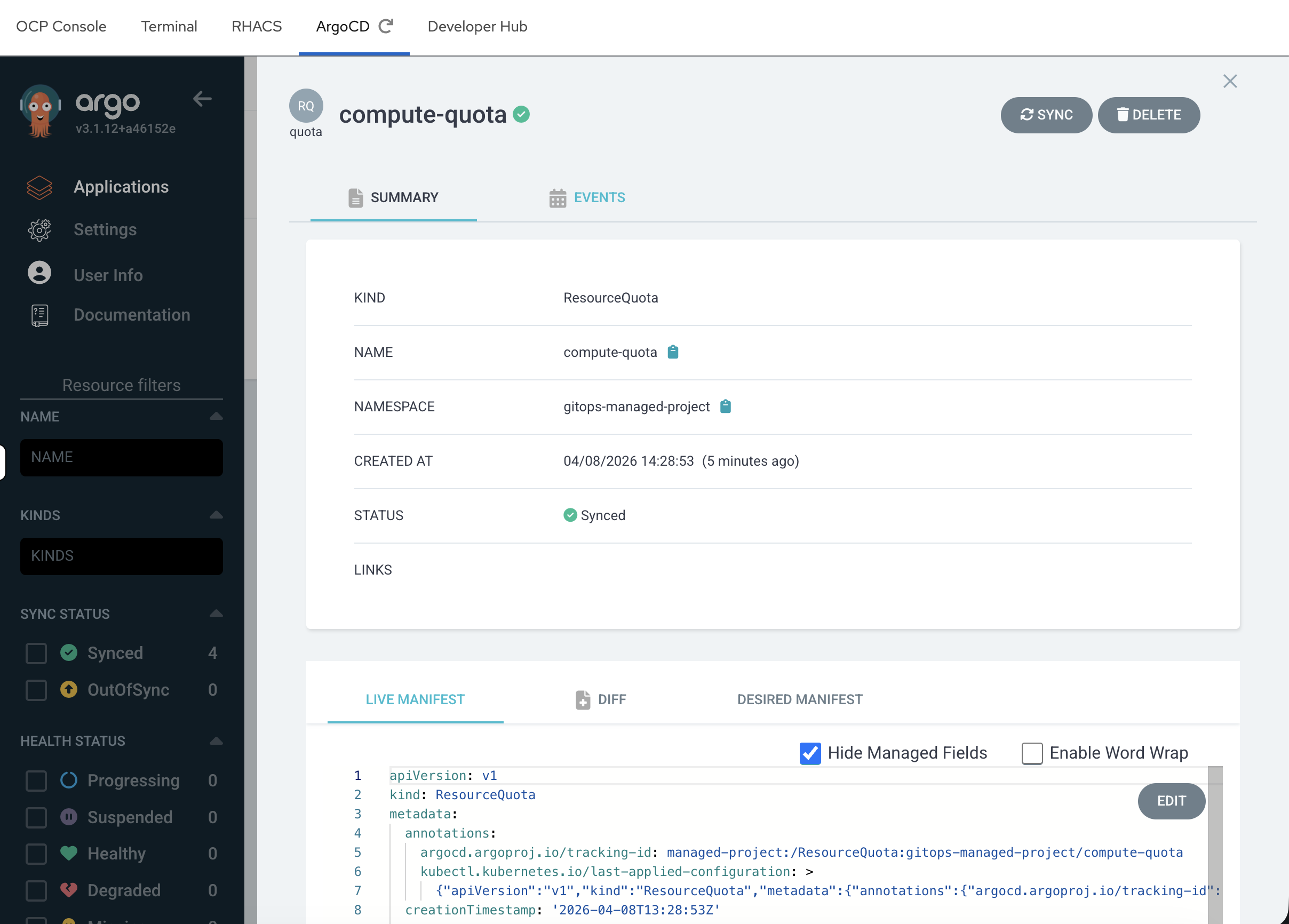
This panel shows:
-
Summary - kind, namespace, creation time, sync status
-
Live Manifest - the current state on the cluster
-
Desired Manifest - what’s defined in Git
-
Diff - any differences between live and desired
-
Events - sync events and status changes
This is where you’ll spend most of your time as an admin - checking that resources match their desired state and investigating when they don’t.
Explore the Application Details
Click the Details button in the top toolbar. This shows the application configuration:
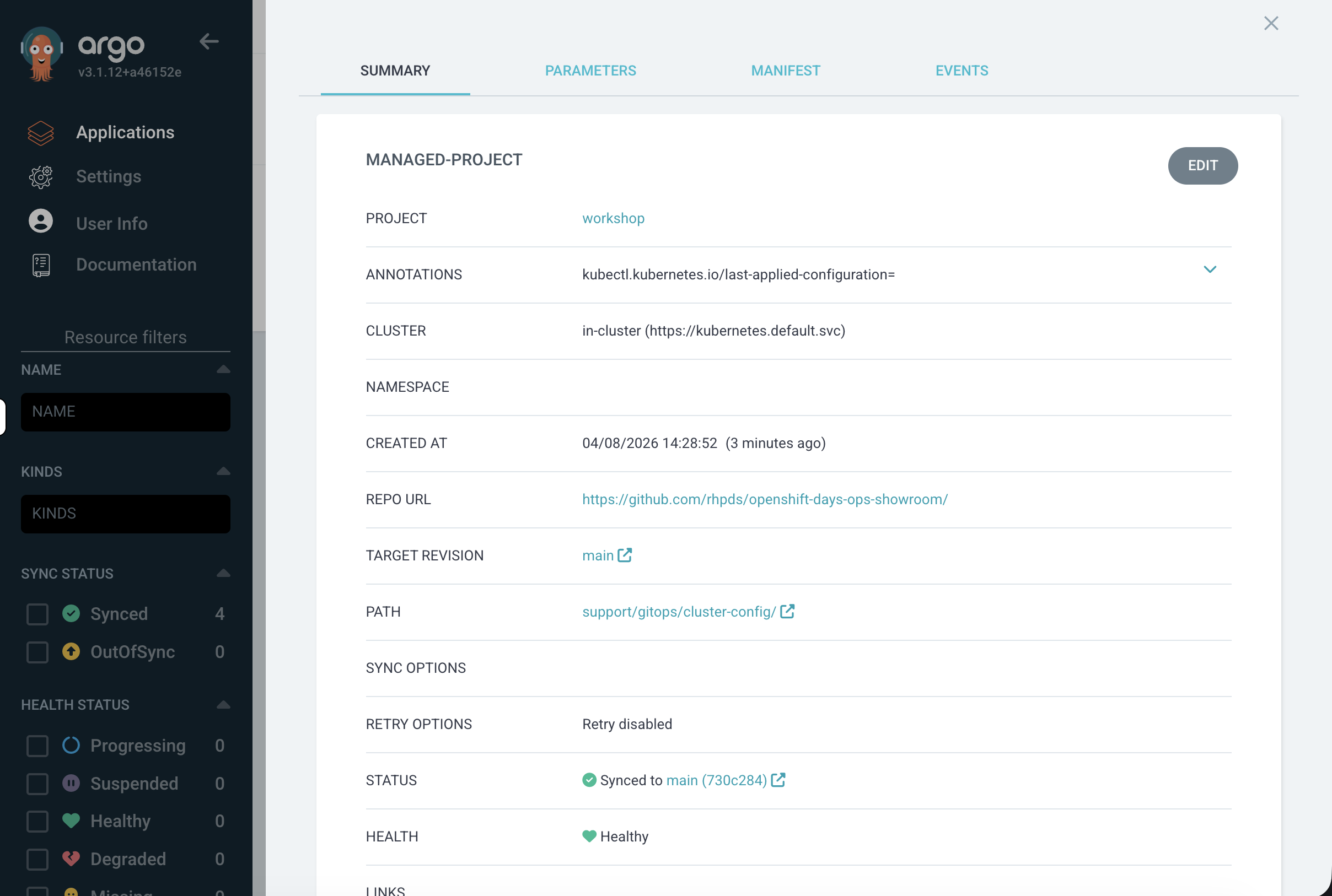
-
Project -
workshop(our filtered workspace) -
Repo URL - the Git repository ArgoCD is watching
-
Path -
support/gitops/cluster-config/within that repo -
Target Revision -
mainbranch -
Status - Synced to a specific commit
Close the panel when done.
Verify from the CLI:
oc get namespace gitops-managed-projectoc get resourcequota -n gitops-managed-projectoc get limitrange -n gitops-managed-projectoc get networkpolicy -n gitops-managed-projectAll four resources were deployed from a single Git path. On a fleet of 10 clusters, you would point each cluster’s ArgoCD at the same repository and every cluster would get this identical configuration automatically.
In the OpenShift console, navigate to Home → Projects and select gitops-managed-project. You can see the ResourceQuota under the Overview tab.
|
Drift Detection & Self-Healing
Step 3: Simulate Configuration Drift
Now let’s see what happens when someone makes an unauthorised manual change - the kind of thing that happens in production when someone "just needs to fix something quickly."
Increase the pod quota manually:
oc patch resourcequota compute-quota -n gitops-managed-project \
  -p '{"spec":{"hard":{"pods":"100"}}}' --type=merge
This changes the pod limit from 20 (what’s in Git) to 100. Verify the change:
oc get resourcequota compute-quota -n gitops-managed-project -o jsonpath='{.spec.hard.pods}'
echo
Output: 100 - the manual change took effect.
Check ArgoCD:
Go back to the ArgoCD UI. The managed-project application now shows OutOfSync. ArgoCD detected that the live cluster state no longer matches what’s defined in Git.
Click the tile to open the application. In the resource tree, compute-quota is highlighted in yellow - that’s the resource that drifted:
View the diff:
Click on the compute-quota ResourceQuota in the resource tree. In the detail panel, click the Diff tab:
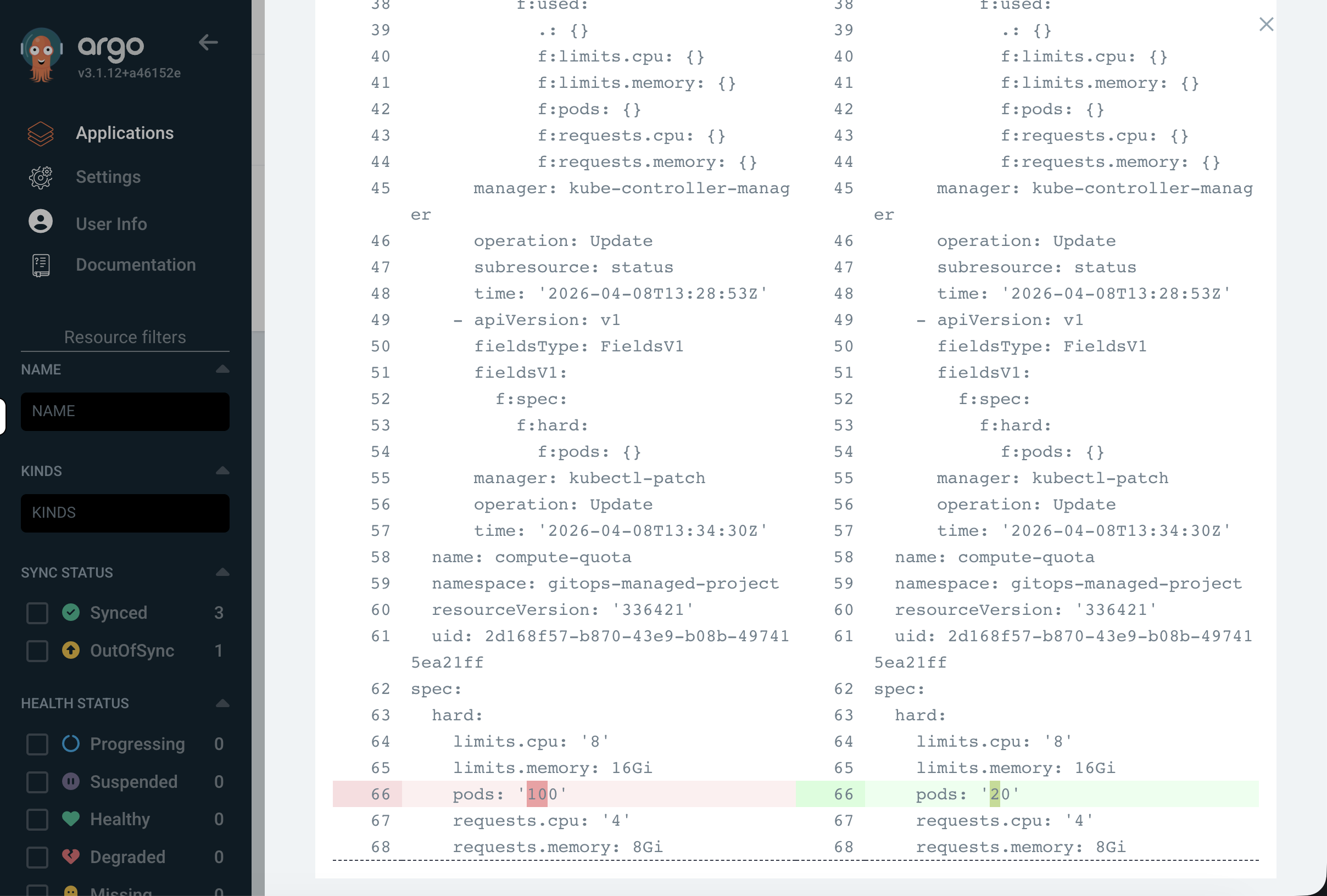
You’ll see a side-by-side comparison showing the exact difference:
-
The live cluster has
pods: "100"- the manual change -
The desired state from Git has
pods: "20"- what it should be
Notice that ArgoCD only flags the specific field that changed. The Namespace, LimitRange, and NetworkPolicy all show as Synced because they weren’t touched.
This is the power of GitOps for operations teams - across hundreds of resources, you can immediately pinpoint exactly what deviated from the baseline and when.
Step 4: Restore the Desired State
Resync from Git:
In the ArgoCD application view, click the Sync button in the top toolbar, then click Synchronize in the dialog that appears:
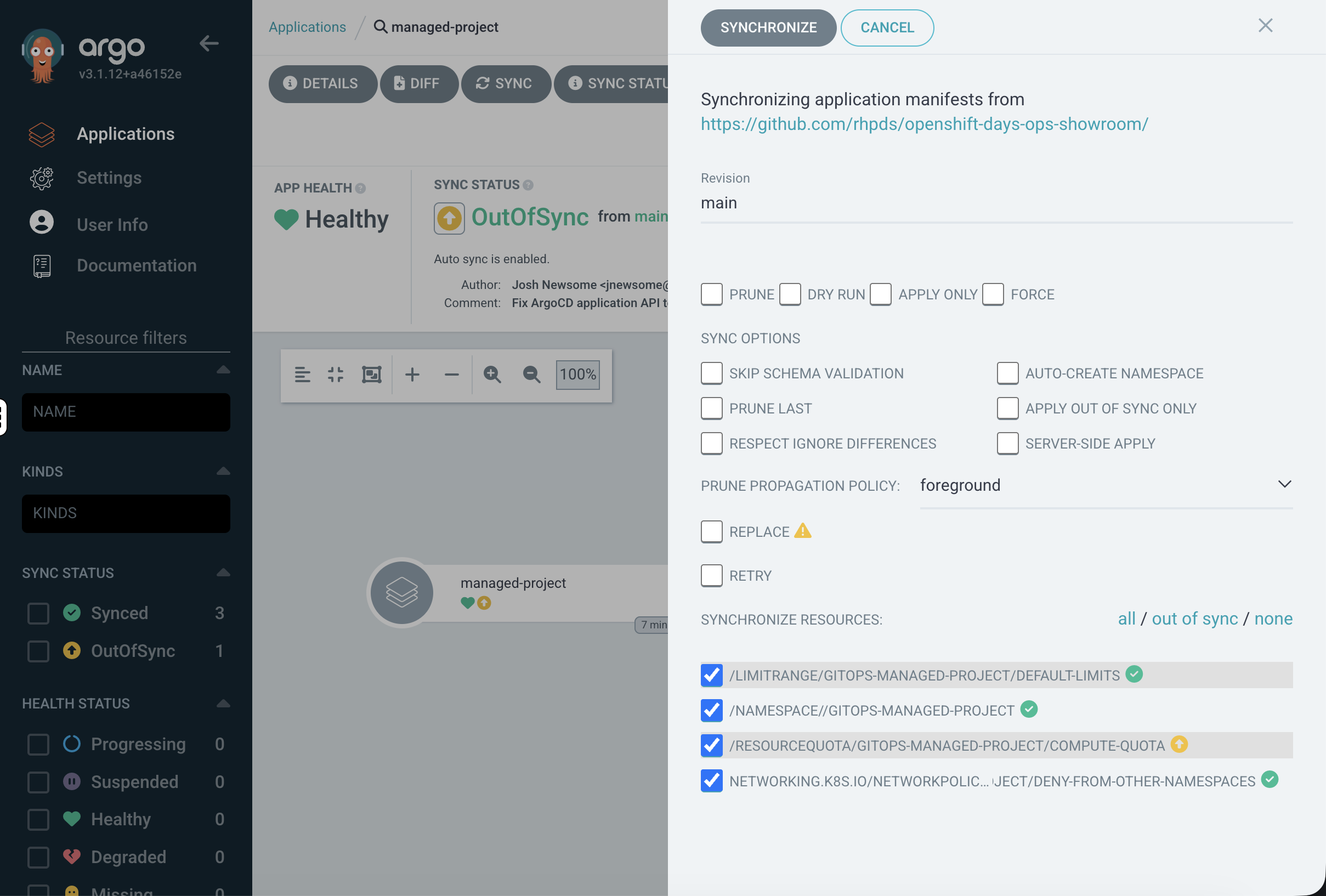
You can leave all defaults - ArgoCD will apply every resource from Git.
Watch the resource tree - the ResourceQuota node will flash as it updates, then return to green (Synced):
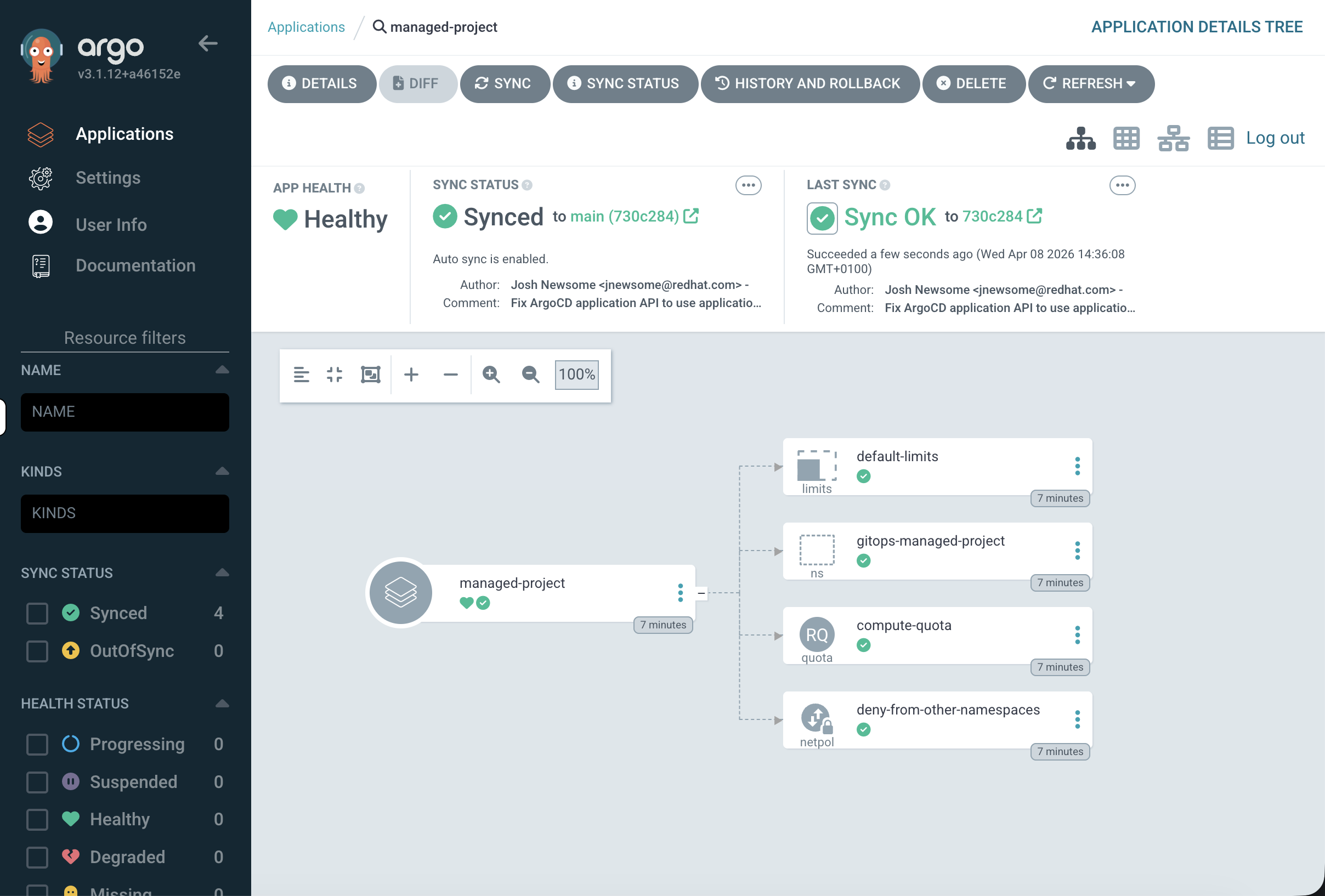
Verify the fix:
oc get resourcequota compute-quota -n gitops-managed-project -o jsonpath='{.spec.hard.pods}'
echo
Output: 20 - the pod quota is back to the value defined in Git. The unauthorised change has been reverted.
Step 5: Enable Self-Healing
In the previous step, you had to manually resync. In production, you want ArgoCD to automatically revert drift without human intervention.
Enable self-heal on the application:
oc patch application.argoproj.io managed-project -n openshift-gitops \
  --type=merge -p '{"spec":{"syncPolicy":{"automated":{"selfHeal":true}}}}'
Test it - make another manual change:
oc patch resourcequota compute-quota -n gitops-managed-project \
  -p '{"spec":{"hard":{"pods":"999"}}}' --type=merge
Wait a few seconds, then check:
sleep 15
oc get resourcequota compute-quota -n gitops-managed-project -o jsonpath='{.spec.hard.pods}'
echo
Output: 20 - ArgoCD automatically detected the drift and reverted it without any manual intervention.
Check the ArgoCD UI:
Go back to the ArgoCD dashboard. The managed-project application still shows Synced and Healthy - it briefly went OutOfSync when you made the change, then ArgoCD immediately corrected it:
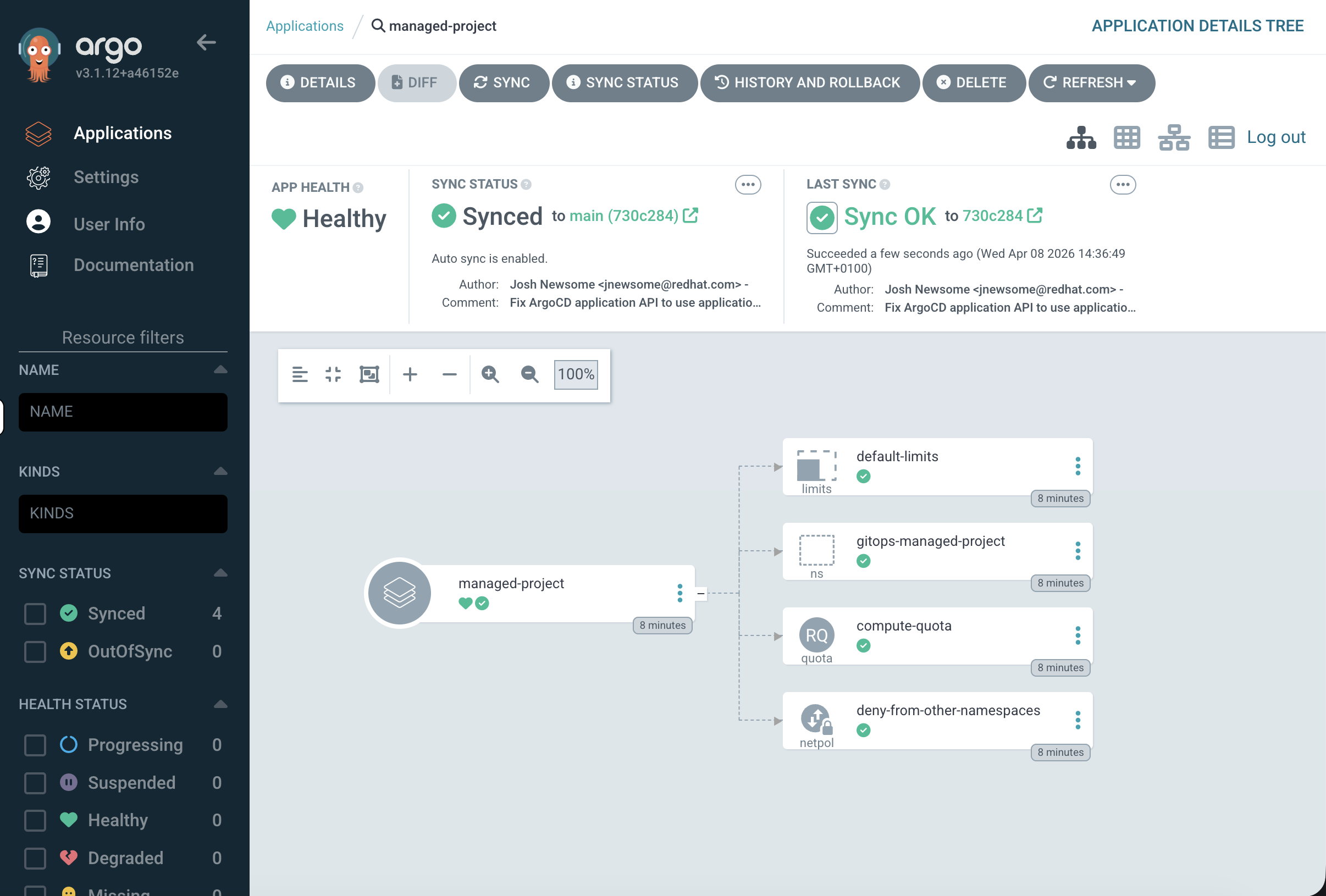
Click into the application and check the Last Sync timestamp - it will show a recent sync that was triggered by self-heal, not by you.
You can also click on managed-project at the top of the resource tree and look at the Events tab to see the sync history - you’ll see ArgoCD detected the drift and automatically resynced.
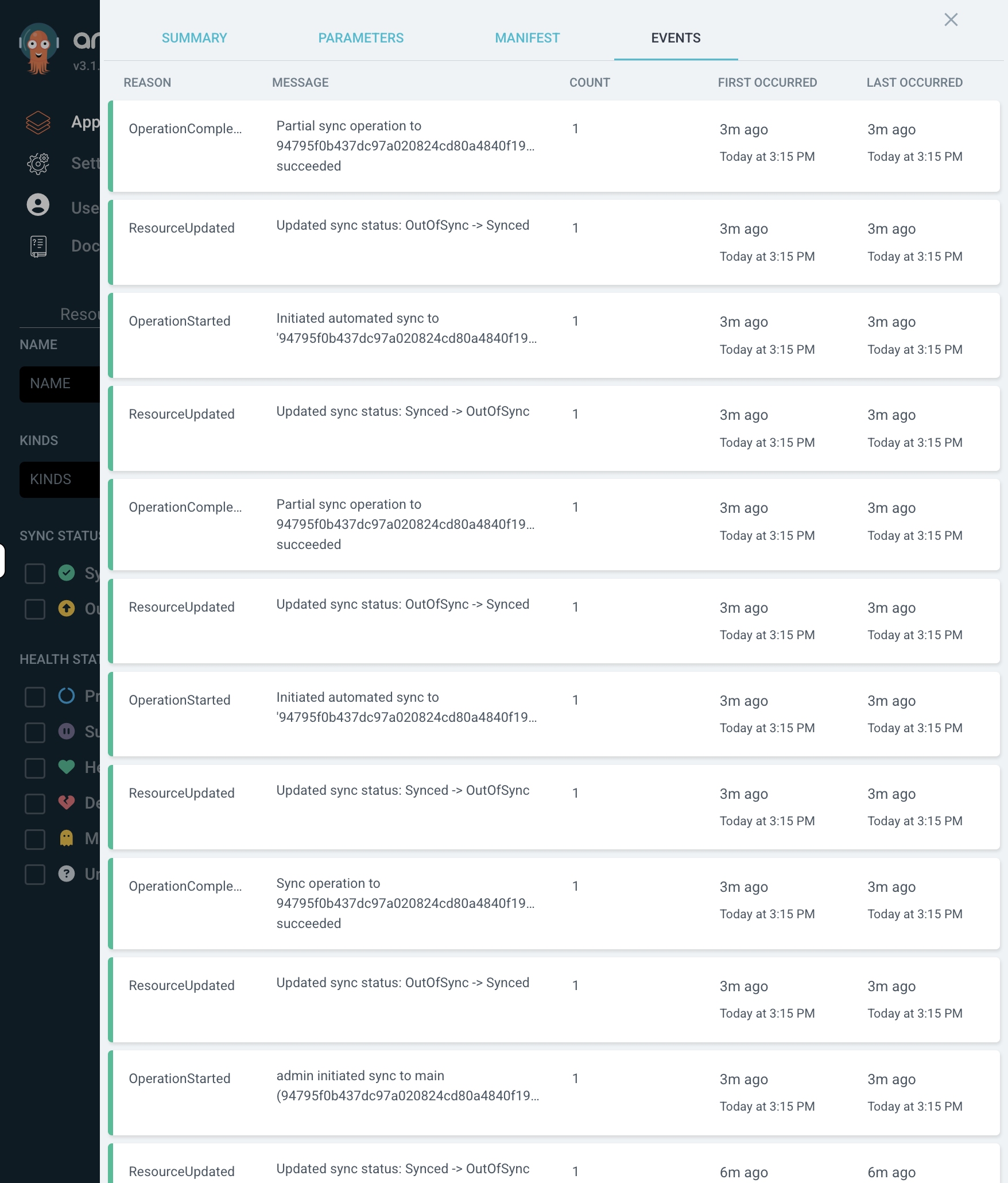
This is how production clusters stay compliant. No matter what manual changes someone makes, ArgoCD continuously enforces the configuration defined in Git.
When to Use GitOps
GitOps is most valuable for:
-
Multi-cluster consistency - same configuration across dev, staging, production, and edge clusters
-
Compliance and auditing - every change is a Git commit with author, timestamp, and approval
-
Disaster recovery - rebuild a cluster’s entire configuration by pointing ArgoCD at the Git repo
-
Preventing configuration drift - self-heal ensures manual changes don’t persist
For more information, see Understanding OpenShift GitOps.
Cleanup & Summary
Summary
What you accomplished:
-
Accessed the pre-deployed ArgoCD instance via the OpenShift console
-
Deployed a complete project configuration (namespace, quotas, limits, network policy) from a Git repository
-
Observed ArgoCD detect configuration drift when a ResourceQuota was manually changed
-
Resynced to restore the desired state from Git
-
Enabled self-healing so ArgoCD automatically reverts unauthorised changes
Key takeaway: GitOps turns cluster configuration into code. Everything is in Git - tracked, auditable, and automatically enforced. If it’s not in Git, it shouldn’t be on the cluster.
Cleanup
(
  oc delete application.argoproj.io managed-project -n openshift-gitops --ignore-not-found
  oc delete appproject workshop -n openshift-gitops --ignore-not-found
  oc delete namespace gitops-managed-project --ignore-not-found
) &>/dev/null &
echo "Cleanup running in background - you can continue to the next module."