OpenID Connect (OIDC) Authentication with Keycloak
Module Overview
Duration: 55 minutes
Format: Hands-on OIDC identity provider configuration
Audience: Platform Engineers, Operations Teams, Security Administrators
In the LDAP module you configured traditional directory-based authentication. In this module you’ll deploy the Red Hat build of Keycloak (RHBK) and configure it as an OpenID Connect (OIDC) identity provider for OpenShift — the modern approach to enterprise SSO.
You will:
-
Deploy and configure Keycloak from scratch
-
Create realms, users, groups, and OIDC clients in the admin console
-
Integrate OpenShift OAuth with Keycloak
-
See how OIDC groups sync automatically (no
oc adm groups syncrequired)
The same concepts apply to Microsoft Entra ID, Okta, Google Workspace, and any OIDC provider — Keycloak just lets you see both sides of the integration.
Step 1: Install the RHBK Operator
cat <<EOF | oc apply -f -
apiVersion: v1
kind: Namespace
metadata:
  name: rhbk
---
apiVersion: operators.coreos.com/v1
kind: OperatorGroup
metadata:
  name: rhbk
  namespace: rhbk
spec:
  targetNamespaces:
  - rhbk
---
apiVersion: operators.coreos.com/v1alpha1
kind: Subscription
metadata:
  name: rhbk-operator
  namespace: rhbk
spec:
  channel: stable-v26
  installPlanApproval: Automatic
  name: rhbk-operator
  source: redhat-operators
  sourceNamespace: openshift-marketplace
EOF
Wait for the operator to install. This waits specifically for the RHBK CSV and then confirms the Keycloak CRD is registered — other operators may already show Succeeded in the namespace so we need to be specific:
echo "Waiting for RHBK operator..."
until oc get csv -n rhbk 2>/dev/null | grep rhbk-operator | grep -q Succeeded; do sleep 10; done
echo "Waiting for Keycloak CRD..."
until oc get crd keycloaks.k8s.keycloak.org 2>/dev/null | grep -q keycloaks; do sleep 5; done
echo "RHBK operator ready"
Step 2: Deploy Keycloak
Deploy a Keycloak instance. We use dev-file for the embedded database — in production you’d use external PostgreSQL.
cat <<EOF | oc apply -f -
apiVersion: k8s.keycloak.org/v2alpha1
kind: Keycloak
metadata:
  name: keycloak
  namespace: rhbk
spec:
  instances: 1
  db:
    vendor: dev-file
  http:
    httpEnabled: true
  hostname:
    strict: false
  proxy:
    headers: xforwarded
EOF
Wait for the pod to start:
echo "Waiting for Keycloak pod to be created..."
until oc get pod keycloak-0 -n rhbk 2>/dev/null; do sleep 5; done
echo "Waiting for Keycloak to be ready..."
oc wait --for=condition=Ready pod/keycloak-0 -n rhbk --timeout=120s
echo "Keycloak is running"
Create a route for external access:
oc create route edge keycloak --service=keycloak-service --port=8080 -n rhbkGet the admin credentials — you’ll need these to log into the Keycloak console:
echo "Keycloak URL: https://$(oc get route keycloak -n rhbk -o jsonpath='{.spec.host}')"
echo "Username: $(oc get secret keycloak-initial-admin -n rhbk -o jsonpath='{.data.username}' | base64 -d)"
echo "Password: $(oc get secret keycloak-initial-admin -n rhbk -o jsonpath='{.data.password}' | base64 -d)"
Copy the URL and open it in a new browser tab. Log in with the admin credentials above.
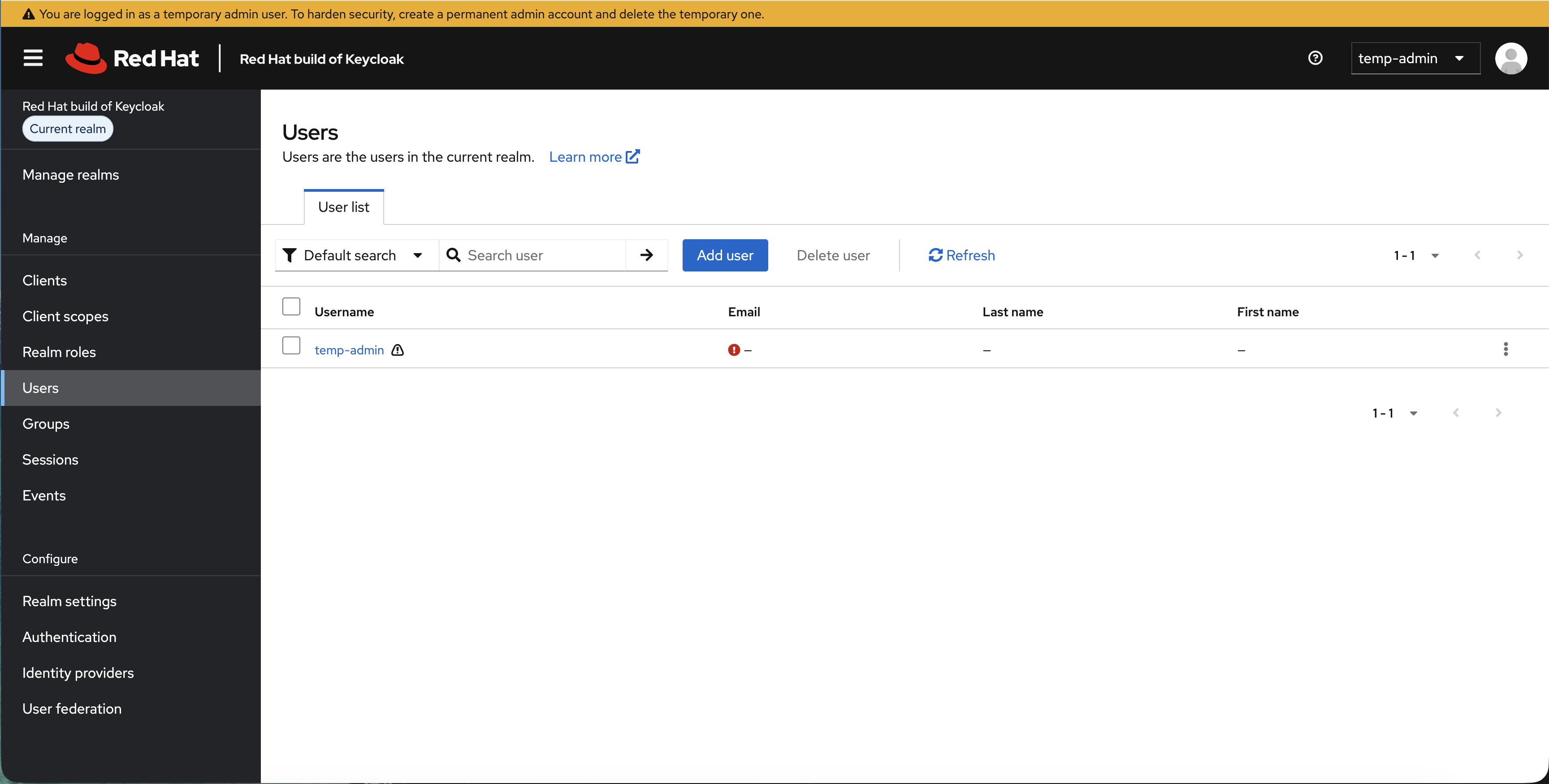
You’re now in the Red Hat build of Keycloak admin console. You’ll see the master realm welcome page:
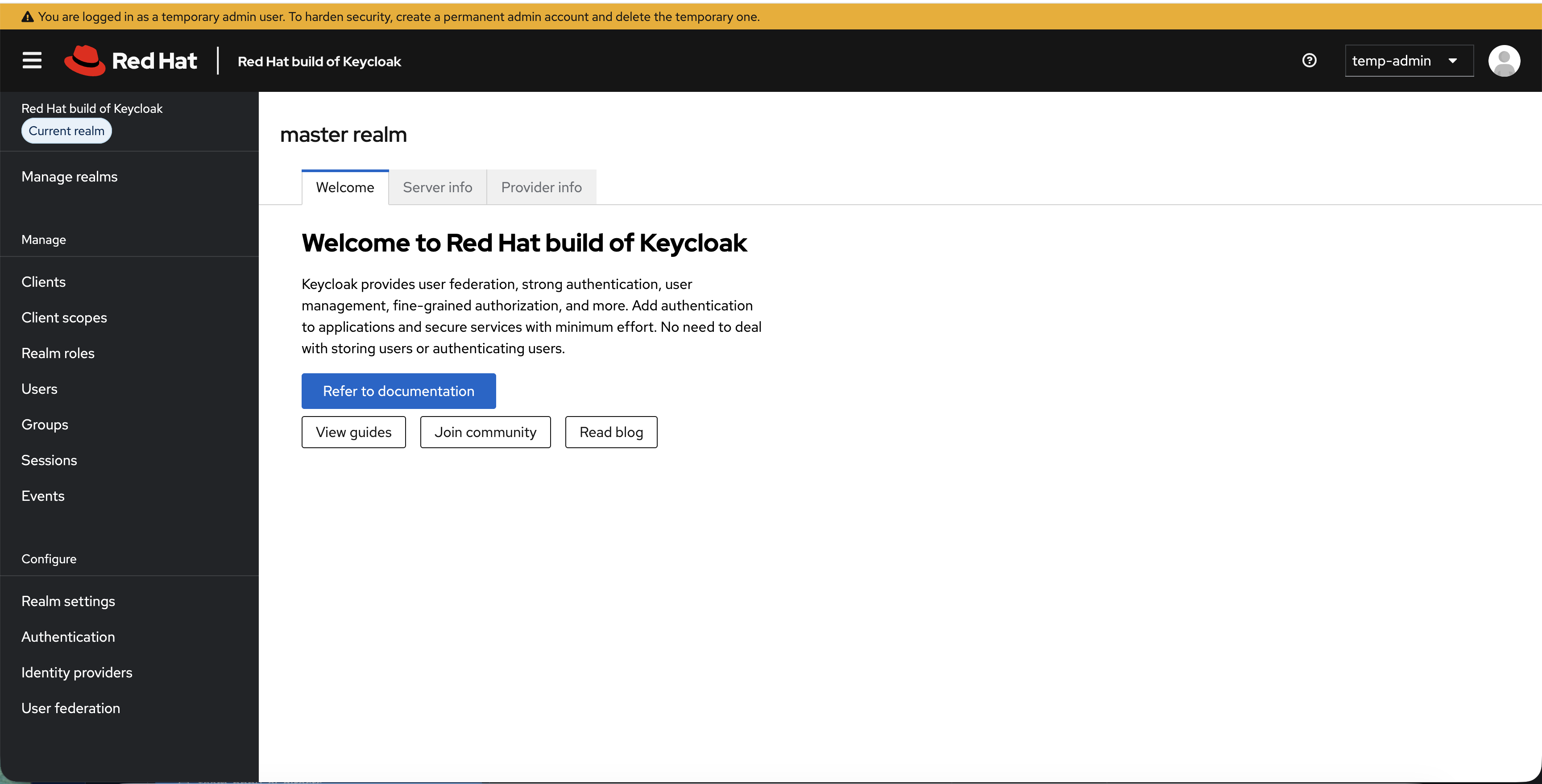
This is where you manage realms, users, clients, and authentication flows.
Step 3: Create an OpenShift Realm
Keycloak uses realms to isolate sets of users, credentials, and clients. The default master realm is for Keycloak administration only — you should always create a separate realm for your applications.
-
In the left sidebar, click Manage realms
-
Click Create realm
-
Set Realm name to:
OpenShift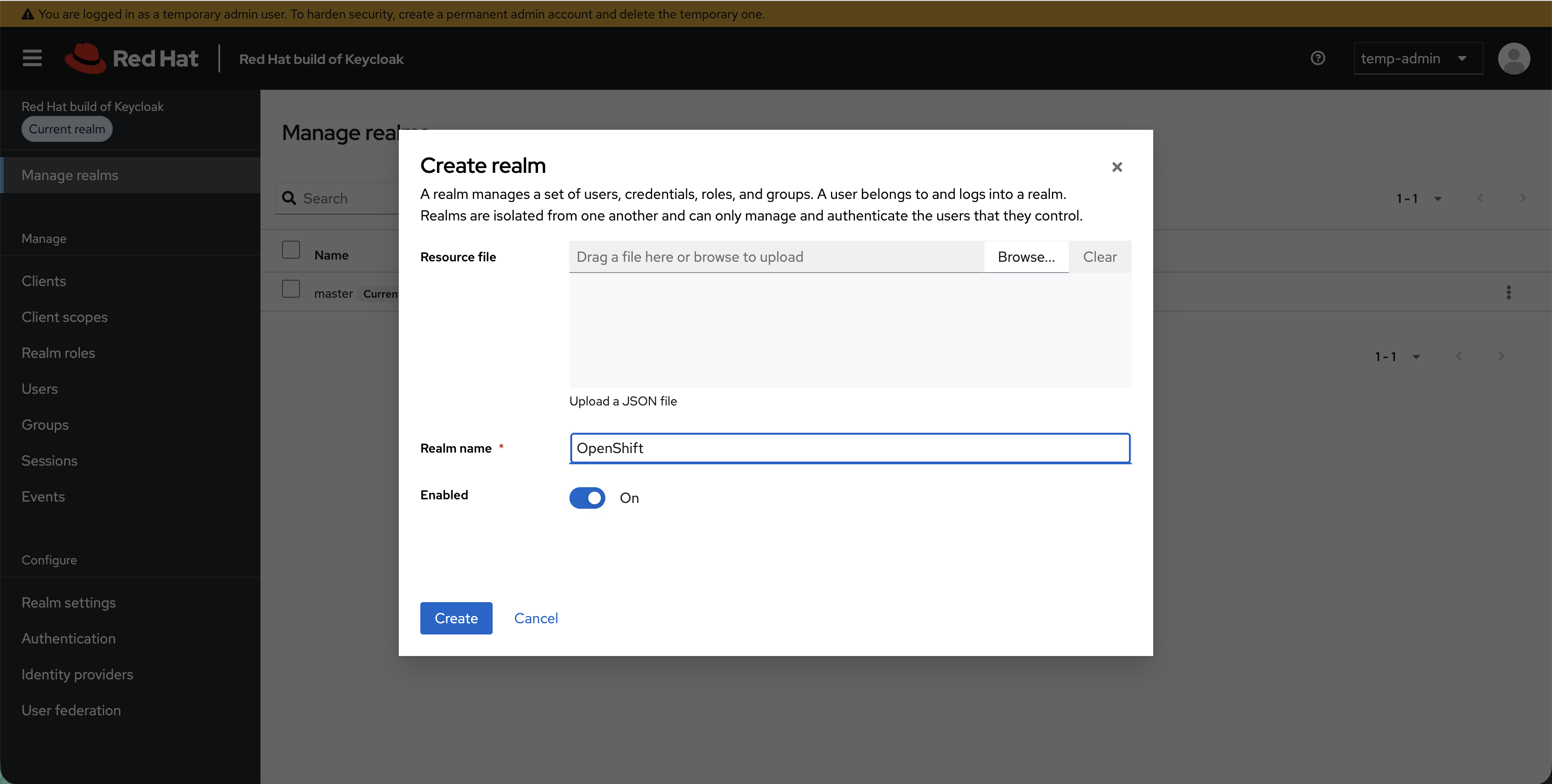
-
Click Create
You’ll see both realms listed, with OpenShift as the current realm:
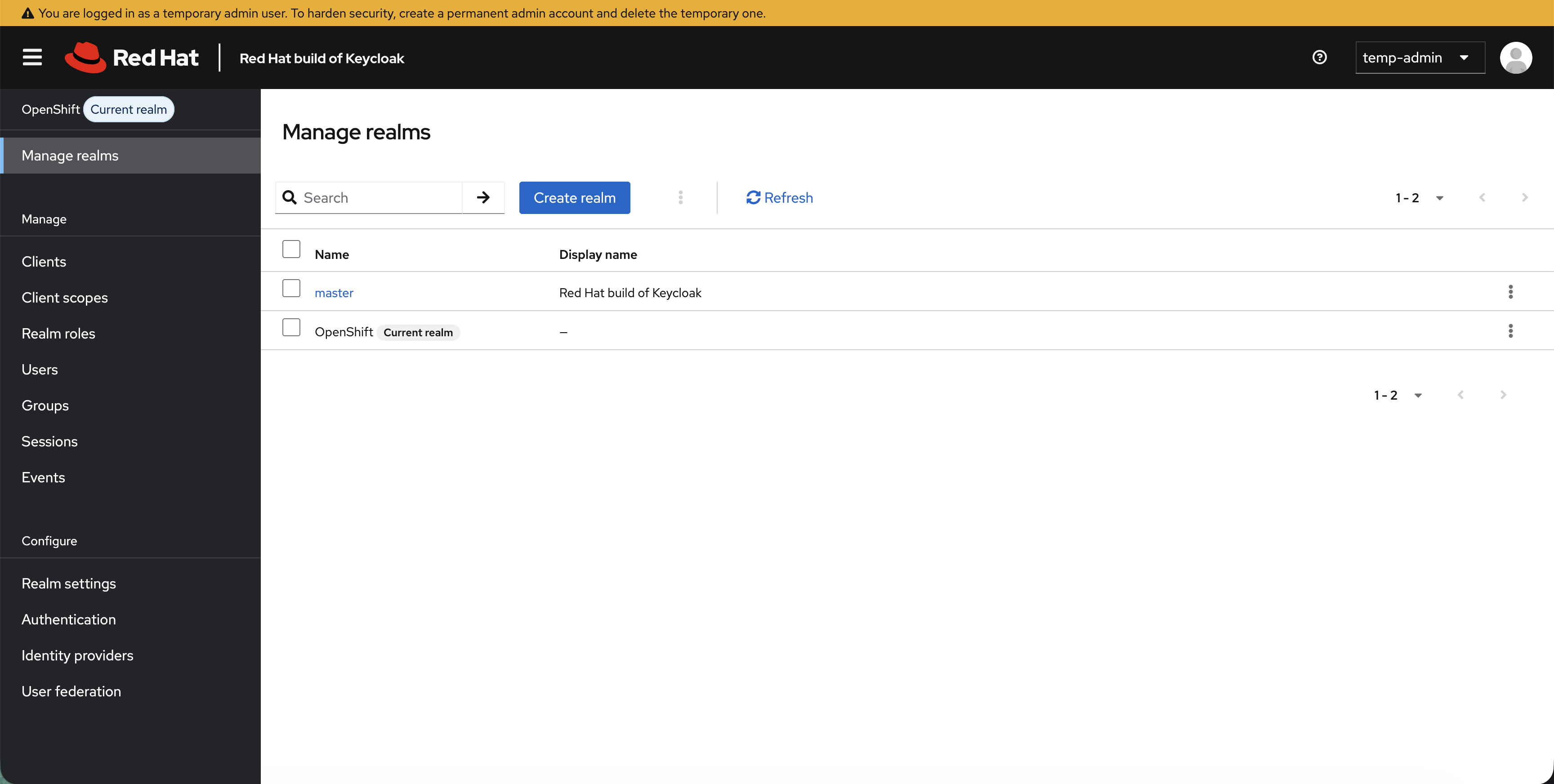
You’re now working inside the OpenShift realm. Everything you create from here — users, groups, clients — belongs to this realm.
Step 4: Create Users
Create three users representing different roles in your organization.
| All four fields (Username, Email, First name, Last name) must be filled in. Keycloak’s user profile policy requires them — if any are missing, the user’s account will be marked as "not fully set up" and login will fail with an unhelpful error. |
Create the first user (admin1):
-
Click Users in the left sidebar
-
Click Add user
-
Fill in the user details:
-
Username:
admin1 -
Email:
admin1@example.com -
First name:
Admin -
Last name:
User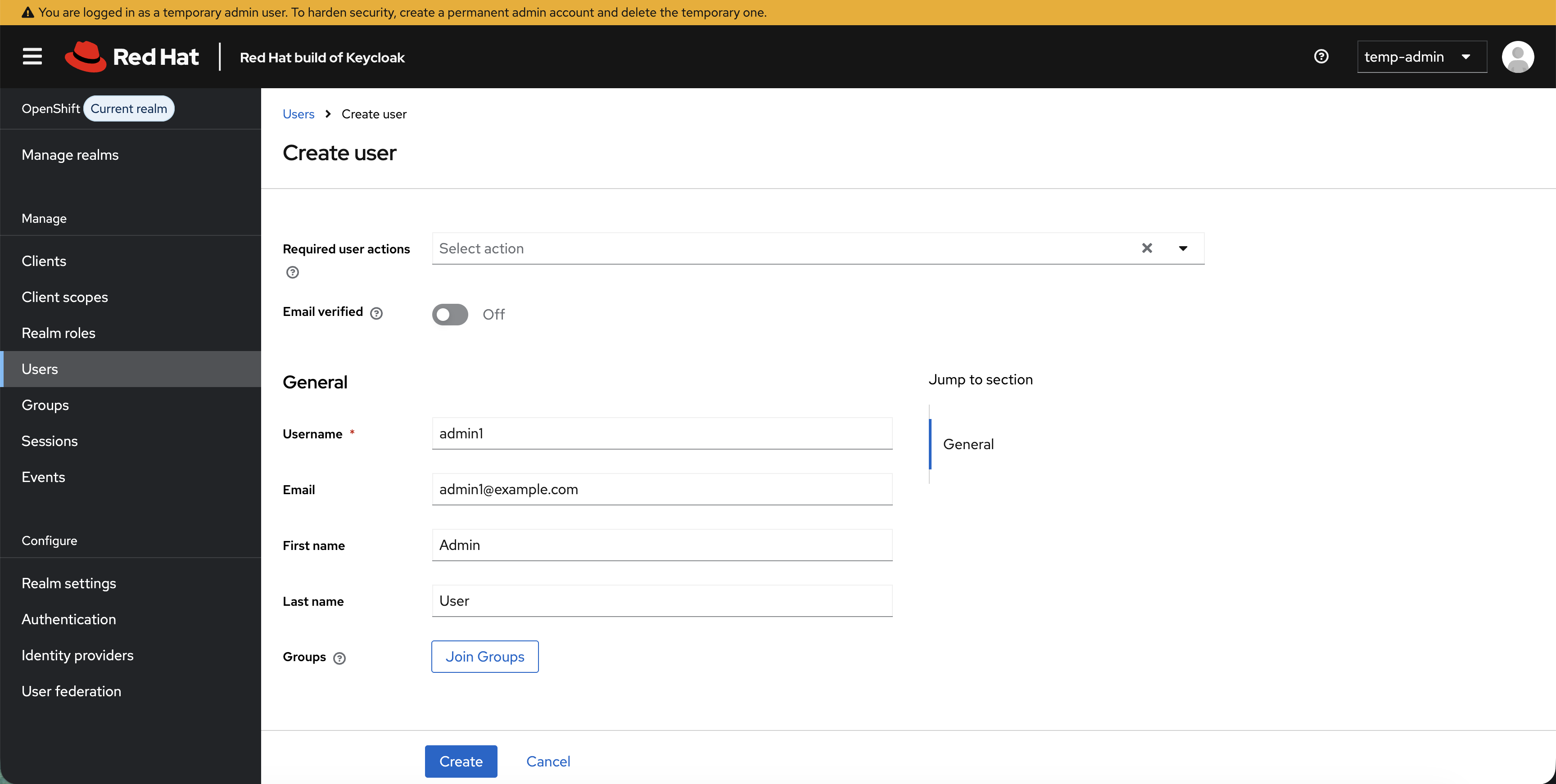
-
-
Click Create
-
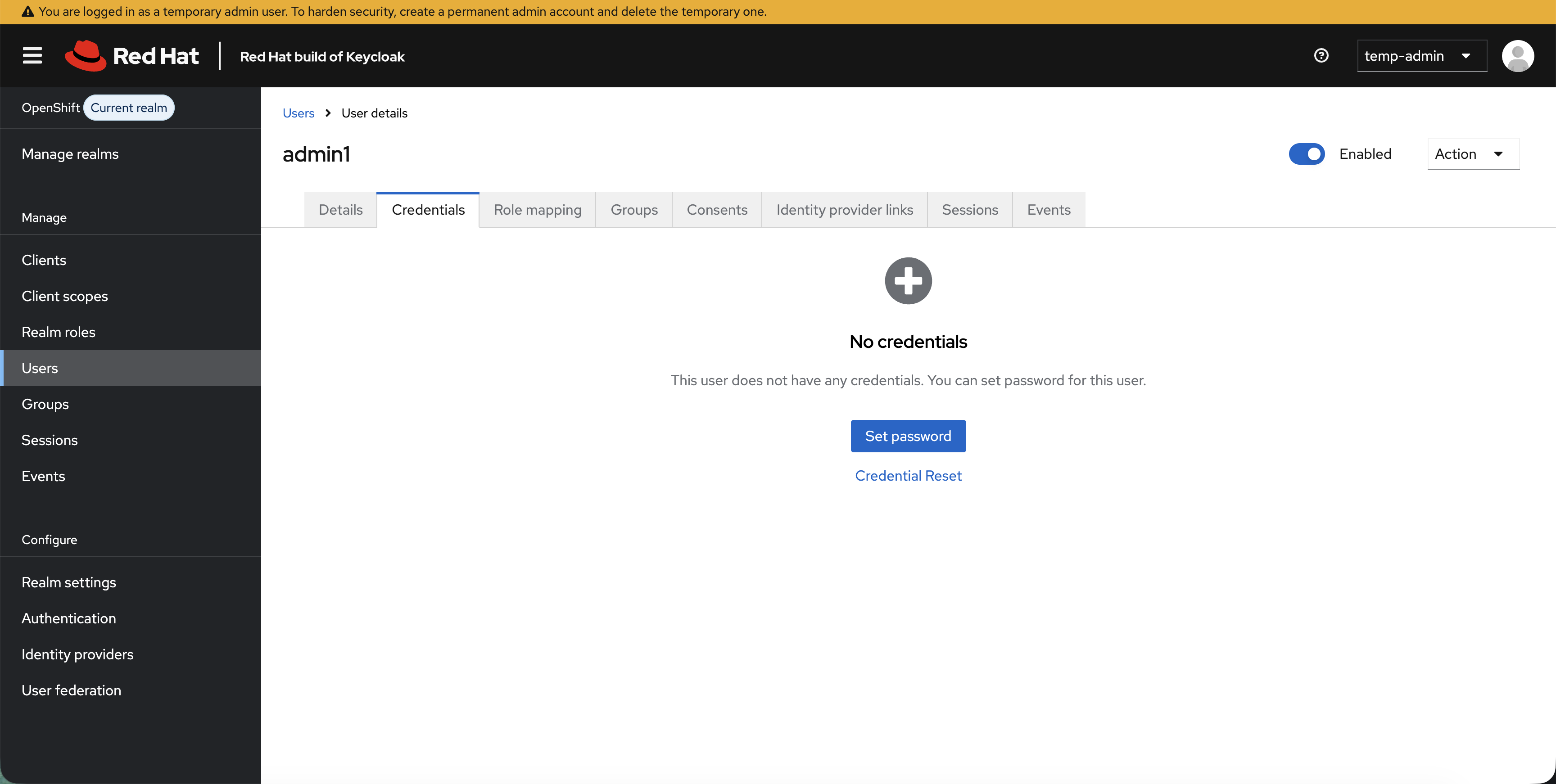
Click the Credentials tab — you’ll see "No credentials":
-
Click Set password
-
Enter password:
OpenShift123!in both fields -
Turn Temporary to Off (so the user isn’t forced to change password on first login)
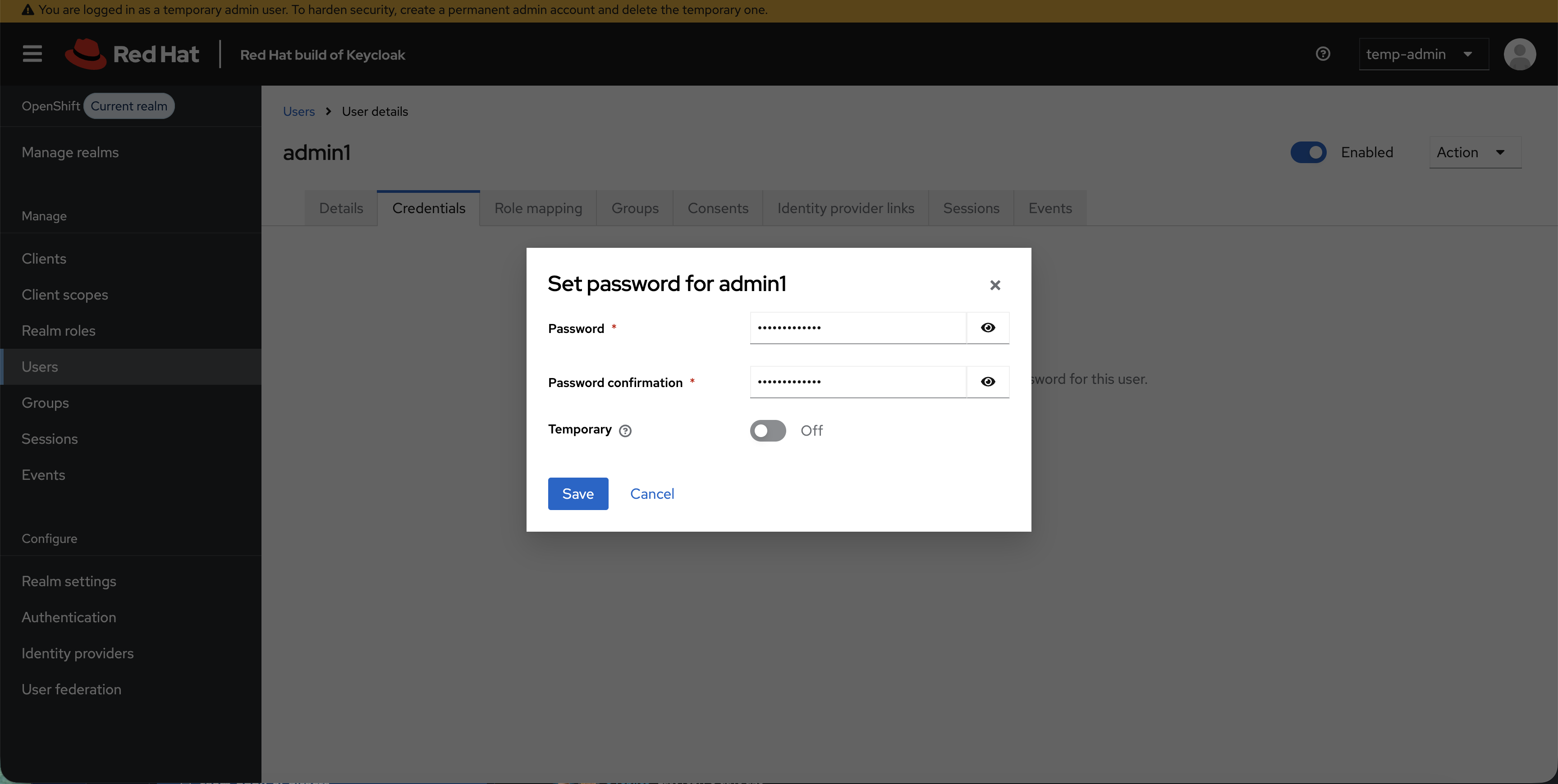
-
Click Save and confirm
Create two more users the same way:
| Username | First name | Last name | |
|---|---|---|---|
|
Developer |
User |
|
|
Viewer |
User |
Set the same password (OpenShift123!) for each, with Temporary set to Off.
| After creating each user, click Users in the sidebar to go back to the user list, then Add user for the next one. |
Step 5: Create Groups
Groups in Keycloak map to OpenShift groups. When a user logs into OpenShift, their Keycloak group membership is included in the ID token — OpenShift reads it and creates the groups automatically.
-
Click Groups in the left sidebar
-
Click Create group
-
Set name to:
ocp-adminsand click Create -
Click Groups again (back to the list)
-
Create group:
ocp-developers -
Create group:
ocp-viewers
You should see all three groups listed:
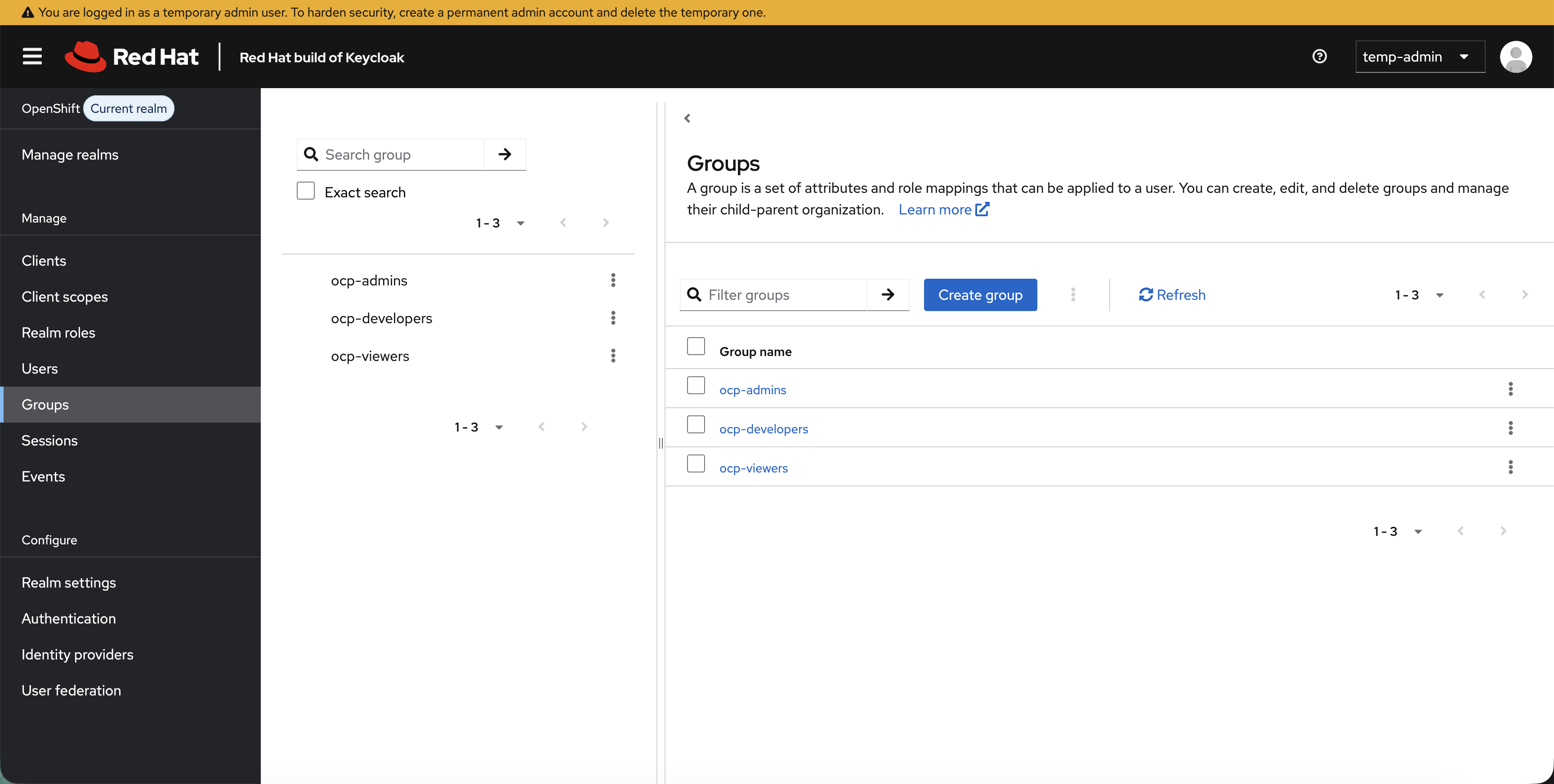
Assign users to groups:
-
Click Users → click admin1
-
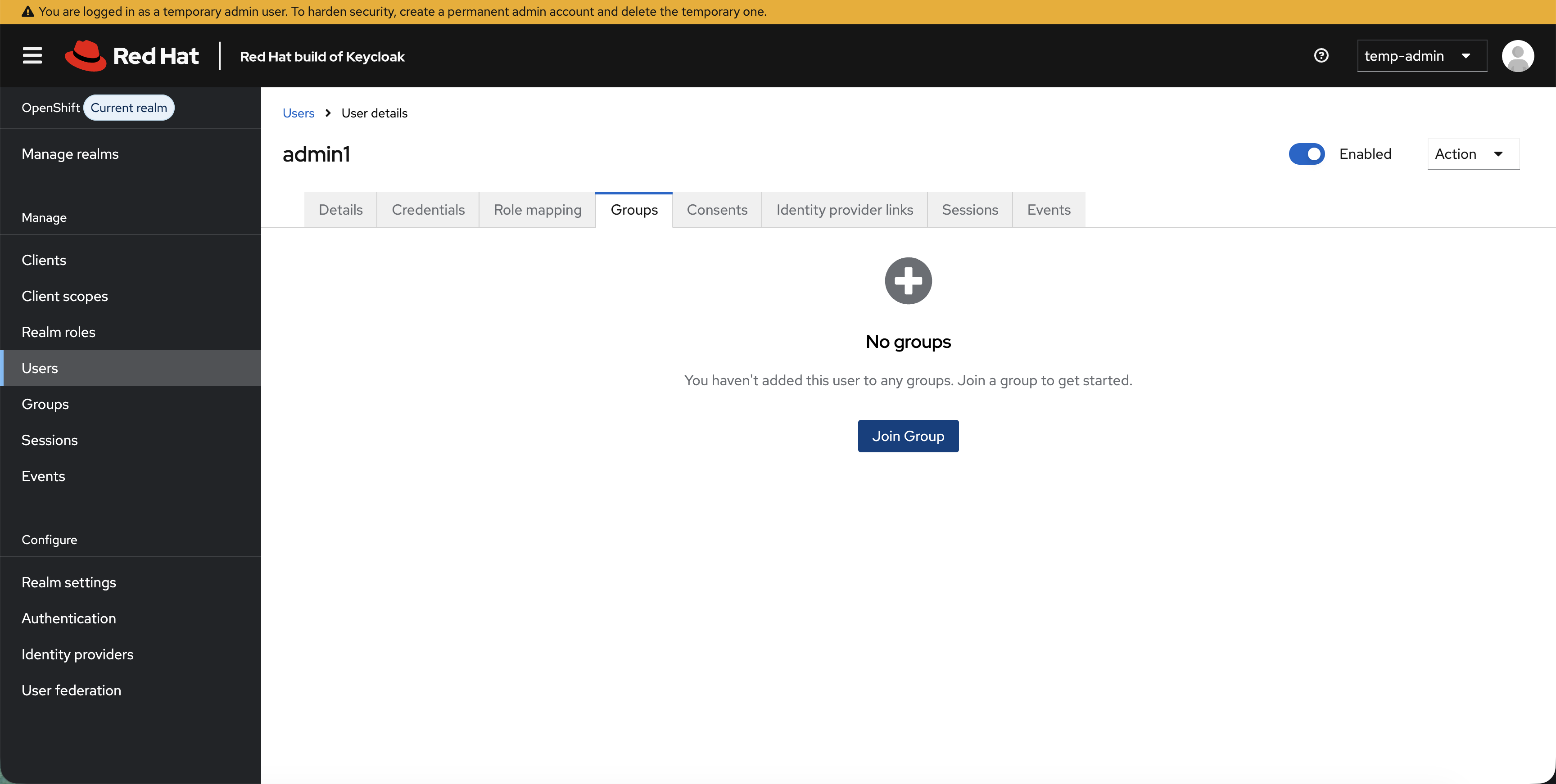
Click the Groups tab — you’ll see "No groups":
-
Click Join Group → select ocp-admins → click Join
-
Go back to Users → click developer1 → Groups → Join Group → ocp-developers → Join
-
Go back to Users → click viewer1 → Groups → Join Group → ocp-viewers → Join
Step 6: Create the OIDC Client
This is the core of the integration. An OIDC client represents OpenShift in Keycloak — it defines how OpenShift authenticates users and what information it receives.
-
Click Clients in the left sidebar
-
Click Create client
-
Set:
-
Client type: OpenID Connect
-
Client ID:
openshift
-
-
Click Next
-
On the Capability config page:
-
Client authentication: On (this makes it a confidential client — OpenShift will authenticate with a client secret)
-
-
Click Next
-
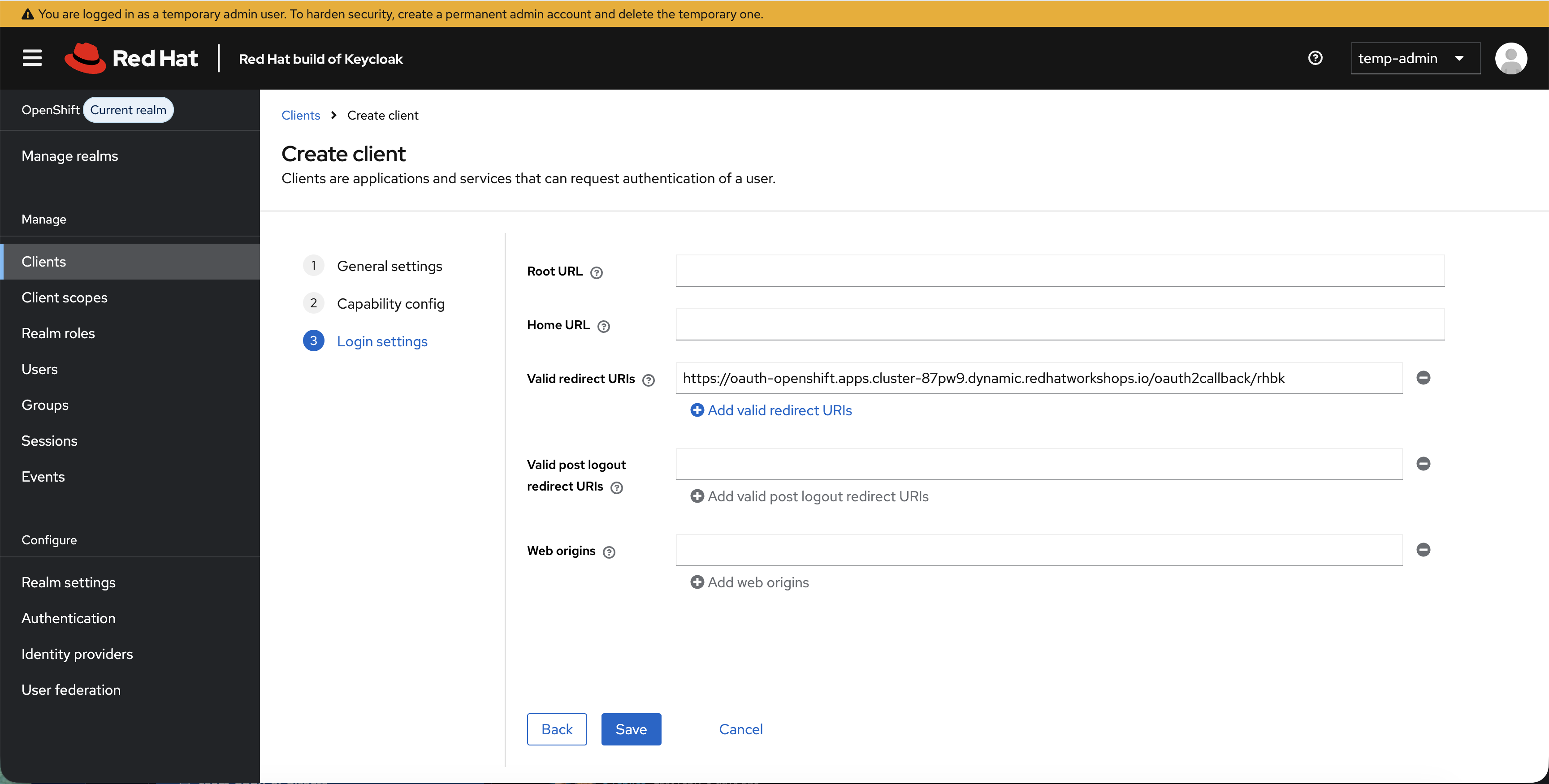
On the Login settings page, you need to tell Keycloak where OpenShift will redirect users after login. Get the OAuth callback URL:
echo "https://oauth-openshift.$(oc get ingresses.config cluster -o jsonpath='{.spec.domain}')/oauth2callback/rhbk" -
Set Valid redirect URIs to the URL from the command above
-
Click Save
Get the client secret — OpenShift needs this to authenticate with Keycloak:
-
After saving, you’ll be on the client details page
-
Click the Credentials tab
-
Copy the Client secret value — you’ll need it in the next step (click the copy icon next to the secret)
Configure the groups claim mapper:
This is the critical step that enables automatic group sync. Without this mapper, OpenShift won’t know what groups a user belongs to.
-
Click Clients in the left sidebar
-
Click openshift (the client you just created)
-
Click the Client scopes tab (on the client details page, not the sidebar)
-
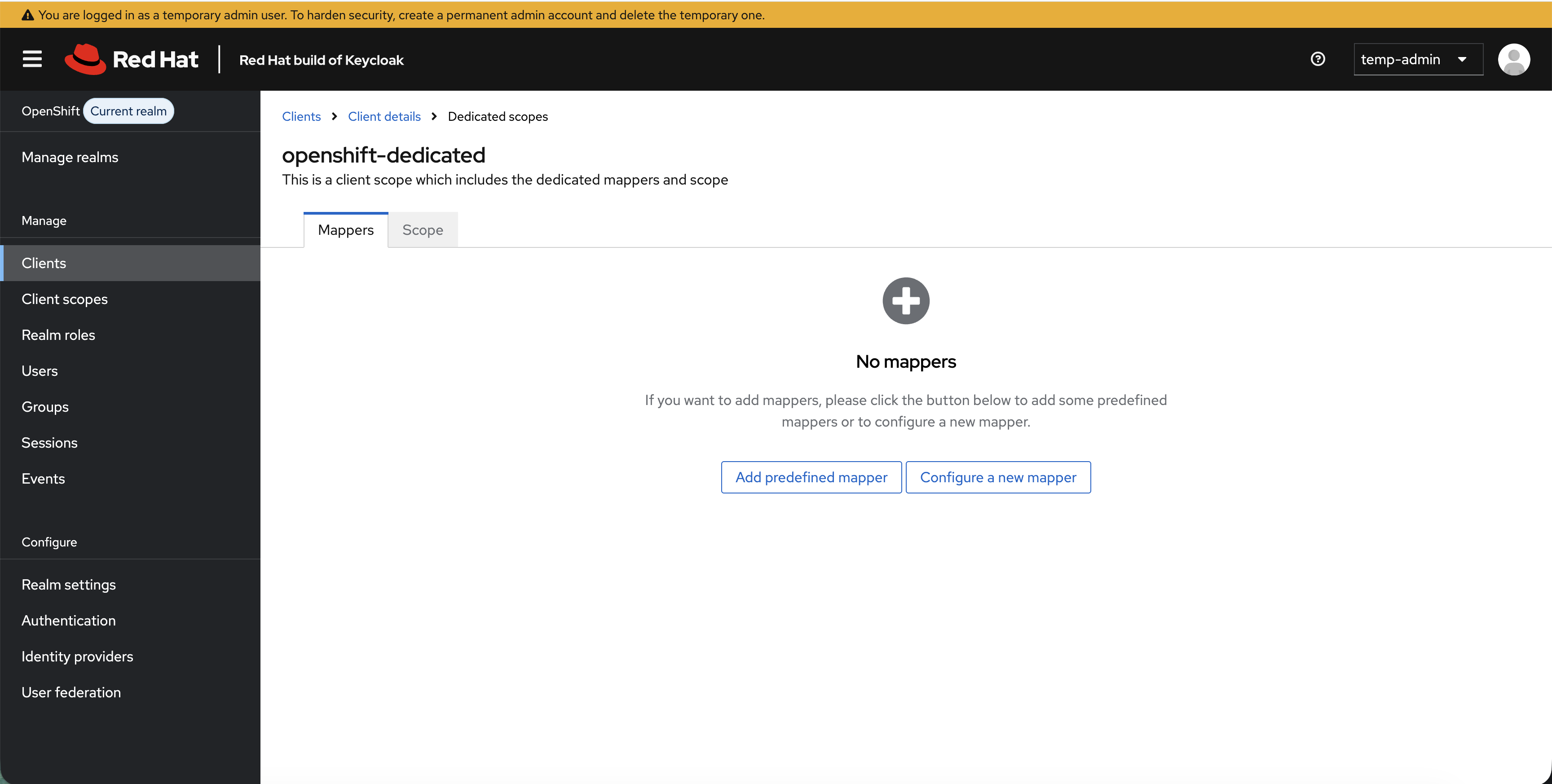
Click openshift-dedicated (this scope was auto-created with the client)
-
Click the Mappers tab — you’ll see "No mappers":
-
Click Configure a new mapper
-
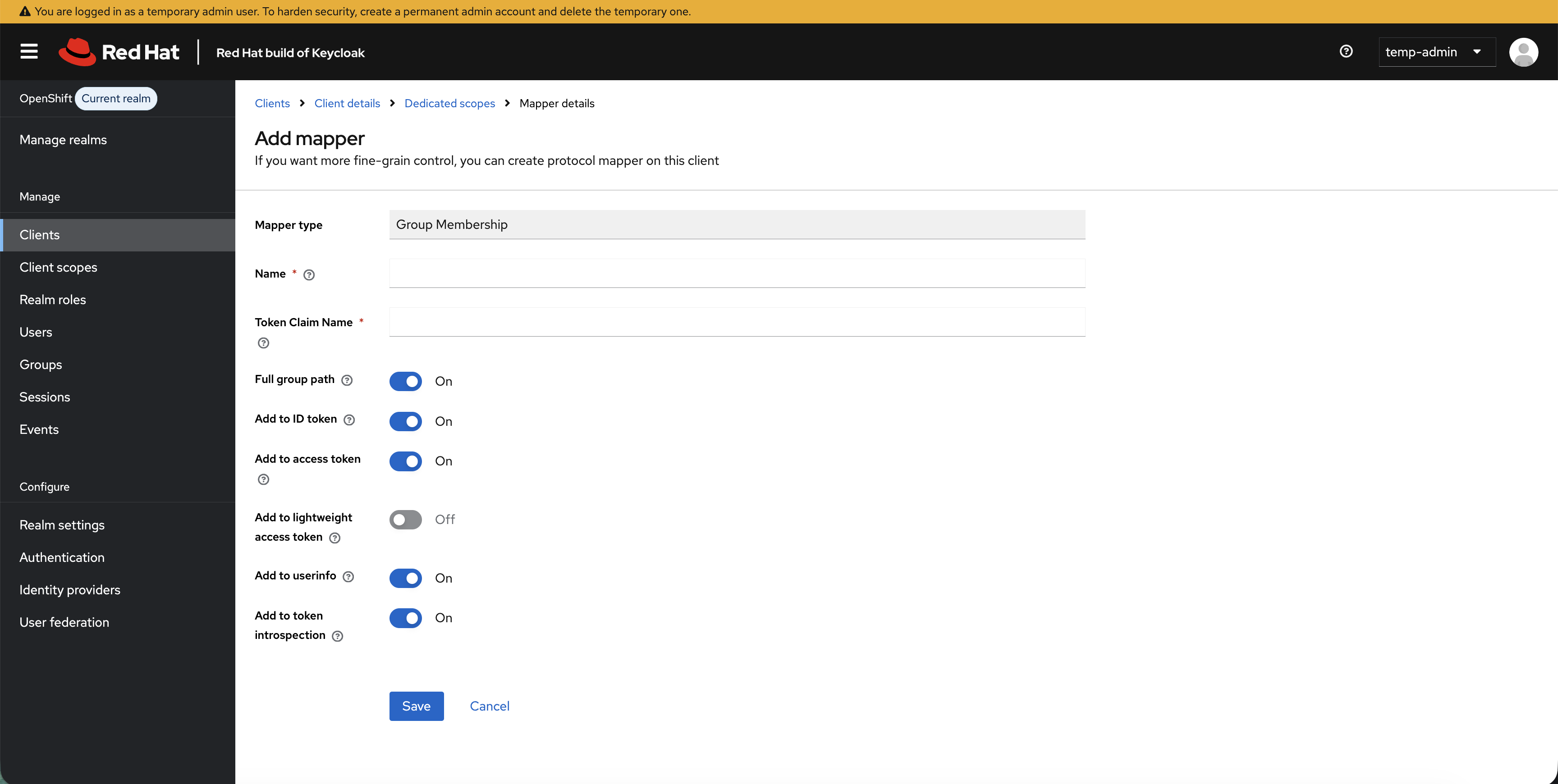
Select Group Membership from the list
-
Set:
-
Name:
groups -
Token Claim Name:
groups -
Full group path: toggle to Off (OpenShift expects just the group name, not the full path)
-
-
Leave the other toggles as defaults and click Save
This mapper injects a groups array into every ID token — for example, when developer1 logs in, the token will contain "groups": ["ocp-developers"]. OpenShift reads this claim and creates the group automatically.
Step 7: Configure OpenShift OAuth
Back in the terminal, create the client secret using the value you copied from the Keycloak Credentials tab:
# Paste the client secret value you copied from the Keycloak Credentials tab
read -p "Enter the client secret: " CLIENT_SECRET
oc create secret generic rhbk-client-secret \
--from-literal=clientSecret="$CLIENT_SECRET" \
-n openshift-configKEYCLOAK_URL=$(oc get route keycloak -n rhbk -o jsonpath='{.spec.host}')
cat <<EOF | oc apply -f -
apiVersion: config.openshift.io/v1
kind: OAuth
metadata:
name: cluster
spec:
identityProviders:
- name: htpasswd
mappingMethod: claim
type: HTPasswd
htpasswd:
fileData:
name: htpasswd
- name: rhbk
mappingMethod: claim
type: OpenID
openID:
clientID: openshift
clientSecret:
name: rhbk-client-secret
issuer: https://${KEYCLOAK_URL}/realms/OpenShift
claims:
preferredUsername:
- preferred_username
name:
- name
email:
- email
groups:
- groups # reads the groups claim from the mapper you created
extraScopes:
- email
- profile
EOFThe key line is claims.groups: [groups] — this tells OpenShift to read the groups claim from the ID token and create OpenShift groups from it. This is why you created the mapper in Step 6.
Wait for the OAuth rollout:
oc rollout status deployment/oauth-openshift -n openshift-authentication
echo "Waiting for all OAuth pods to be ready with new config..."
until [ "$(oc get pods -n openshift-authentication -l app=oauth-openshift --no-headers 2>/dev/null | grep -c Running)" -ge 3 ] && \
      [ "$(oc get pods -n openshift-authentication -l app=oauth-openshift --no-headers 2>/dev/null | grep -vc Running)" -eq 0 ]; do
  sleep 5
done
echo "OAuth is live with rhbk provider — you can log in now"
Step 8: Test OIDC Login and Automatic Group Sync
-
In the OCP Console tab, click your username (top-right) and select Log out
-
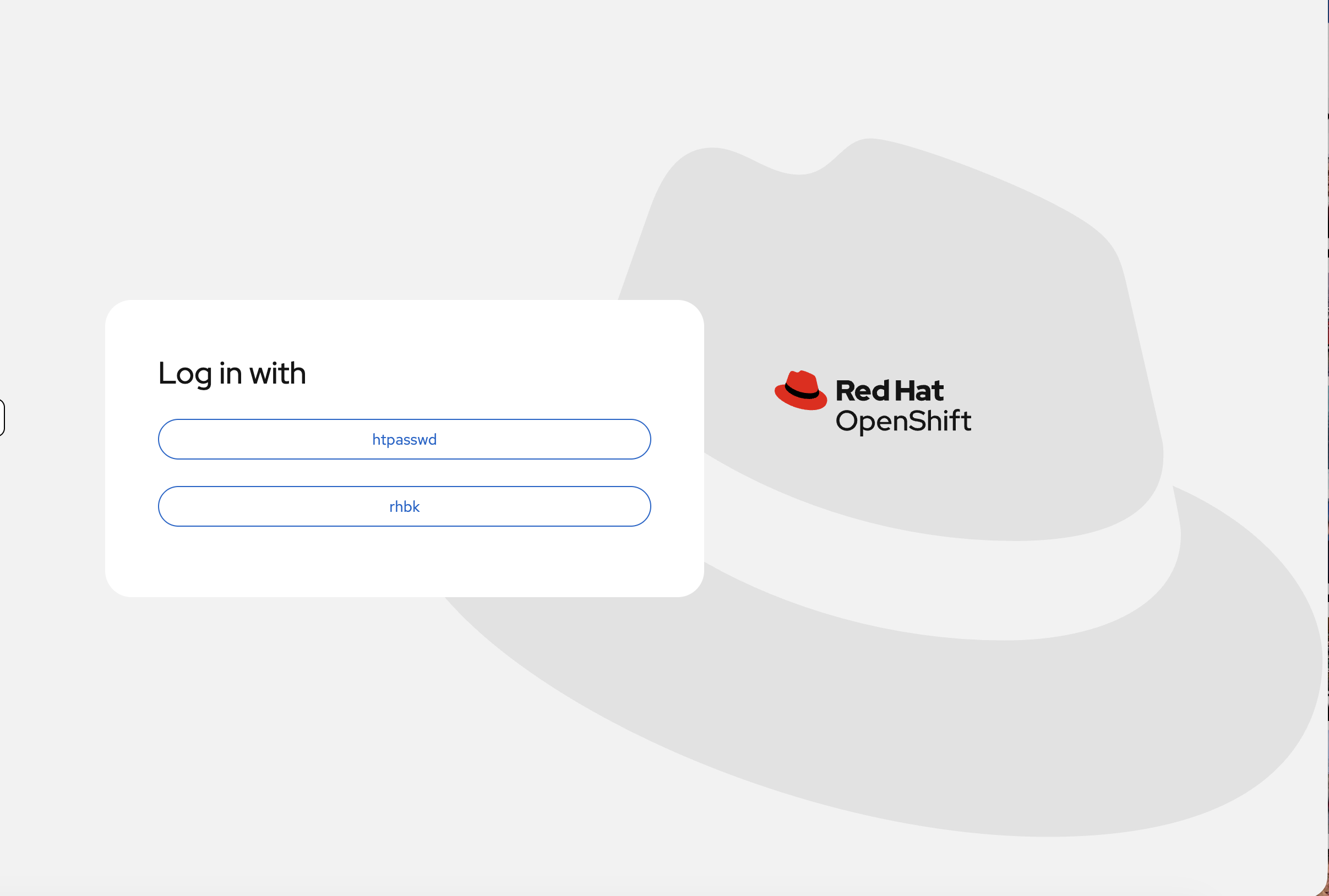
Click the reload button (circular arrow) next to the OCP Console tab name. You’ll see both identity providers:
-
Click rhbk
-
Log in as
developer1/OpenShift123!
|
You will likely see an Authentication error page: 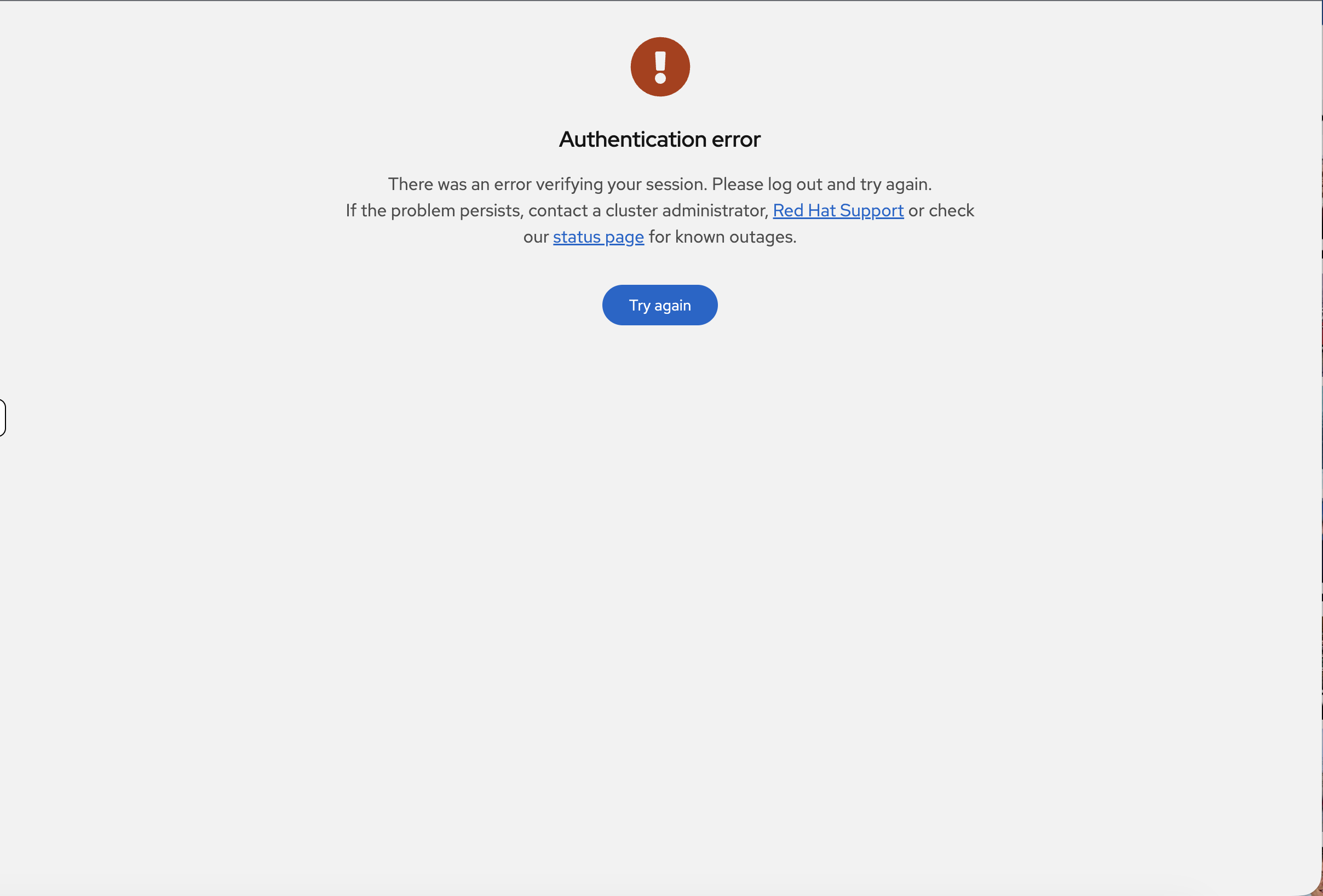
This is expected — |
Now check what happened — the groups synced automatically. Back in the terminal:
oc login -u {openshift_cluster_admin_username} -p {openshift_cluster_admin_password} --insecure-skip-tls-verifyoc get groupsYou should see ocp-developers with developer1 as a member — created automatically from the ID token. Compare this to LDAP where you had to run oc adm groups sync manually.
You can also see the auto-created groups in the console at User Management > Groups — compare this to the LDAP module where you had to run oc adm groups sync before groups appeared.
|
oc get user developer1 -o yamlNotice the identity provider is rhbk and the user was created on first login.
Step 9: Configure RBAC and Verify Permissions
Grant permissions to the OIDC groups:
# Cluster-admin for the admins group
oc adm policy add-cluster-role-to-group cluster-admin ocp-admins

# Cluster-reader for viewers
oc adm policy add-cluster-role-to-group cluster-reader ocp-viewers

# Create projects and grant developer access
oc adm new-project app-development --display-name="Application Development"
oc adm new-project app-production --display-name="Application Production"

oc adm policy add-role-to-group edit ocp-developers -n app-development
oc adm policy add-role-to-group view ocp-developers -n app-production
Now verify — reload the OCP Console tab. Since developer1 is already logged in via OIDC, the console should now show the projects they have access to. You should see Application Development and Application Production in the project list.
Test permissions from the terminal using developer1’s token:
-
In the OCP Console (logged in as developer1), click your username (top-right) → Copy login command → click rhbk → Display Token
-
Copy the
oc login --token=…command and paste it in the terminal
# After pasting the token login:
oc auth can-i create deployment -n app-development
Returns: yes (edit access from ocp-developers)
oc auth can-i create deployment -n app-productionReturns: no (view-only in production)
This is the same RBAC pattern from the LDAP module — but the groups were created automatically from the OIDC token instead of manually synced.
Restore admin access:
oc login -u {openshift_cluster_admin_username} -p {openshift_cluster_admin_password} --insecure-skip-tls-verifyCleanup
# Restore OAuth to htpasswd only
cat <<'CLEANUP' | oc apply -f -
apiVersion: config.openshift.io/v1
kind: OAuth
metadata:
  name: cluster
spec:
  identityProviders:
  - name: htpasswd
    mappingMethod: claim
    type: HTPasswd
    htpasswd:
      fileData:
        name: htpasswd
CLEANUP

# Delete client secret and OIDC users/groups (instant)
oc delete secret rhbk-client-secret -n openshift-config --ignore-not-found
oc delete user developer1 admin1 viewer1 --ignore-not-found
oc delete group ocp-admins ocp-developers ocp-viewers --ignore-not-found

# Delete RHBK namespace, projects, and wait for OAuth rollout in the background
(
  oc delete namespace rhbk --ignore-not-found
  oc delete project app-development app-production --ignore-not-found
  oc rollout status deployment/oauth-openshift -n openshift-authentication --timeout=120s
) &>/dev/null &
echo "Cleanup running in background — you can continue to the next module"
echo "Cleanup complete"
Summary
What you did:
-
Deployed and configured the Red Hat build of Keycloak from scratch
-
Created a realm, users, groups, and an OIDC client in the admin console
-
Configured the groups protocol mapper that drives automatic group sync
-
Integrated OpenShift OAuth with Keycloak as an OIDC provider
-
Saw groups sync automatically from ID token claims — no manual sync required
OIDC vs LDAP — key difference:
-
LDAP: Groups require manual
oc adm groups sync(or a CronJob) -
OIDC: Groups sync automatically on every login from token claims
Both methods are valid — choose based on your organization’s identity infrastructure. Many enterprises use Keycloak as a broker that federates to LDAP/AD backends, giving you OIDC’s automatic sync with LDAP’s existing user directory.
Additional Resources
-
OpenID Connect Configuration: Configuring an OpenID Connect identity provider
-
Red Hat build of Keycloak: RHBK Documentation
-
RHBK Operator: RHBK Operator Guide
-
RBAC Documentation: Using RBAC