Performance Tuning
Module Overview
Duration: 30-35 minutes
Audience: Platform Engineers, SRE, Operations Teams
The Challenge: Your applications are experiencing performance issues - pods crashing from resource exhaustion, slow response times under load, and unclear capacity planning.
In this module: You’ll diagnose and fix real performance problems using OpenShift’s autoscaling and monitoring tools.
Learning Objectives
-
Diagnose and fix resource-related pod failures
-
Use VPA to right-size application resources
-
Configure HPA to handle variable load
-
Monitor performance with built-in tools
Part 1: The Over-Provisioned Application
A developer deployed an application requesting 2Gi of memory "just to be safe." But is that actually needed?
Deploy the App
oc new-project performance-demooc apply -f https://raw.githubusercontent.com/rhpds/openshift-days-ops-showroom/main/support/memory-hog.yamlWait for it to run:
oc get pods -wPress Ctrl+C when the pod shows Running.
Check What Resources Were Requested
oc get deployment memory-hog -o jsonpath='{.spec.template.spec.containers[0].resources}' | jq .The app requested 2Gi memory and 500m CPU. That’s a lot of cluster capacity reserved for one pod.
Check What It Actually Uses
Wait for metrics to become available (~60 seconds after pod starts). While you wait, switch to the OCP Console tab and navigate to Workloads → Pods (project: performance-demo). Click the pod name and look at the Metrics tab — you can watch CPU and memory graphs populate in real-time.
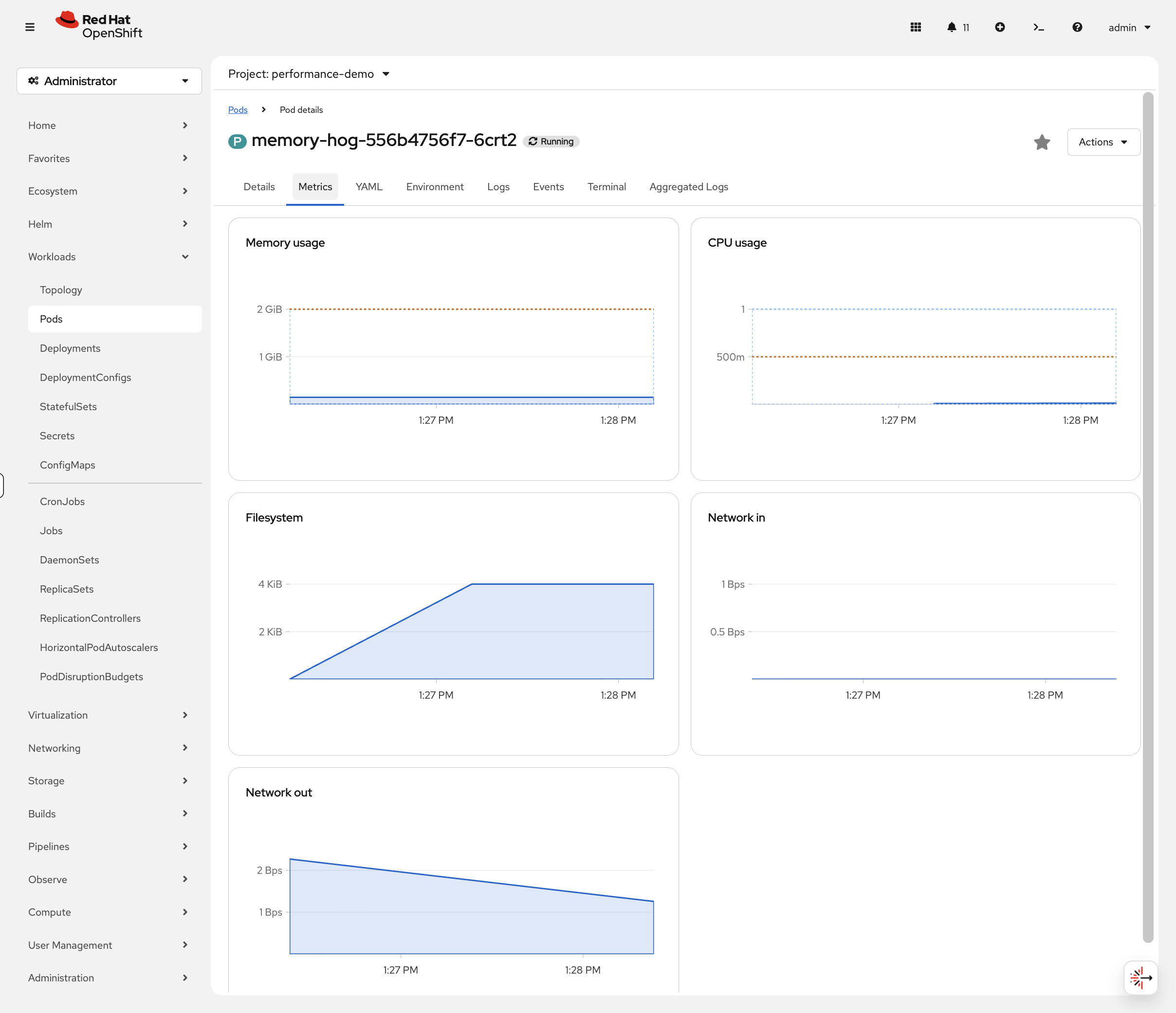
sleep 60oc adm top pod -l app=memory-hogThe app is only using ~150Mi of the 2Gi it reserved. That’s 1.85Gi of wasted capacity that other pods can’t use!
Part 2: Right-Size with VPA
The Vertical Pod Autoscaler analyzes actual usage and recommends correct resource values.
Install VPA (if needed)
Check if VPA is installed:
oc get pods -n openshift-vertical-pod-autoscalerIf not installed:
oc apply -f https://raw.githubusercontent.com/rhpds/openshift-days-ops-showroom/main/support/vpa-operator.yamlWait for the operator (~1 minute):
oc get csv -n openshift-vertical-pod-autoscaler -wPress Ctrl+C when you see Succeeded.
Get VPA Recommendations
Create a VPA resource targeting the memory-hog deployment. We’re using updateMode: "Off" — this means VPA will only recommend values, it won’t change your pods. In production, you’d start with Off to validate recommendations, then switch to Auto to let VPA resize pods automatically during restarts.
oc apply -f https://raw.githubusercontent.com/rhpds/openshift-days-ops-showroom/main/support/vpa-memory-hog.yamlWait for VPA to analyze the pod:
sleep 30 && oc get vpa memory-hog-vpaView the detailed recommendation:
oc get vpa memory-hog-vpa -o jsonpath='{.status.recommendation.containerRecommendations[0]}' | jq .| If you see no output, the VPA recommender hasn’t collected enough metrics yet. Wait 30-60 seconds and run the command again. |
VPA recommends ~256Mi memory instead of the 2Gi requested. That’s based on actual observed usage — not guesswork.
Apply the Right-Sized Resources
oc patch deployment memory-hog --type=json -p='[
  {"op": "replace", "path": "/spec/template/spec/containers/0/resources/requests/memory", "value": "256Mi"},
  {"op": "replace", "path": "/spec/template/spec/containers/0/resources/limits/memory", "value": "512Mi"},
  {"op": "replace", "path": "/spec/template/spec/containers/0/resources/requests/cpu", "value": "50m"},
  {"op": "replace", "path": "/spec/template/spec/containers/0/resources/limits/cpu", "value": "200m"}
]'
Verify the Savings
oc get deployment memory-hog -o jsonpath='{.spec.template.spec.containers[0].resources}' | jq .Result: You just freed up 1.75Gi of memory and 450m of CPU that other workloads can now use. Multiply this across hundreds of pods and you’ve potentially saved significant cluster costs.
Part 3: Handle Variable Load with HPA
Now let’s deploy an application that needs to scale horizontally based on traffic.
Deploy a Scalable Application
oc apply -f https://raw.githubusercontent.com/rhpds/openshift-days-ops-showroom/main/support/demo-app.yamlWait for it to be ready:
oc rollout status deployment/demo-appCreate an HPA
Configure automatic scaling when CPU exceeds 50%. Why 50%? Lower targets mean pods scale sooner (more responsive, higher cost). Higher targets pack pods tighter (saves resources, slower reaction). 50% is a common starting point — tune it based on your app’s latency requirements.
oc autoscale deployment demo-app --min=1 --max=5 --cpu-percent=50Check the HPA:
oc get hpa demo-app
You can view the HPA in the console at Workloads > HorizontalPodAutoscalers (project: performance-demo) — it shows current vs target CPU percentage and the current replica count in real-time.
|
Generate Load
Open a second terminal or run this in the background:
oc run load-generator --image=busybox --restart=Never -- /bin/sh -c "while true; do wget -q -O- http://demo-app:8080 > /dev/null; done"Watch the Autoscaling
While the load generator runs, switch to the OCP Console tab and navigate to Observe → Dashboards. Select Kubernetes / Compute Resources / Namespace (Pods) and choose project performance-demo. Watch CPU utilisation climb in real-time on the graph.
Then navigate to Workloads → Pods (project: performance-demo) and watch new pods appear as the HPA scales up.
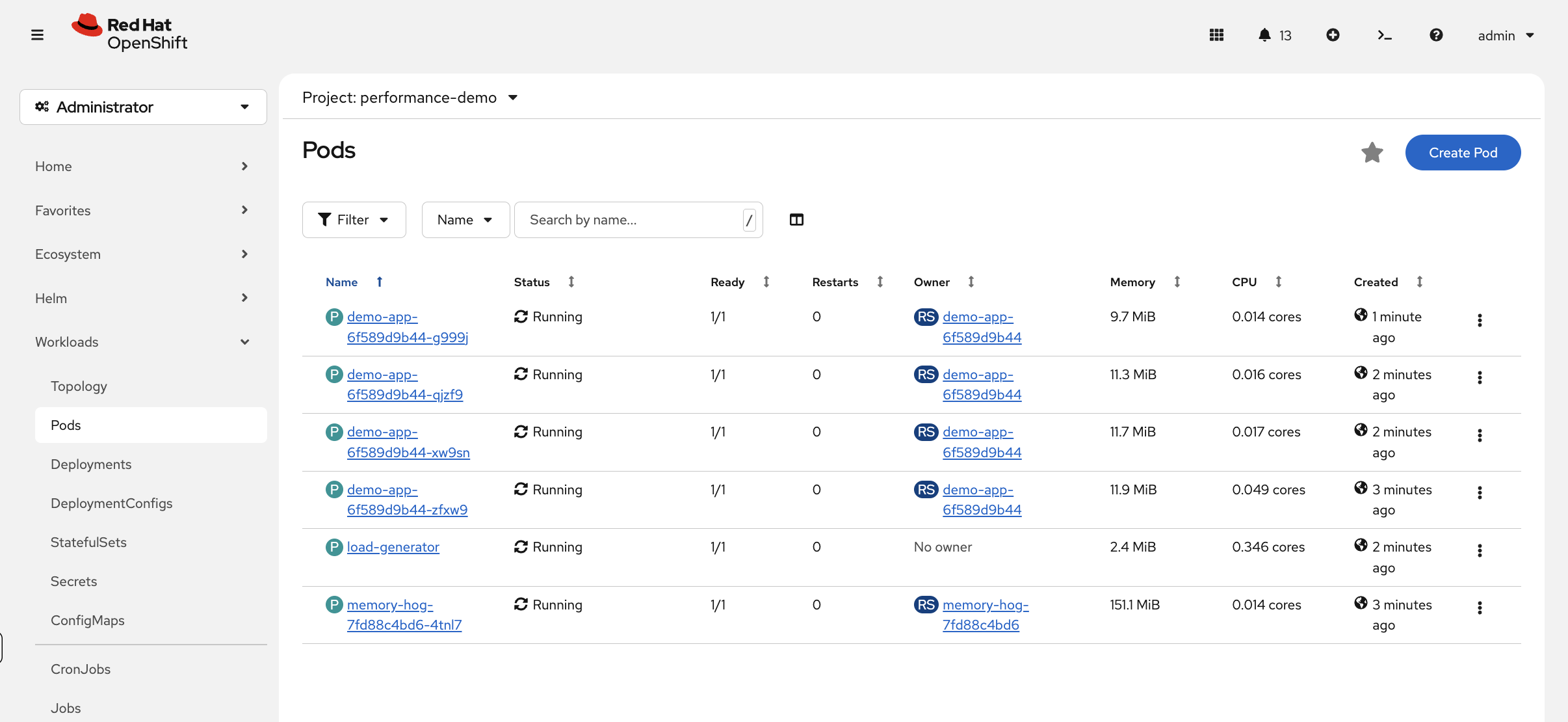
You can also watch via CLI:
oc get hpa demo-app -wWatch the REPLICAS column — it will increase as CPU usage rises above 50%. This takes 1-2 minutes.
Press Ctrl+C when you see replicas increase (typically to 2-4 pods).
Verify pods scaled:
oc get pods -l app=demo-appPart 4: Make a Capacity Decision
You’ve right-sized one app with VPA and auto-scaled another with HPA. Now look at the bigger picture:
oc adm top nodesLook at the memory percentages across your nodes. In the OCP Console, navigate to Observe → Dashboards and select Kubernetes / Compute Resources / Namespace (Pods), then choose project performance-demo:
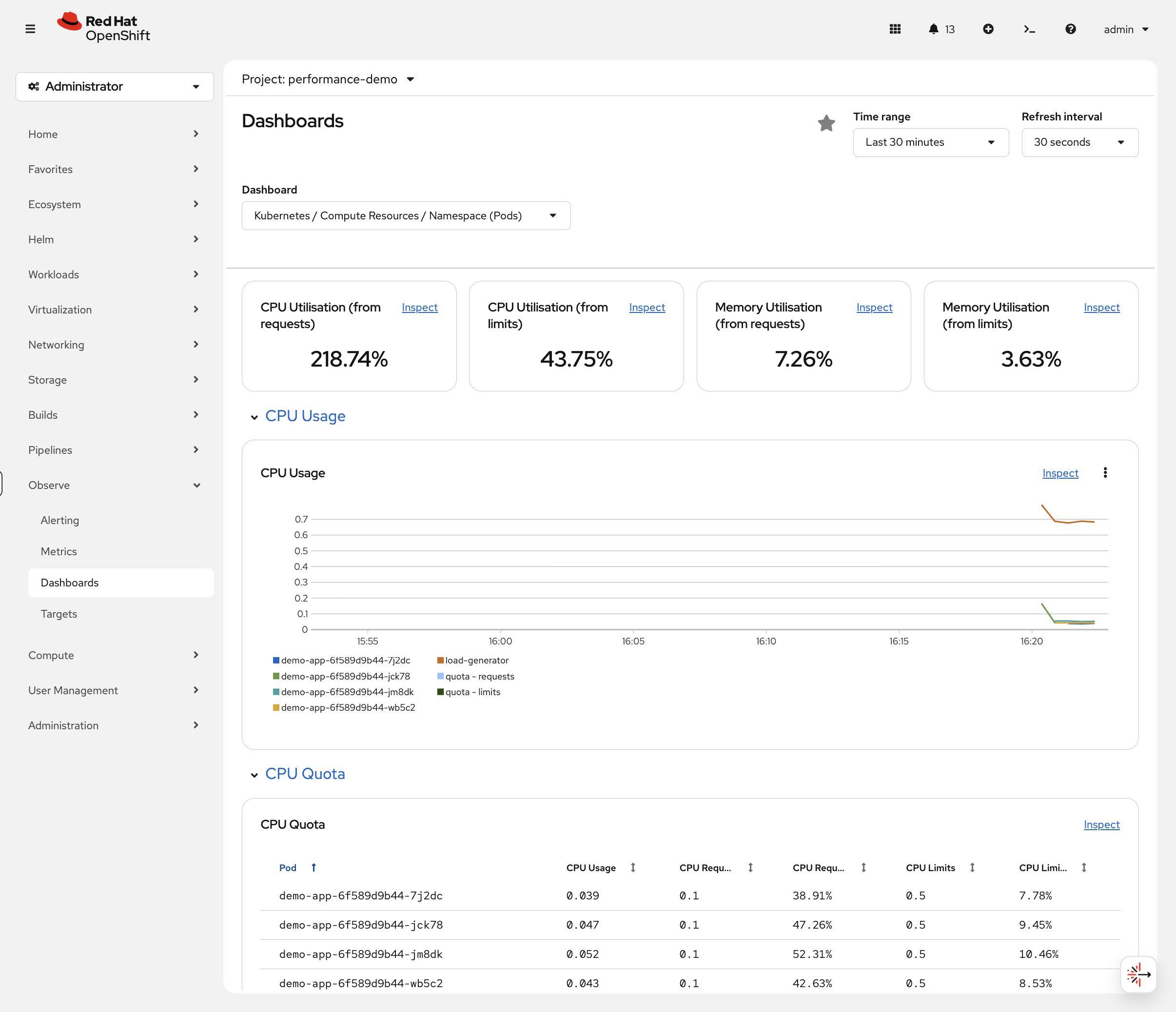
The graphs show how your HPA scaling event looked over time — CPU utilisation from requests climbed above 200% as the load generator pushed each pod past the 50% target, and the HPA responded by scaling up to 4 pods. The CPU Quota table below shows each pod’s actual usage vs its requests and limits.
This is how you’d answer the question in a capacity review: "Do we need more nodes, or are our apps just over-provisioned?" In many clusters, VPA alone frees enough capacity to avoid buying more infrastructure.
Key Takeaways
| Tool | When to Use |
|---|---|
VPA |
Right-size resources based on actual usage (use |
HPA |
Scale pods horizontally for variable load (set 50-70% CPU target) |
oc adm top |
Quick check of current resource consumption |
Observe → Dashboards |
Historical trends and capacity planning |
The pattern: Don’t guess resources → Use VPA to measure → Apply recommendations → Use HPA for load variation