OpenShift Lightspeed
Module Overview
Duration: 10 minutes
Format: Hands-on AI assistant exploration
Audience: Platform Engineers, Developers, Operations Teams
OpenShift Lightspeed is an AI-powered assistant integrated into the OpenShift web console that combines the power of Large Language Models (LLMs) and official OpenShift documentation via Retrieval-Augmented Generation (RAG) to help administrators and developers with:
-
Understanding OpenShift concepts
-
Getting guidance on configurations
-
Assisted YAML generation
-
Troubleshooting cluster issues
In this module, you’ll configure OpenShift Lightspeed and use it to understand OpenShift concepts, gather information from cluster resources, troubleshoot broken workloads and more.
Prerequisites
The OpenShift Lightspeed Operator has been pre-installed on your cluster. However, to be fully operational, OpenShift Lightspeed must be connected to an LLM provider. In this module, you’ll also create the configuration necessary to enable this connection.
Verify the Operator Installation
First, verify the OpenShift Lightspeed operator is installed:
oc get csv -n openshift-lightspeed | grep lightspeedYou should see the operator in Succeeded phase.
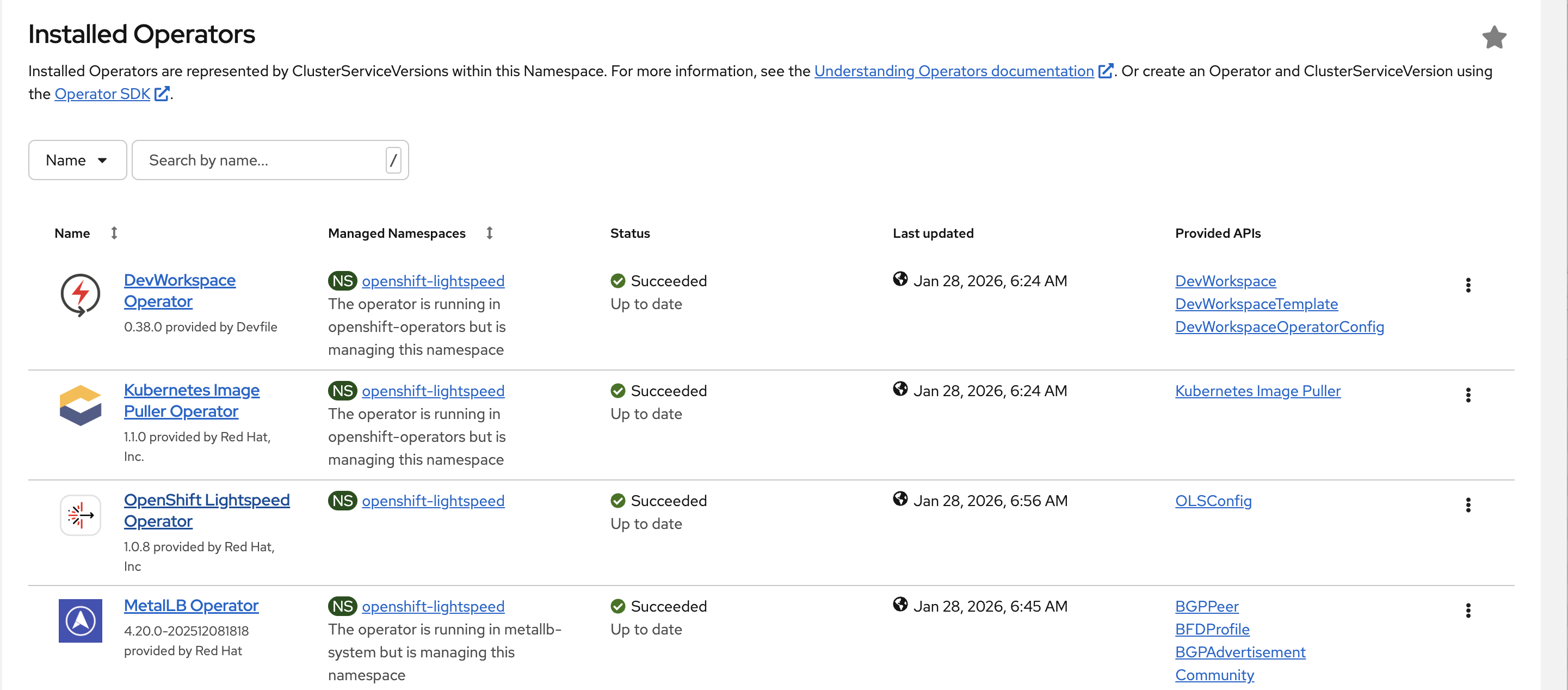
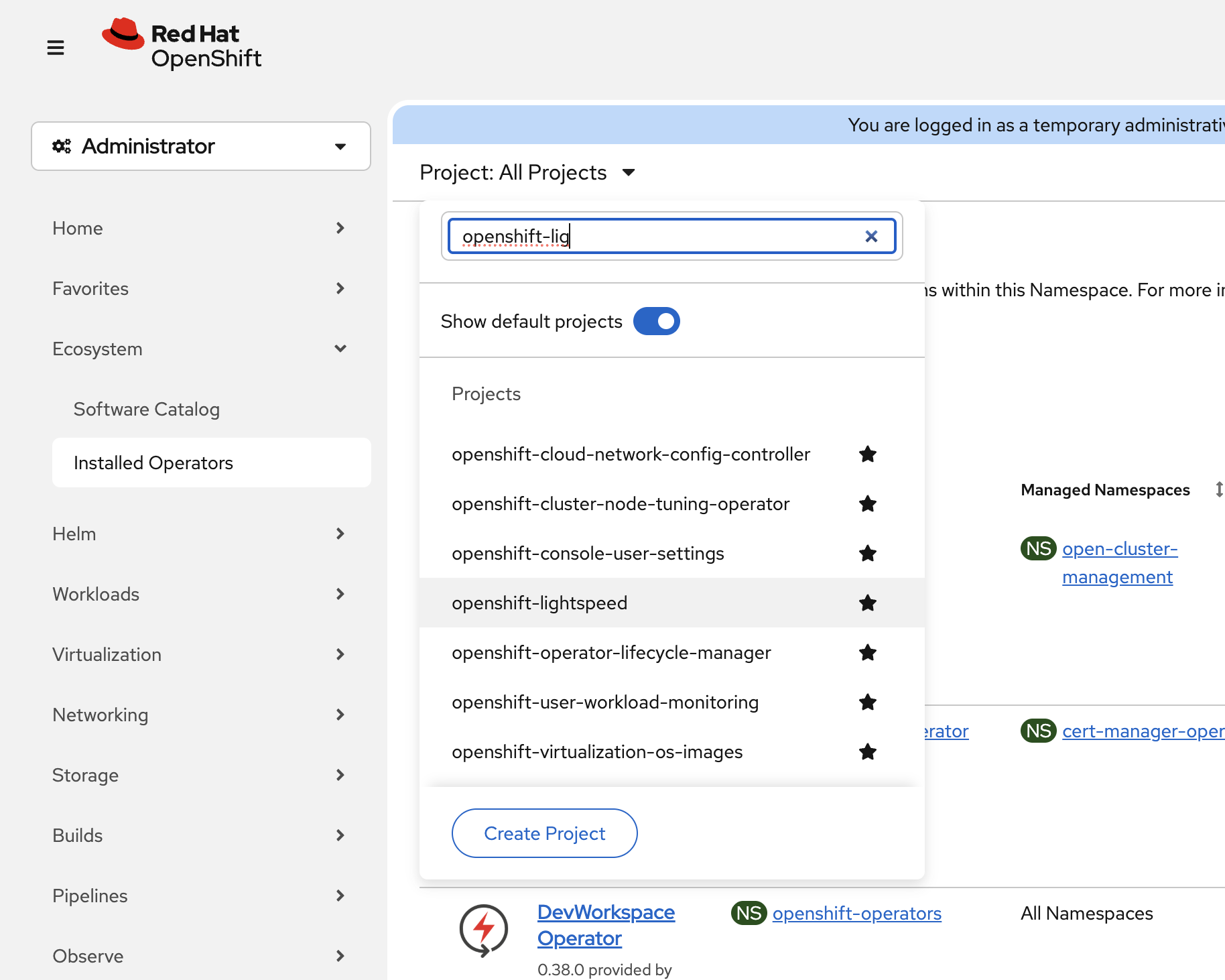
You can also verify in the console by navigating to Ecosystem → Installed Operators and switching to the openshift-lightspeed namespace:
To switch namespace, use the dropdown at the top:
Create the OLSConfig
The operator is installed but needs configuration to connect to an LLM provider. OpenShift Lightspeed supports various model providers, including public cloud services (WatsonX, Azure OpenAI, OpenAI) and on-premise solutions (Red Hat OpenShift AI, RHEL AI). For this workshop, Azure OpenAI credentials have been pre-configured as a secret.
Verify the credentials secret exists:
oc get secret azure-api-keys -n openshift-lightspeedNow create the OLSConfig to enable OpenShift Lightspeed:
oc apply -f - <<EOF
apiVersion: ols.openshift.io/v1alpha1
kind: OLSConfig
metadata:
  name: cluster
spec:
  llm:
    providers:
      - name: Azure
        type: azure_openai
        url: 'https://llm-gpt4-lightspeed.openai.azure.com/'
        deploymentName: gpt-4
        credentialsSecretRef:
          name: azure-api-keys
        models:
          - name: gpt-4
  ols:
    defaultModel: gpt-4
    defaultProvider: Azure
    logLevel: DEBUG
    introspectionEnabled: true
EOF
Key configuration parameters:
-
spec.llm.providers- Defines the LLM provider(s) to use:-
type- The provider type (e.g.,azure_openai,watsonx,rhoai_vllm, etc) -
url- The endpoint URL for the LLM service -
credentialsSecretRef- References the secret containing the API credentials -
models- The model name to use from this provider
-
-
spec.ols.defaultModel- Specifies which model to use by default for queries -
spec.ols.defaultProvider- Sets the default provider when multiple are configured -
spec.ols.introspectionEnabled- When set totrue, OpenShift Lightspeed automatically deploys an MCP server that allows users to query cluster resources to provide context-aware responses (Technology Preview in OpenShift 4.20)
Wait for OpenShift Lightspeed to Initialize
Monitor the deployment progress:
oc get pods -n openshift-lightspeed -wWait until all pods show Running status (press Ctrl+C to exit watch):
NAME                                                     READY   STATUS    RESTARTS        AGE
lightspeed-app-server-69cd56f7f9-fxt2f                   3/3     Running   0               3m38s
lightspeed-console-plugin-6fc9c46dbc-qr6pt               1/1     Running   0               3m39s
lightspeed-operator-controller-manager-5d99f6fb9-fhqd5   1/1     Running   0               83m
lightspeed-postgres-server-f9c54c5d7-vbctt               1/1     Running   0               3m38s
Check the OLSConfig status:
oc get olsconfig cluster -o jsonpath='{.status.conditions}' | jq .All conditions should show "status": "True" and "message": "Ready".
Access OpenShift Lightspeed in the Web Console
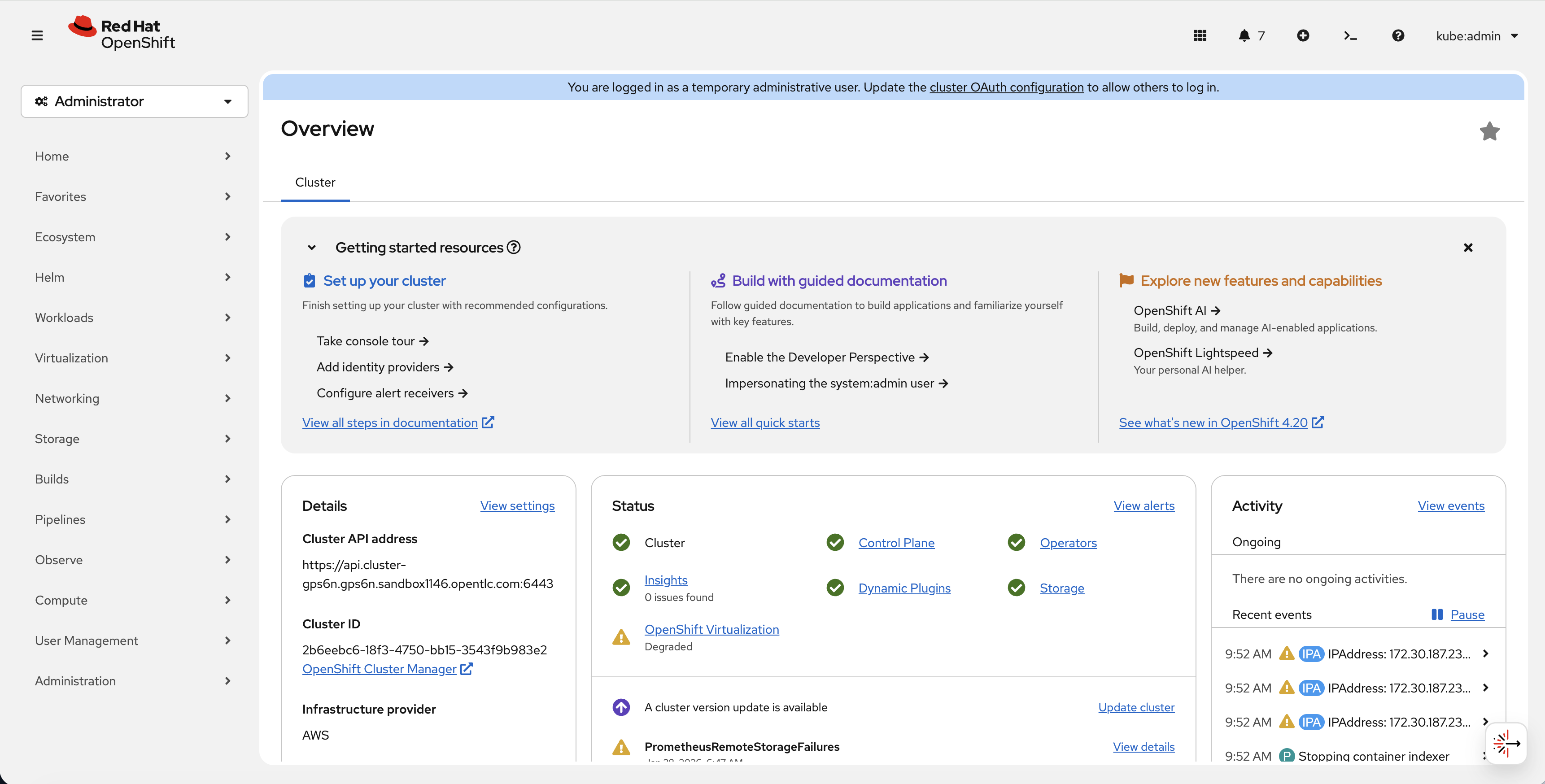
Once the OLSConfig is ready, the OpenShift Lightspeed chat button in the bottom right corner will now be functional:
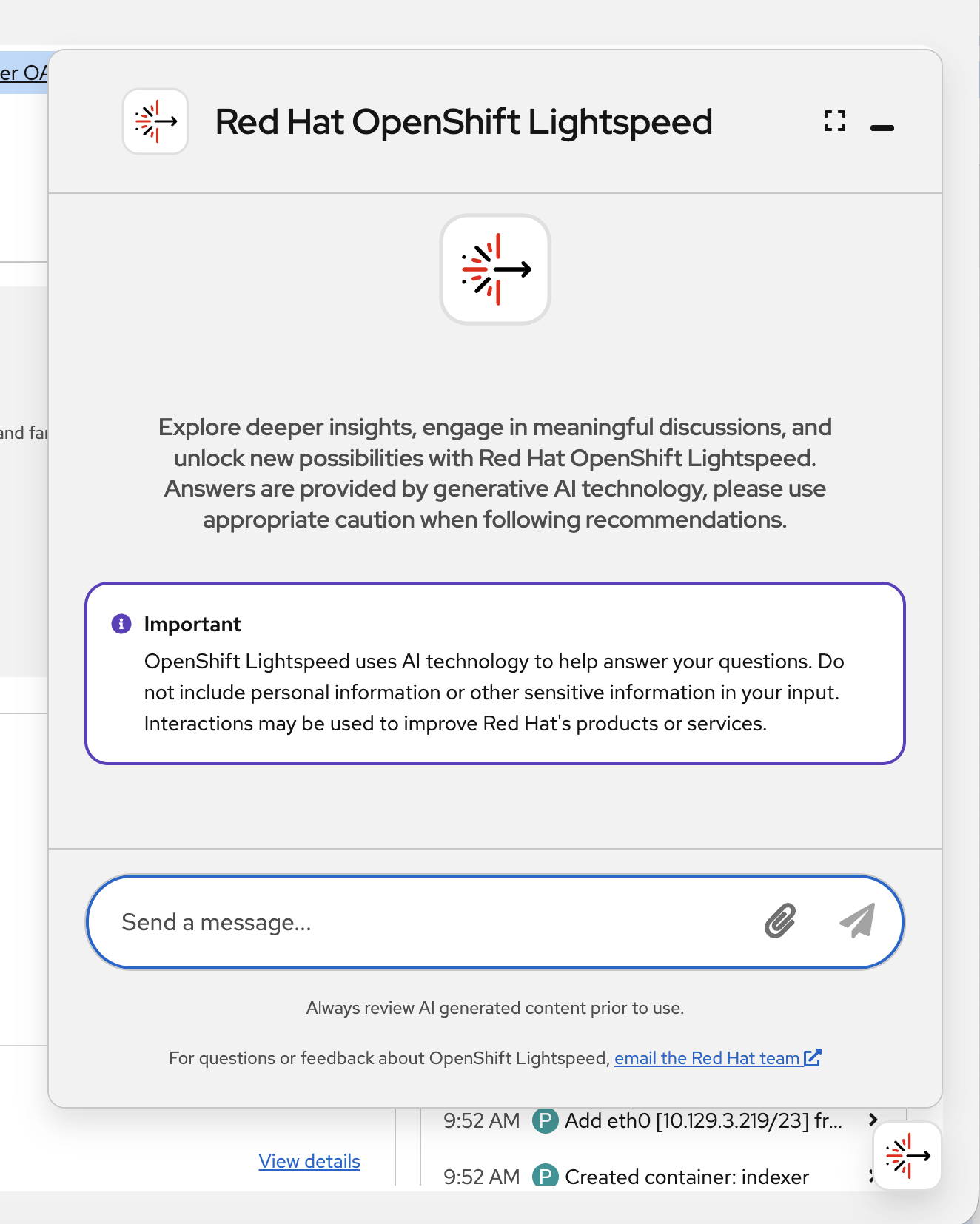
Click the button to open the Openshift Lightspeed chat window:
Starter Question
OpenShift Lightspeed allows users to interact and ask questions about OpenShift using natural language. Thanks to its specific knowledge about OpenShift, it is particularly useful for exploring and understanding concepts and resources in this platform.
You can start by asking, for example:
What’s the difference between a Deployment and a StatefulSet?
OpenShift Lightspeed will search for the most relevant sections of the documentation in its vector database. This information is then sent along with your query to the model, enabling it to provide an accurate response.
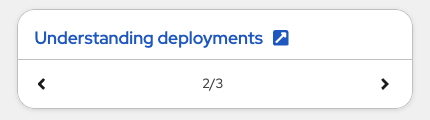
OpenShift Lightspeed will likely provide a response explaining what both Deployment and StatefulSet resources are, along with a comparison between them. If you scroll down to the end of the response, OpenShift Lightspeed will display links to the most relevant documentation, allowing you to quickly access those sections and explore further:
Assisted YAML generation
OpenShift Lightspeed maintains the context of the current conversation, allowing you to ask follow-up questions to refine or expand on previous responses.
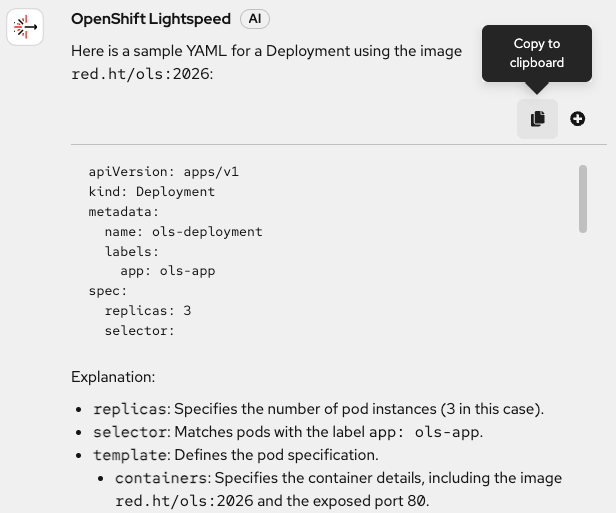
For example, now that we know what a Deployment is, let’s ask OpenShift Lightspeed to generate one for us:
Can you generate a YAML for a Deployment using the image red.ht/ols:2026?
Please note that OpenShift Lightspeed provides guidance and crafts the resources we request, but it will not apply those resources directly in the cluster. You can copy and apply them manually:
Cluster Interaction and Troubleshooting
A demo pod with an intentional issue has been deployed. Let’s use OpenShift Lightspeed to diagnose it.
First, check the broken pod:
oc get pods -n lightspeed-demoYou’ll see a pod stuck in Pending state:
oc describe pod broken-pod -n lightspeed-demoThe same information we retrieved through the command line can also be requested from OpenShift Lightspeed. If you recall, when configuring the OLSConfig, we set introspectionEnabled to true. This means OpenShift Lightspeed can access resources within the cluster.
In the OpenShift Lightspeed interface, click the X in the top right corner to clear the chat. Now you can ask something like:
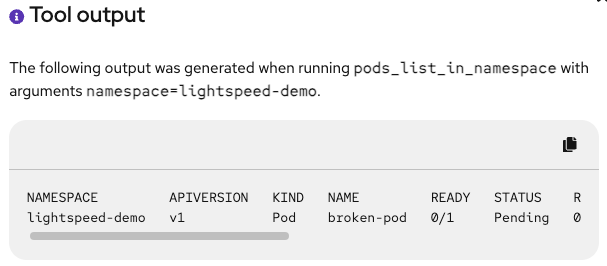
Show me the pods in the lightspeed-demo namespace
The model has likely used pods_list_in_namespace — one of the tools provided by the MCP server, to retrieve this information. You can click on the tool to view the tool output used to answer your question.
Now let’s use OpenShift Lightspeed to help diagnose the issue. For troubleshooting with OpenShift Lightspeed, we can use the attachments feature to pass different resources and configurations to the model for analysis, helping us identify and resolve problems.
In the OpenShift web console, navigate to Workloads → Pods and make sure you are in the lightspeed-demo namespace. You’ll find the pod that OpenShift Lightspeed listed before. Click on broken-pod to view the resource details.
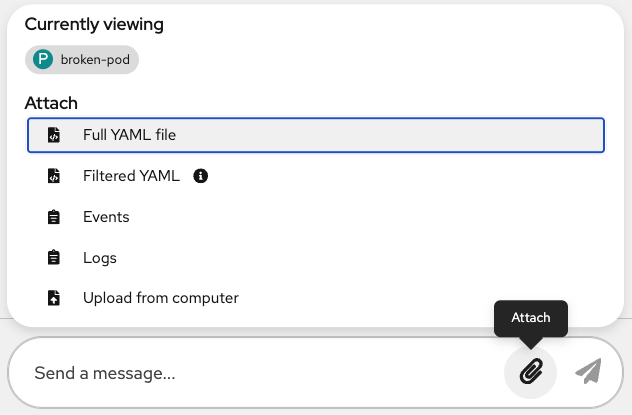
Now, in the chat window, click on the clip incon next to the typing bar and you will see a menu that allows you to attach different components. Selec Full YAML file:
Once attached, try asking:
What’s wrong in this pod?
OpenShift Lightspeed will analyze the pod specification to identify the issue — in this case, an invalid node selector. Additionally, it will likely propose a solution to help you fix the problem.
OpenShift Lightspeed Beyond Containers
Throughout this module, we’ve seen how OpenShift Lightspeed can assist with container-based workloads such as Pods, Deployments, Routes, Services, etc. However, the OpenShift platform extends well beyond containers.
OpenShift Virtualization allows you to run virtual machines on the same platform as your containers. Since VMs in OpenShift are managed as custom resources, OpenShift Lightspeed can assist with them just as effectively. From understanding VM networking concepts to troubleshooting startup issues or generating virtual machine configurations, OpenShift Lightspeed is ready to help.
The same applies to Red Hat Advanced Cluster Management (ACM). When working across multiple clusters, resources like ManagedCluster or ManagedClusterInfo follow the same custom resource pattern, making them accessible to OpenShift Lightspeed for queries and guidance.
This module concludes here, but the OpenShift Lightspeed operator will stay active for the remainder of the workshop. Feel free to continue using it as you progress through the upcoming modules — whether to clarify concepts, generate resource definitions, or assist with virtualization and multi-cluster tasks, if applicable.
Summary
OpenShift Lightspeed provides AI-assisted operations directly in the console. By enabling natural language interactions, it helps administrators and developers quickly reduce the initial learning curve in OpenShift and be more productive by reducing time-to-resolution for common issues.
In this module, you:
-
Verified the OpenShift Lightspeed operator installation
-
Created an OLSConfig to connect to Azure OpenAI
-
Accessed the OpenShift Lightspeed chat interface
-
Used OpenShift Lightspeed to learn OpenShift concepts, generate configurations and troubleshoot issues
We’ve only covered some of the features, but there are more capabilities such as Bring Your Own Knowledge or connecting OpenShift Lightspeed to custom MCPs. If you want to learn more, check the OpenShift Lightspeed product page.