Projects & Job Templates
An Ansible automation controller Project is a logical collection of Ansible playbooks. You can manage your playbooks by placing them into a source code management (SCM) system supported by automation controller such as Git or Subversion. In this exercise you will set up a Git-backed project, create a job template, and run your first automation job.
Setup Git Repository
For this demonstration, we will use playbooks stored in a Git repository:
A playbook to install the Apache web server has already been committed to the directory apache, apache_install.yml:
---
- name: Apache server installed
  hosts: web

  tasks:
  - name: latest Apache version installed
    ansible.builtin.yum:
      name: httpd
      state: latest

  - name: latest firewalld version installed
    ansible.builtin.yum:
      name: firewalld
      state: latest

  - name: firewalld enabled and running
    ansible.builtin.service:
      name: firewalld
      enabled: true
      state: started

  - name: firewalld permits http service
    ansible.builtin.firewalld:
      service: http
      permanent: true
      state: enabled
      immediate: yes

  - name: Apache enabled and running
    ansible.builtin.service:
      name: httpd
      enabled: true
state: started|
Note the difference from other playbooks you might have written! Most importantly there is no |
To configure and use this repository as a Source Control Management (SCM) system in automation controller you have to create a Project that uses the repository
Create the Project
|
To access the automation controller web UI, click the AAP tab at the top of the Showroom interface. Log in with the following credentials:
|
-
Go to Automation Execution → Projects and click the Create project button. Fill in the form:
| Parameter | Value |
|---|---|
Name |
Workshop Project |
Organization |
Default |
Execution Environment |
Default execution environment |
Source Control Type |
Git |
Enter the URL into the Project configuration:
| Parameter | Value |
|---|---|
Source Control URL |
|
Options |
✓ Clean |
-
Click Create project
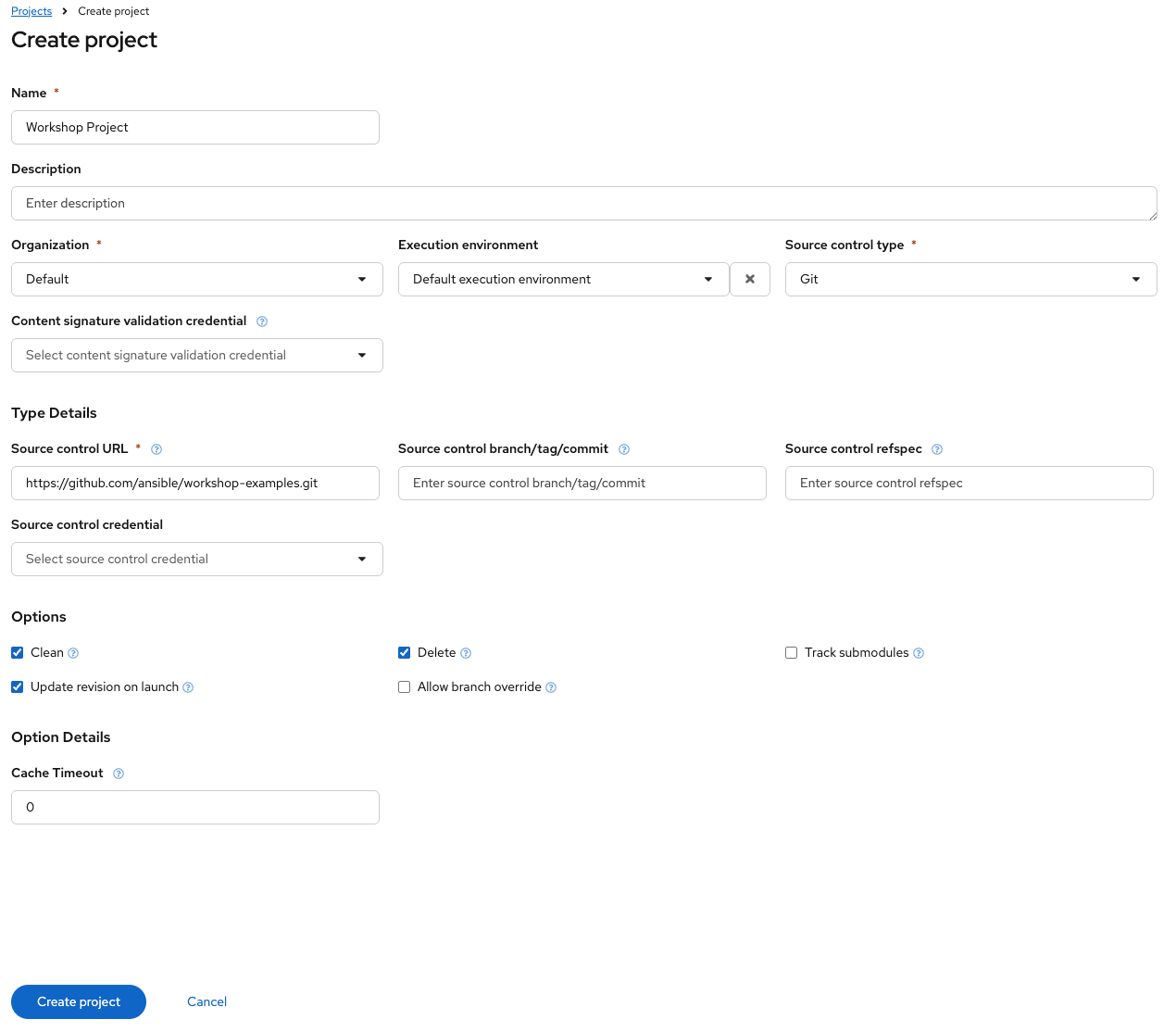
The new project will be synced automatically after creation. But you can also do this manually: Sync the project again by clicking the sync icon on the Projects list page.
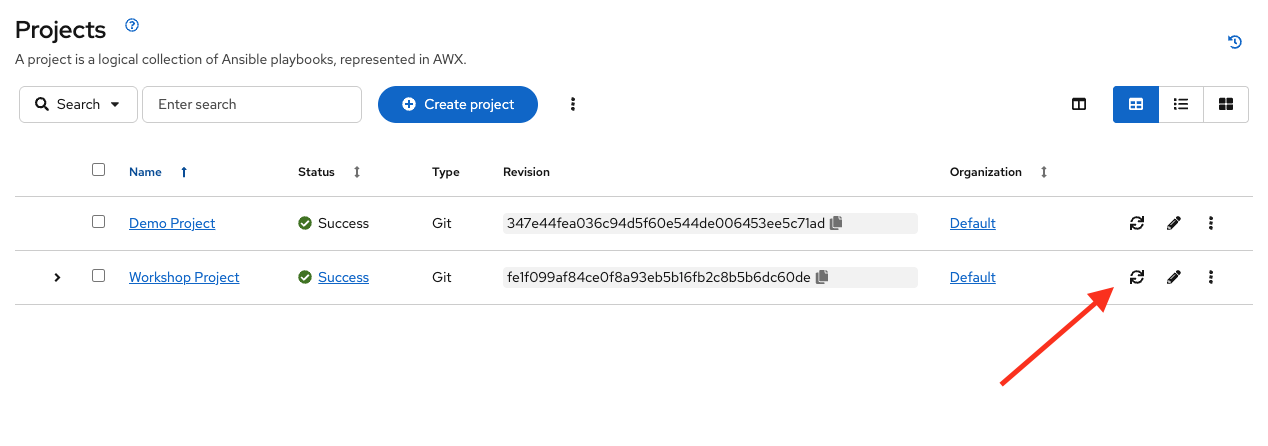
After starting the sync job, go to the Jobs view, and you’ll find the job doing the project update.
Create a Job Template and Run a Job
A job template allows you to run an automation job. In order to run any type of automation, a job template must be created. A job template consists of knowning the following information:
-
Inventory: On what hosts should the job run?
-
Credentials What credentials are needed to log into the hosts?
-
Project: Where is the playbook?
-
Playbook: What playbook to use?
To create a Job Template, go to the Automation Execution → Templates view, click the Create template dropdown and choose Create job template.
|
Remember that you can often click on the question mark with a circle to get more details about the field. |
| Parameter | Value |
|---|---|
Name |
Install Apache |
Job Type |
Run |
Inventory |
Workshop Inventory |
Project |
Workshop Project |
Playbook |
|
Execution Environment |
Default execution environment |
Credentials |
Workshop Credential |
Limit |
web |
Options |
✓ Privilege Escalation |
-
Click Create job template
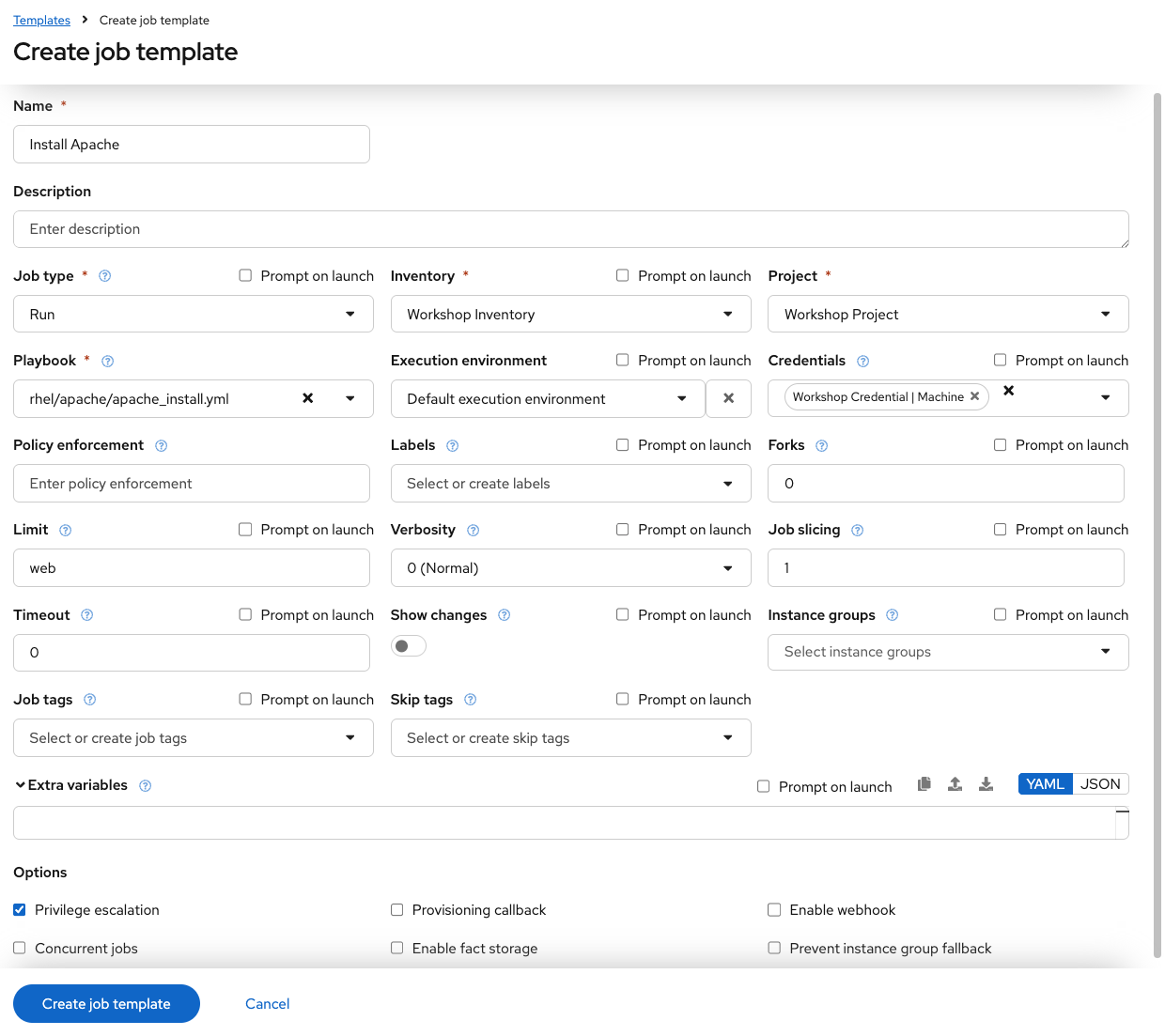
|
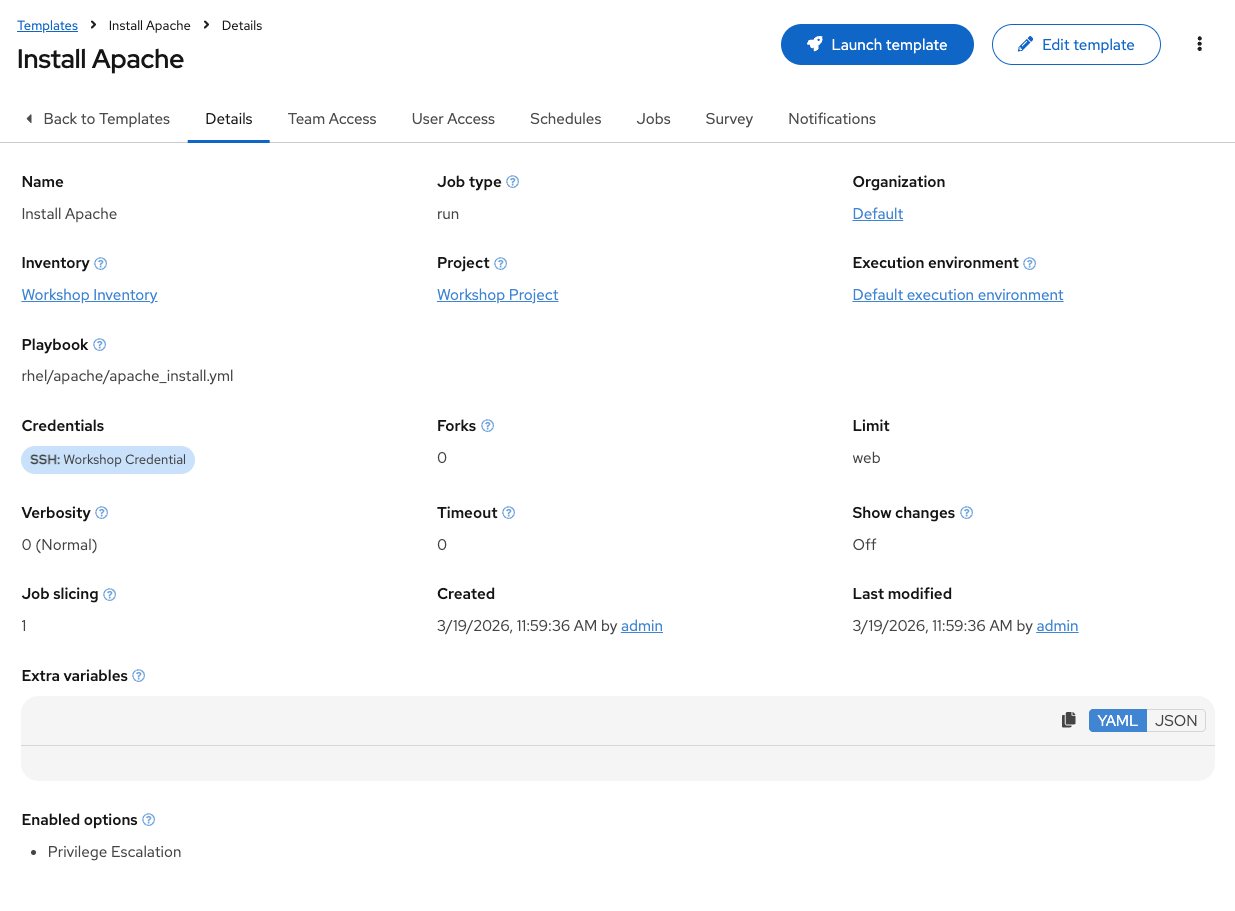
You can start the job by clicking the Launch template option from the template’s kebab menu (⋮) on the Templates list, or from the template detail page. After launching the Job Template, you are automatically brought to the job output where you can follow the playbook execution in real time.
Template Details
Job Run
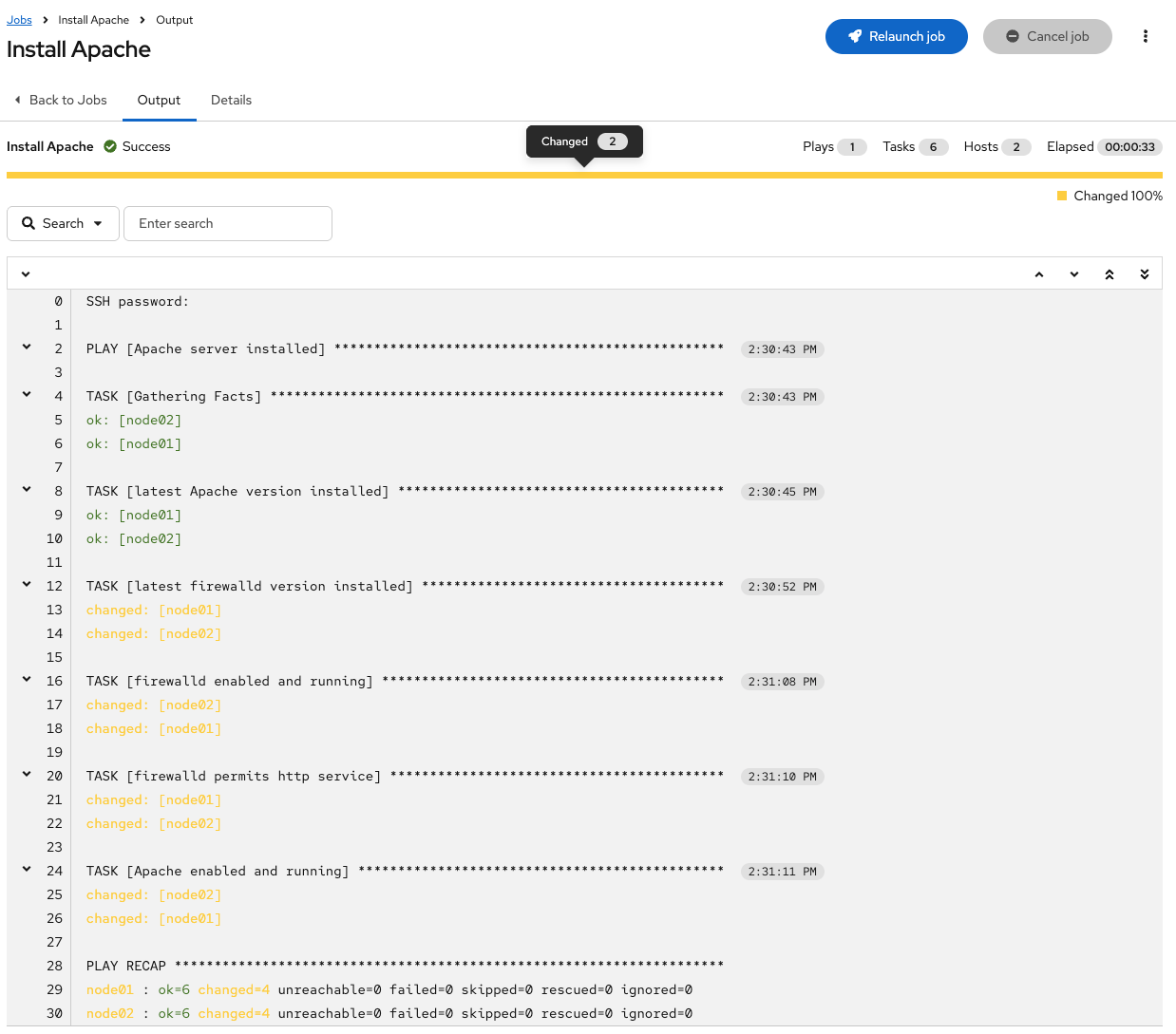
While the job completes, explore the Details tab to review what was captured:
-
All details of the job template like inventory, project, credentials and playbook are shown.
-
Additionally, the actual revision of the playbook is recorded here - this makes it easier to analyse job runs later on.
-
Also the time of execution with start and end time is recorded, giving you an idea of how long a job execution actually was.
-
The Output tab shows the output of the running playbook. Click on a node underneath a task and see that detailed information are provided for each task of each node.
After the Job has finished go to the main Jobs view:
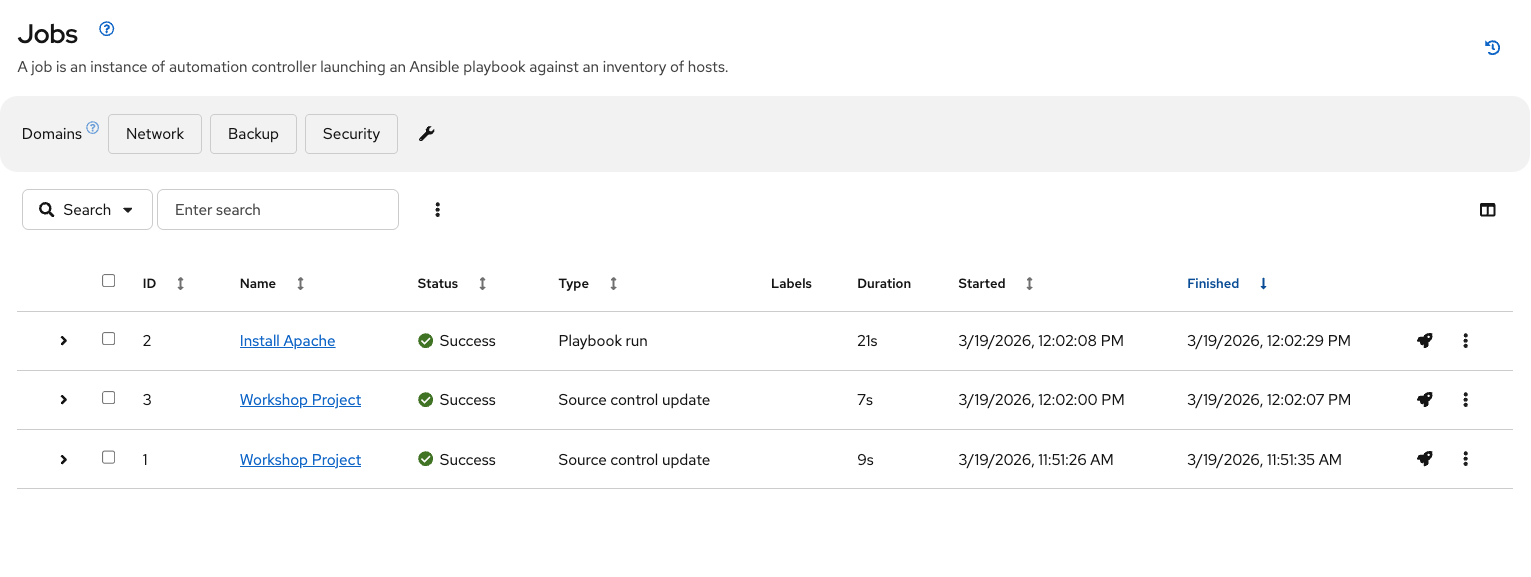
All jobs are listed here, you should see directly before the Playbook run an Source Control Update was started. This is the Git update we configured for the Project on launch!
Challenge Lab: Check the Result
Verify that Apache is installed and running on the web hosts by running an ad hoc command directly from automation controller — without writing a playbook.
|
Try running |
| Solution Below |
-
Go to Automation Execution → Infrastructure → Inventories → Workshop Inventory and open the Hosts tab.
-
Select
node01andnode02, then click Run Command. -
In the Details window, set Module to
commandand Arguments tosystemctl status httpd. Click Next. -
In the Execution Environment window, select Default execution environment. Click Next.
-
In the Credential window, select Workshop Credentials. Click Next.
-
Review your inputs and click Finish.
The output will display once the command completes — confirm that Apache is active and running on each host.