Surveys
Surveys in Ansible Automation Controller let you collect extra variables for a playbook through a user-friendly Q&A form, with built-in input validation. In this exercise you will create a job template that uses a Jinja2 role to deploy a custom index.html, attach a survey to collect the template values, and launch the job.
|
The survey feature provides a simple query for data but does not support dynamic data queries, nested menus, or four-eye principles. |
The Apache-Configuration Role
The playbook and role with the Jinja2 template are located in the GitHub repository https://github.com/ansible-tmm/RHEL-workshop-examples in the apache directory.
-
Have a look at the playbook
apache_role_install.yml, which references the role. -
The role is located in the
roles/role_apachesubdirectory. -
Inside the role, note the two variables in the
templates/index.html.j2template file marked by{{…}}. -
The
tasks/main.ymlfile deploys the template.
The playbook creates a file (dest) on the managed hosts from the template (src).
Because the playbook and role are located in the same GitHub repo as the apache_install.yml playbook, you don’t need to configure a new project for this exercise.
Create a Template with a Survey
Now, let’s create a new Template that includes a survey.
Create Template
-
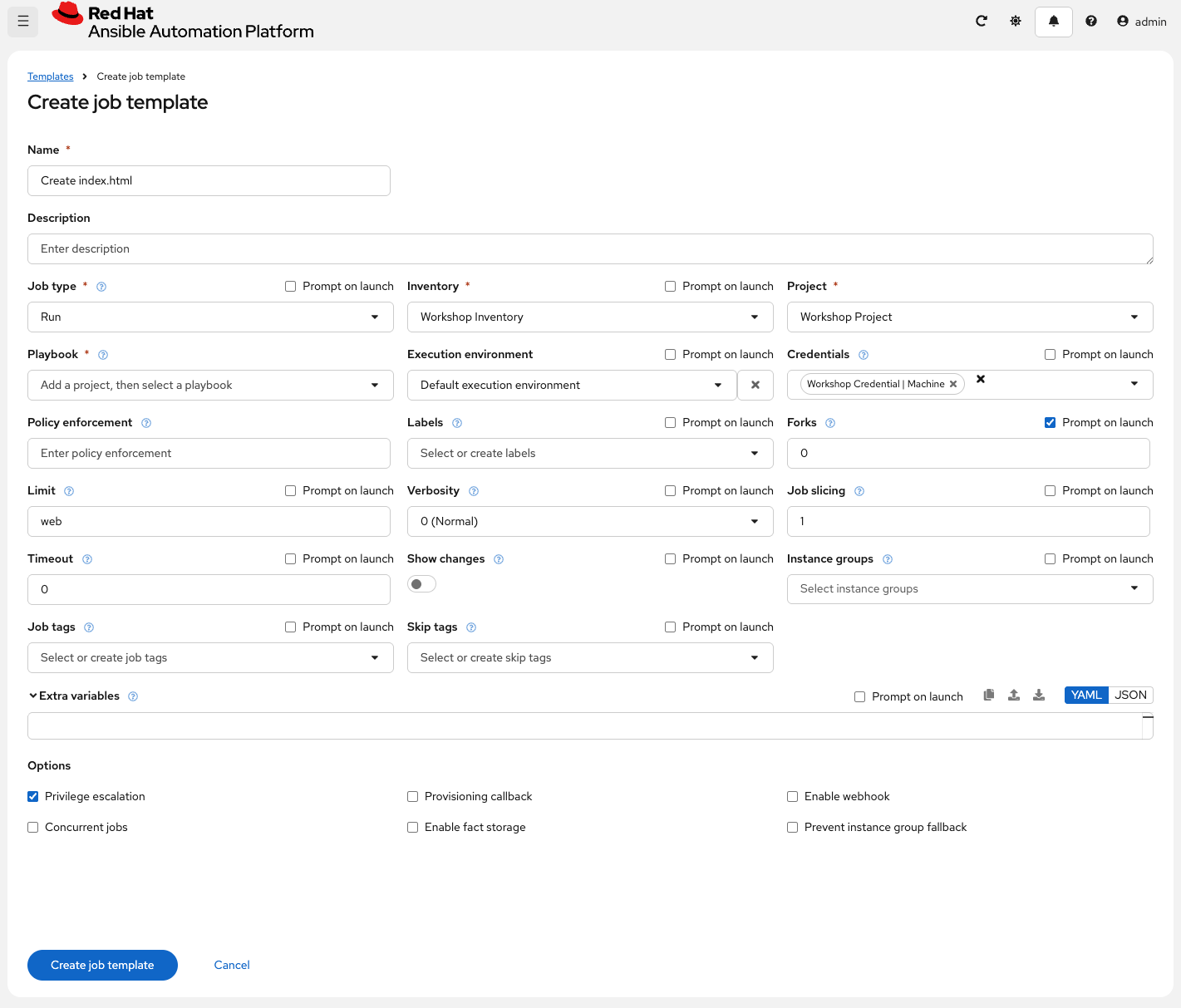
Go to Automation Execution → Templates, click the Create template dropdown, and choose Create job template.
-
Fill out the following details:
Parameter Value Name
Create index.html
Job Type
Run
Inventory
Workshop Inventory
Project
Workshop Project
Playbook
apache/apache_role_install.ymlExecution Environment
Default execution environment
Credentials
Workshop Credential
Limit
web
Options
✓ Privilege Escalation
-
Click Create job template.
| Do not run the template yet! |
Add the Survey
-
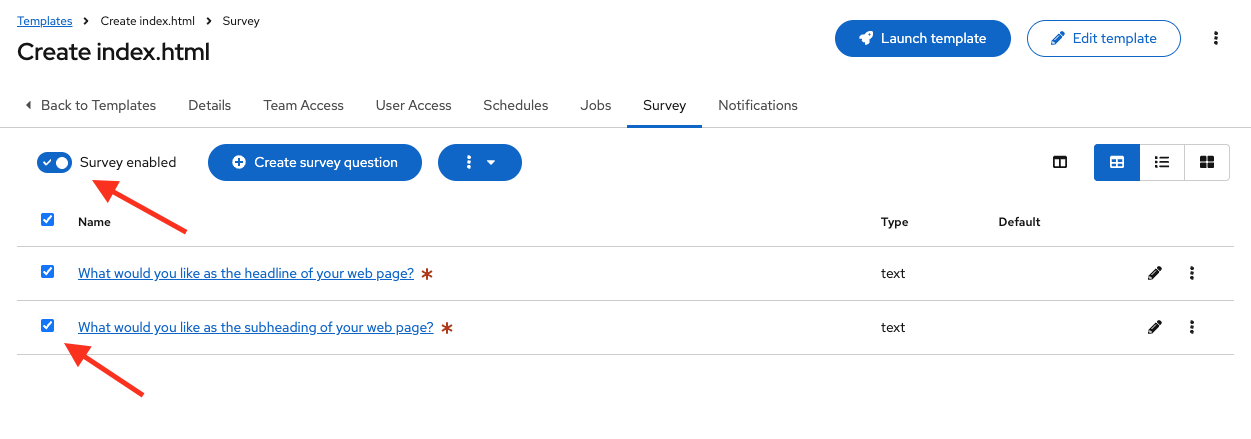
In the Template, click the Survey tab, then select Create survey question.
-
Fill out the following for the first survey question:
Parameter Value Question
What would you like as the headline of your web page?
Answer Variable Name
first_line
Answer Type
Text
-
Click Create survey question.
-
Click Create survey question to create a second survey question:
Parameter Value Question
What would you like as the subheading of your web page?
Answer Variable Name
second_line
Answer Type
Text
-
Click Create survey question.
-
Enable the survey by toggling the Survey enabled switch to the on position.
Launch the Template
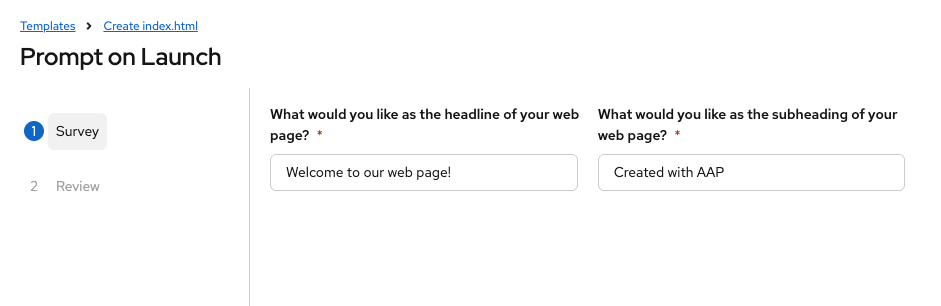
Now, launch the Create index.html job template by selecting Launch template from the template’s kebab menu (⋮) on the Templates list page.
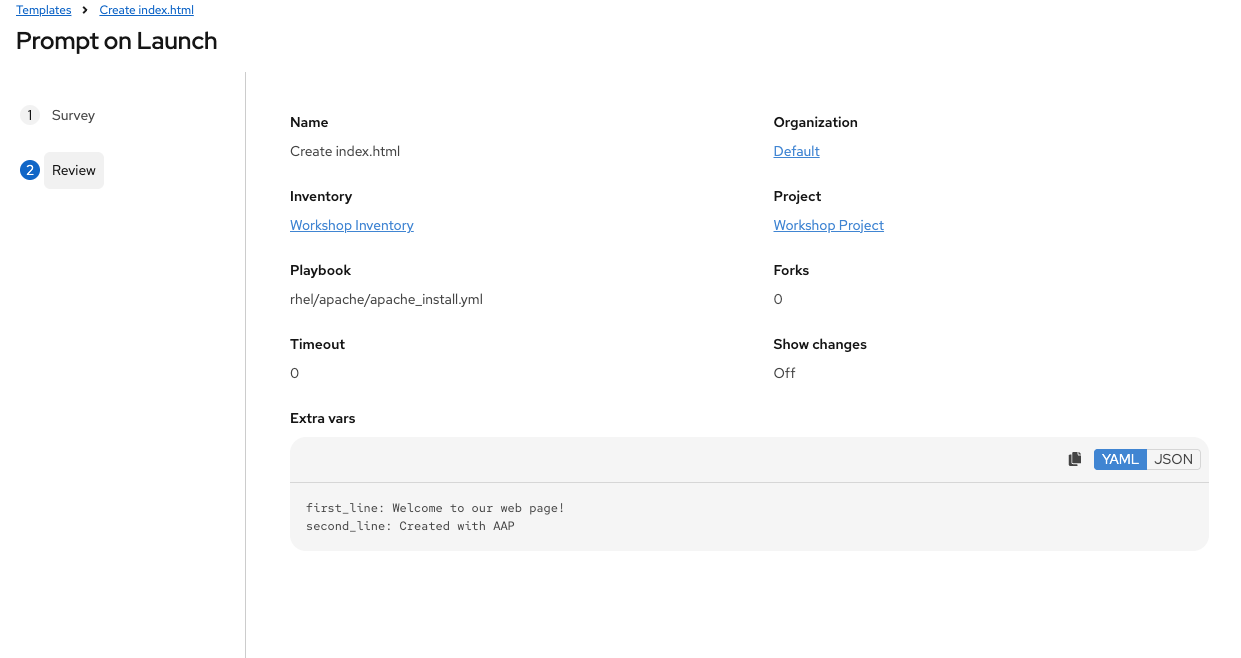
Before the job starts, the survey will prompt you for a headline and subheading for your web page. Enter your text and click Next. The Review page shows the values—if all looks good, click Finish to start the job.
Verify the Result
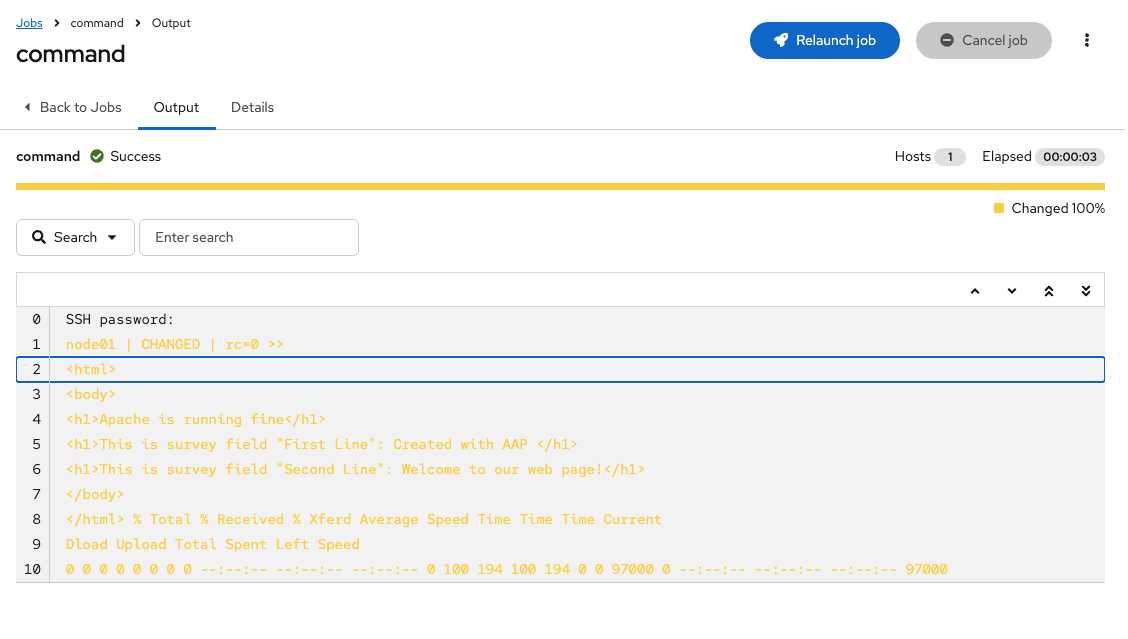
Once the job completes, verify the Apache homepage is serving your custom content by running a curl command via Run Command:
-
Go to Automation Execution → Infrastructure → Inventories → Workshop Inventory and open the Hosts tab.
-
Select
node01andnode02, then click Run Command. -
In the Details window, set Module to
commandand Arguments tocurl http://localhost. Click Next. -
In the Execution Environment window, select Default execution environment. Click Next.
-
In the Credential window, select Workshop Credentials. Click Next.
-
Review your inputs and click Finish.
Verify that the output contains the headline and subheading you entered in the survey.