System Roles (Controller-driven)
In this exercise, you will use pre-existing content (roles and collections) from Automation Hub and Ansible Galaxy to configure hosts via Ansible Automation Controller. You will leverage Linux System Roles and RHEL System Roles with a simple Survey-driven job to manage firewall and timesync configuration.
Review the playbook
Open the repository in your browser and navigate to hardening.yml * https://github.com/ansible-tmm/RHEL-workshop-examples/blob/main/hardening.yml
Relevant tasks (roles are conditionally included):
- name: Configure Firewall
  when: harden_firewall | bool
  ansible.builtin.include_role:
    name: redhat.rhel_system_roles.firewall

- name: Configure Timesync
  when: harden_time | bool
  ansible.builtin.include_role:
    name: redhat.rhel_system_roles.timesync
About Linux and RHEL System Roles
System Roles provide consistent interfaces for subsystem configuration, abstracting implementation differences.
Examples:
-
firewall (linux-system-roles.firewall)
-
Controls services such as http/https and more
-
Example var:
vars:
  firewall:
    service: 'http'
    state: 'enabled'
-
-
timesync (redhat.rhel_system_roles.timesync)
-
Manages chrony or ntp as appropriate
-
Example var:
vars:
  timesync_ntp_servers:
    - hostname: pool.ntp.org
      iburst: yes
-
Create and launch the Job Template with a Survey
-
In Controller, go to Automation Execution → Templates, click the Create template dropdown and select Create job template.
Template fields:
| Parameter | Value |
|---|---|
Name |
SERVER / Hardening |
Job Type |
Run |
Inventory |
Workshop Inventory |
Project |
Workshop Project |
Playbook |
|
Execution Environment |
Default execution environment |
Credentials |
Workshop Credential |
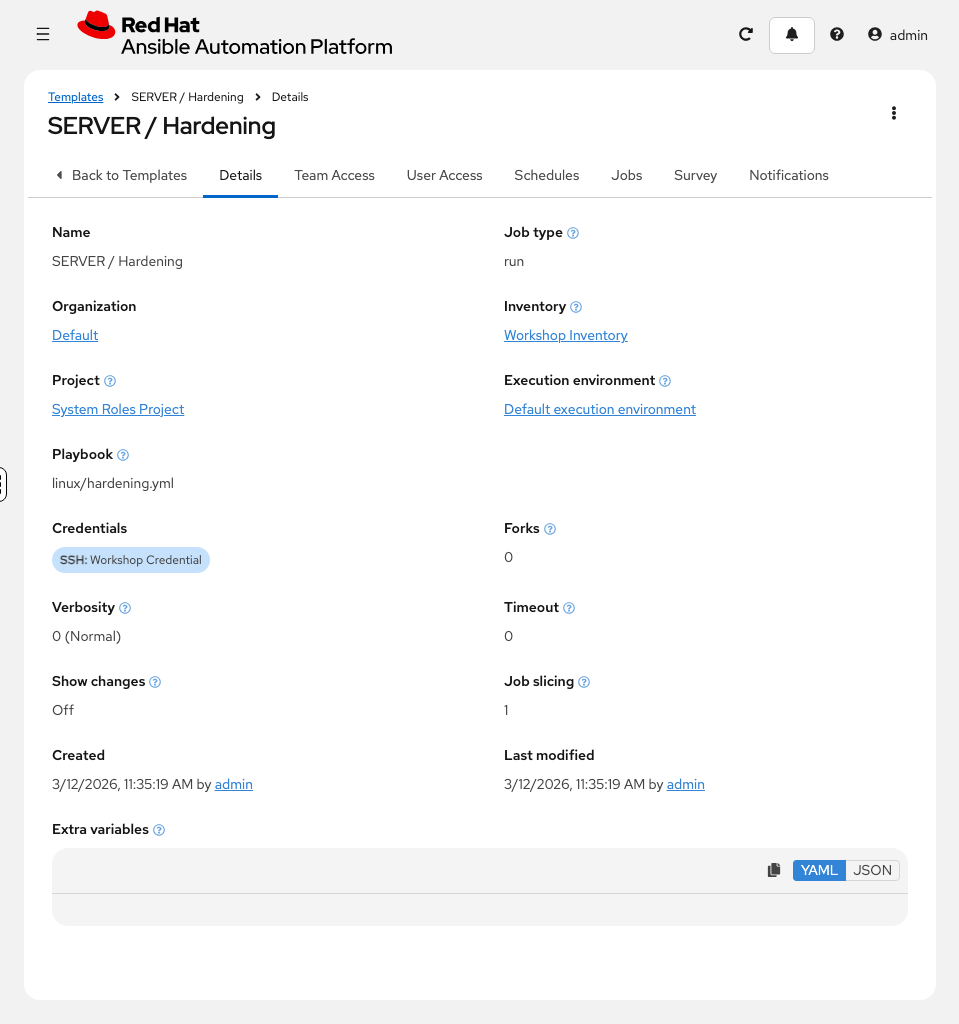
-
Click Create job template, then click the Survey tab and select Create survey question.
-
Fill out the following for the first survey question:
Parameter Value Question
Configure Firewall?
Answer Variable Name
harden_firewall
Answer Type
Multiple Choice (single select)
Multiple Choice Options
true
false -
Click Create survey question.
-
Click Create survey question to add a second question:
Parameter Value Question
Configure Time?
Answer Variable Name
harden_time
Answer Type
Multiple Choice (single select)
Multiple Choice Options
true
false -
Click Create survey question.
-
Enable the survey by toggling the Survey enabled switch to the on position.
-
Click Launch template. The survey will prompt you with two questions:
-
Configure Firewall? — select
true -
Configure Time? — select
true
-
-
Click Next, review the extra variables to confirm the survey values, then click Finish.
Verify configuration
Once the job completes, verify the time configuration is active using Run Command:
-
Go to Automation Execution → Infrastructure → Inventories → Workshop Inventory and open the Hosts tab.
-
Select
node01andnode02, then click Run Command. -
In the Details window, set Module to
commandand Arguments totimedatectl. Click Next. -
In the Execution Environment window, select Default execution environment. Click Next.
-
In the Credential window, select Workshop Credentials. Click Next.
-
Review your inputs and click Finish.
Verify that the output shows NTP is active and synchronized.
Summary
In this exercise you:
-
Created a project pointing to the Product Demos repository with Linux and RHEL System Roles
-
Reviewed how firewall and timesync roles are conditionally included
-
Created a Job Template with a Survey to toggle role behavior
-
Launched the job and verified time synchronization configuration on managed hosts