Role-based Access Control (RBAC)
In this exercise you will explore how Ansible Automation Controller handles user and group management through Role-Based Access Control (RBAC). You will create a user, organize them into a team, grant scoped permissions on a job template, and verify that the restricted user can only see and run what they have been granted access to.
Ansible Automation Controller Users
There are three types of users in Ansible Automation Controller:
-
Normal User: Has read and write access limited to assigned inventories and projects.
-
Ansible Automation Platform Auditor: Read-only access to all objects within the automation controller environment.
-
Ansible Automation Platform Administrator: Full admin privileges over the entire automation controller installation.
Let’s create a user:
-
Navigate to Access Management → Users.
-
Click the Create user button.
-
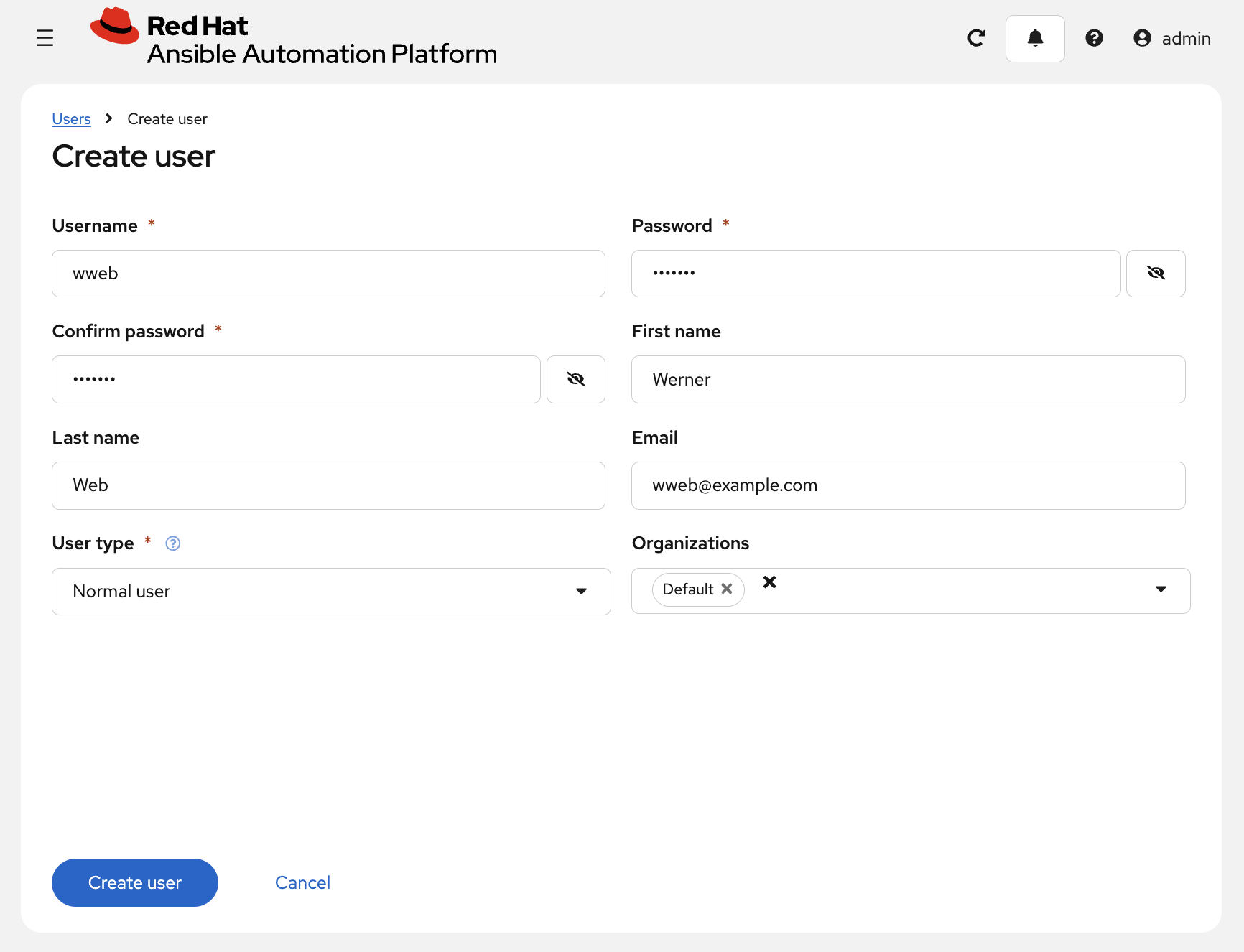
Fill in the following values:
| Parameter | Value |
|---|---|
Username |
wweb |
Password |
ansible |
Confirm password |
ansible |
First name |
Werner |
Last name |
Web |
User type |
Normal user |
Organizations |
Default |
-
Click Create user.
Ansible Automation Controller Teams
Teams are subdivisions of an organization that include users, projects, credentials, and permissions, helping to implement RBAC efficiently.
Create a Team:
-
Navigate to Access Management → Teams.
-
Click the Create team button and create a team named
Web Contentwithin theDefaultorganization. -
Click Create team.
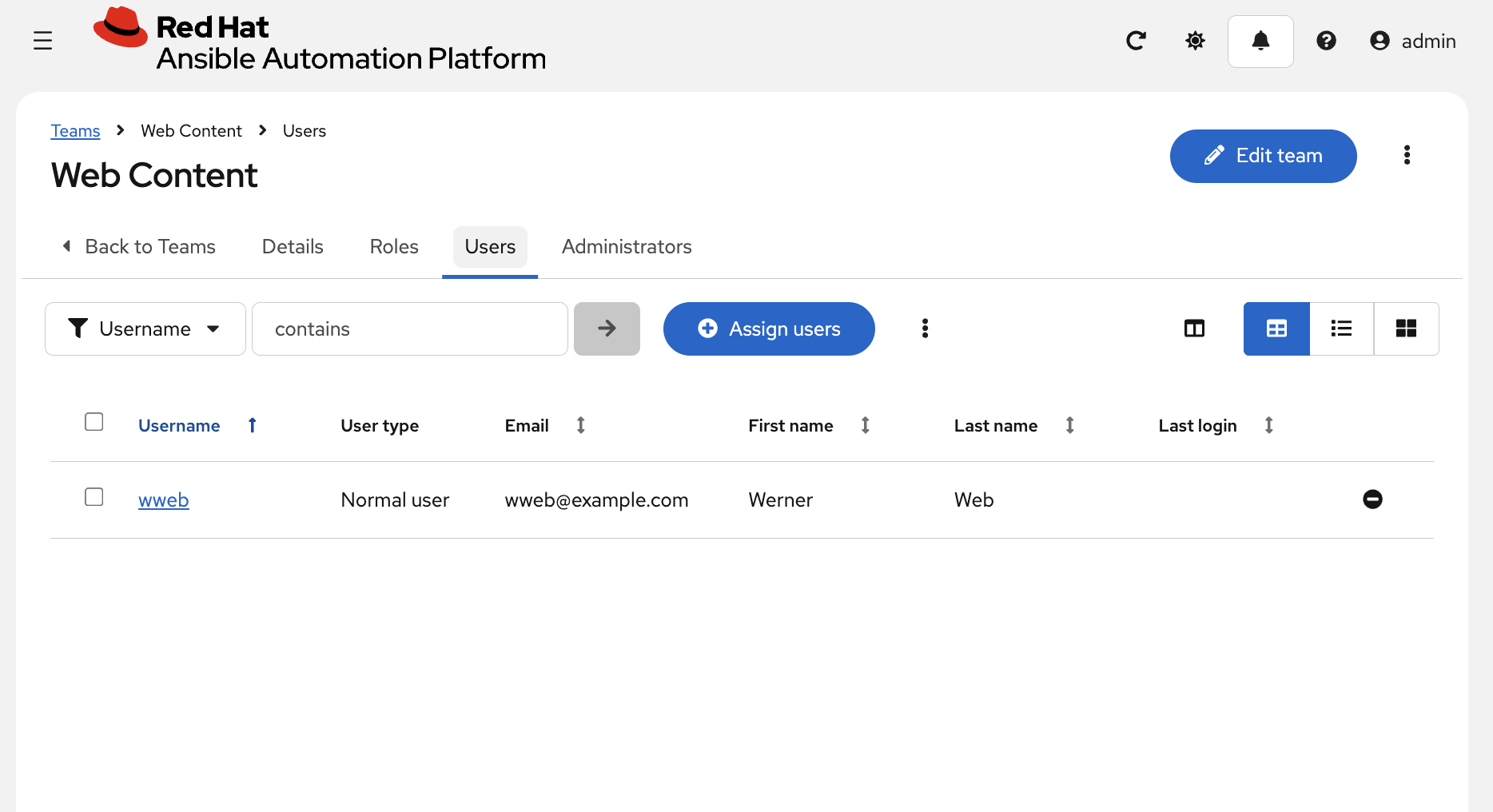
Add a User to the Team:
-
Navigate to Access Management → Users and select the
wwebuser. -
Click the Teams tab.
-
Click Assign teams, select
Web Content, and click Confirm.
Granting Permissions
To grant users the ability to execute tasks, permissions need to be set.
Grant Permission to Use a Template:
-
Navigate to Automation Execution → Templates.
-
Select the template
Create index.html. -
Click the User Access tab.
-
Click Assign users.
-
In Select user(s), check the box for
wweband click Next. -
In Select roles to apply, choose JobTemplate Admin and/or JobTemplate Execute, depending on the required level of access, then click Next.
-
Review the selections and click Finish.
Testing Permissions
Now, log out and log in again as the wweb user.
-
Navigate to Automation Execution → Templates. You should only see the
Create index.htmltemplate listed. -
Run the job by selecting Launch template. Enter the required values for the survey questions and launch the job.
Once the job completes, log back in as admin and verify the result using Run Command:
-
Go to Automation Execution → Infrastructure → Inventories → Workshop Inventory and open the Hosts tab.
-
Select
node01andnode02, then click Run Command. -
In the Details window, set Module to
commandand Arguments tocurl http://localhost. Click Next. -
In the Execution Environment window, select Default execution environment. Click Next.
-
In the Credential window, select Workshop Credentials. Click Next.
-
Review your inputs and click Finish.
Verify that the output contains the content set by wweb in the survey.
|
Think about what you just accomplished. You enabled a restricted user to run an Ansible playbook:
This is one of the main strengths of Ansible Automation Controller — delegating the power to execute automation without handing out credentials or exposing the underlying code. |
|
Taking Self-Service Further
The RBAC model you just configured works great inside automation controller, but what if your end users didn’t have to log into controller at all? AAP offers a Self-Service Portal — a separate web interface that presents approved job templates as a simple catalog of actions. A user like |