Using the Workshop Environment
Workshop interface
Your workshop environment provides multiple views:
-
Left panel: Workshop instructions (what you’re reading now)
-
Right panel: Environment tabs for hands-on work
The right panel includes the following tabs:
| Tab | Purpose |
|---|---|
OCP Console |
OpenShift Container Platform web console for cluster management |
Terminal |
Command-line access for |
Fed Aura Capital App |
The mortgage lending web application with all four personas |
RHOAI Console |
Red Hat AI dashboard for model management, experiments, and pipelines |
Workbench |
A cloud IDE for coding and running experiments |
RHOAI Docs |
Documentation for Red Hat AI |
| Workbench tab is not available until you create a workbench in the RHOAI Console in the second chapter of this workshop. |
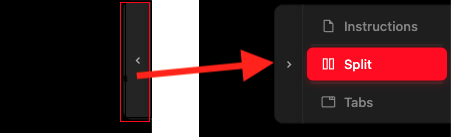
| You can switch between Instructions, Split, and Tabs view modes depending on your screen size and preference. |
View modes (with < icon in the right corner):
-
Instructions: Full-page instructions (hide environment tabs)
-
Split: Side-by-side view (current default) - see both instructions and environment
-
Tabs: Full-page environment (hide instructions)
Adjusting the layout: In Split mode, drag the middle divider left or right to resize the panels.
| Most exercises work best in Split mode so you can reference instructions while working in the environment tabs. |
Reference materials
Need a definition or a software version? See 7.2 Glossary and 7.1 Software Versions in section 7, Reference, at the end of the workshop. You can return to these pages whenever you need them.