Explore the Platform
You have the background. The CTO told you why the platform was rebuilt. The previous page showed you the four pillars and the architecture. Now it is time to see it running and interact with it yourself.
Learning objectives
By the end of this section, you will be able to:
-
Log in to OpenShift and verify that all platform components are running
-
Confirm API and database health using the health endpoint
-
Interact with Lenora as different personas and observe how responses change based on role
-
Connect running pods to the platform architecture diagram
Your workshop credentials
You will use the following credentials to access the platform. They will also be provided throughout the exercises whenever needed.
-
Username: user1
-
Password: openshift
Exercise 1: Access the environment and verify the deployment
| Throughout this workshop, all key services are accessible as tabs in the workshop interface - no need to open separate browser windows. |
-
First, log in to the OpenShift cluster from the Terminal tab:
oc login --insecure-skip-tls-verify $(oc whoami --show-server) -u user1 -p openshift -
Navigate to the OCP Console tab. Log in with the same credentials you just used: username
user1, passwordopenshift: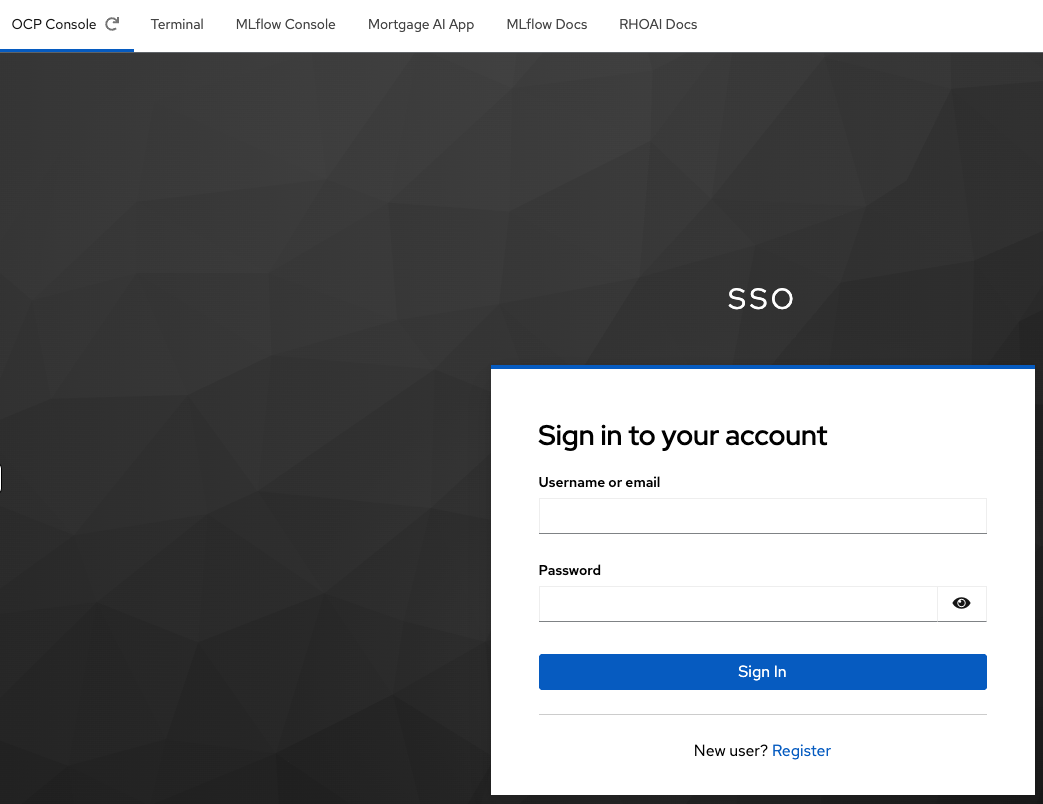
-
Once logged in, you will see the
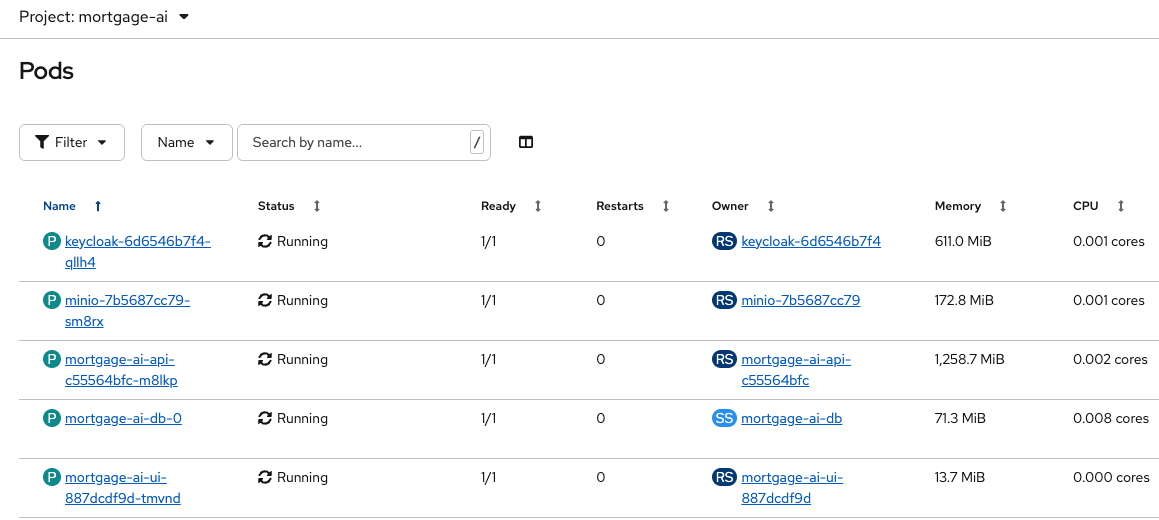
Projectspage and a single project:wksp-user1. Navigate to Workloads > Pods to see the platform components running in your namespace: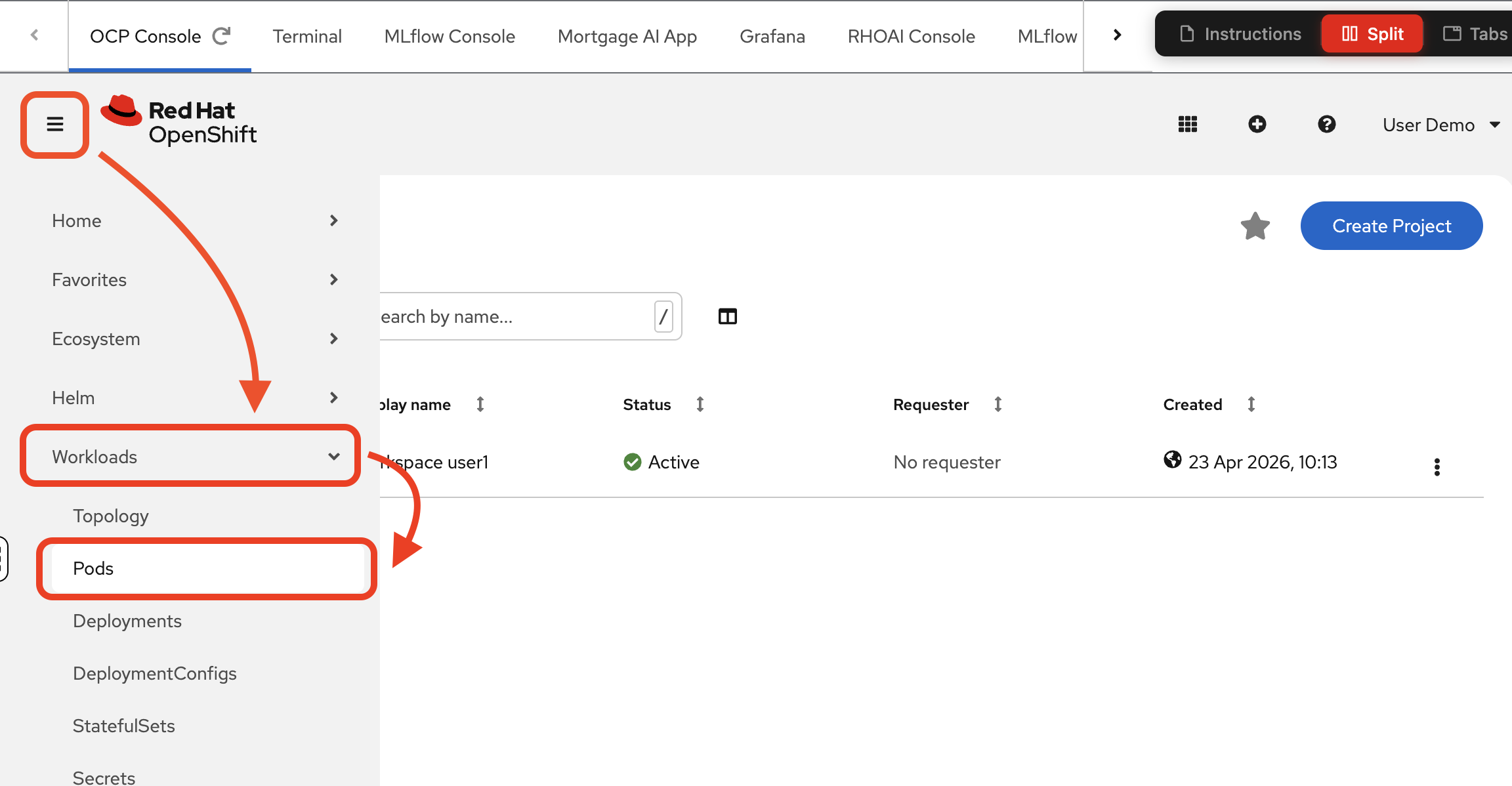
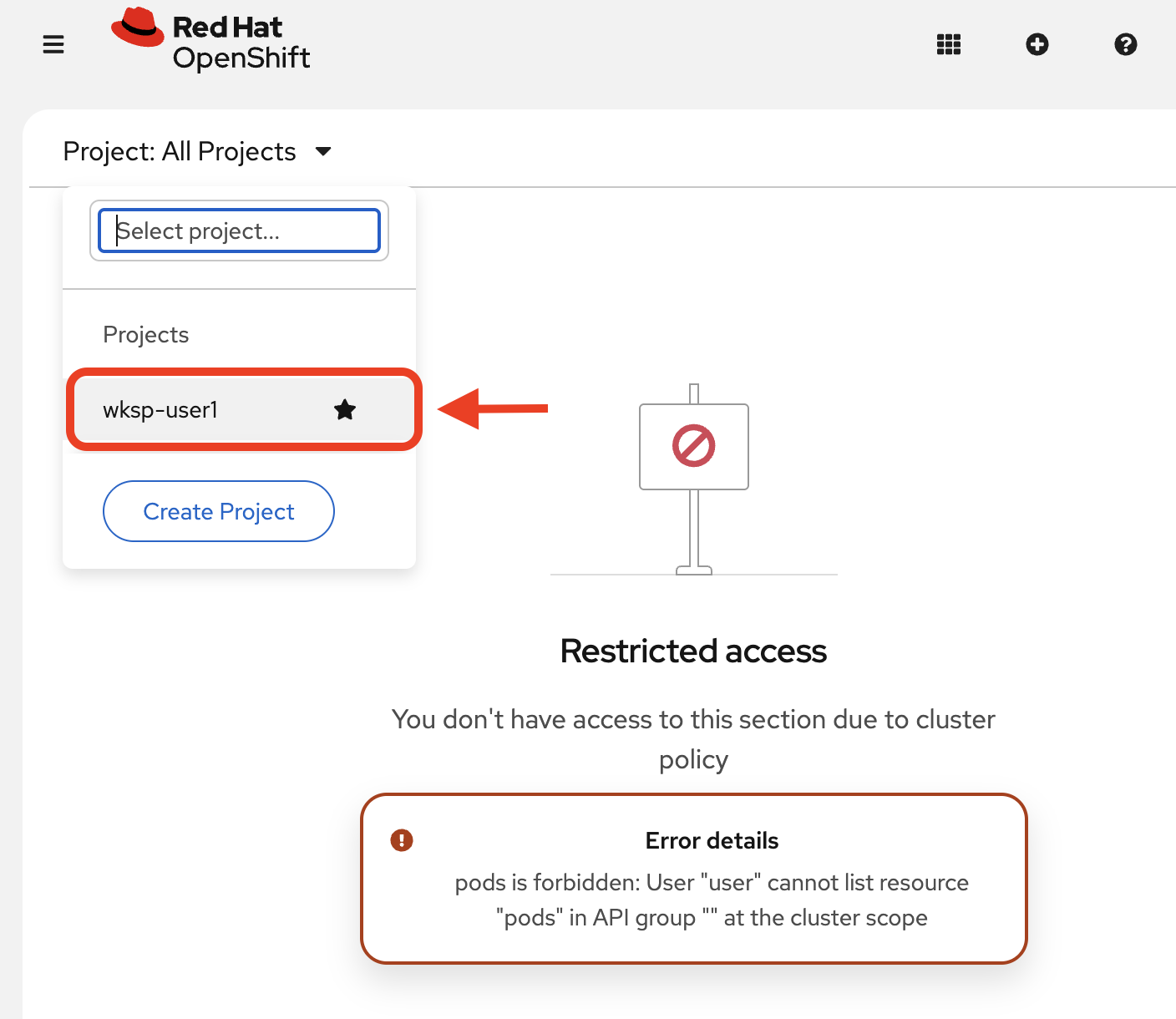
If you do not see pods, make sure you select your project:
-
Go back to terminal and check the API service health endpoint:
MORTGAGE_HEALTH=$(oc get route mortgage-ai-api-health-route -n wksp-user1 -o jsonpath='{.spec.host}')
curl -sk https://${MORTGAGE_HEALTH}/health/ | jq -r .
Expected output:
[
  {
    "name": "API",
    "status": "healthy",
    "message": "API is running",
    "version": "0.1.0",
    "start_time": "2026-04-07T22:21:27.657181+00:00"
  },
  {
    "name": "Database",
    "status": "healthy",
    "message": "PostgreSQL connection successful",
    "version": "0.1.0",
    "start_time": "2026-04-07T22:21:19.877102+00:00"
  }
]
If either component shows a status other than
"healthy", wait a minute and try again - the deployment may still be starting up.
Exercise 2: Meet Lenora and the agent personas
Now that you have confirmed the platform is healthy, open the application and interact with Lenora through different personas. Each persona connects to a different agent endpoint with different tools and permissions. The same question produces different responses depending on who is asking.
Try the Prospect experience (unauthenticated)
-
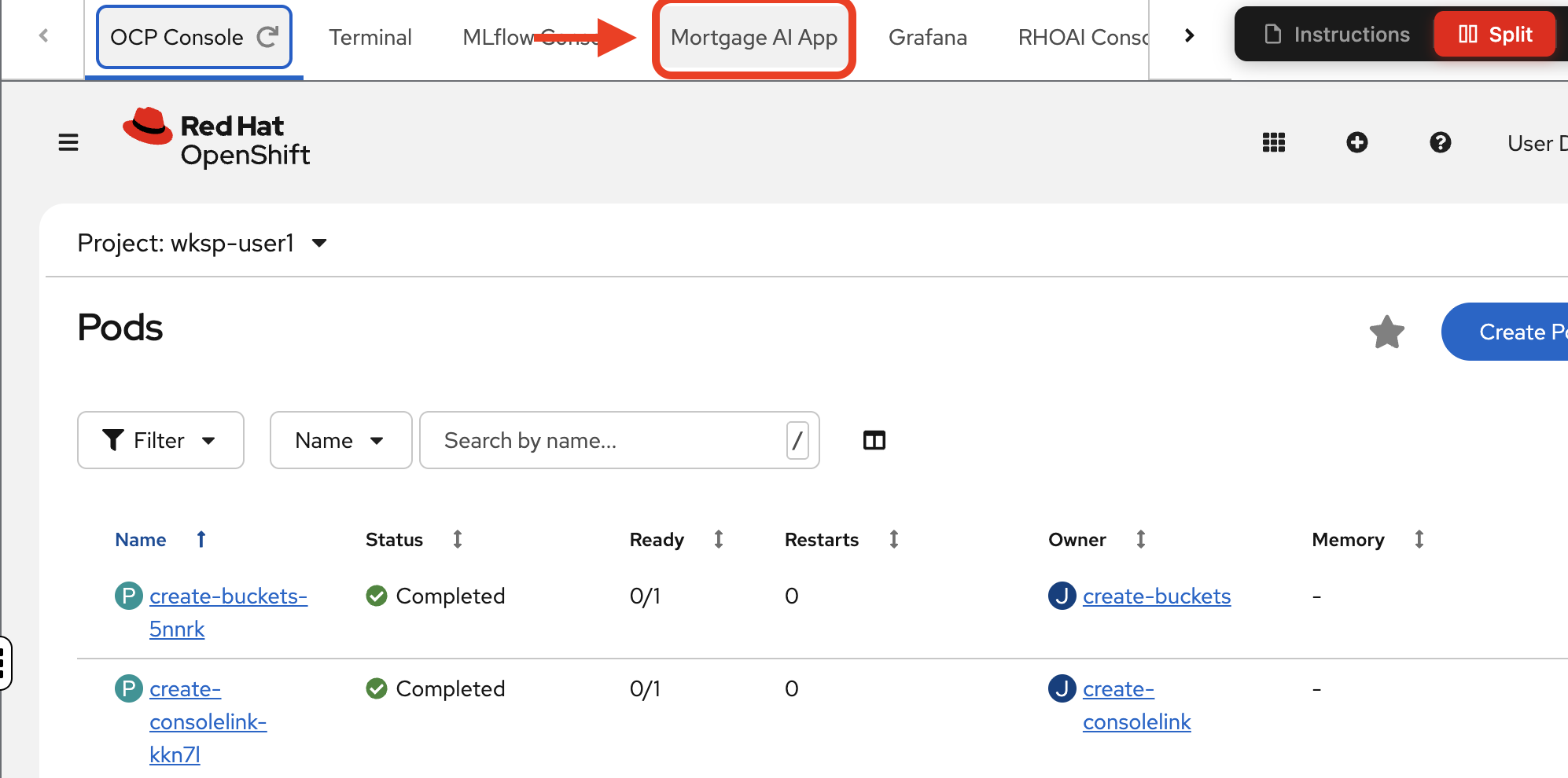
Navigate to the Mortgage AI App tab:
-
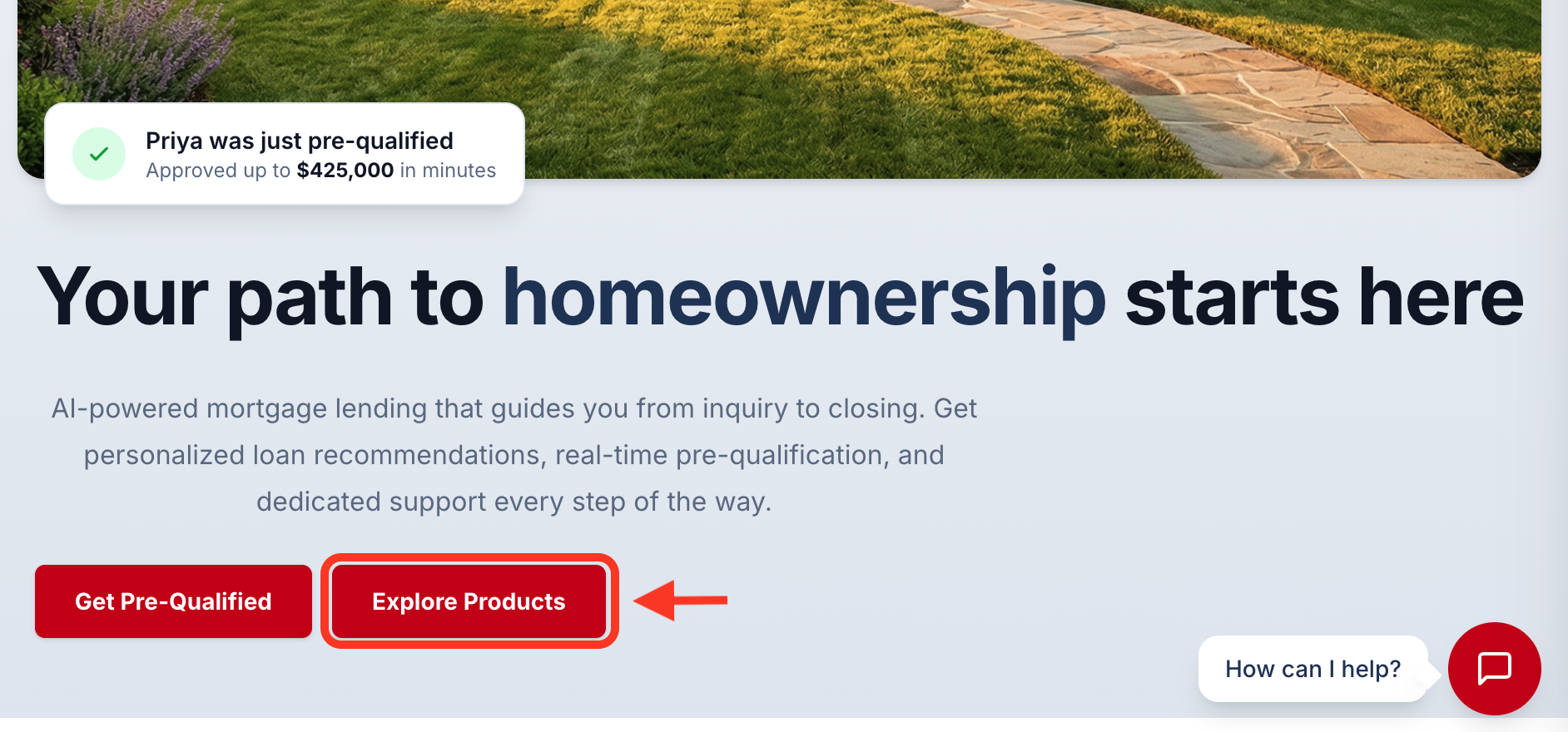
Scroll down a bit. Try a sample conversation by clicking the Explore Products button:
-
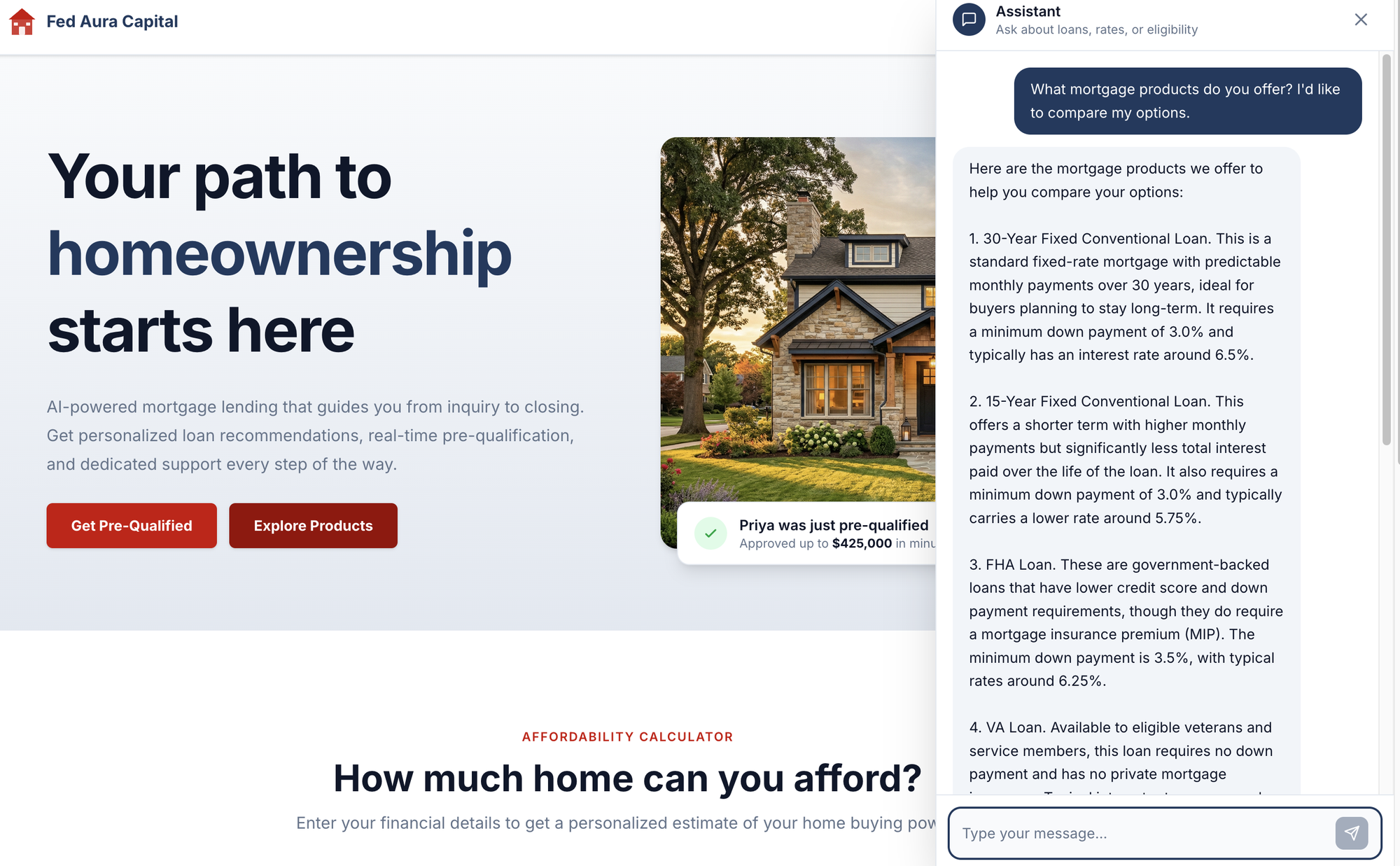
In the chat panel, it automatically prompts Lenora about mortgage products with a sample question. You can ask your own question too.
The agent should respond with mortgage product options:
| The LLM backend has rate limiting and may occasionally time out. If the agent does not respond or you see an error, reload the page and ask the question again. |
| Because the application uses generative AI, responses are non-deterministic. The exact wording, formatting, and details may differ from the screenshots shown in this workshop. |
Try the Borrower experience (Sarah Mitchell)
-
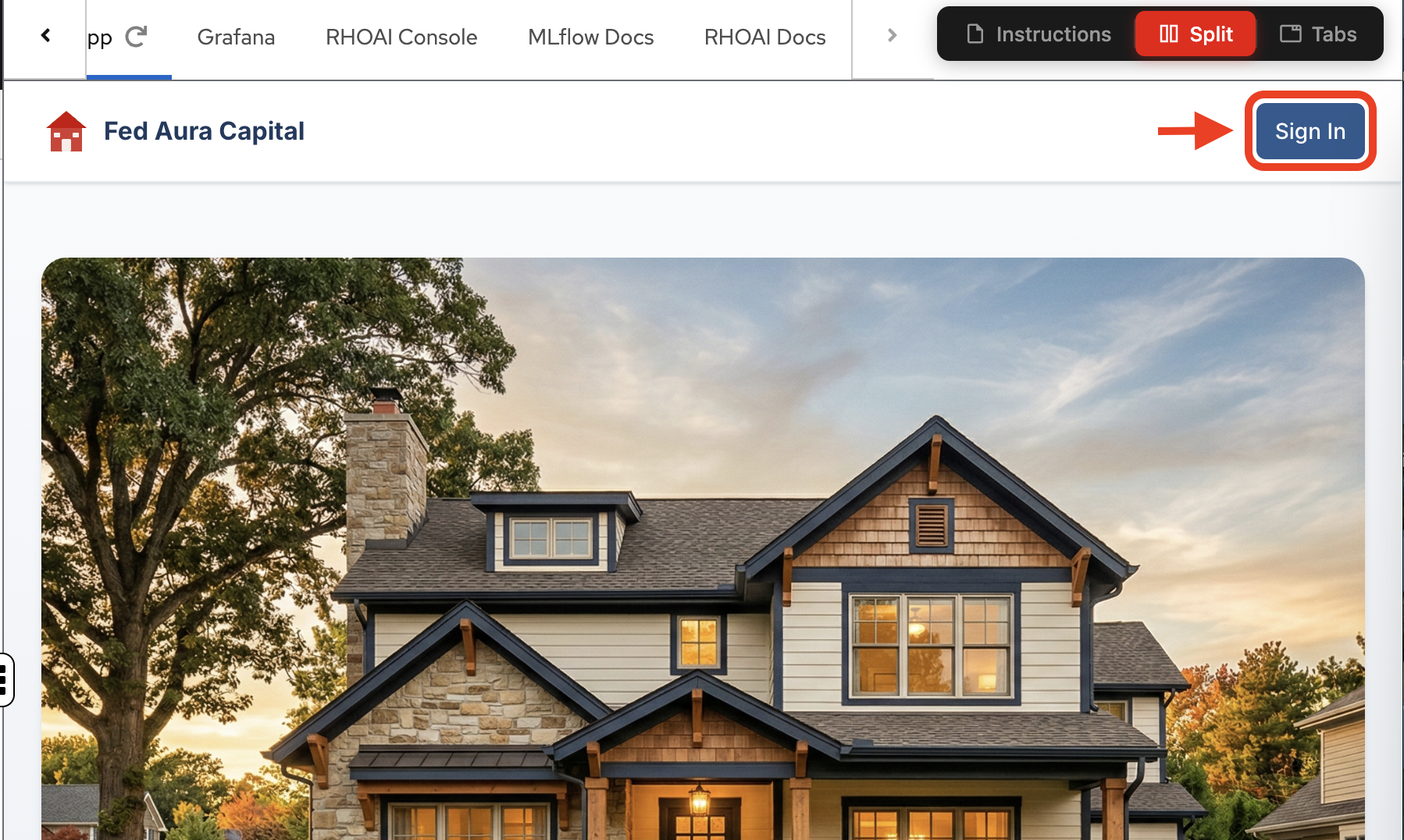
Close the chat bot and from the application landing page, click Sign In:
-
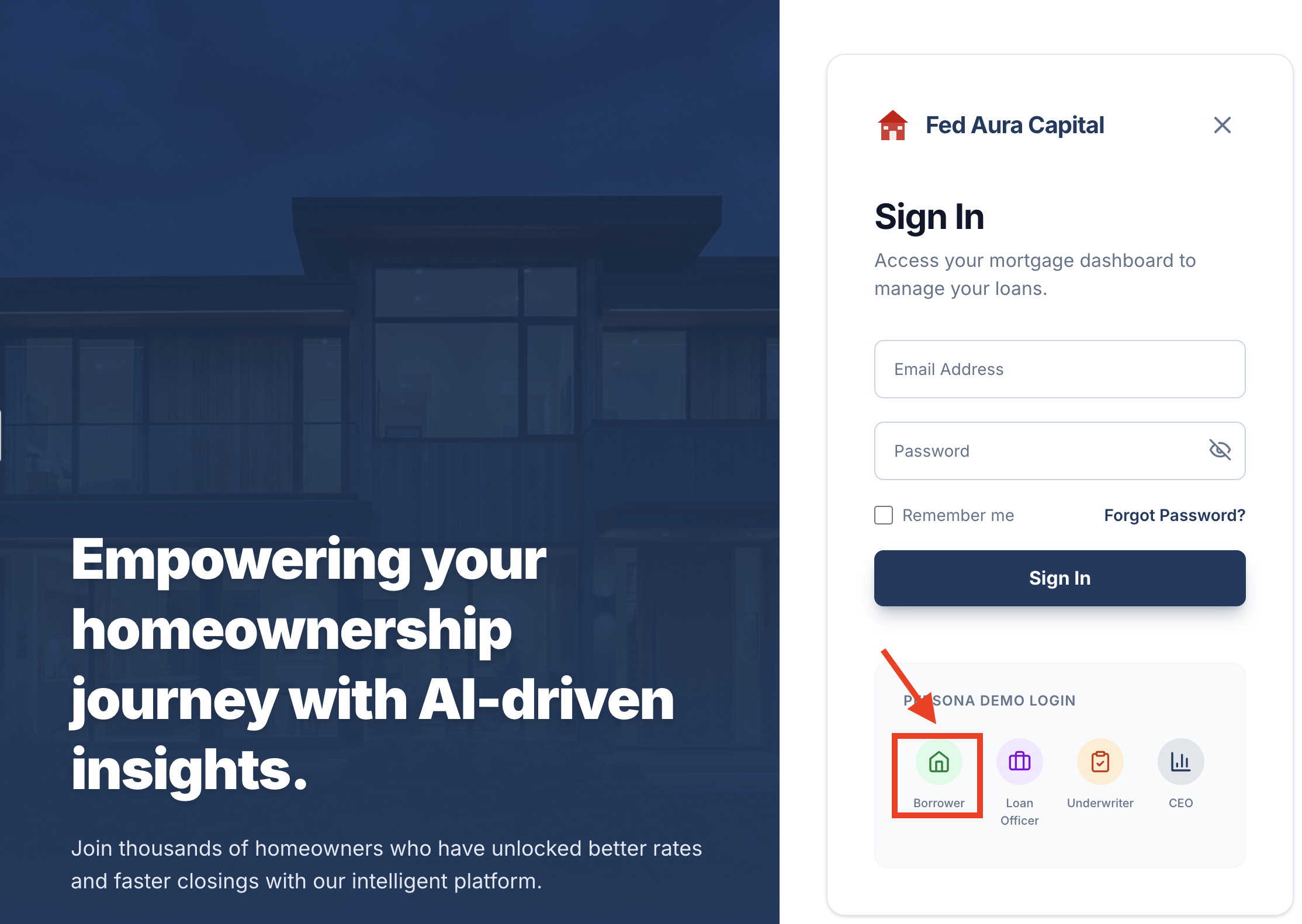
In the sign-in dialog, use the Persona Demo Login section at the bottom and select the Borrower persona. Click Sign In:
-
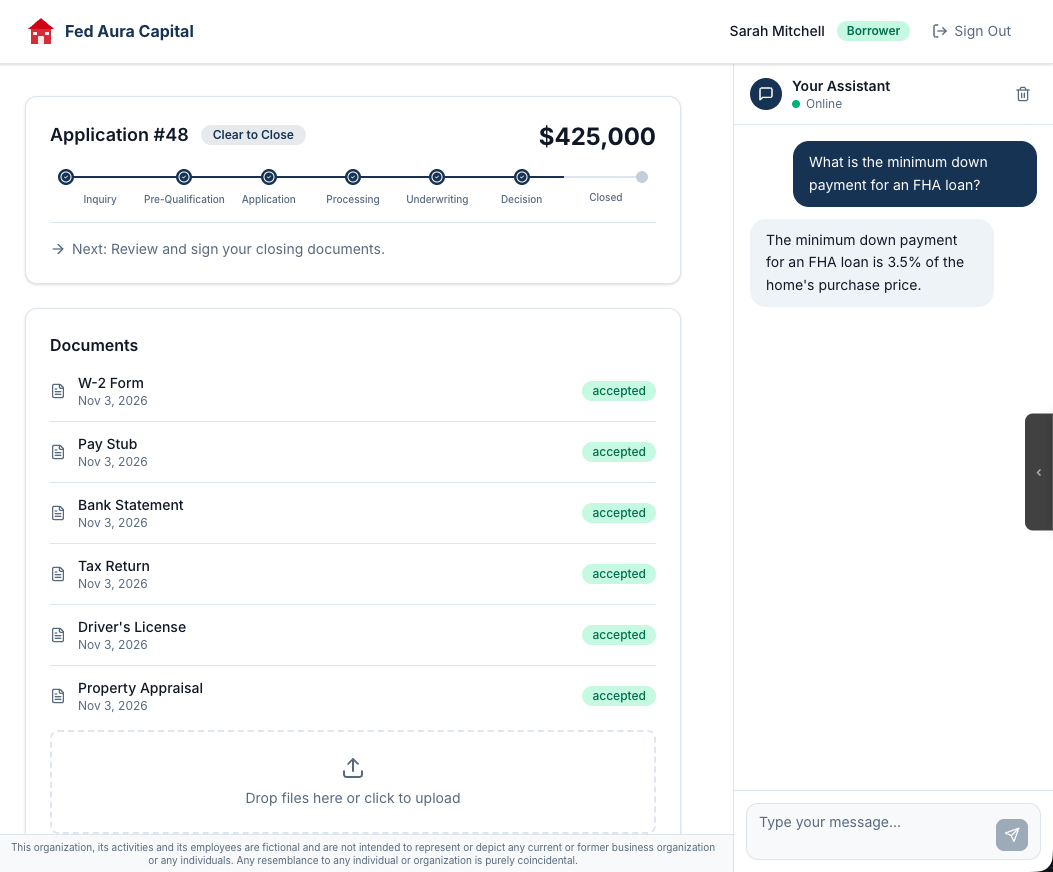
In the chat panel, ask Lenora a policy question:
What is the minimum down payment for an FHA loan?Observe the response. Lenora answers with policy-grounded information from Fed Aura Capital’s internal documents - this is RAG (Retrieval-Augmented Generation) in action. She is not guessing; she is retrieving from the company’s knowledge base.
-
Now ask a question that triggers a tool call:
Can you estimate how much house I can afford on a $120,000 salary?Notice the response includes precise numbers from the affordability calculator, not generic estimates with disclaimers. This is the difference between a chatbot (estimating) and an agent (calling a real tool and returning calculated results).
Try the CEO experience (David Park)
-
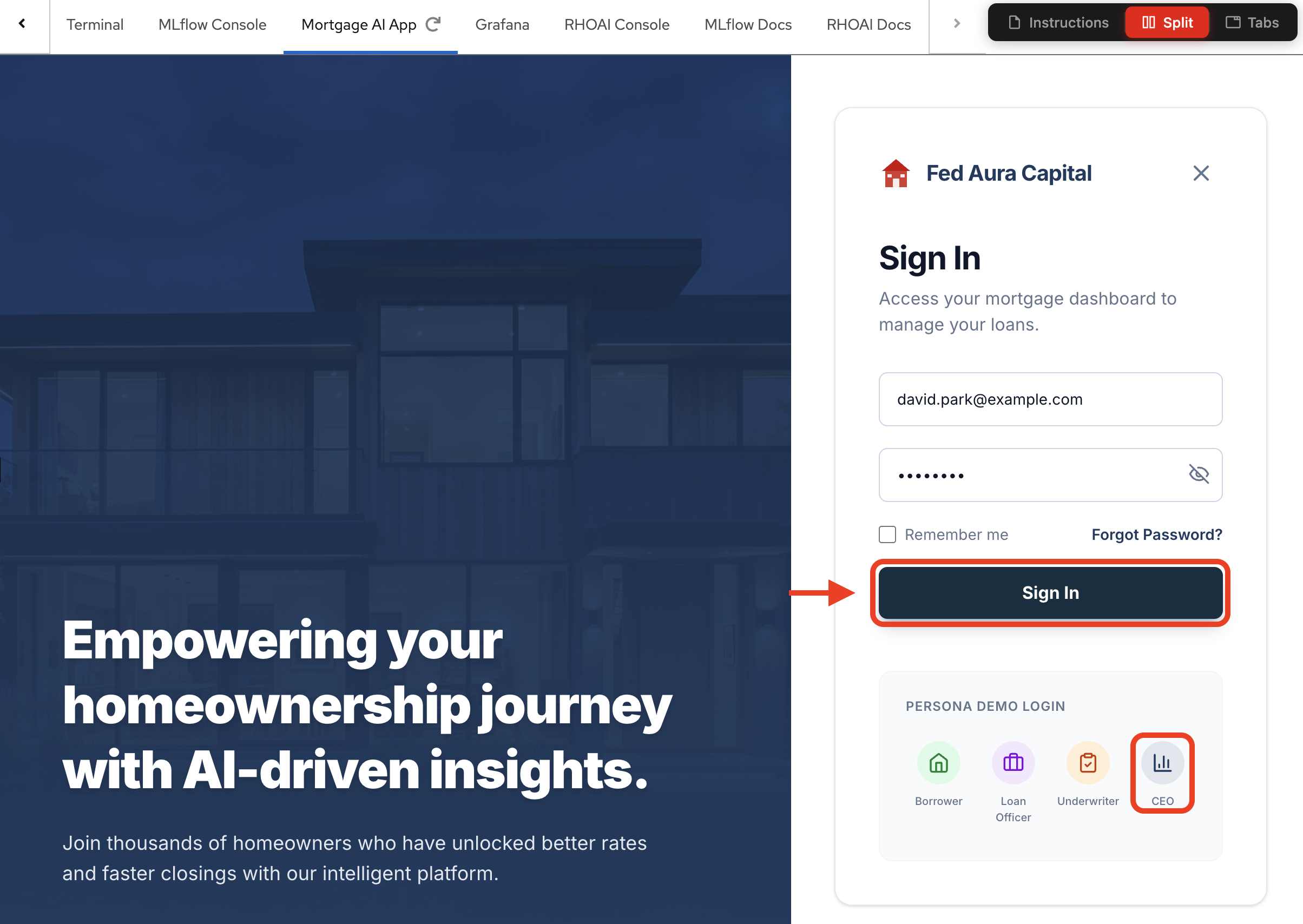
Sign out of the Borrower persona. Click Sign In again, and this time select the CEO persona:
-
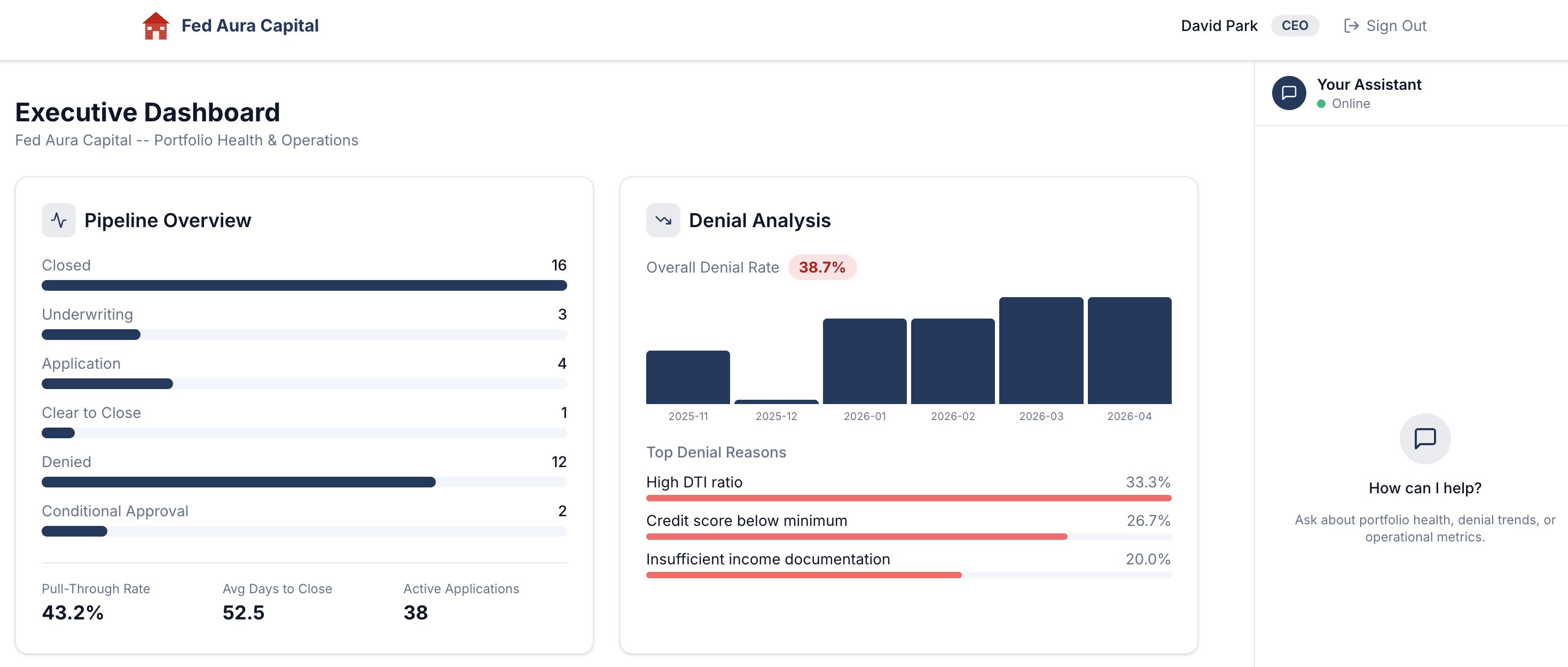
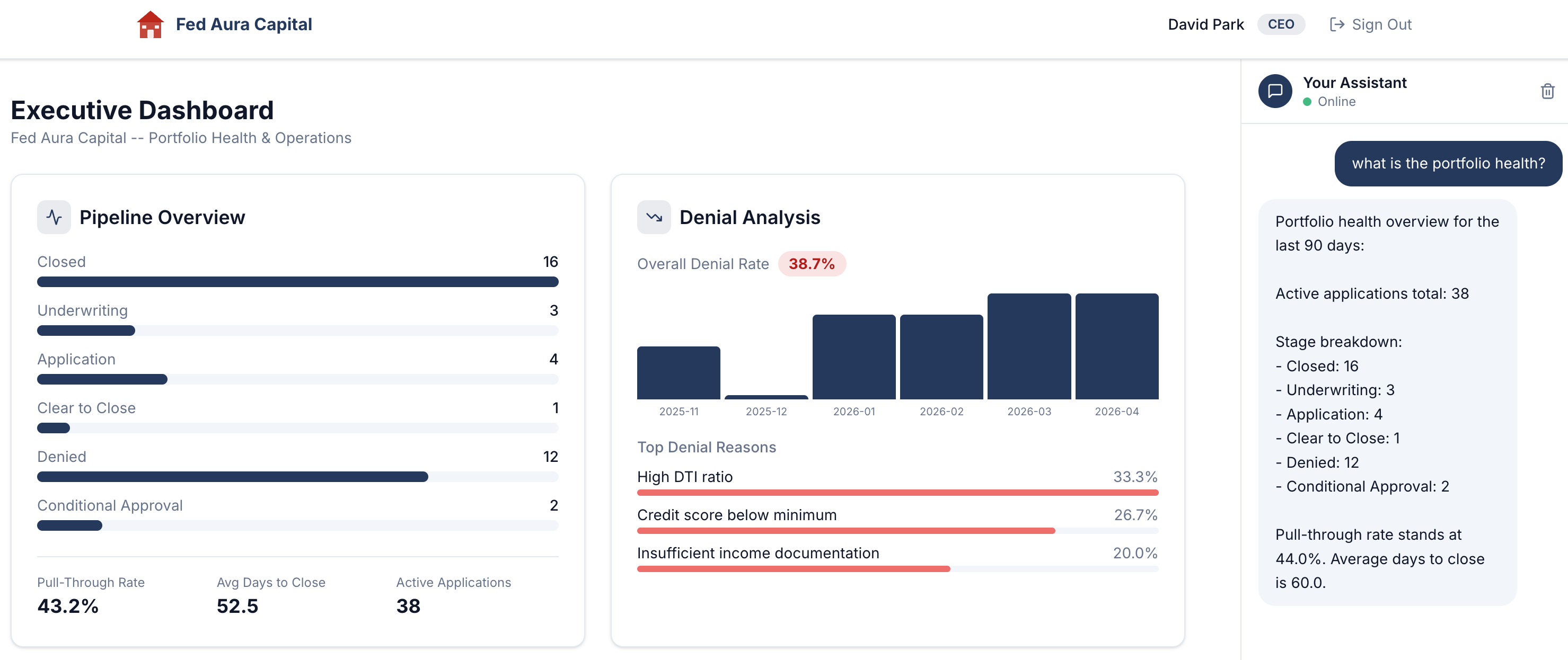
After signing in, you will land on the Executive Dashboard, the CEO persona’s view of portfolio health and operations:
-
In the Your Assistant chat panel on the right, type the following question (if needed, adjust the center divider to reveal the chat panel or select the chat icon in the bottom right corner):
Show me the current pipeline statusThe assistant responds with a detailed portfolio health overview: active applications, stage breakdown, pull-through rate, and average days to close:
Build a conversation for later analysis
Before we move on, let’s generate a richer session with multiple conversation exchanges (called "turns" in AI terminology - each turn is one question from you and one response from the agent). This will give us more data to explore when we get to tracing in section 4.1.
-
In the same chat, ask a follow-up question:
What are the denial trends? -
Then ask one more:
How are my loan officers doing?
Each question triggers a different tool call behind the scenes. By the time you finish, your CEO session will have 3 turns spanning pipeline health, denial analysis, and officer performance. In section 4.1, you will trace every step of this conversation end-to-end.
What just happened?
The responses look great. But stop and think about what happened behind the scenes:
-
Which agent processed your question? Was it a single agent, or did multiple agents collaborate?
-
Which tools did the agent invoke to gather pipeline data, denial rates, and performance metrics?
-
How long did each step take? Was the LLM call fast, or did a tool call add latency?
-
What if the response was wrong? How would you trace back to the root cause?
-
What if a tool call failed silently? Would you even know?
The platform captured all of it automatically. You will trace every step in section 4.1 (Agentic AI & Tracing).
Exercise 3: Understand the architecture in context
From the outside, the conversation looks simple: you typed a question and Lenora answered. That’s exactly how it should feel to a borrower or loan officer. But you’re not a borrower anymore. You’re the engineer who has to keep this running. Let’s connect what you observed to the architecture.
-
Review the architecture diagram below. It shows every component involved when Lenora answers a question:
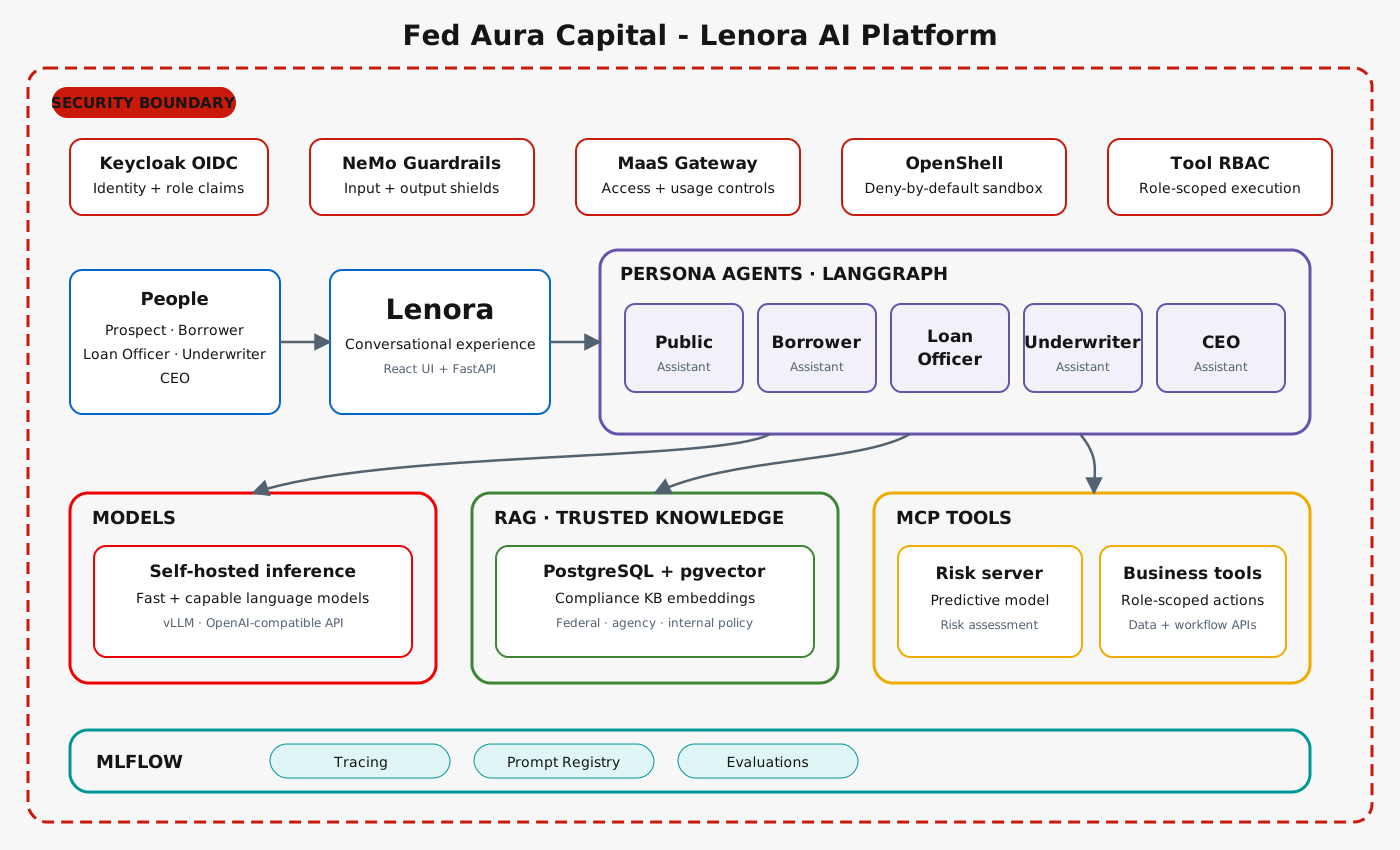 Figure 1. Fed Aura Capital AI platform architecture
The platform is built around a set of cooperating components. At the center is Lenora, a set of persona-specific agents orchestrated with LangGraph and powered by self-hosted models served through vLLM. Each agent has access to domain knowledge via RAG, can call real tools via MCP, and is observable through MLflow tracing. All inference goes through the MaaS gateway, which enforces access control and usage metering. NeMo Guardrails filter inputs and outputs at the boundary. OpenShell sandboxes agent execution with deny-by-default policies.
-
Return to the Terminal tab. List all running pods and match them to what you just saw in the diagram:
oc get pods -n wksp-user1 -l "app.kubernetes.io/name=mortgage-ai" -o custom-columns="NAME:.metadata.name,STATUS:.status.phase,CONTAINERS:.spec.containers[*].name"You should see 3 core pods running. Here is what each one does and where it fits:
| Pod | Architecture Role | What it does |
|---|---|---|
mortgage-ai-api |
Agent Layer (center) |
Single FastAPI pod with 5 LangGraph agent implementations. Routes requests to the right agent based on persona. Makes tool calls via MCP, queries the database, calls the LLM. |
mortgage-ai-ui |
Frontend |
React application. Renders the persona-specific interfaces (Borrower portal, CEO dashboard, etc.) |
mortgage-ai-db |
Data Layer |
PostgreSQL with pgvector. Stores application data, conversation history, and vector embeddings for RAG. |
API endpoints (all served by the same mortgage-ai-api pod)
/api/prospect/chat    - Prospect Agent (initial inquiries)
/api/borrower/chat    - Borrower Agent (application intake)
/api/loanofficer/chat - Loan Officer Agent (pipeline management)
/api/underwriter/chat - Underwriter Agent (risk assessment)
/api/ceo/chat         - Executive Agent (analytics)
It is not just the LLM. A production AI system involves many components working together. The LLM is one part of a larger pipeline that includes data retrieval, tool execution, identity management, and observability. The architecture layers map directly to the workshop sections:
| Architecture Layer | Components | Workshop Sections |
|---|---|---|
Inference |
vLLM, llm-d, MaaS |
2.1 Model Catalog, 2.4 Models as a Service |
Data |
pgvector, RAG, Prompt Registry |
3.1 System Prompts, 3.2 RAG, 3.3 AutoRAG |
Agentic |
LangGraph, MCP, MLflow |
4.1 Agentic AI & Tracing, 4.2 MCP, 4.3 Evaluation |
Security |
NeMo Guardrails, Garak, OpenShell |
5.1 AI Safety, 5.2 Guardrails & Adversarial Testing, 5.3 OpenShell Agent Sandboxing |
| Each section focuses on one layer. This exercise gives you the map so you know where each section fits in the bigger picture. |
Section summary
What you accomplished:
-
Logged in to OpenShift and verified all platform components are running and healthy
-
Confirmed API and database health via the health endpoint
-
Interacted with Lenora as Prospect, Borrower, and CEO, observing how responses change by persona
-
Connected running pods to the platform architecture diagram
Key takeaways:
-
The mortgage-ai system runs as a single FastAPI service with 5 LangGraph agents, each serving a different persona with different tools and permissions
-
The platform is built from cooperating components - inference, data grounding, tool access, observability, and security - each addressed by a dedicated section in this workshop
Next steps:
You have explored the running platform and seen what it does. Starting with section 2, you will rebuild understanding of each layer, beginning with self-hosted model inference.