Externalized Configuration
Hardcoded values in your code are a no-no (even if we all did it at some point ;-)). In this step, we learn how to configure your application to externalize configuration.
Quarkus uses MicroProfile Config to inject the configuration into the application. The injection uses the @ConfigProperty annotation, for example:
@ConfigProperty(name = "greeting.message")
String message;|
When injecting a configured value, you can use |
Add some external config
In the org.acme.people.rest.GreetingResource class, add the following fields to the class definition below the existing @Inject GreetingService service; line:
    @ConfigProperty(name = "greeting.message")
    String message;

    @ConfigProperty(name = "greeting.suffix", defaultValue="!")
    String suffix;

    @ConfigProperty(name = "greeting.name")
    Optional<String> name;
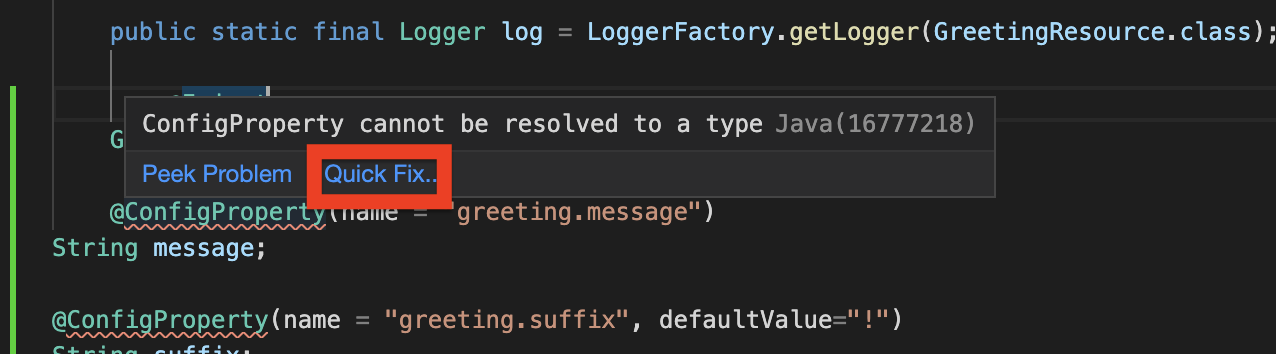
You’ll get red squiggly errors underneath @ConfigProperty. Hover the cursor over them and select Quick Fix:
and select Import 'ConfigProperty' (org.eclipse.microprofile.config.inject).
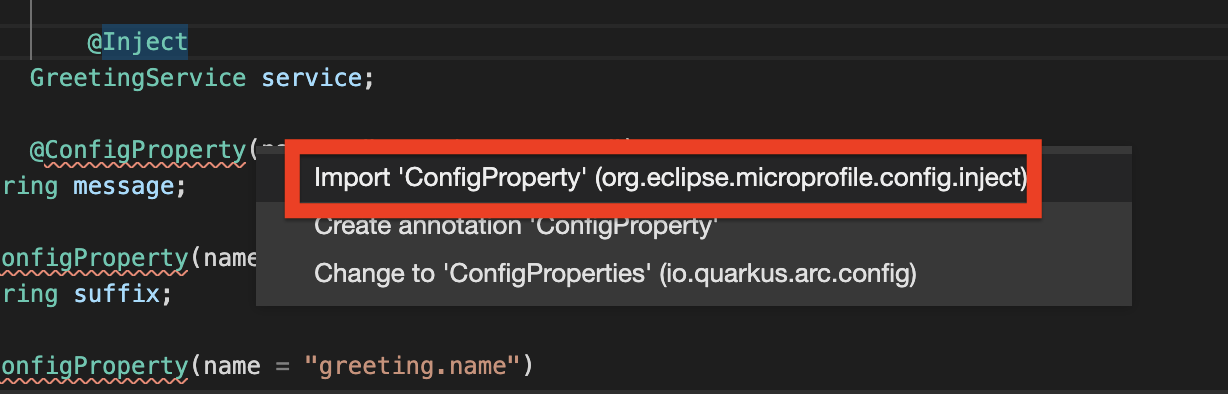
Do the same for the java.util.Optional type to eliminate the errors.
The new import statements can also be added manually:
import org.eclipse.microprofile.config.inject.ConfigProperty;
import java.util.Optional;|
MicroProfile config annotations include a |
Now, modify the hello() method to use the injected properties:
    @GET
    @Produces(MediaType.TEXT_PLAIN)
    @NonBlocking
    public String hello() {
        return message + " " + name.orElse("world") + suffix;
    }
Here we use the Optional API to safely access the value using name.orElse() and provide a default world value in case the value for name is not defined in application.properties.
|
Create the configuration
By default, Quarkus reads application.properties. Add the following properties to the src/main/resources/application.properties file:
greeting.message=hello
greeting.name=quarkus
Open up a Terminal window and run a curl command to test the changes:
curl http://localhost:8080/helloYou should get hello quarkus!.
|
If the application requires configuration values and these values are not set, an error is thrown. So you can quickly know when your configuration is complete. |
Quarkus Dev UI also allows you to edit the configuration values then the change is automatically updated in your local file system (e.g., application.properties).
Let’s go to the Dev UI, then select Configuration on the left menu. Key greeting in the search box then it will show greeting.message property. Then update the value to hi then select Disk icon:
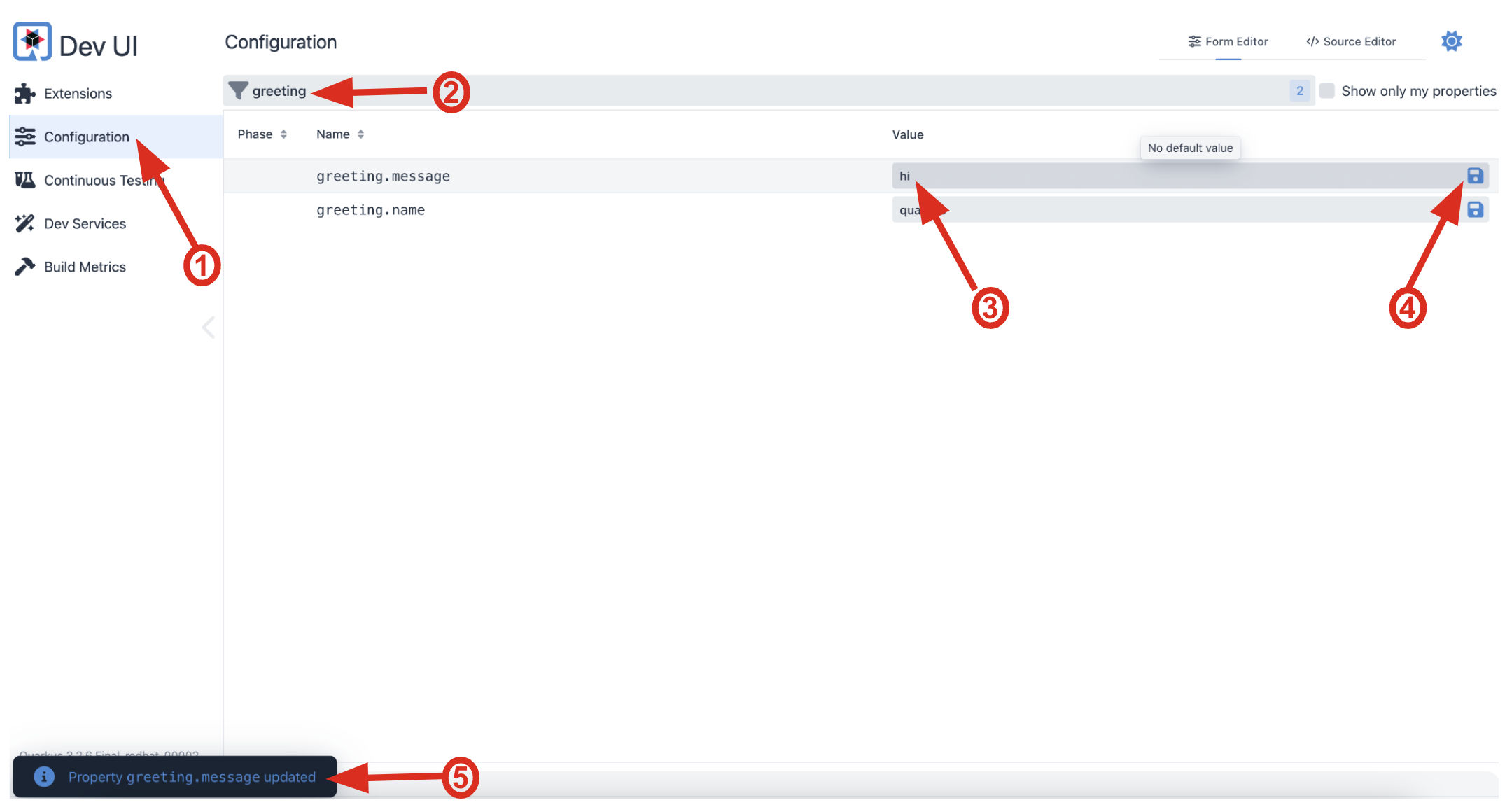
Then, you will see the Property greeting.message updated. Make sure if the application.properties file is updated automatically:
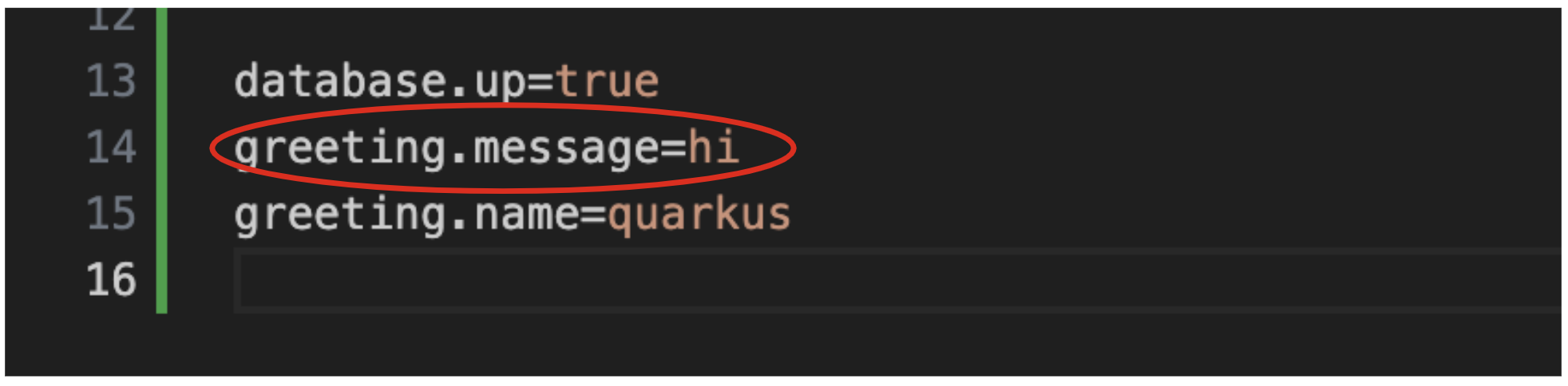
Re-run a curl command to test the changes:
curl http://localhost:8080/helloYou should get hi quarkus!.
Update the test
We also need to update the functional test to reflect the changes made to endpoint. Edit the src/test/java/org/acme/people/GreetingResourceTest.java file and change the content of the testHelloEndpoint method to:
    @Test
    public void testHelloEndpoint() {
        given()
          .when().get("/hello")
          .then()
            .statusCode(200)
            .body(is("hi quarkus!")); // Modified line
    }
Since our application is still running from before, thanks to Quarkus Live Reload we should immediately see changes. Update application.properties, by changing the greeting.message, greeting.name, or adding greeting.suffix and running the same curl http://localhost:8080/hello after each change.