Deploy to OpenShift
With our app fully ready for its first cloud native deployment, let’s package it up for deployment to our Kubernetes platform as a native image. We’ll use some OpenShift tooling to accomplish this, as outlined in the Quarkus - Deploying on Kubernetes Guide.
Build and Deploy native image
Quarkus offers the ability to automatically generate OpenShift resources based on sane default and user supplied configuration. The OpenShift extension is actually a wrapper extension that brings together the kubernetes and container-image-s2i extensions with defaults so that it’s easier for the user to get started with Quarkus on OpenShift.
-
Add openshift extension via VS Code Terminal:
mvn quarkus:add-extension -Dextensions="openshift"you will see:
[INFO] [SUCCESS] ✅ Extension io.quarkus:quarkus-openshift has been installed -
Next, add the following variables in
src/main/resources/application.propertiesfor deploying the application to OpenShift. native compilation usingMandrelbuilder image:%prod.quarkus.kubernetes-client.trust-certs=true %prod.quarkus.kubernetes.deploy=true %prod.quarkus.kubernetes.deployment-target=openshift %prod.quarkus.openshift.build-strategy=docker %prod.quarkus.openshift.route.expose=true %prod.quarkus.openshift.route.target-port=http %prod.quarkus.openshift.route.tls.termination=edge %prod.quarkus.openshift.route.tls.insecure-edge-termination-policy=Allow quarkus.openshift.deployment-kind=Deployment quarkus.container-image.group={user}-quarkus quarkus.container-image.registry=image-registry.openshift-image-registry.svc:5000Let’s review what each of the above properties do:
Property Description prod.quarkus.kubernetes-client.trust-certs
We are using self-signed certs in this simple example, so this simply says to the extension to trust them.
prod.quarkus.kubernetes.deploy
Instructs the extension to deploy to OpenShift after the container image is built
prod.quarkus.kubernetes.deployment-target
Instructs the extension to generate and create the OpenShift resources (like
DeploymentandService) after building the containerprod.quarkus.openshift.build-strategy
Set the Docker build strategy
prod.quarkus.openshift.route.expose
Instructs the extension to generate an OpenShift
Routeprod.quarkus.openshift.route.target-port
Specify the target port
prod.quarkus.openshift.route.tls.termination
Specify the termination type
prod.quarkus.openshift.route.tls.insecure-edge-termination-policy
Specify the desired behavior for insecure connections to a route
prod.quarkus.openshift.deployment-kind
Generate the Deployment resource
prod.quarkus.openshift.project
Specify a project where the application is deployed
prod.quarkus.container-image.registry
Specify an internal container registry to push an application image
-
Docker build strategy builds the artifacts (JAR files or a native executable) outside the OpenShift cluster, either locally or in a CI environment, and then provides them to the OpenShift build system together with a Dockerfile. The container is built inside the OpenShift cluster and provided as an image stream.
-
Rebuild and re-deploy the people application via running the following maven plugin in the VS Code Terminal:
mvn clean package -Pnative -DskipTests -Dquarkus.package.uber-jar=false -
As you recall, the output of this process is a native Linux binary but also running Source-To-Image(S2I) build processor.
-
Wait for it to finish!. You should get a BUILD SUCCESS message at the end. Once that’s done, make sure it’s actually done rolling out:
oc rollout status -w deployment/people -
Wait for that command to report
deployment "people" successfully rolled outbefore continuing. -
And now we can access using
curlonce again. In the Terminal, run this command to access the endpoint:curl $(oc get route people -o=go-template --template='{{ .spec.host }}')/hello/greeting/quarkus-on-openshiftThe above
curlcommand constructs the URL to your running app on the cluster using theoc get routecommand. -
You should see:
hello quarkus-on-openshift -
Now that your app is deployed to OpenShift you can also see it in the OpenShift Console. Login with
{user}/{password}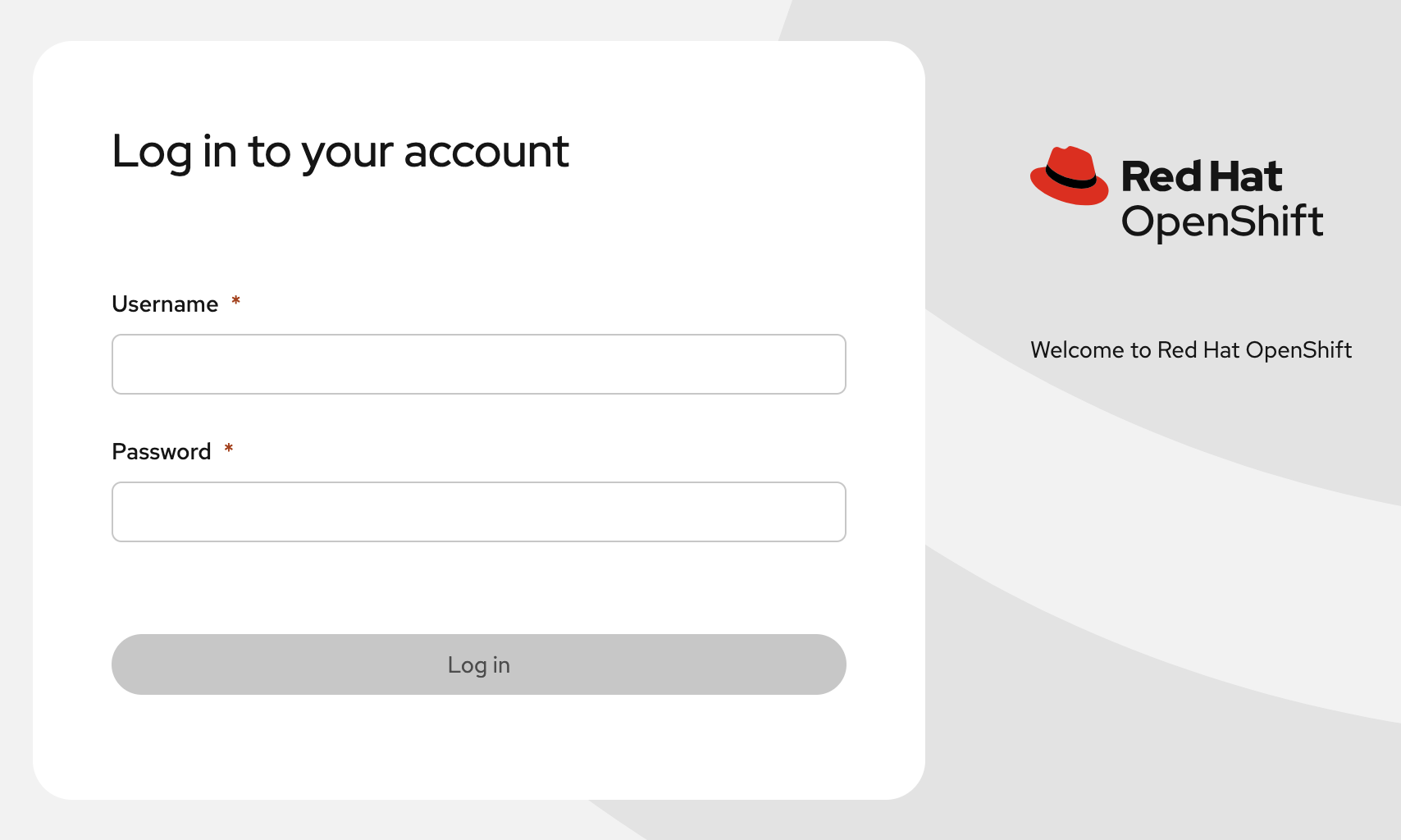
-
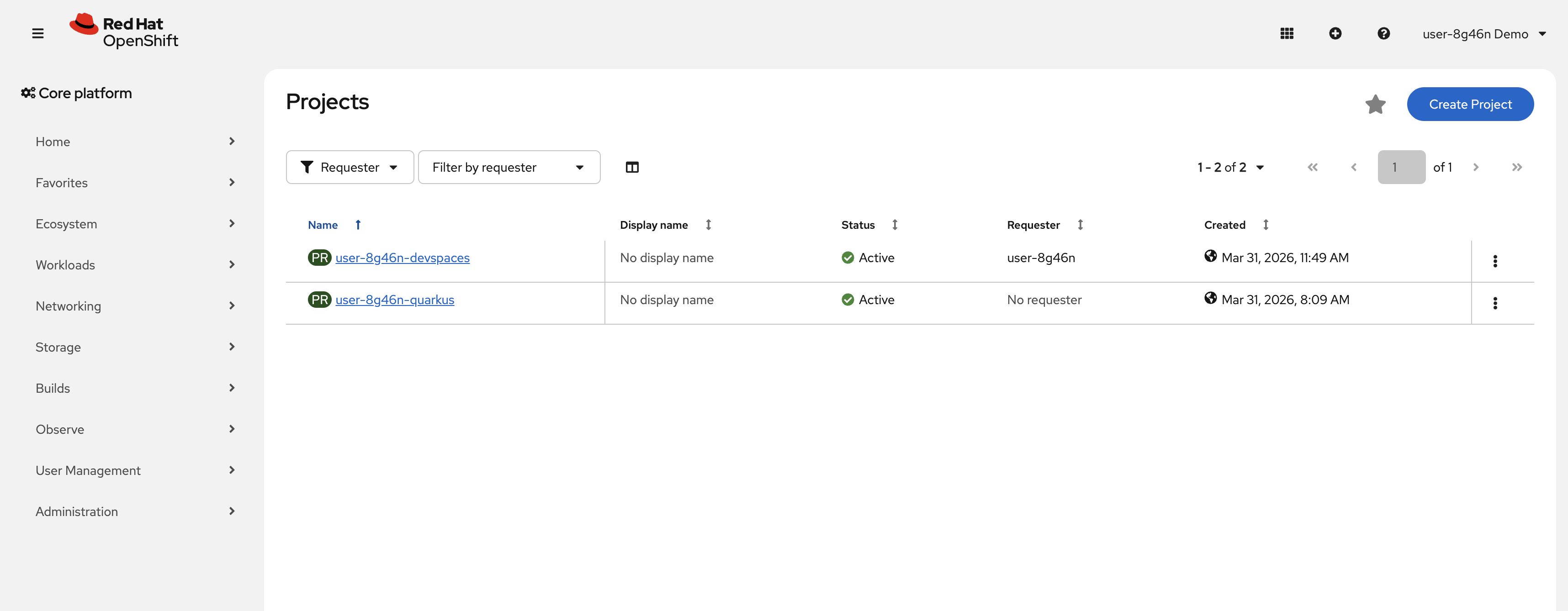
Once logged in, you can view a list of your projects :
-
Select the
{user}-quarkusproject to view Overview of the project: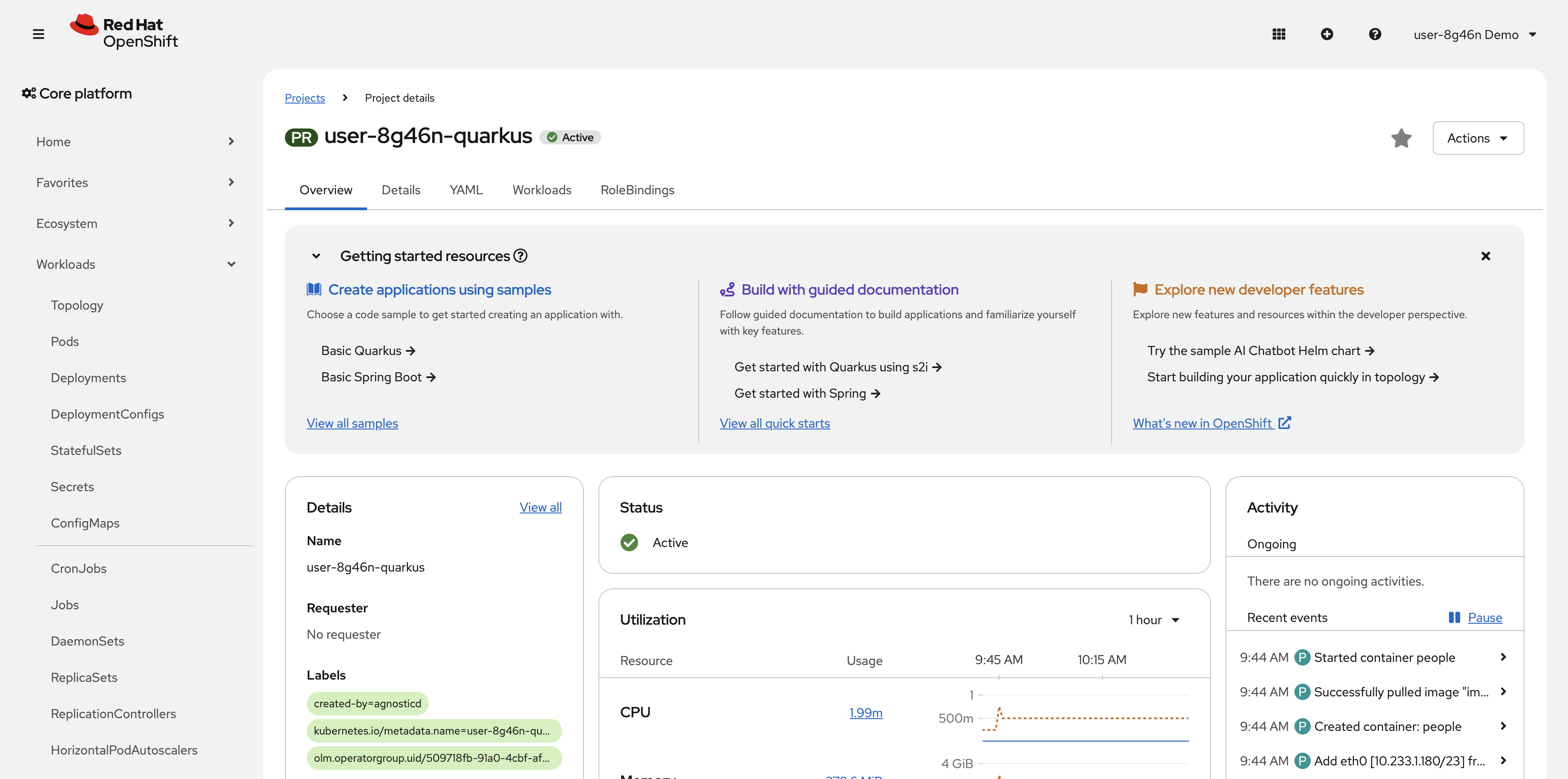
-
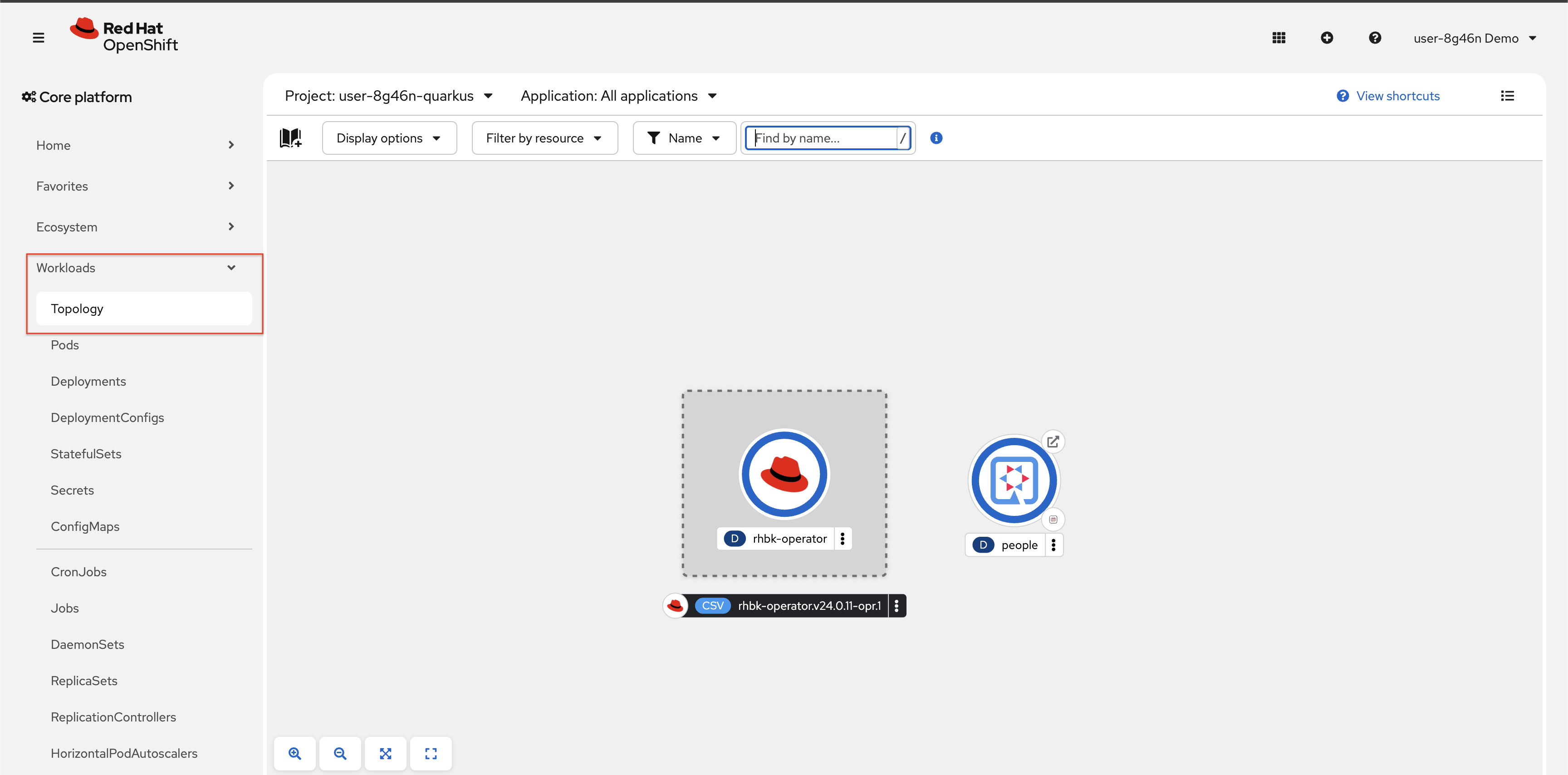
Click on Workloads → Topology navigation menu on the left to view the topology of your project.
-
If needed, switch from List view to Graph view using the view mode button in the upper right:

-
You will see the
peopledeployment that we deployed earlier using the CLI: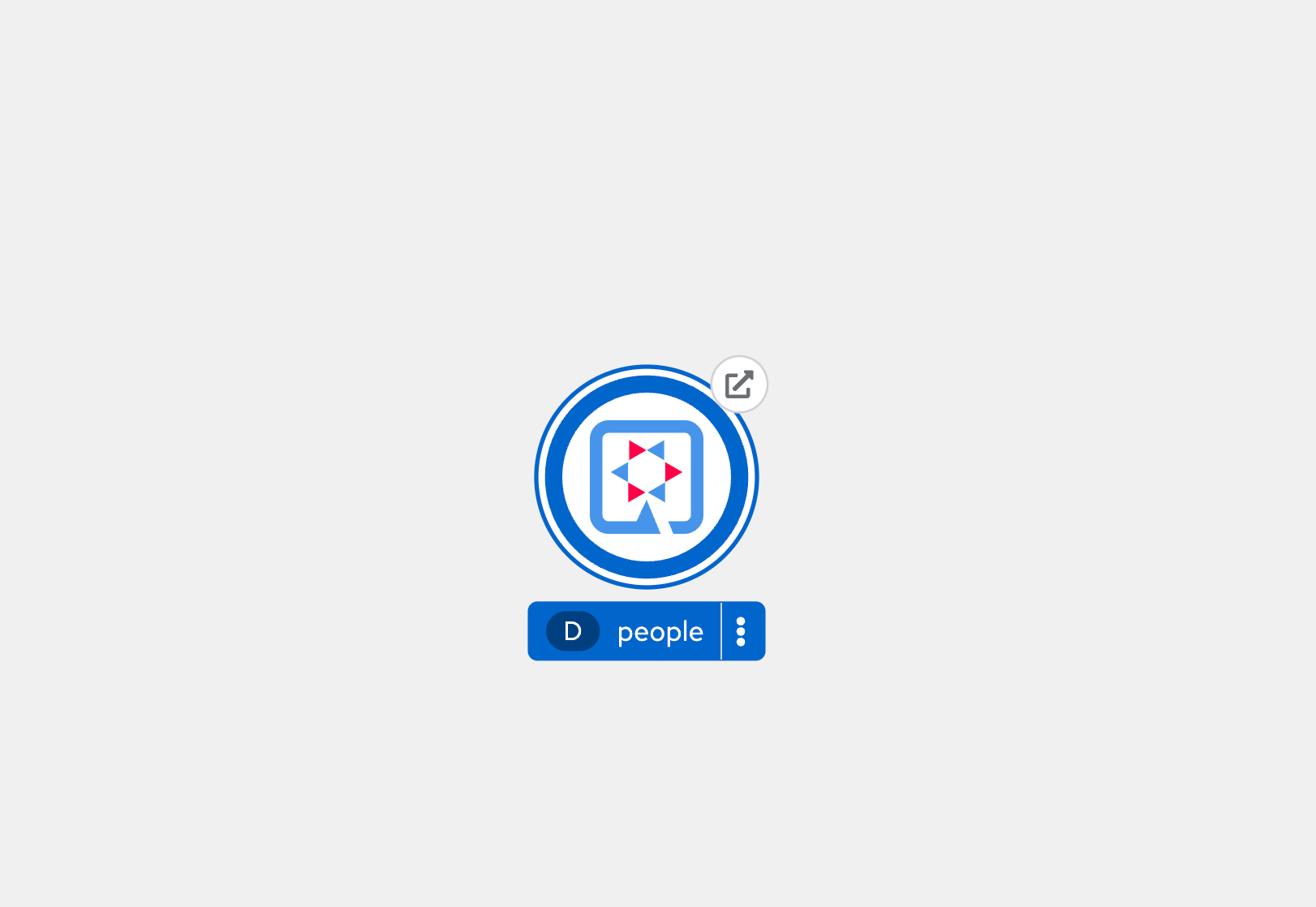
-
Click on the circle to access operational details:
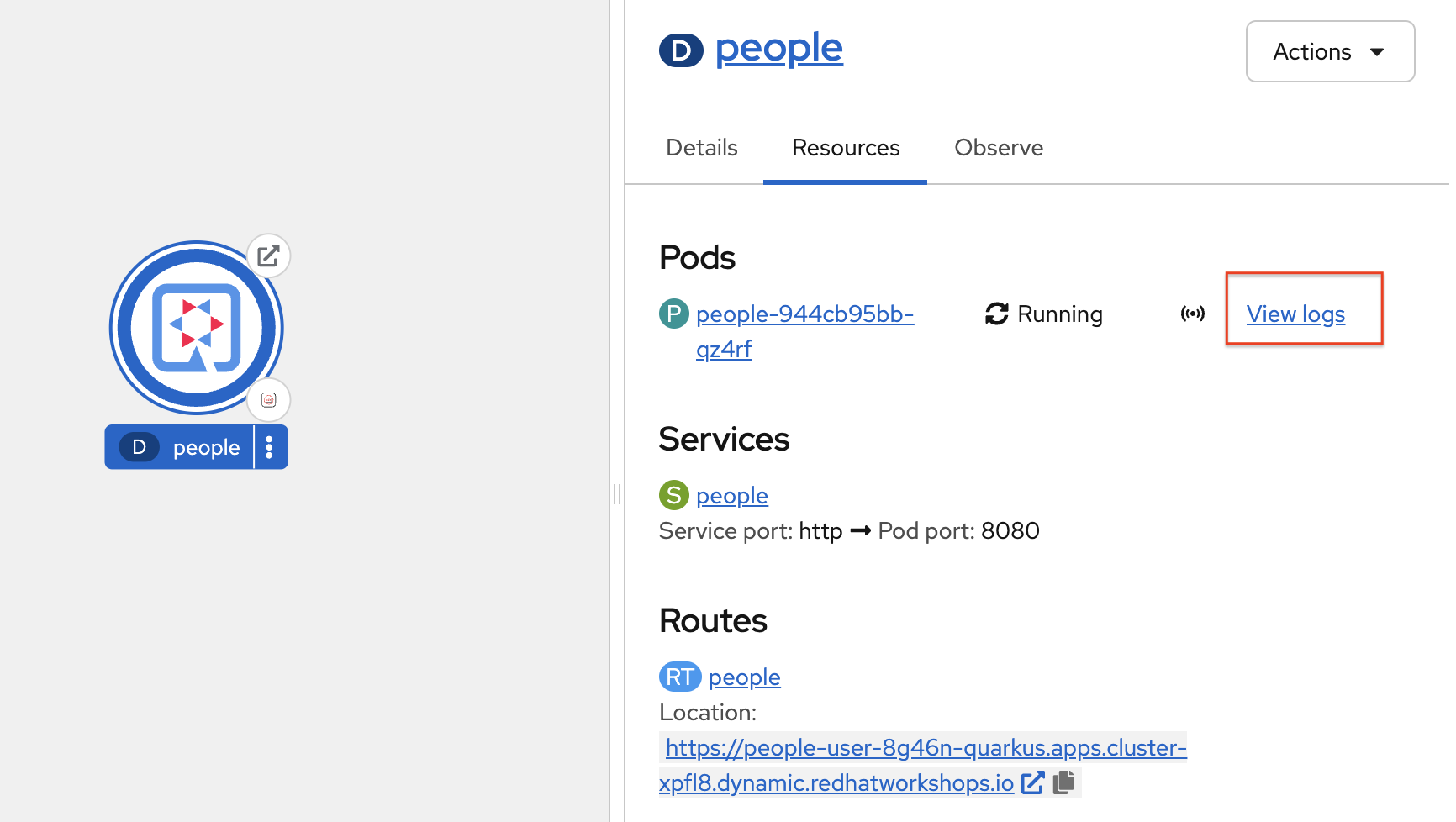
-
Select the View Logs link to see the console output from the app:
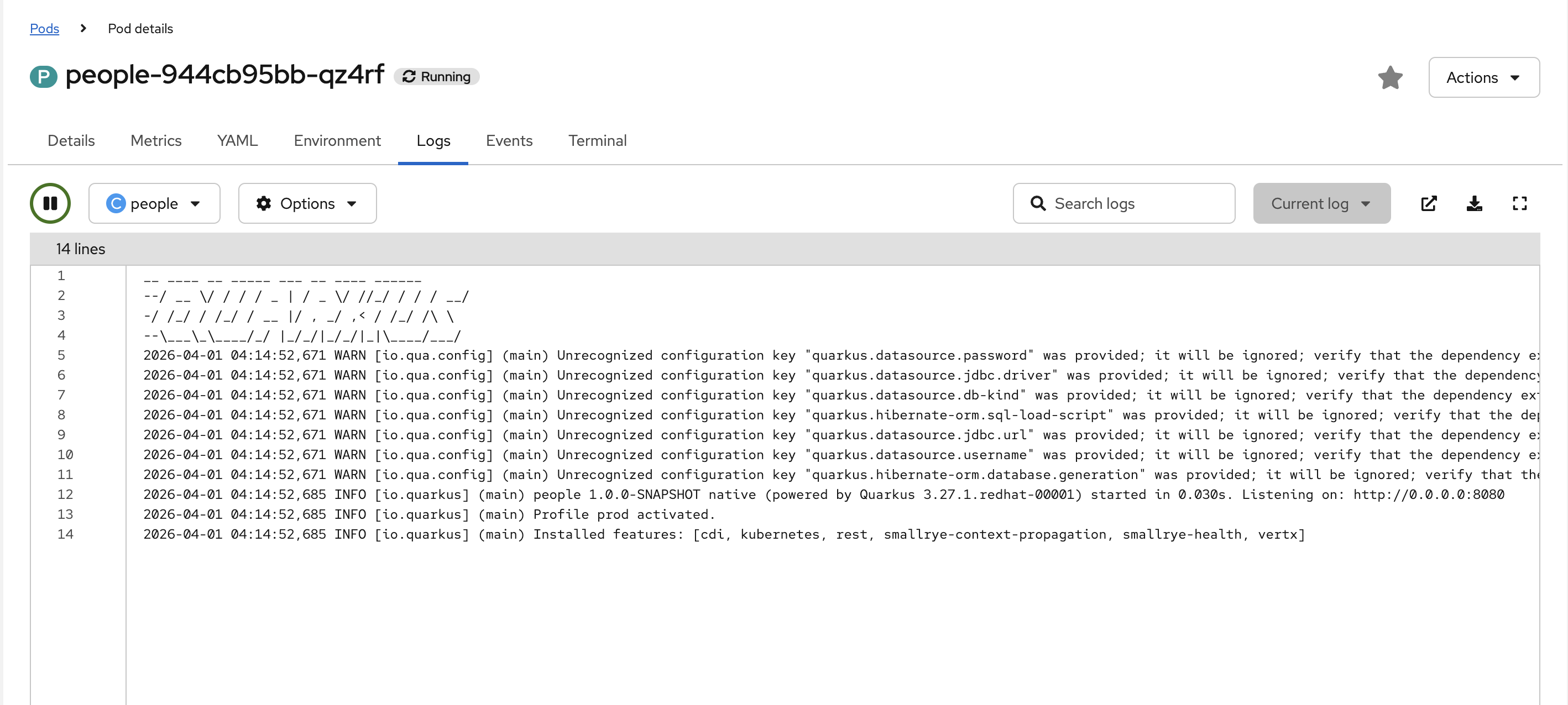
This is the same output you saw earlier when you ran it "locally" with its super-fast startup time.
-
Go back to the Topology view. Since this app is exposed to the world, a Route was created which you can access using the small arrow in the upper right of the circle. Select the route link:
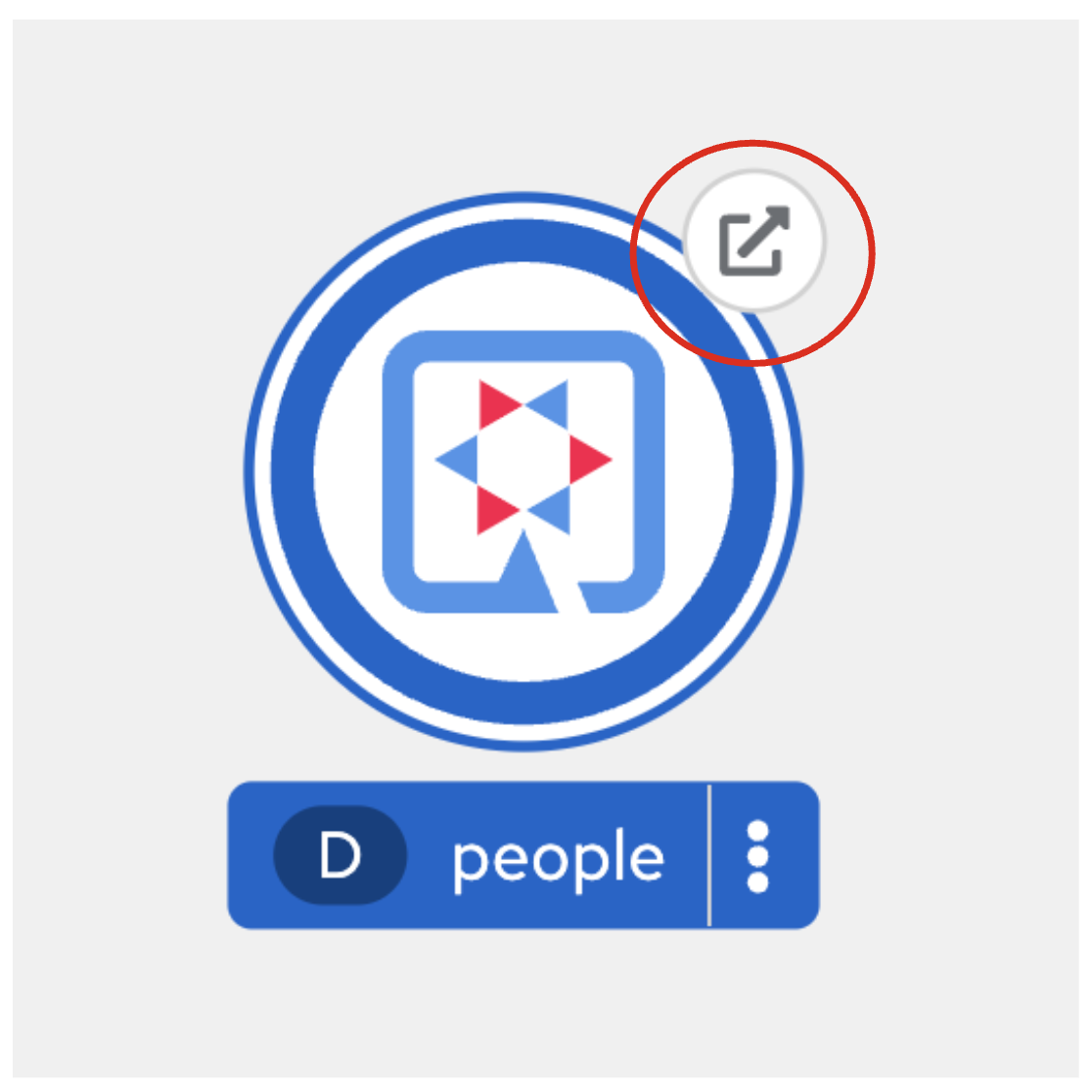
-
This will open a new tab in your browser with the URL to your app, and append
/helloendpoint to the end of the URL to access the endpoint.You can also access the URL by clicking on this link: hello endpoint
You should see the output
hi production quarkus!: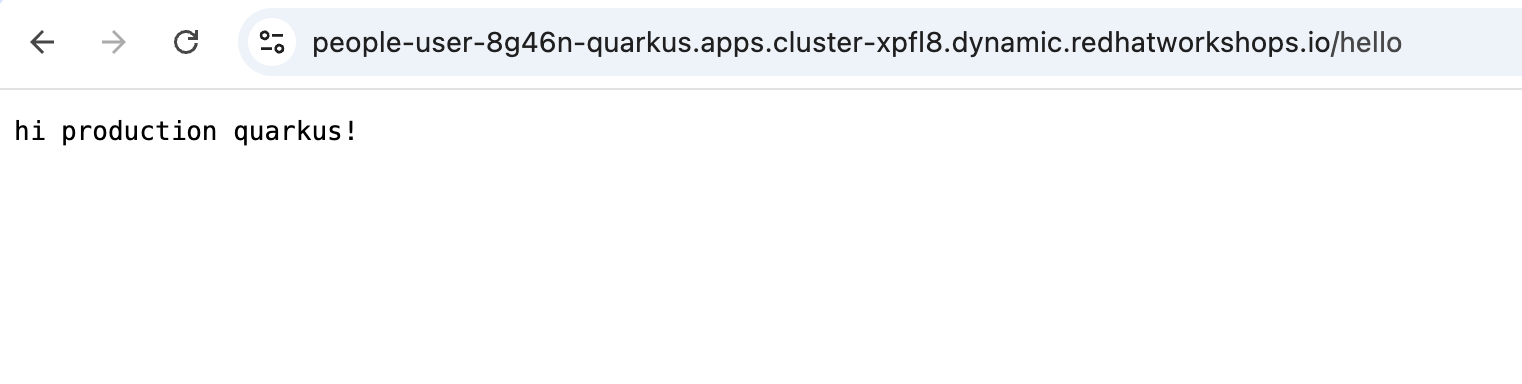
Connect MicroProfile health check
-
Earlier you implemented a series of MicroProfile health checks. To make OpenShift aware of these available health checks and begin using them, run the following commands in a Terminal:
oc set probe deployment/people --readiness --initial-delay-seconds=5 --period-seconds=5 --failure-threshold=20 --get-url=http://:8080/q//health/ready && oc set probe deployment/people --liveness --initial-delay-seconds=5 --period-seconds=5 --failure-threshold=20 --get-url=http://:8080/q/health/live -
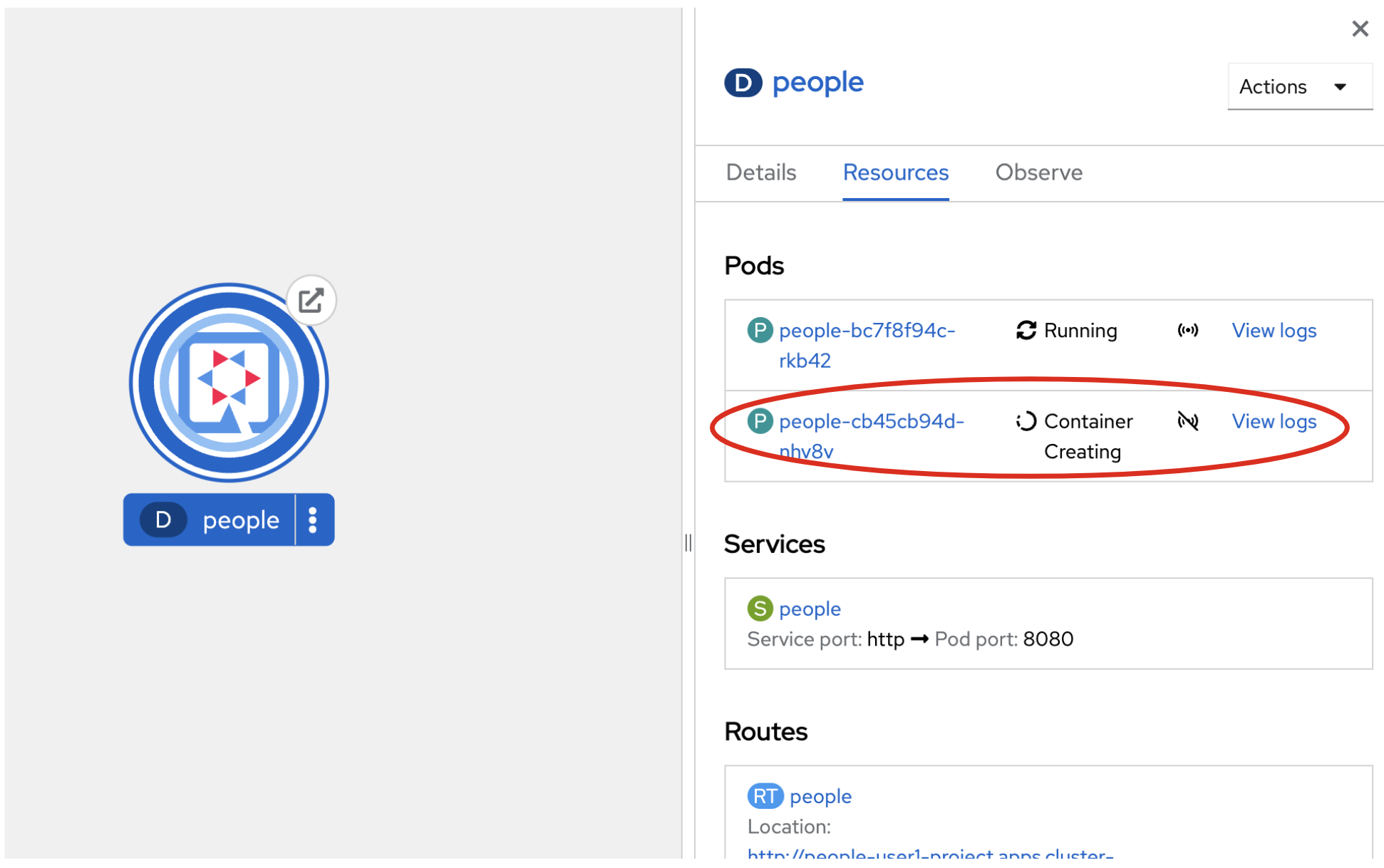
You’ll see in the Topology view that the app is re-deployed with the new settings and the old app will be terminated soon after:
-
This configures both a readiness probe (is the app initialized and ready to serve requests?) and a liveness probe (is the app still up and ready to serve requests) with default timeouts. OpenShift will not route any traffic to pods that don’t respond successfully to these probes. By editing these, it will trigger a new deployment.
-
At this point, the probes will be accessed periodically to ensure the app is healthy.
Congratulations!
This step covered the deployment of a native Quarkus application on OpenShift. However, there is much more, and the integration with these cloud native platforms (through health checks, configuration management, and monitoring) has been tailored to make Quarkus applications execution very smooth.
Congratulations! You have reached the conclusion of the Quarkus Basics Lab. If time allows, you may now proceed to the Advanced Quarkus Module.