Checking the Sandbox Pipeline
Your signed commit has been pushed and the sandbox pipeline is running. In this section, you will explore what the pipeline does, review its security checks, and understand why the sandbox pipeline is designed to inform rather than block.
Section 1: Understanding the sandbox pipeline
Exercise 1: View the pipeline in Developer Hub
-
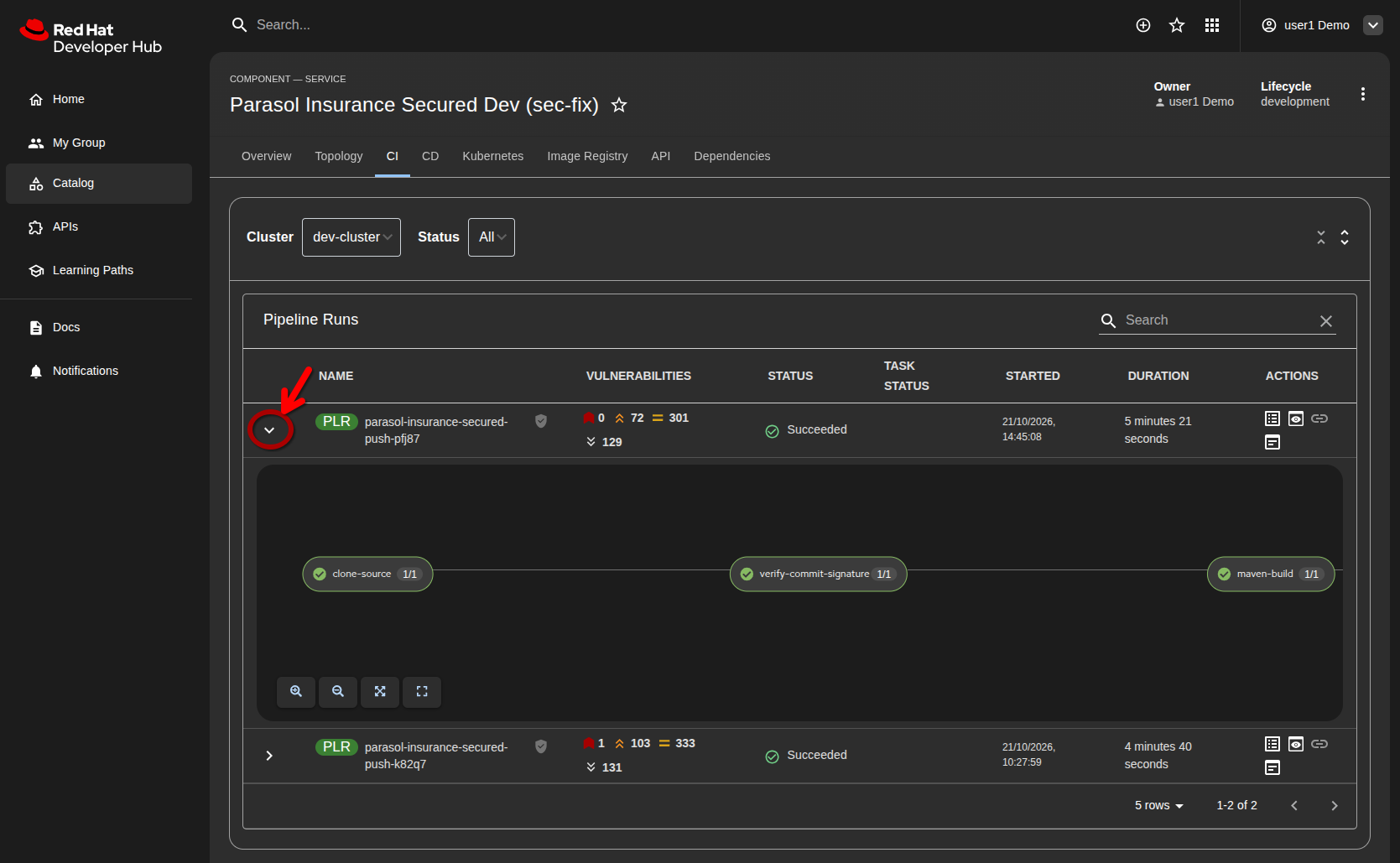
Go to your sandbox component in Developer Hub and click the CI tab.
-
You should see a pipeline run in progress (or recently completed). Click on it to view the details.
-
The sandbox pipeline runs these steps:
-
clone-source — clones your feature branch
-
verify-commit-signature — checks if the commit was signed
-
maven-build — compiles the application
-
sonar-scan — runs SonarQube code quality analysis
-
build-and-push — builds the container image and pushes it to the registry
-
acs-image-scan — scans the image for known vulnerabilities
-
acs-image-check — checks the image against ACS security policies
-
report-to-commit — posts results back to GitLab as a commit comment
-
| The sandbox pipeline is designed to never block the developer. All security checks run, but failures are reported as informational — they do not stop the build. This lets developers iterate quickly while still seeing exactly what would fail in the production pipeline. |
Section 2: Security checks in the sandbox
Exercise 1: Review the commit signature verification
-
In the pipeline details, click on the verify-commit-signature task.
-
Review the log output. If your commit was signed, you should see:
✅ Good signature — {user}@demo.redhat.com (issuer: https://sso.{subdomain}/realms/sso)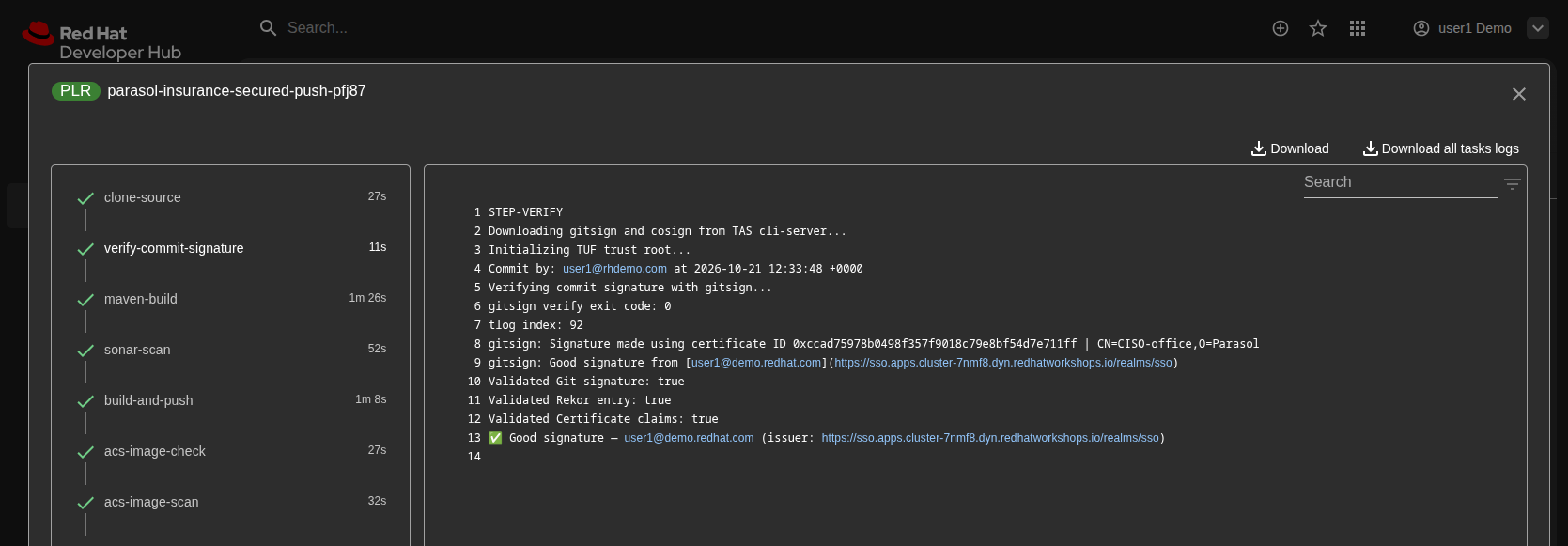
Exercise 2: Review the pipeline results in RHDH
-
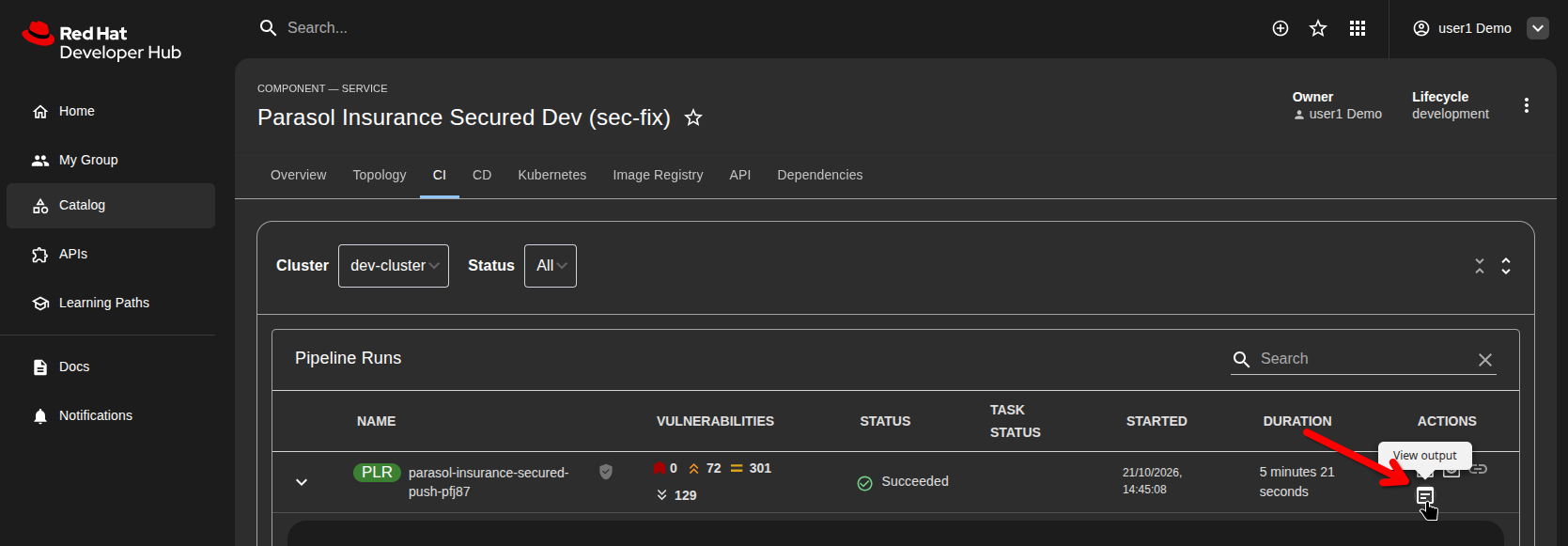
Back on the CI (pipeline run) page in Developer Hub, look at the results by clicking on the Output icon on the right:
-
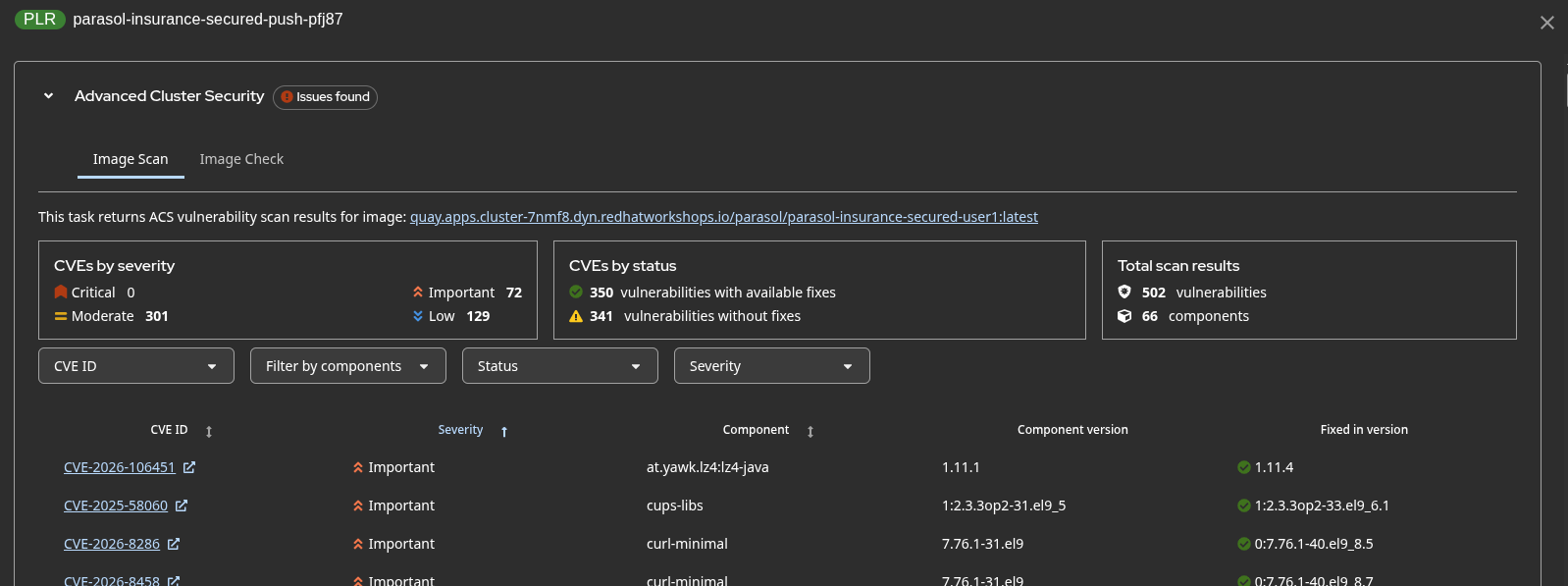
The page shows the ACS (Advanced Cluster Security) scans and policy checks that have been performed as tasks in the pipeline:
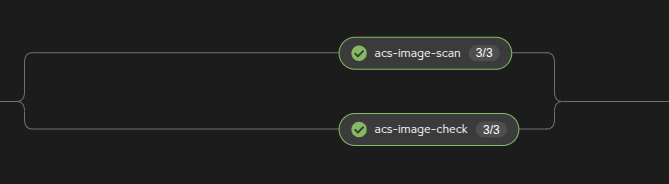
The Image Scan tab shows all CVEs found in the container image, organized by severity:
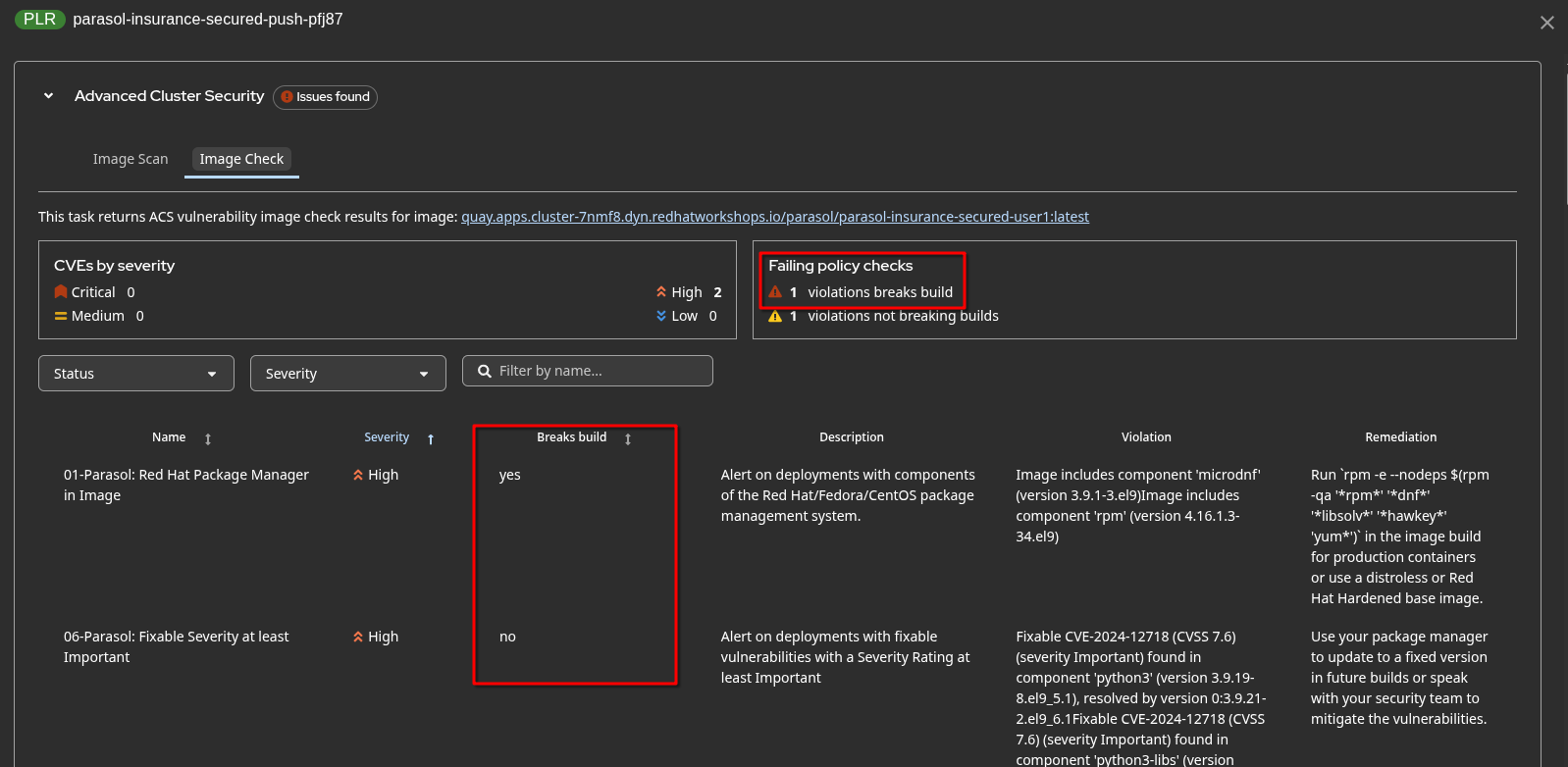
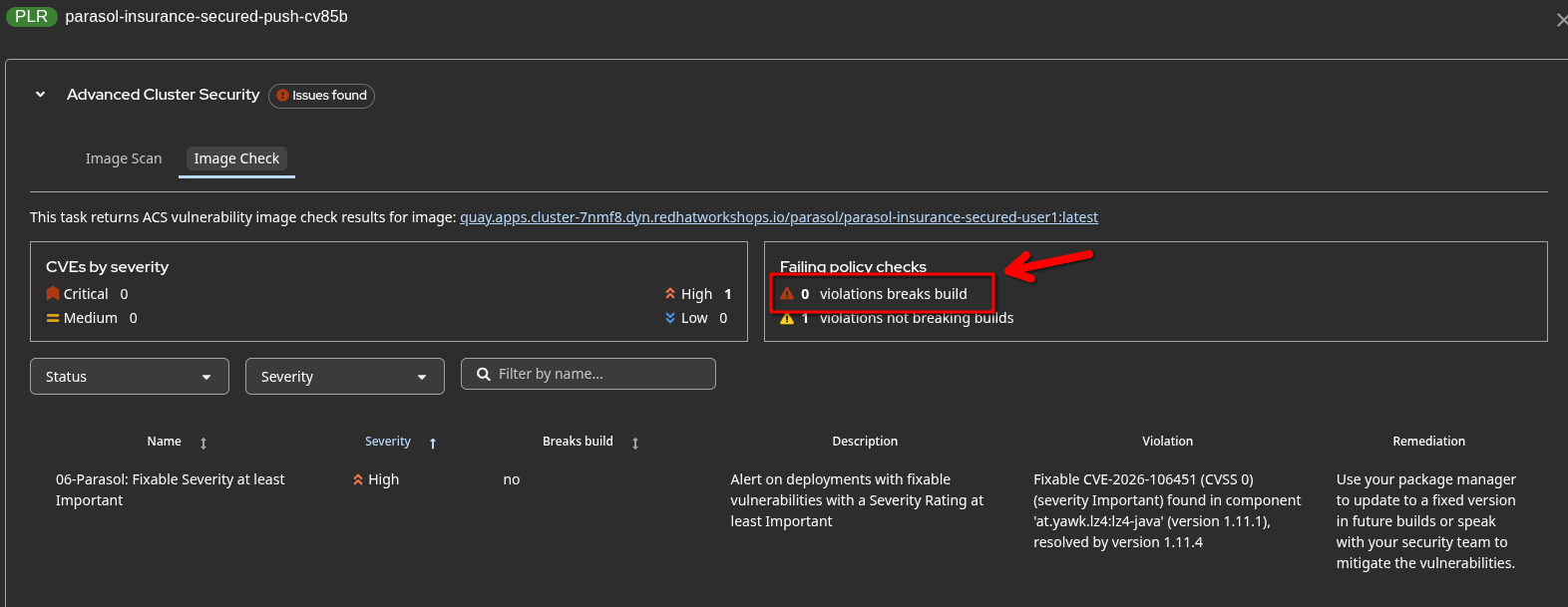
The Image Check tab shows ACS policy violations. Notice the Breaks build column — policies marked "yes" would block the build in the secured pipeline, while "no" policies are informational:
Exercise 3: Check the results in GitLab
-
Open GitLab and navigate to your commit.
-
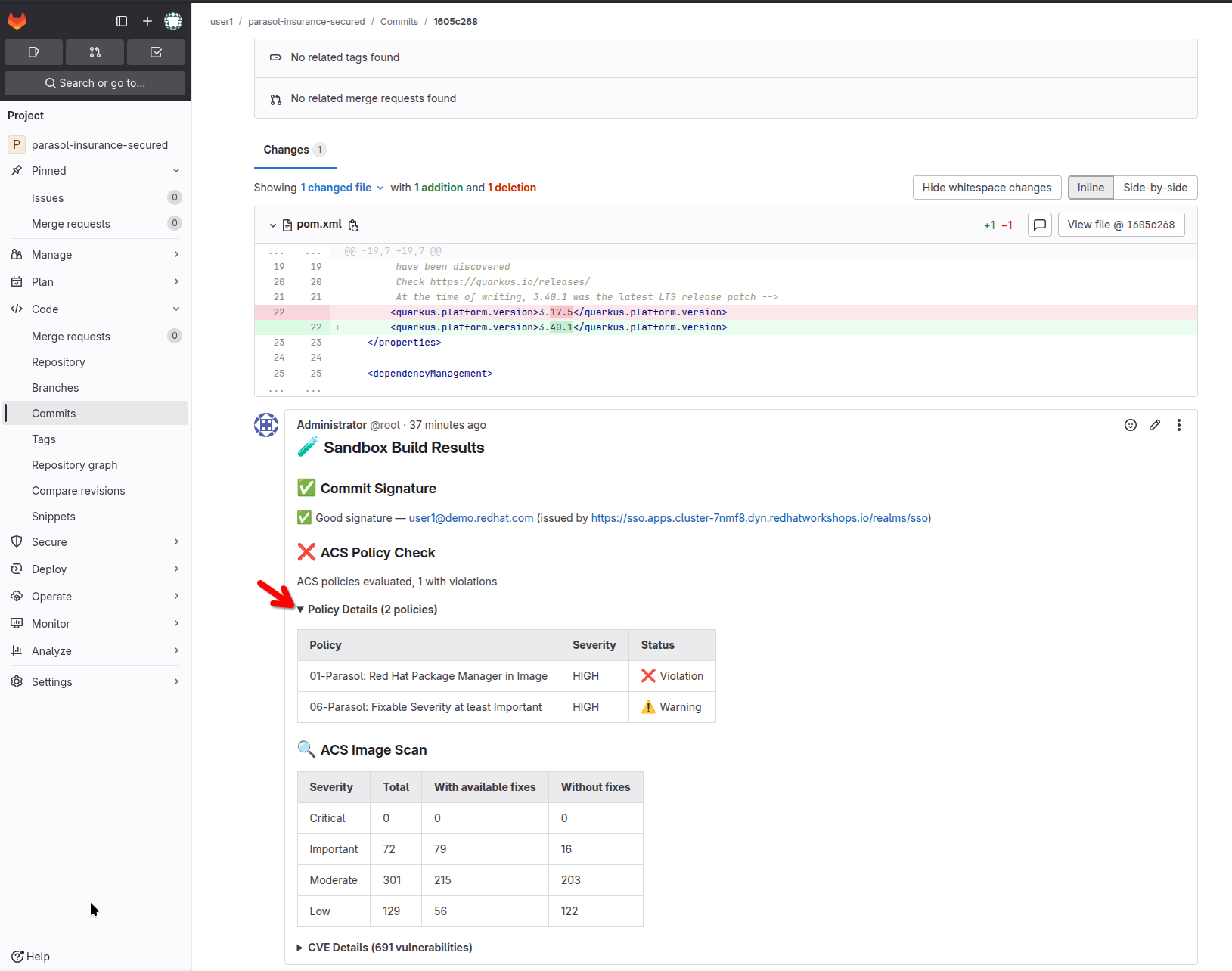
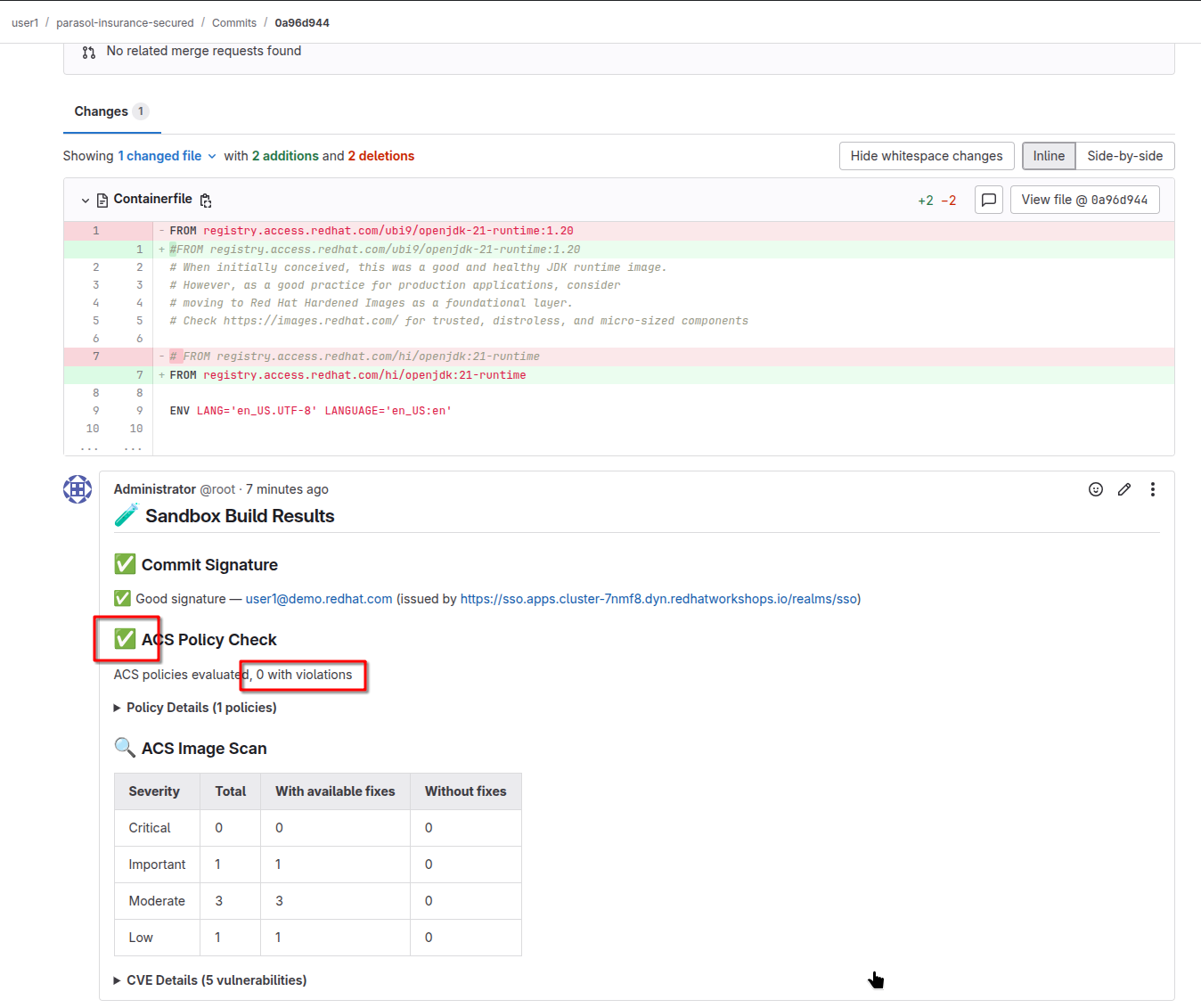
You should see a comment posted by the pipeline with the full security report:
-
🧪 Sandbox Build Results
-
✅ or ⛔ Commit Signature status
-
✅ or ❌ ACS Policy Check with policy details
-
🔍 ACS Image Scan with vulnerability counts by severity
You can expand the report details in the commit comment:
-
Note the ❌ icon next to the policy check - outside of your sandbox, this will not pass.
Optional: Try an unsigned commit
To see what happens with an unsigned commit:
-
Go to GitLab and navigate to your sandbox branch. Make sure you are on your branch, not on
main!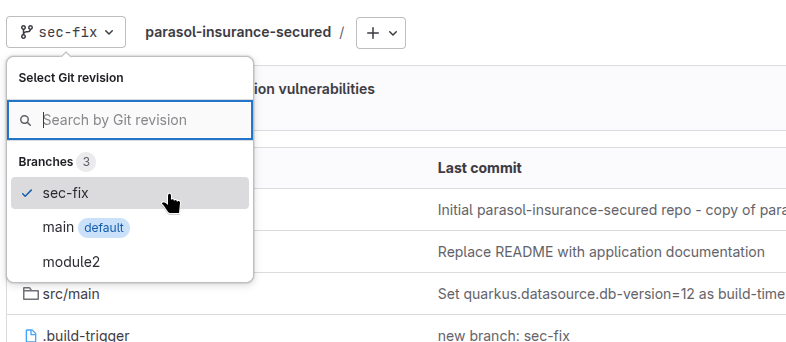
-
Edit a file directly in GitLab (for example,
README.md) — add a line of text. -
Commit the change directly from the GitLab web UI. This commit will not be signed because GitLab CE does not sign commits.
-
Watch the pipeline run. The
verify-commit-signaturestep will report:⚠️ WARNING! UNSIGNED COMMIT DETECTED!
The pipeline will still complete (sandbox does not enforce), but the commit comment in GitLab will show:
⛔ UNSIGNED COMMIT — as per company policy, unsigned code will not be promoted beyond developer sandboxes
This demonstrates that while developers can iterate freely in the sandbox, the system tracks and reports signature status at every step.
Section 3: Fixing the vulnerable base image
Exercise 1: Understand ACS policy violations
Your commit was signed, the application built successfully, and we had remediated most of the vulnerabilities from our application (with the help of Dependency Analytics and upgrading the quarkus framework version) - the ACS policy check has flagged violations and we still have a large number of vulnerabilities in our application image. These violations come from the container base image, not your application code.
-
Review the ACS policy check results in the GitLab commit comment. You may see violations like:
-
Parasol: Curl in Image -
Parasol: Red Hat Package Manager in Image -
Parasol: Fixable Severity at least Important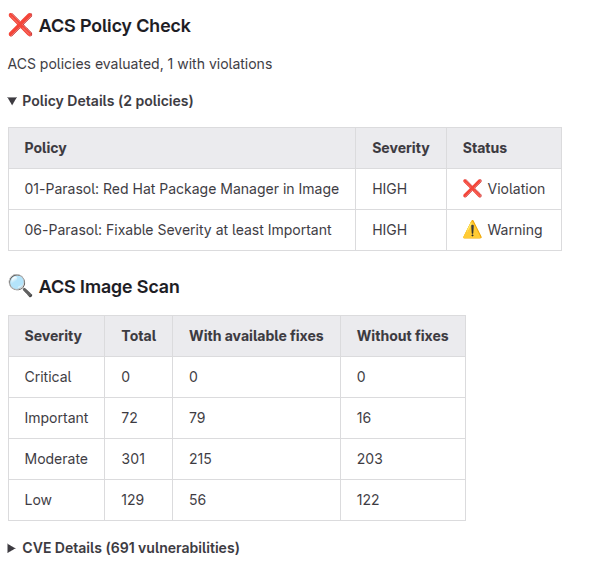
-
-
These policies are defined by Parasol’s security team and flag images that contain tools introducing an attack vector (like
curlordnf) or have fixable high-severity vulnerabilities in the base image.
| For this workshop, "fixable severities at least important" has been defined as a non-breaking policy. In reality, this should be a base policy - what can be fixed, should be fixed. And, as a matter of fact, this is a policy enabled by default in new ACS installations. |
Exercise 2: Switch to a hardened base image
-
Go back to Dev Spaces, open the
Containerfilein the project root.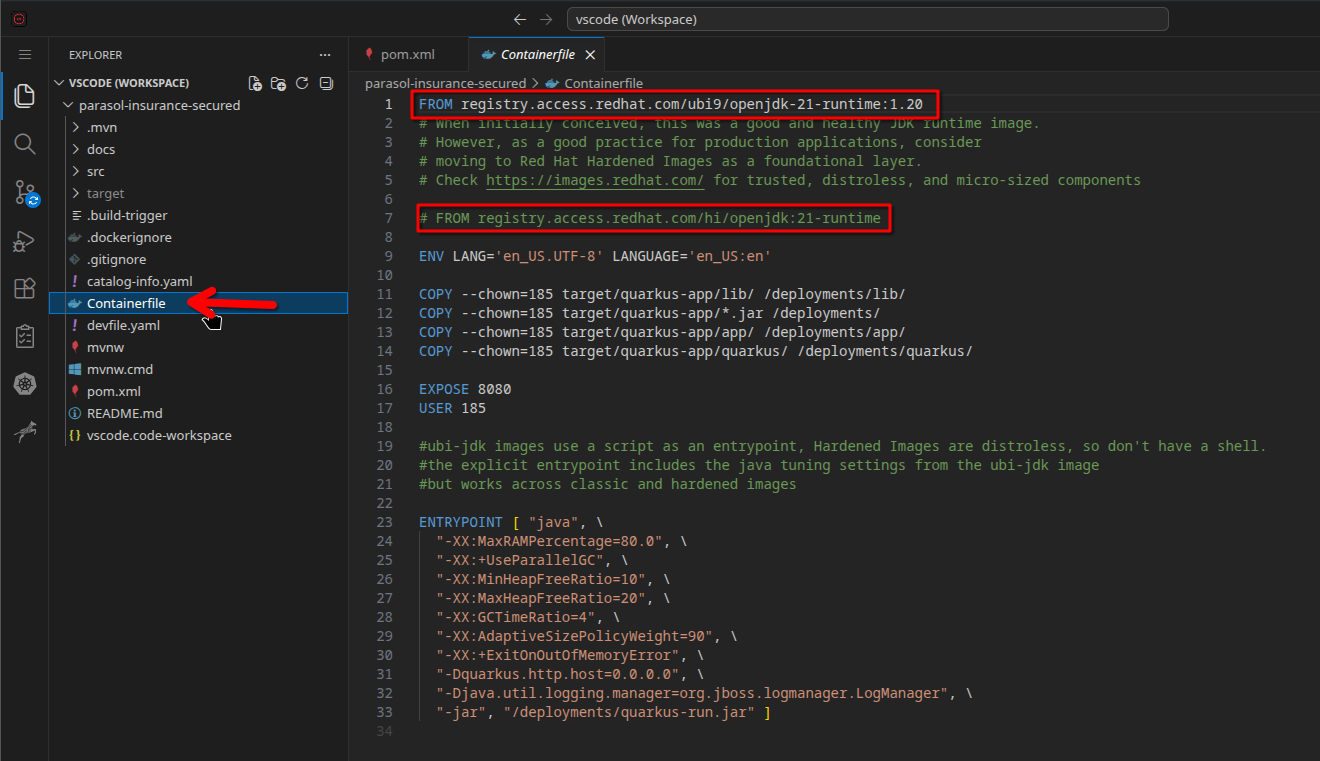
-
Find the
FROMstatement and note the current base image. It may be using a standard runtime image. -
Replace it with a hardened, minimal base image. Change the
FROMline to:FROM registry.access.redhat.com/hi/openjdk:21-runtime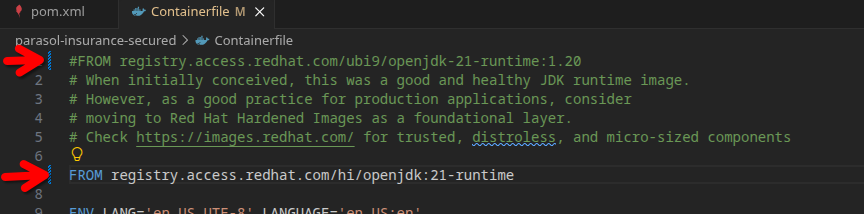
Hardened images are minimal base images that remove unnecessary packages (like package managers and network tools), significantly reducing the attack surface. Additionally, these are constantly vetted and updated for near-zero CVE content. -
Commit the change with a descriptive message:
Switch to hardened base image to resolve ACS policy violations -
Sign the commit (paste the verification code as before) and push.
-
Wait for the sandbox pipeline to build your new image.
-
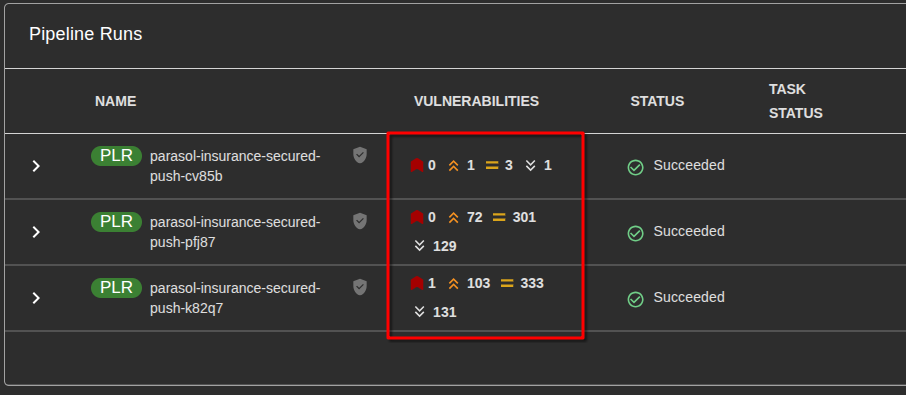
Check the pipeline results in Developer Hub — the vulnerability count should be significantly lower, and the ACS policy violations should be resolved.
How was it done?
To keep the exercise readable, we have added the details below. Expand to read how it was done.
Open to view implementation details
Red Hat Advanced Cluster Security (ACS) provides image scanning and policy enforcement for container images. Key capabilities (for our use case):
-
Image scanning — identifies known vulnerabilities (CVEs) in all layers of a container image
-
Policy enforcement — defines rules about what is acceptable in an image (no package managers, no high-severity fixable CVEs, etc.)
-
Policies as Code — security policies are defined as
SecurityPolicyCustom Resources in a Git repository and deployed via ArgoCD
| ACS can do more - we’re focusing on the small subset of capabilities used in our use case: From evaluating network flows, building and simulating network policies, defining baselines for acceptable container behaviour and reacting on baseline breach, enforcing various runtime policies, cluster compliance reporting against industry controls such as CIS, NIST, etc. and custom controls and much much more. |
The policies used in this environment are stored in the acs-policies repository on GitLab, under the Parasol Secured Build Gate category. You can view them in the ACS console:
-
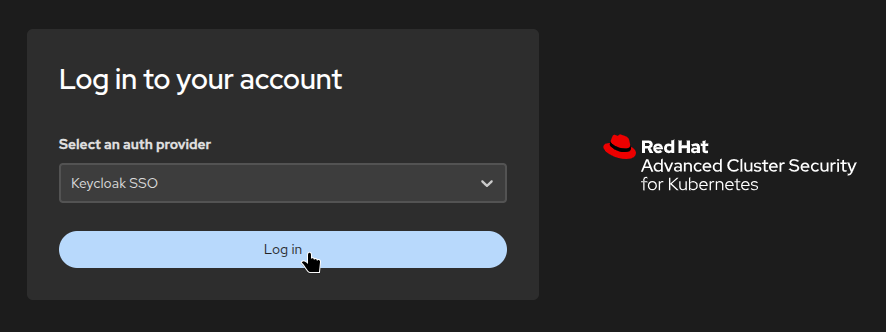
Open the ACS console and click Log in — since you’re already authenticated with Keycloak, you don’t have to re-enter your credentials.
-
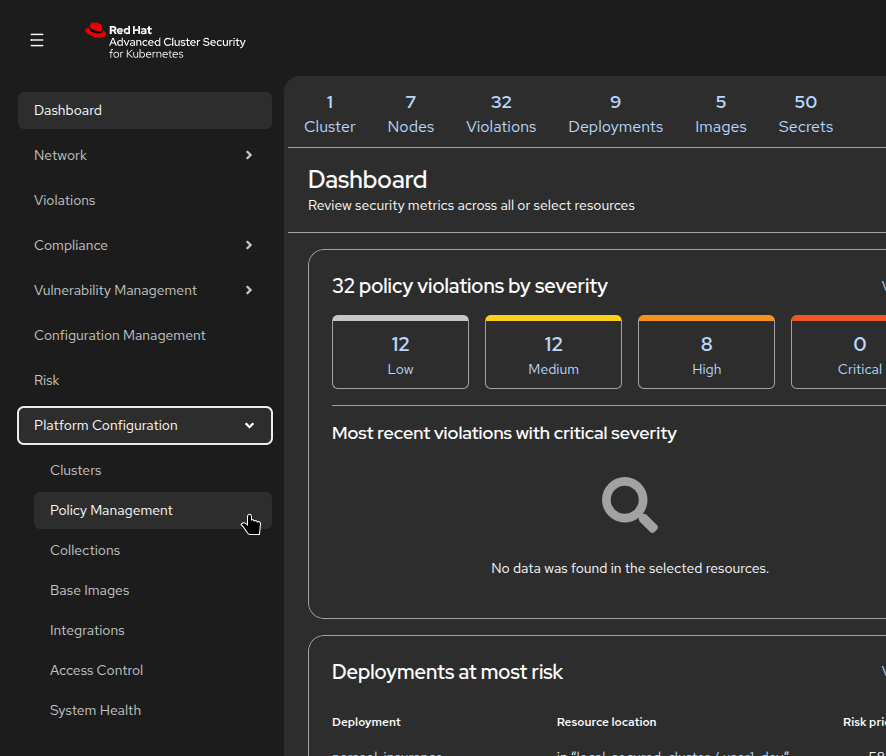
Navigate to Platform Configuration → Policy Management
-
Filter by category: Parasol Secured Build Gate
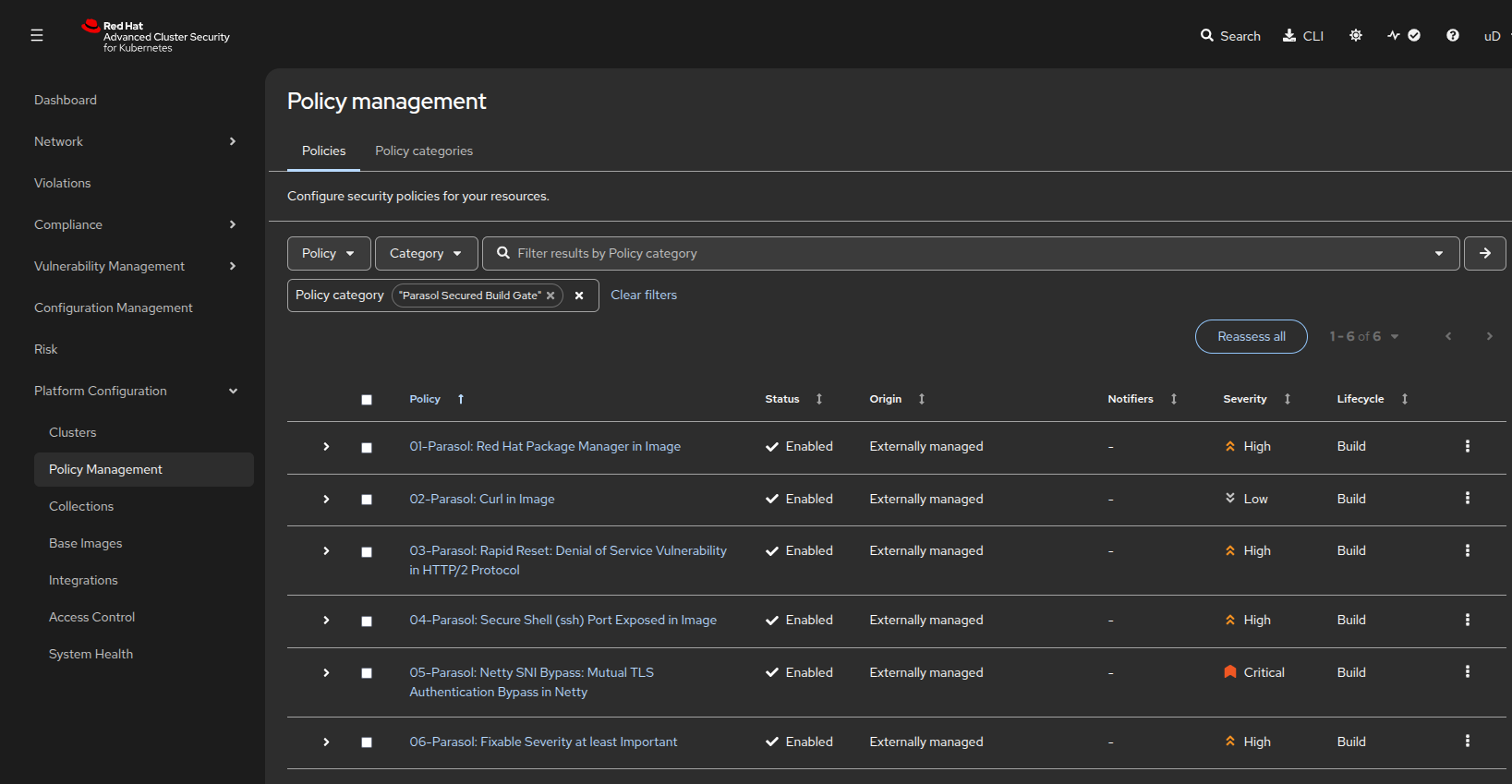
The pipeline tasks acs-image-scan and acs-image-check use the roxctl CLI to interact with the ACS Central API, passing the --categories="Parasol Secured Build Gate" flag to evaluate only Parasol’s custom policies.
Next steps
Continue to Moving to the Next Stages to merge your changes and promote them through the secured pipeline.