Flow Implementation
Now that you understand the full ingestion flow, let’s build it step by step. Here’s the Camel route you’ll be working with:
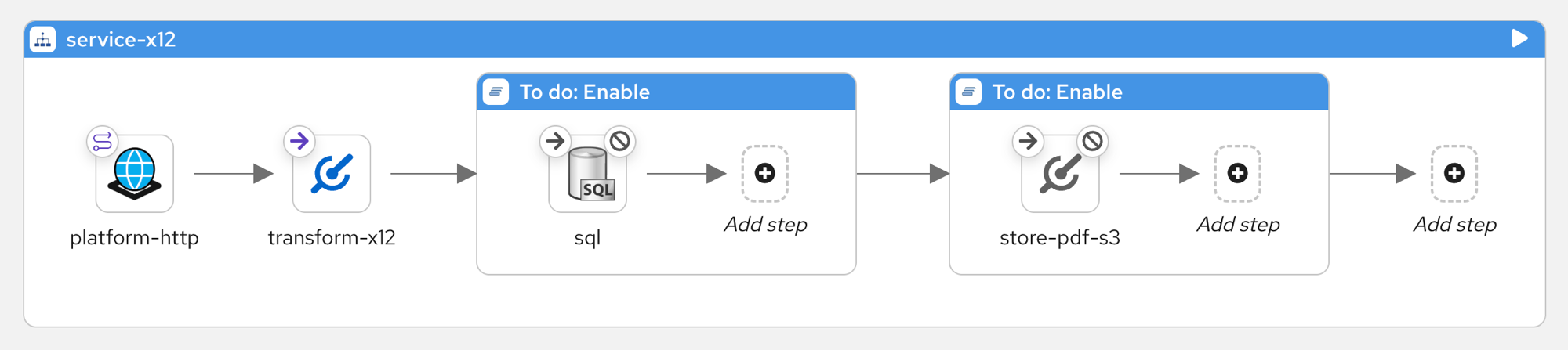
Notice that sql and store-pdf-s3 are grayed out — they’re disabled in the route. Camel will skip them when running. The idea is to start small: get the first steps working, verify the results, then enable the next ones as you progress.
EDI to XML transformation
With the active steps (platform-http and transform-x12), the route receives a policy application in EDI format and returns it as XML:
| Hover over the Policy Application and Policy Document nodes in the diagram below to see what the EDI and XML formats look like. |
flowchart LR
    PO["📄 Policy Application\n(EDI)"] -->|HTTP request| Camel((Camel)) -->|response| XML["📄 Policy Document\n(XML)"]
Before running the route, let’s configure the data mapping so the XML output includes Parasol Insurance as the Insurer.
Explore and modify the data mapping
The transform-x12 step uses a Kaoto data mapper to convert EDI fields into XML. Let’s open it to see how the mappings work, and configure the Insurer address with Parasol Insurance’s details.
Switch to the transform-x12 route:
-
Click the Routes dropdown
-
Select
transform-x12
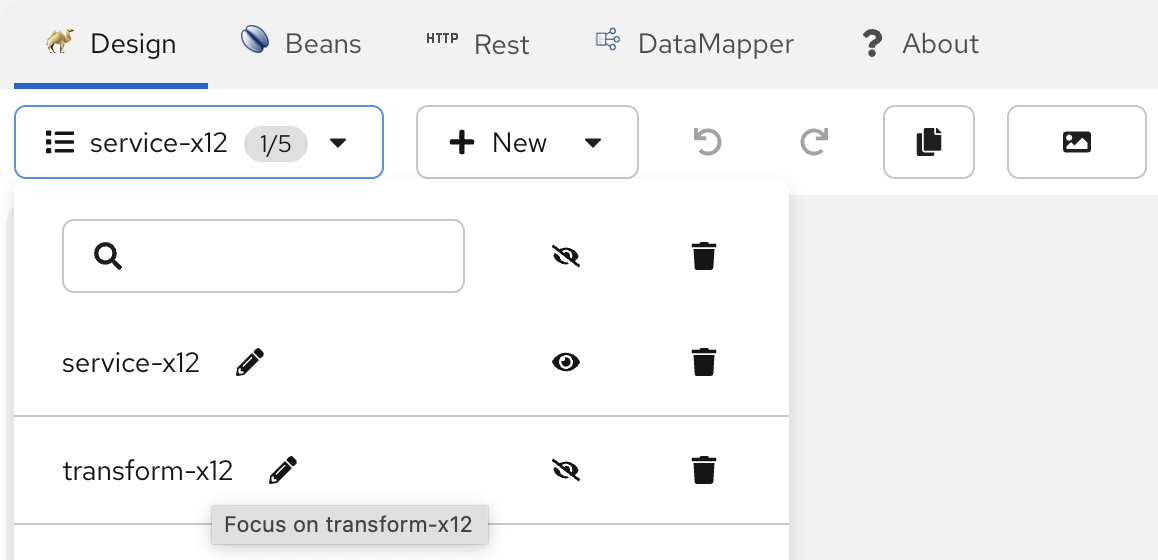
You should now see the transform-x12 route:
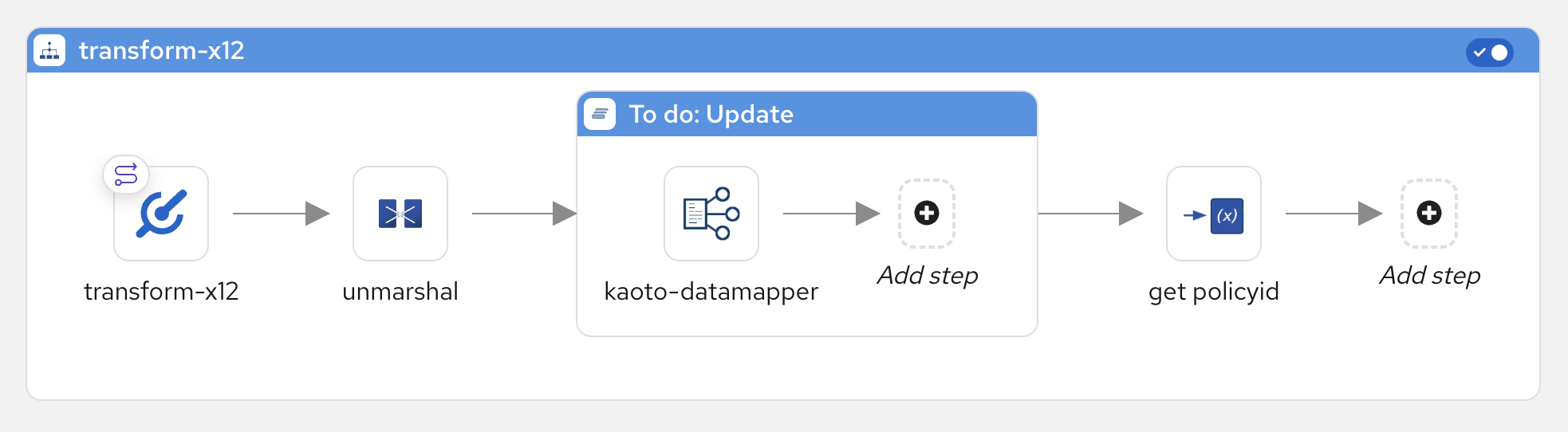
Reading left to right, the route:
1 unmarshal — parses the raw EDI data into a structured format using the X12-850 schema
2 To do: Update — contains the kaoto-datamapper step where the EDI-to-XML field mappings are defined
3 get policyid — (set variable step) obtains the policy number from the resulting XML for use downstream
Open and explore the data mapping
-
Find the data mapping definition as follows:
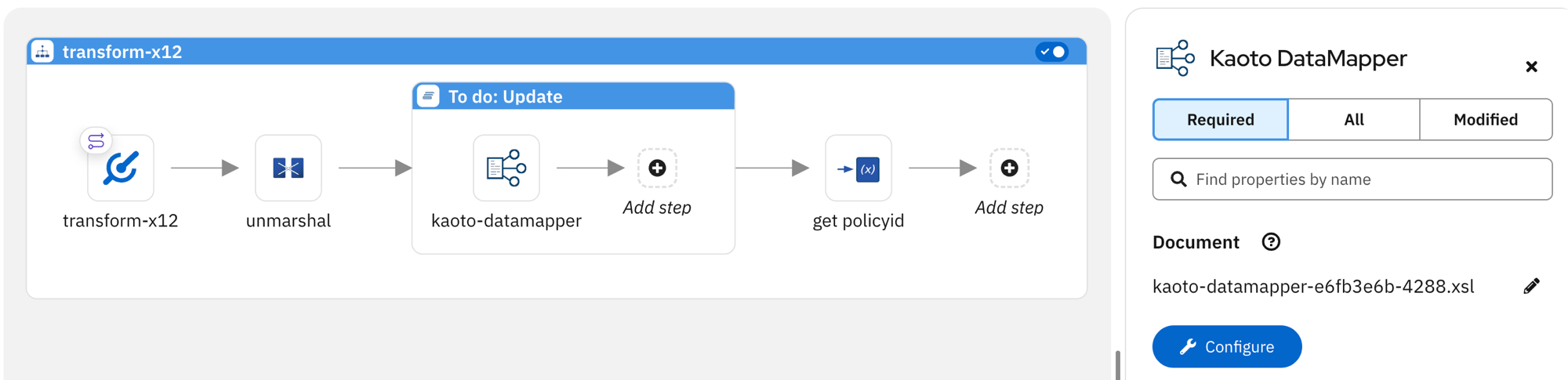
1 Click the
kaoto-datamapperstep inside theTo do: Updatecontainer2 Click the Configure button to open the data mapper
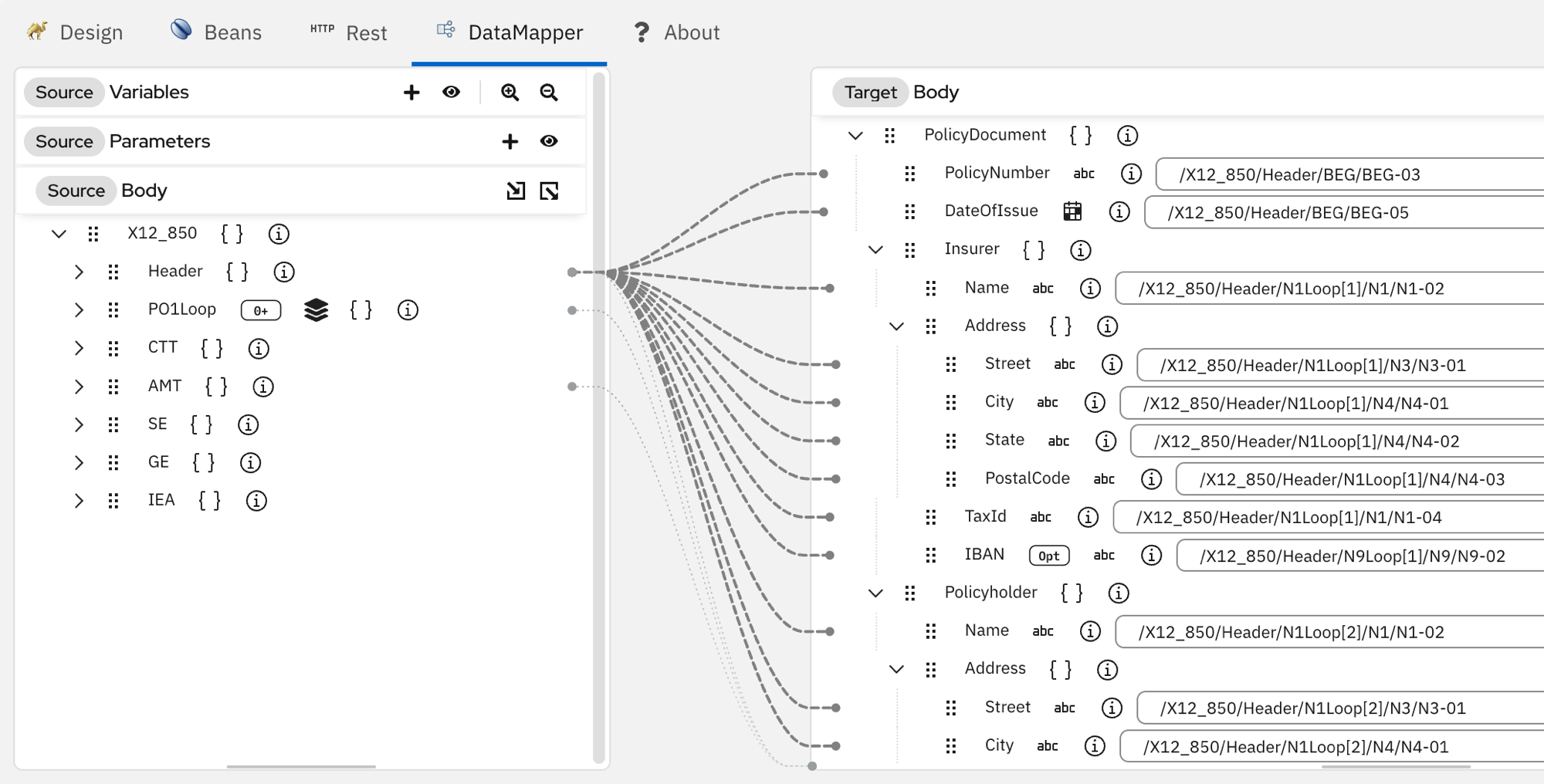
You should see the mapping with the EDI source fields on the left (X12_850) connected to the XML target fields on the right (PolicyDocument):
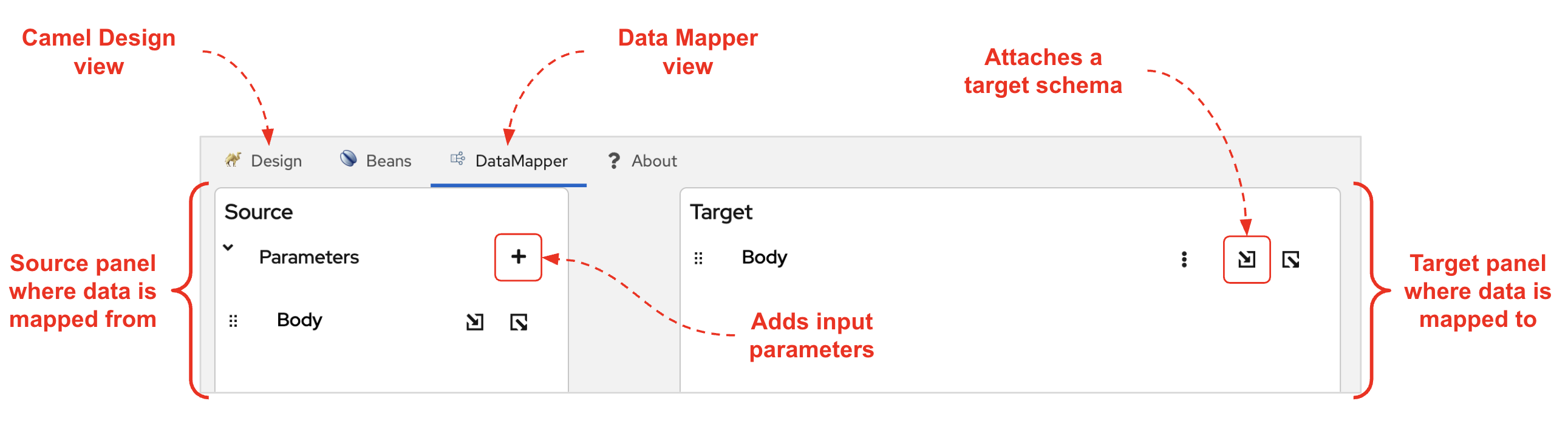
Overview of the data mapper UI.
This is what the data mapper looks like — Source on the left (where data comes from) and Target on the right (where data is mapped to):
-
Explore the mappings
On the right side (Target), find near the top the Insurer > Address section. Each address field is mapped using XPath expressions that extract values from the original EDI data.
-
Configure the Insurer information
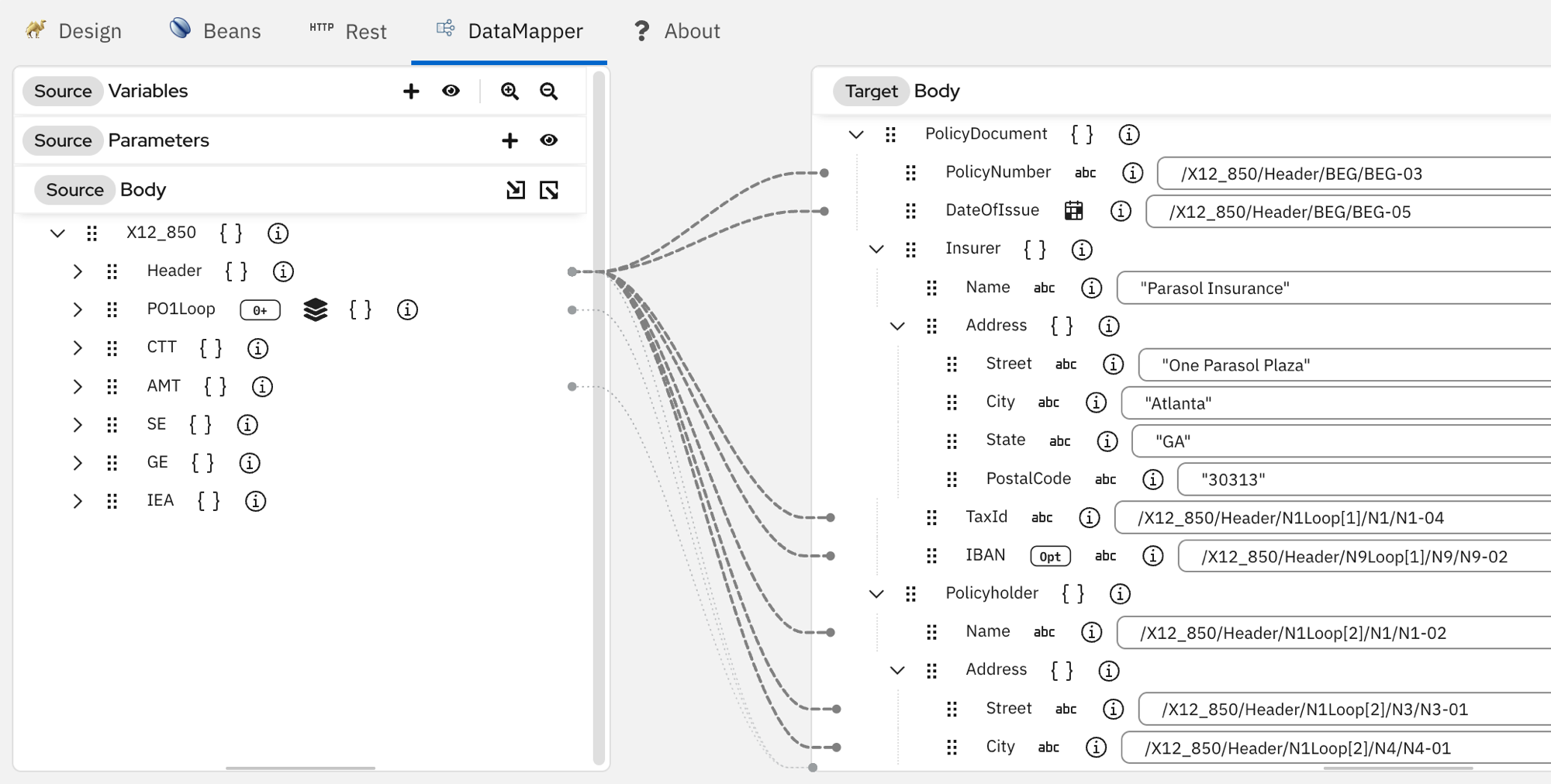
Let’s redefine the mapped fields with Parasol’s hardcoded details. Replace the following fields in the Target with hardcoded values:
-
Name— the insurer’s name -
Street— street address -
City -
State -
PostalCodeString values must be wrapped in double quotes (e.g. "Atlanta"). Without quotes, the data mapper treats the value as an XPath expression instead of a literal string.
Your data mapper should now show Parasol Insurance’s hardcoded values in the Insurer fields:
To return to the canvas, click the Design tab:

-
-
Run the route and test
In the VS Code terminal inside Dev Spaces, run the route:
What does this command do?
-
camel run— runs a Camel integration using JBang -
*— includes all source files in the current directory (routes, properties, supporting code) -
--dev— enables dev mode: Camel watches for file changes and reloads the route automatically
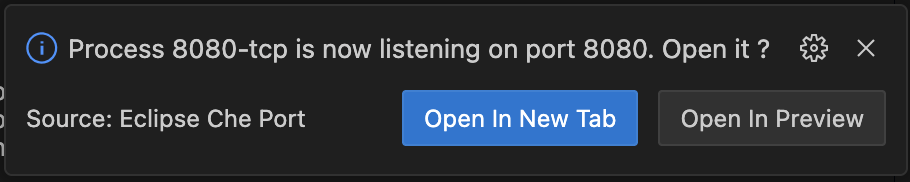
DevSpaces will detect that port 8080 is open and show a notification — click Open In New Tab to open the embedded Test Portal in your browser.
In the Test Portal:
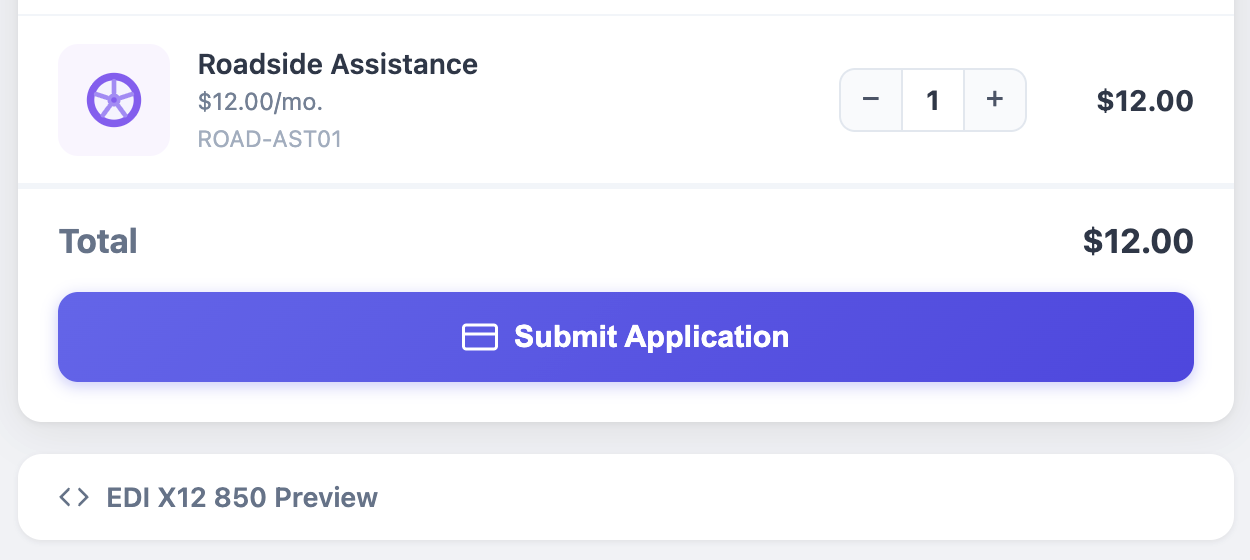
-
Select a coverage — note the total amount
-
Expand EDI X12 850 Preview to peek at the raw EDI message — no need to fully understand it, but you may spot the coverage name, quantity, and total amount in the data
-
Click Submit Application — the portal sends the Policy Application to your Camel route
Once processed, Camel returns the transformed XML and the Test Portal displays it. Notice the Insurer now shows Parasol Insurance’s hardcoded details — not the original EDI data:
<Insurer>
    <Name>Parasol Insurance</Name>
    <Address>
        <Street>One Parasol Plaza</Street>
        <City>Atlanta</City>
        <State>GA</State>
        <PostalCode>30313</PostalCode>
    </Address>
    <TaxId>939988477</TaxId>
    <IBAN/>
</Insurer>
Now click Check Database — since the
sqlstep is still disabled in the route, the policy data was never stored. You should see:Check DatabaseNo record found (Policy Document 19462522)This is expected — you’ll enable the database step next.
-
Enable the SQL step
With the transformation working, it’s time to enable the next step in the route — persisting the policy data to the database.
Ensure you are in the Design view:
-
Switch back to the main flow
Select ☰ service-x12 1/5 ▾ from the Routes dropdown.
-
Enable the
sqlstep-
Hover over the
sqlstep — a toolbar appears above it -
Click the Enable step button (the tick icon)
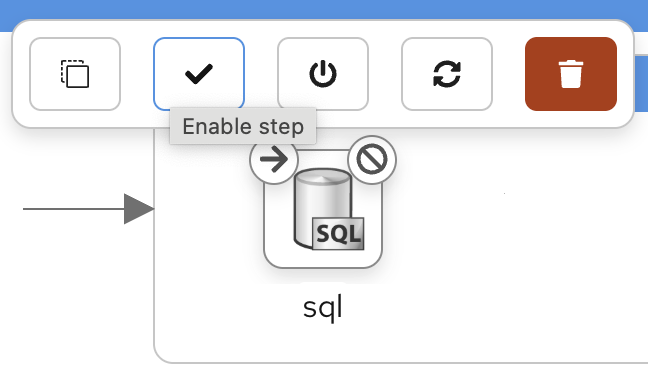
Since Camel is running in
--devmode, the route will reload automatically with the new step active. -
-
Place a new order
Go back to the Test Portal and submit a new policy application. The route will now transform the EDI and insert the data into the database.
-
Check the database
This time, click Check Database — the policy data should now be stored:
Check DatabaseRecord found (Policy Document 71960809)
Enable the S3 storage step
The last step in the route generates a PDF policy document from the XML and uploads it to S3 object storage.
-
Enable the
store-pdf-s3stepSame as before — hover over the
store-pdf-s3step and click the Enable step button (the tick icon). The route will reload automatically.With all steps enabled, the full ingestion flow is now active:
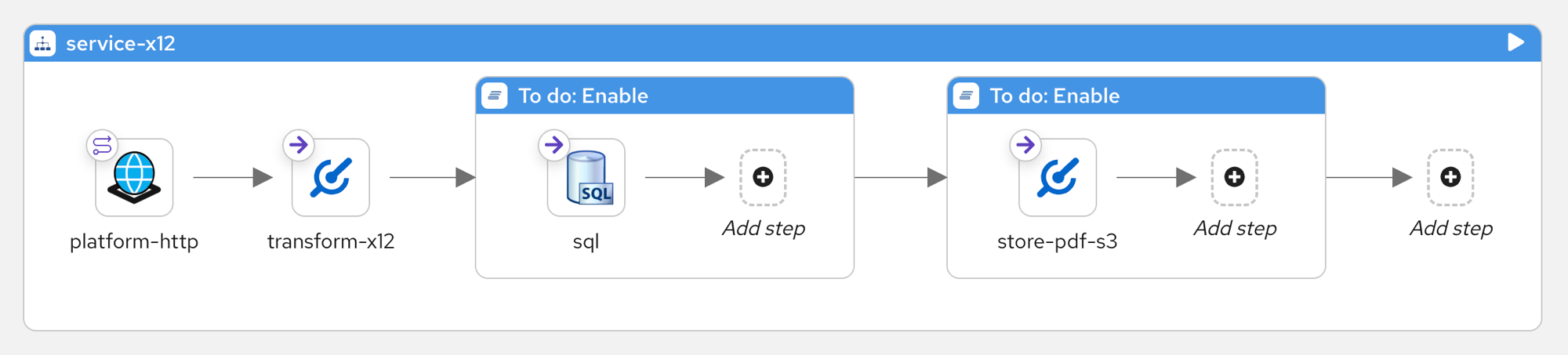
What does
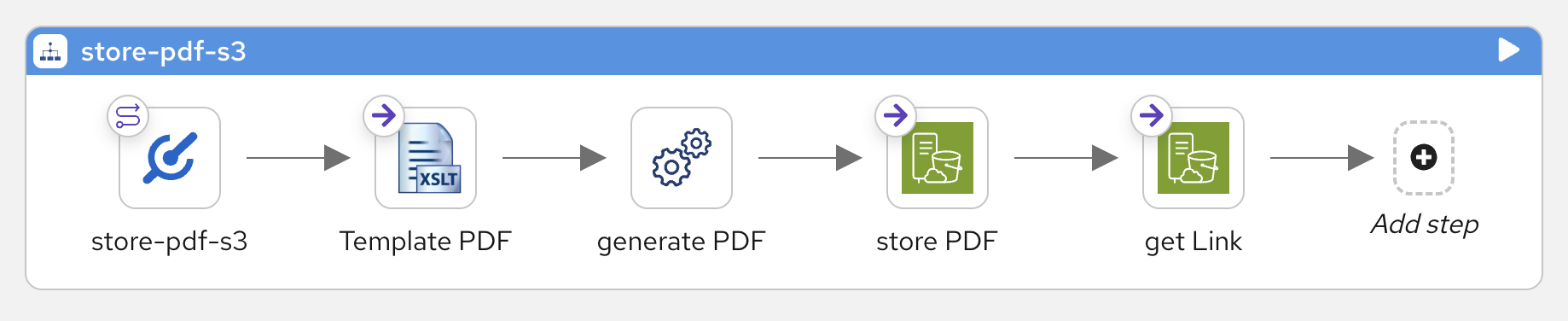
store-pdf-s3do?Select it from the Routes dropdown to see its sub-route — it applies an XSLT template to produce a PDF from the XML policy document, uploads it to S3 object storage, and returns a presigned link to the document.
-
Place a new order
Go back to the Test Portal and submit another policy application. This time, the full flow runs — transformation, database insert, PDF generation, and S3 upload. The Test Portal will display a confirmation with a link to the generated policy document:
Click View Policy Document (PDF) to open it in your browser. The Insurer section should display Parasol Insurance’s details:
Insurer:Parasol Insurance
One Parasol Plaza
Atlanta, GA 30313
When you’re done, press Ctrl+C in the terminal to stop Camel.