Section 7: Review the Quarkus branch and deploy to OpenShift
Goal
Switch parasol-insurance-eap to the quarkus branch — the completed EAP → Quarkus migration — then:
-
Review the modernized code against what you fixed in earlier sections
-
Optionally run the app locally
-
Build and deploy it to OpenShift and verify the Parasol UI and APIs
In the previous sections you used MTA analysis and Developer Lightspeed to migrate pieces of the legacy application (MDB messaging, custom audit rules, Stateless EJB). The repository also carries a quarkus branch where that modernization is already applied end to end. This lab closes the loop: inspect the target architecture, then ship it to the cluster.
Exercise 1: Check out the quarkus branch
-
In Dev Spaces, open a terminal so you can run the git commands. From the menu choose Terminal → New Terminal.
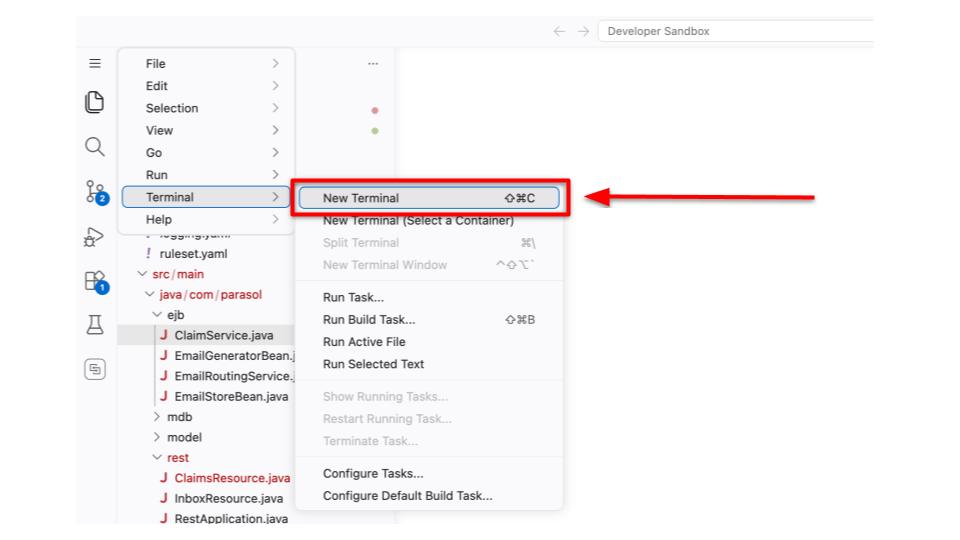 Figure 1. New Terminal
-
Make sure you are in the
parasol-insurance-eapproject root. -
Fetch and check out the migrated branch.
git reset --harddiscards local changes to tracked files.git clean -dfremoves untracked files and directories left from earlier lab work (for example generated artifacts or files created by Developer Lightspeed) so they do not linger after the branch switch:git fetch origin git reset --hard git clean -df git checkout quarkus git pull origin quarkus -
Confirm you are on the right branch:
git branch --show-current
git log -2 --oneline
You should see
quarkusas the current branch.
If Dev Spaces prompts you to reload the window after the branch switch, accept the reload so the Java / Quarkus tooling picks up the new pom.xml. You may also see red error markers from MTA analysis reports left over from the previous branch — these will clear as the language server refreshes.
|
Exercise 2: Review the migrated code
Walk the same classes you touched earlier and compare them to the Quarkus implementations.
Packaging and dependencies
-
Open
pom.xmlon thequarkusbranch. Note the shift from an EAP / Java EE WAR toward Quarkus:-
Packaging is
jar(notwar) -
Dependencies come from the Quarkus BOM (
quarkus-rest,quarkus-hibernate-orm,quarkus-messaging,quarkus-scheduler, JDBC drivers, and so on) -
There is no
jboss-eap-javaee8BOM orjavax.*EJB / JMS API stack
-
-
Open
src/main/resources/application.properties. Observe:-
Dev profile uses in-memory H2
-
%prodprofile uses PostgreSQL viaPOSTGRESQL_*environment variables (what OpenShift will inject)
-
Messaging: EmailIntakeMDB
-
Open
src/main/java/com/parasol/mdb/EmailIntakeMDB.java.Confirm the migration outcomes from Section 4:
-
@ApplicationScopedinstead of@MessageDriven -
@Injectinstead of@EJB -
@Incoming("email-intake")instead of JMSMessageListener/ activation config -
jakarta.*imports
-
Business services: ClaimService
-
Open
src/main/java/com/parasol/ejb/ClaimService.java.Confirm the migration outcomes from Section 6:
-
@ApplicationScoped+@Transactionalinstead of@Stateless -
@Inject EntityManagerinstead of@PersistenceContext -
No
javax.ejbusage
-
Scheduling: EmailGeneratorBean
-
Open
src/main/java/com/parasol/ejb/EmailGeneratorBean.java.Note how the old EJB timer / JMS producer path became Quarkus-native:
-
@Scheduled(…)instead ofTimerService/@Timeout -
@Channel("email-intake") Emitter<String>instead of JMSConnectionFactory/Queue -
Still
@ApplicationScoped, feeding the sameemail-intakechannel the MDB consumes
-
REST layer
-
Open
ClaimsResourceandInboxResource. Confirm CDI@Injectof services (no@EJB) andjakarta.ws.rsAPIs.
| Concern | Legacy (main) |
Quarkus branch |
|---|---|---|
Packaging |
WAR + EAP BOM |
JAR + Quarkus BOM |
APIs |
|
|
Claims service |
|
|
Email intake |
JMS |
|
Email generator |
EJB timer + JMS |
|
Datasource (prod) |
|
Quarkus JDBC + env vars |
Exercise 3: Run Quarkus locally (optional smoke test)
Before deploying, you can smoke-test on the Dev Spaces / local JVM.
-
From the project root:
mvn quarkus:dev -
When Quarkus starts listening on port 8080, Dev Spaces shows a series of port-forward dialogs. Accept them in order so the app opens in your browser: yes (add a redirect) → Open In New Tab → Open.
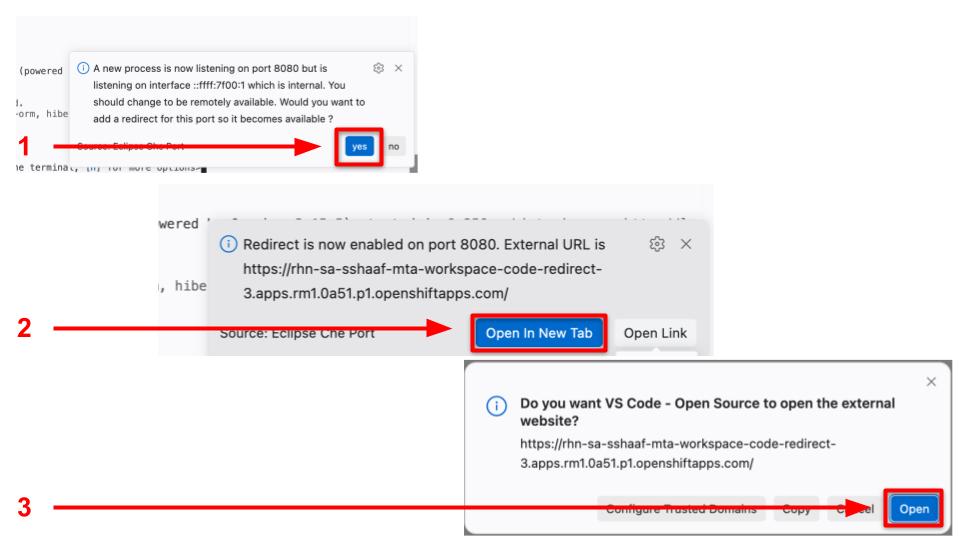 Figure 2. Open forwarded port
You may also see similar dialogs for port 5005 (the Quarkus remote-debug port). You can dismiss or ignore those for this exercise — we are only using the HTTP UI on 8080, not attaching a debugger. -
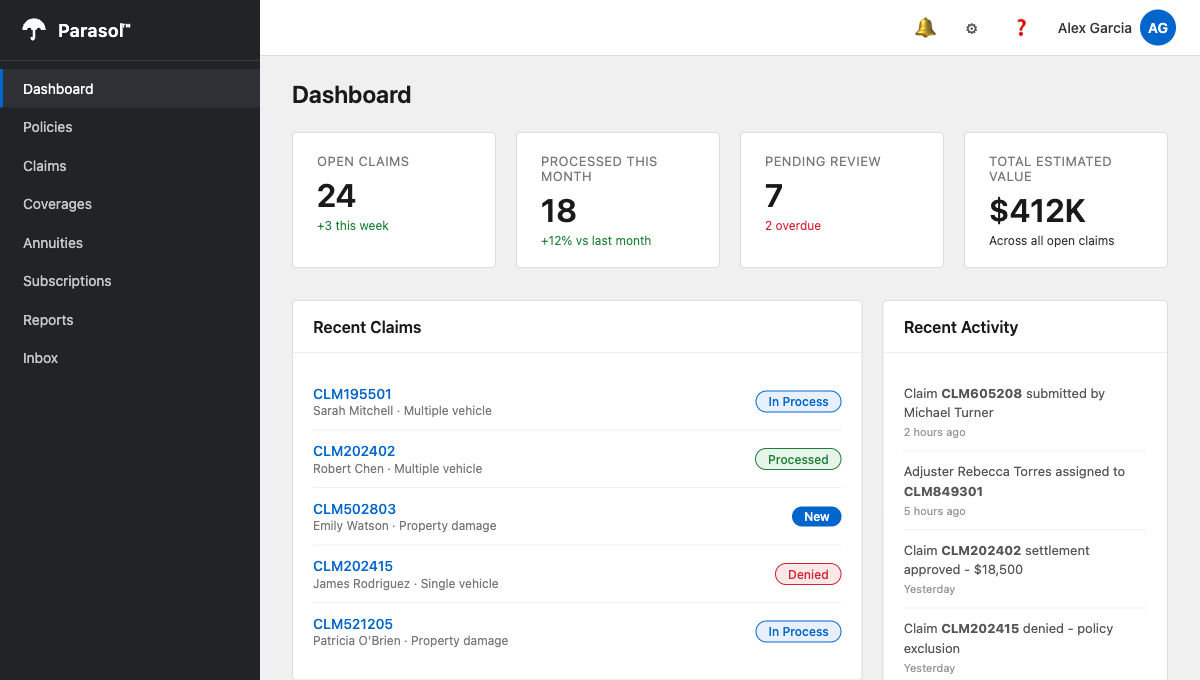
You should land on the Parasol Dashboard.
-
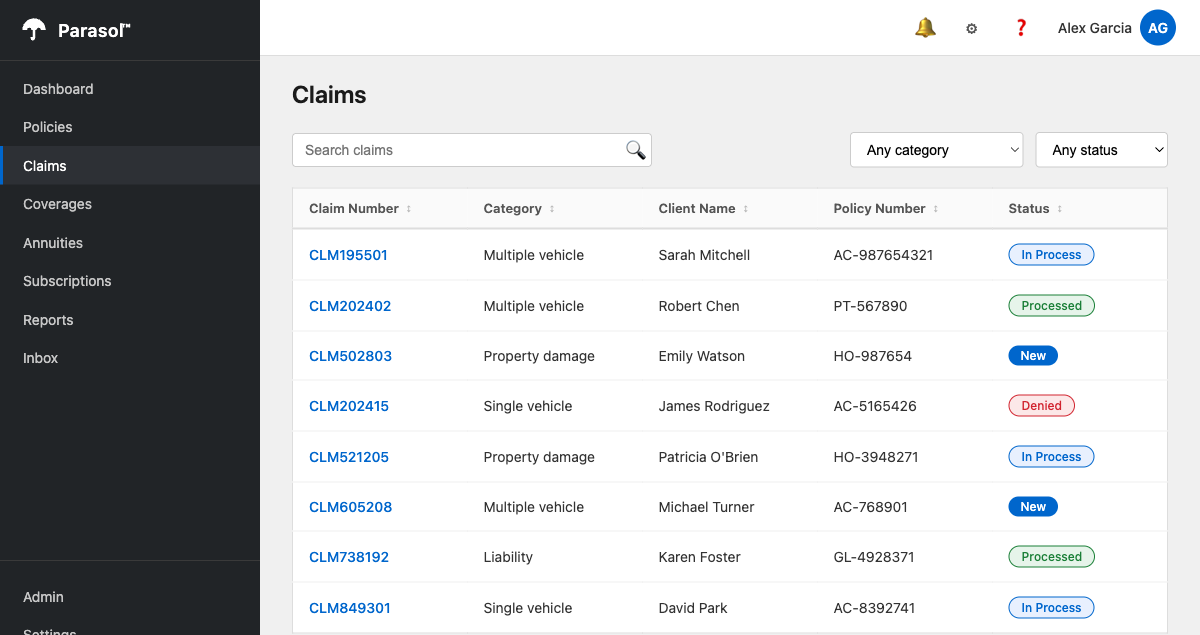
Open Claims and confirm seeded claims load from the API / UI.
-
Open a claim detail (for example from the claims table) and confirm the page renders.
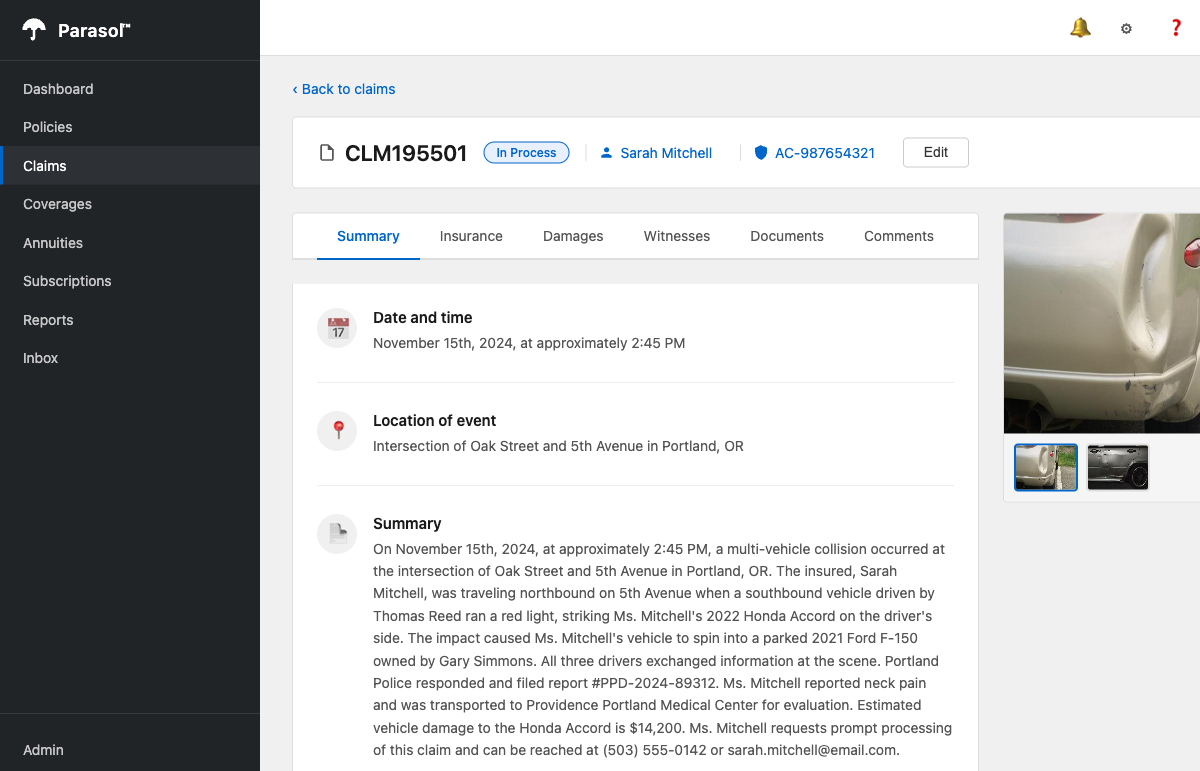
-
Open Inbox. The scheduled generator publishes sample emails onto the in-process
email-intakechannel. The first message can take a few minutes (scheduler delay), then new ones arrive about every 45 seconds. Until then the UI shows Waiting for emails….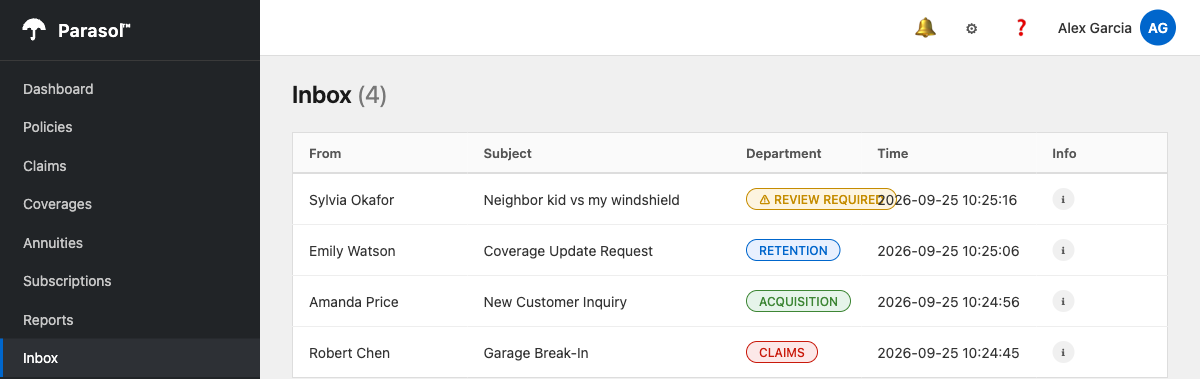
-
Stop the Dev mode process with
Ctrl+Cwhen finished.
Exercise 4: Deploy to OpenShift
Deploy from the quarkus branch using the manifests under openshift/ and a cluster-side binary Docker build. These steps assume oc is logged in and a {user}-ai-mta namespace is selected (oc project).
To start the deployment to OpenShift, let’s first change to our project namespace {user}-ai-mta.
oc project {user}-ai-mtaWe also need a database backend for our modernized application. For this we use PostgreSQL.
Provision PostgreSQL
-
Create an ephemeral PostgreSQL instance for the demo:
oc new-app --template=postgresql-ephemeral \
  -p DATABASE_SERVICE_NAME=parasol-db \
  -p POSTGRESQL_USER=parasol \
  -p POSTGRESQL_PASSWORD=parasol \
  -p POSTGRESQL_DATABASE=parasol \
  -p POSTGRESQL_VERSION=12-el8
You may see a warning about DeploymentConfigbeing deprecated. This is expected on OpenShift 5 and can be safely ignored — the PostgreSQL template still works correctly. -
Wait until the database is ready:
oc rollout status deploymentconfig/parasol-db 2>/dev/null \
  || oc rollout status deployment/parasol-db
oc get pods -l name=parasol-db
Build the Quarkus application
-
Package the app locally (or in the Dev Spaces terminal):
mvn clean package -DskipTestsThis produces
target/quarkus-app/. -
Assemble a binary build context and start an OpenShift Docker build:
rm -rf /tmp/parasol-build
mkdir -p /tmp/parasol-build
cp src/main/docker/Dockerfile.jvm /tmp/parasol-build/Dockerfile
cp -R target/quarkus-app /tmp/parasol-build/

oc new-build --name=parasol-insurance --binary --strategy=docker -l app=parasol-insurance
oc start-build parasol-insurance --from-dir=/tmp/parasol-build --follow
Apply deployment manifests
-
Deploy the application (image namespace is substituted from your current project). The Deployment maps Secret
parasol-dbinto thePOSTGRESQL_*variables expected by the%prodprofile:sed "s|REPLACE_NAMESPACE|{user}-ai-mta|g" openshift/deployment.yaml | oc apply -f - oc apply -f openshift/service.yaml oc apply -f openshift/route.yaml oc rollout status deployment/parasol-insurance -
Get the Route URL and open it in the browser:
ROUTE=$(oc get route parasol-insurance -o jsonpath='{.spec.host}') echo "https://${ROUTE}/" -
Verify the APIs from the terminal:
curl -sk "https://${ROUTE}/api/claims" | jq . curl -sk "https://${ROUTE}/api/inbox" | jq . -
In the OpenShift console, open your project {user}-ai-mta Topology (or Workloads → Deployments) and confirm the application is running.
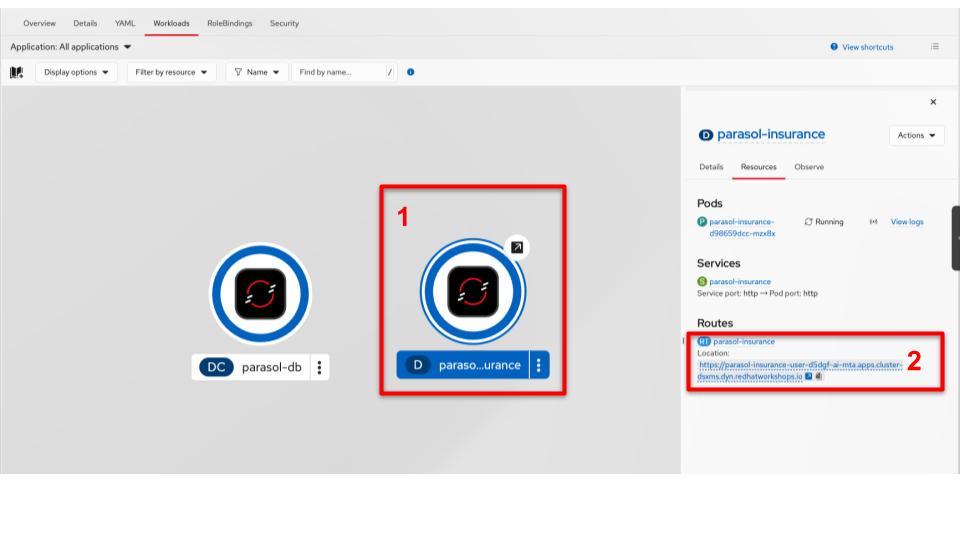 Figure 3. OpenShift Topology
You should see something similar to the topology above:
-
parasol-insurance— the Quarkus application (look for the Quarkus application badge). A blue ring around the node means the pod is healthy / running. -
parasol-db— the PostgreSQL instance the%prodprofile talks to. Topology may draw a connector from the app to the database. -
Optionally you may still see a legacy
parasol-insurance-eapworkload in the same project from earlier demos; the one you just deployed is the Quarkus node.Select
parasol-insurance, open the Resources side panel, and check: -
Pods — at least one pod in Running state
-
Services —
parasol-insurance -
Routes — the public URL for the app (click it to open the Parasol UI in the browser, same as the
oc get routehost from the previous step)== Exercise 5: Review what changed in production config
-
-
Re-open
openshift/deployment.yamland relate it toapplication.properties%prodsettings:-
POSTGRESQL_HOST=parasol-db -
Credentials from Secret
parasol-db -
HTTP probes on
/api/claims
-
-
Contrast this with the legacy EAP approach (
java:jboss/datasources/ParasolDS,jboss-all.xmlJMS queue definitions). Quarkus moves runtime wiring into application config + Kubernetes env, which is easier to GitOps and promote across environments.
What we learned
-
The
quarkusbranch is the completed migration target for the patterns you practiced with MTA / DLS. -
Messaging, CDI services, scheduling, and REST all use Quarkus / MicroProfile idioms (
@Incoming,@Channel,@Scheduled,@ApplicationScoped). -
Local
quarkus:dev(H2) is ideal for quick UI verification; OpenShift uses PostgreSQL via the%prodprofile. -
Container deploy is a standard binary build + Deployment / Service / Route — no EAP-specific subsystem XML required.
Summary
Red Hat Developer Lightspeed for Migration Toolkit for Applications is an add-on to Red Hat Migration Toolkit for Applications that intelligently automates source code refactoring within your IDE. For workflow efficiency, you can see explanations and recommended code changes throughout the code refactoring process before applying fixes with the click of a button.
Unlike traditional coding assistants, Lightspeed for migration toolkit for applications is guided by MTA’s static code analysis and past migrations to suggest accurate code solutions from the start and also improve them over time. This helps developers refactor applications faster and predictably.
Optionally, you can also turn on “agent mode” to have built-in AI agents analyze your application to search and fix new issues that may arise after changing your code. This helps preserve functionality.
This add-on is included with a Red Hat Advanced Developer Suite subscription. For more information, visit Red Hat Advanced Developer Suite.