Resources

OpenShift Credentials

  • username: username
  • password: user-password

Dev Spaces

Developer Console

Matrix

Rocket.Chat

BGCreated with Sketch.

Tasks to complete

Get Started
BGCreated with Sketch.

Congratulations!

Return to the dashboard to continue your journey.

Go to home

Application Connectivity for AI

Welcome to App Connectivity for AI. This module is designed to provide you with a comprehensive introduction to building AI data flows using Red Hat’s powerful tools and technologies. Whether you’re new to AI or an experienced developer, this workshop will guide you through the process of creating efficient and secure data flows that can power your AI applications.

For the best experience, we recommend following the module in order. Each section builds on the previous one, allowing you to gradually develop your skills and understanding of the concepts, but feel free to select specific sections that interest you the most.

Select a module below to get started.

Get familiar with the workshop goals, the technologies at play, the scenario, and set up your development environment.

Ingest EDI policy applications, transform and store them in a backend database, and generate PDF policy documents — with secure cross-cluster connectivity powered by Service Interconnect.

Onboard onto the Matrix and Rocket.Chat platforms and explore the first integration flow connecting both messaging systems.

Decouple the messaging architecture using Kafka as the backbone, adopt a standard data model, and deploy the full event-driven solution on OpenShift.

Build an AI-powered support agent that resolves policy issues through natural language in Rocket.Chat — orchestrated by Agentic Apache Camel and MaaS.

Secure and govern LLM access with Red Hat Connectivity Link — enforce API key authentication and token-based rate limiting per user tier.

To navigate between modules, use the left-hand side panel — if it’s not visible, click the menu icon in the top-left corner to open it.

Show me how

Click the menu icon (top-left) to open the navigation panel:
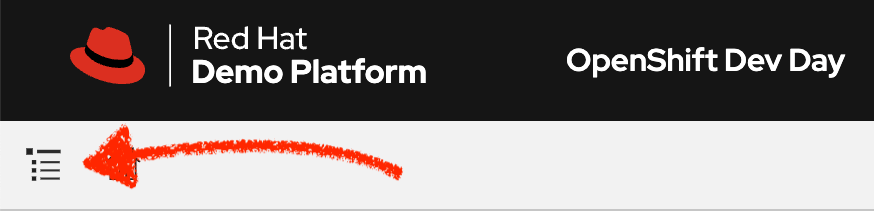
Menu icon in top-left corner

Then select the module you want to start:
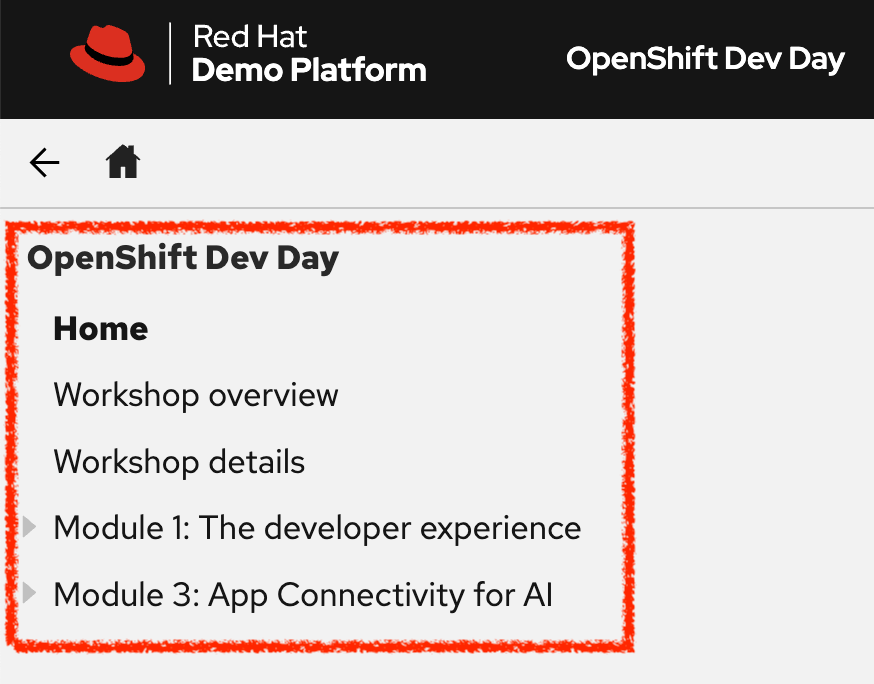
Left navigation panel with modules