Developing the AI assistant
Open the Camel route
In your editor’s file explorer, click on the following file — Kaoto will automatically open it and render the route as a visual diagram.
📁 workshop
📁 lab
📁 agent
! agent.camel.yaml
New to Kaoto?Most of the processing flows you’ll edit during this workshop use Kaoto, the visual integration designer for Apache Camel. Kaoto is a VS Code extension that renders Camel definitions graphically so you can design and configure routes without editing YAML by hand. 
Among other tasks, Kaoto helps you to:
Here’s what the Kaoto canvas looks like — each step in the route is rendered as a visual node that you can click to configure: 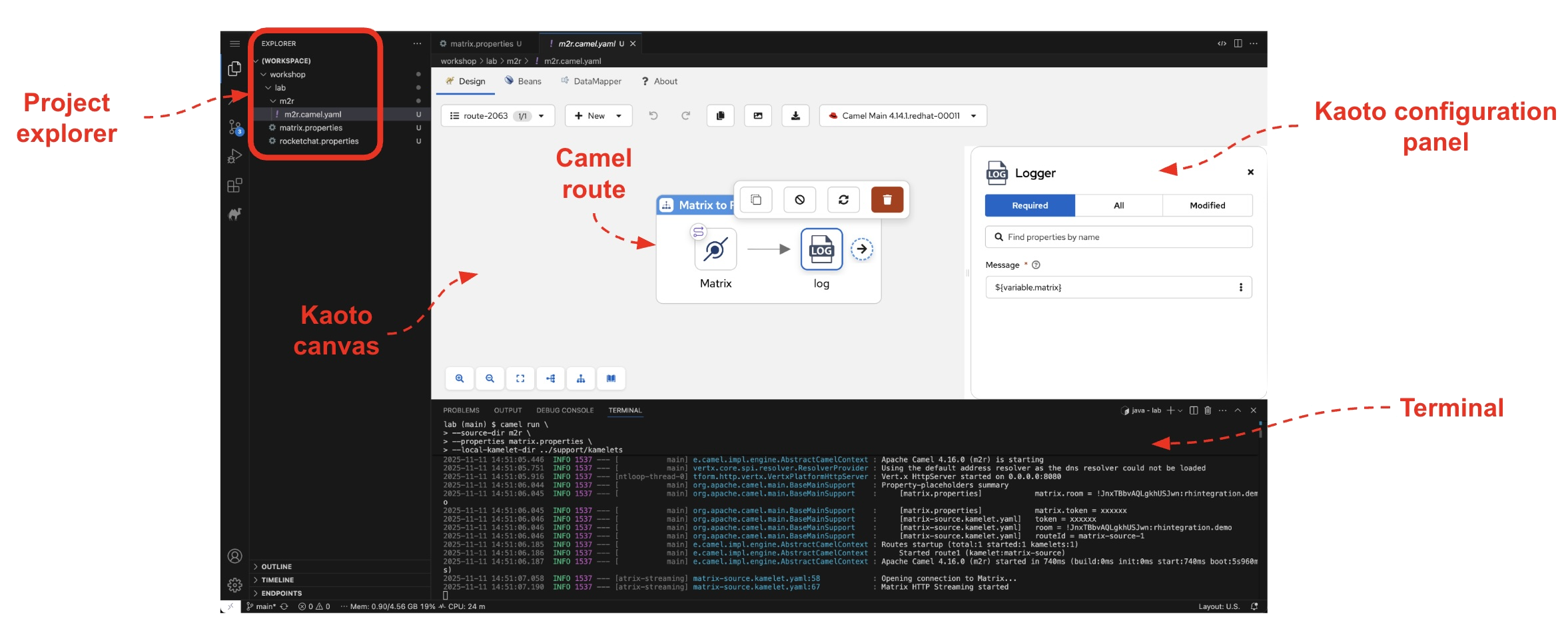
|
Kaoto will open the file and display all the route definitions it contains. The file includes several routes, but the one we want to focus on is the main agentic flow. Do as follows:
-
Click the Routes dropdown in the upper-left toolbar
-
Select
rocketchat-to-agentfrom the list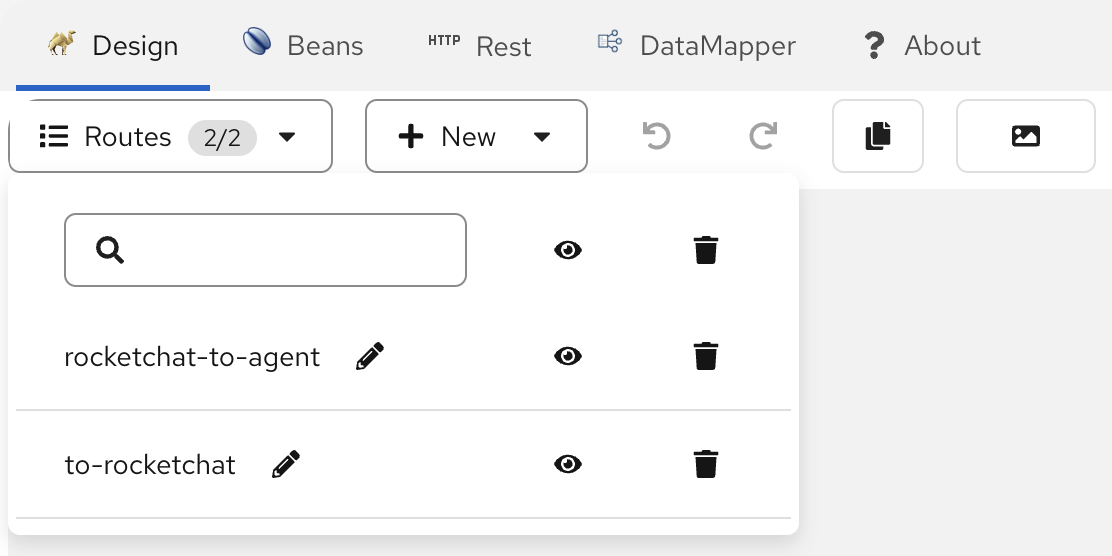
To center the route in the canvas, click the Reset View button at the bottom:
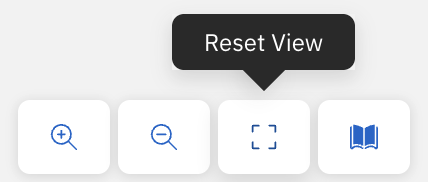
| Use the mouse wheel to zoom in and out of the canvas, and click and drag to pan around the view. |
You should now see the route you’ll be working with — the starting point for the customer support flow:
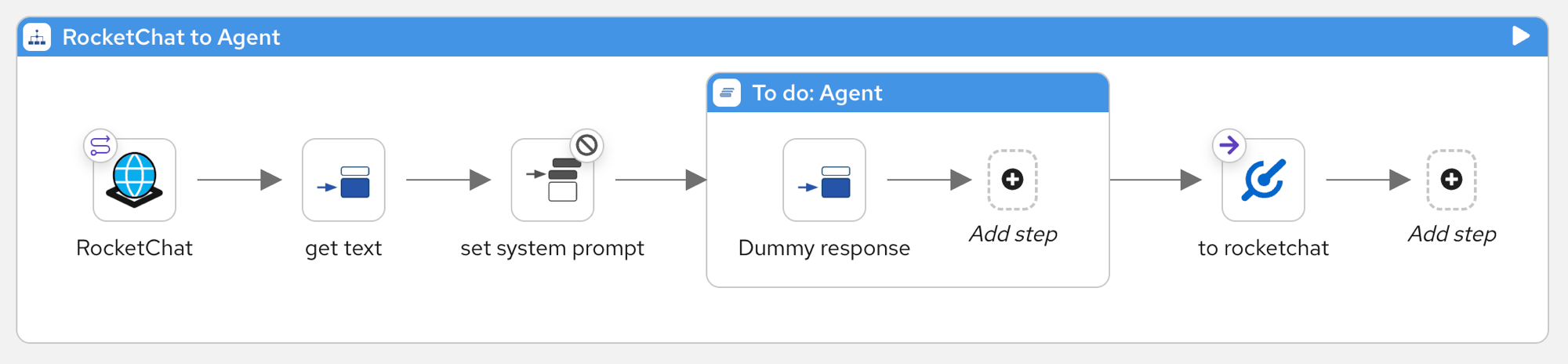
Reading left to right, the route listens for messages from Rocket.Chat and extracts the text — but the flow is incomplete. The set system prompt step is disabled, and the To do: Agent block contains only a dummy response that returns "Hello World" regardless of what the user says.
Throughout this exercise, you’ll be guided to complete this flow step by step:
1 You’ll enable the set system prompt step — this will instruct the AI agent how to behave
2 You’ll replace the Dummy response with a MaaS-powered AI agent, and progressively equip it with tools to handle real customer requests
Start the dev loop
From this point on, you’ll work in a rapid development cycle — Camel JBang runs in dev mode, which means every change you make to the route is instantly picked up and applied. You can modify the flow, save the file, and immediately observe the new behaviour without restarting.
Start by running the Camel route as-is to see the placeholder behaviour in action:
What does this command do?
|
Wait for Camel to fully start — you should see …(agent) started… in the terminal.
Switch to your Rocket.Chat window.
| If you haven’t logged in yet, follow the Rocket.Chat platform onboarding instructions (opens in a new tab). |
In the left sidebar, find and select the ai-support channel that matches your user identifier:
Then type a simple message:
The Camel bot picks up the message and responds with Hello World — confirming the route is working end to end:
This is expected — the route is still using the hardcoded dummy response. In the next steps, you’ll replace it with a real AI agent that can reason and respond naturally.
Wire the AI agent
Now replace the dummy response with a real AI agent. Head back to the Kaoto canvas and follow the steps below:
-
Enable the system prompt
The
set system promptstep is currently disabled — it’s greyed out because there was no AI agent to use it.Enable it: 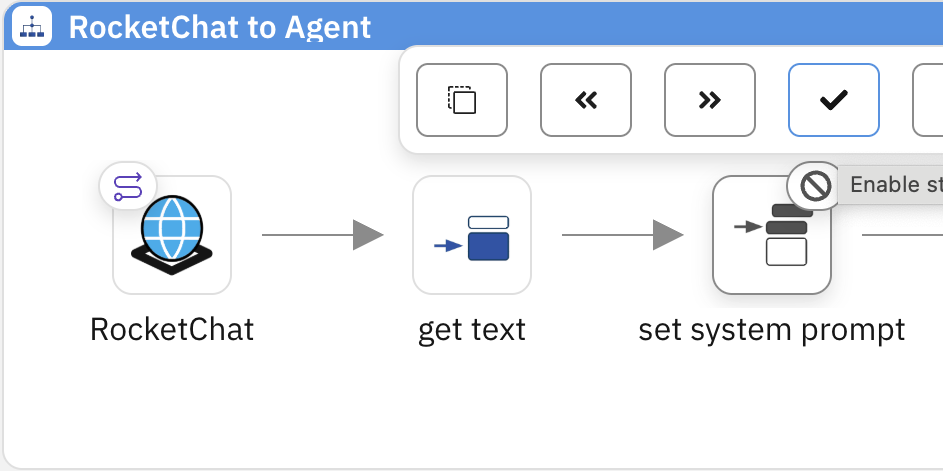
-
Hover the step and click the button.
-
-
Replace the dummy response with an Agent
The
Dummy responsestep is a placeholder — it always returns "Hello World". Replace it with the LangChain4j Agent component that connects to MaaS.-
Hover the
Dummy responsestep and click the floating button. -
Type
langin the 🔍 Filter to find the LangChain4j Agent component, then select it. -
Click the LangChain4j Agent step to open the configuration panel.
-
Select the
Requiredconfiguration tab. -
Set the
Agent Idto: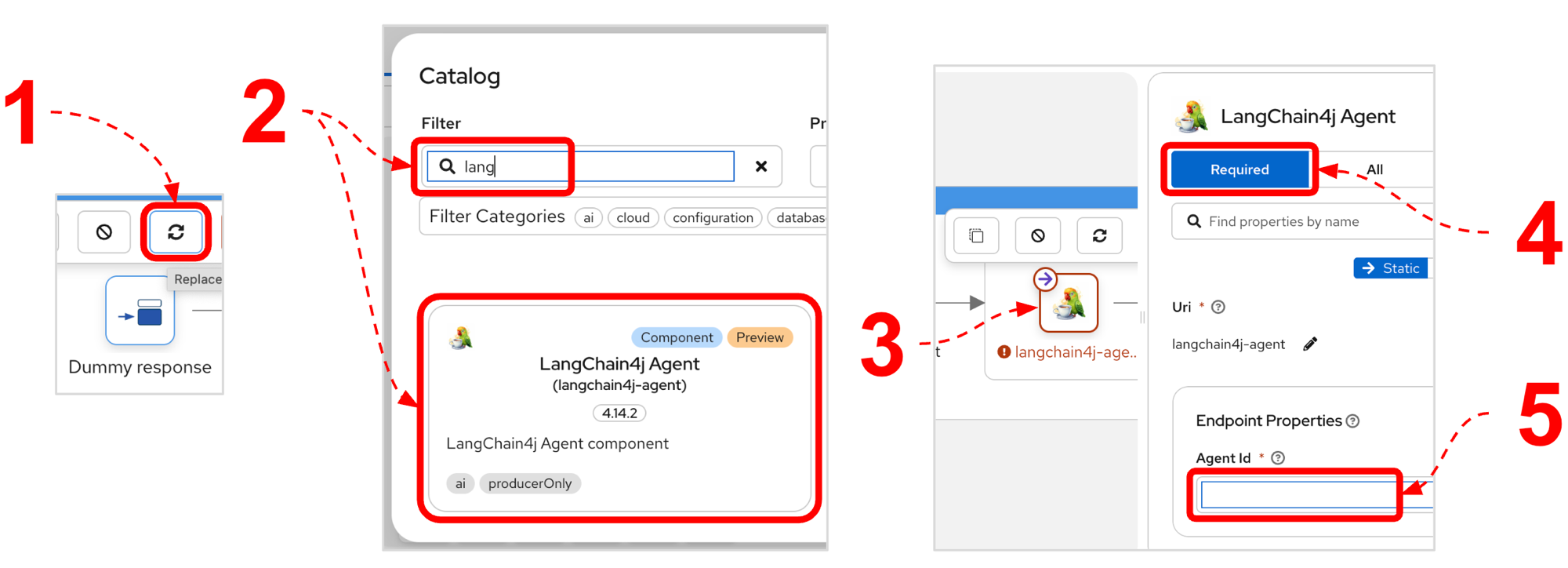
Because you’re running in dev mode, Camel hot-reloads automatically. Watch the terminal — the logs should confirm the agent is running:
2026-03-24 18:14:11.113  INFO camel.support.RouteWatcherReloadStrategy : Routes reloaded summary (total:2 started:2)
2026-03-24 18:14:11.115  INFO camel.support.RouteWatcherReloadStrategy :     Started rocketchat-to-agent (platform-http:///ai-support)
2026-03-24 18:14:11.116  INFO camel.support.RouteWatcherReloadStrategy :     Started to-rocketchat (direct://to-rocketchat)
-
-
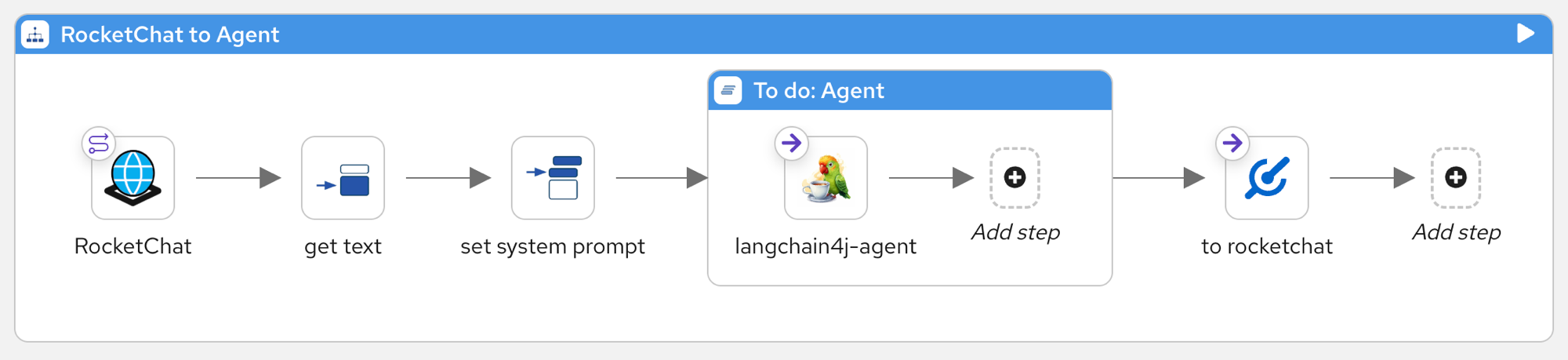
Check the updated flow
The system prompt is now active (1) and the AI agent has replaced (2) the dummy response. Your route should look like this:
-
Interact with the agent
Switch back to your Rocket.Chat window and type:
The AI agent processes your message — it sends it to the LLM via MaaS, which reasons about it and returns a natural language response. You should see something like:
rocket.chatUusername 5:06 PMHi againAai-bot 5:06 PMHello! How can I assist you today?The bot is responding, but can it do real work?
Not yet. The MCP servers and tools exist in the exercise but are not active yet.Try asking for something specific:
Your lab comes with a sample policy document ( 61356291) ready to use. This is the one referenced in the command above.You can also try fetching policy documents you generated during the Ingestion lab — feel free to use any policy document number from your earlier exercises. The bot responds with something like:
rocket.chatUusername 5:07 PMCan you show me policy document 61356291Aai-bot 5:07 PMI'm sorry, I don't have the capability to retrieve that PDF right now.As expected, the bot declines the request.
Why did the bot respond that way?The AI agent doesn’t have access to the tools it needs — the MCP servers haven’t been wired in yet.
The
system.messagefile contains the system prompt that guides the AI agent’s behaviour. One of its rules explicitly instructs the model to decline when it lacks the right tool:# CRITICAL CONSTRAINTS * **NO TOOL, NO URL:** If there is no tool fit for the job (missing), you MUST return Pattern 2 with the text: "I'm sorry, I don't have the capability to retrieve that PDF right now."
Once you register the tools, the agent will discover and use them automatically.
Wire in the MCP servers
The project includes MCP servers to provide the necessary tools for the Camel agentic flow — but the agent doesn’t know about them yet. You need to wire them in to the agentic flow.
The diagram below shows how the Agentic Integration (once MCP is active) routes tool calls from the AI model. Two MCP servers provide distinct toolsets — Node.js and Camel Quarkus. When the AI model needs a tool, the Agentic Integration routes the request to the appropriate MCP server, which executes the tool against the backend systems and returns the result.
flowchart LR
MaaS <-->|Tool calls| INTLabel
INTLabel <--> |"Toolset 1"| NodeJSLabel
INTLabel <--> |"Toolset 2"| CamelQuarkusLabel
NodeJSLabel --> |"Integrations"| ToolsInner
CamelQuarkusLabel --> |"Integrations"| ToolsInner
INTLabel[⚙️ <span style='font-weight:bold;font-size:1.2em;color: #EE0000'>Agentic Integration\n</span><p style='margin-top:5px'/><div style='border: solid 1px red; padding: 10px;background-color: #fce4e4'><div style='padding: 5px 0px 5px 25px;text-align:left;color: black;'>• AI reasoning<br>• Tool calling<br>• Integrations</div></div>\n]
subgraph ToolsLabel ["<br><br><br>Backend Systems "]
subgraph ToolsInner [" "]
direction LR
DB ~~~ S3 ~~~ HD
end
end
subgraph NodeJSLabel [" "]
NodeJS
end
subgraph CamelQuarkusLabel [" "]
CamelQuarkus
end
MaaS@{ img: "../../_images/module-03/common/ai-model-icon.svg", label: "AI Model", pos: "b", h: 80, w: 80, constraint: "on" }
NodeJS@{ img: "../../_images/module-03/common/nodejs-icon.svg", label: "MCP NodeJS", pos: "b", h: 80, w: 80, constraint: "on" }
CamelQuarkus@{ img: "../../_images/module-03/common/camel-quarkus-icon.svg", label: "MCP Camel Quarkus", pos: "b", h: 80, w: 80, constraint: "on" }
DB@{ img: "../../_images/module-03/common/database-icon.svg", label: "Database", pos: "b", h: 70, w: 70, constraint: "on" }
S3@{ img: "../../_images/module-03/common/s3-icon.svg", label: "S3 / ODF", pos: "b", h: 70, w: 70, constraint: "on" }
HD@{ img: "../../_images/module-03/common/helpdesk-icon.svg", label: "HelpDesk", pos: "b", h: 70, w: 70, constraint: "on" }
style MaaS fill:none,stroke:none
style NodeJS fill:none,stroke:none
style CamelQuarkus fill:none,stroke:none
style DB fill:none,stroke:none
style S3 fill:none,stroke:none
style HD fill:none,stroke:none
style INTLabel fill:none,stroke:none
style NodeJSLabel fill:none,stroke:none
style CamelQuarkusLabel fill:none,stroke:none
style ToolsLabel fill:none,stroke:none,color:#EE0000,font-weight:bold
style ToolsInner fill:#fce4e4,stroke:#EE0000
| The Agentic Integration can work with MCP servers implemented in different languages. This lab includes a Node.js MCP server and a Camel Quarkus MCP server — each providing distinct tools to the AI model. |
|
In Camel you don’t need MCP servers to define tools. You can define them directly as regular routes that starts with the For example, this is how you would define a local tool that retrieves the PDF URL for a given policy document: 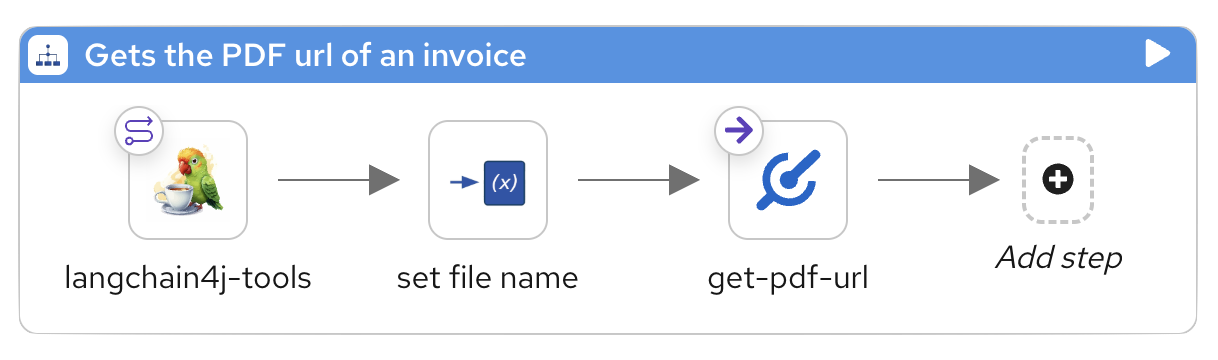
The route starts with the |
-
Wire in the MCP servers (Node.js and Camel Quarkus)
-
Stop the process running in your terminal with CTRL+C.
-
Open your agent’s configuration file file.
📁 lab
📁 agent
⚙ application.properties -
Uncomment the properties for the MCP servers. You should see this:
# MCP server (Node JS)
camel.component.langchain4j-agent.mcpServer[nodejs.transportType]=http
camel.component.langchain4j-agent.mcpServer[nodejs.url]=http://localhost:9090/mcp

# MCP server (Camel MCP)
camel.component.langchain4j-agent.mcpServer[camel.transportType]=http
camel.component.langchain4j-agent.mcpServer[camel.url]=http://localhost:9091/mcp
-
Now, use the
mcpscript to start the MCP servers, as follows:You should see the MCP servers starting up in the terminal:
[INFO] [Node.js] Starting MCP server...
[INFO] [Node.js] Installing dependencies...
[INFO] [Node.js] Starting server...
[INFO] [Node.js] Server started (PID: 89810)
[INFO] [Node.js] Endpoint: http://localhost:9090/mcp

[INFO] [Camel] Starting MCP server...
[INFO] [Camel] Starting Camel MCP server...
Running Camel Main: mcp-camel in background with PID: 89891 (waiting to startup)
Camel Main: mcp-camel (state: Starting)
[INFO] [Camel] Server started
[INFO] [Camel] Endpoint: http://localhost:9091/mcp
How to monitor the MCP server logs
You can follow the logs of either MCP server in real-time by passing its name (
camelornode) to thelogscommand:For example, the Camel MCP server logs show the five routes registered as MCP tools:
...AbstractCamelContext : Routes startup (total:5 started:5 kamelets:1) ...AbstractCamelContext : Started route1 (ai-tool://amend-policy-document) ...AbstractCamelContext : Started get-policy-document-data (direct://get-policy-document-data) ...AbstractCamelContext : Started route2 (ai-tool://create-ticket) ...AbstractCamelContext : Started store-pdf-s3 (direct://store-pdf-s3) ...AbstractCamelContext : Started route3 (ai-tool://share-ticket) ...AbstractCamelContext : Apache Camel 4.22.0 (mcp-camel) started in 6s719ms...How do I check if the MCP servers are running?
You can check the status of the MCP servers at any time by running:
You should see output similar to:
[INFO] Checking MCP servers status...

[INFO] [Node.js] Server is RUNNING (PID: 89810)
[INFO] [Node.js] Endpoint: http://localhost:9090/mcp

[INFO] [Camel] Server is RUNNING (PID: 89867)
[INFO] [Camel] Endpoint: http://localhost:9091/mcp
-
-
Restart the Camel agent
The MCP servers are now running and your agent is configured.
Restart it to pick up the new configuration: -
Try it out
Go back to Rocket.Chat and ask again:
What if the AI still says it can’t help?
The workshop uses a small LLM that can be inconsistent. The system prompt tells it to re-evaluate its tools before responding, but sometimes it replies as if no tools are available, for example:
rocket.chatUusername 5:10 PMCan you show me policy document 61356291Aai-bot 5:10 PMI'm sorry, I don't have the capability to retrieve that PDF right now.If that happens, try one or both of these options:
-
Send a more specific request:
This points the LLM to the right tool, which is usually enough to get it working.
-
Stop the process with CTRL+C and restart it. A fresh start gives the LLM a clean tool list.
If all goes well, this time the LLM discovers the tool, calls it, and responds with the policy document:
rocket.chatUusername 6:47 PMCan you show me policy document 61356291Aai-bot 6:47 PMHere is the policy document you requested.Policy Document 61356291 PDF ▾Click to view or downloadThe bot identified the right tool, retrieved the policy document, and returned a download link to the support agent. Clicking the link opens the PDF in a new tab.
See the sample policy document
Policy no: 61356291Date of issue: 09/06/2025
Insurer:Parasol Insurance
One Parasol Plaza
Atlanta, GA 30313
Tax Id: 843-56-1234
IBAN: GB50ACIE59715038217063Policyholder:Alex Morgan
742 Maple Avenue
Austin, TX 78701
Tax Id: 949-84-9105COVERAGE DETAILSNo. Description UM Net price Net worth VAT [%] Gross worth 1. Personal Liability – Standard Plan | Bodily injury & property damage | Limit: $100,000/occurrence mo. 28,99 28,99 10% 31,89 2. Property Damage | Third-party property damage caused by insured | Limit: $50,000 | Deductible: $500 mo. 34,50 34,50 10% 37,95 3. Medical Payments | No-fault medical expenses for injured parties | Limit: $5,000 per person mo. 18,00 18,00 10% 19,80 4. Roadside Assistance | 24/7 towing, jump-start & lockout service | Up to 50 miles per incident mo. 12,00 12,00 10% 13,20 SUMMARYVAT [%] Net worth VAT Gross worth 10% 93,49 9,35 102,84 Total $ 93,49 $ 9,35 $ 102,84 -
Amend the policy document
The ai-bot can do more than just retrieve data — it can act on it. Imagine the customer has changed their mind and wants to remove a coverage item. Ask the AI assistant to amend the policy document:
The agentic system inspects the policy document, identifies the matching coverage item, triggers the necessary tools to update the database, and responds with a summary of the changes:
The agentic system acted autonomously — it inspected the policy document, identified the coverage item, updated the record in the database, recalculated the totals, and confirmed the changes. All from a single natural language request.
Notice the bot’s response — it may suggest viewing the updated policy document (LLMs are unpredictable, so the exact wording varies). If it does, simply reply yes. If it doesn’t, ask to see the amended policy document:
Either way, the bot responds with the updated PDF link:
Click the link to open the regenerated policy document.
See a sample of the amended policy document
| Notice the red Amended tag in the upper-right corner of the document — this indicates the policy document has been modified from the original. |
Inspect the document and verify the modifications are correct — the Roadside Assistance coverage (item 4) should be removed, and the totals recalculated accordingly.
Raise a ticket
A customer support process rarely ends with a single action. Amending a policy involves multiple departments — confirming the changes, processing any refund, updating the policy records, notifying the customer. Rather than handling each step manually, ask the AI agent to raise a ticket that coordinates everything:
The agentic system gathers the context from the conversation, creates a ticket in the HelpDesk system, and responds with a confirmation:
| Before going any further, make sure you have already onboarded to Matrix and accepted the room invitation — the ticket will be shared with the customer there. Remember, Matrix represents the customer side, while Rocket.Chat is where the support agent works. If you haven’t done this yet, follow the Matrix platform onboarding instructions. |
The interaction above illustrates a simple request and response — but because LLMs are non-deterministic, the bot may have responded differently. Here’s what to expect and how to handle each case:
-
The bot asks to share the ticket (as shown above) — reply with:
-
The bot doesn’t mention sharing at all — ask it explicitly:
-
The bot shares the ticket automatically without asking — no action needed, skip ahead.
Either way, the final outcome is the same — the bot shares the ticket and the customer receives a link to the HelpDesk system:
Remember — the customer communicates from the Matrix messaging platform. The bot indicated the ticket was shared, which means the customer should have received a message with the ticket reference. Switch to your Matrix window and check.
You should see a message like this:
(Click to open in HelpDesk)
Verify the ticket from the customer’s perspective
Now put yourself in the customer’s shoes. The customer received a message in Matrix with a link to the Parasol HelpDesk ticketing system. Click the ticket link in the Matrix window.
A new tab opens with the Parasol HelpDesk login page:
Log in using the credentials below:
-
Username:
-
Password:
Once logged in, the Parasol HelpDesk displays the list of open tickets. You should see the ticket the AI agent just created:
Click the ticket to inspect its details. The AI agent composed the ticket body from the conversation — it includes a summary of the changes and a link to the updated policy document:
The full circle is complete: the AI assistant retrieved a policy document, amended it, raised a ticket with all the relevant details, and shared it with the customer across messaging platforms. All from natural conversation.
When you’re done, press Ctrl+C in the terminal to stop Camel.